Incoming Email Server
Configure incoming email servers to enable ServiceOps to receive email notifications and automatically convert incoming emails into service tickets. You can set up multiple incoming email servers.
To view the Incoming Email Servers tab, navigate to Admin > Support Channel > Emails > Incoming Email Servers.
After upgrading ServiceOps from version 8.0 to 8.1, re-configure all email servers as additional parameters have been added.
- Version 8.0: Client ID, Client Secret, Tenant ID, and Authorization URL.
- Version 8.1 and later: Client ID, Client Secret, Authorization URL, Token URL, Scope, and Redirect URL.
- Version 8.7.7 and later: Ticket creation is now set per incoming email server using Email To Ticket Behaviour, replacing the global Email to Ticket setting in Email Preference. Existing servers inherit the previous global value during upgrade (enabled → Create new tickets and add replies, disabled → Add replies only). New servers default to Create new tickets and add replies.
Supported Protocols
ServiceOps supports three protocols for connecting to incoming email servers. Choose based on your email provider and authentication method.
IMAP
IMAP (Internet Message Access Protocol) retrieves emails directly from the mail server without deleting them. Emails stay on the server and remain in sync across clients.
| Security | Port |
|---|---|
| None | 143 |
| SSL/TLS | 993 |
Use IMAP when your mail server is Gmail, Zoho, Yahoo, or any standard email server and you want to use Basic Auth or OAuth 2.0 via Azure.
IMAP must be enabled on your email account before configuring it in ServiceOps.
MAPI
MAPI connects to Microsoft Exchange Online or Office 365 over HTTPS (port 443) and provides live, rich mailbox access without a dedicated mail port. When you select MAPI, you also choose the underlying API connection type.
Use MAPI when your organization uses Microsoft Exchange Online or Office 365 and authenticates via Azure App Registration (OAuth 2.0).
MAPI requires Office 365 Exchange Online Application-type permissions in Azure. Restrict mailbox access so the Azure app can access only a single mailbox.
Email Connection Type
When Protocol is set to MAPI, an Email Connection Type field appears. Select how ServiceOps connects to your Exchange Online mailbox.
| Option | Description |
|---|---|
| Microsoft Graph API | Uses the Microsoft Graph REST API to read and process emails. Recommended for all new MAPI configurations. See Configuring Microsoft Azure for Microsoft Graph API for setup steps. |
| Exchange Web Services | Uses the legacy EWS SOAP-based API. Select this only if Graph API is not supported for your environment. |
Microsoft is retiring Exchange Web Services (EWS) for Exchange Online on October 1, 2026. Switch to Microsoft Graph API before this date to avoid service disruption. On-Premises Exchange installations are not affected.
You can switch the Email Connection Type on an existing server at any time. ServiceOps asks for confirmation before applying the change. No ticket data or email mappings are lost when switching.
POP3
POP3 (Post Office Protocol version 3) downloads emails from the server to ServiceOps and typically removes them from the server afterwards. It does not keep emails in sync across multiple clients.
| Security | Port |
|---|---|
| None | 110 |
| SSL/TLS | 995 |
Use POP3 only when your mail server does not support IMAP or when running a legacy ServiceOps setup. POP3 supports only Basic Auth and is not recommended for new configurations.
Protocol Comparison
Use the table below to select the right protocol for your environment.
| Feature | IMAP | MAPI | POP3 |
|---|---|---|---|
| Email Provider | Any standard server | Microsoft Exchange / Office 365 only | Any standard server |
| Emails stay on server | Yes | Yes | Usually deleted after download |
| Multi-client sync | Yes | Yes | No |
| OAuth 2.0 support | Yes (via Azure) | Yes (via Azure) | No |
| API Connection | Not applicable | Microsoft Graph API (recommended) or EWS (legacy, retiring Oct 2026) | Not applicable |
| Recommended for | Standard and general use | Microsoft enterprise environments | Legacy setups only |
Adding an Incoming Email Server
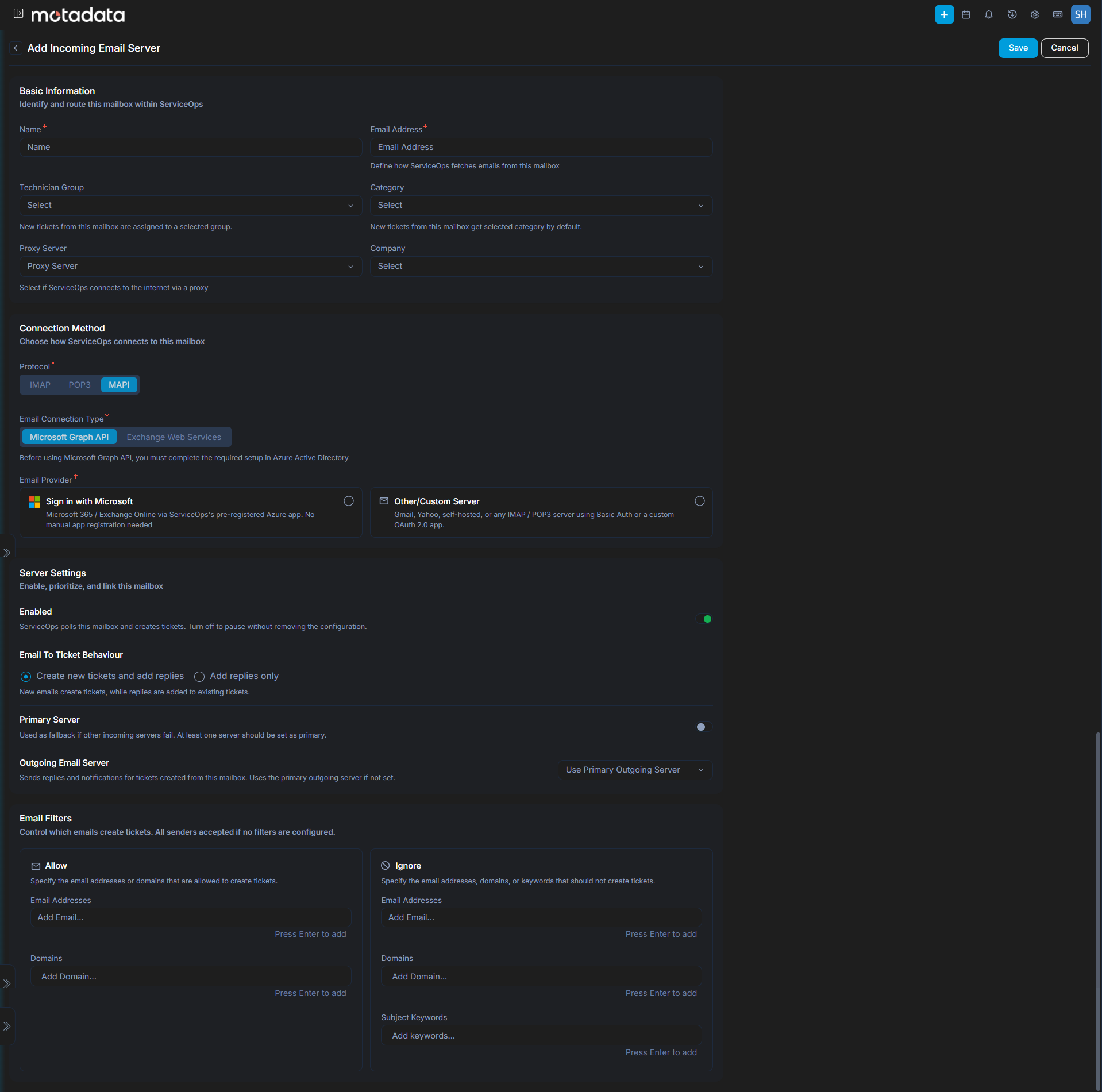
Click the Add Incoming Email Servers button at the top-right corner of the page. A side panel appears with the following sections.
The server configuration information is available with your email service provider.

Basic Information
This section identifies and routes this mailbox within ServiceOps.
| Field | Description |
|---|---|
| Name | Enter a name to identify this email server in ServiceOps. |
| Email Address | Enter the email address of the mailbox. |
| Technician Group | Select the technician group assigned when a new request is created via this mailbox. |
| Category | Select the category assigned to new requests created from this mailbox. |
| Proxy Server | Select the desired proxy server. Leave blank if ServiceOps has direct internet access. |
Email Provider
Select how ServiceOps connects and authenticates with this mailbox.
- Sign in with Microsoft: Uses ServiceOps's pre-registered Azure enterprise application. No manual Azure App Registration is required. Microsoft handles authentication automatically. The Server, Port, Security Type, and Auth Type fields are not shown for this option. Before proceeding, ensure the URL
https://email-app.serviceops.ai/is accessible and application consent is enabled for the user and their group. - Other/Custom Server: Use for Gmail, Zoho, Yahoo, or any mail server that requires manual configuration of server address, port, security type, and credentials. This is also the correct path for configuring MAPI with your own Azure App Registration.
Protocol & Server Connection
This section controls which protocol ServiceOps uses to retrieve emails from the mailbox.
| Field | Description |
|---|---|
| Protocol | Select IMAP, MAPI, or POP3. Use IMAP or MAPI instead of POP3 where possible. POP3 supports only Basic Auth and is not recommended for new configurations. |
| Server Connection Type | Appears only when Protocol is set to MAPI (SaaS deployments only). Select Microsoft Graph API (recommended) or Exchange Web Services (Deprecated). Selecting Microsoft Graph API with the Other/Custom Server provider requires completing the Azure App Registration first. See Configuring Microsoft Azure for Microsoft Graph API. No additional Azure setup is required when using Sign in with Microsoft. |
| Server | Enter the server address. Shown only for Other/Custom Server. Common values: IMAP (Gmail): imap.gmail.com, IMAP (Microsoft): outlook.office365.com, MAPI: outlook.office365.com, POP3 (Gmail): pop.gmail.com. |
| Port | Enter the port number. Auto-populated based on Protocol and Security Type. Common values: IMAP SSL: 993, POP3 SSL: 995. Shown only for Other/Custom Server. |
| Security Type | Select None, SSL, or TLS. Shown only for Other/Custom Server. |
When Security Type is set to SSL or TLS, enter a fully qualified domain name (FQDN) in the Server field. An IP address is supported only when Security Type is set to None.
Microsoft is retiring Exchange Web Services (EWS) for Exchange Online on October 1, 2026. Switch to Microsoft Graph API before this date to avoid service disruption. On-Premises Exchange installations are not affected.
Authentication
This section appears only for the Other/Custom Server provider. Select and configure the authentication method for the mailbox.
| Field | Description |
|---|---|
| Email Auth Type | Select Basic Auth (email address and password) or OAuth (Client ID, Client Secret, Authorization URL, Token URL, and Scope). Basic Auth is not supported for Microsoft Outlook. Refer to Configuring Microsoft Azure for OAuth or Configuring Gmail for OAuth for OAuth setup details. |
| Company | Select the company assigned to requests created via this mailbox. Available only if the Managed Services Provider feature is enabled. |
For Sign in with Microsoft, click Sign in with Microsoft in the Email Provider section, select or sign in to the Microsoft account, and click Accept to grant the required permissions. If application consent is managed by an administrator, refer to Configuring Admin Consent first.
Server Settings
This section enables, prioritizes, and links an outgoing server to this mailbox.
| Field | Description |
|---|---|
| Enabled | Toggle to enable or disable this email server. Turn off to pause email processing without removing the configuration. |
| Email To Ticket Behaviour | Select Create new tickets and add replies (default) to create tickets from new emails and add replies to existing tickets, or Add replies only to add replies to existing tickets without creating new ones. Unmatched emails on a replies-only server are recorded in Email Audit. Use Add replies only for dedicated communication mailboxes. |
| Primary Server | Enable to designate this as the primary incoming server. When multiple servers are configured, the primary server is used as the default. |
| Real Time Scanning | Enable to scan emails in real time. If disabled, the system scans for new emails every 2 minutes. Available for IMAP only. |
| Outgoing Email Server | Enable to link an outgoing email server for reply notifications sent from tickets created via this mailbox. Click Use Primary Outgoing Server to automatically use the configured primary outgoing server, or select a specific server from the dropdown. If not set, ServiceOps uses the default primary outgoing server. |
Email Filters
This section controls which emails create tickets. You can configure Allow and Ignore filters independently. All senders are accepted if no filters are configured.
Allow
Use the Allow section to specify which email addresses and domains can create tickets. Emails that do not match any Allow rule are blocked when Allow filters are configured.
| Field | Description |
|---|---|
| Email Addresses | Enter specific email addresses to allow. Only emails from these addresses can create tickets. Example: hr@company.com. Multiple entries work as OR conditions. |
| Domains | Enter domain names to allow, without the @ symbol. Example: company.com. Only emails from these domains can create tickets. Multiple entries work as OR conditions. |
Ignore
Use the Ignore section to specify which email addresses, domains, and subject keywords should be silently discarded and never create tickets.
| Field | Description |
|---|---|
| Email Addresses | Enter specific email addresses to ignore. Emails from these addresses are silently discarded. Example: cxo@company.com. Multiple entries work as OR conditions. |
| Domains | Enter domain names to ignore, without the @ symbol. Example: example.com. All emails from these domains are silently discarded. Multiple entries work as OR conditions. |
| Subject Keywords | Enter words or phrases to match against the email subject. Emails whose subject matches are silently discarded. Use terms like Auto Reply and Out of Office to prevent auto-response loops. Multiple entries work as OR conditions. |
Click Save to add the server. Verify connectivity using the Test Connection button from the list page.

Testing Your Configuration
After saving the incoming email server, verify connectivity before relying on it for ticket creation.
Test Connection
Click the Test Connection button from the server list page. ServiceOps attempts to connect to the mail server using the saved protocol, server address, port, security type, and credentials.
| Result | What It Means |
|---|---|
| Success | ServiceOps connected to the mail server. The configuration is correct. |
| Error / Failure | The connection could not be established. Review the configuration and try again. |
Test Connection validates server connectivity and authentication only. It does not verify filter rules or confirm that emails will create tickets.
Use the table below to diagnose connection failures:
| What Is Checked | Common Causes of Failure |
|---|---|
| Server hostname or IP reachability | Wrong server address, DNS resolution failure, or firewall blocking the connection |
| Port accessibility | Wrong port number, or the port is blocked by a firewall |
| Security type handshake | SSL/TLS certificate issue, or wrong security type selected |
| Authentication credentials | Wrong username or password, expired App Password, or OAuth token issue |
| Protocol availability | IMAP, MAPI, or POP3 not enabled on the email account |
Verifying End-to-End Ticket Creation
After a successful Test Connection, confirm that incoming emails are converted into tickets:
- Send a test email to the configured incoming email address.
- Wait for ServiceOps to poll the mailbox. If Real Time Scanning is enabled (IMAP only), the ticket appears almost immediately. If disabled, allow up to 2 minutes.
- Go to the Requests list in the Technician Portal.
- Verify the ticket appears with the correct Subject, Description, Requester, Technician Group, and Category.
If the ticket does not appear, confirm that Email To Ticket Behaviour for the server is set to Create new tickets and add replies, check whether a filter is blocking the sender's address, and review the Email Audit logs at Admin > Organization > Security > Operation Audit.
Monitoring Incoming Email Server Health
Each incoming email server card displays a real-time status indicator (Reachable or Unreachable), the Last Sync Time of the most recent polling cycle, and an Inbound Queue count showing emails pending processing. When a server becomes unreachable, an inline error message appears on the card. Click the link in the error message to view the error details. ServiceOps sends an in-app notification to the Super Admin and all users with the Manage Support Channels permission. A recovery notification is generated when the server returns to a reachable state.


Configuring Incoming Email Rules
Incoming email rules provide granular control over email-to-ticket automation, routing emails to the right team and request type based on conditions such as mailbox, subject, or description. All changes are recorded in the Configuration Audit Trail.
Click the Configure Incoming Email Rules button from the server list page to open the rules panel. For full configuration details and a worked example, see Incoming Email Rules.
Best Practices
For best practices that apply across all email server configuration, see Email Best Practices.
Troubleshooting
Use the sections below to resolve common issues with incoming email server setup and email-to-ticket conversion.
Test Connection fails after saving the server
Check each of the following in order:
- Server address: Confirm the hostname or IP is correct and reachable from the ServiceOps server. For Microsoft, the address is
outlook.office365.com. - Port and security type: IMAP with SSL uses port 993; POP3 with SSL uses port 995. Mismatched combinations cause handshake failures.
- Protocol enabled on the account: IMAP or POP3 must be explicitly enabled in the mailbox settings of your email provider before ServiceOps can connect.
- Credentials: For Basic Auth, verify the username and password (or App Password for Gmail). For OAuth, check that the Client ID, Client Secret, and Scope are copied correctly from Azure or Gmail.
- Firewall or proxy: Ensure the port is open between ServiceOps and the mail server. If using a proxy, confirm it is configured under Proxy Server.
- OAuth token expired: If the connection was working and suddenly fails, the OAuth token or client secret may have expired. Regenerate the secret in Azure or Gmail and update the server configuration.
Emails are not converting into tickets
A successful Test Connection confirms server access but does not guarantee ticket creation. Check the following:
- Email To Ticket Behaviour: Open the server configuration and confirm it is set to Create new tickets and add replies. With Add replies only, new emails never create tickets.
- Filter configuration: Verify that the sender's address or domain does not match an Ignore rule, and that it matches an Allow rule if one is configured. Also check that the email subject does not match an Ignore Subject Keyword.
- Real Time Scanning: If IMAP is configured without Real Time Scanning, the system polls every 2 minutes. Wait and check again before investigating further.
- Email Audit logs: Navigate to Admin > Organization > Security > Operation Audit and review the Email Audit entries for the time the email was sent. Look for rejection reasons such as filter matches, parsing errors, or ticket creation being disabled for the server.
- Duplicate detection: If the same email was received before, ServiceOps may suppress it as a duplicate. Check the Email Preference settings for duplicate detection thresholds.
OAuth authentication errors for Microsoft Azure
OAuth failures for Microsoft-based servers are usually caused by one of the following:
- Incorrect scope: The scope must match the protocol and connection type. For IMAP use
offline_access https://outlook.office365.com/IMAP.AccessAsUser.All; for MAPI with Exchange Web Services useoffline_access https://outlook.office365.com/EWS.AccessAsUser.All; for MAPI with Microsoft Graph API usehttps://graph.microsoft.com/.default. - Admin consent not granted: Navigate to Azure > API Permissions and confirm that Grant admin consent has been clicked and all permissions show a green checkmark. Refer to Configuring Admin Consent.
- Redirect URL mismatch: The Redirect URL in ServiceOps must exactly match the Redirect URI registered in the Azure App Registration, including trailing slashes.
- Client secret expired: Azure client secrets have an expiry date. Check the Certificates & secrets page in Azure and regenerate if expired.
- Mailbox access not restricted correctly: For MAPI, the Azure app requires Application-type permissions and mailbox access must be scoped to a single mailbox. Refer to Configuring Microsoft Azure for OAuth.
Microsoft Graph API connection fails for a MAPI server
Cause: The Azure App Registration is missing the required Graph API permissions, admin consent was not granted, or the wrong scope value was entered in ServiceOps.
Fix:
- Open the Azure App Registration and go to Manage > API Permissions. Confirm
Mail.ReadandMail.ReadBasic.Allare listed as Application permissions with a green checkmark. If not, click Grant admin consent. - Confirm the Scope field in ServiceOps is set to exactly
https://graph.microsoft.com/.default. Do not use EWS or IMAP scope values. - Confirm the Client ID and Client Secret match the values in the Azure App Registration. Regenerate the secret if it has expired.
- Click Test Connection to verify. For full setup instructions, see Configuring Microsoft Azure for Microsoft Graph API.
Microsoft is retiring Exchange Web Services (EWS) for Exchange Online on October 1, 2026. If your MAPI server currently uses EWS, switch the Email Connection Type to Microsoft Graph API before that date.
Auto-reply emails are creating duplicate tickets
Out-of-office replies and auto-responses can trigger repeated ticket creation. To prevent this:
- Navigate to the incoming email server configuration and open the Email Filters section.
- Under Ignore, add terms such as
Auto Reply,Out of Office,Automatic Reply, andDo Not Replyto the Subject Keywords field. - Click Save. ServiceOps silently discards emails whose subject matches any of these keywords.
Multiple keyword entries work as OR conditions, so any match causes the email to be discarded.