Email Server Troubleshooting in ServiceOps
Diagnose and fix email server failures in ServiceOps using the Email Audit log and log file analysis. Use this guide for step-by-step diagnostic checks.
This guide covers how incoming and outgoing email servers work together and how to read every Email Audit status. It also includes configuration best practices and server-side diagnostic commands. For quick answers to specific error scenarios, see the Email Server FAQs.
How Email Works in ServiceOps
Understanding the email flow helps you identify exactly which step failed when a ticket doesn't arrive or a notification doesn't send.
ServiceOps uses two separate email server types. The Incoming Email Server reads emails from a mailbox (via IMAP, MAPI, or POP3) and converts them into tickets or conversations. The Outgoing Email Server sends notifications, replies, approvals, and alerts out of ServiceOps via SMTP or MAPI.
End-to-End Email Journey
When a Requester sends an email to the support mailbox, ServiceOps processes it in the following sequence:
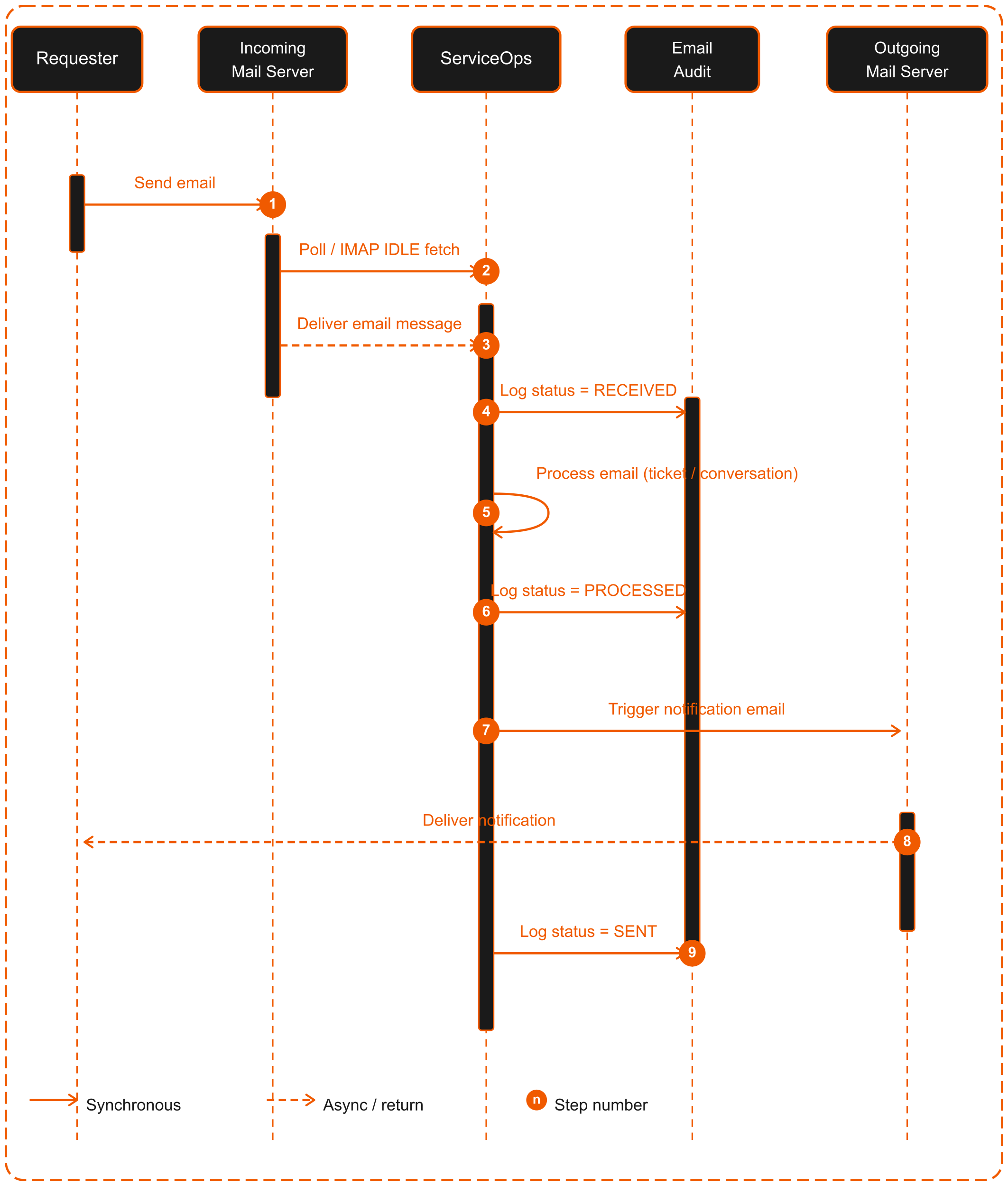
| Step No. | What Happens | Detail |
|---|---|---|
| Step 1 | Email arrives in mailbox | Requester sends email to support@company.com |
| Step 2 | Incoming server fetches it | ServiceOps polls or listens (IMAP IDLE / scheduled polling) and retrieves the email |
| Step 3 | Email Audit records RECEIVED | ServiceOps logs the email with status RECEIVED |
| Step 4 | Email is processed | ServiceOps creates a ticket, adds a conversation, or runs an email command |
| Step 5 | Audit records PROCESSED | ServiceOps confirms ticket or conversation creation in the audit |
| Step 6 | Outgoing server sends notification | ServiceOps triggers a notification email via the linked outgoing server |
| Step 7 | Audit records SENT | ServiceOps logs the notification delivery as SENT |
If any step fails, the Email Audit log shows where the failure occurred. Every fetch, processing attempt, and send attempt produces an audit entry.
Incoming and Outgoing Server Linking
Each incoming email server can link to a specific outgoing email server. When ServiceOps creates a ticket from that mailbox, it sends all reply notifications via the linked outgoing server.
| Configuration | Result |
|---|---|
| Incoming server linked to an outgoing server | ServiceOps sends replies for that mailbox via the linked outgoing server |
| No outgoing server linked | ServiceOps sends replies via the default primary outgoing server |
| Outgoing server disabled or misconfigured | Notifications fail: SEND_FAILED appears in Email Audit |
Email Audit Reference
The Email Audit is the primary diagnostic tool for all email issues in ServiceOps. Navigate to Admin > Organization > Security > Email Audit to access it.
Every audit entry records the event time, email server, sender or recipient address, subject, status, and a change summary message. Use the tables below to match any audit message to its cause and corrective action.
Incoming Email Audit Messages
The following table covers all statuses and messages ServiceOps logs for incoming email activity.
| Audit Message | Status | Action |
|---|---|---|
| Incoming mail received successfully | RECEIVED | Normal: email fetched. Check for PROCESSED next. |
| Ignoring this Email - system acknowledgment mail | RECEIVED IGNORED | Expected behavior: no action needed. |
| Ignoring this Email - Reference and In-ReplyTo are same | RECEIVED IGNORED | Self-referencing loop, expected deduplication. No action. |
| Ignoring this email - From Email user is Archived/Deleted | RECEIVED IGNORED | Restore or reactivate the sender's user account in User Management. |
| Ignoring this Email - Ticket Creation with CC/BCC is disabled | RECEIVED IGNORED | Enable CC/BCC ticket creation in the incoming server settings. |
| Ignoring the email - this email was processed before | RECEIVED IGNORED | Duplicate Message-ID already processed. No action. |
| Ignoring this Email - sender matched spam/ignore filter | RECEIVED IGNORED | Review Filter Configuration and whitelist the sender if legitimate. |
| Ignoring this Email - Reply-To email is marked as Ignored | RECEIVED IGNORED | Remove the Reply-To address from the ignore list if it's valid. |
Request has been created With Id = <id> (for example, Request has been created With Id = INC-2) | PROCESSED | Incident ticket created. Normal. |
Service Request has been created With Id = <id> (for example, Service Request has been created With Id = SR-5) | PROCESSED | Service Request created. Normal. |
Conversation is created for request: <name> (for example, Conversation is created for request: IT Device Maintenance) | PROCESSED | Reply threaded to existing ticket. Normal. |
| Process Completed For Approval Status Update Through Email Command | PROCESSED | Approval actioned via email command. Normal. |
<N> attachments added to <request> with Id: <name> (for example, 2 attachments added to Email Server is not Working with Id: INC-4) | ATTACHMENT PROCESSED | Attachments saved. Normal. |
| Guest User is not allowed to create/update request | PROCESSED FAILED | Enable guest ticket creation in Email Preference, or add the sender as a user. |
| Do not create Request - Email To Request is OFF | PROCESSED FAILED | Enable the Email-to-Ticket toggle on the incoming server. |
| Subject matched with other regex prefix | PROCESSED FAILED | Review request ID prefix settings in the Admin > Request Management > Request Categories > Category Configurations. |
Failed to process attachments, due to error: <detail> (for example, Failed to process attachments, due to error: File size exceeds the 25MB limit) | ATTACHMENT PROCESSED FAILED | Check storage or ask the requester to re-upload. |
Outgoing Email Audit Messages
The following table covers all statuses and messages ServiceOps logs for outgoing email activity.
| Audit Message | Status | Action |
|---|---|---|
| Email Sent Successfully | SENT | Delivered. No action. |
Email Sent Successfully, <filename> this attachment has been ignored (for example, Email Sent Successfully, "Request-List.csv" this attachment has been ignored) | SENT | Attachment too large. Share via an alternative channel. |
| Outgoing failed: Mail server connection failed | SEND_FAILED | Fix SMTP host, port, or firewall. See Email Server FAQs. |
| Outgoing failed: Email configuration is not proper or Recipients list is empty | SEND_FAILED | Fix server configuration or notification template recipients. |
Outgoing failed: <authentication error detail> (for example, Outgoing failed: "Invalid username or password") | SEND_FAILED | Fix credentials or OAuth token. See Email Server FAQs. |
Outgoing failed: <OAuth configuration error> (for example, Outgoing failed: No authentication method agreed upon between client and server ) | SEND_FAILED | Re-authenticate OAuth. |
Outgoing ignored: Email is ignored As per <filterType> filter in <serverName> (for example, Outgoing ignored: Email is ignored as per domain filter in mail-gateway-01 ) | SEND_IGNORED | Remove the recipient's address from the outgoing server's spam/ignore filter. |
Configuration Best Practices
Following these practices reduces the likelihood of email failures and makes troubleshooting faster when issues do occur.
Incoming Email Server
Apply these settings when configuring or reviewing any incoming email server in ServiceOps.
- Use IMAP over POP3 for all new setups. IMAP keeps emails on the server after fetching, supports multi-client sync, and ServiceOps requires it for Real Time Scanning.
- Use a dedicated support mailbox (e.g., support@company.com). Shared personal inboxes cause unpredictable ticket creation from unrelated emails.
- Use OAuth 2.0 over Basic Auth for Microsoft 365 and Google Workspace. Microsoft has deprecated Basic Auth for Exchange Online.
- Set Technician Group and Category defaults on every incoming server so tickets are never created unassigned.
- Configure at least one incoming server as Primary, which acts as a fallback if others fail.
- Review Filter Configuration regularly. Overly broad ignore rules silently drop legitimate tickets without any error.
- After any configuration change, click Test Connection immediately to verify the fix works.
Outgoing Email Server
Apply these settings when configuring or reviewing any outgoing email server in ServiceOps.
- Use port
587with STARTTLS as the default SMTP configuration. It's the most widely supported secure option. - Use OAuth 2.0 for Microsoft 365 environments. Microsoft has disabled Basic Auth for Exchange Online.
- Set a valid Reply-To address pointing to the incoming mailbox address. Without it, Requester replies don't thread back to existing tickets.
- Keep the outgoing spam/ignore filter rules minimal. Incorrectly filtered addresses silently drop notifications with no SEND_FAILED entry.
- Link each incoming server to its specific outgoing server when you run multiple mailboxes. This ensures replies go out from the correct address.
- Monitor Email Audit proactively. A sudden spike in SEND_FAILED entries means users are already missing notifications.
Advanced Email Diagnostics
Use these commands to diagnose connectivity failures, inspect application logs, and verify the email job scheduler. A Technician runs them on the ServiceOps Linux server as the application user or root.
Run all commands from the ServiceOps server terminal as the application user or root.
Network and Connectivity Checks
Start here before checking logs. Most email failures trace back to a blocked port or a DNS resolution failure.
Check internet connectivity
# Basic ping test
ping -c 4 www.google.com

# If ICMP is blocked, test with curl
curl -I https://www.google.com --max-time 10
If ping www.google.com fails but ping 8.8.8.8 succeeds, the issue is DNS resolution, not connectivity.
Check DNS resolution
nslookup imap.gmail.com
nslookup smtp.office365.com
nslookup email-app.serviceops.ai

# Check the configured DNS server
cat /etc/resolv.conf

# Flush DNS cache (systemd-resolved)
sudo systemd-resolve --flush-caches
Check URL reachability
# Test the ServiceOps email relay URL
curl -I https://email-app.serviceops.ai/ --max-time 15

# Test mail server endpoints
curl -I https://outlook.office365.com/ --max-time 15
curl -I https://imap.gmail.com/ --max-time 15

# Expected: any HTTP status (200, 301, 401) = URL reachable
# Failure: 'Could not resolve host' or 'Connection timed out' = blocked
If curl to email-app.serviceops.ai fails, whitelist this URL on your corporate firewall or proxy. OAuth token exchange requires this URL to be reachable from the ServiceOps server.
Check port connectivity
# IMAP SSL
nc -zv imap.gmail.com 993
nc -zv outlook.office365.com 993

# SMTP STARTTLS
nc -zv smtp.office365.com 587
nc -zv smtp.gmail.com 587

# SMTP SSL
nc -zv smtp.gmail.com 465

# EWS / OAuth (Exchange Online)
nc -zv outlook.office365.com 443

# Alternative using telnet
telnet smtp.office365.com 587

# Expected: 'Connection to <host> <port> port [tcp/*] succeeded!'
# Failure: 'Connection timed out' = port blocked by firewall or proxy
Check routing and latency
traceroute smtp.office365.com
traceroute imap.gmail.com

# Check the ServiceOps server's public IP for relay whitelist verification
curl ifconfig.me
High latency (over 300 ms) or dropped hops in traceroute indicate a network path issue that causes SMTP or IMAP timeouts in ServiceOps.
Check SSL/TLS certificate
# Verify SMTP TLS certificate (Office 365)
openssl s_client -connect smtp.office365.com:587 -starttls smtp 2>/dev/null | grep -E 'subject|issuer|date|Verify'

# Verify IMAP SSL certificate (Gmail)
openssl s_client -connect imap.gmail.com:993 2>/dev/null | grep -E 'subject|issuer|date|Verify'

# Expected: Verify return code: 0 (ok)
# Failure: 'Verify return code: 20' = untrusted CA or expired certificate

# Check system CA certificate bundle
ls /etc/ssl/certs/ | head -5

# Refresh the CA certificate store if certs are stale
update-ca-certificates
ServiceOps Log Analysis
All ServiceOps logs live at /opt/flotomate/main-server/apolo(or tenant name)/logs/. Use the log files below to identify the exact error when Test Connection passes but emails still fail.
| Log File | Path | What It Contains |
|---|---|---|
email.log | /opt/flotomate/main-server/apolo/logs/email.log | All email fetch and send activity: connection attempts, auth results, RECEIVED, PROCESSED, and SEND_FAILED events |
error.log | /opt/flotomate/main-server/apolo/logs/error.log | Application errors: exceptions, stack traces, and failed operations including email processing errors |
service.log | /opt/flotomate/main-server/apolo/logs/service.log | General lifecycle events: email authentication and configuration changes |
Reading email.log
cd /opt/flotomate/main-server/apolo/logs/

# Watch live email activity
tail -f email.log

# Filter for connection failures
grep -i 'connection failed\|connection refused\|timed out' email.log | tail -50

# Filter for authentication errors
grep -i 'auth\|authentication\|535\|credentials\|token' email.log | tail -50

# Filter for RECEIVED_IGNORED events
grep -i 'ignored\|received_ignored' email.log | tail -50

# Search by specific email address
grep 'support@company.com' email.log | tail -30
Reading error.log
# Watch for new errors live
tail -f error.log

# Find email-related exceptions
grep -i 'email\|smtp\|imap\|oauth\|mail' error.log | tail -50

# Find OAuth token errors
grep -i 'oauth\|token\|unauthorized\|401\|403' error.log | tail -30

# Show last 200 lines with timestamps
tail -200 error.log
Reading service.log
# Check whether the email polling job is executing
grep -i 'email\|email.*scheduler\|fetch.*email' service.log
Email Job Scheduler Check (Quartz)
If emails are not being fetched but the server configuration is correct, check whether the Quartz email polling job stopped or entered a blocked state. Run this query in the Query Report module. Select the Request module and enter:
select * from master.qrtz_triggers
Locate the email polling job row and check these fields:
| Field | Normal Value | Action if Abnormal |
|---|---|---|
TRIGGER_STATE | WAITING or ACQUIRED | If ERROR or BLOCKED: restart the ServiceOps service |
PREV_FIRE_TIME | Recent timestamp (within the last few minutes) | If stale (hours ago): the job isn't running. Restart the service. |
NEXT_FIRE_TIME | Near-future timestamp | If NULL or in the past: the scheduler isn't scheduling. Restart the service. |
If the scheduler shows an abnormal state after a service restart, connect to the Motadata team for further investigation.
Thread Dump Collection and Analysis
Collect a thread dump when ServiceOps appears to hang, when email processing stops without errors, or when the application is slow. A thread dump captures the state of all JVM threads at a point in time.
Method 1: ServiceOps built-in script (recommended)
# Run the ServiceOps thread dump script
sudo /usr/local/bin/ServiceOps-ThreadDump

# The script outputs the file path where the dump is saved
# Typically: /opt/flotomate/main-server/logs/threaddump-<timestamp>.txt

# View the dump
cat /opt/flotomate/main-server/logs/threaddump-*.txt | less
Always use the built-in script first, as it saves the dump in the correct format and location for support analysis.
Method 2: Manual JVM commands (if the script is unavailable)
# Step 1: Find the ServiceOps Java process ID
ps aux | grep boot-hosted | grep -v grep

# or
sudo systemctl status flotomate-main | grep 'Main PID'


# Step 2a: Send SIGQUIT signal (prints dump to log)
sudo kill -3 <PID>

# Step 2b: Use jstack if JDK is installed
sudo jstack -l <PID> > /opt/flotomate/main-server/logs/threaddump-manual-$(date +%Y%m%d_%H%M%S).txt

# Step 3: View the dump
less /opt/flotomate/main-server/logs/threaddump-manual-*.txt
Searching a thread dump for email issues
# Find blocked threads and deadlocks
grep -i 'blocked\|deadlock' threaddump-*.txt

# Find email-related threads
grep -i 'email\|emailjob' threaddump-*.txt
Look for these patterns in the output:
- BLOCKED or ERROR state threads: A BLOCKED email thread means another thread holds a lock it needs.
emailoremailjobin thread names: These are email-related threads. Any that are BLOCKED need investigation.- Deadlock section at the end:
jstackhighlights deadlocks automatically. A deadlock between email threads permanently stops email processing. sun.security.sslorjavax.net.sslin stack trace with BLOCKED state: Indicates an SSL handshake hang, usually caused by a network issue or an expired certificate.org.quartzframes with WAITING state: Normal: the scheduler is idle.org.quartzframes with BLOCKED state indicate a scheduling lock problem.
Common Configuration Errors
These errors result from specific configuration mistakes that cause connection failures. They may not surface during Test Connection but appear in email.log or error.log during live operation.
TLS/SSL connection fails with "No subject alternative names matching IP address" error
Cause: The Server field contains an IP address while Security Type is set to TLS/SSL or STARTTLS. TLS certificates are issued for DNS hostnames, not IP addresses. During the TLS handshake, the certificate hostname verification fails because the IP address does not match any name on the certificate. The error in the email log appears as:
jakarta.mail.MessagingException: No subject alternative names matching IP address x.x.x.x found
Fix:
Replace the IP address in the Server field with the fully qualified domain name (FQDN) of the mail server, for example
mail.company.com.Confirm the FQDN matches the Common Name (CN) or a Subject Alternative Name (SAN) on the mail server's certificate. For a wildcard certificate such as
*.company.com, the hostname must be a single-level subdomain:mail.company.commatches, butimap.internal.company.comdoes not.Confirm the FQDN resolves to the mail server's IP address from the ServiceOps server. If no internal DNS record exists, create one or add an entry to the hosts file on the ServiceOps server mapping the certificate hostname to the mail server's IP.
Verify the certificate name from the ServiceOps server before saving the configuration:
openssl s_client -connect <hostname>:993 -servername <hostname>The
subject=line in the output shows the names the certificate is issued for. The hostname in the Server field must match one of them.
An IP address in the Server field is only supported when Security Type is set to None.