SNMP Device Troubleshooting
Restore SNMP connectivity and fix discovery failures in ServiceOps by systematically diagnosing network blocks, credential mismatches, and device misconfigurations across any vendor.
SNMP (Simple Network Management Protocol) is how ServiceOps communicates with network devices, servers, and other hardware to collect data during discovery. When discovery fails, the cause is almost always one of three things: a network or firewall issue, a wrong credential, or a misconfiguration on the device itself.
Prerequisites
Before troubleshooting, collect the following information:
| # | What you need | Why |
|---|---|---|
| 1 | Device IP address | Target for all tests |
| 2 | Device vendor and model (e.g., Cisco IOS, Fortinet FortiGate) | Determines which device-side commands to run |
| 3 | SNMP version (v2c or v3) | Determines which test commands to use |
| 4 | Credentials: community string (v2c) OR username/auth password/privacy password (v3) | Required for the connection test |
| 5 | ServiceOps server IP | Needed to check firewall and ACL rules |
| 6 | Whether the device was previously working | Helps narrow down what changed |
To check the SNMP version, navigate to Admin > Discovery and Agents > Credentials in ServiceOps and open the credential profile assigned to the device.
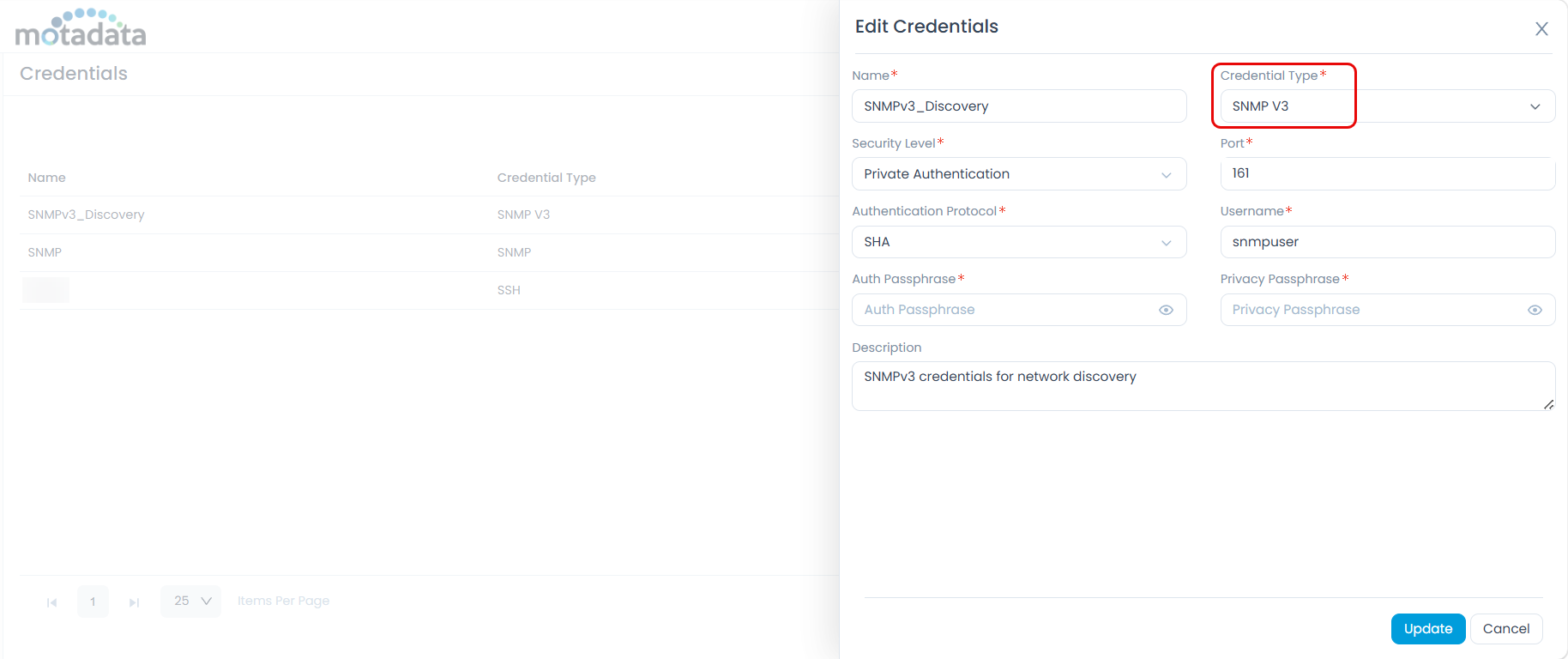
You also need snmpwalk available on the ServiceOps server or any Linux host that can reach the device:
# RHEL / CentOS / Rocky
yum install net-snmp-utils

# Debian / Ubuntu
apt-get install snmp

# Confirm installation
snmpwalk --version
Always start with the system MIB (1.3.6.1.2.1.1) when running tests. It is small, fast, and supported by virtually every SNMP-capable device. Use this table to choose the right OID:
| OID | What it returns | When to use |
|---|---|---|
1.3.6.1.2.1.1 | Device name, description, uptime | Always start here |
1.3.6.1.2.1.2.2 | Interface list | To confirm interface polling works |
1.3.6.1.2.1.4.20 | IP address table | To confirm L3 data is accessible |
1.3.6.1.2.1.25.1 | Host/server resources | For server devices |
Many SNMP failures produce no error message at all. The device simply returns nothing. Always run the snmpwalk test described in the troubleshooting steps below to determine whether the device is actually responding.
Before investigating any error, also check whether it is a harmless Net-SNMP warning. The following messages appear regardless of connection success and can be safely ignored:
| Warning | What it means |
|---|---|
Cannot find module (X-MIB) | A MIB file is not installed locally. OIDs show as numbers. Harmless. |
Sub-id not found | A numeric OID has no local name mapping. Harmless. |
No log handling enabled | Net-SNMP cannot write to its log file. Harmless for command-line use. |
Troubleshooting Steps
Device Not Reachable or SNMP Port Blocked
Possible Reasons:
- The ServiceOps server cannot reach the device over the network.
- A firewall between ServiceOps and the device is blocking UDP port 161.
- The device is offline or has a routing issue.
Solution:
Ping the device from the ServiceOps server to confirm basic network reachability:
ping -c 4 <device_ip>Test UDP port 161 directly, as ping uses ICMP and can succeed even when SNMP traffic is blocked:
# Preferred method
nmap -sU -p 161 <device_ip>

# Alternative
nc -zuv <device_ip> 161
Interpret the results and take the appropriate action:
Result What it means Action Ping OK + nmap shows openoropen\|filteredDevice reachable on UDP/161 Proceed to the next troubleshooting step Ping OK + nmap shows closedSNMP agent may not be running or a local firewall is blocking Check the SNMP service on the device Ping OK + nmap shows filteredA firewall is silently dropping SNMP traffic Open UDP/161 in the firewall for the ServiceOps server IP Ping fails + nmap times out Network or routing issue, or device is offline Fix network connectivity first
open|filtered means nmap could not tell whether the port is open or blocked. If snmpwalk succeeds in the next step, then the port is open.
SNMP Agent Not Running on Device
Possible Reasons:
- The SNMP service is stopped or disabled on the target device.
- The SNMP agent was never started after a reboot or configuration change.
Solution:
For Linux or server devices, run the following on the device:
Check the SNMP agent status:
systemctl status snmpdIf the service is not running, start and enable it:
systemctl start snmpd
systemctl enable snmpd
For network devices (Cisco, Juniper, etc.), log in to the device and run the appropriate show snmp command for your vendor. The output will confirm whether SNMP is active and show request/response counters.
Run snmpwalk while watching the counters. If the input packets counter does not increment, the device is not receiving the request at all, which points to a firewall or routing issue rather than a credential problem.
Authentication Failure: SNMPv2c
Possible Reasons:
- The community string entered in ServiceOps does not match the one configured on the device.
- Community string is case-sensitive and may have been entered incorrectly.
- The device's ACL restricts which source IPs can use the community string.
Solution:
Test the connection directly from the ServiceOps server using
snmpwalk:snmpwalk -v 2c -c <community_string> <device_ip> 1.3.6.1.2.1.1
# Example
snmpwalk -v 2c -c public 10.1.1.10 1.3.6.1.2.1.1Interpret the output:
Error or Output What it means Action Timeout: No Response from <ip>Device did not reply Check network reachability and SNMP agent status Authentication failureWrong community string Recheck the community string. It is case-sensitive. snmpwalk: Unknown hostDNS lookup failed Use the IP address directly End of MIBwith no preceding dataCommunity string is valid but device ACL is blocking Check the device's view or ACL configuration No output, no error Silent failure See Silent Failure: No Data Returned If the
snmpwalktest succeeds but ServiceOps still fails, update the community string in Admin > Discovery and Agents > Credentials to match exactly what worked in the test.
Authentication Failure: SNMPv3
Possible Reasons:
- Username, authentication protocol, or authentication password does not match the device configuration.
- Privacy protocol or privacy password does not match.
- Security level (authPriv, authNoPriv, noAuthNoPriv) is set incorrectly.
- Clock drift between the ServiceOps server and the device exceeds the allowed threshold.
Solution:
Test the connection from the ServiceOps server using
snmpwalkwith the SNMPv3 flags that match your device's security level:# authPriv: authentication + encryption (most common in production)
snmpwalk -v 3 -l authPriv \
-u <username> \
-a <auth_protocol> -A '<auth_password>' \
-x <priv_protocol> -X '<priv_password>' \
<device_ip> 1.3.6.1.2.1.1
# authNoPriv: authentication only, no encryption
snmpwalk -v 3 -l authNoPriv \
-u <username> \
-a <auth_protocol> -A '<auth_password>' \
<device_ip> 1.3.6.1.2.1.1Flag reference:
Flag What it sets Accepted values -lSecurity level noAuthNoPriv,authNoPriv,authPriv-uUsername Case-sensitive string -aAuth protocol MD5,SHA,SHA-256,SHA-512-AAuth password String (minimum 8 characters) -xPrivacy protocol DES,AES,AES192,AES256-XPrivacy password String (minimum 8 characters) Interpret the output:
Error or Output What it means Action Authentication failureAuth password or auth protocol does not match Verify the -aprotocol and-Apassword match the device configUnknown user nameSNMPv3 username does not exist on the device Run show snmp useron the device; check spelling and caseUnsupported security levelDevice requires a different security level Try authPrivif you usedauthNoPriv, or vice versaDecryption errorPrivacy protocol or privacy password does not match Verify the -xprotocol and-Xpassword match the device configNot in time windowClock difference between ServiceOps and device is too large Sync the device clock using NTP No output, no error Silent failure See Silent Failure: No Data Returned If the
snmpwalktest succeeds, update every field in Admin > Discovery and Agents > Credentials to match exactly what worked in the test.
Older Net-SNMP builds may not support AES-192/256 or SHA-256/512. Run snmpwalk --help | grep -iE 'aes|sha' to check. If the required cipher is missing, upgrade Net-SNMP or temporarily test with AES-128/SHA to isolate the issue.
Silent Failure: No Data Returned
Possible Reasons:
- The SNMPv3 group on the device references a readview that was never created.
- The device's access control policy (VACM) is blocking the data without returning an error.
- On Fortinet FortiGate, SNMP is not enabled on the ingress interface's
allowaccesssetting. - On Palo Alto PAN-OS, the Interface Management Profile assigned to the interface does not include SNMP.
Solution:
A silent failure occurs when snmpwalk completes with no error but also returns zero output. The credentials are valid, but the device's access policy is silently blocking the data.
Log in to the device and run the diagnostic commands for your vendor:
Cisco IOS / IOS-XE (privileged EXEC mode):
show snmp group
show snmp view
show snmp user
show running-config | include snmp
In
show snmp group, if the group has a readview name assigned (for exampleMOTA-READ), that name must also appear inshow snmp view. If it does not, the view is missing. Fix it in global configuration mode:snmp-server view MOTA-READ iso included
write memoryCisco NX-OS (exec):
show snmp
show snmp community
show snmp user
show snmp group
show running-config snmpJuniper Junos (operational mode):
show snmp mib walk system
show snmp statistics
show snmp v3(Configuration mode):
show configuration snmpJunos maps users to groups to views using VACM. Confirm the user is in a group and that the group has a view defined that includes the required OIDs.
HP / Aruba ProCurve (manager view):
show snmp-server
show snmpv3 user
show snmpv3 group
show running-config | include snmpAruba ArubaOS-CX (exec):
show snmp community
show snmpv3 users
show snmp trap
show running-config snmp-serverFortinet FortiGate (CLI):
get system snmp sysinfo
show system snmp community
show system snmp user
show system interface | grep -A 20 allowaccessOn FortiGate, SNMP must be explicitly allowed on the ingress interface. Even with a valid community string or user, if the interface's
allowaccesssetting does not includesnmp, all requests are silently dropped with no error or log entry. Go to Network > Interfaces, edit the interface that receives SNMP traffic, and enable SNMP under Administrative Access.Palo Alto PAN-OS (operational CLI):
show snmp-server configuration
show interface management
show network interface <name> management-profileOn PAN-OS, SNMP must be enabled in the Interface Management Profile assigned to the interface. Navigate to Network > Network Profiles > Interface Mgmt and enable SNMP. Without this, SNMP requests are dropped silently at the interface even if the SNMP server is fully configured.
Linux / Net-SNMP agent (root shell):
systemctl status snmpd
grep -vE '^(#|$)' /etc/snmp/snmpd.conf
journalctl -u snmpd -f
cat /var/lib/net-snmp/snmpd.confnoteNet-SNMP stores SNMPv3 users in two places: /etc/snmp/snmpd.conf (where users are initially created) and /var/lib/net-snmp/snmpd.conf (where localized keys are stored after first startup). If a user was added to one file but not the other, authentication will fail. Always check both files.
After correcting the device configuration, run the
snmpwalktest again to confirm data is returned.If the issue persists, capture SNMP traffic on the ServiceOps server to confirm what is being sent and received:
# Save capture to file (open later in Wireshark)
tcpdump -i any -n host <device_ip> and udp port 161 -w /tmp/snmp.pcap
# View in real time (press Ctrl+C to stop)
tcpdump -i any -n -vv host <device_ip> and udp port 161What you observe What it means No outbound packet from ServiceOps ServiceOps is not sending. Check credential profile binding. Outbound packet sent, no reply Firewall or routing issue, or device is dropping silently Reply received with empty data Credentials valid; device view or ACL is filtering the data Reply with an error code A specific SNMP error was returned. Cross-reference with the error tables above. If the packet capture confirms traffic is reaching the device but no response is returned, run device-side debug commands to observe SNMP activity in real time:
Production CautionDebug commands can generate significant CPU load on production devices. Always disable debugging immediately after your test. Schedule a maintenance window if the device is under heavy load.
Cisco IOS (privileged EXEC):
debug snmp packets
! Reproduce the issue, then immediately run:
undebug allJuniper Junos (operational mode):
monitor traffic interface <mgmt-interface> matching "udp port 161"Linux Net-SNMP agent (stop the service first, then run in debug mode):
snmpd -f -Le -DALL 2>&1 | tee /tmp/snmpd-debug.log
ServiceOps Discovery Fails Despite Successful snmpwalk
Possible Reasons:
- The credential profile in ServiceOps does not match the credentials used in the
snmpwalktest. - The correct credential profile is not assigned to the device or discovery range.
- Multiple profiles are assigned and a higher-priority incorrect profile is being tried first.
- The stored Engine ID in ServiceOps is stale because the device was replaced or reset.
Solution:
Go to Admin > Discovery and Agents > Credentials and open the SNMP credential profile assigned to the device.
Verify every field against what worked in your
snmpwalktest:- SNMP version: v2c or v3
- Community string (v2c): exact match, case-sensitive
- Username (v3): exact match, case-sensitive
- Auth protocol and password (v3): exact match, case-sensitive
- Privacy protocol and password (v3): exact match, case-sensitive
- Security level (v3): must match the device setting (
authPriv,authNoPriv, ornoAuthNoPriv) - Context name (v3): leave empty unless the device explicitly requires one
- Port: default is
161; change only if the device uses a non-standard port
Confirm the correct credential profile is assigned to this device or its discovery range. If multiple profiles are assigned, check their priority order.
Check the discovery logs on the ServiceOps server at
/optflotomate/discovery/logsand search for the device IP to find specific error entries:Log message What it means Fix SNMP timeout for <ip>No reply within the timeout window Increase the timeout in discovery settings Authentication failureCredentials in the profile do not match the device Re-enter credentials in the credential profile Unknown user nameSNMPv3 username does not exist on the device Create the user on the device or correct the username Empty response / no varbindsCredentials valid but device view is blocking data Check and fix the device view configuration Engine ID mismatchStored Engine ID is stale Remove the device from ServiceOps and re-add it
Intermittent Discovery Failures on Remote or Slow Devices
Possible Reasons:
- Devices on WAN links or under high load take longer to respond than the default SNMP timeout allows.
- Retries are set too low, so transient drops cause the discovery to fail.
Solution:
Test whether a longer timeout resolves the issue by adding timeout and retry flags to
snmpwalk:# -t sets timeout in seconds (default: 5), -r sets retry count (default: 1)
snmpwalk -v 2c -c <community_string> -t 15 -r 3 <device_ip> 1.3.6.1.2.1.1If the test with extended timeout succeeds but the default timeout fails, increase the timeout and retry values in the ServiceOps credential profile:
Setting Default Recommended for WAN or high latency SNMP timeout 5 seconds 10–15 seconds Retries 1 2–3 Go to Admin > Discovery and Agents > Credentials, open the credential profile, and update the Timeout and Retries fields accordingly.
Quick Troubleshooting Steps
| Symptom | Likely Cause | Action |
|---|---|---|
| Ping fails, no reply on UDP/161 | Network or routing problem, or device is offline | Verify network connectivity and device power status |
| Ping OK, UDP/161 filtered | Firewall blocking SNMP between ServiceOps and device | Open UDP/161 in the firewall for the ServiceOps server IP |
snmpwalk timeout (v2c or v3) | Firewall, device ACL, or SNMP agent not running | Check network reachability, then check SNMP agent status |
| Authentication failure (v2c) | Wrong community string | Recheck community string. It is case-sensitive. |
| Authentication failure (v3) | Wrong username, auth protocol, or auth password | Verify all SNMPv3 fields match exactly |
| Decryption error (v3) | Wrong privacy protocol or privacy password | Verify privacy protocol and password |
| Unknown user name (v3) | Username does not exist on device | Create the user on the device or correct the username |
| Not in time window (v3) | Clock drift between ServiceOps and device | Sync the device clock using NTP |
snmpwalk returns nothing, no error | Silent failure: group readview missing on device | Check group and view configuration on the device |
snmpwalk OK but ServiceOps discovery fails | Credential profile mismatch or wrong profile assigned | Verify and update the ServiceOps credential profile |
| Intermittent discovery failures | WAN latency, timeout setting too low | Increase SNMP timeout and retries in the credential profile |
| Engine ID mismatch errors | Device was replaced, reset, or stack changed | Remove the device from ServiceOps and re-add it |
| Works in another tool, fails in ServiceOps | Different view per tool, or wrong ServiceOps profile | Check device view configuration and credential profile |
| Fortinet: silent drop despite valid credentials | Interface allowaccess does not include snmp | Enable SNMP under Administrative Access on the interface |
| Palo Alto: silent drop despite valid credentials | Interface Management Profile does not include SNMP | Add SNMP to the Interface Management Profile |
Worked Example: Cisco SNMPv3 Silent Failure
This is one of the most common and most confusing SNMP problems. It applies to any Cisco IOS or IOS-XE device. The same root cause (valid credentials but a missing or misconfigured view) also occurs on Juniper Junos (via VACM), HP/Aruba ProCurve, and other vendors. The diagnostic steps and logic are identical; only the fix commands differ.
The situation:
- A Cisco switch is not being discovered in ServiceOps.
- The device is configured for SNMPv3 with SHA authentication and AES-256 encryption.
- The credentials have been double-checked and are confirmed correct.
- The same device is successfully polled by another monitoring tool.
Diagnosis:
Ping and UDP/161 test both succeed. The device is reachable.
Run
snmpwalkwith the correct SNMPv3 credentials. It completes without any error but returns zero output.Zero output with no error is a silent failure. This pattern means credentials are valid but the device's access policy is blocking the data.
Log in to the Cisco device and run:
show snmp group
show snmp viewIn
show snmp group, the ServiceOps user's group has a readview name assigned, for exampleMOTA-READ. That name does not appear anywhere inshow snmp view. The view was never created.
Root cause:
Cisco IOS silently returns no data when a group's readview does not exist. There is no error message, no SNMP error code, and no syslog entry. The configuration looks complete because the user and group both exist, but without a valid readview, the device has nowhere to look up the data.
Fix:
Create the missing view in global configuration mode (configure terminal):
snmp-server view MOTA-READ iso included
write memory
Re-run discovery in ServiceOps. Confirm the fix:
show snmp view
show snmp group
Both commands should now show MOTA-READ consistently.
If the original readview name was accidentally set to something sensitive (such as a password), it is stored in the device's running config and any backup in plaintext. Replace it with a non-sensitive name:
snmp-server view MOTA-READ iso included
snmp-server group <group-name> v3 priv read MOTA-READ
no snmp-server view <old-sensitive-name>
Post Verification Checklist
Complete all items before closing the issue.
| Check | Where | Expected Result |
|---|---|---|
snmpwalk returns expected data | ServiceOps server (Linux shell) | OIDs returned without errors |
| Discovery succeeds in ServiceOps | Asset Management > Hardware List in ServiceOps | Device fully discovered (interfaces, CPU, memory) |
| No SNMP errors in device logs | Device syslog | Clean log during the discovery window |
| Configuration saved on device | Device CLI | write memory / commit completed |
| Change documented | Your change management system | Ticket updated with what was changed and why |
When to Contact Support
Escalate to Motadata Support if, after completing all troubleshooting steps above:
snmpwalkfrom the ServiceOps server succeeds, but ServiceOps discovery still returns no data.- Discovery succeeds for some OIDs but fails for specific data types.
- The issue affects multiple SNMP devices simultaneously with no apparent common cause.
- Engine ID negotiation repeatedly fails after re-adding the device.
- You suspect a bug or unexpected behavior in ServiceOps itself.
What to Include in Your Support Request
- Motadata ServiceOps version and patch level
- Device vendor, model, and OS/firmware version
- SNMP version (v2c or v3) and security level
- Output of the vendor
showcommands (redact all passwords) - Output of your
snmpwalktest - ServiceOps discovery logs for the affected device with timestamps, found on the server at
/optflotomate/discovery/logs - Packet capture file if available
- List of steps already attempted
Best Practices
- Always create a view before assigning it to a group.
- Never use passwords, secrets, or sensitive strings as view, group, or community names.
- Use descriptive names such as
MOTA-READ,NMS-READ, orAPP-READ. - Use a dedicated SNMP user per monitoring tool. This makes it easier to isolate per-tool problems.
- After every SNMP configuration change on a device, run a test discovery from ServiceOps and validate with
show snmpcommands. - Periodically audit device configs to confirm every referenced view is actually defined.