Asset Management Troubleshooting Guide
Diagnose and resolve common Asset Management issues in Motadata ServiceOps, covering agent installation, asset discovery, data accuracy, duplicate assets, and SNMP connectivity.
Asset Management in Motadata ServiceOps supports multiple methods of asset creation, including agent-based discovery, agentless discovery, CSV import, and manual entry. Most issues fall into one of four categories: agent communication failures, discovery processing errors, incorrect unique identifier configuration, and permission gaps. This guide provides targeted diagnostics and step-by-step fixes for the most frequent failures encountered in the field.
Prerequisites
- Asset Management license is active on the ServiceOps instance.
- You have the Asset Management role permission.
- You have backend (SSH/Terminal) access to the ServiceOps server for log review.
- The agent machine is accessible for log collection.
Asset Creation Methods
Assets can be created in the following ways. Each method has its own failure points, covered in the troubleshooting sections below.
- Manual Creation: Created directly through the ServiceOps UI. Learn more
- CSV Import: Bulk creation using a formatted CSV file. Learn more
- Agentless Discovery: Network-based discovery without an installed agent. Learn more
- Agent-Based Discovery: Discovery via the Motadata agent installed on the endpoint. Learn more
- Via Purchase Order: Assets created automatically from a raised Purchase Order. Learn more
- Via API: Programmatic creation using the ServiceOps API. Learn more
Common Issues
Agent installer exits showing an Administrator Rights error
Possible Causes
- The installer is running without elevated system permissions.
- Windows User Account Control (UAC) is blocking silent execution.
- Group Policy restricts the user from running the installer with elevated privileges.
- The agent build is corrupted or incompatible with the target OS.
Solution
- Open Command Prompt as Administrator (right-click > Run as administrator).
- Run the installer using the following command:
msiexec /i "C:\Path\to\AgentFile.msi" - If the issue persists with the latest build, try an older agent version to determine whether the failure is build-specific.
Agent is installed but not visible in ServiceOps
Possible Causes
- No communication between the machine and ServiceOps (or the Poller, if configured).
- Incorrect IP, Server URL/FQDN, Poller IP, Activation Code, or Secure Auth credentials used during installation.
- Antivirus software is blocking agent files.
- The agent service has stopped or failed to start.
- The Asset unique identifier values for the machine are blank or resolve to
None.
Solution
Verify the installation mode. For agent version 8.5.1 and above, confirm the correct mode was used:
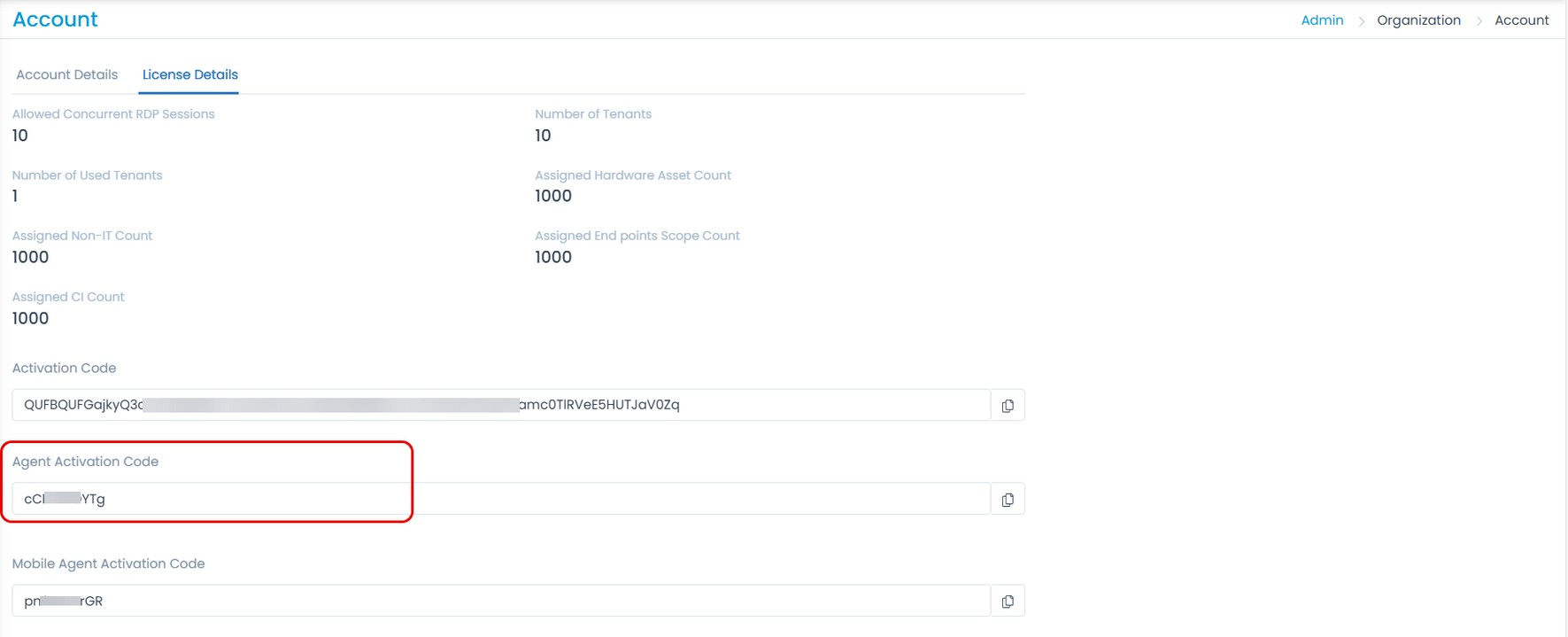
- Activation Code: Navigate to Admin > Organization > Account > License Details to retrieve the code.
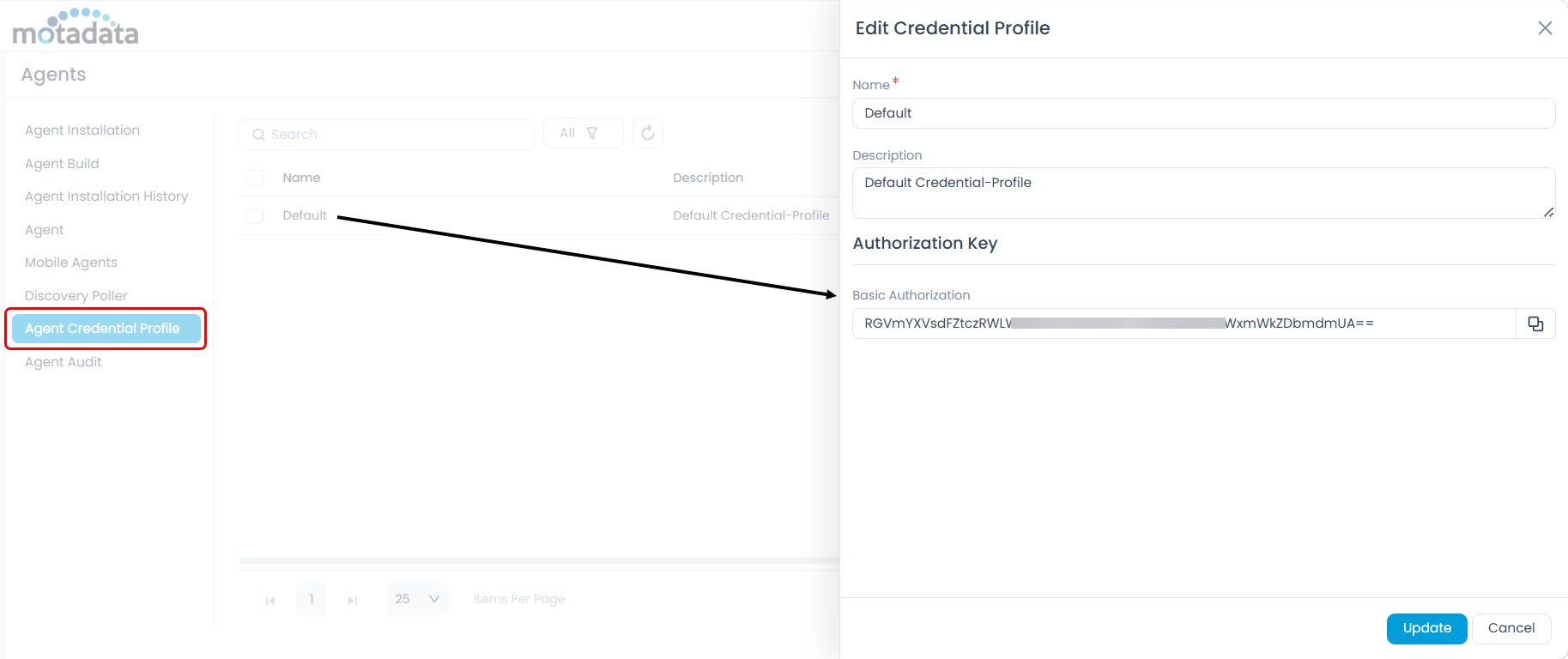
- Secure Auth: Navigate to Admin > Discovery and Agents > Agent > Agent Credential Profile to retrieve credentials.
 Compatibility Check
The agent version must not be higher than the server version. Agent creation via Secure Auth can take up to 5 minutes after installation. Check the API.log file on the agent side:
C:\Program Files (x86)\Motadata\winagent_service\Logs  (64-bit)
C:\Program Files\Motadata\winagent_service\Logs  (32-bit)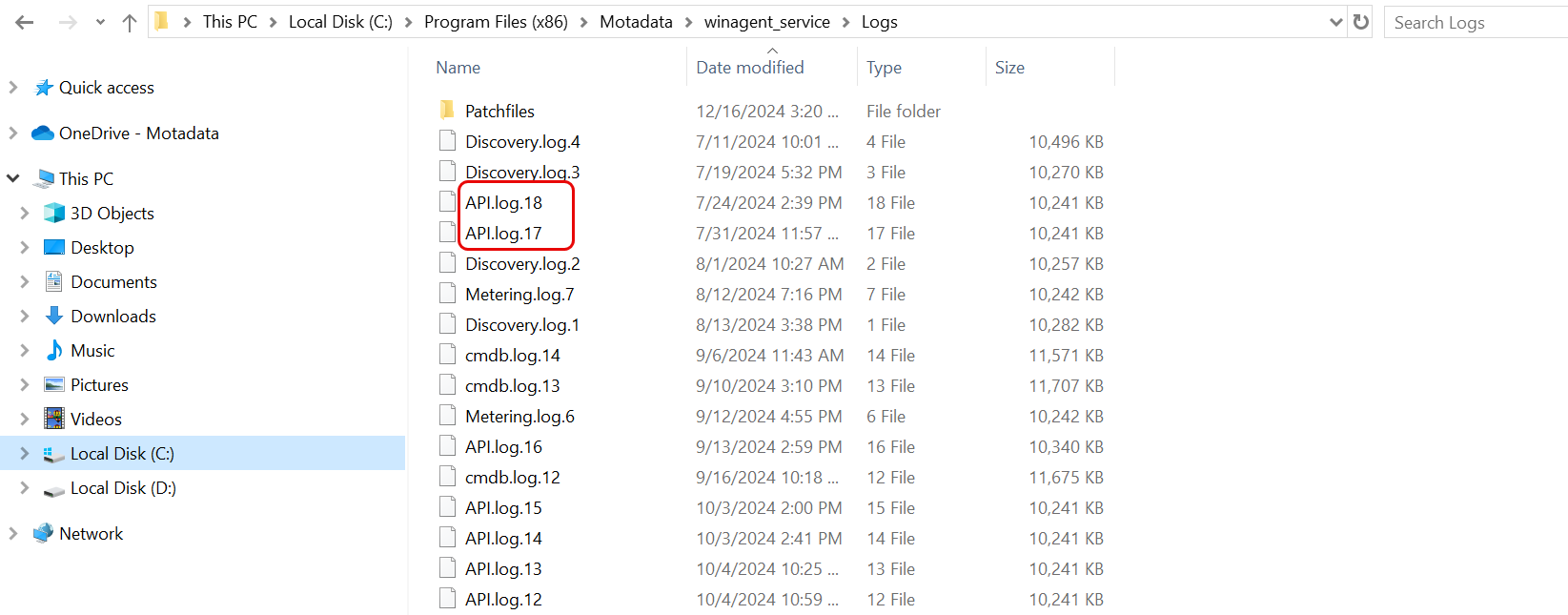
Check agent-to-server connectivity. Run the following from the agent machine:
curl -v <serverURL>A response without errors confirms connectivity.
Check Poller connectivity (if applicable). Use Telnet to test the connection:
Syntax: telnet {Poller_IP_Address} <Port>
Example: telnet 172.16.11.157 8080
Use port
8080for a Windows Poller and8090for a Linux Poller. A blank screen after connection confirms success.
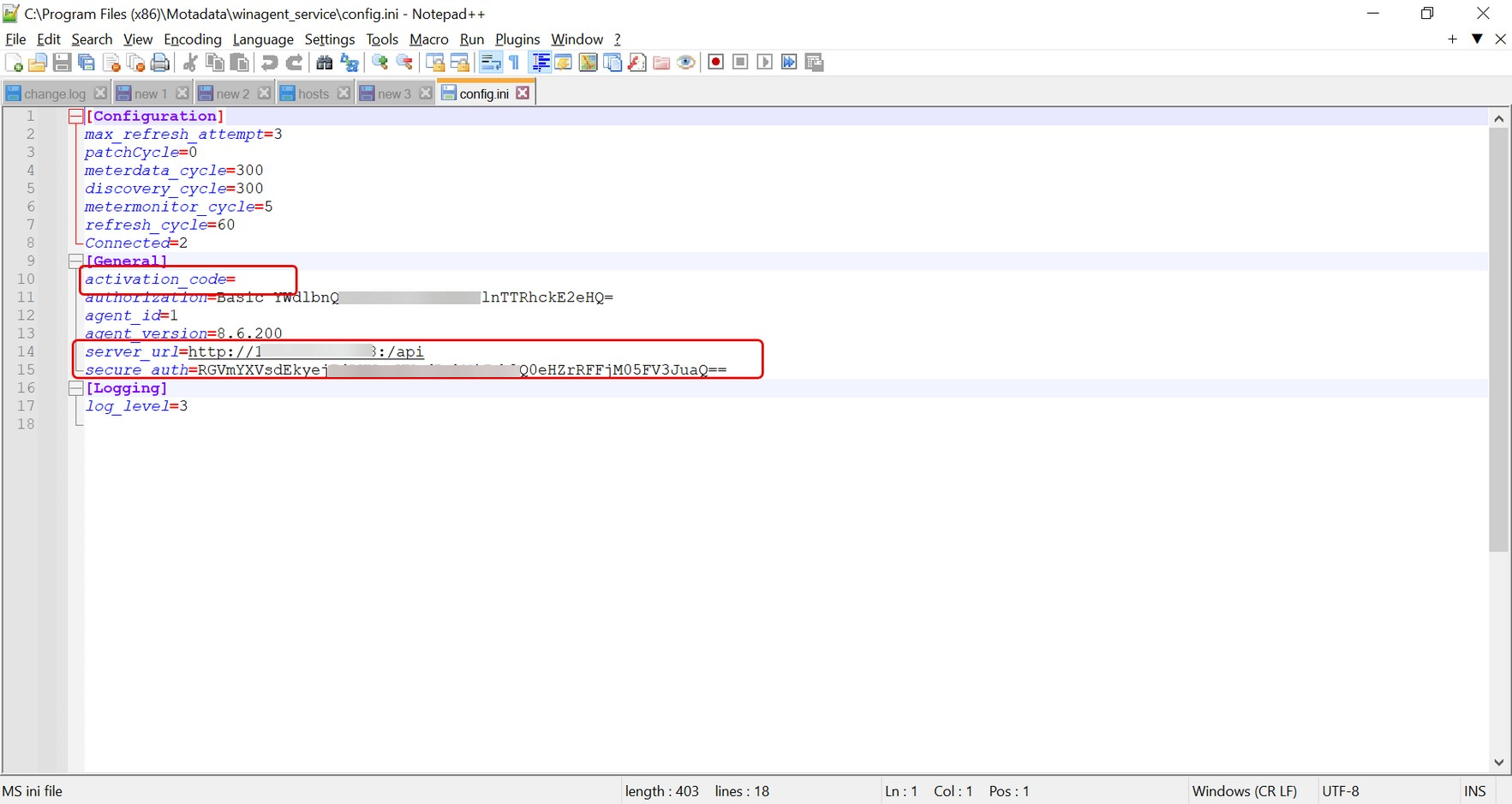
- Validate the
config.inifile. Located atC:\Program Files (x86)\Motadata\winagent_service. Confirm the Activation Code, Server URL, and (for v8.5.1+) thesecure_authkey match valid values.
Review agent logs. Check
Logs > main.logat the agent install path for installation or communication errors.Check agent service status.
- Windows: Open Services and confirm the Motadata ServiceOps service is running.
- Linux: Run
systemctl status motadata_serviceops. Restart if needed.
Whitelist the agent installation directory and agent files in your antivirus and firewall settings.
- Windows: Directory:
C:\Program Files (x86)\Motadata\winagent_service, File:Motadata_ServiceOps_WinAgent - Linux: Directory:
/opt/Motadata/, File:MotadataServiceOpsCommonAgent - Mac: Directory:
/opt/Motadata/, File:MotadataServiceOpsCommonMacAgent
- Windows: Directory:
Verify OS and architecture compatibility. Refer to the Supported OS Version List. For unsupported OS versions, raise a support ticket for a custom discovery pattern.
Asset Identifier check. If the unique identifier value is blank or
None, asset creation will not proceed.
Agent registered in Agent List but asset not created (Agent version 8.4.5 and below)
Possible Causes
- WMI or PowerShell is disabled on the endpoint.
- Antivirus or firewall is blocking PowerShell or WMI queries.
- Discovery process failed on the agent side.
- The asset creation API call to the server is failing.
- Insufficient permissions for the user installing the agent.
- The asset already exists in the Stage or Archived state.
- Required custom fields are missing from the Asset Form.
- Agent architecture mismatch (32-bit vs. 64-bit).
- Agent prerequisites (.NET Framework, PowerShell 3.0+) are not installed.
- The NSQ queue for Asset Operations is stuck.
Solution
Verify WMI access.
wmic os get version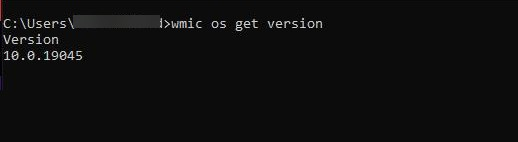
Verify PowerShell execution.
powershell.exe Get-CimInstance -ClassName Win32_OperatingSystemIf blocked by Group Policy, adjust settings or contact your IT administrator.
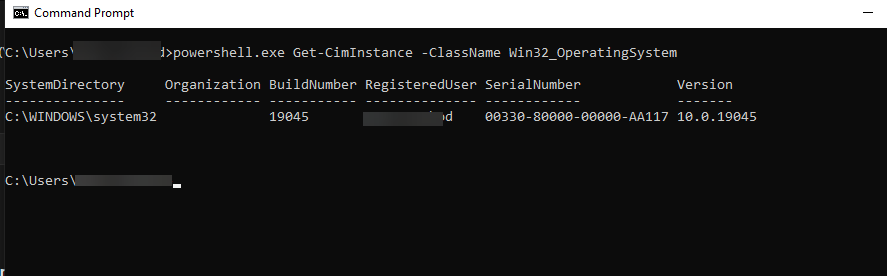
Check antivirus restrictions. Whitelist
powershell.exeandwmiprvse.exe. Temporarily disable antivirus to test if asset creation succeeds.Review discovery logs on the agent. Check
Discovery.logatC:\Program Files (x86)\Motadata\winagent_service\Logsfor discovery errors.Verify the asset creation API call. Check
API.logat:- 64-bit:
C:\Program Files (x86)\Motadata\winagent_service\Logs - 32-bit:
C:\Program Files\Motadata\winagent_service\Logs

Search for
/discovery/datacalls. The response must showsuccess.- 64-bit:
Ensure Proper Installation Rights
- The agent must be installed by an admin user with sufficient privileges for discovery.
- Check if the user has full administrator rights.
Check Server-Side Discovery Logs
- On the ServiceOps server, review the Discovery.log file when the agent sends the asset creation request.
- Check
error.logon the server for any failures at the same timestamp.
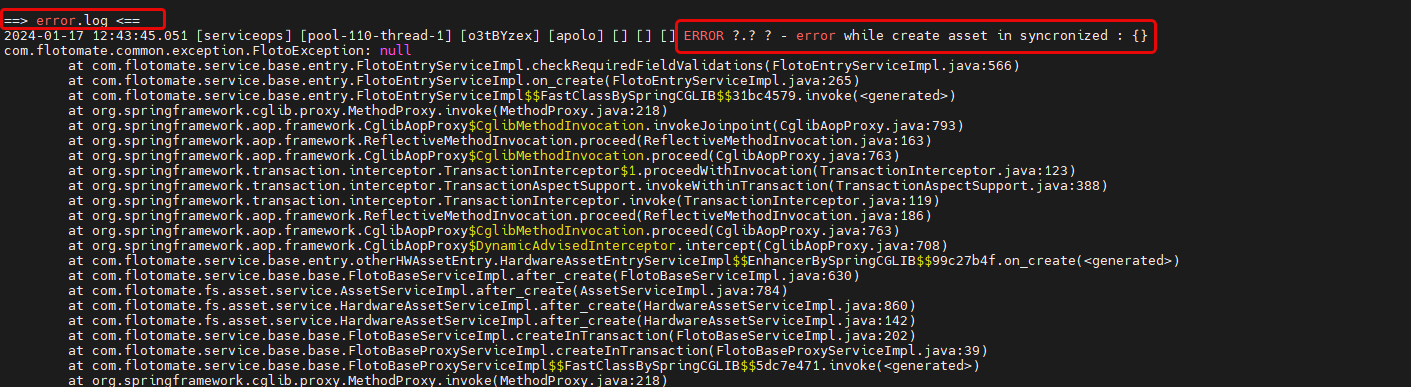
8 Check Stage and Archived assets.
The asset may already exist in a non-active state:
Navigate to the Hardware Assets list and select More Options > Asset in Stage.
Apply the All Archived Hardware Assets filter.
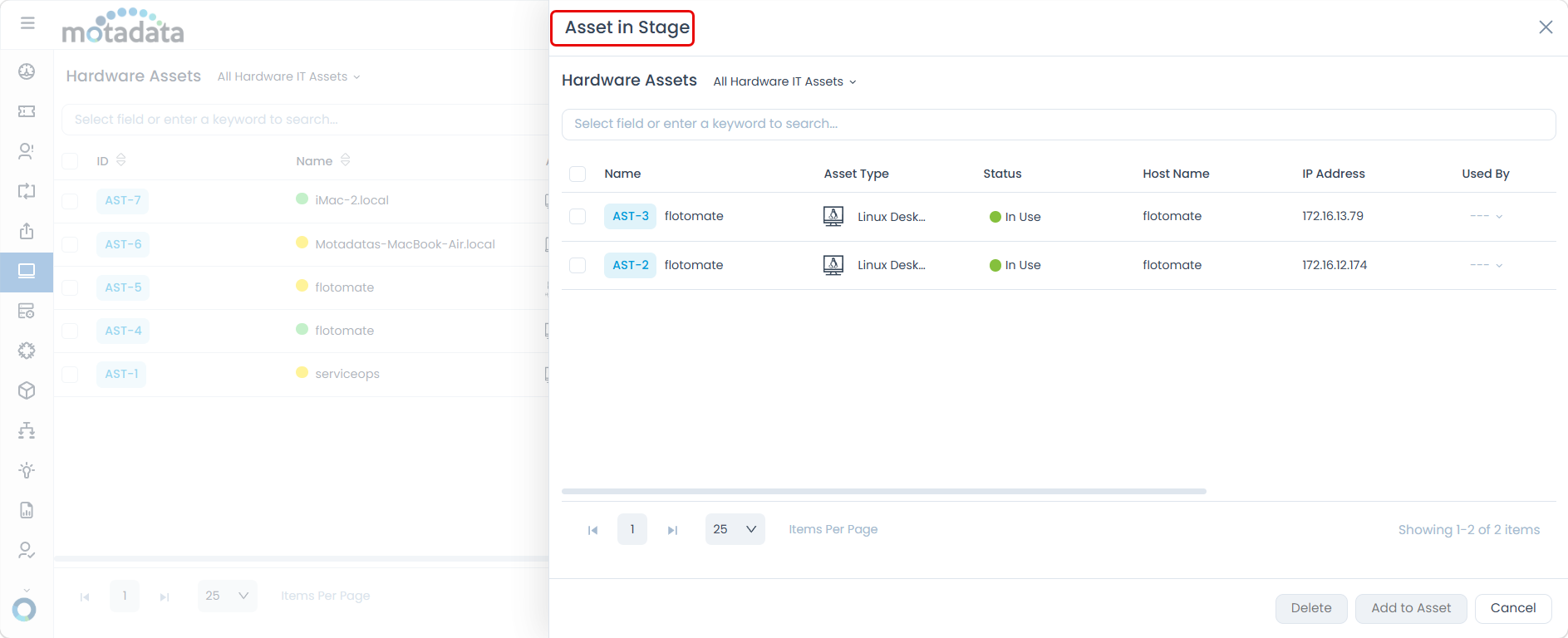
Validate the Asset Form. If custom fields are marked required, ensure the agent sends values for them. Make fields optional or update the agent configuration if needed.
Verify agent architecture. Confirm the installed agent (32-bit or 64-bit) matches the OS architecture. Reinstall with the correct version if there is a mismatch.
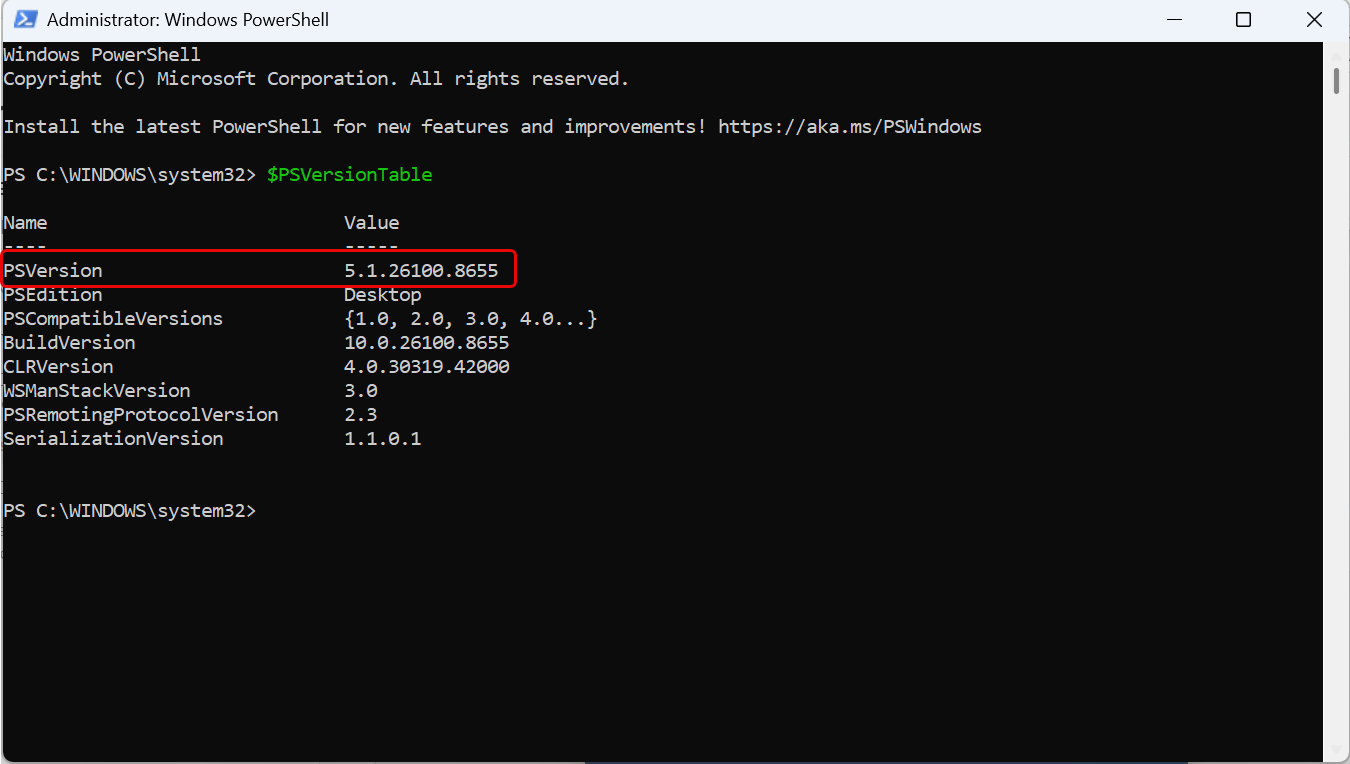
Check prerequisites.
$PSVersionTablePowerShell 3.0 or higher and .NET Framework must be installed.
Restart services if the NSQ queue is stuck.
systemctl restart ft-main-serverIf the queue depth continues to grow after restart, also restart the Analytics Server:
systemctl restart ft-analytics-serverContact support is the issue persists.
Agent created but asset not created (Agent version 8.5.0 and above)
Possible Causes
- WMI or PowerShell execution is disabled.
- Antivirus or firewall is blocking PowerShell or
pattern-executor.exe. - Discovery classification failed (OS type not detected).
pattern-executor.exeis not running or is stuck.- The asset creation API call (
/discovery/data) is failing. - Unique identifier values are missing or mismatched (e.g., motherboard serial number not found).
- The discovery pattern for the machine's OS is disabled in ServiceOps.
- The endpoint runs Windows 7.
- Corrupted agent installation with residual files in
C:\ProgramData\Motadata\WinAgent. - The .exe downloads are restricted.
Solution
Check PowerShell Execution Policy.
Get-ExecutionPolicy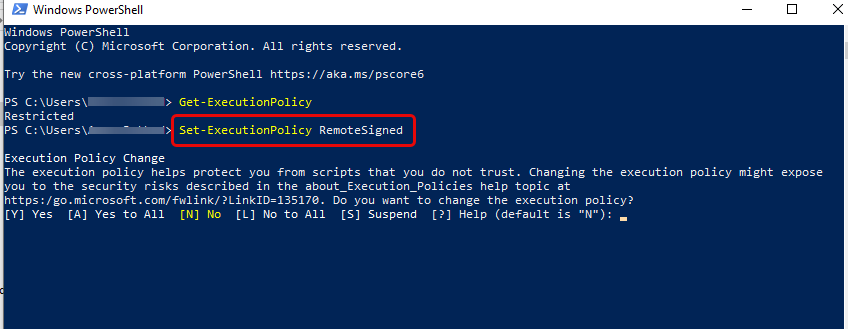
If restricted, set to
RemoteSignedfor testing:Set-ExecutionPolicy RemoteSignedVerify WMI is functional:
Get-WmiObject Win32_ComputerSystemIf blocked, check Group Policy or Antivirus restrictions
Whitelist the following in Antivirus:
powershell.exepattern-executor.exeMotadataServiceOps.exe
Temporarily disable AV for testing (if allowed).
Validate discovery classification. Check
cmdb.logforcf_1 Result. This should show OS details (for example,Windows 10). Anullresult indicates PowerShell or WMI is blocked.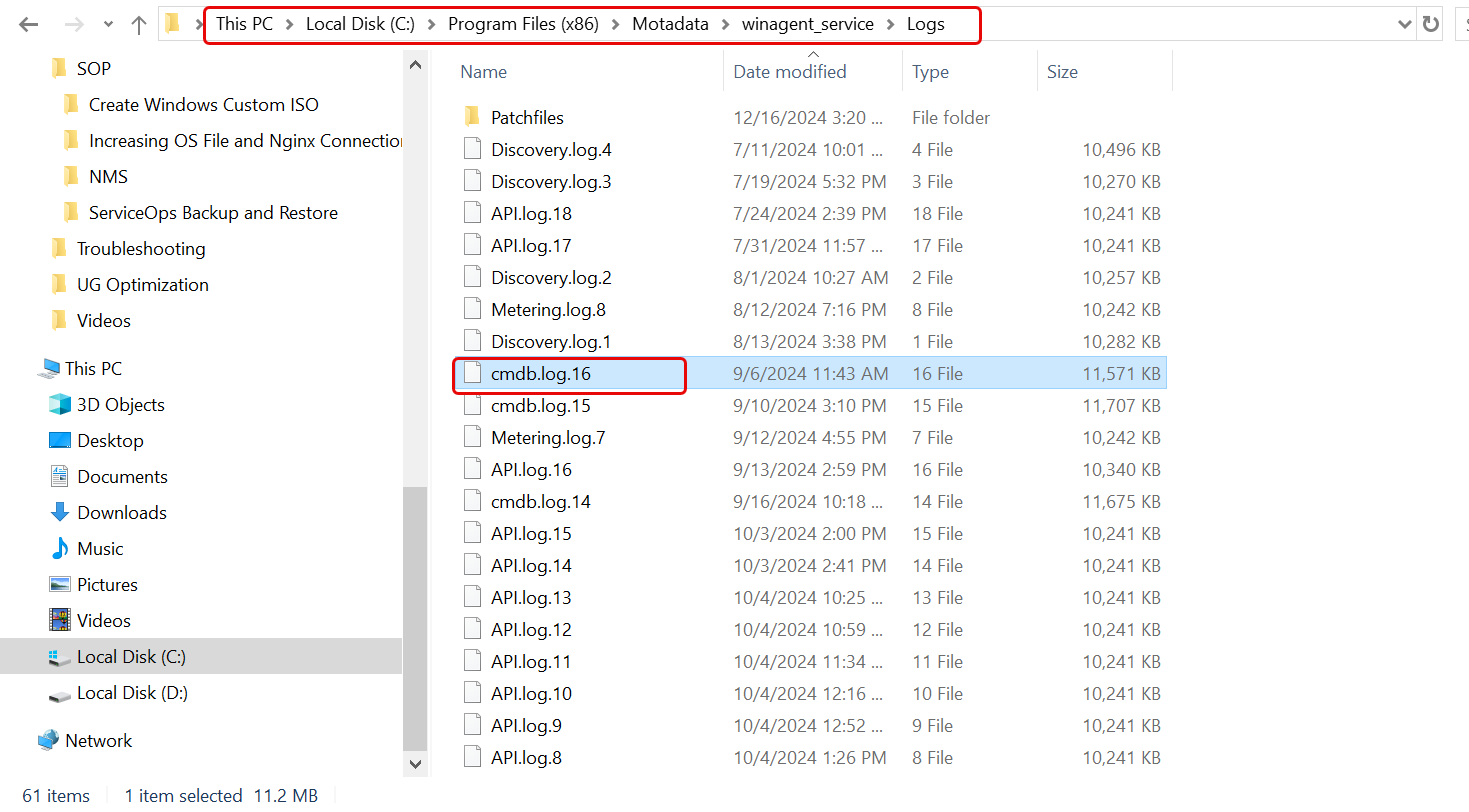

Check if
pattern-executor.exeis running. Open Task Manager > Details. If the process is absent, restart the agent service (MotadataServiceOps.exe).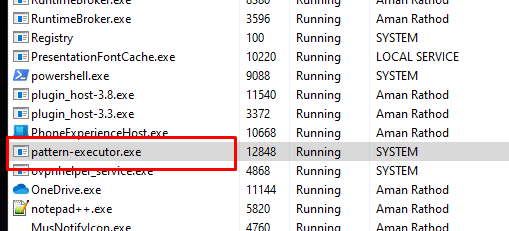
Verify the API call. Search
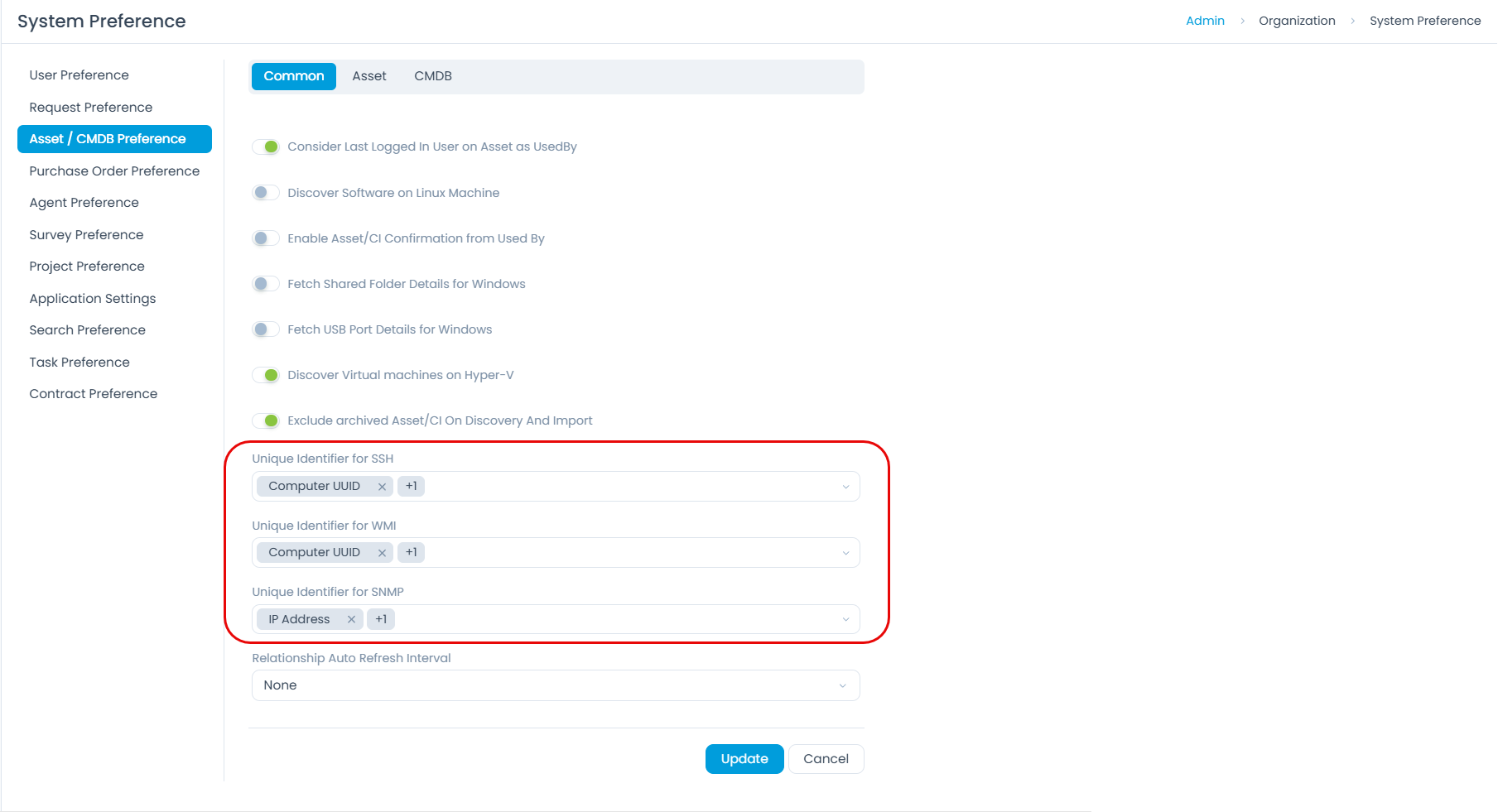
API.logfor/discovery/data. The HTTP response must be200 OK. If failing, checkerror.logon the server at the same timestamp.Confirm unique identifiers. Navigate to Admin > Organization > System Preference > Asset/CMDB Preference and verify the identifier configuration matches what the agent sends (for example, motherboard serial number).
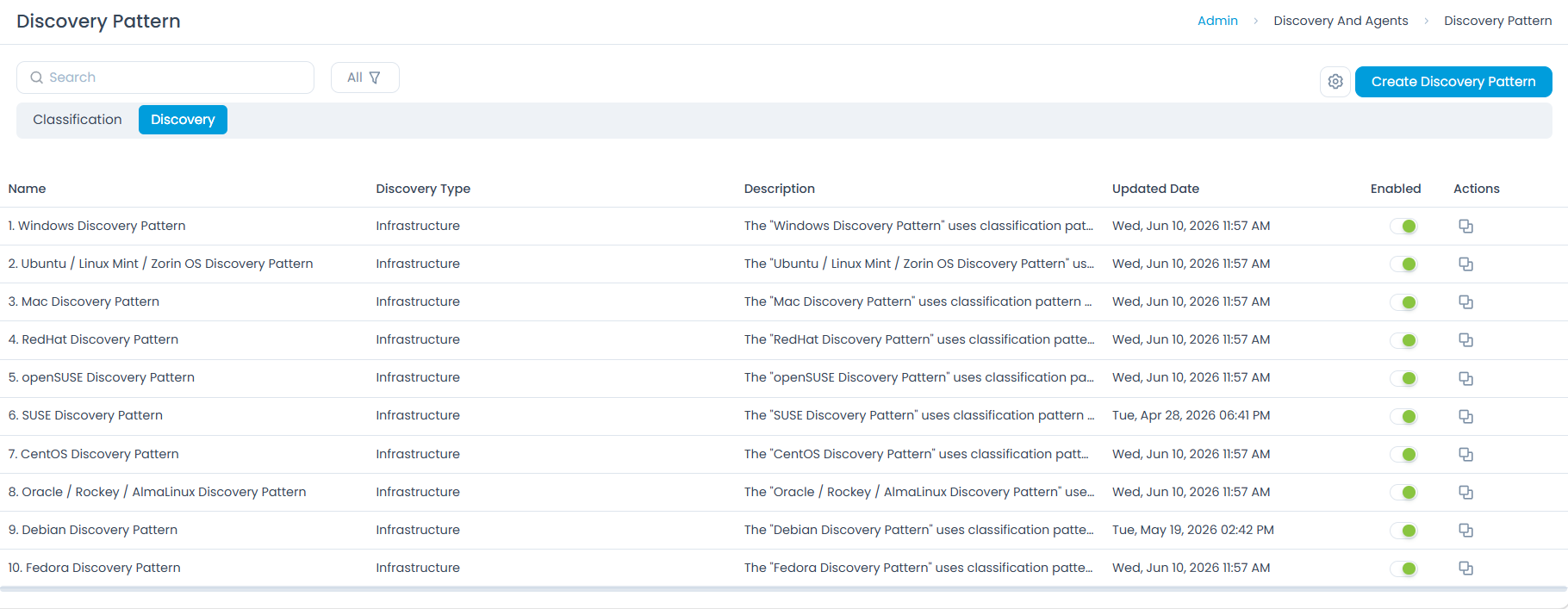
Check the discovery pattern status. Navigate to Admin > Discovery and Agents > Discovery Pattern > Discovery and confirm the OS-specific pattern is enabled.
Windows 7 limitation. Agent v8.5.0 and above do not support Windows 7. Use one of these alternatives:
- Install agent v8.4.5 or below.
- Use Agentless Discovery.
- .Net Framework 4 must be installed
Reinstall the agent (if all steps above fail).
- Uninstall the agent.
- Delete
C:\ProgramData\Motadata. - Reinstall the agent.
Agent registration fails with WMI "Invalid class" error on Windows
Possible Causes
- An interrupted or failed Windows update or OS upgrade damaged the WMI repository.
- Improper shutdowns or disk errors while the repository was being written.
- Third-party software installers or uninstallers modified WMI.
- A previous WMI repository reset did not fully restore the standard classes.
- The
cimwin32.moffile is missing or corrupted on the endpoint.
Solution
Confirm the failure. Open PowerShell as administrator and run:
Get-WmiObject Win32_OperatingSystemAn
Invalid classresponse (error code0x80041010) confirms the WMI repository is damaged.Recompile the Windows WMI class definitions.
mofcomp "$env:windir\System32\wbem\cimwin32.mof"A successful run ends with
Done!. The full path is required; runningmofcomp cimwin32.moffrom another folder returnsFile 'cimwin32.mof' not found!.Verify WMI is working. Re-run
Get-WmiObject Win32_OperatingSystem. It should now return operating system details instead of an error.Restart the ServiceOps agent service from
services.mscor an administrator PowerShell window so it retries registration.If the error persists, run the following checks in order as administrator. After each, repeat steps 3 and 4.
- Check WMI repository consistency:
winmgmt /verifyrepository - Repair the repository if reported inconsistent:
winmgmt /salvagerepository - Re-register the WMI provider and recompile:
cd $env:windir\System32\wbem; regsvr32 /s cimwin32.dll; mofcomp .\cimwin32.mof - Restore missing or damaged Windows system files:
DISM /Online /Cleanup-Image /RestoreHealthfollowed bysfc /scannow
- Check WMI repository consistency:
Verify registration in ServiceOps. Confirm the machine appears on the application server with details populated. Allow a few minutes for the agent to check in. If it still cannot register, contact Motadata Support with the output of the commands above.
Asset created but data is incorrect or missing
Possible Causes
- Discovery data was not collected correctly by the agent.
- PowerShell or WMI command failed during the discovery cycle.
- A data transformation or processing error occurred on the server.
- Asset data was manually modified after creation.
- The discovery pattern does not match the actual system configuration.
- Insufficient permissions prevented proper data collection.
Solution
Verify data at the agent level.
- Check
API.logon the agent machine. - Search for the expected component data (hardware specs, installed software) in the API payload.
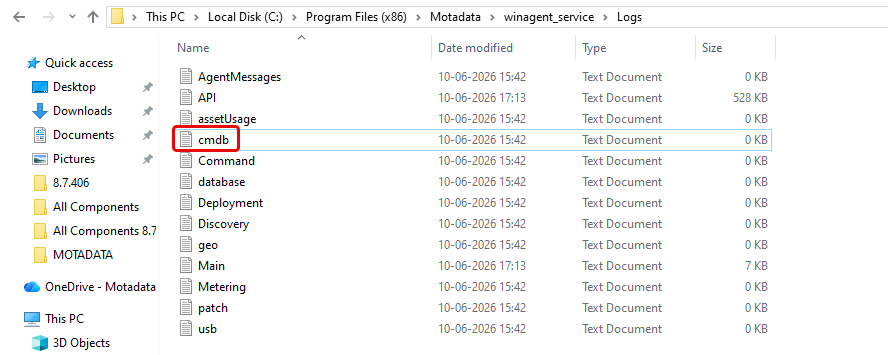
- If data is missing, check
cmdb.logatC:\Program Files (x86)\Motadata\winagent_service\Logs.
- Check
Test PowerShell collection manually.
powershell.exe Get-CimInstance -ClassName Win32_OperatingSystemIf blocked by Group Policy, adjust the settings or consult the IT admin..
Validate server-side processing.
- Check
discovery.logat/opt/flotomate/main-server/logs/apolofor processing errors. - Compare the data with the agent's
API.logpayload.
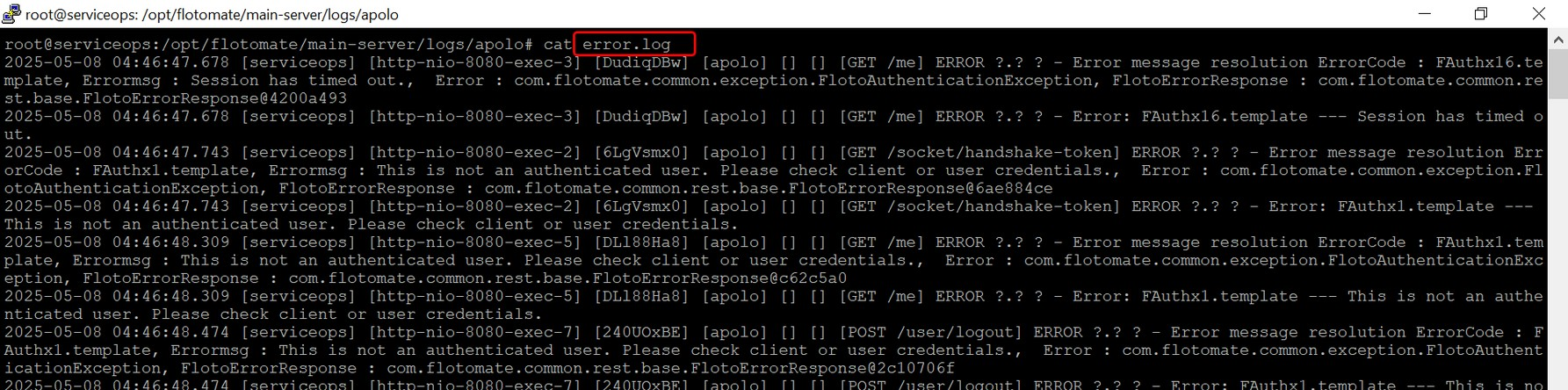
Also review
error.logfor data transformation or pattern-matching failures.- Check
Test the discovery command directly.
Locate the PowerShell or WMI command in the Discovery Pattern configuration, run it on the endpoint, and compare the output against what is shown in ServiceOps. A discrepancy indicates the discovery pattern needs adjustment.
Check for manual changes.
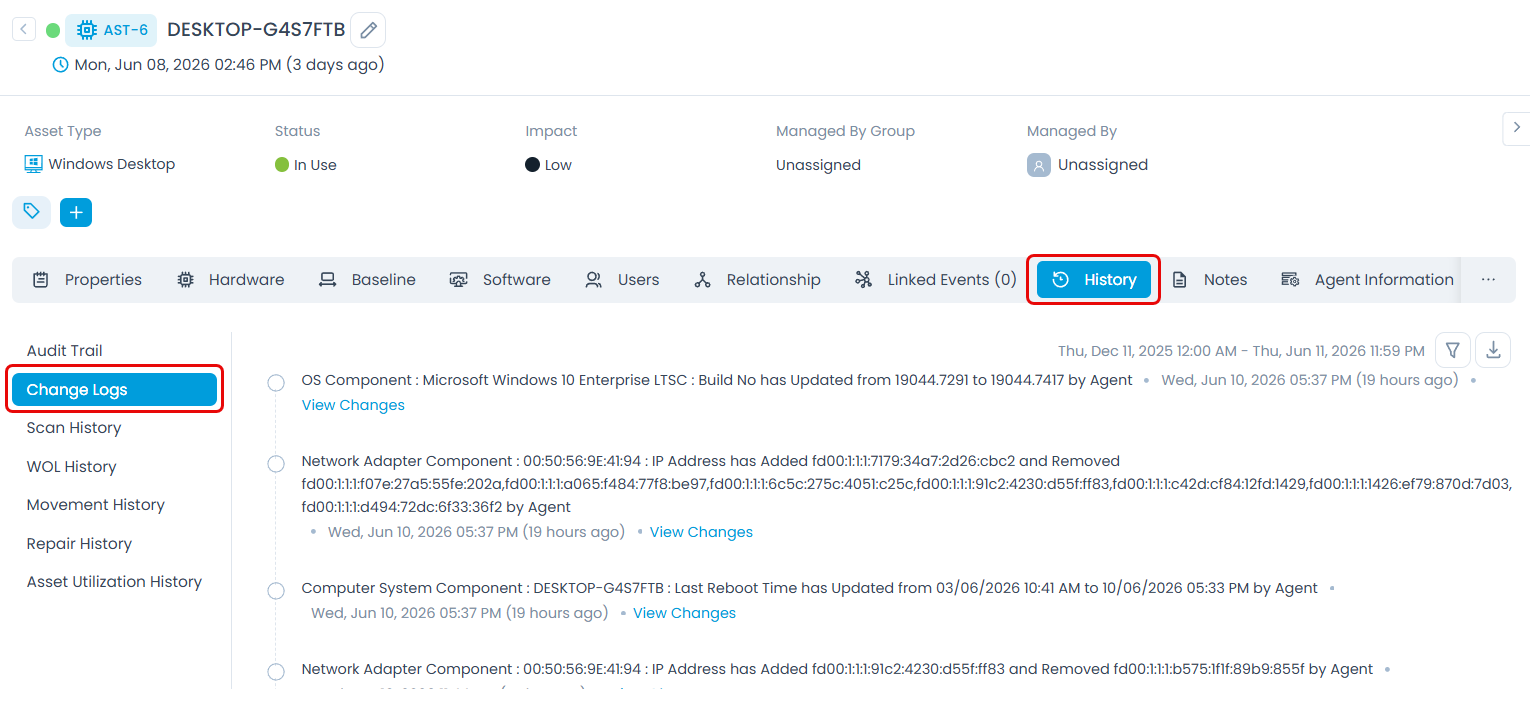
Navigate to Asset Details > History > Change Logs to confirm whether data was modified after creation. If unauthorized changes are occurring, consider locking critical fields.
Verify the discovery pattern is enabled for the asset's OS type under Admin > Discovery and Agents > Discovery Pattern.
Device is active but the agent shows as inactive
Possible Causes
- The endpoint machine can no longer reach the ServiceOps server.
- The Server IP or URL has changed since the agent was installed.
- The agent service has stopped.
Solution
Verify agent services are running on the endpoint machine.
Validate
config.ini. Open the file atC:\Program Files (x86)\Motadata\winagent_serviceand confirm the server URL, IP address, and protocol are correct.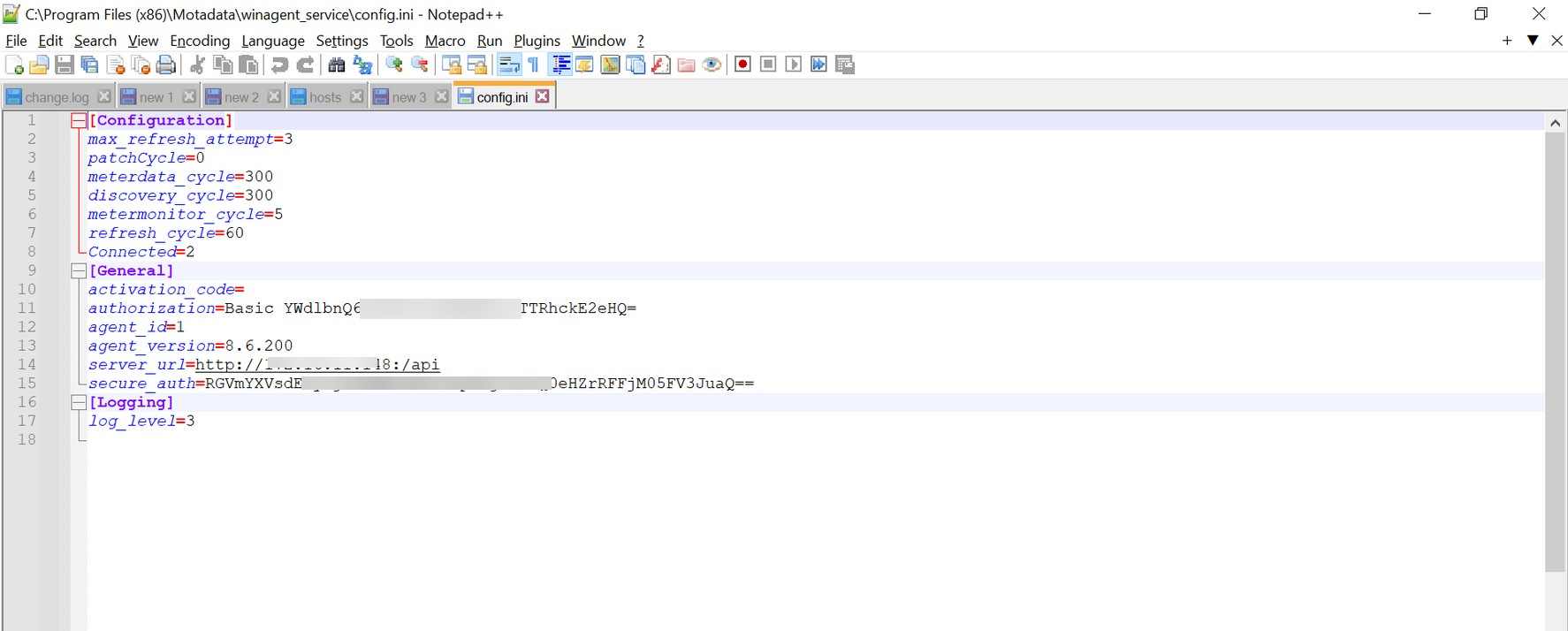
Review agent-side logs. Check
Main.logatC:\Program Files (x86)\Motadata\winagent_service\Logsfor connectivity errors.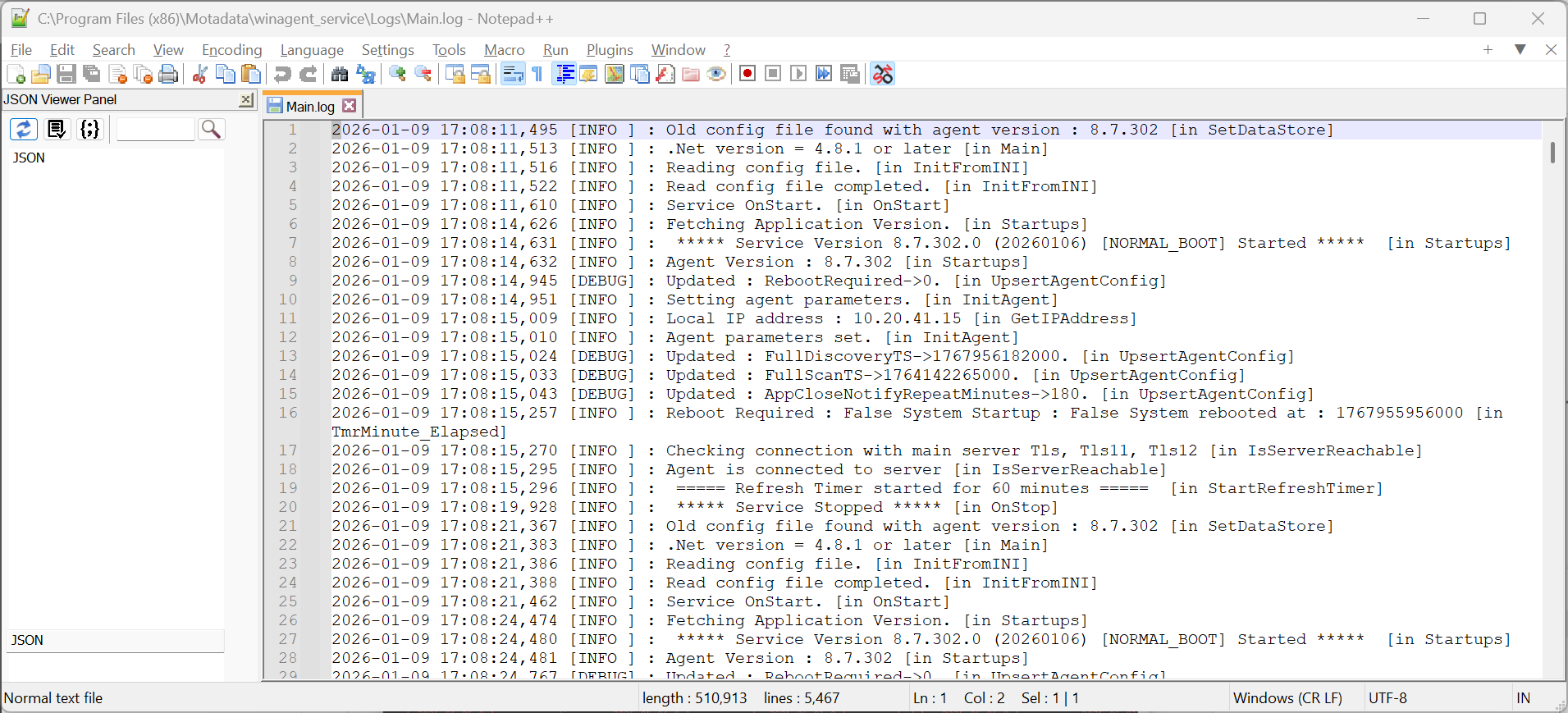
Review server-side logs. Check
agent.logat/opt/flotomate/main-server/logs/apolofor incoming connectivity issues.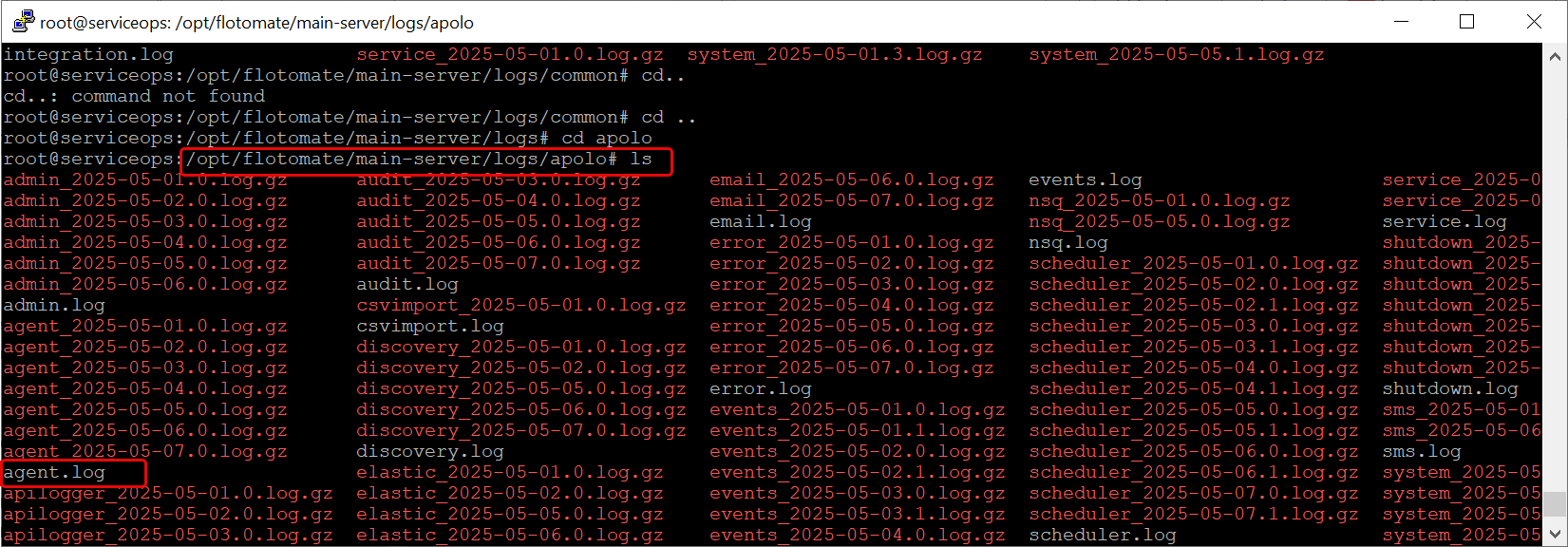
Check Agent Preferences. Navigate to Admin > Organization > System Preference > Agent Preference and validate the configured values.
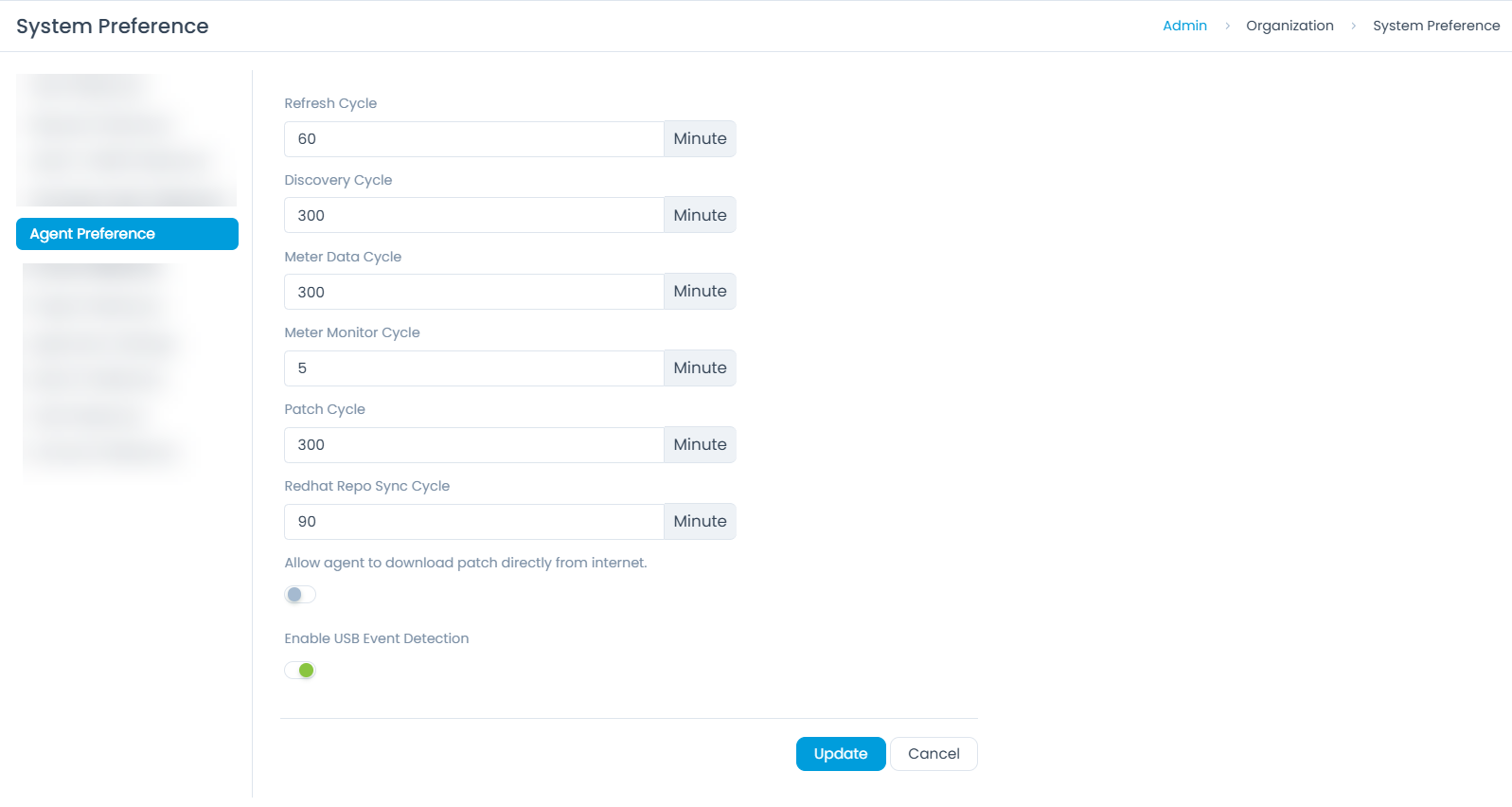
Verify agent cycle configuration. Open
config.iniand confirm the values under thecyclessection are correct.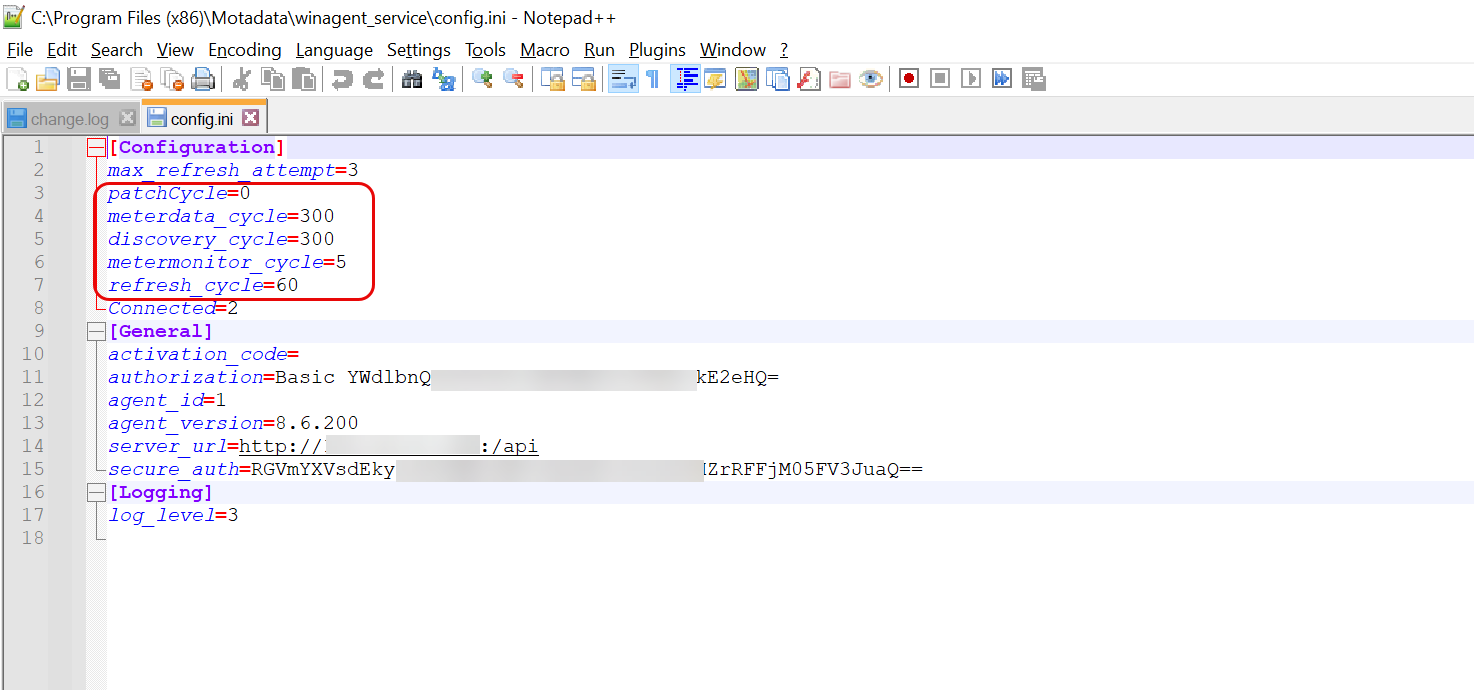
Windows: set agent services to start automatically. Ensure agent services are configured for Automatic startup in the Windows Services application.
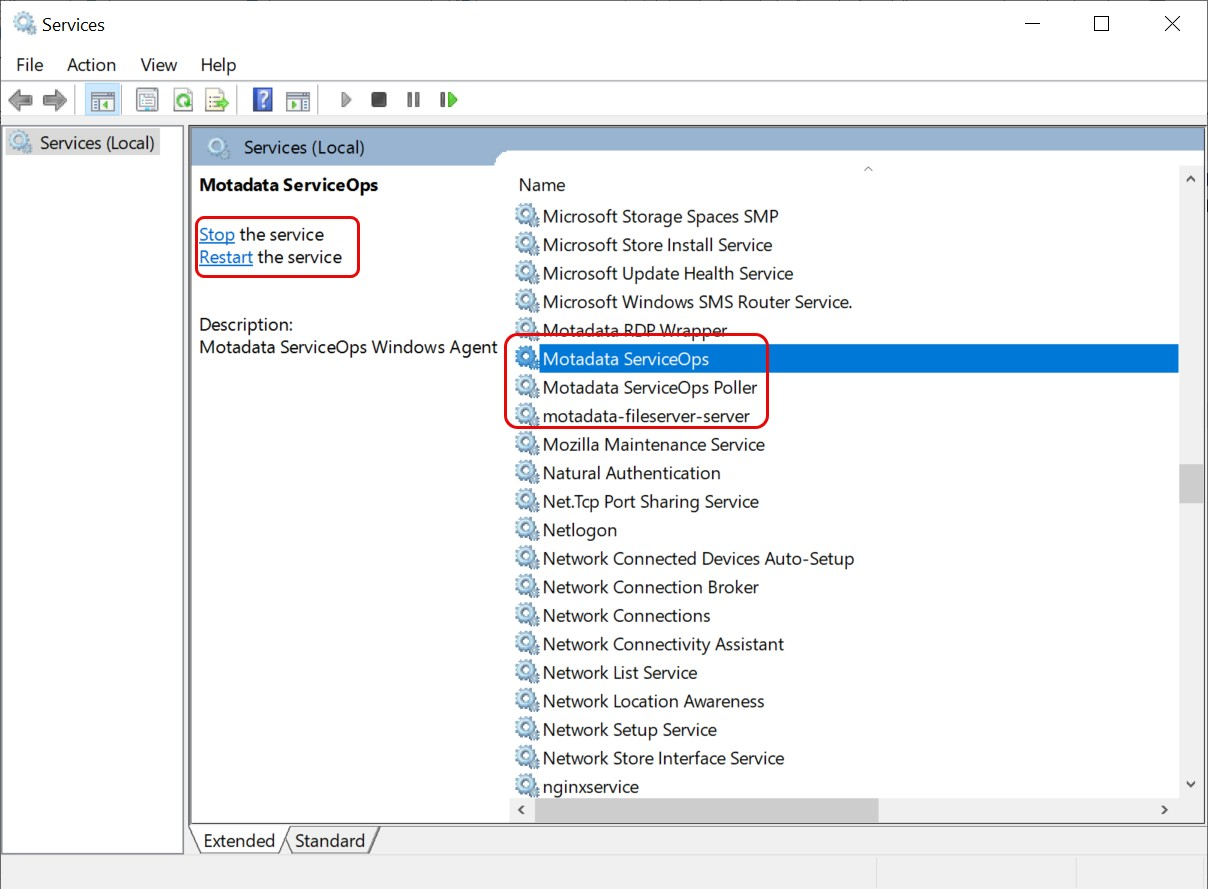
Restart agent services. If the agent becomes active after restart, collect the agent logs for further analysis.
Discovery scan not running despite active device and agent
Possible Causes
- The NSQ topic for scan or asset creation events has a growing backlog (depth value increasing).
- NSQ consumer services are stuck or unresponsive.
- High CPU or memory load is preventing message processing.
- Intermittent network issues between NSQ and its consumers.
- A service crash has left components in an inconsistent state.
Solution
Log in to the ServiceOps server via Terminal as the root user.
Check NSQ topic stats.
Run the following command to review the NSQ status:
curl http://127.0.0.1:4151/stats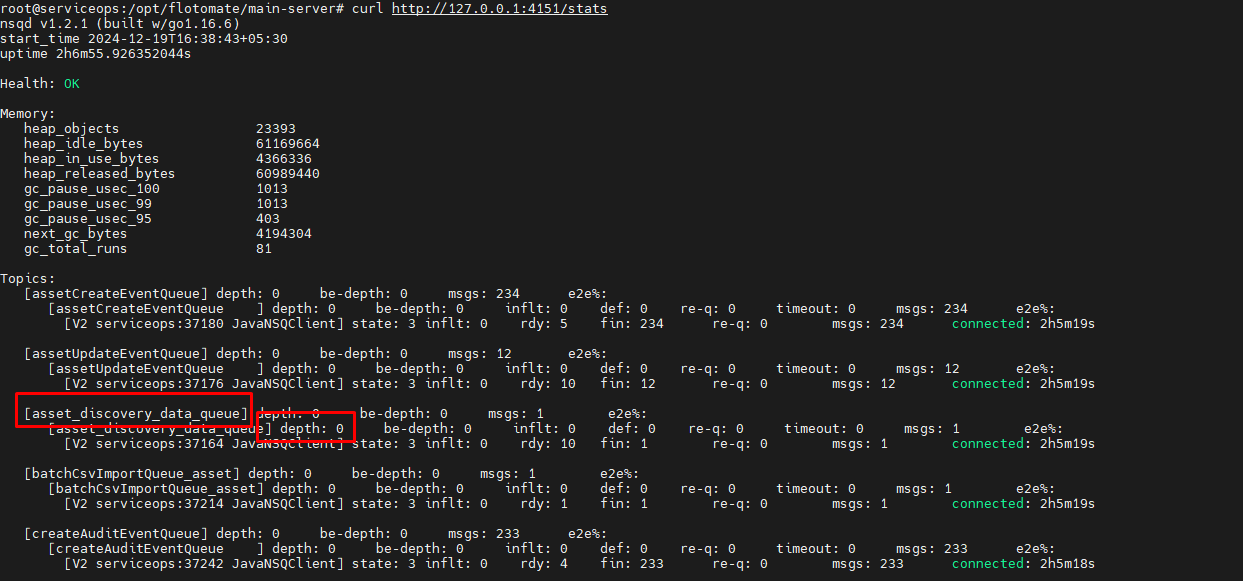
Locate the relevant topic for the failing process (scans, asset creation).
Evaluate queue depth. If the
depthvalue is not decreasing and continues to grow, the queue is stuck.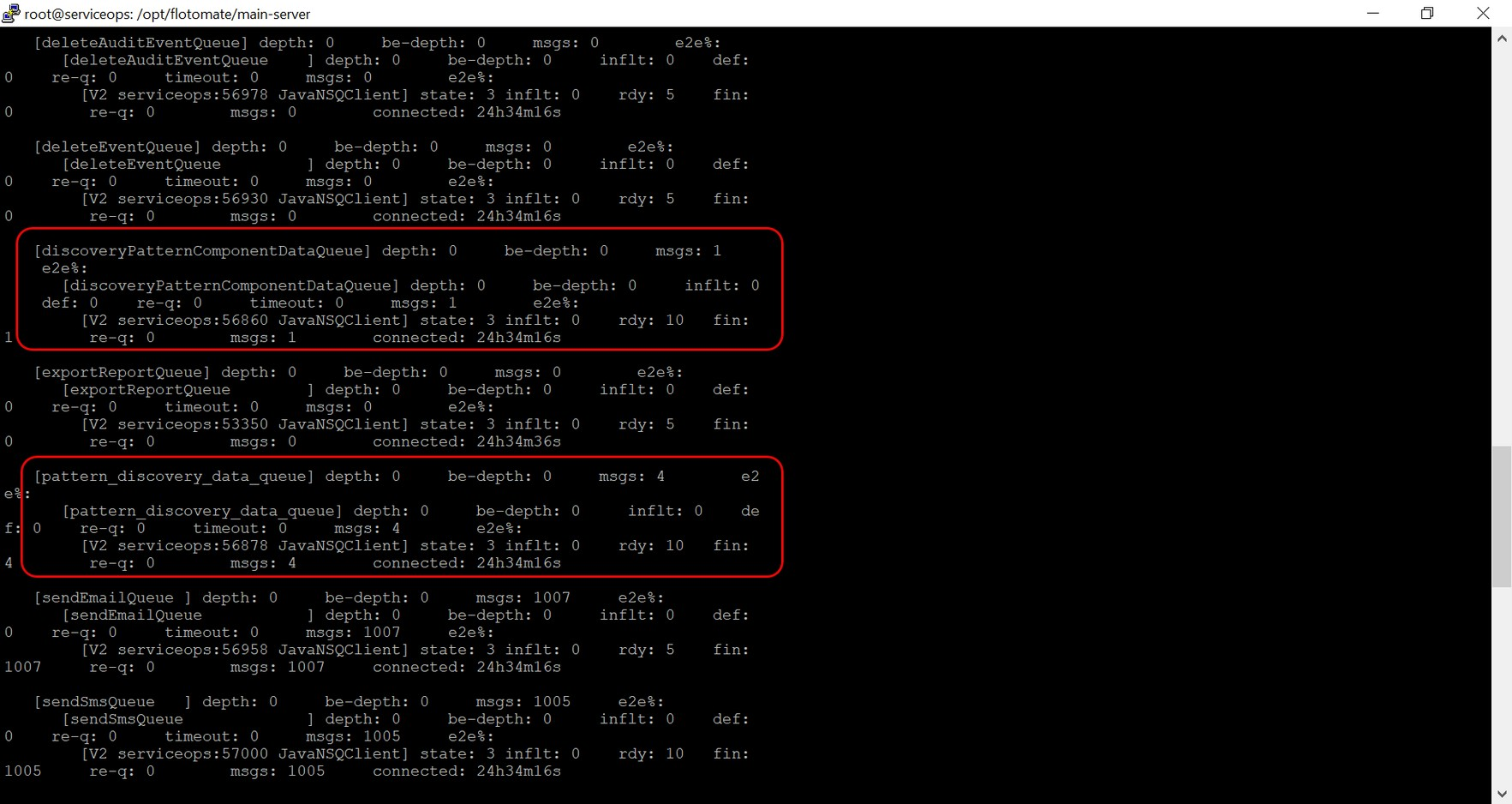
Check CPU usage on the ServiceOps server. High CPU load can prevent NSQ from processing messages.
- Windows: Press Ctrl + Shift + Esc to open Task Manager and review CPU usage under the Processes tab.
- Linux: Check resource utilization using a monitoring command. If CPU usage is consistently above 90%, wait for it to drop before restarting services. For example:
top
Restart services to clear the backlog.
systemctl restart ft-main-server
systemctl restart ft-analytics-server
Verify recovery. Run the NSQ stats command again after restart and confirm the depth value is decreasing.
Check the agent API log. On the agent machine, open
API.logand search for/discovery/datacalls. Confirm they return HTTP200 OK. If failing, reviewerror.logon the server at the same timestamp.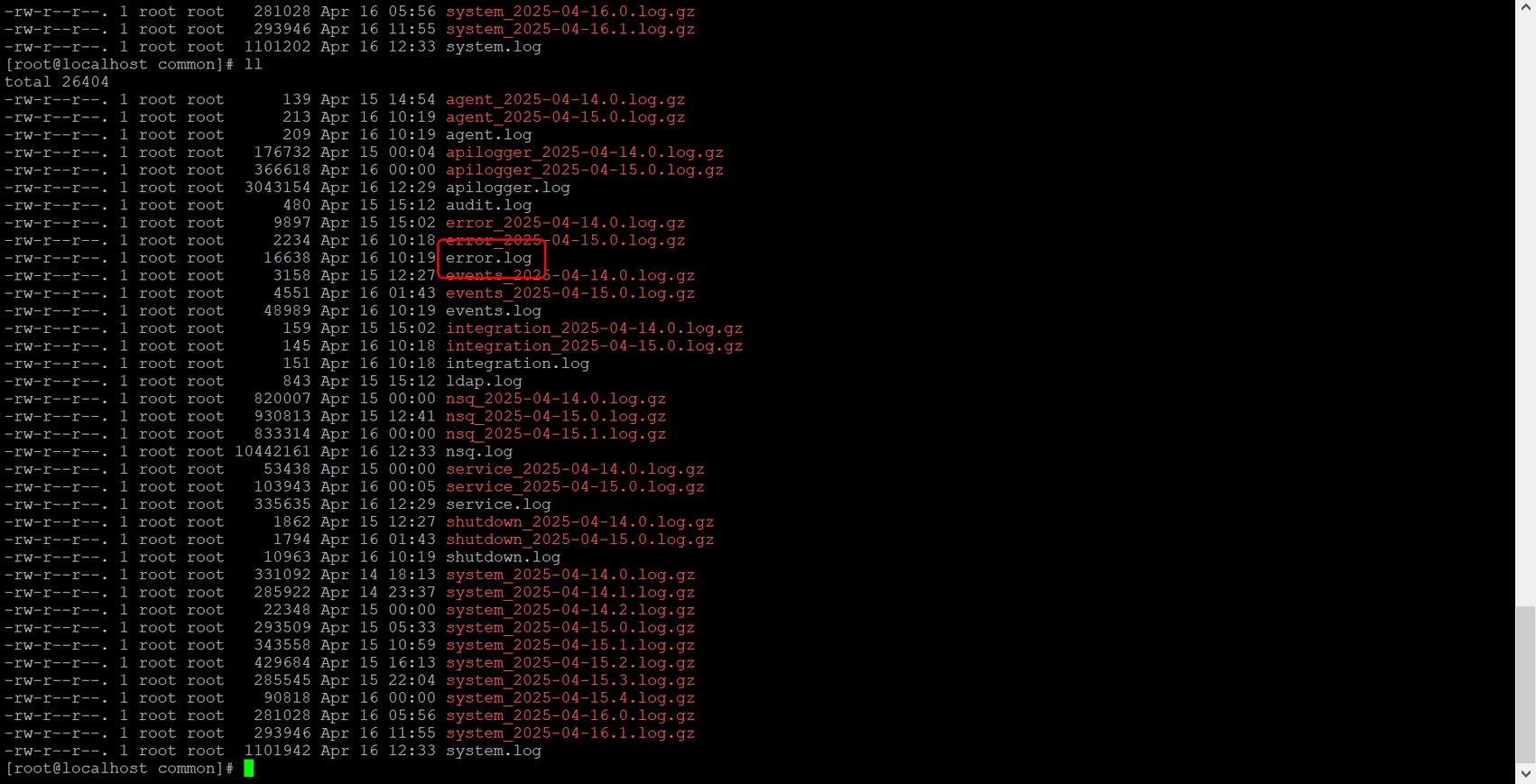
Duplicate assets are being created
Possible Causes
- Non-static fields (such as IP addresses) are included in the unique identifier configuration.
- Unique identifier values change across discovery cycles (for example, DHCP-assigned IPs).
- Blank or null values are returned for configured identifiers.
- The agent retries asset creation when the server does not respond with
success. - API calls between the agent and server have failed.
- CSV imports have modified unique identifier values.
- Virtual machine clones report identical hardware IDs.
Solution
Review the unique identifier configuration. Navigate to Admin > Organization > System Preference > Asset/CMDB Preference. Use only static identifiers such as motherboard serial number or BIOS UUID. Remove dynamic fields such as IP addresses.
Validate identifier values on endpoints. Identify machines where identifiers return different or blank values across discovery cycles. If the identifiers return blank values update their discovery patterns.
Check server communication. Review
API.logon the agent for failed creation calls. The server response must containsuccess. Upgrade to ServiceOps 8.5.x or above if running an older version.Prevent import-related duplicates. Always verify CSV files before import. Do not change the unique identifier columns during re-import, else there are chances of assets being duplicated.
Resolve existing duplicates. Compare unique identifier values to identify duplicates. Merge or archive incorrect records. Review
discovery.logfor identifier conflicts and monitor for multiple assets sharing the same identifier.
- Server-side:
discovery.log,error.log - Agent-side:
API.log,cmdb.log - CSV import files (if applicable)
SNMP discovery is not detecting devices
Possible Causes
- The target device is unreachable or the network firewall is blocking SNMP traffic on UDP port 161.
- Incorrect IP address or hostname is configured.
- SNMP credentials are incorrect (community string for v1/v2c, or username/auth/privacy settings for v3).
- A mismatch exists between the configured and the device's SNMP version or authentication/privacy protocol.
- The SNMP service is not enabled on the target device.
- Device ACLs are restricting SNMP access.
- MIBs are not properly installed on the ServiceOps server.
Solution
Verify basic connectivity.
ping <device_ip>
nc -zv <device_ip> 161
Test SNMP credentials directly.
For SNMPv2c:
snmpwalk -v2c -c <community_string> <device_ip> systemFor SNMPv3:
snmpwalk -v3 -l authPriv -u <username> -a MD5 -A <auth_password> -x DES -X <priv_password> <device_ip> system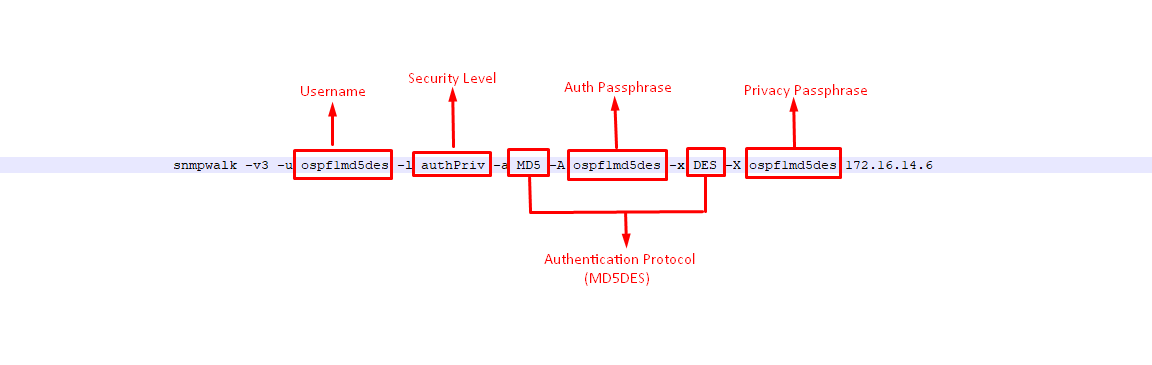
Validate the ServiceOps credential configuration. Navigate to Admin > Discovery and Agents > Credentials > SNMP. Confirm the correct SNMP version, authentication protocol, and privacy protocol are selected and match the device configuration.
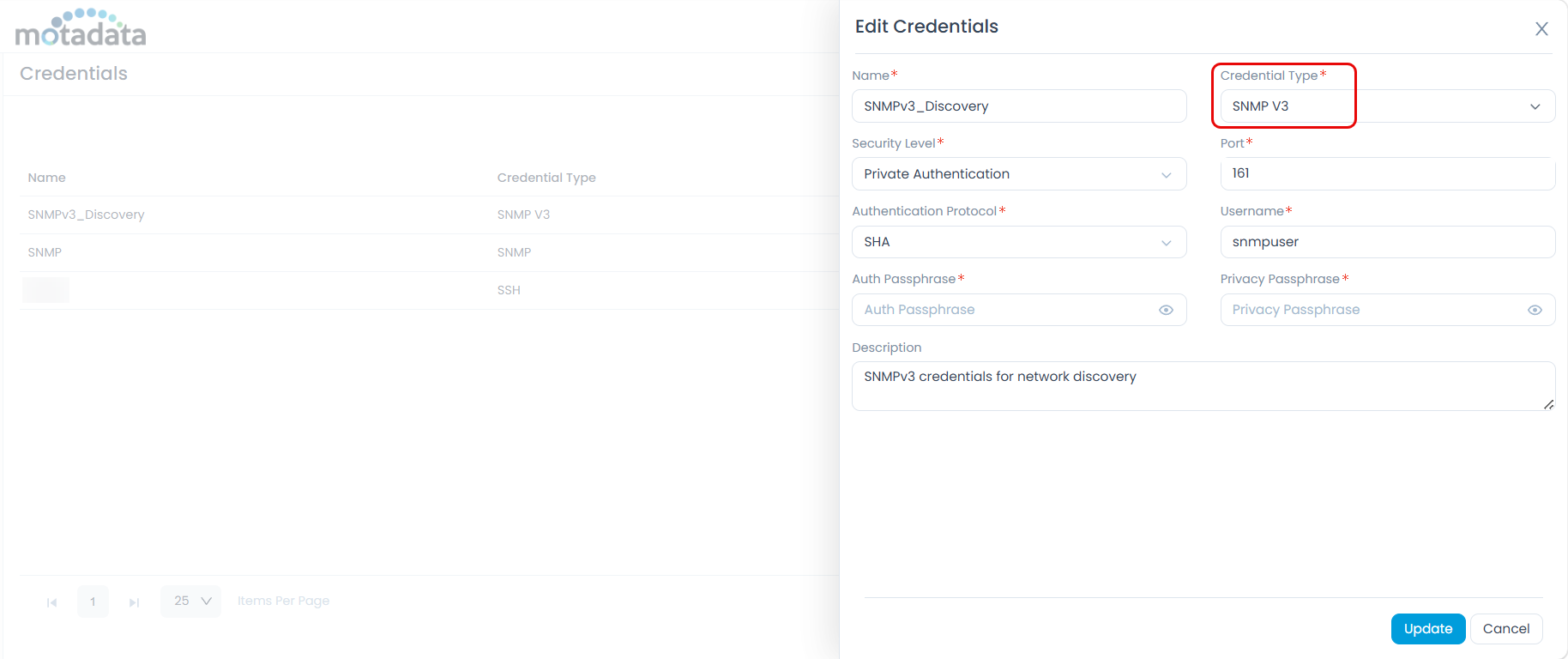
Confirm the device responds to SNMP. Verify you receive a valid
snmpwalkresponse from the target device before running discovery in ServiceOps.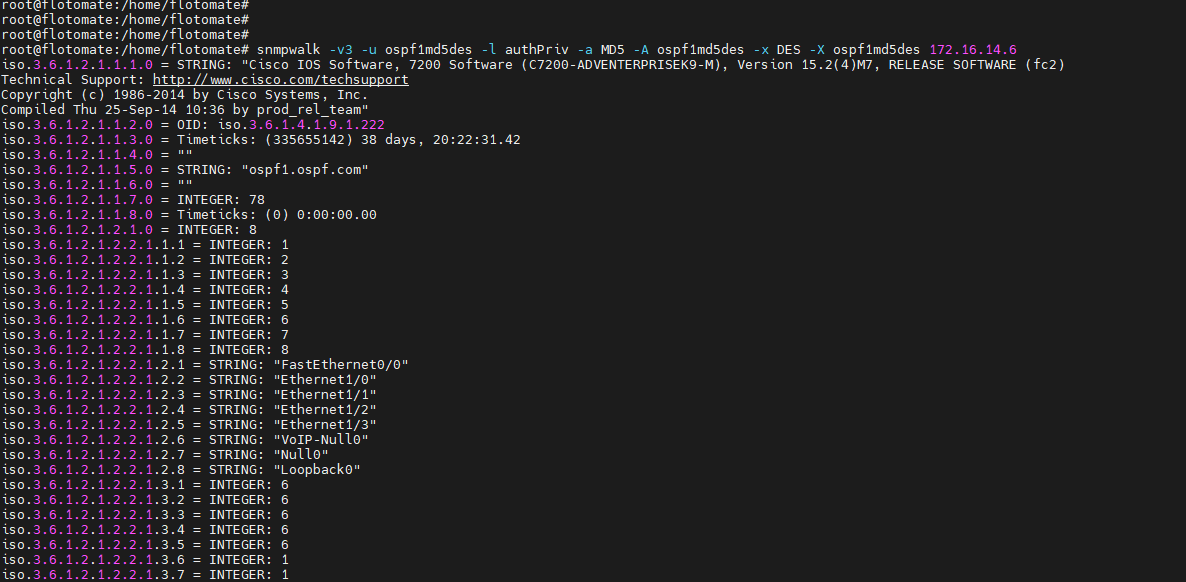
For detailed SNMP credential configuration and advanced device troubleshooting, see the SNMP Device Connectivity and Discovery Troubleshooting Guide.
Quick Reference Matrix
| Issue | Probable Cause | Quick Fix |
|---|---|---|
| Asset not created | WMI/PowerShell services disabled | Enable services and run test commands manually |
| Asset not created via agent | Agent misconfigured or installation incomplete | Reinstall the agent and verify config.ini parameters |
| Asset created but not updated after changes | Discovery not triggered or pattern misconfigured | Run manual discovery and check cmdb.log |
| Duplicate assets created | Unique identifier based on dynamic values (IP, hostname) | Use static identifiers such as BIOS UUID or MAC address |
| Agent not showing as Active | Server URL mismatch or Secure Gateway unreachable | Update config.ini, verify connectivity, restart agent |
| Scan not executing via agent | NSQ queue backlog or discovery thread crashed | Restart the Main Server and Analytics Server |
| Asset deleted after reinstallation | Incorrect deallocation setting or unique ID mismatch | Change the deallocation policy or adjust the unique field mapping |
| Agent not auto-upgrading | Auto-upgrade disabled or upgrade package missing | Enable auto-upgrade, check upgrade.log, or upgrade manually |
| Agent appears more than once | Agent installed multiple times with different credentials | Use the same install method and credentials; merge or remove duplicates |
| Software inventory missing | Registry or PowerShell access blocked | Enable permissions, check antivirus, validate discovery pattern |
| CSV import results in blank or incomplete assets | Field mismatch or invalid data in CSV | Use the system-generated template and validate mandatory fields |
| Agent not communicating with server | Proxy, firewall, or TLS issues | Check logs, validate port access, verify certificates if HTTPS is used |
| Slow agent registration | High server load or NSQ message delays | Scale server resources or increase worker threads for API and NSQ |
| Agent registration fails with WMI "Invalid class" | Corrupted WMI repository on the Windows endpoint | Run mofcomp "$env:windir\System32\wbem\cimwin32.mof" as administrator, then restart the agent |