Configuring Gmail for Basic Auth
Connect ServiceOps to Gmail using an App Password to send and receive emails without exposing your Google account password.
What is Basic Auth?
Basic Authentication is a simple authentication method that uses a username and password to verify access to an email server. For Gmail, Google requires you to use an App Password rather than your regular account password. An App Password is a 16-character code generated from your Google account that grants ServiceOps access to the mailbox without sharing your main credentials.
App Passwords are only available when 2-Step Verification is enabled on the Gmail account. Complete Steps 1 to 5 below before configuring ServiceOps.
Prerequisites
- A Gmail account with 2-Step Verification enabled.
- IMAP or POP3 must be enabled on the Gmail account before configuring it for incoming email.
Configuring Gmail for App Password
Step 1: Sign in to Gmail
Sign in to your Gmail account.
Step 2: Enable IMAP or POP3
Enable IMAP or POP3 from Gmail Settings > See all settings > Forwarding and POP/IMAP.
- To enable IMAP, refer to Check Gmail through other email platforms.
- To enable POP3, refer to Read Gmail messages on other email clients using POP.
Step 3: Open 2-Step Verification Settings
Navigate to Manage your Google Account > Security and click 2-Step Verification.
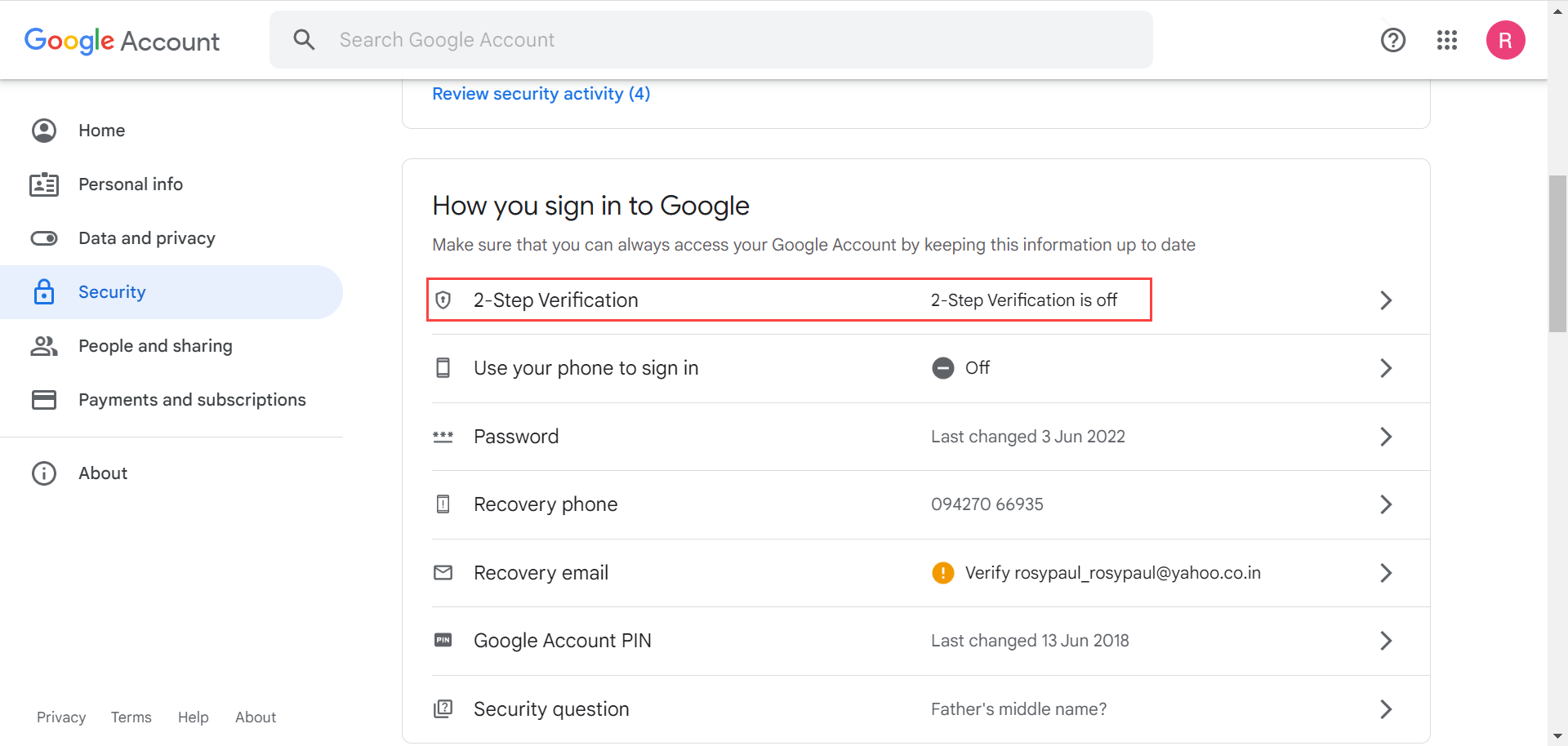
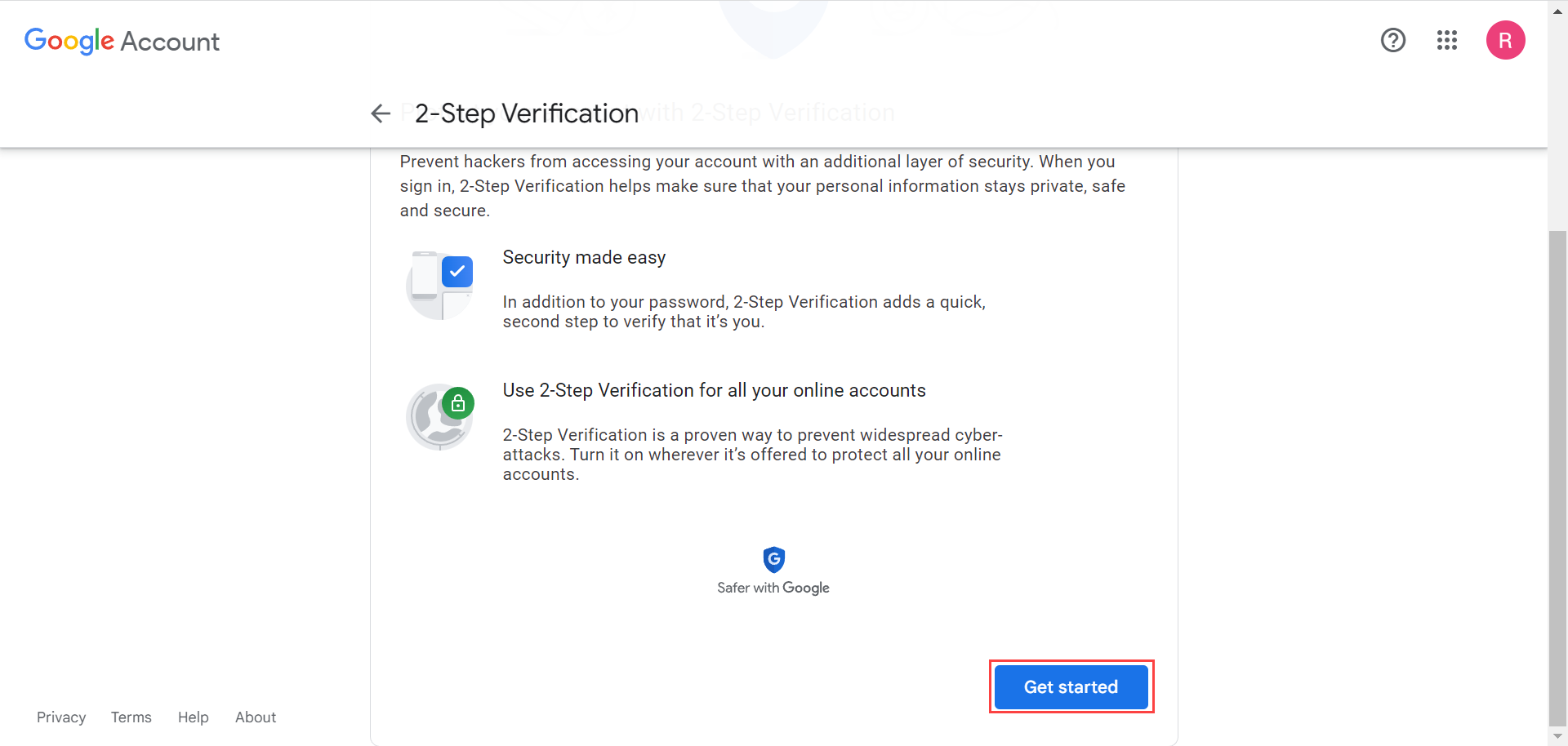
Step 4: Start 2-Step Verification Setup
Click Get Started.
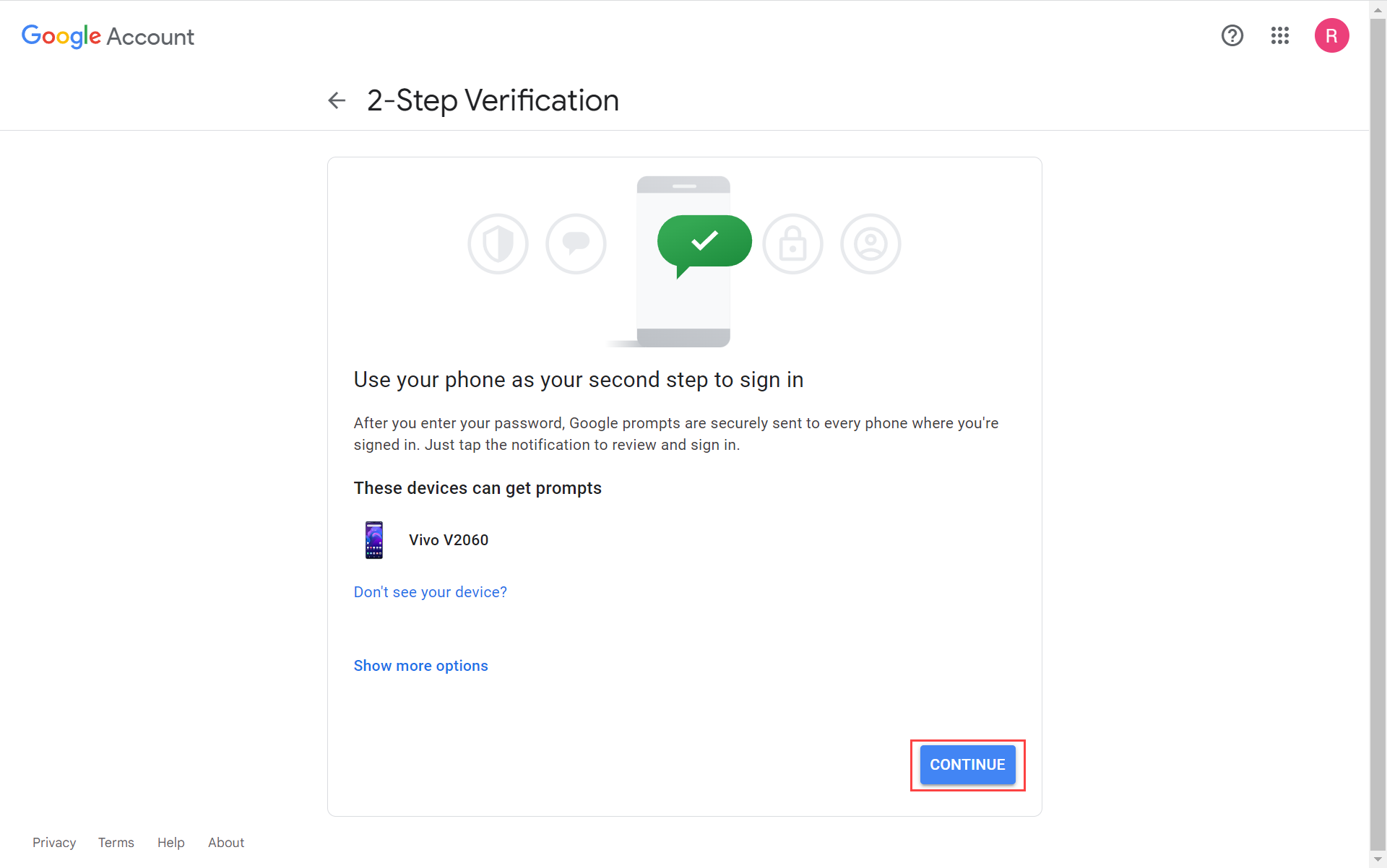
Step 5: Complete Verification Setup
Click Continue.
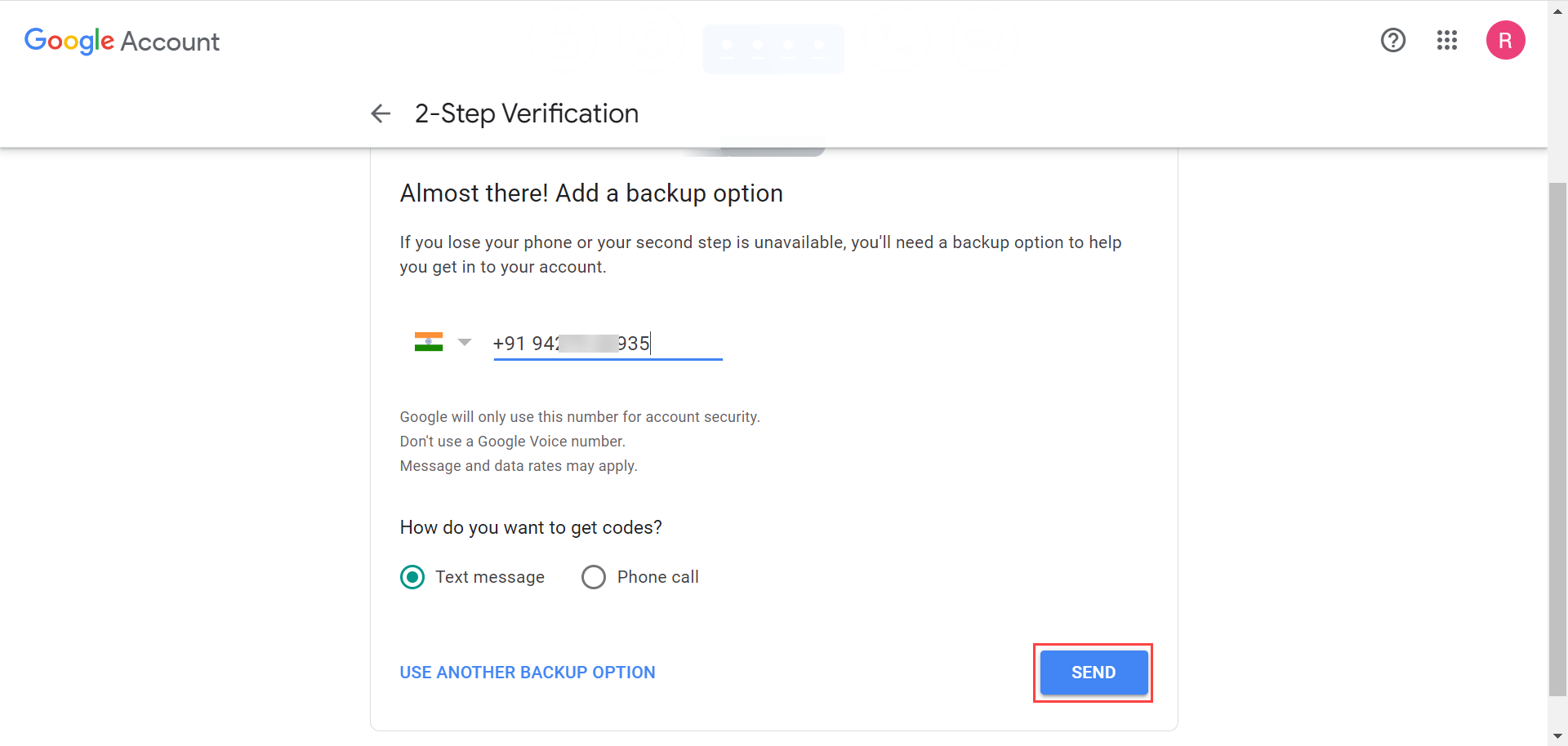
Enter a phone number as a backup option and click Send.
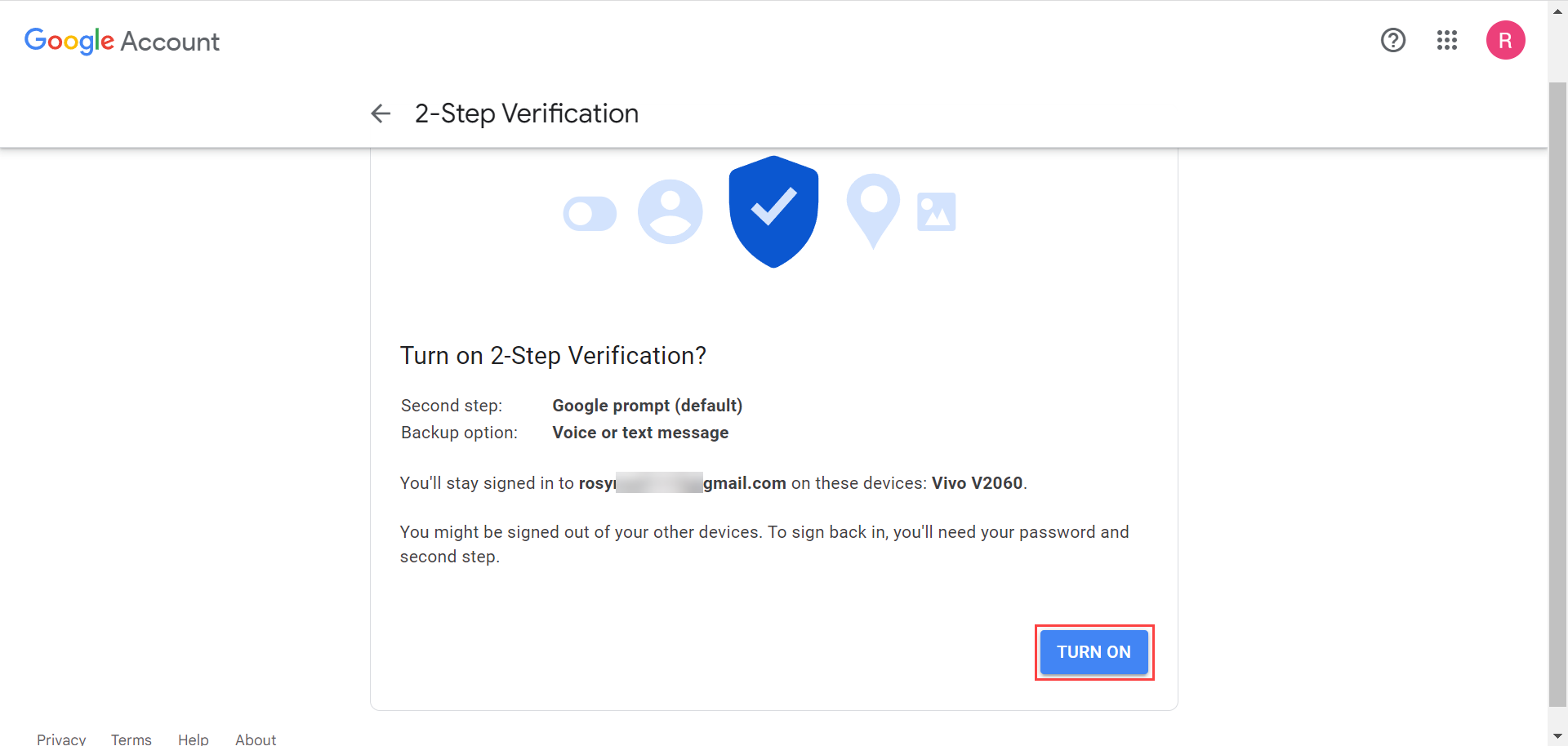
Click Turn On to enable 2-Step Verification.
Step 6: Generate an App Password
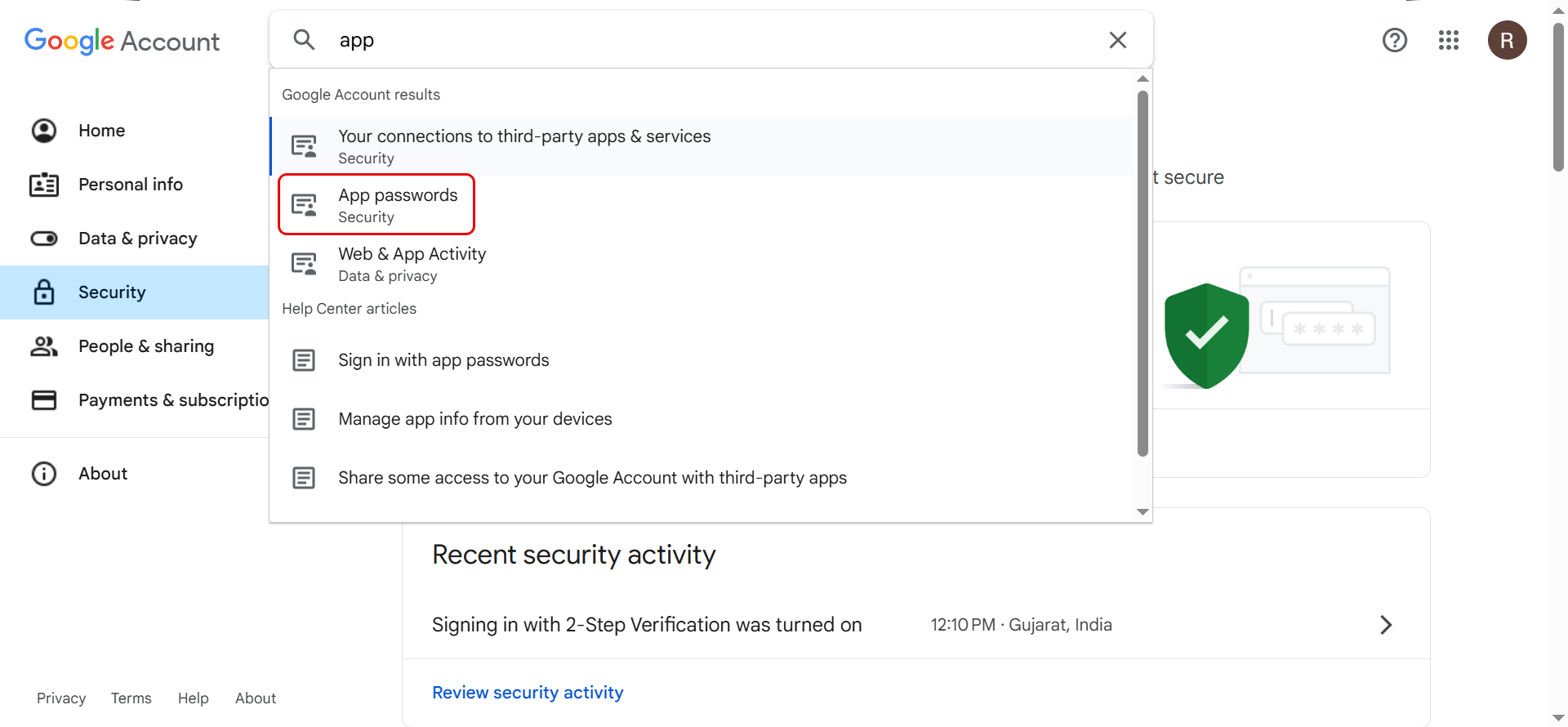
Search for App Passwords in the Google Account search bar and open the App Passwords page.
The App Passwords option is available only after 2-Step Verification is enabled.
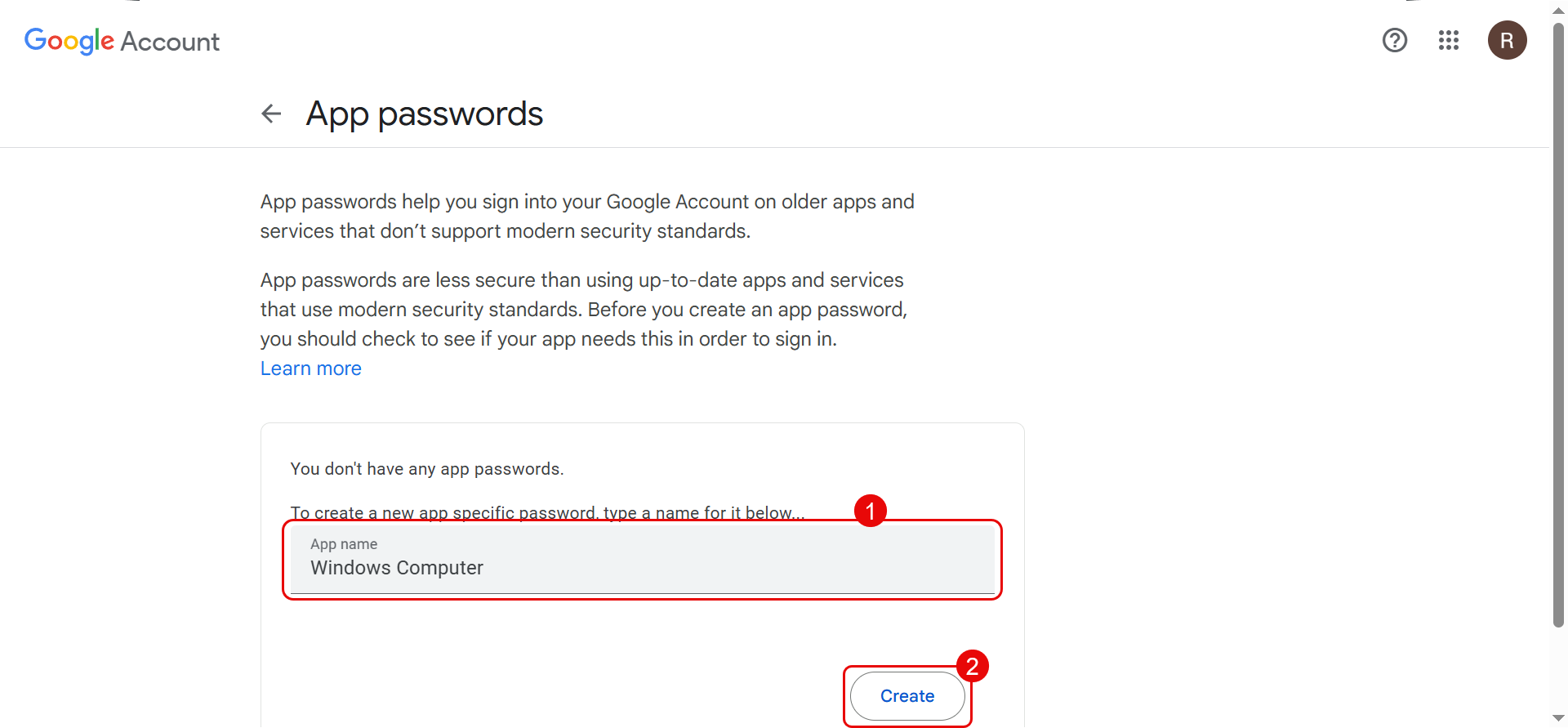
Enter an App name to identify the password (for example, ServiceOps) and click Create.
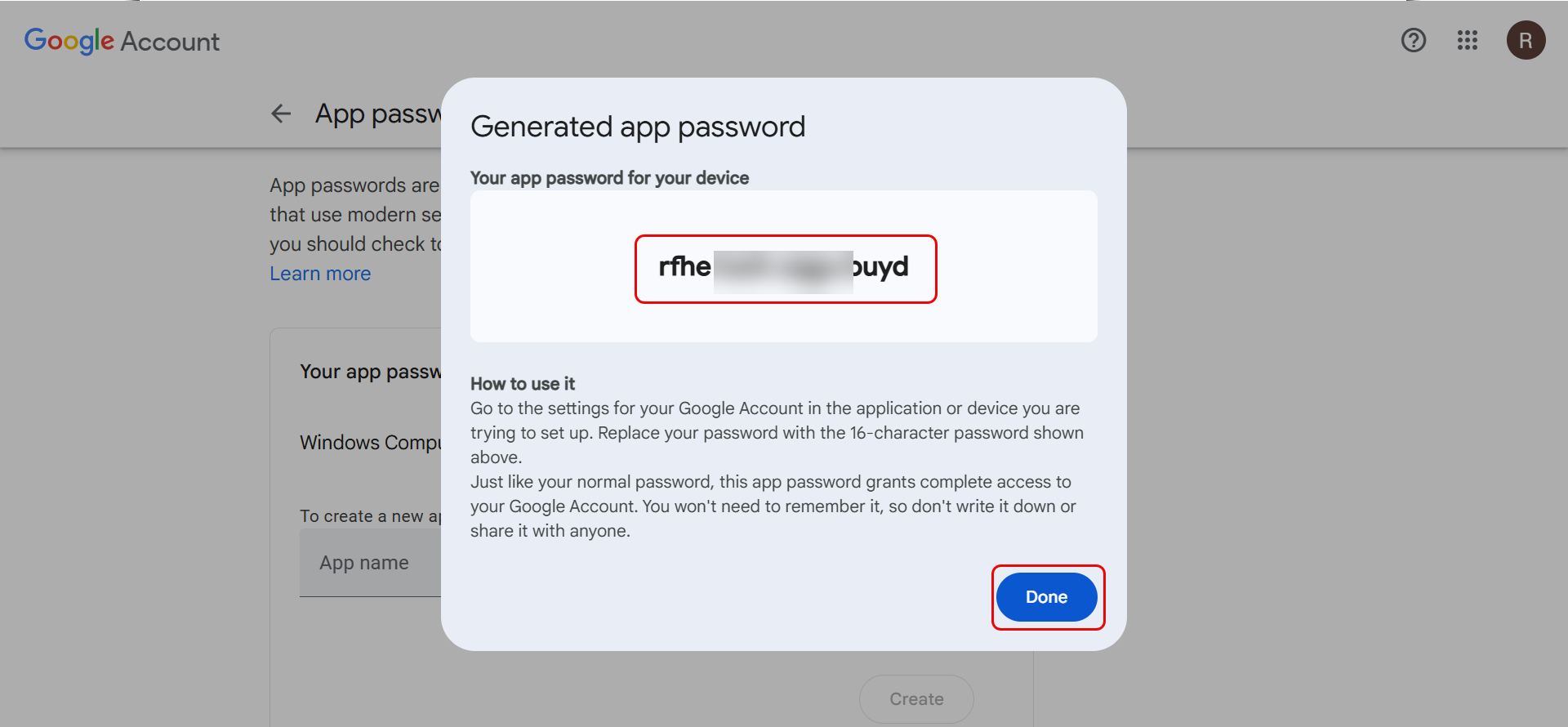
The App Password is generated. Copy the 16-character password. You will need it in ServiceOps.
Configuring Gmail in ServiceOps (Incoming)
Navigate to Admin > Support Channel > Emails > Incoming Email Servers and click Add Incoming Email Server.

Basic Information
Identify and route this mailbox within ServiceOps.
| Parameter | Description |
|---|---|
| Name | Enter the name of the email server. |
| Email Address | Enter the Gmail address used for authentication. |
| Technician Group | Select the technician group assigned when a new request is created via email. Tickets from this mailbox are assigned to the selected group. |
| Category | Select the category assigned to tickets created via this email server. New tickets from this mailbox get the selected category by default. |
| Proxy Server | Select the proxy server if ServiceOps connects to the internet via a proxy. |
Connection Method
Choose how ServiceOps connects to this mailbox.
| Parameter | Description |
|---|---|
| Protocol | Select IMAP or POP3. The selected protocol must be enabled on the Gmail account. |
| Sign in with Microsoft | Not applicable for Gmail. Use this option only for Microsoft 365 mailboxes. |
| Other/Custom Server | Select this option for Gmail. Use when connecting via Basic Auth or a custom OAuth 2.0 app. |
Server Connection
Define how ServiceOps fetches emails from this mailbox.
| Parameter | Description |
|---|---|
| Server | Enter imap.gmail.com for IMAP or pop.gmail.com for POP3. |
| Port | Enter the port number. Common values: IMAP: 993, POP3: 995. |
| Security Type | Select SSL or TLS. |
Authentication
Configure how ServiceOps signs into the mailbox.
| Parameter | Description |
|---|---|
| Authentication Type | Select Basic Auth to authenticate using a username and password. Select OAuth 2.0 to authenticate using OAuth. |
| Username | Enter the full Gmail address. |
| Password | Paste the App Password generated in Step 6. Do not use your regular Google account password. |
Server Settings
Enable, prioritize, and link this mailbox.
| Parameter | Description |
|---|---|
| Enabled | Toggle to enable or disable the server. ServiceOps polls this mailbox and creates tickets only when enabled. |
| Primary Server | Enable to use this server as the primary incoming server. At least one server should be set as primary. |
| Real Time Scanning | When enabled, ServiceOps checks for new email arrivals when an email action occurs. When disabled, ServiceOps checks at configured intervals. |
| Outgoing Email Server | Enable to associate an outgoing email server with this mailbox. Use Primary Outgoing Server to use the default, or select a specific server from the dropdown. |
Email Filters
Control which emails create tickets. All senders are accepted if no filters are configured.
| Parameter | Description |
|---|---|
| Filter Type | Select Allow to create tickets only from the listed addresses, domains, or keywords (all others are blocked). Select Ignore to discard emails matching the listed values (all others are allowed). |
| Email Addresses | Enter specific email addresses to filter. Example: hr@company.com. Multiple entries work as OR conditions. |
| Domains | Enter domain names to filter, without the @ symbol. Example: yahoo.com. Multiple entries work as OR conditions. |
| Subject Keywords | Enter words or phrases matched against the email subject and body. Multiple entries work as OR conditions. |
Click Save.
Configuring Gmail in ServiceOps (Outgoing)
Navigate to Admin > Support Channel > Emails > Outgoing Email Servers and click Add Outgoing Email Servers.

Basic Information
Identify this mail server within ServiceOps.
| Parameter | Description |
|---|---|
| Name | Enter the name of the email server. |
| Email Address | Enter the Gmail address used as the From address for all notifications. |
| Sender Name | Enter the display name shown to recipients alongside the From address. |
Connection Method
Choose how ServiceOps connects to this mail server.
| Parameter | Description |
|---|---|
| Protocol | Select SMTP or MAPI as the connection protocol. |
| Sign in with Microsoft | Not applicable for Gmail. Use this option only for Microsoft 365 mailboxes. |
| Other/Custom Server | Select this option for Gmail. Use when connecting via Basic Auth or a custom OAuth 2.0 app. |
Server Connection
Define how ServiceOps sends emails through this server.
| Parameter | Description |
|---|---|
| Server | Enter smtp.gmail.com. |
| Port | Enter the port number. Common values: SMTP (TLS): 587, SMTP (SSL): 465. |
| Security Type | Select SSL or TLS. |
Authentication
Enable if the mail server requires credentials to send emails. Most production servers require this.
| Parameter | Description |
|---|---|
| Authentication Type | Select Basic Auth to authenticate using a username and password. Select OAuth 2.0 to authenticate using OAuth. |
| Username | Enter the full Gmail address. |
| Password | Paste the App Password generated in Step 6. Do not use your regular Google account password. |
Server Settings
Enable, prioritize, and link this mail server.
| Parameter | Description |
|---|---|
| Reply-To Email | Enter the email address to which recipient replies are directed. Set this to a monitored mailbox so replies are captured and converted into tickets. |
| Proxy Server | Select the required proxy server. Leave blank if ServiceOps has direct internet access. |
| Enabled | Toggle to enable or disable the server. ServiceOps uses this server to send emails only when enabled. |
| Primary Server | Enable to use this server as the fallback when other configured outgoing servers are unavailable. At least one server should be set as primary. |
Email Filters
Control which recipients can receive emails. All recipients are allowed if no filters are configured.
| Parameter | Description |
|---|---|
| Filter Type | Select Allow to send emails only to the listed addresses or domains (all others are blocked). Select Ignore to silently block emails to the listed addresses or domains (all other recipients are allowed). |
| Email Addresses | Enter specific email addresses to filter. Example: hr@company.com. Multiple entries work as OR conditions. |
| Domains | Enter domain names to filter, without the @ symbol. Example: company.com. Multiple entries work as OR conditions. |
Click Save. Verify connectivity using the Test Connection button from the list page.
Troubleshooting
Authentication fails with "Invalid credentials" error
Gmail blocks standard account passwords for SMTP and IMAP when 2-Step Verification is enabled. If authentication fails:
- Confirm you are using an App Password, not your regular Google account password.
- Go to Google Account > Security > App Passwords and generate a new App Password for ServiceOps.
- Update the Password field in the ServiceOps email server configuration with the new App Password.
- If App Passwords is not visible in your Google Account, 2-Step Verification may not be enabled. Complete Step 3 to 5 above first.
App Passwords option is not visible in Google Account
The App Passwords option only appears after 2-Step Verification is fully enabled. If it is still not visible:
- Confirm 2-Step Verification is active at Google Account > Security > 2-Step Verification.
- If your account is managed by a Google Workspace admin, the admin may have restricted App Passwords. Contact your Google Workspace admin to enable it.
- Some Google Workspace plans disable App Passwords in favour of OAuth. In that case, use Configuring Gmail for OAuth instead.
Emails are not converting into tickets
If the incoming server connects successfully but emails are not creating tickets:
- Confirm Email to Ticket is enabled at Admin > Support Channel > Emails > Email Preference.
- Confirm IMAP or POP3 is enabled on the Gmail account under Gmail Settings > Forwarding and POP/IMAP.
- Check the Filter Type configuration. An Ignore rule may be discarding the sender's emails.
- Review the Email Audit log at Admin > Organization > Security > Operation Audit for rejection details.