Configuring Gmail for OAuth
Connect ServiceOps to Gmail using OAuth to send and receive emails securely, without storing passwords in the system.
What is OAuth?
OAuth is an Open Standard Authorization protocol that allows one application to authenticate with another on your behalf without sharing a password. It uses client credentials to obtain short-lived access tokens, keeping email communication secure.
This functionality is applicable from version 8.1 and above.
How OAuth Works with ServiceOps
ServiceOps uses the Google OAuth client you register as a secure intermediary for email authentication. During setup, you provide the Client ID, Client Secret, and Scope to ServiceOps. When ServiceOps needs to send or receive email, it contacts Google using these credentials to obtain a short-lived access token. Google validates the credentials against your OAuth client and returns the token. ServiceOps uses that token to access the mailbox and refreshes it automatically before it expires, so no passwords are stored in ServiceOps at any point.
Prerequisites
- A Google account with access to Google Cloud Console.
- IMAP or POP3 must be enabled on the Gmail account before configuring it for incoming email.
- The Redirect URL must use HTTPS. A valid SSL certificate is required on the ServiceOps server.
- ServiceOps version 8.1 or above.
Configuring Gmail as OAuth Provider
Step 1: Sign in to Google Cloud Console
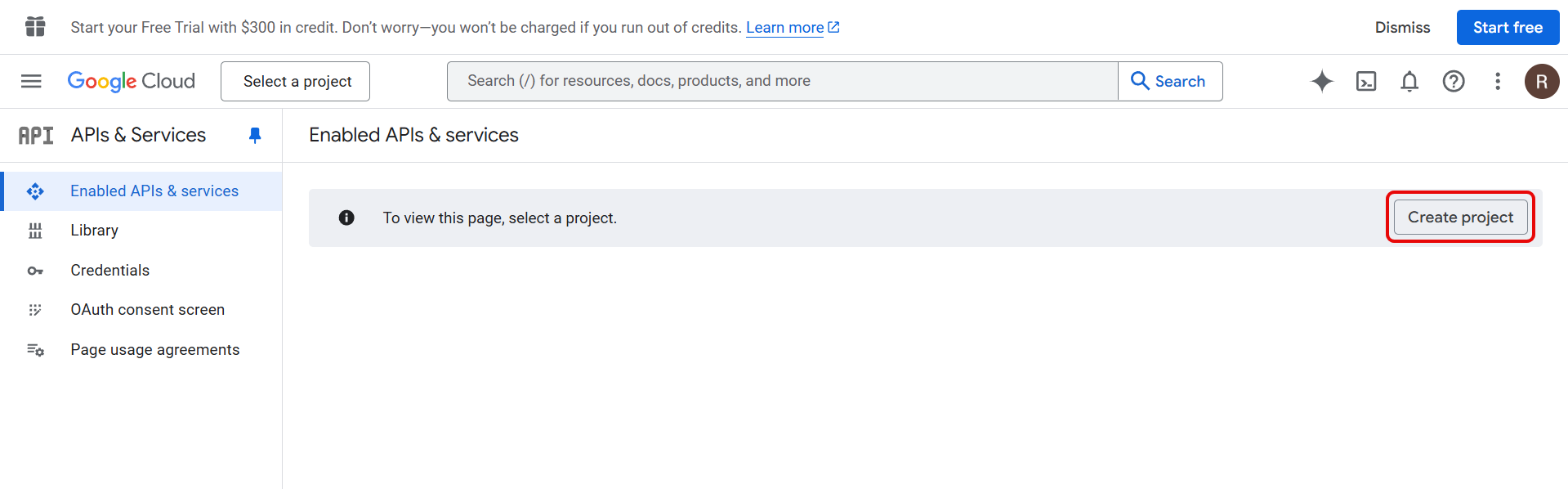
Sign in to Google Cloud Console and click Create Project.
Step 2: Create a New Project
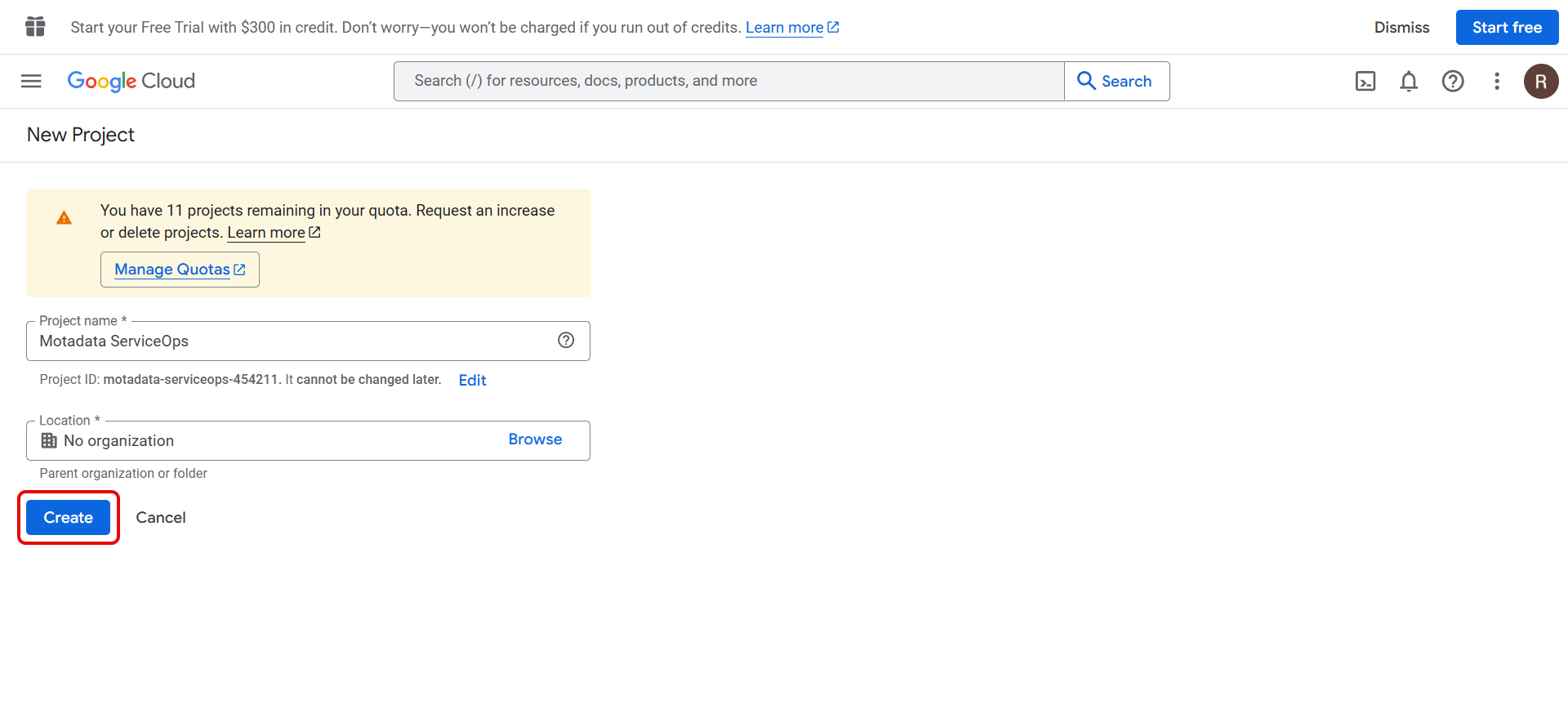
Enter the Project Name and click Create.
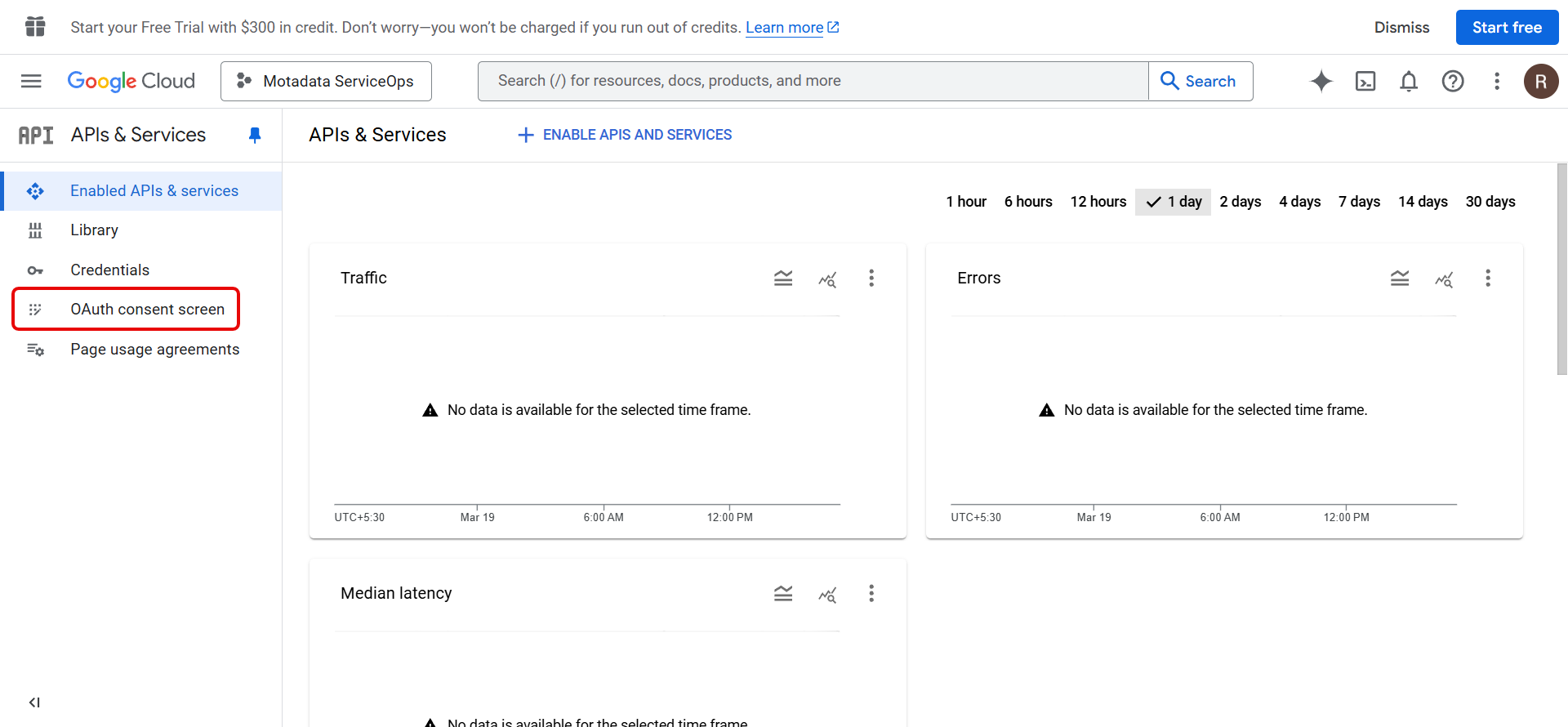
The project dashboard appears.
Step 3: Configure the OAuth Consent Screen
Go to the OAuth consent screen tab and click Get Started.
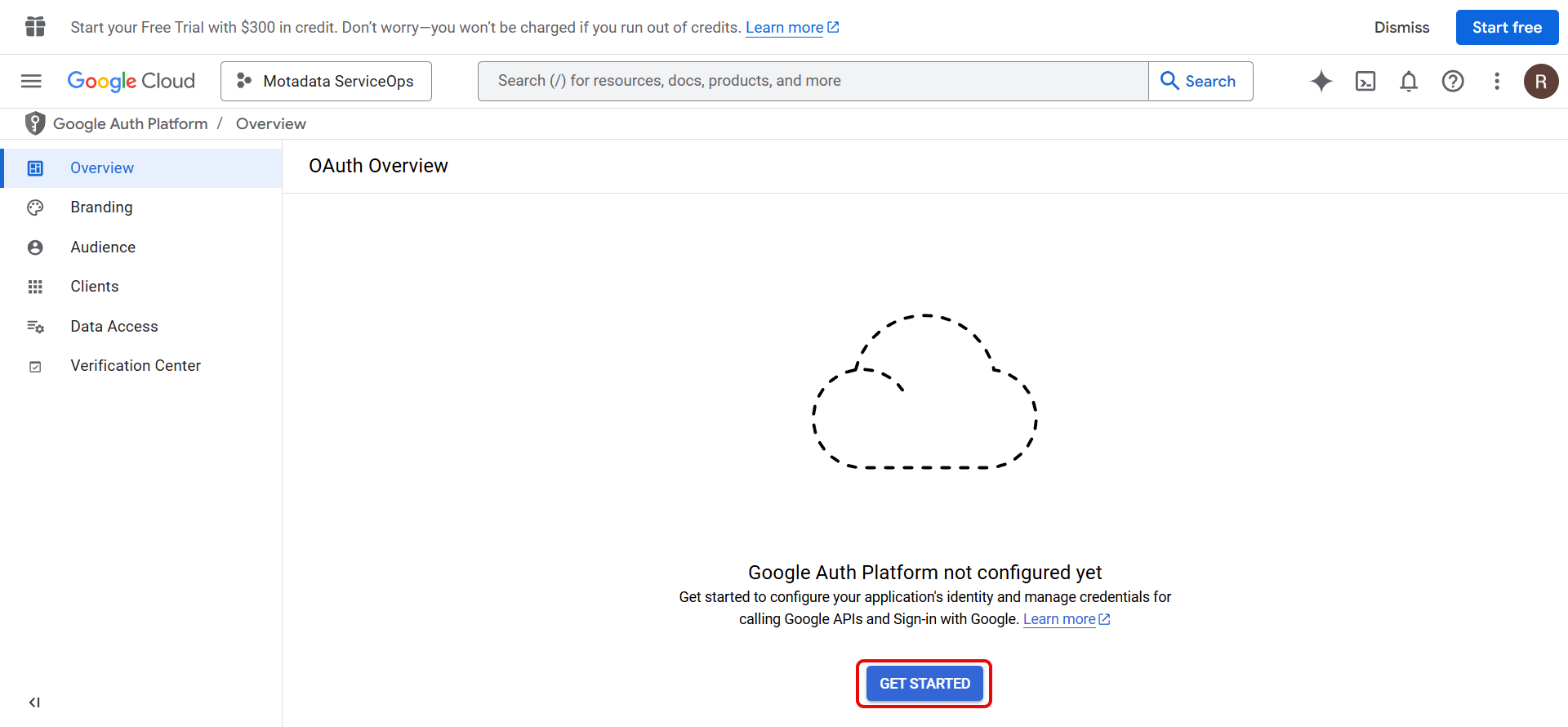
In the Overview tab, configure the project:
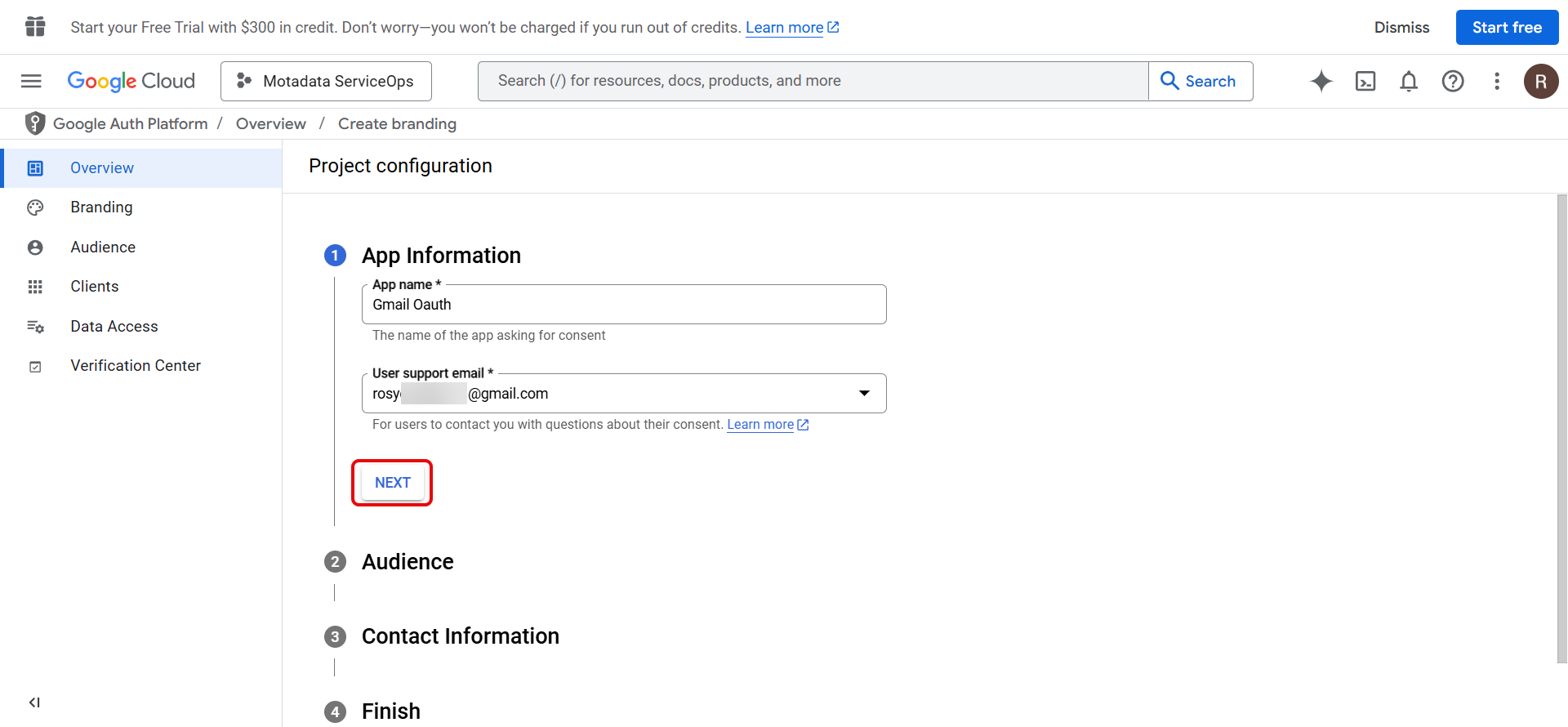
- Enter the App name and User Support Email, then click Next.
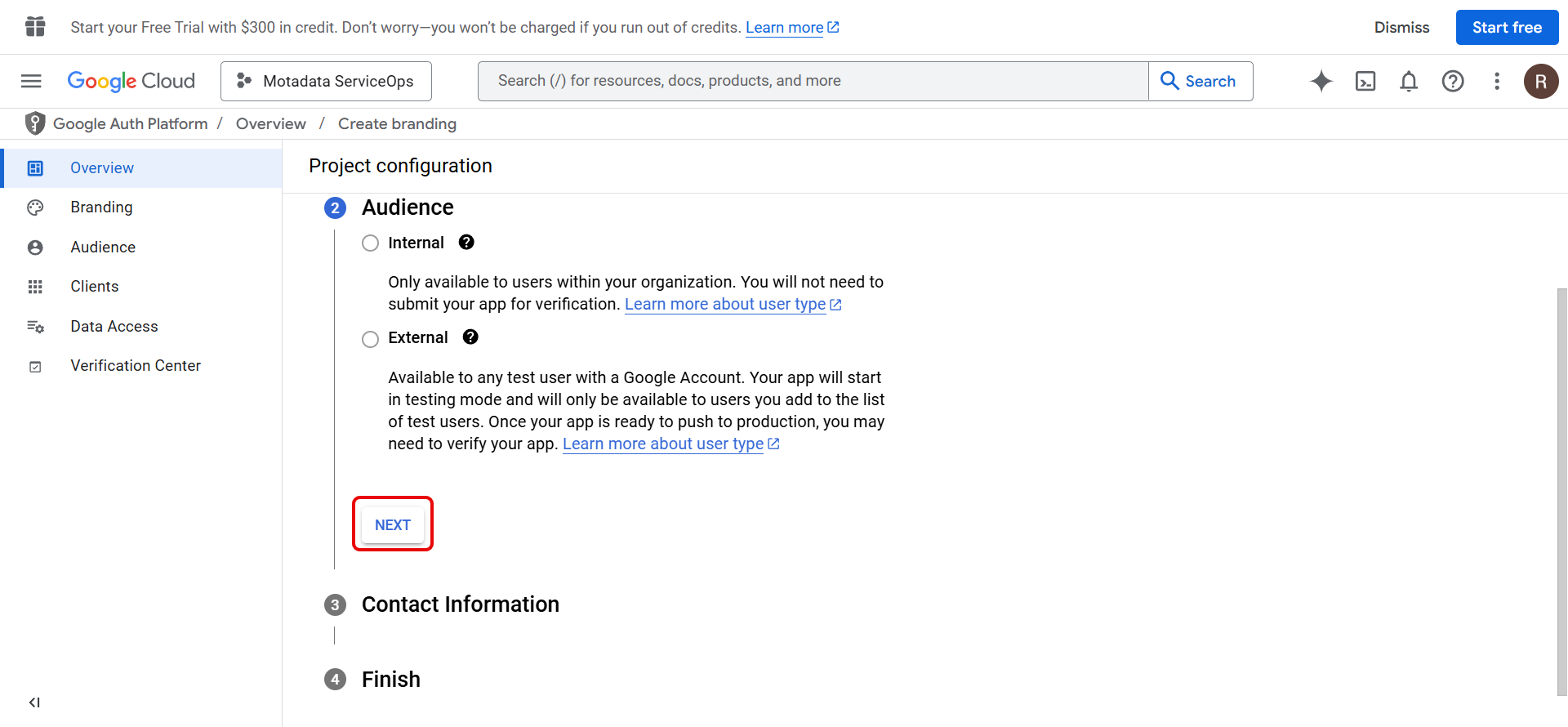
- Select the Audience:
- Select Internal if you are creating an app for your organization.
- Select External if you are testing using a standalone Gmail account.
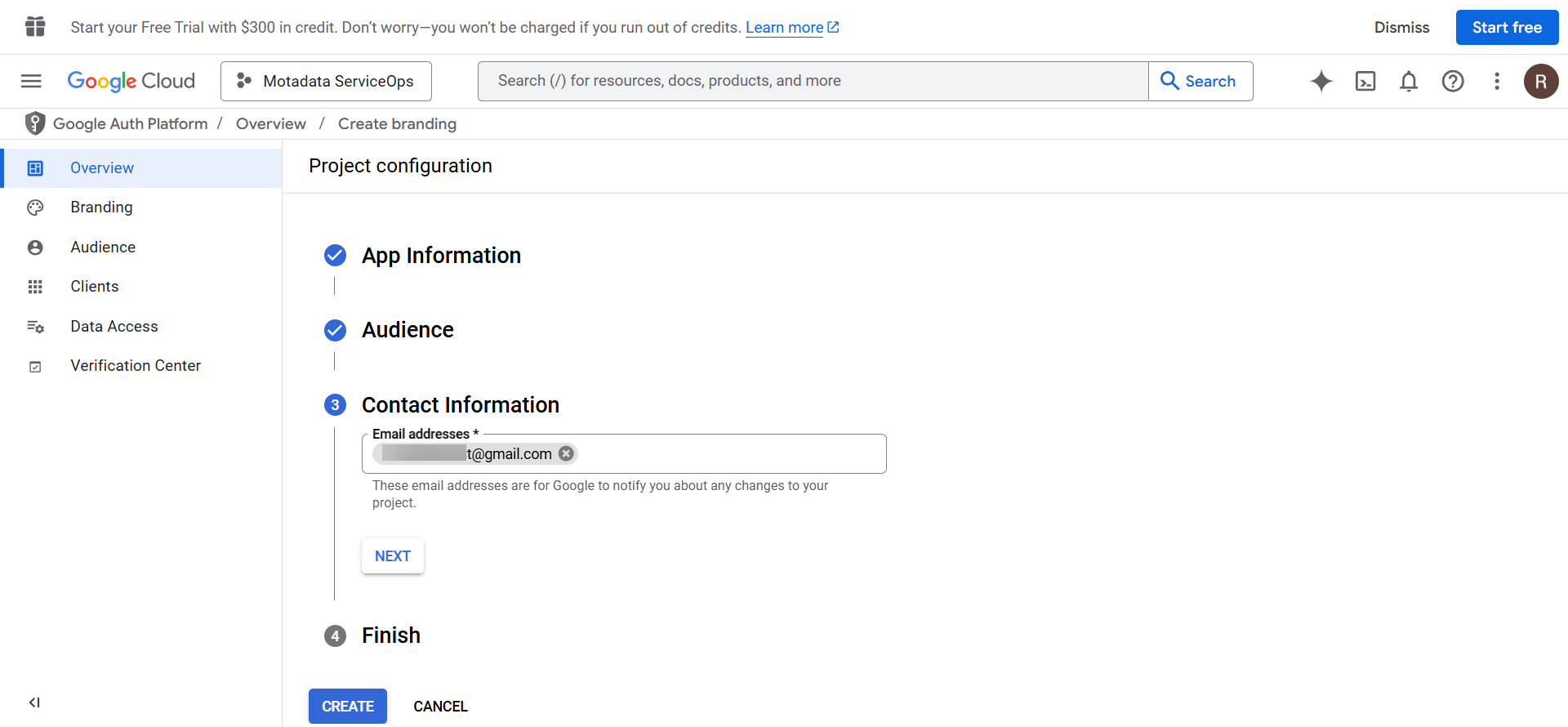
- Enter the Contact Information and click Next.
- In the Finish step, enable the I agree checkbox, click Continue, and then click Create.
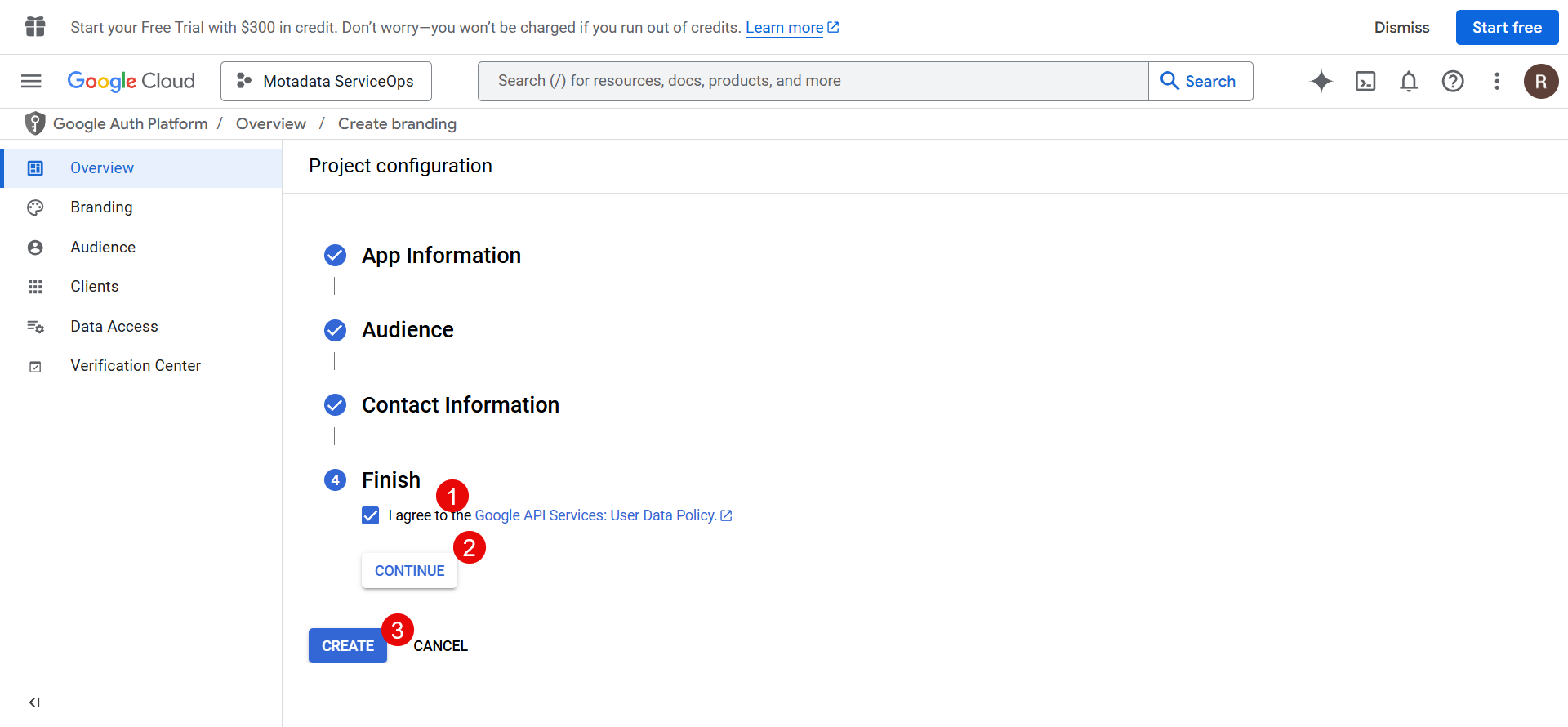
The app is created.
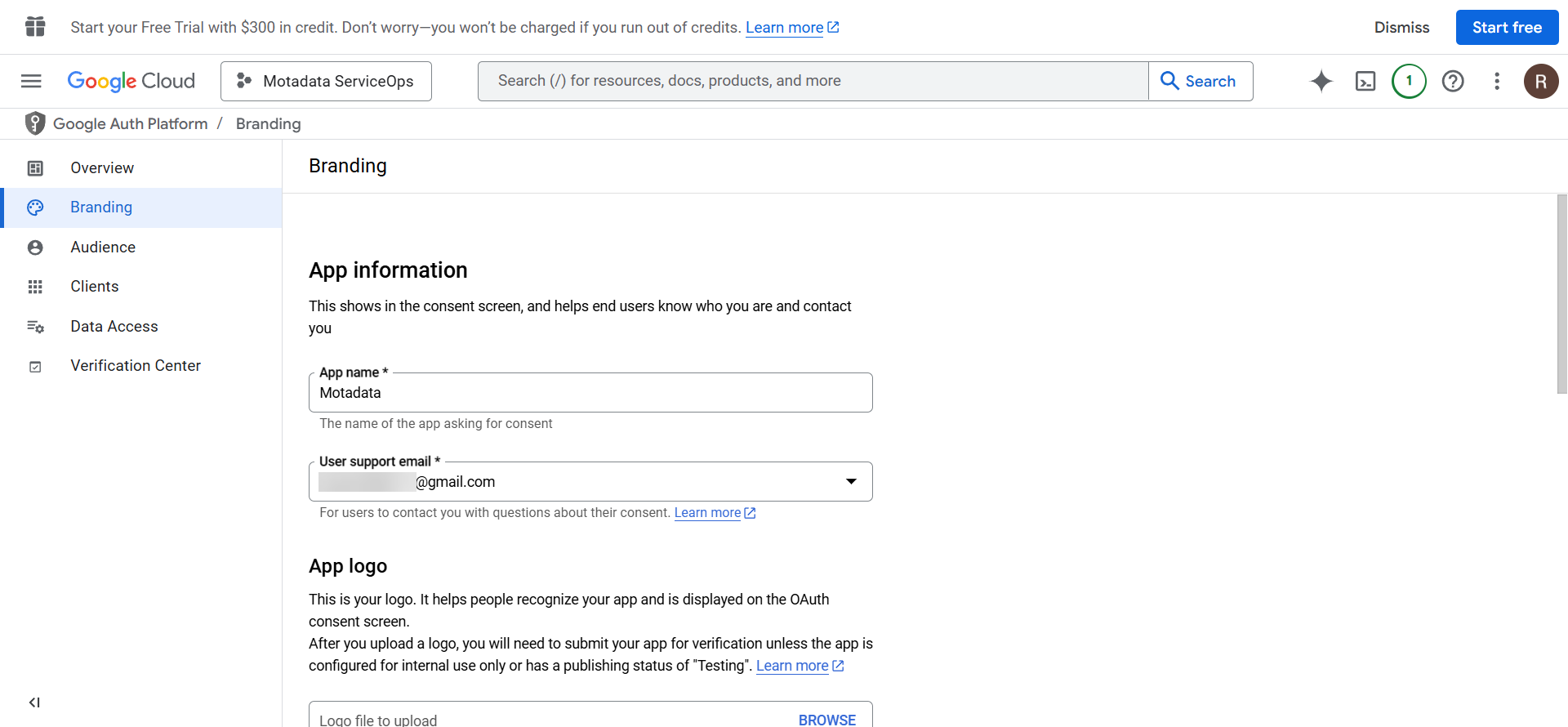
Step 4: Configure Branding (Optional)
Go to the Branding tab and configure details such as App Logo, App Domain, and Authorized Domain.
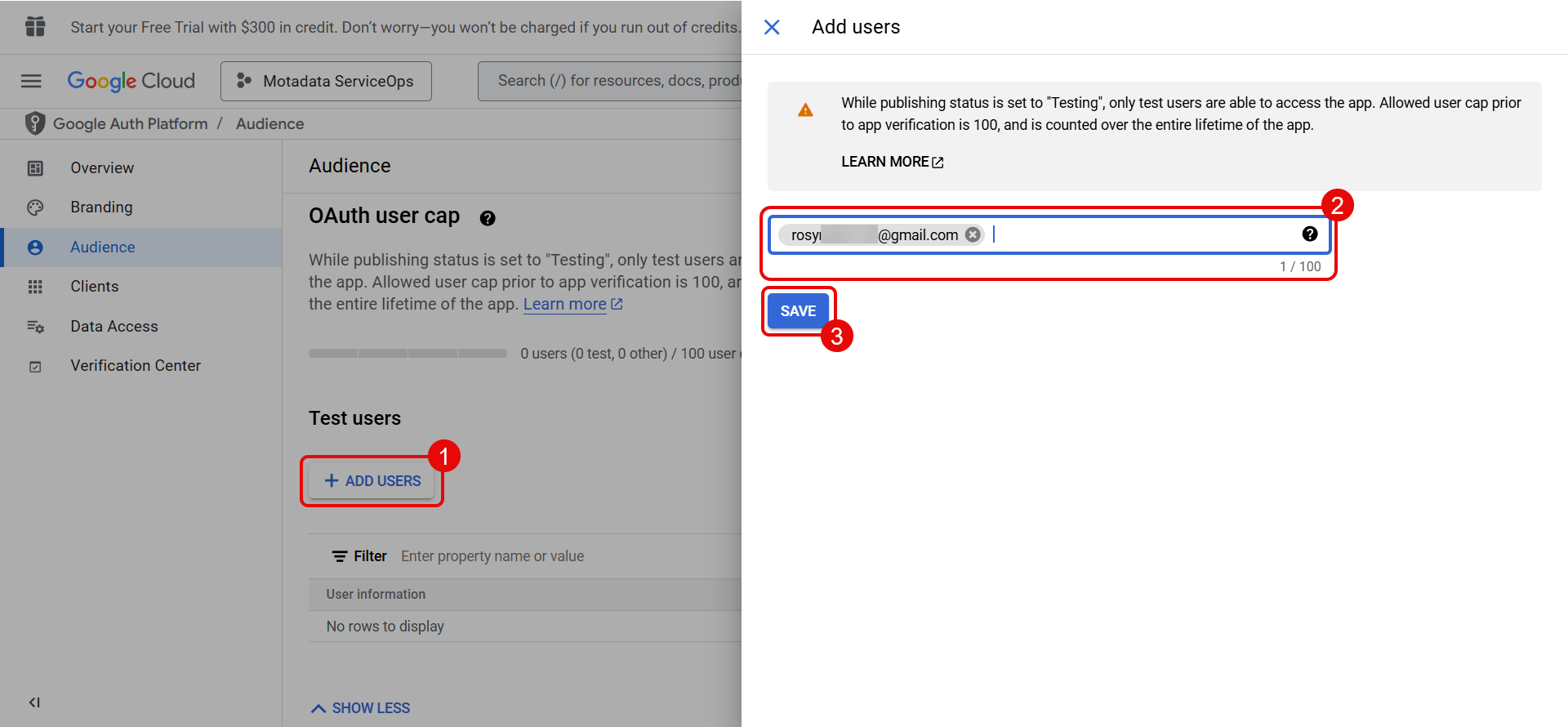
Step 5: Add Test Users
In the Audience tab, add test users and click Save. Ensure you add yourself as a tester.
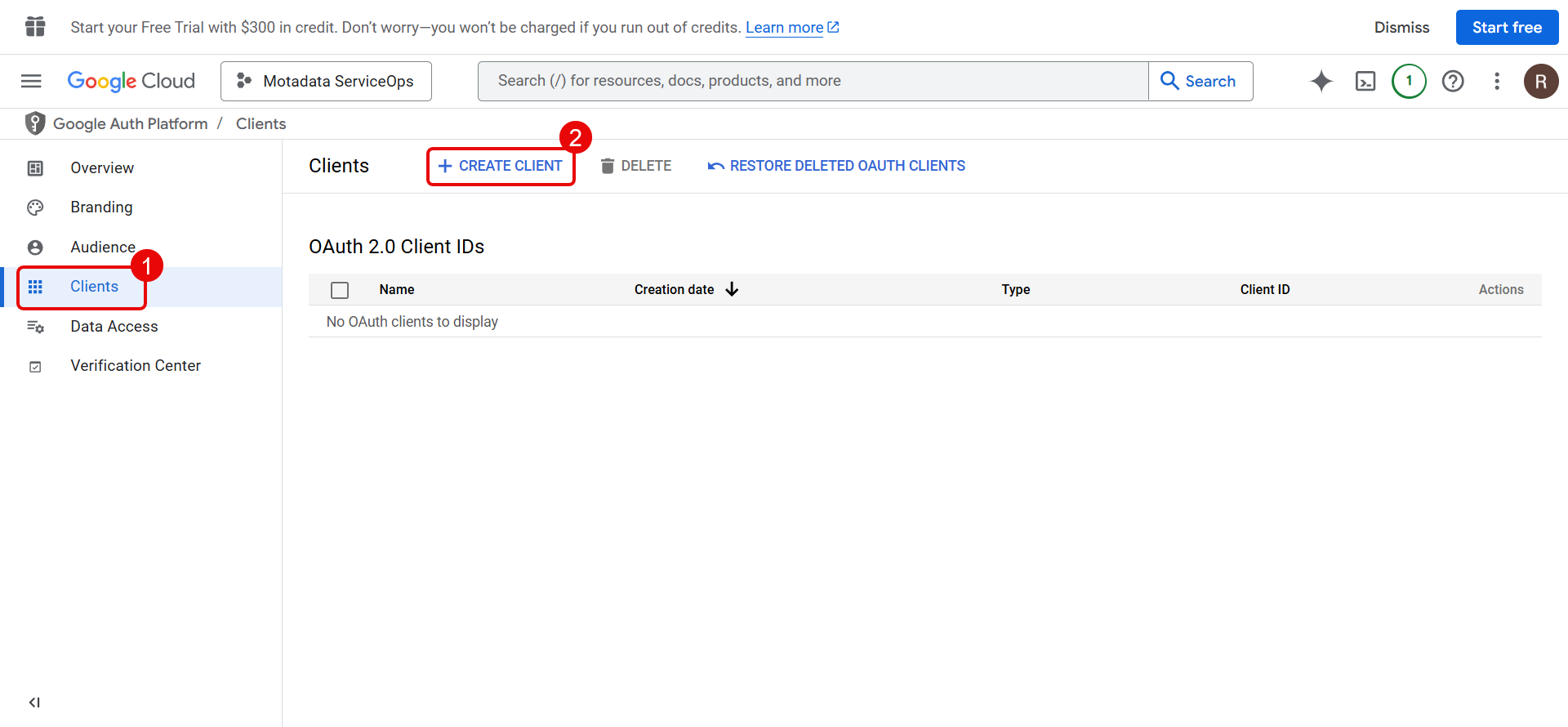
Step 6: Create an OAuth Client
Go to the Clients tab and click + Create Client.
Enter the following details:
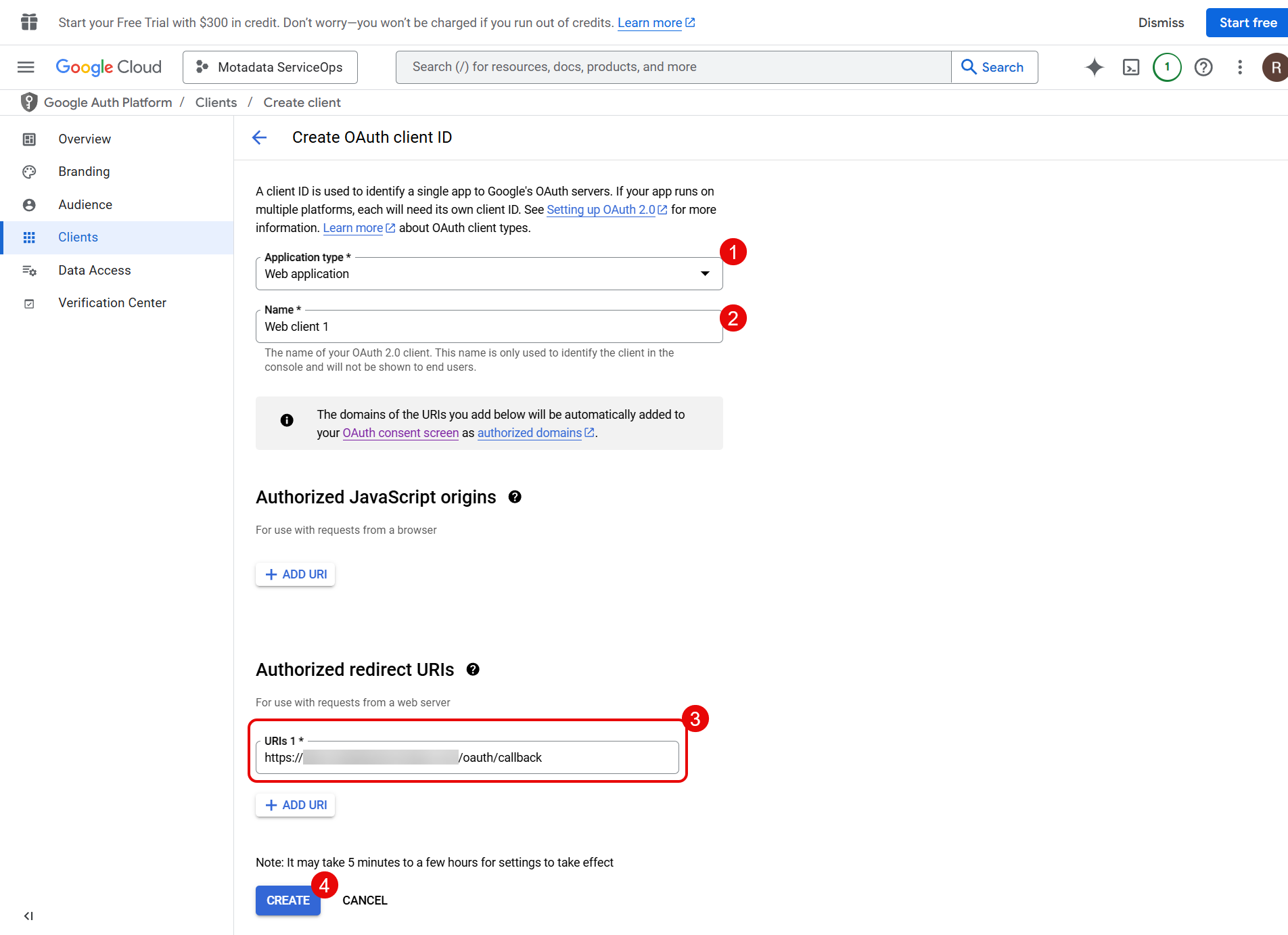
Application Type: Select Web Application.
Name: Enter the name of the web client.
Authorised Redirect URIs: Enter the redirect URI.
Syntax:
https://{server URL}/oauth/callbackExample:
https://dummy.com/oauth/callback
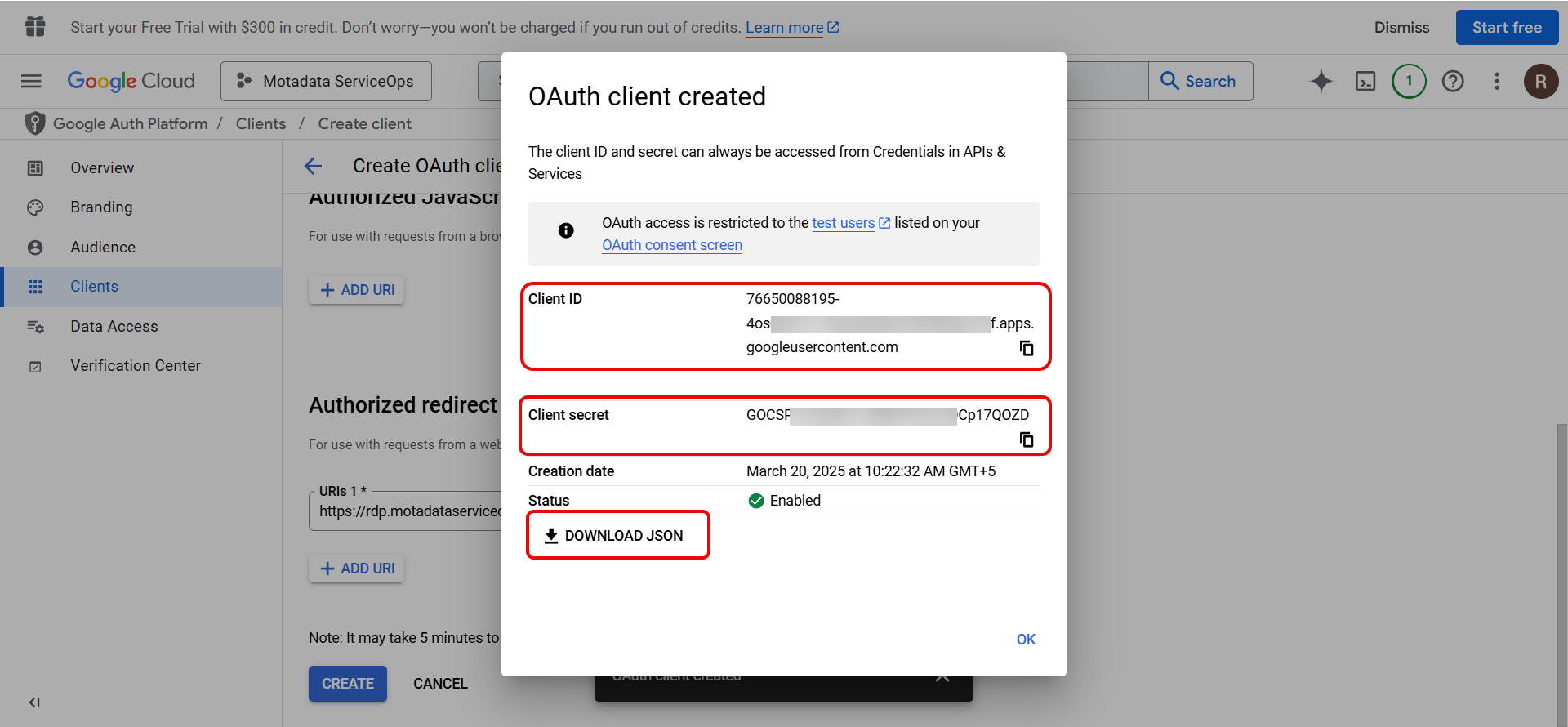
Click Create. The Client ID and Client Secret are displayed. Copy both values or download the JSON file.
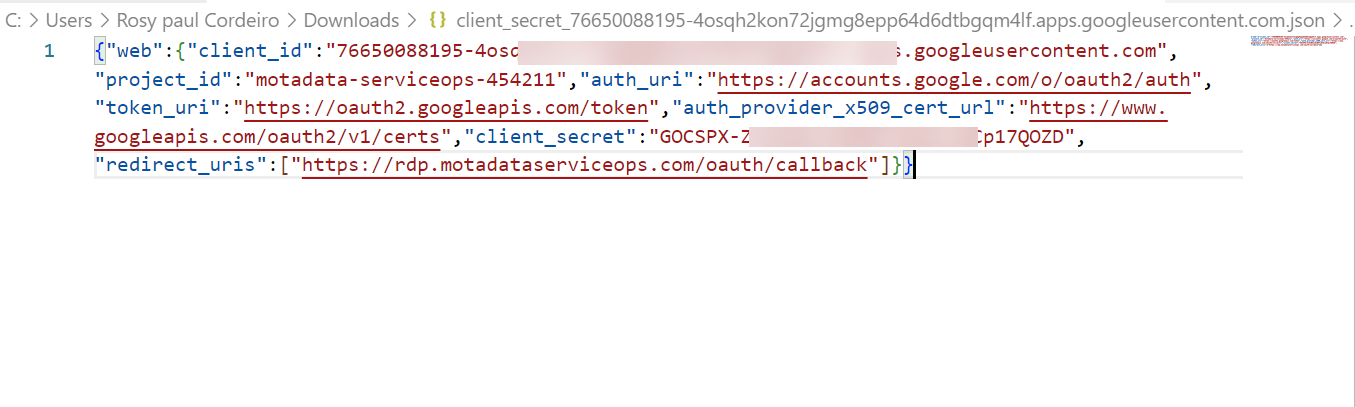
The downloaded JSON contains all the required credentials.
Step 7: Add Gmail API Scope
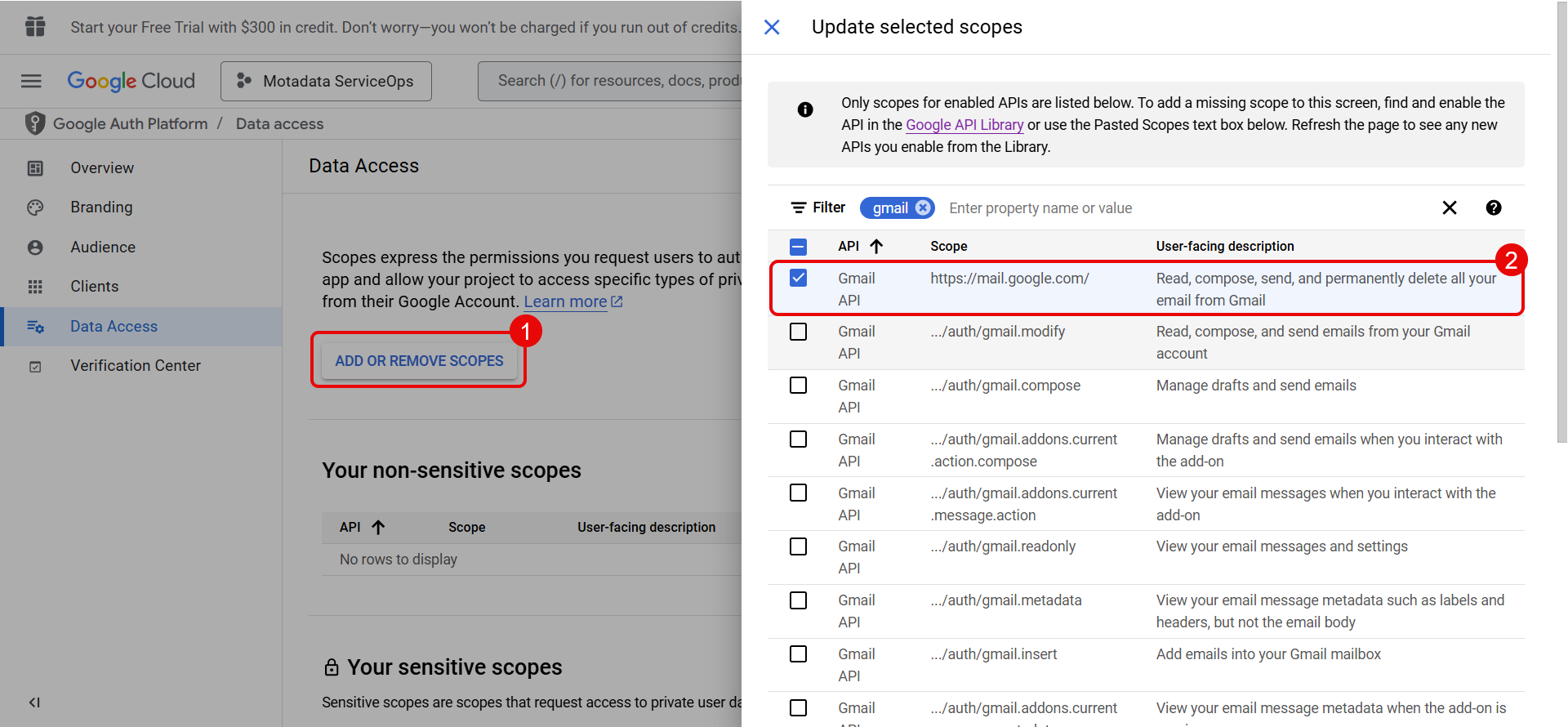
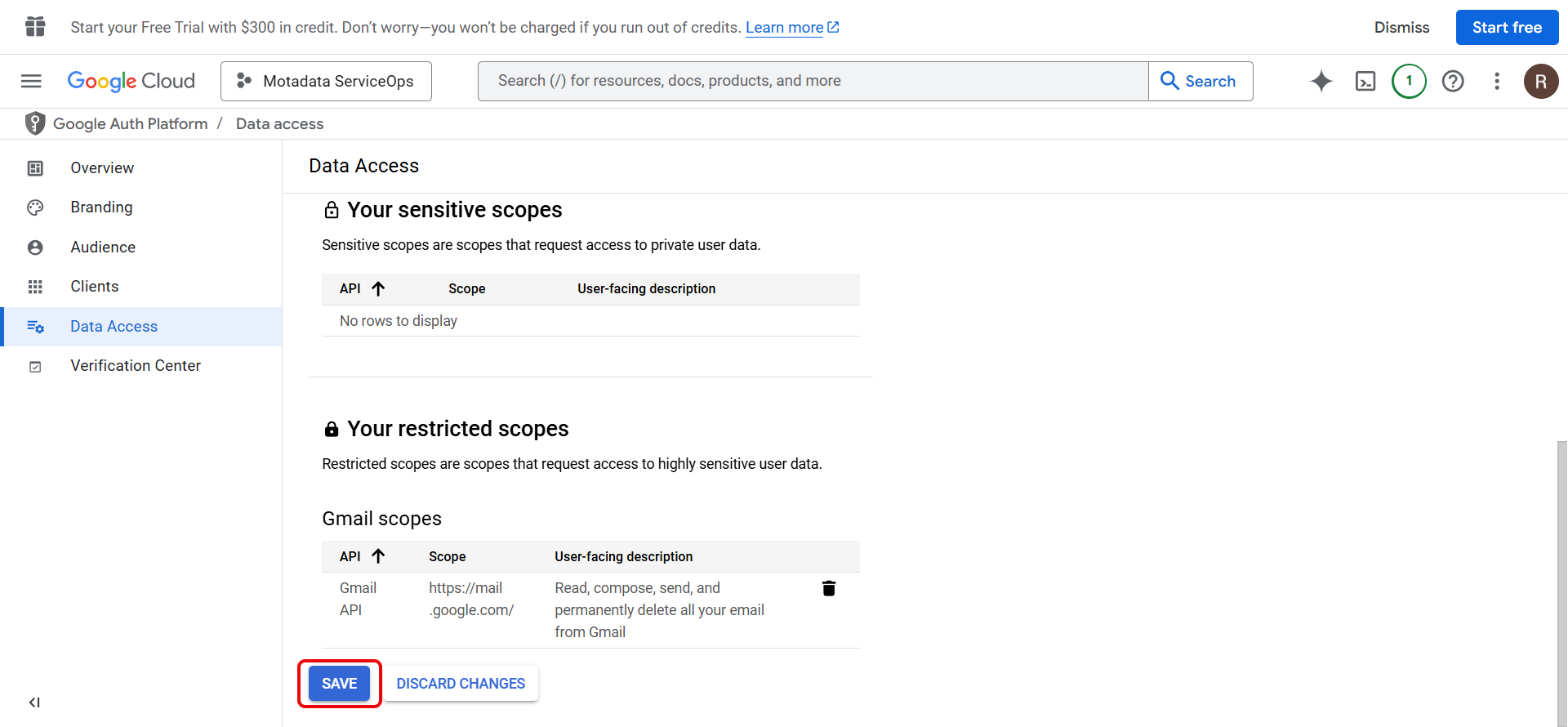
Go to the Data Access tab and click Add or Remove Scopes. Select the Gmail API from the list and click Update.
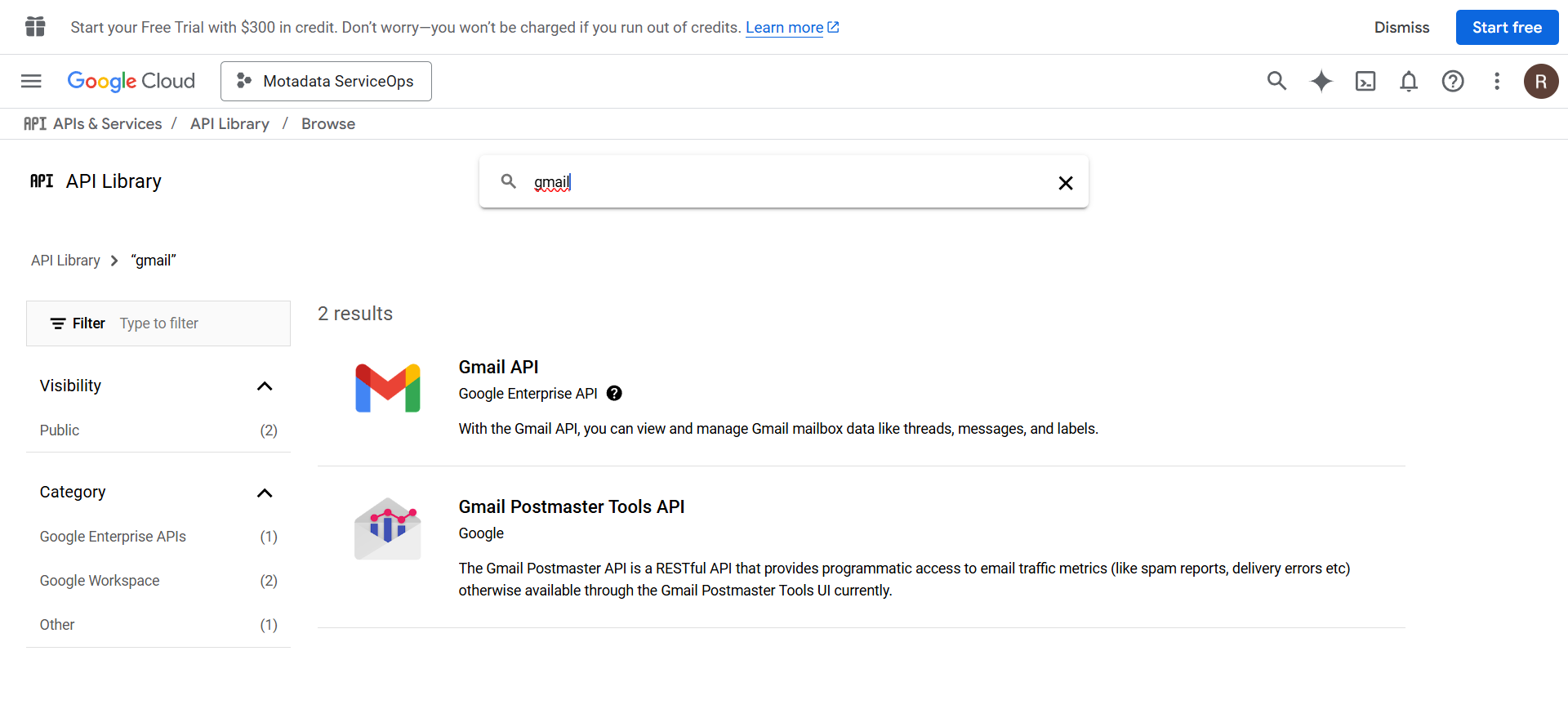
If the Gmail API is not available in the list, click Google API Library, search for Gmail API, and enable it.
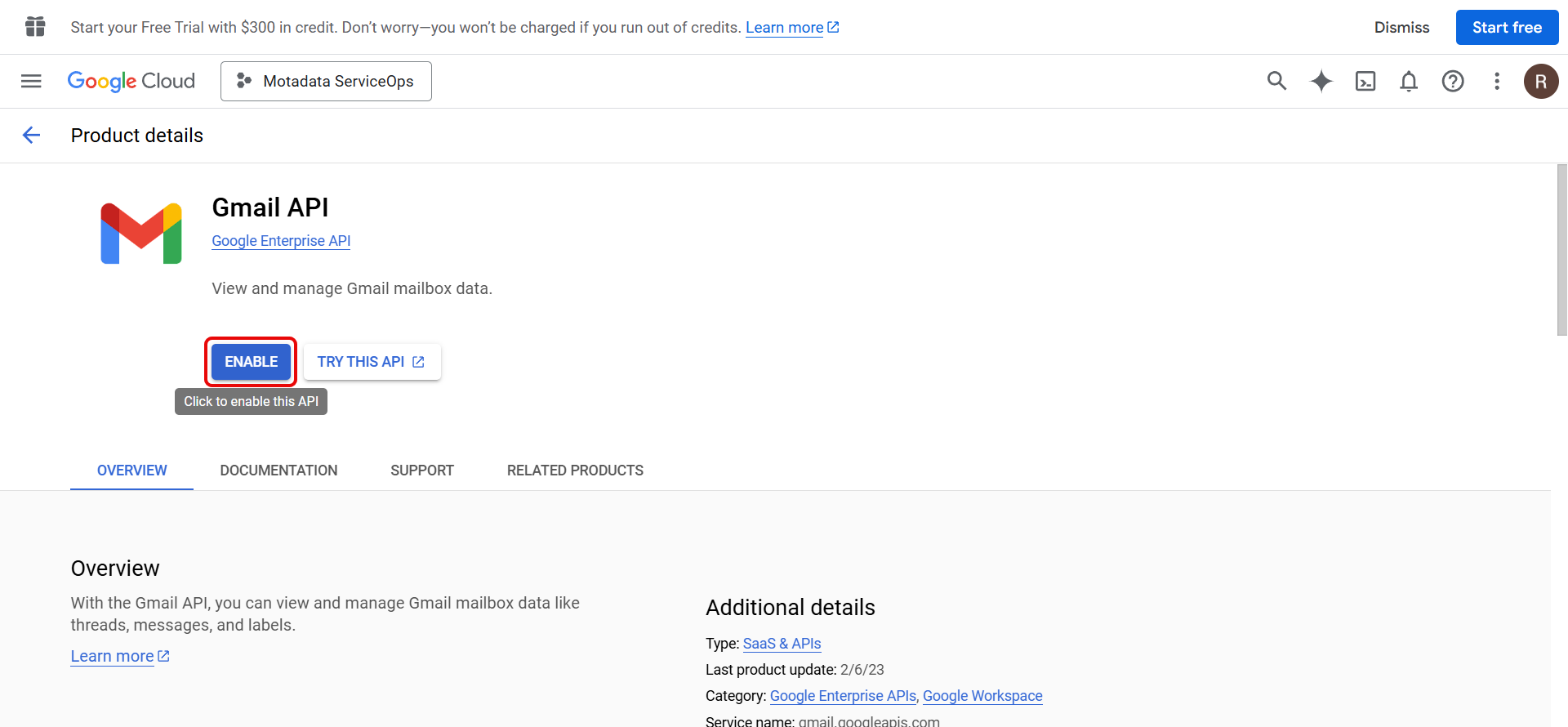
Click Save once the scope is added.
Configuring Gmail in ServiceOps (Incoming)
Navigate to Admin > Support Channel > Emails > Incoming Email Servers and click Add Incoming Email Server.

Basic Information
Identify and route this mailbox within ServiceOps.
| Parameter | Description |
|---|---|
| Name | Enter the name of the email server. |
| Email Address | Enter the Gmail address used for authentication. |
| Technician Group | Select the technician group assigned when a new request is created via email. Tickets from this mailbox are assigned to the selected group. |
| Category | Select the category assigned to tickets created via this email server. New tickets from this mailbox get the selected category by default. |
| Proxy Server | Select the proxy server if ServiceOps connects to the internet via a proxy. |
Connection Method
Choose how ServiceOps connects to this mailbox.
| Parameter | Description |
|---|---|
| Protocol | Select IMAP or POP3. The selected protocol must be enabled on the Gmail account. |
| Sign in with Microsoft | Not applicable for Gmail. Use this option only for Microsoft 365 mailboxes. |
| Other/Custom Server | Select this option for Gmail. Use when connecting via a custom OAuth 2.0 app or Basic Auth. |
Server Connection
Define how ServiceOps fetches emails from this mailbox.
| Parameter | Description |
|---|---|
| Server | Enter imap.gmail.com for IMAP or pop.gmail.com for POP3. |
| Port | Enter the port number. Common values: IMAP: 993, POP3: 995. |
| Security Type | Select SSL or TLS. |
Authentication
Configure how ServiceOps signs into the mailbox.
| Parameter | Description |
|---|---|
| Authentication Type | Select OAuth 2.0 to authenticate using OAuth. Select Basic Auth to authenticate using a username and password. |
| Username | Enter the Gmail address used to sign in to the mailbox. |
| Scope | Enter https://mail.google.com/. |
| Client ID | Paste the Client ID from Step 6. |
| Client Secret | Paste the Client Secret from Step 6. |
| Authorization URL | Enter https://accounts.google.com/o/oauth2/v2/auth. |
| Token URL | Enter https://oauth2.googleapis.com/token. |
| Redirect URL | Editable field. Set from the Application Settings Base URL. |
POP3 supports only Basic Authentication. Select IMAP when using OAuth.
Server Settings
Enable, prioritize, and link this mailbox.
| Parameter | Description |
|---|---|
| Enabled | Toggle to enable or disable the server. ServiceOps polls this mailbox and creates tickets only when enabled. |
| Primary Server | Enable to use this server as the primary incoming server. At least one server should be set as primary. |
| Real Time Scanning | When enabled, ServiceOps checks for new email arrivals when an email action occurs. When disabled, ServiceOps checks at configured intervals. |
| Outgoing Email Server | Enable to associate an outgoing email server with this mailbox. Use Primary Outgoing Server to use the default, or select a specific server from the dropdown. |
Email Filters
Control which emails create tickets. All senders are accepted if no filters are configured.
| Parameter | Description |
|---|---|
| Filter Type | Select Allow to create tickets only from the listed addresses, domains, or keywords (all others are blocked). Select Ignore to discard emails matching the listed values (all others are allowed). |
| Email Addresses | Enter specific email addresses to filter. Example: hr@company.com. Multiple entries work as OR conditions. |
| Domains | Enter domain names to filter, without the @ symbol. Example: yahoo.com. Multiple entries work as OR conditions. |
| Subject Keywords | Enter words or phrases matched against the email subject and body. Multiple entries work as OR conditions. |
Click Save. You will be redirected to the Google sign-in page.
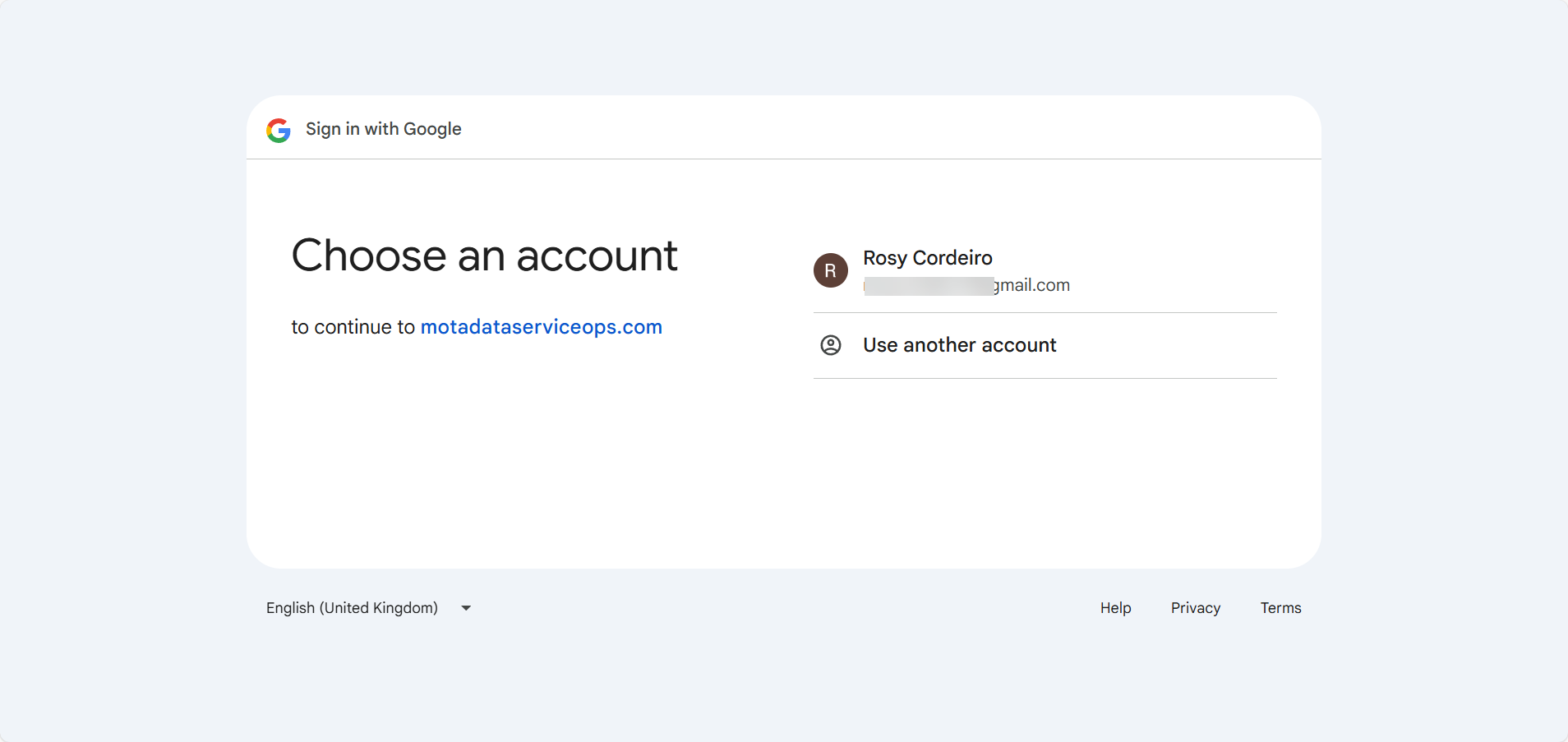
Select the account and click Continue.
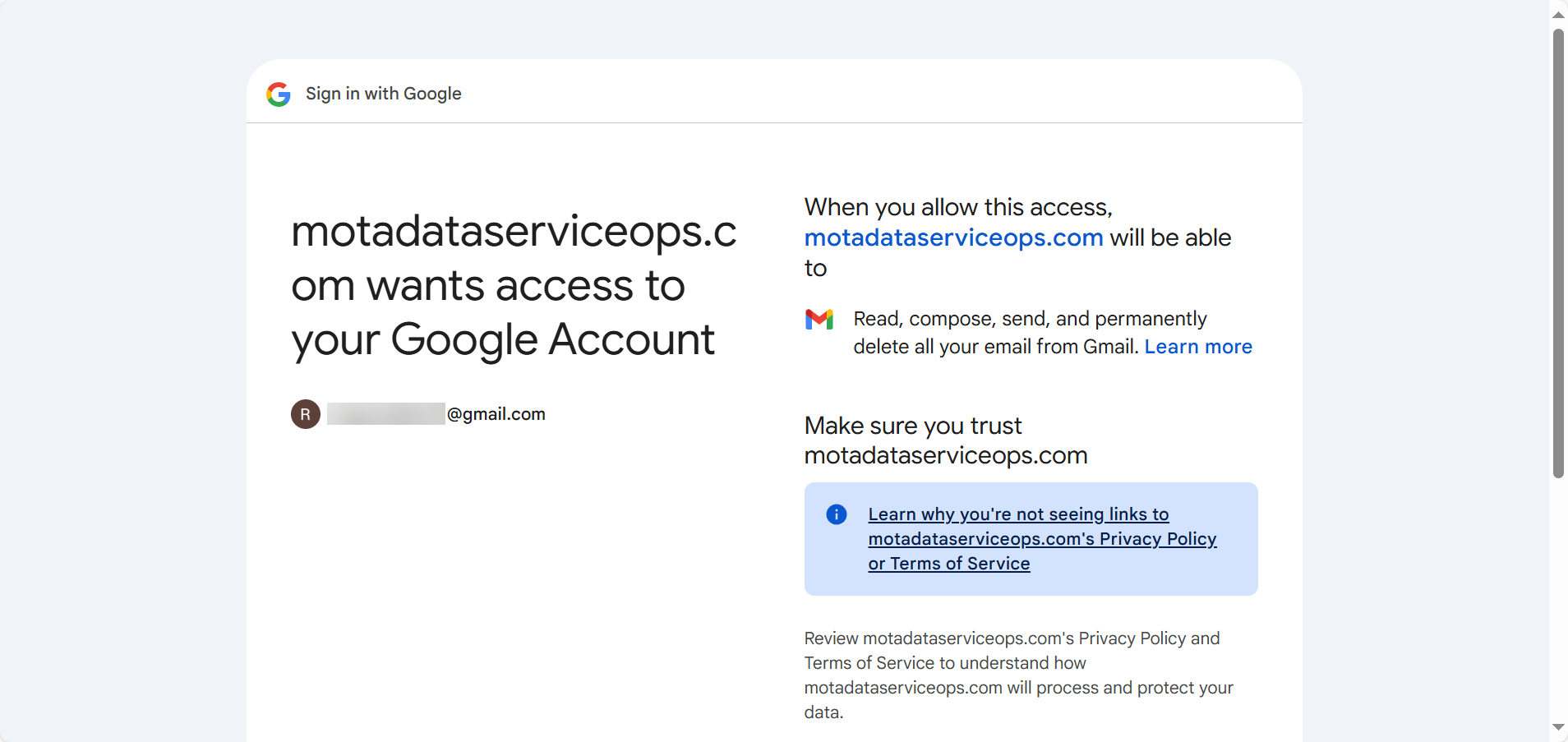
Click Continue again. You will be redirected to the Incoming Email Servers page with the configured server listed.
Configuring Gmail in ServiceOps (Outgoing)
Navigate to Admin > Support Channel > Emails > Outgoing Email Servers and click Add Outgoing Email Servers.

Basic Information
Identify this mail server within ServiceOps.
| Parameter | Description |
|---|---|
| Name | Enter the name of the email server. |
| Email Address | Enter the Gmail address used as the From address for all notifications. |
| Sender Name | Enter the display name shown to recipients alongside the From address. |
Connection Method
Choose how ServiceOps connects to this mail server.
| Parameter | Description |
|---|---|
| Protocol | Select SMTP or Azure as the connection protocol. |
| Sign in with Microsoft | Not applicable for Gmail. Use this option only for Microsoft 365 mailboxes. |
| Other/Custom Server | Select this option for Gmail. Use when connecting via a custom OAuth 2.0 app or Basic Auth. |
Server Connection
Define how ServiceOps sends emails through this server.
| Parameter | Description |
|---|---|
| Server | Enter smtp.gmail.com. |
| Port | Enter the port number. Common values: SMTP (TLS): 587, SMTP (SSL): 465. |
| Security Type | Select SSL or TLS. |
Authentication
Enable if the mail server requires credentials to send emails. Most production servers require this.
| Parameter | Description |
|---|---|
| Authentication Type | Select OAuth 2.0 to authenticate using OAuth. Select Basic Auth to authenticate using a username and password. |
| Username | Enter the Gmail address used to sign in to the mailbox. |
| Scope | Enter https://mail.google.com/. |
| Client ID | Paste the Client ID from Step 6. |
| Client Secret | Paste the Client Secret from Step 6. |
| Authorization URL | Enter https://accounts.google.com/o/oauth2/v2/auth. |
| Token URL | Enter https://oauth2.googleapis.com/token. |
| Redirect URL | Editable field. Set from the Application Settings Base URL. |
Server Settings
Enable, prioritize, and link this mail server.
| Parameter | Description |
|---|---|
| Reply-To Email | Enter the email address to which recipient replies are directed. Set this to a monitored mailbox so replies are captured and converted into tickets. |
| Proxy Server | Select the required proxy server. Leave blank if ServiceOps has direct internet access. |
| Enabled | Toggle to enable or disable the server. ServiceOps uses this server to send emails only when enabled. |
| Primary Server | Enable to use this server as the fallback when other configured outgoing servers are unavailable. At least one server should be set as primary. |
Email Filters
Control which recipients can receive emails. All recipients are allowed if no filters are configured.
| Parameter | Description |
|---|---|
| Filter Type | Select Allow to send emails only to the listed addresses or domains (all others are blocked). Select Ignore to silently block emails to the listed addresses or domains (all other recipients are allowed). |
| Email Addresses | Enter specific email addresses to filter. Example: hr@company.com. Multiple entries work as OR conditions. |
| Domains | Enter domain names to filter, without the @ symbol. Example: company.com. Multiple entries work as OR conditions. |
Click Save. You will be redirected to the Google sign-in page. Select the account and grant the required permissions. You will be redirected to the Outgoing Email Servers page with the configured server listed. Verify connectivity using the Test Connection button.
Troubleshooting
Access Blocked: Authorization Error
This error occurs when an incorrect scope is configured. To resolve:
- Go to the Data Access tab in Google Cloud Console.
- Verify the scope is set to
https://mail.google.com/. - Click Save and retry the OAuth flow in ServiceOps.
Error 400: invalid_scope
This error means the scope entered in ServiceOps does not match a valid Gmail API scope. To resolve:
- In ServiceOps, open the email server configuration and check the Scope field.
- Ensure the value is exactly
https://mail.google.com/with no extra spaces or characters. - Verify the Gmail API is enabled in the Google API Library.
Access blocked: app has not completed Google verification
This error occurs when the OAuth app is in testing mode and the signed-in user has not been added as a tester. To resolve:
- Go to the Audience tab in Google Cloud Console.
- Under Test users, add the email address you are using to sign in.
- Click Save and retry the OAuth flow.