DNS Server Settings
Overview
The DNS Server Settings in Motadata ObserveOps (formerly known as AIOps) allow you to configure and manage DNS servers used for reverse IP lookups (PTR queries) across Log Monitoring, Flow Monitoring, and Device Discovery modules.
This configuration enables the system to enrich IP addresses with their Fully Qualified Domain Name (FQDN) in real time or on a scheduled basis, helping with better analytics, grouping, and reporting.
By setting up DNS Server Settings, you can handle dynamic IP changes, maintain resolution audit logs, and ensure accurate device identification without creating duplicates.
DNS Server Settings Screen
On the DNS Server Settings screen, you can:
- View configured DNS servers (auto-fetched and manually added)
- Add new DNS server entries
- Edit or delete DNS server entries
- View cached IP-to-FQDN mappings
- Check last sync status and timestamp
- Trigger manual DNS resolution
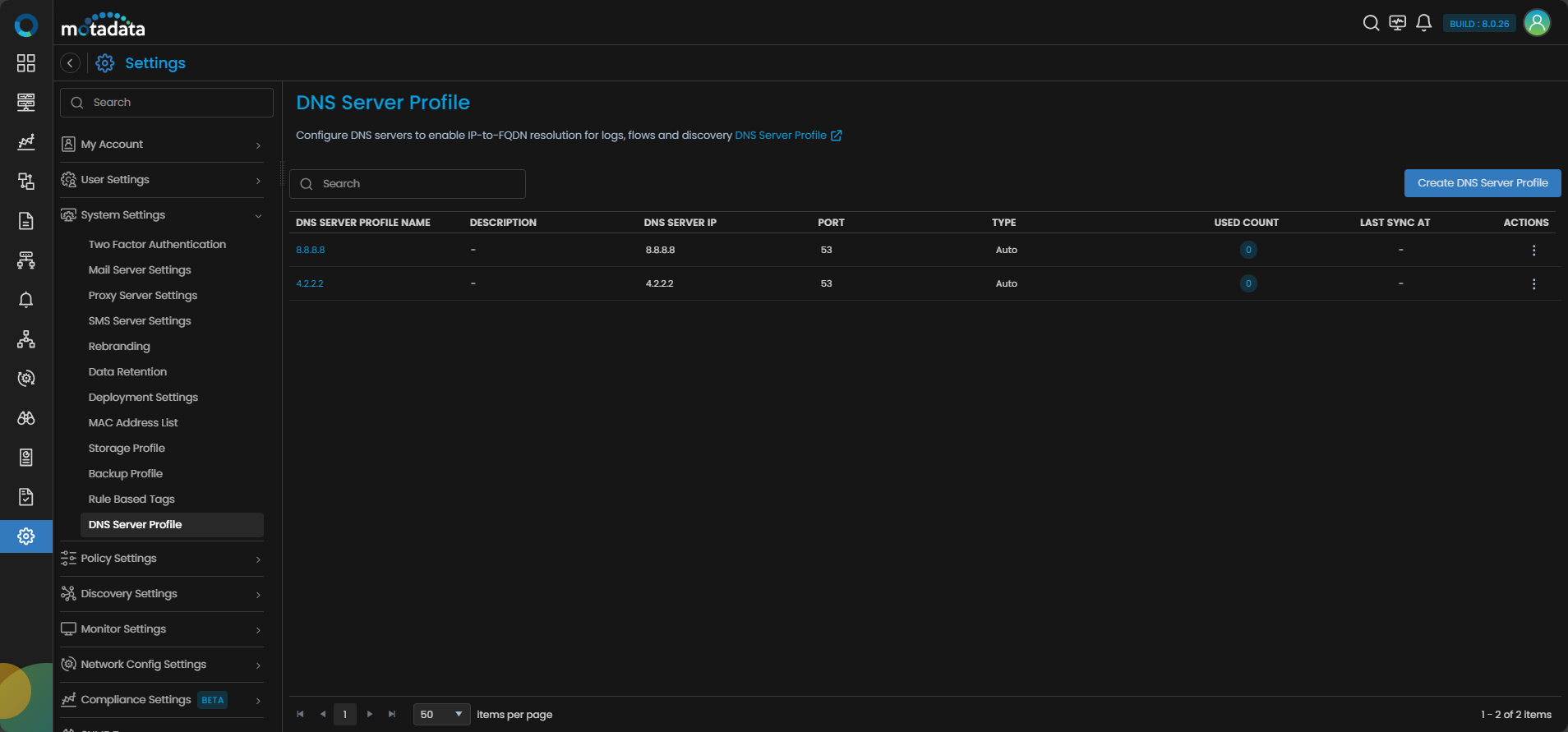
The DNS Server Settings screen displays the following details:
| Field | Description |
|---|---|
| DNS Server Profile Name | Displays DNS Server Profile Name. |
| Description | Displays the description added for DNS Server Profile. |
| DNS Server IP | The IP address of the DNS server used for reverse lookups. |
| Port | Displays the port number associated with the DNS Server Profile. |
| Type | Displays whether the DNS entry was auto-fetched from the system NIC or manually added (Auto/Manual). |
| Used Count | Shows the total number of monitors and event sources using this DNS server. Click the number to view a pop-up list. |
| Last Sync At | The date and time when the last DNS resolution was performed. |
| Actions | Select Edit: This action allows you to change the details of an already manually added profile. Delete: This action allows you to delete a profile. |
 to display the permissible actions for the DNS profile.
Navigation
Go to Menu, Select Settings  . After that, go to System Settings
  and select DNS Server Settings. The DNS Server Settings screen is displayed.
How to Add a DNS Server Profile?
Select Create DNS Server Profile from the DNS Server Settings screen.
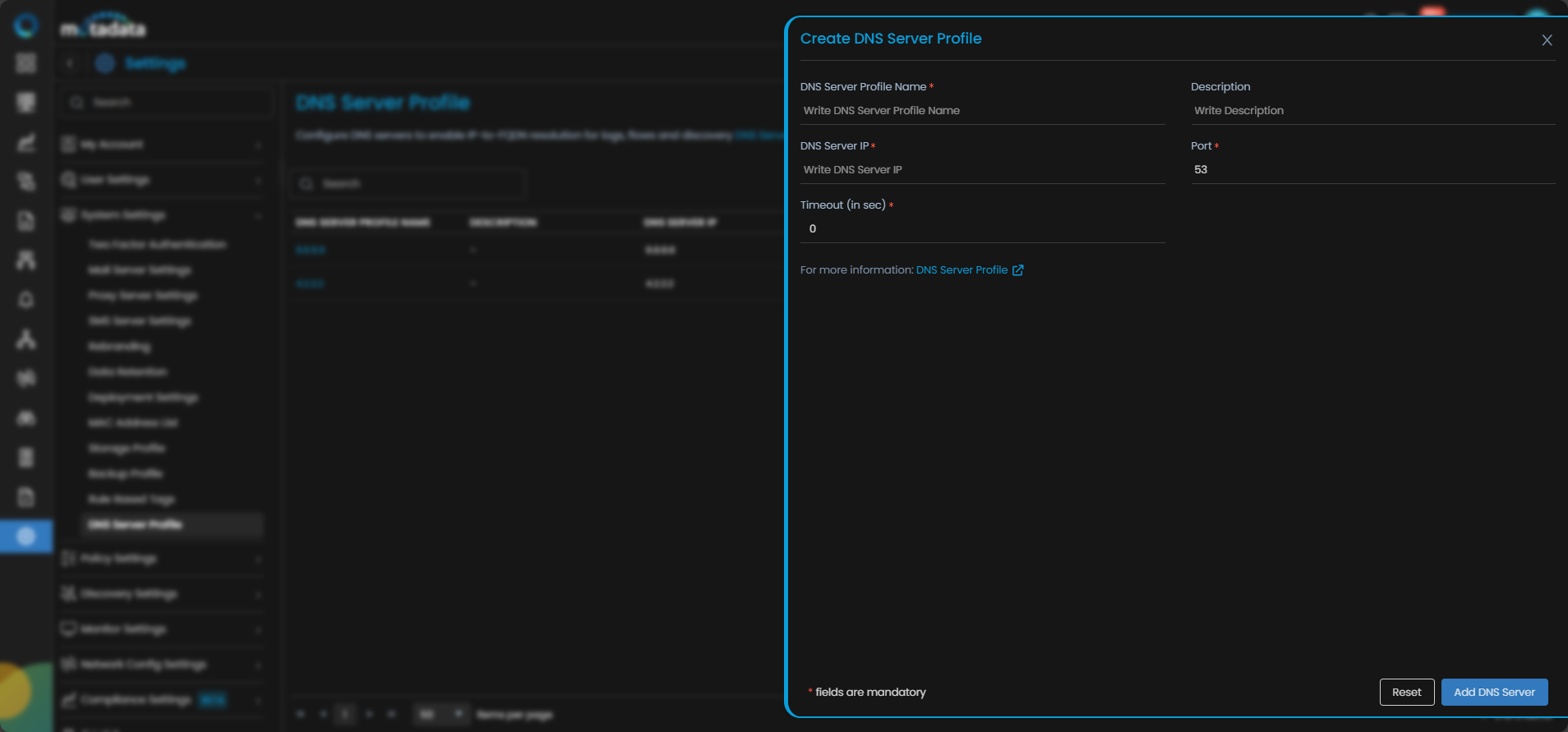
A pop-up is displayed to add a new DNS server entry.
| Field | Description |
|---|---|
| DNS Server Profile Name | Enter the DNS server profile name. |
| Description | Enter description for the profile. This field is optional. |
| DNS Server IP | Enter the IP address of the DNS server. |
| Port | This displays the port number by default. You can change if needed. |
| Timeout | Set the time limit in seconds to wait for a response from the DNS server before the request is terminated. |
- You can add up to 3 manual DNS servers in addition to the auto-fetched entries.
- Primary and secondary DNS servers from the system NIC are auto-fetched (if available).
Select Reset to reset the configurations.
Select Add DNS Server to add the DNS server to the system.