Configuring Microsoft Azure for OAuth
What is Microsoft Azure?
Microsoft Azure is a public cloud computing service owned by Microsoft. It provides a wide range of cloud services, including analytics, storage, computing, and networking.
What is OAuth?
OAuth is an Open Standard Authorization protocol that allows you to authenticate one application communicating with another on your behalf without sharing the password. It uses client secret values instead of a password to allow access to a secured resource. Thus, the email communication will be secured.
This functionality is applicable from version 7.9 and above.
Prerequisites
Internet connectivity between ObserveOps (formerly known as AIOps) and Microsoft Azure/Office 365 is required.
Redirect URL should be HTTPS.
To enable HTTPS in ObserveOps, a valid SSL Certificate is required.
Configure your firewall settings to allow communication between ObserveOps and the following Microsoft Office 365 URLs:
- login.microsoftonline.com (For Enterprise application)
- outlook.office365.com (SMTP, IMAP, and POP3) (For Enterprise application)
- login.live.com (For Personal accounts)
Whitelist these URLs to ensure that they are not blocked or restricted by your organization's network infrastructure. For more URLs and IP Address, refer to the link Office 365 URLs and IP address ranges.
The Microsoft Azure user should have administrator rights.
Configuring Microsoft Azure as Incoming Email Server
To configure Microsoft Azure as the Incoming Email server, follow the below steps:
- Sign in to the Microsoft Azure portal.
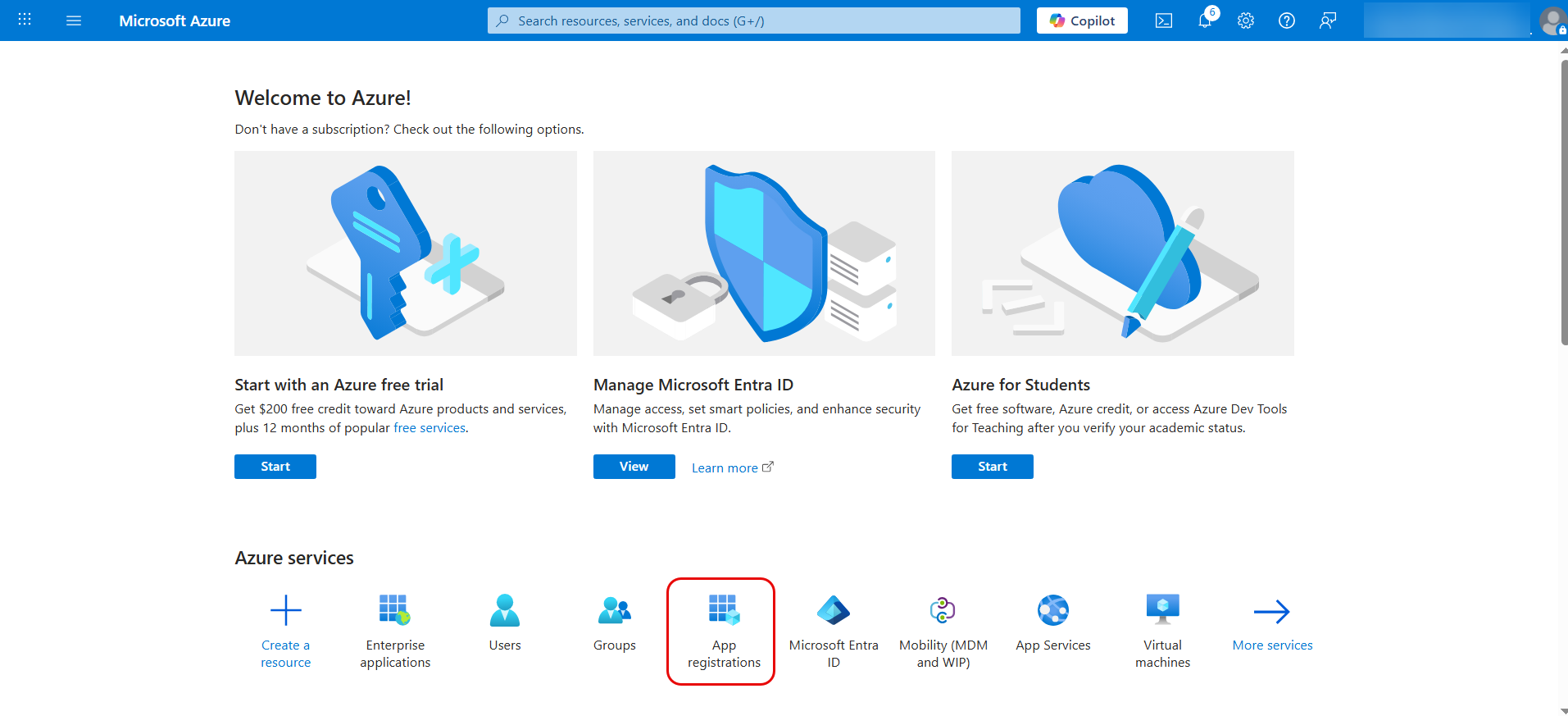
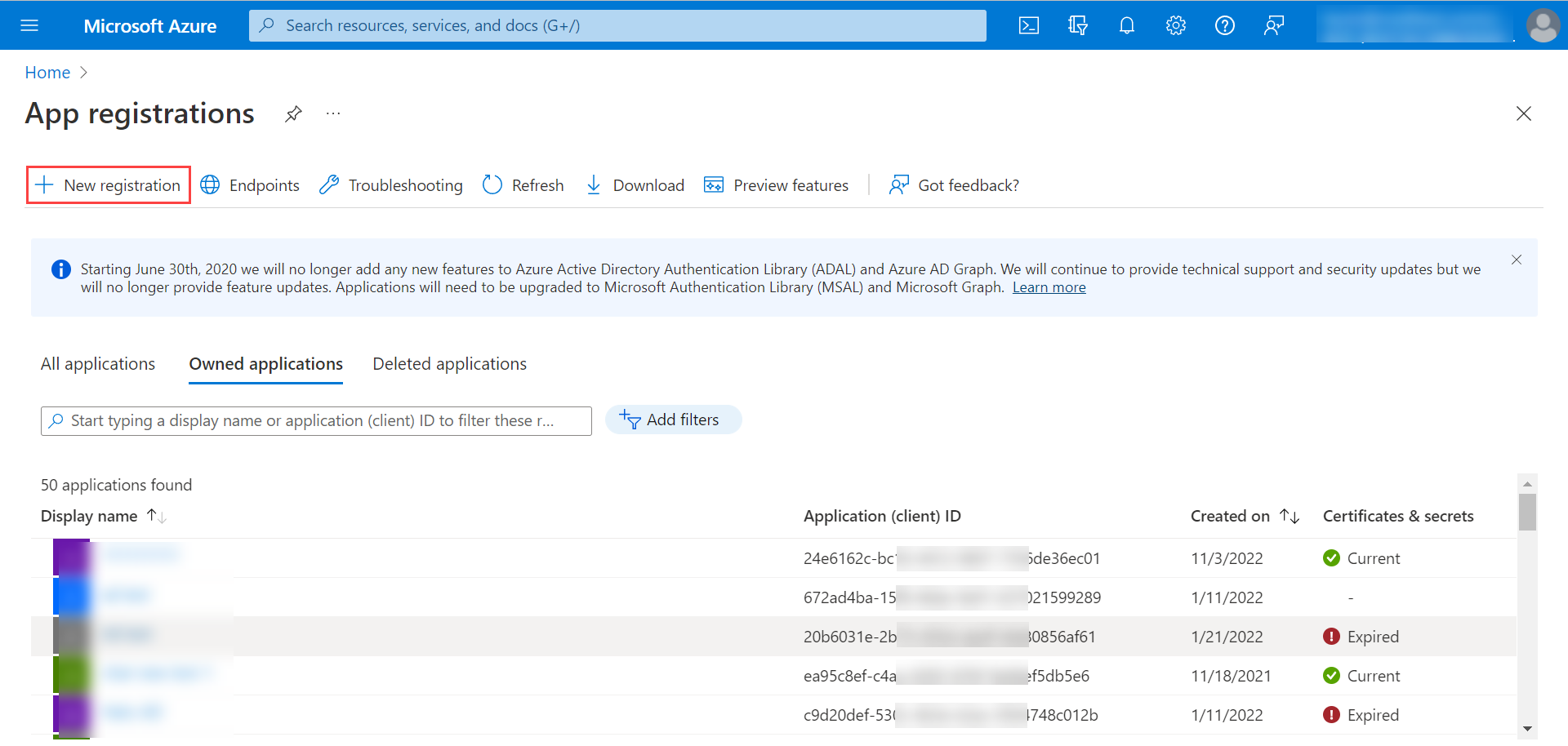
In the Azure services section, click App registrations > New Registration.
noteCreate a separate app for every incoming email server (in ObserveOps), if multiple servers are configured each with different domains.
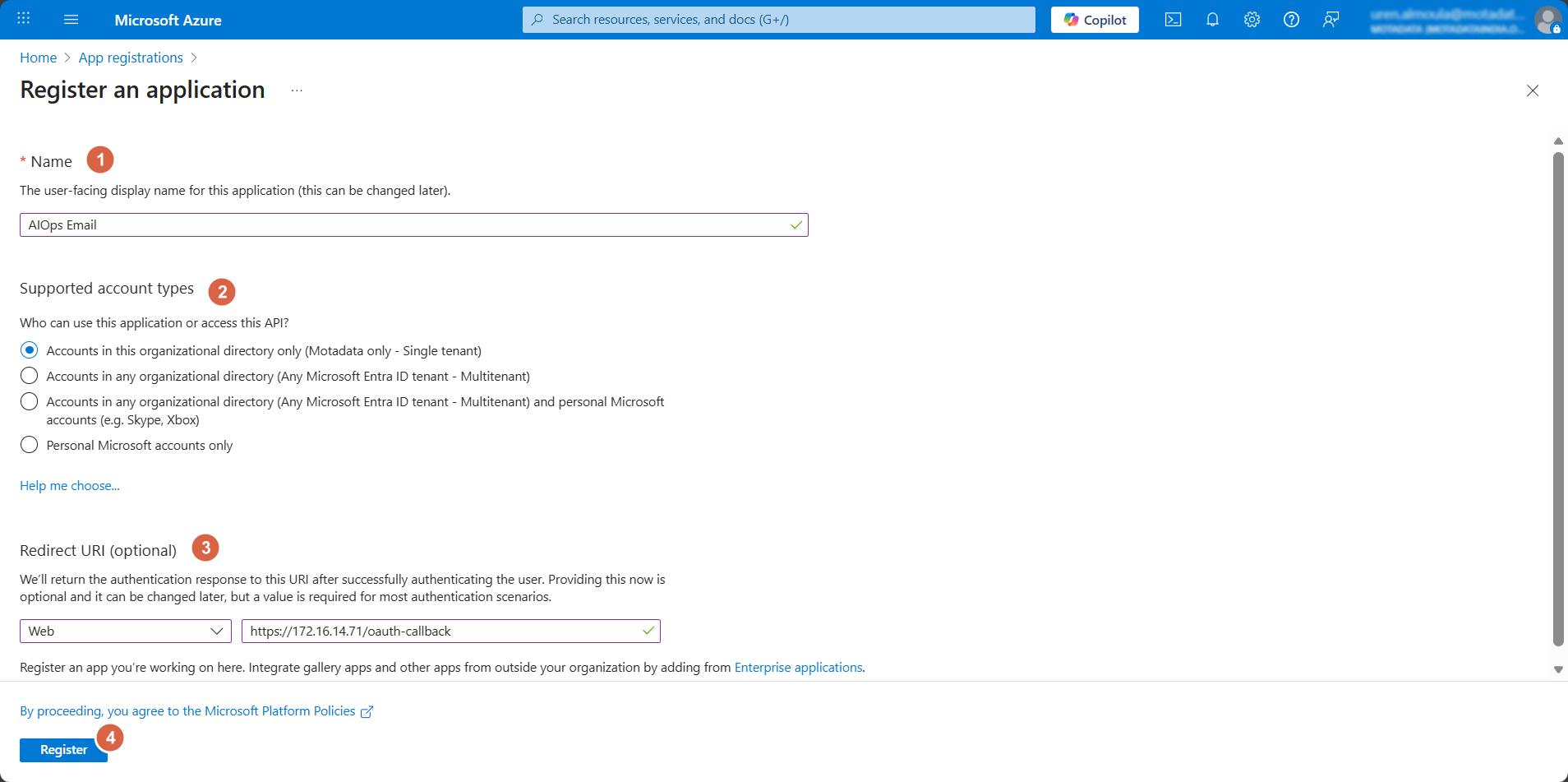
In the next screen, enter the name, and select the Supported account types. Under Redirect URI section, select the Platform as Web, and enter the Redirect URI.
Syntax for Redirect URI: https://{server URL}/oauth/callback
For example: https://dummy.com/oauth/callback
Once done, click Register.
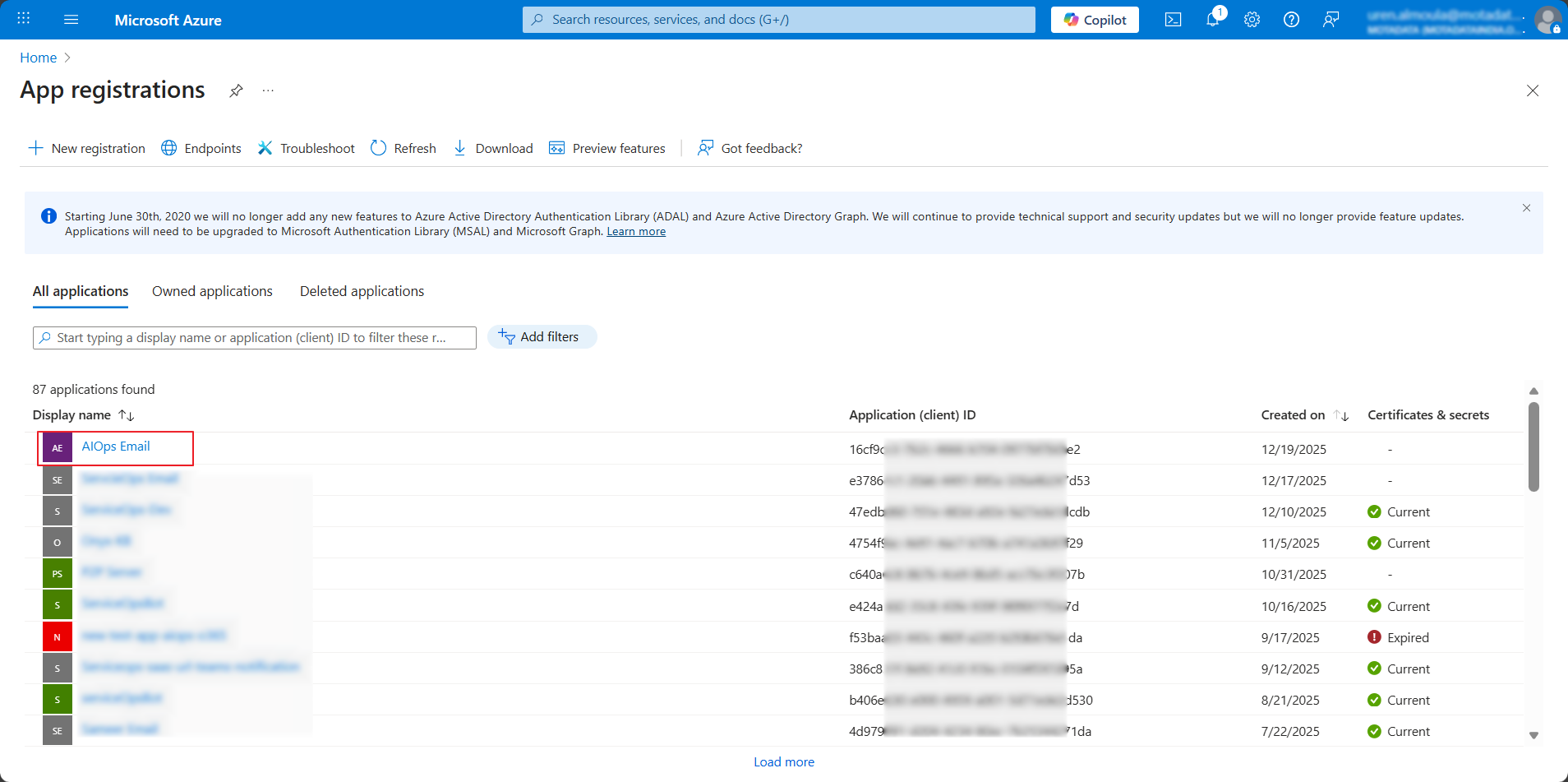
The application will appear in the list as shown below.
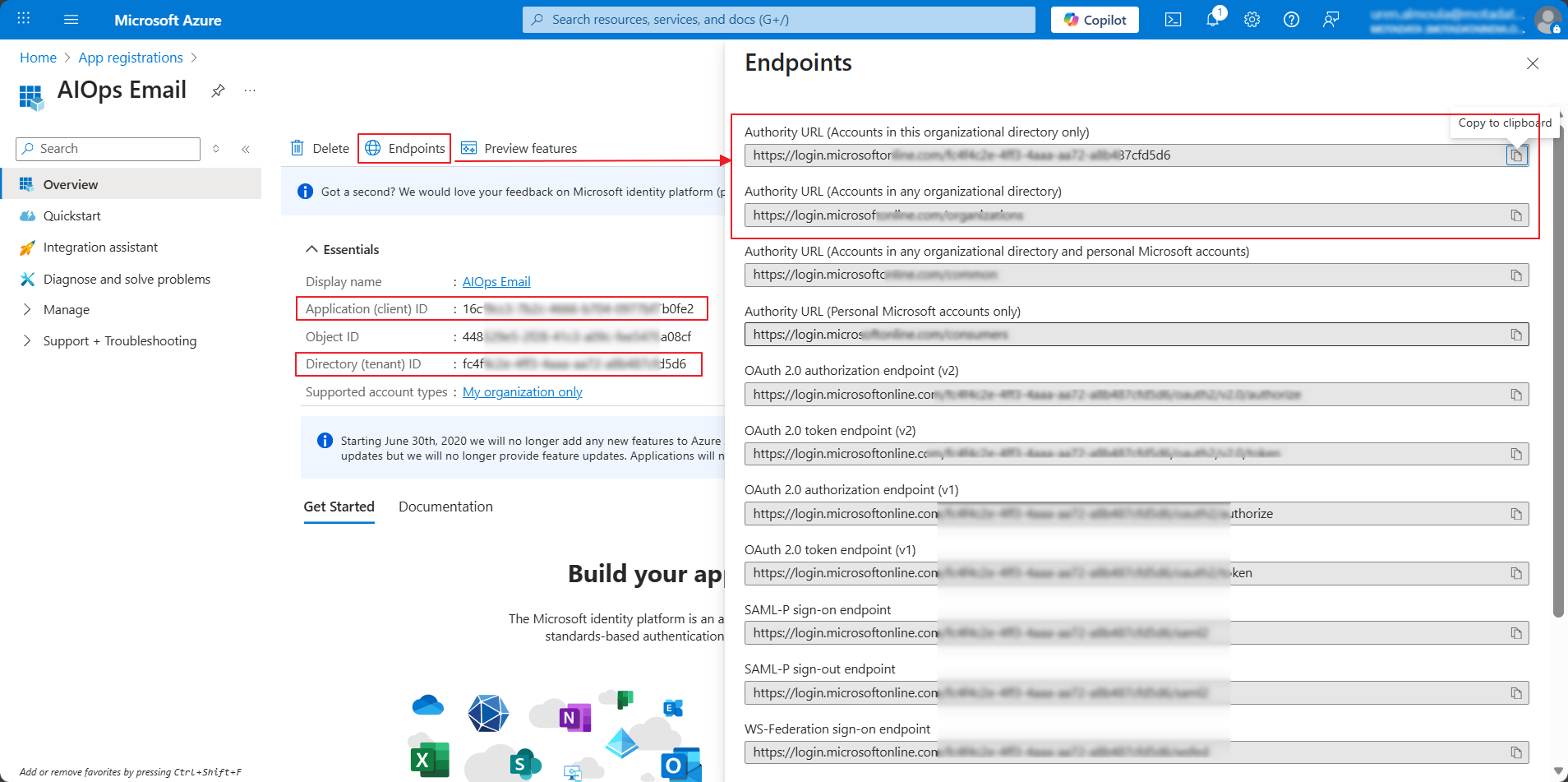
- Click on the application, and the below screen appears. Copy the Application (client) ID and paste it in ObserveOps. For Authorization and Token URL either click the Endpoints tab and copy OAuth 2.0 authorization endpoint (v2) and OAuth 2.0 token endpoint (v2) URLs from the popup or copy the Tenant ID from Overview and use it for both the URLs in ObserveOps.
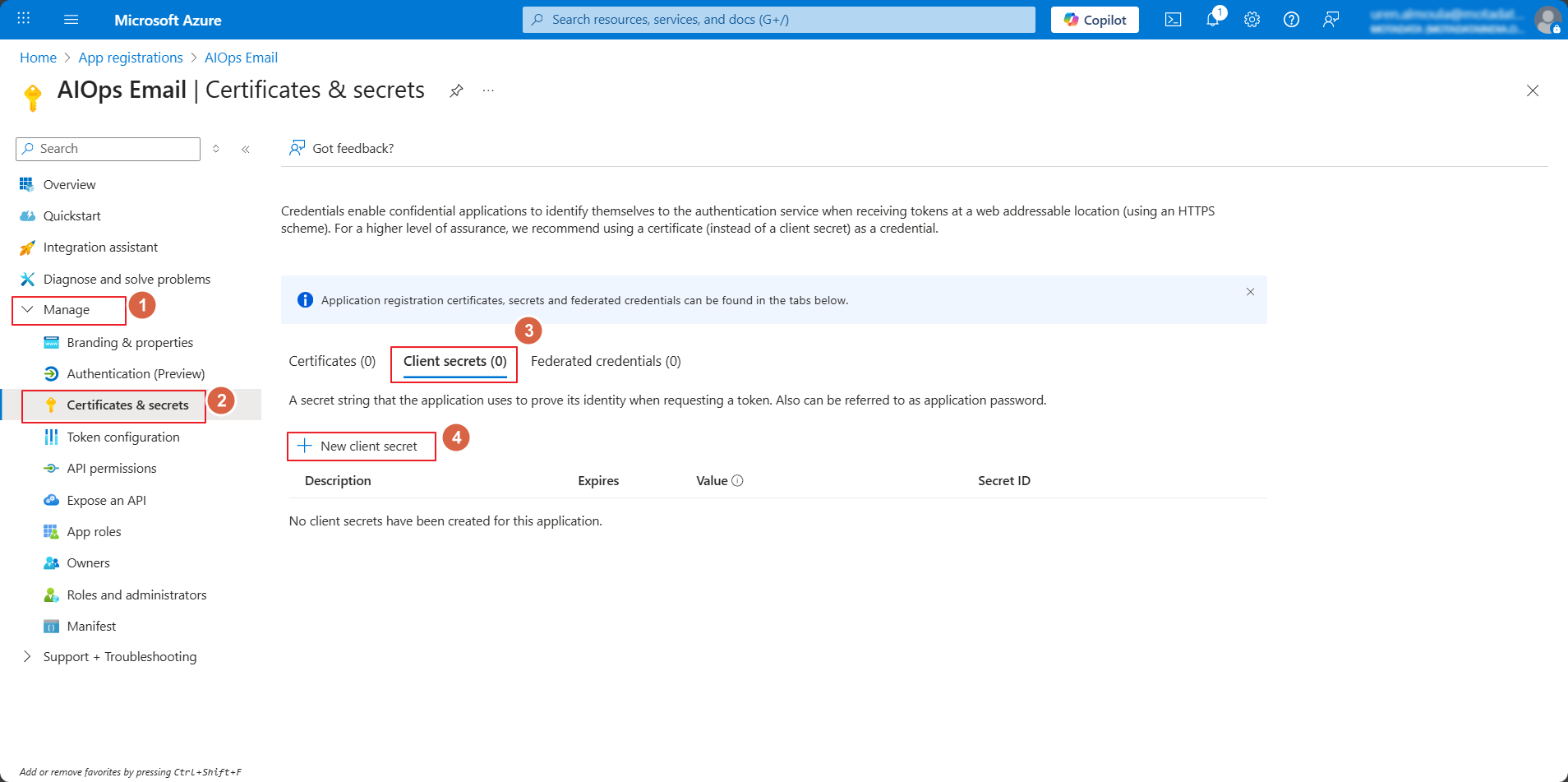
- Go to the Manage > Certificates & secrets > Client secrets tab, and click New Client Secret.
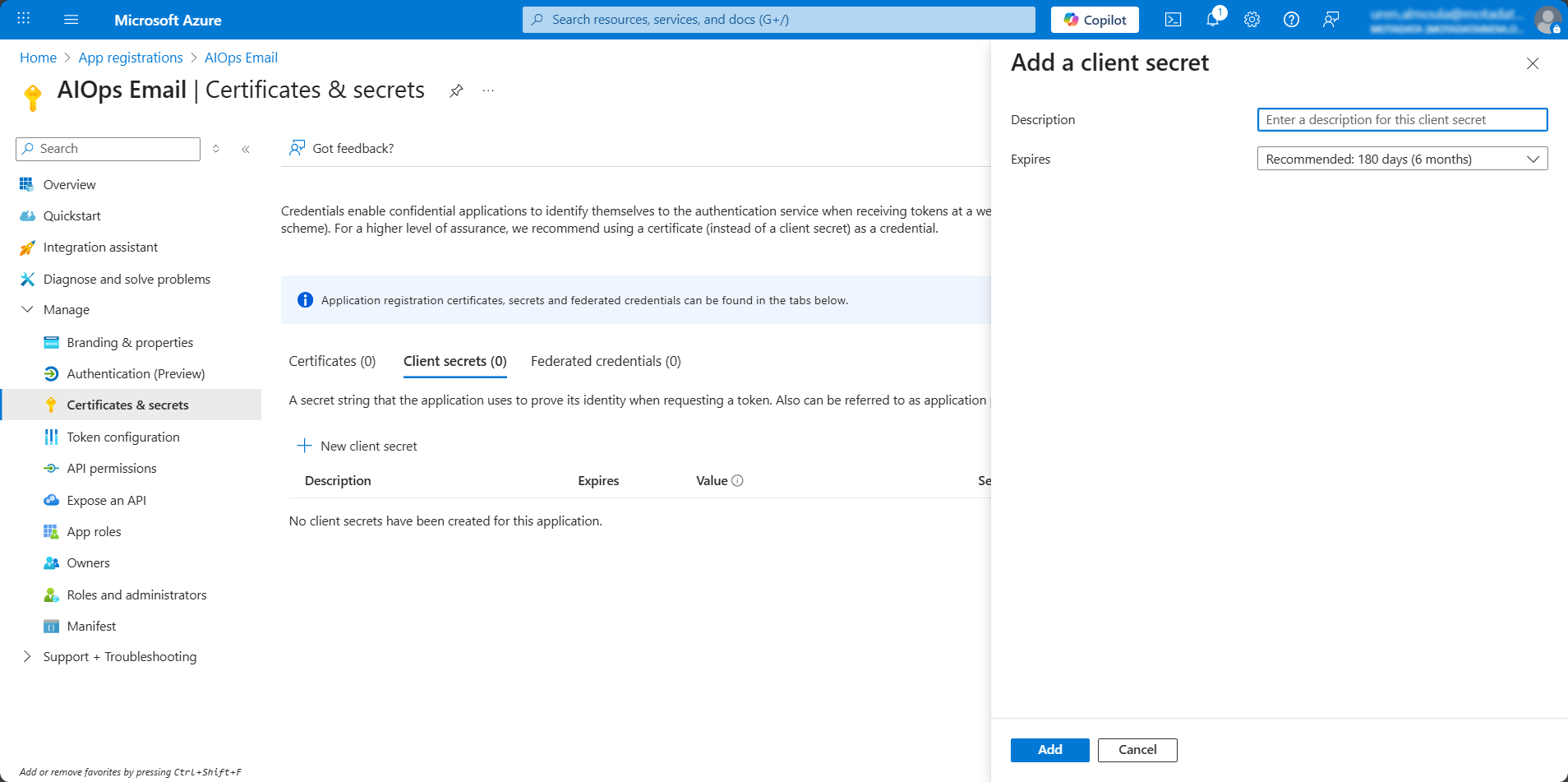
- Enter the description, select the expiry time, and click Add.
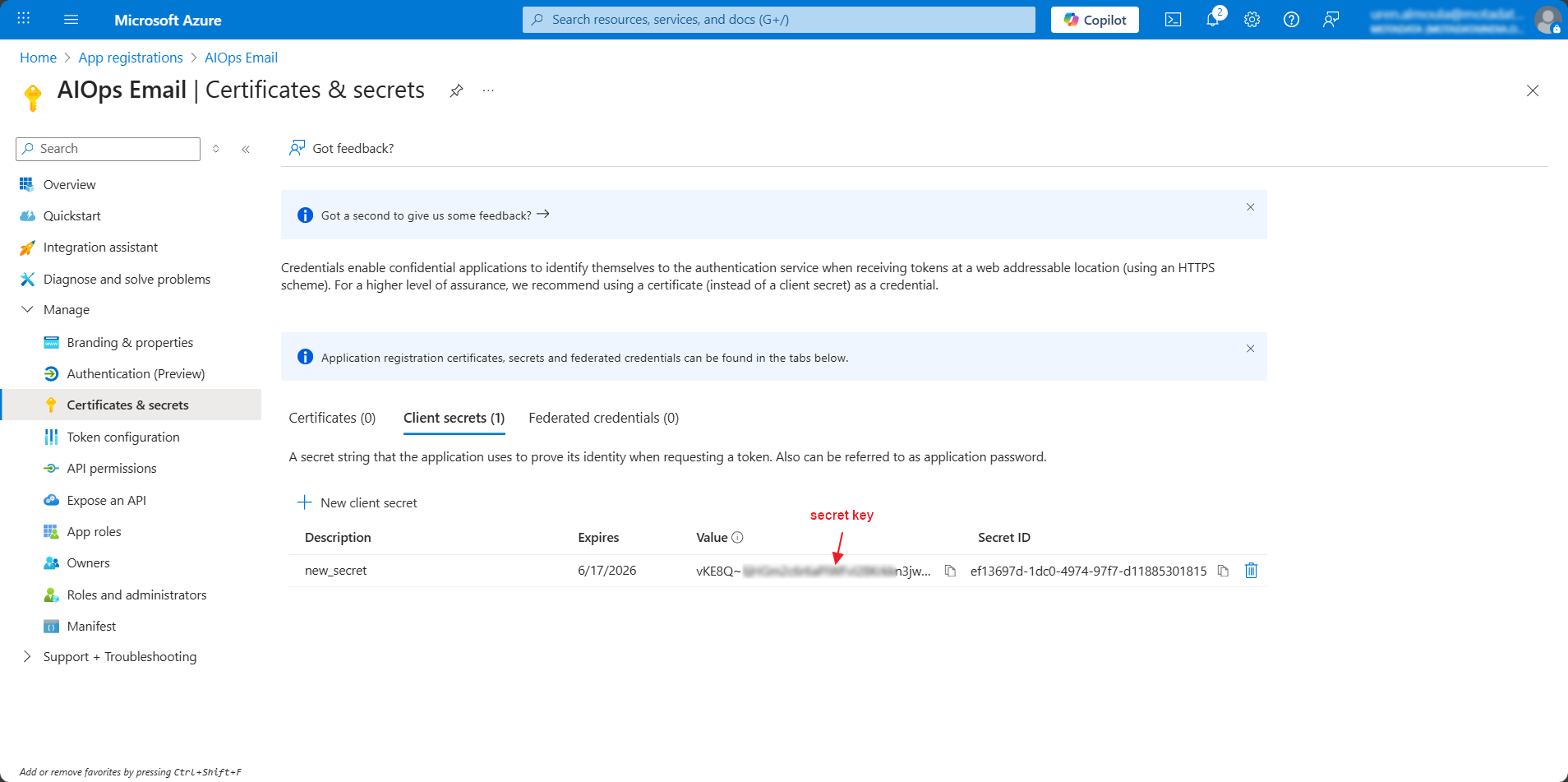
The secret appears in the table as shown below. Copy it too.
noteThe client secret value can be viewed only once immediately after creation. Hence, it is recommended to save the secret key before leaving the page.
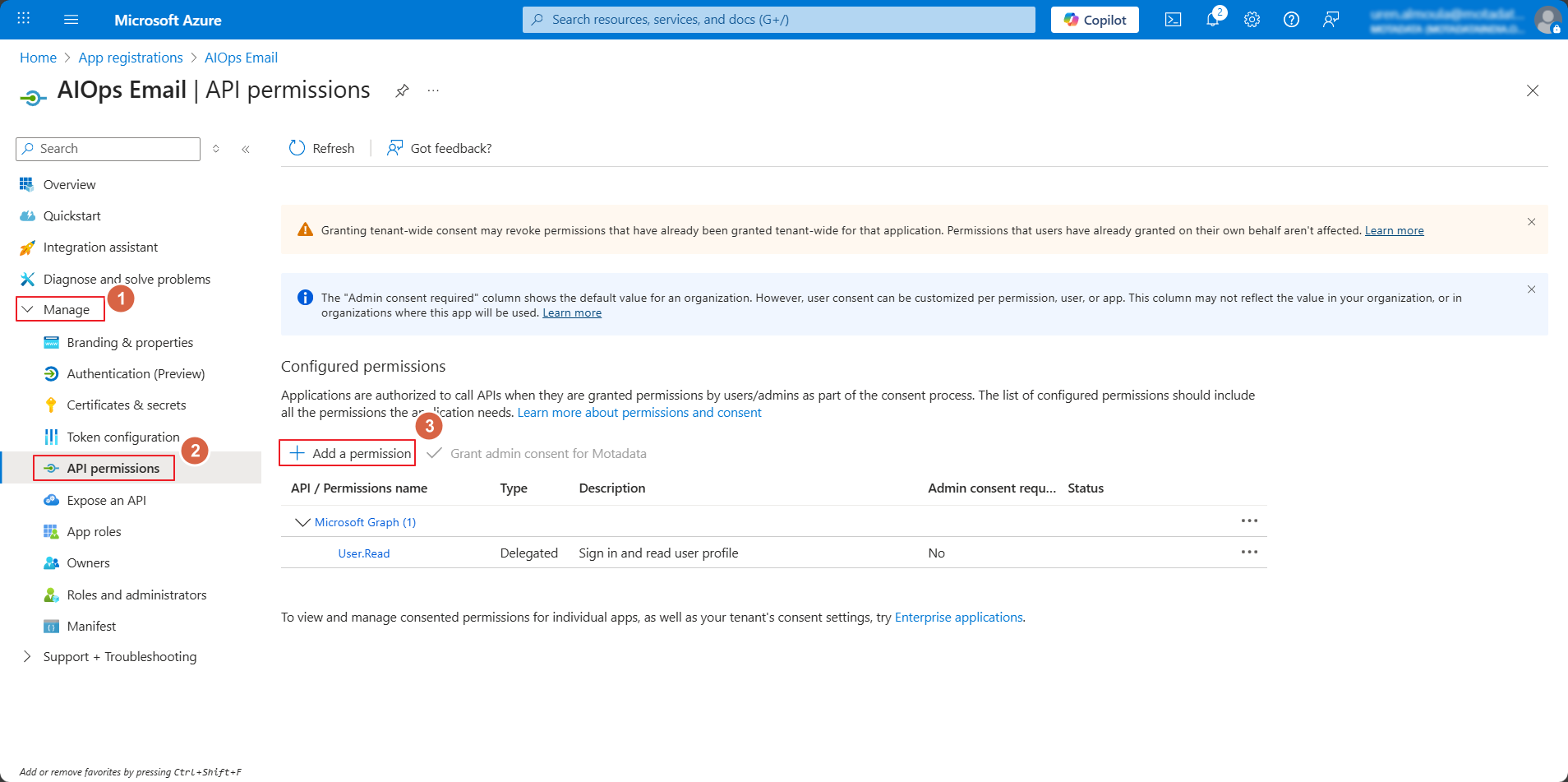
- In Microsoft Azure, go to Manage > API Permissions tab, and click Add a permission to add permissions for the application.
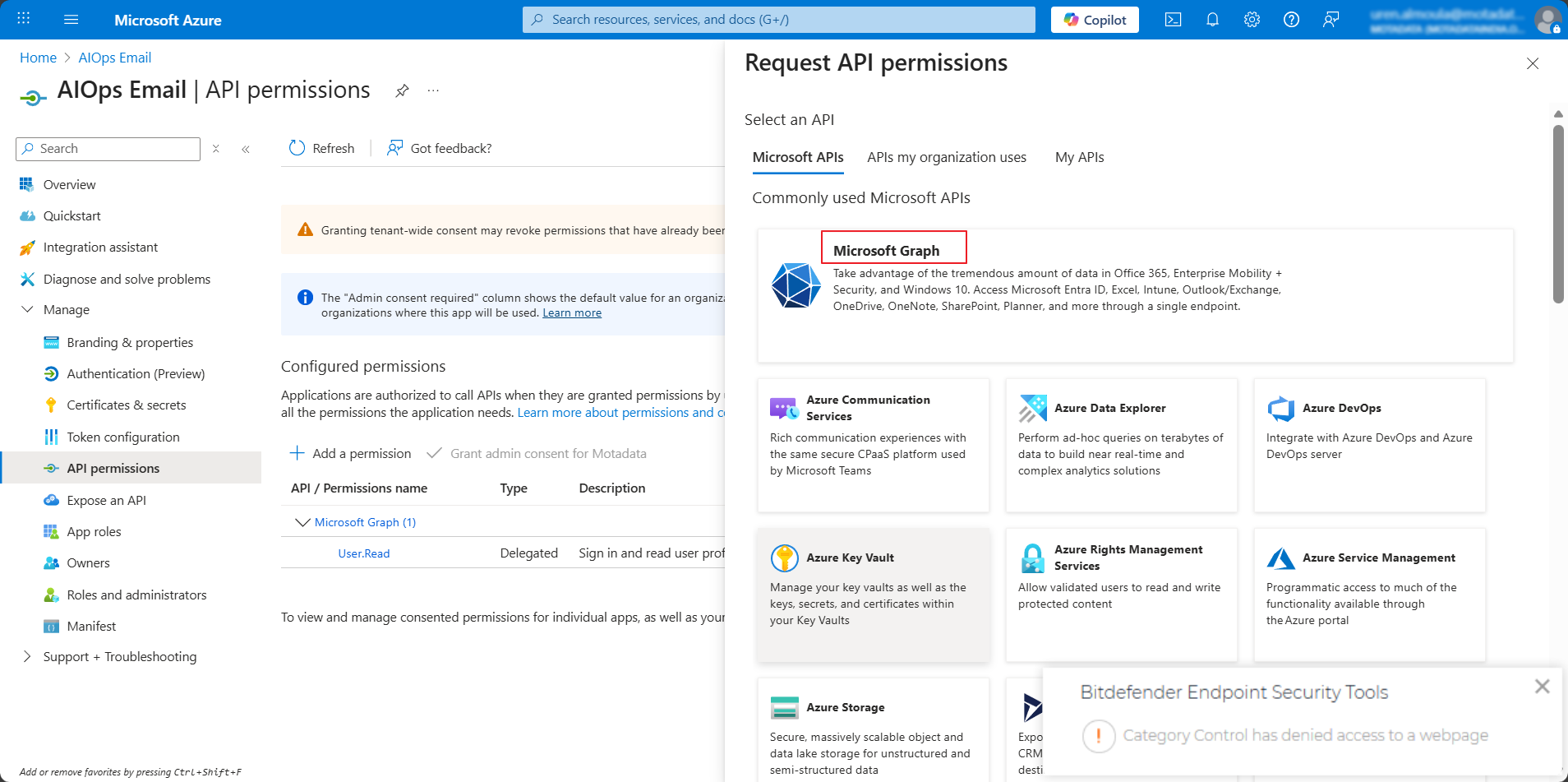
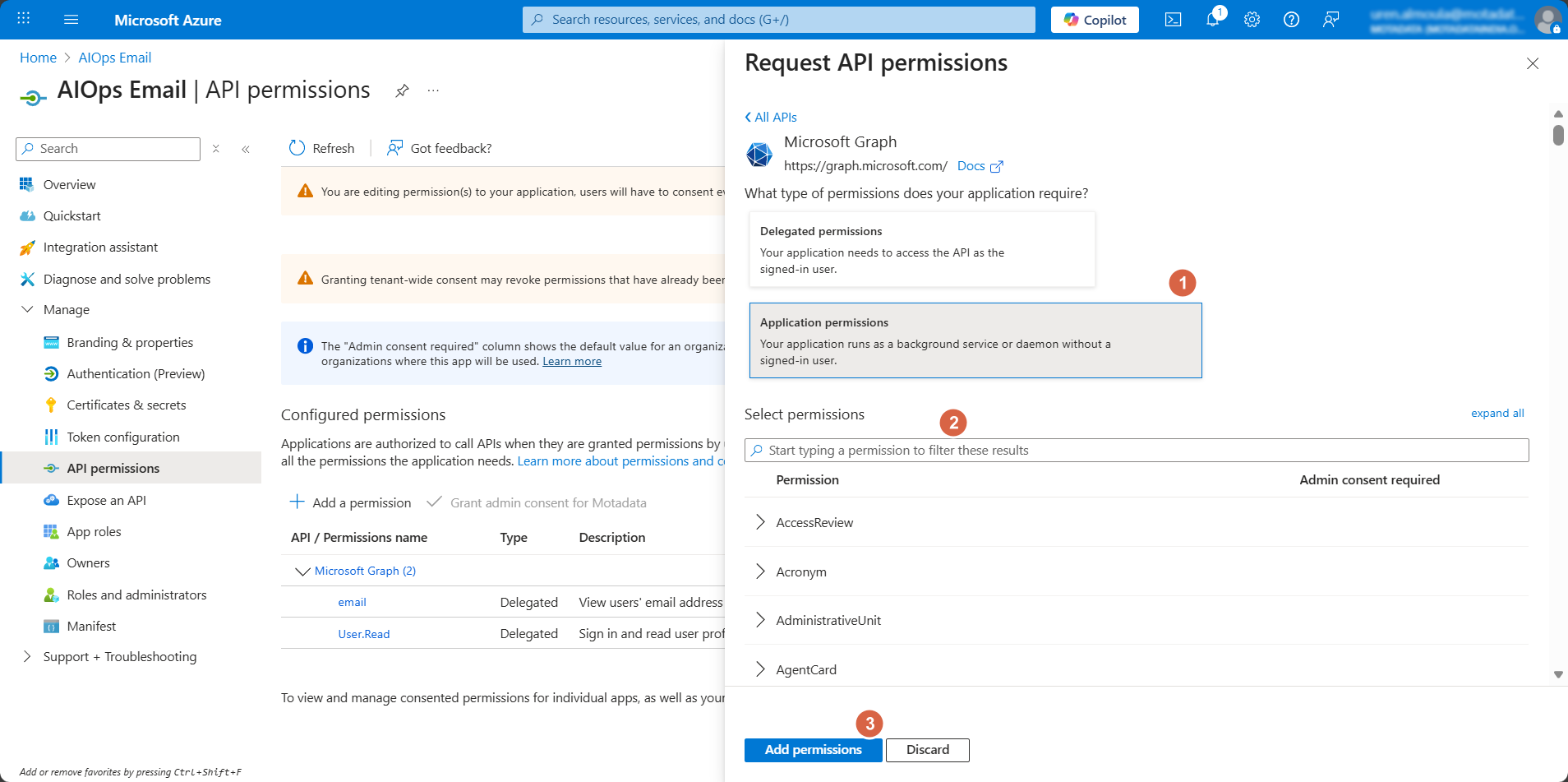
- The Request API Permissions popup appears. Click Microsoft Graph.
- Add Permissions for IMAP or Office 365 Exchange Online (MAPI).
IMAP
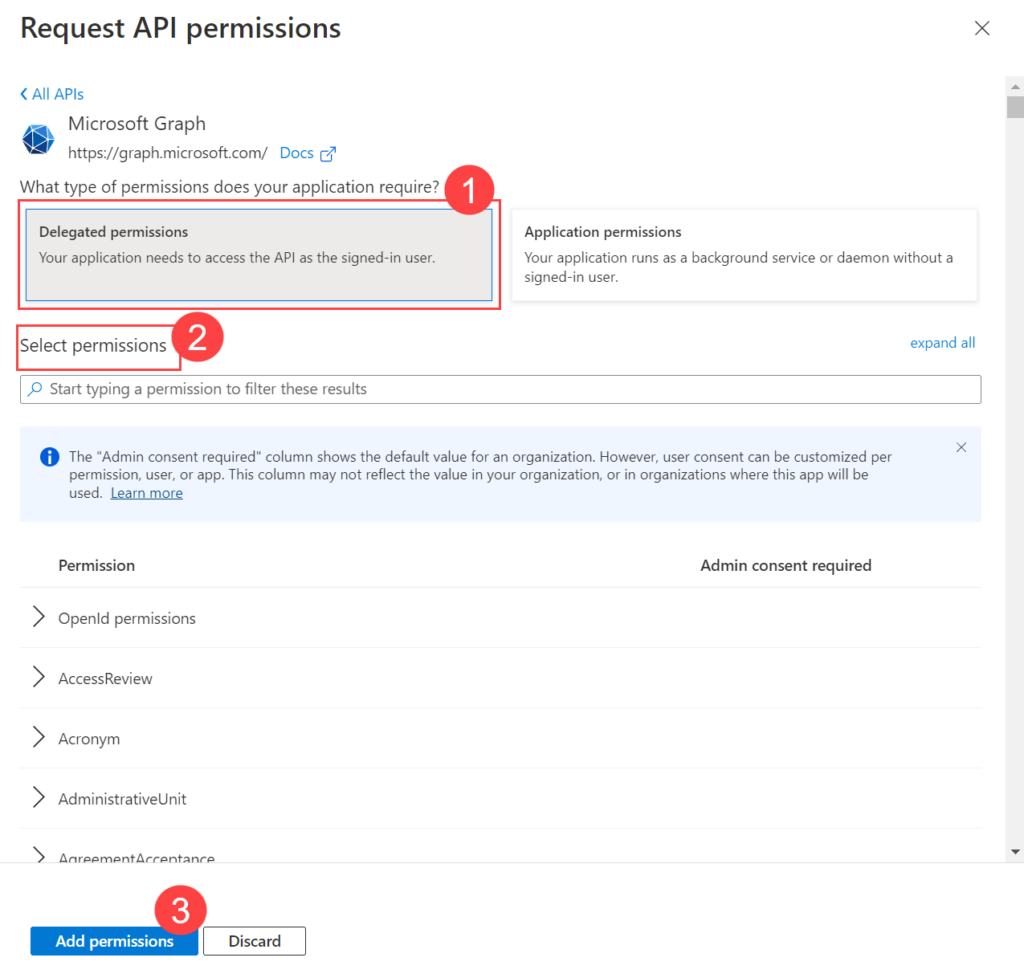
Select Delegated Permissions, select the desired permissions for the application, and click Add Permissions.
The Azure application must have the below Delegated permissions for IMAP: Microsoft Graph (Delegated Type):
- IMAP.AccessAsUser.All
- Mail.Read
Office 365 Exchange Online (For MAPI)
- For Office 365 Exchange, click Add a Permission > APIs my organization uses tab, search for the Office 365 Exchange Online permission, and click on it.
The Azure application must have the below Application permissions for MAPI: Office 365 Exchange Online: (Application Type):
- Exchange.ManageAsApp
- Full_access_as_app
- Mail.Read
- Mail.ReadWrite
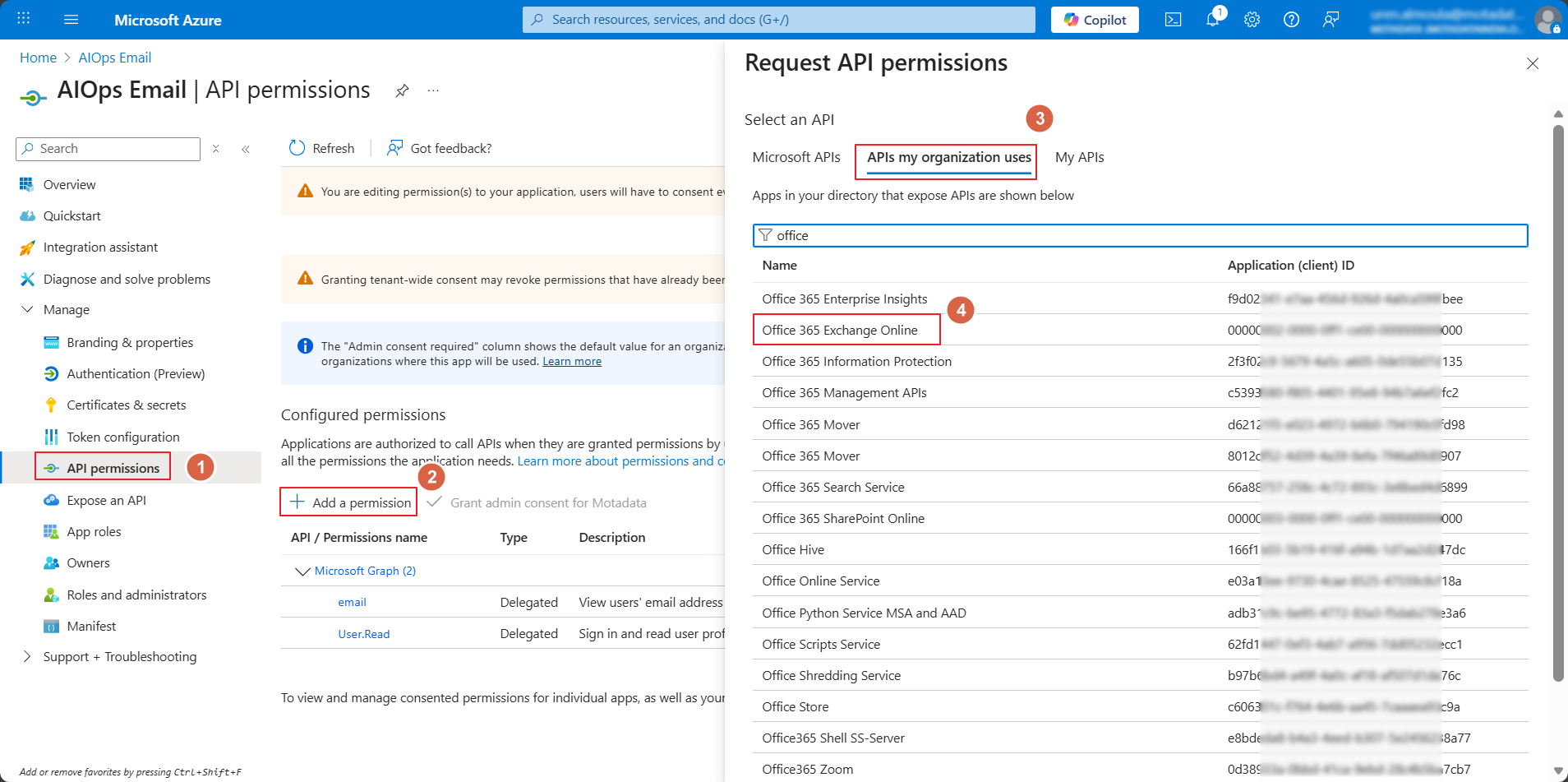
- Next, click on the Application permissions tab, select the desired permissions, and click Add Permissions.
- Click Grant admin consent for
. A confirmation window will appear. Click Yes to continue.
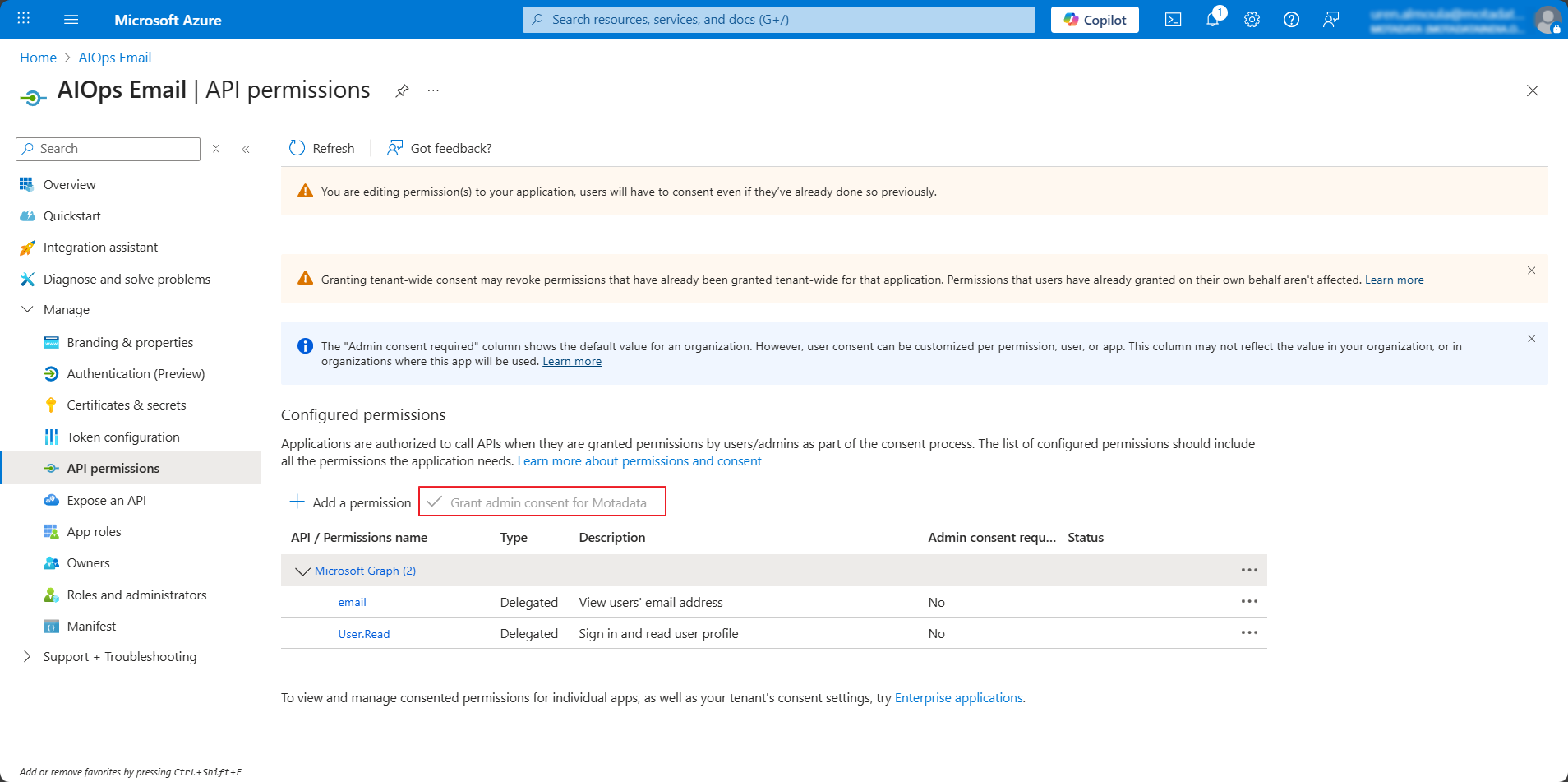
The Grant admin consent option will be enabled only if you are logged in as a user with Azure Global Administrator rights. For more details, refer Grant Tenant-wide admin consent to an application.
- For IMAP, register your Azure AD Application service principals in Exchange Online and grant access to the Exchange Online mailbox to this service principal. For more details, refer [Register service principals in Exchange](https://learn.microsoft.com/en-us/exchange/client-developer/legacy-protocols/ how-to-authenticate-an-imap-pop-smtp-application-by-using-oauth#register-service-principals-in-exchange).
- For IMAP and MAPI, it is recommended to restrict the mailbox access, so that Azure app can access only a single mailbox. For more details, refer Limiting application permissions to specific Exchange Online mailboxes.
First copy the Client ID and Client Secret generated here and then configure Microsoft Azure in Motadata ObserveOps through just configuring credential profile with these values.
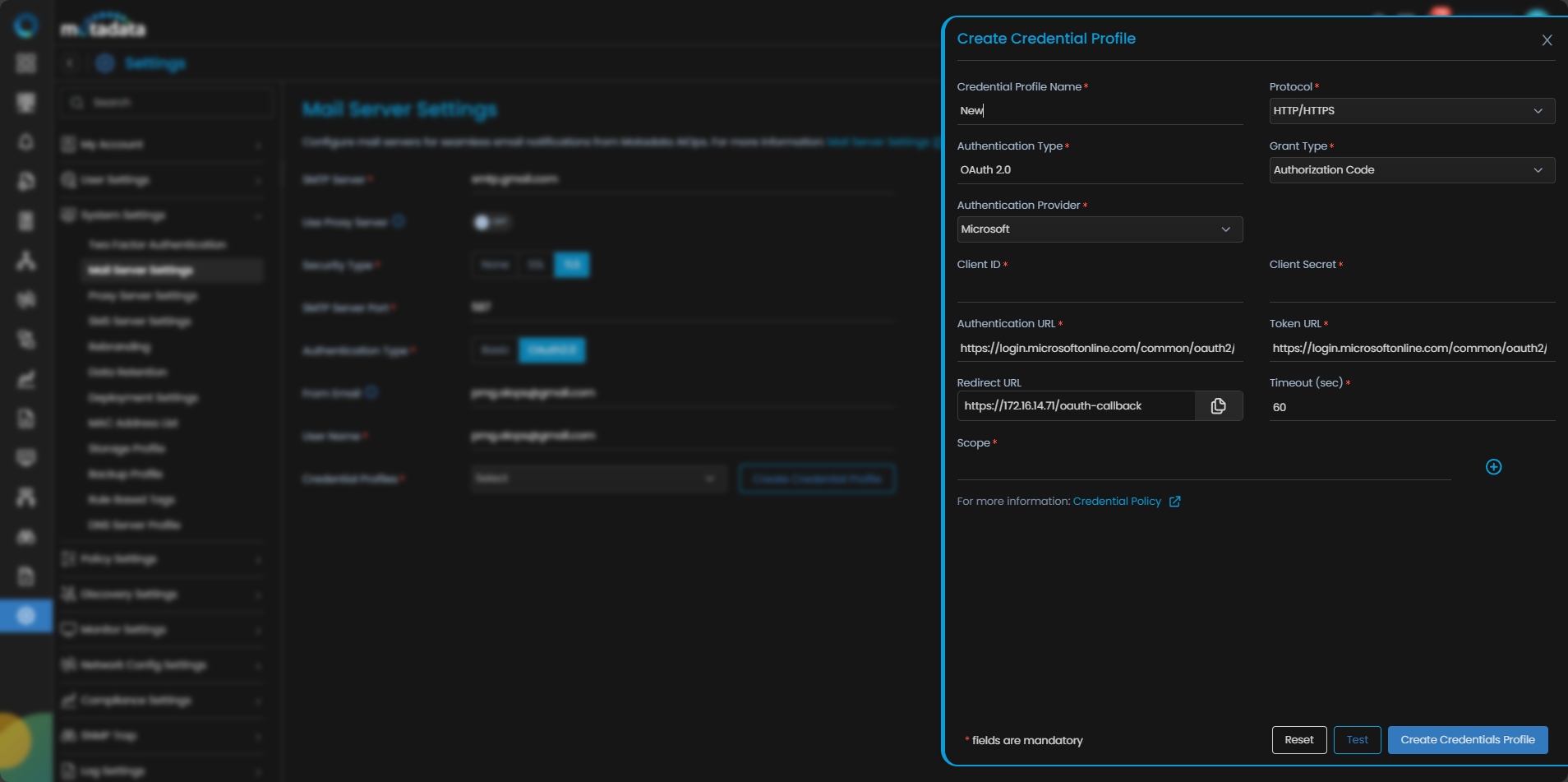
Make sure to select Authentication Type as OAuth 2.0, Grant Type as Authentication Code, and Authentication Provider as Microsoft.