EOSL Sync Setting
Automate the tracking of software End-of-Life and End-of-Support dates to ensure compliance and proactive lifecycle management.
The EOSL Sync Setting allows administrators to configure automated synchronization of software End-of-Life (EOL) and End-of-Support (EOS) data from Motadata’s central repository. By maintaining up-to-date EOSL data, you can proactively manage software lifecycles, mitigate security risks from unsupported versions, and streamline upgrade planning directly within your Software Asset Inventory.
EOSL Synchronization Architecture
The diagram below illustrates how ServiceOps securely fetches and processes lifecycle data to keep your software inventory accurate.
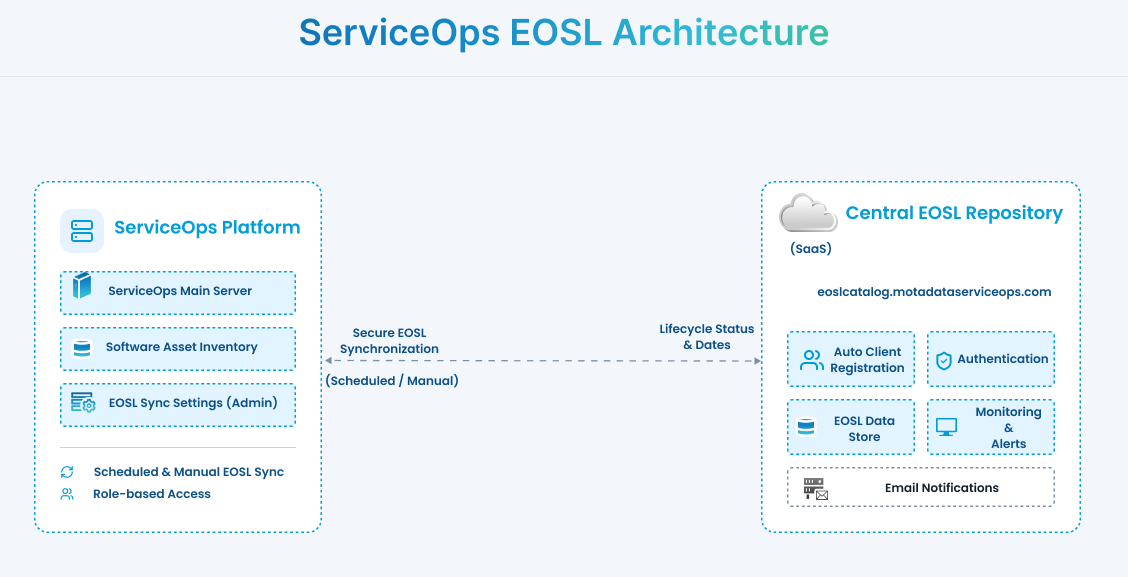
Data Flow & Components
The synchronization process involves two primary layers that communicate via a Secure EOSL Synchronization channel:
Central EOSL Repository (SaaS): Motadata maintains a secure SaaS repository
eoslcatalog.motadataserviceops.com, that manages the following:- Auto Client Registration & Authentication: Securely identifies and authorizes your ServiceOps instance before data exchange.
- EOSL Data Store: A central repository of validated lifecycle data.
- Monitoring & Alerts: Tracks the health and uptime of the catalog service.
- Email Notifications: Sends automated alerts regarding synchronization outcomes (requires local email server configuration).
ServiceOps Platform (Local): Your local environment where the lifecycle data is applied. It consists of:
- ServiceOps Main Server: Initiates the secure connection for both Scheduled and Manual sync tasks.
- EOSL Sync Settings (Admin): The administrative interface used to configure the sync frequency and notification recipients.
- Software Asset Inventory: The destination where Lifecycle Status & Dates are mapped to individual records. This includes all software assets in your inventory, whether created manually or identified through network discovery.
- Identification Logic: Lifecycle data is automatically linked to your software records based on a match of Software Name, Version, and Codename.
- Role-based Access: Ensures that only authorized administrators can modify synchronization parameters.
- The ServiceOps Main Server requires limited Internet access to communicate with the Central Repository. Ensure that
eoslcatalog.motadataserviceops.comis whitelisted in your firewall or proxy settings. - This feature is available only if the "Manage EOSL Sync Setting" role permission is assigned to the user.
- Currently, EOSL synchronization is supported for Software assets only.
Configuring EOSL Database Synchronization
The system synchronizes with the Motadata central repository to fetch the latest lifecycle data for software products.
To configure the synchronization schedule:
- Navigate to Admin > Supplier Management > EOSL Sync Setting.
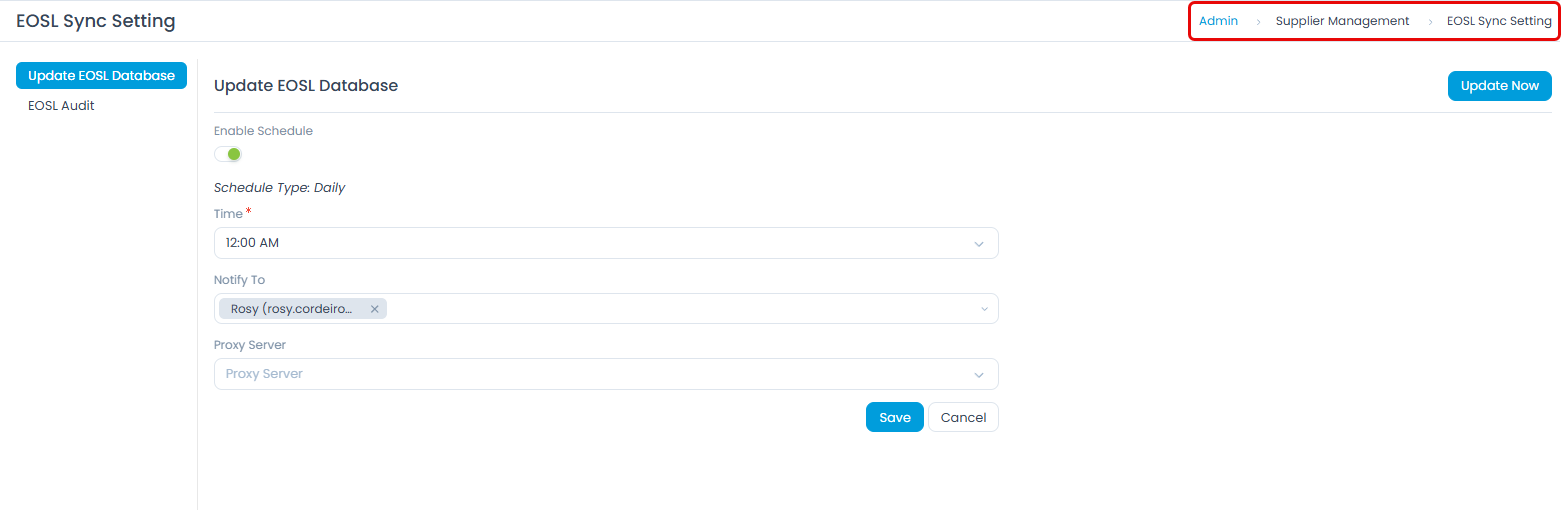
- On the Update EOSL Database tab, configure the following:
- Enable Schedule: Toggle this switch to On to enable automatic daily synchronization. By default, it is disabled.
- Time: Select the specific time of day when the synchronization should occur.
- Notify To: Select the users or technicians who should receive email notifications regarding the success or failure of the sync process.
- Proxy Server: If your environment requires a proxy for Internet access, select the appropriate proxy server from the dropdown.
- Click Save. Once the database is updated successfully, you will receive an email notification. Also, you can view the updated data in the EOSL Insight tab of the Software Asset Details Page.
Manual Synchronization
If you need to update the EOSL data immediately without waiting for the scheduled task, you can trigger a manual sync.
- Navigate to Admin > Supplier Management > EOSL Sync Setting.
- In the Update EOSL Database tab, click the Update Now button.
- A confirmation message will appear, and the sync process will begin in the background.
Auditing Sync Activities
The EOSL Audit tab provides a complete history of all synchronization events, whether manual or scheduled.
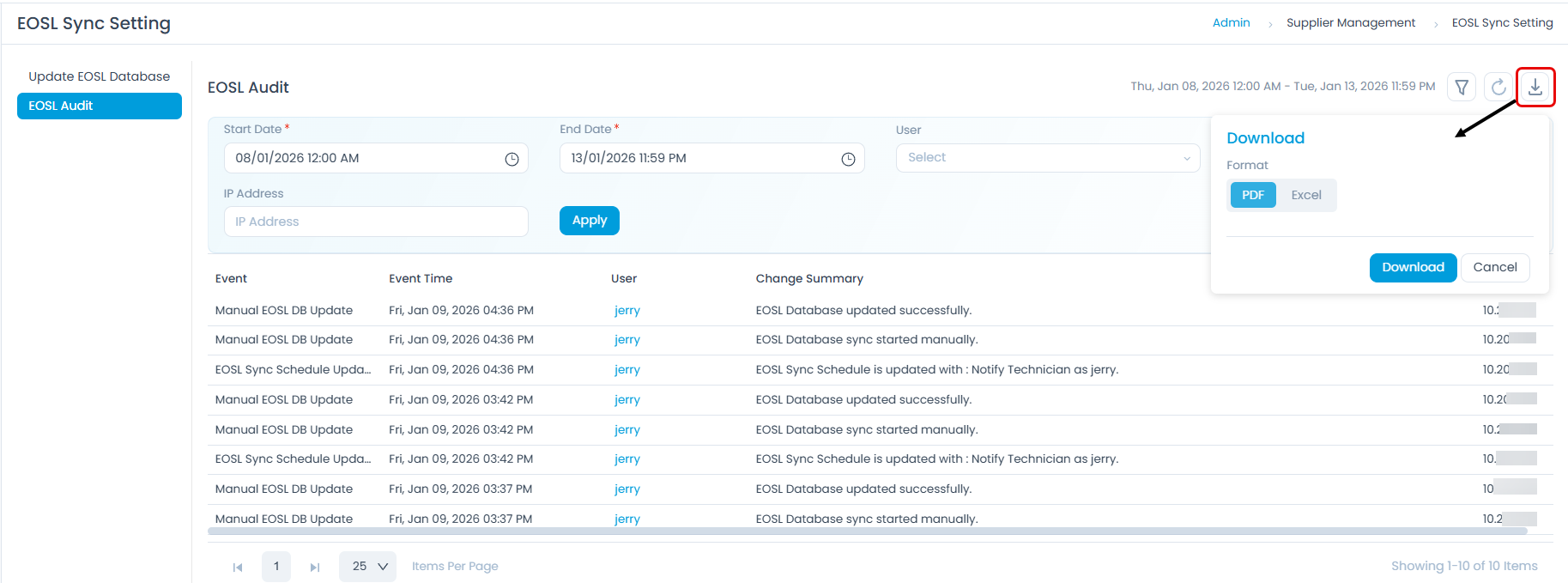
To view the audit logs:
Navigate to Admin > Supplier Management > EOSL Sync Setting.
Click the EOSL Audit tab. Here you have the below options:
- Grid View: View the audit logs based on the selected time range. The details include the following columns:
- Event: The type of action performed (e.g., Manual EOSL DB Update, EOSL Sync Schedule Update).
- Event Time: The timestamp of the event.
- User: The user who initiated the action (for manual updates) or "System" for scheduled tasks.
- Change Summary: A brief description of the result (e.g., "EOSL Database updated successfully").
- IP Address: The IP address from which the action was initiated.
- Download: Download the audit history for compliance or reporting purposes in PDF and Excel format.
- Refresh: Refresh the audit logs to view the latest updates.
- Grid View: View the audit logs based on the selected time range. The details include the following columns:
Leveraging EOSL Data for Lifecycle Management
Once the EOSL synchronization is configured and your database is up-to-date, you can leverage this data to automate processes, notify stakeholders, and generate comprehensive compliance reports.
Automating Actions with Workflows
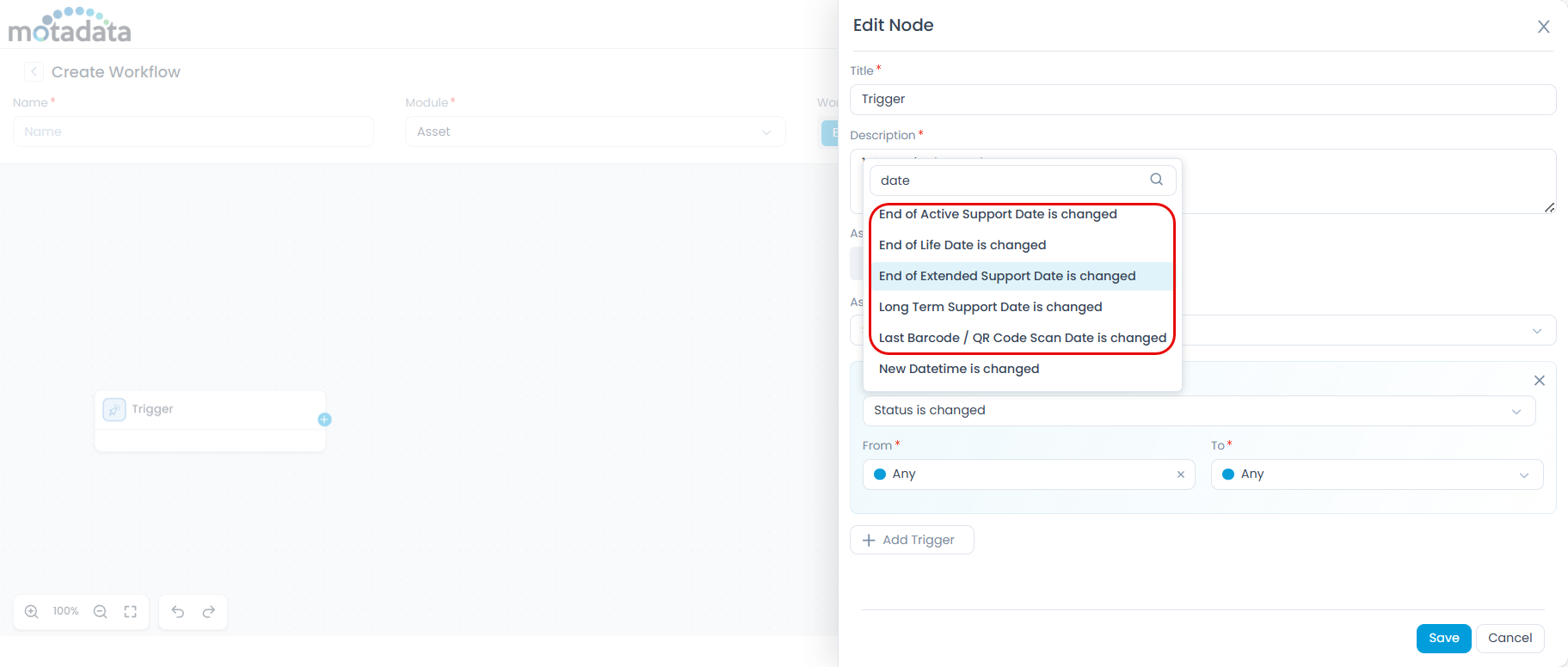
You can leverage the Workflow engine to automate actions based on lifecycle changes. This ensures your inventory remains accurate and stakeholders are notified as assets approach critical milestones.
- Available Triggers: Trigger workflows when the Support Status, Release Date, or EOSL Dates (EOAS, EOES, EOL) are changed.
Configuring Scheduled Notifications
Configure consolidated notifications to alert stakeholders before or when an asset reaches a lifecycle milestone.
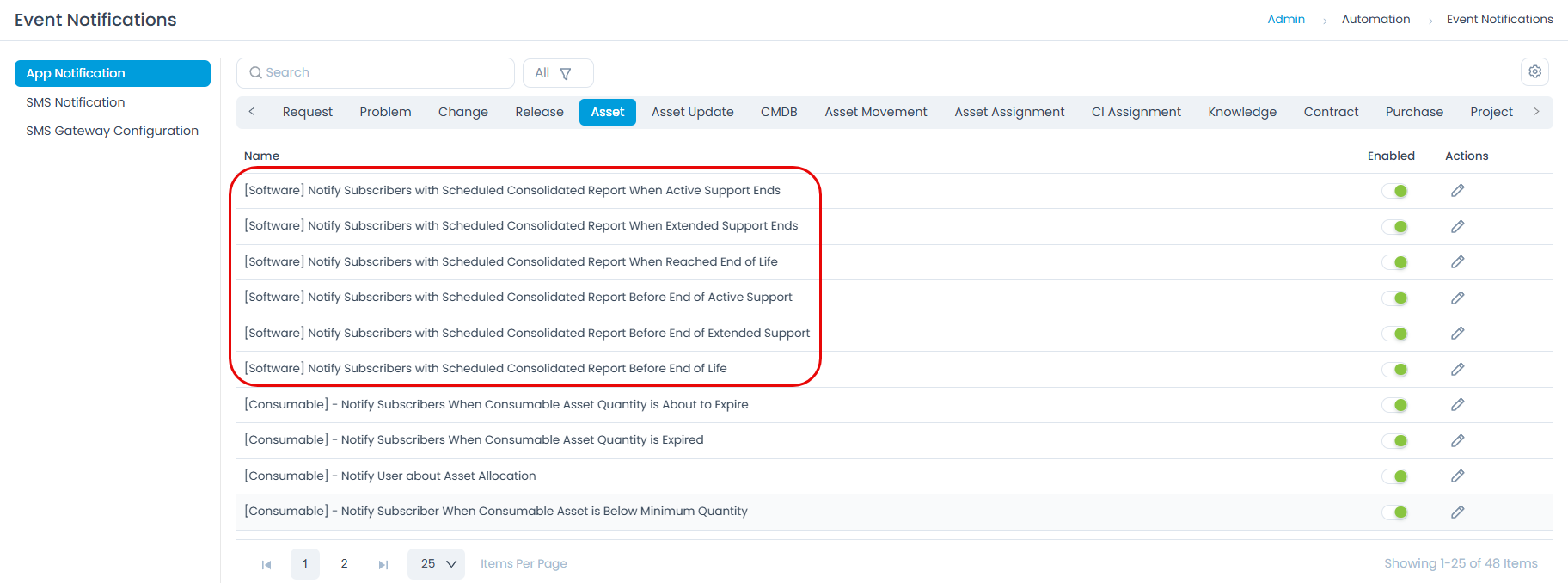
- Proactive Alerts: Sent a specified number of days before the EOAS, EOES, or EOL.
- Reactive Alerts: Sent exactly when the milestone is reached.
- Configuration: Notifications can be sent to specific Technicians, Groups, or external Email IDs before or within the configured timeframe (days).
Reporting & Analytics
Monitor software compliance and plan for future refreshes using the following OOB Reports:
- EOSL Insights Report (tabular) for detailed lifecycle analysis.
- Software Assets by Support Status (matrix) for high-level visibility into your inventory's health.