Overview
ServiceOps Text Intelligence uses AI for advanced text analysis, enhancing communication, efficiency, and user experience.
The Text Intelligence module brings AI-powered understanding and enhancement of textual data across ServiceOps. It enables the system to analyze, interpret, and improve text-based interactions in real time, helping technicians respond more effectively and make informed decisions.
By leveraging advanced natural language processing (NLP), Text Intelligence goes beyond simple keyword matching to understand the context, intent, and tone of user inputs. This allows the platform to deliver more accurate suggestions, relevant insights, and meaningful automation throughout the service lifecycle.
Text Intelligence plays a key role in improving both operational efficiency and user experience by reducing manual effort and enhancing the quality of communication.
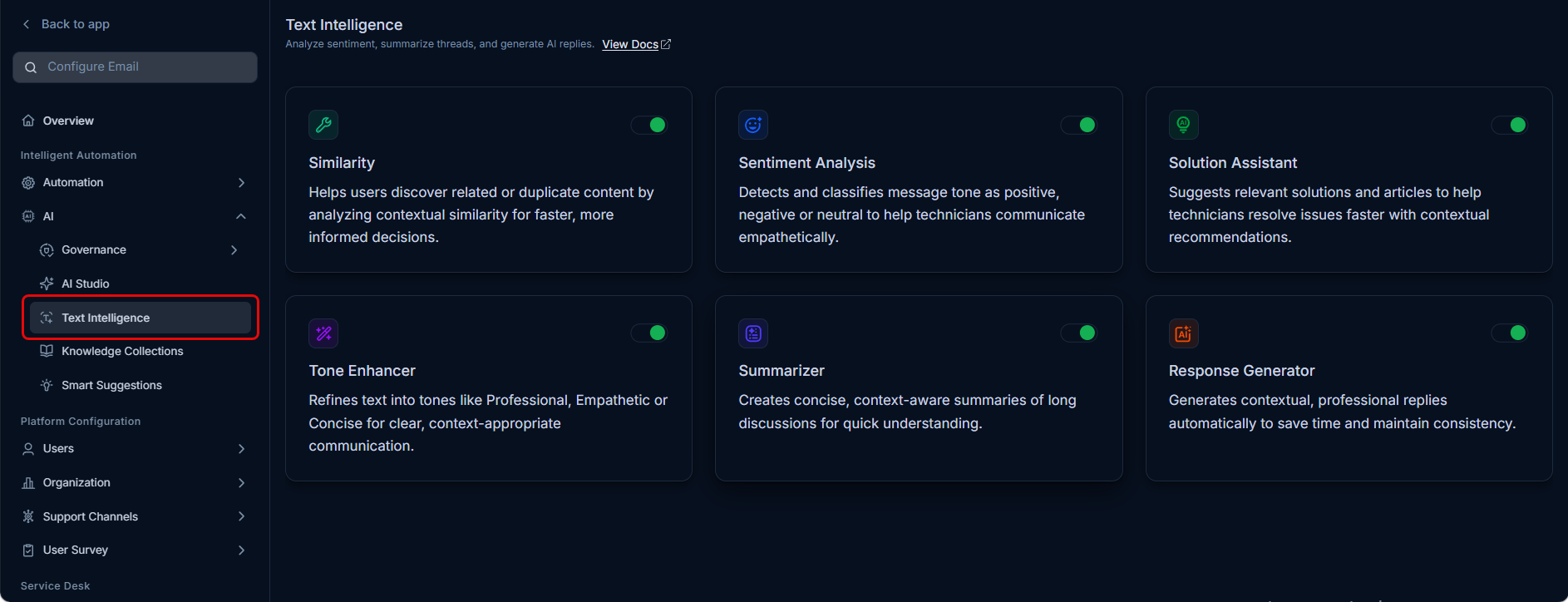
Text Intelligence Features
Text Intelligence is made up of six individual features. Each can be enabled or disabled independently by an administrator under Admin > AI > Text Intelligence. All features require the Manage Text Intelligence permission to be assigned to your role.
| Feature | What it does | Where it appears | Supported modules |
|---|---|---|---|
| Similarity | Surfaces related and duplicate records in real time using semantic matching | Similar Incident panel (during creation), Similar Tickets tab (inside a record) | Request, Problem, Change, Release, Knowledge Base |
| Sentiment Analysis | Detects the emotional tone of a ticket and classifies it as Positive, Negative, or Neutral | Record header icon | Request |
| Tone Enhancer | Rewrites selected text in the chosen tone - Professional, Empathetic, Concise, or Expand | Reply, Comment, Solution, and Description fields | Request |
| Solution Assistant | Suggests context-aware fixes from the Knowledge Base, resolved records, and the web | Solution field toolbar | Request, Problem |
| Ticket Summarizer | Condenses long ticket threads into a concise AI-generated summary with one click | Work tab | Request, Service Request |
| Response Generator | Generates contextual replies - Acknowledge, Request Details, Follow Up, or Closure Confirmation | Reply editor in the Work tab | Request |
Purpose and Benefits
- Improved Communication Quality: Helps technicians craft clear, professional, and context-appropriate responses using tone refinement and response generation.
- Faster Issue Resolution: Provides relevant suggestions such as similar records, summaries, and solutions, reducing the time spent searching for information.
- Better Context Awareness: Understands the intent and sentiment behind user messages, enabling more accurate and empathetic responses.
- Reduced Manual Effort: Automates repetitive tasks such as summarizing conversations and drafting replies.
- Consistency Across Responses: Ensures standardized communication across teams by generating structured and professional outputs.
How Features Work Together
Text Intelligence features are designed to complement each other. The following workflows show how combining features delivers the best results in common scenarios.
Handling a frustrated requester
- Open the ticket - the Sentiment Analysis icon shows Negative.
- Click Summarize with AI in the Work tab to quickly understand the full conversation history.
- Draft a reply in the Reply editor and use Tone Enhancer with the Empathetic option to soften the language before sending.
- Alternatively, use Response Generator to generate a contextual Acknowledge reply, then refine it with Tone Enhancer.
Resolving a ticket faster using past records
- While creating a new ticket, check the Similar Incident panel for matching records.
- Open a matched record and use Ticket Summarizer to understand how it was resolved without reading the full thread.
- In the Solution field, trigger Solution Assistant to pull the relevant fix directly into the record.
- Use Tone Enhancer with Professional tone to polish the solution before saving.
Managing reassigned or escalated tickets
- Open the reassigned ticket and click Summarize with AI to get instant context without reading every message.
- Check the Sentiment Analysis icon to understand the requester's current state.
- Use Response Generator with the Follow Up type to send a contextual check-in.
Where Text Intelligence is Applied
Text Intelligence capabilities are integrated across multiple areas of ServiceOps, including:
Request Management Assists in analyzing request descriptions, suggesting similar issues, detecting requester sentiment, generating responses, and surfacing resolution suggestions.
Conversations and Comments Enhances communication through sentiment detection, tone improvement, and response generation.
Knowledge Base Interactions Helps identify relevant articles and improves content discovery through the Similarity feature's Suggested Knowledge panel and Solution Assistant's Knowledge Base search.
Technician Workflows Supports technicians in drafting updates, summarizing information, refining language, and resolving tickets more efficiently.