Tone Enhancer
ServiceOps Tone Enhancer rewrites selected text in the right tone instantly so technicians can communicate professionally, empathetically, or concisely without spending time crafting the perfect reply from scratch.
Good technical support is not just about finding the right fix - it is about delivering it in a way the requester can understand and appreciate. The Tone Enhancer helps technicians refine the language in their replies, comments, and solutions using AI. Select any text in a supported field, choose a tone, and the system generates an improved version that preserves the original meaning while adjusting the clarity, structure, and register. The result can be appended to the existing content or used to replace it entirely.
- Tone Enhancer is enabled by default. No additional configuration is required to start using it.
- Ensure you have the Manage Text Intelligence permission assigned to your role to access this feature.
- Contact your administrator if the feature is not visible.

How It Works
Select text in a supported field - Reply, Comment, Description, or Solution. Click Enhance in the editor toolbar or the Ask AI floating button. Choose a tone option: Professional, Empathetic, Concise, Expand, or other available options. The system generates an enhanced version of the selected text while preserving the original intent. Review the original and enhanced versions side by side, then choose to Append or Replace the content.
Business Use Cases
Professionalizing a Quick Fix: A technician writes a shorthand note: "Restart the service and check logs." Using Professional tone, Tone Enhancer expands it into a clear, structured response suitable for a customer-facing reply - without the technician needing to rewrite it manually.
Responding to a Frustrated User: A Request is flagged as Negative by Sentiment Analysis. The technician drafts a reply and uses the Empathetic tone to soften the language before sending, acknowledging the frustration before delivering the technical steps.
Trimming Internal Notes: A technician adds a lengthy internal note with full narrative detail. Using Concise tone, Tone Enhancer strips it down to the key facts, keeping the record clean and easy for other technicians to scan quickly.
Turning Shorthand into Step-by-Step Instructions: A technician has a working fix written in shorthand: "Reset VPN. Check internet. Re-login." Using Expand, the system turns it into a complete step-by-step guide that an end user can follow without technical knowledge.
Where Tone Enhancer Appears
Tone Enhancer is available in supported text fields across the Technician Portal. It can be triggered in two ways:
- Ask AI Button: A floating button that appears when text is selected in a supported field.
- Enhance Option: Available in the editor toolbar of Reply, Comment, and Solution fields.
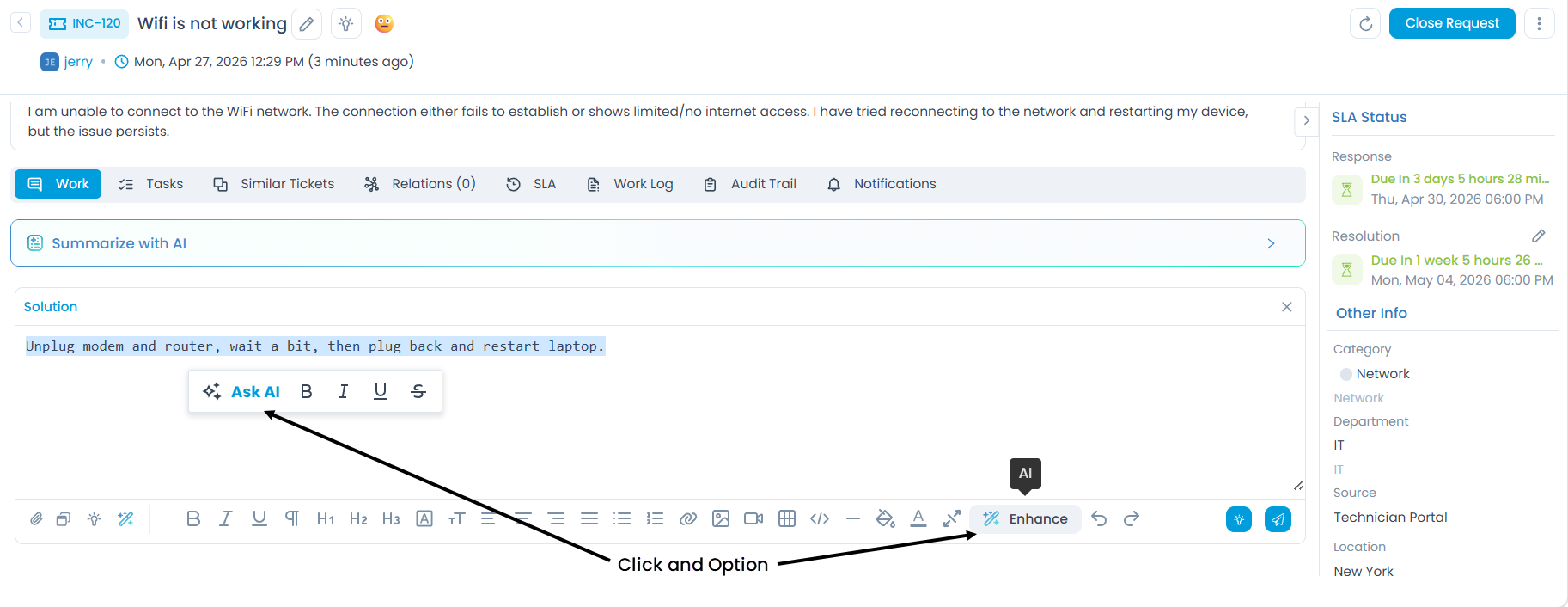
Both methods open the same enhancement dialog where you select a tone and review the result.
Example 1: Professional Tone
Use case: A technician is updating the solution in a customer-facing Request and wants the communication to be clear, structured, and professional.
Original text:
Unplug modem and router, wait a bit, then plug back and restart laptop.
Select the text in the Solution field. The Ask AI option appears in the toolbar. You can also click Enhance directly from the editor toolbar.
Select Professional Tone. The system processes the selected text and generates an enhanced version in the input field.
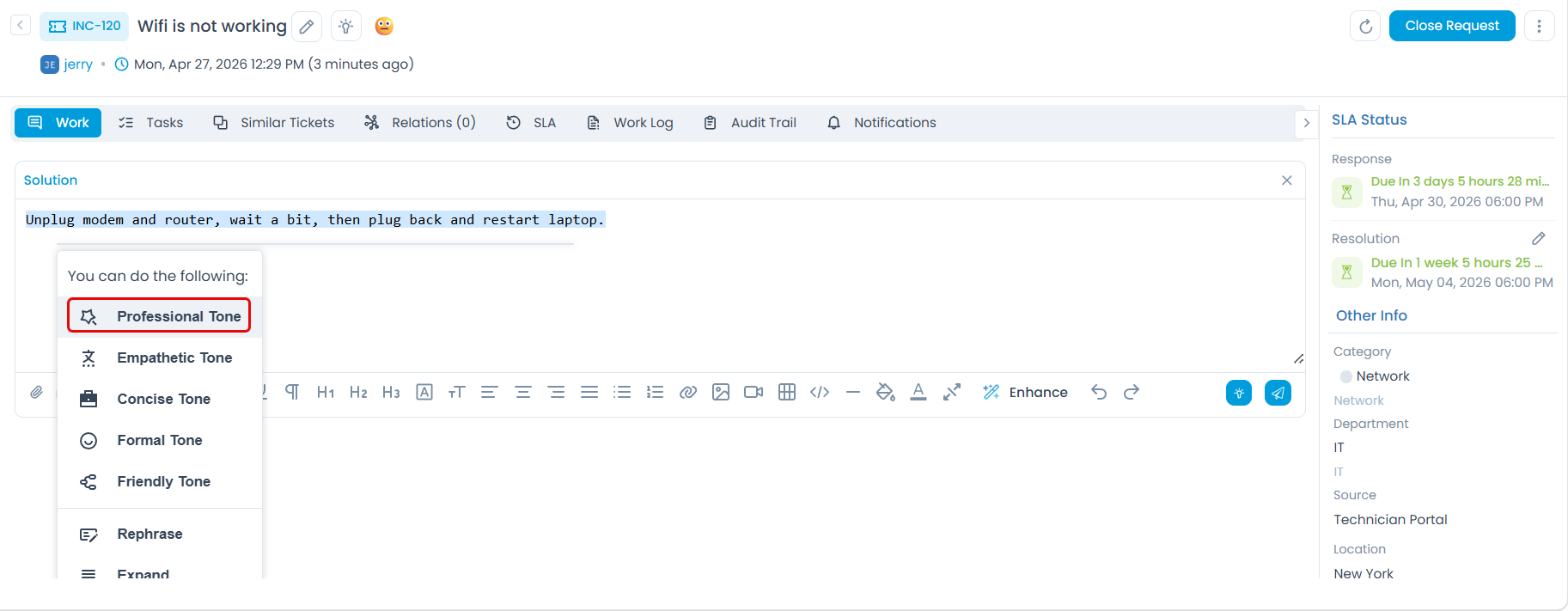
Enhanced text:
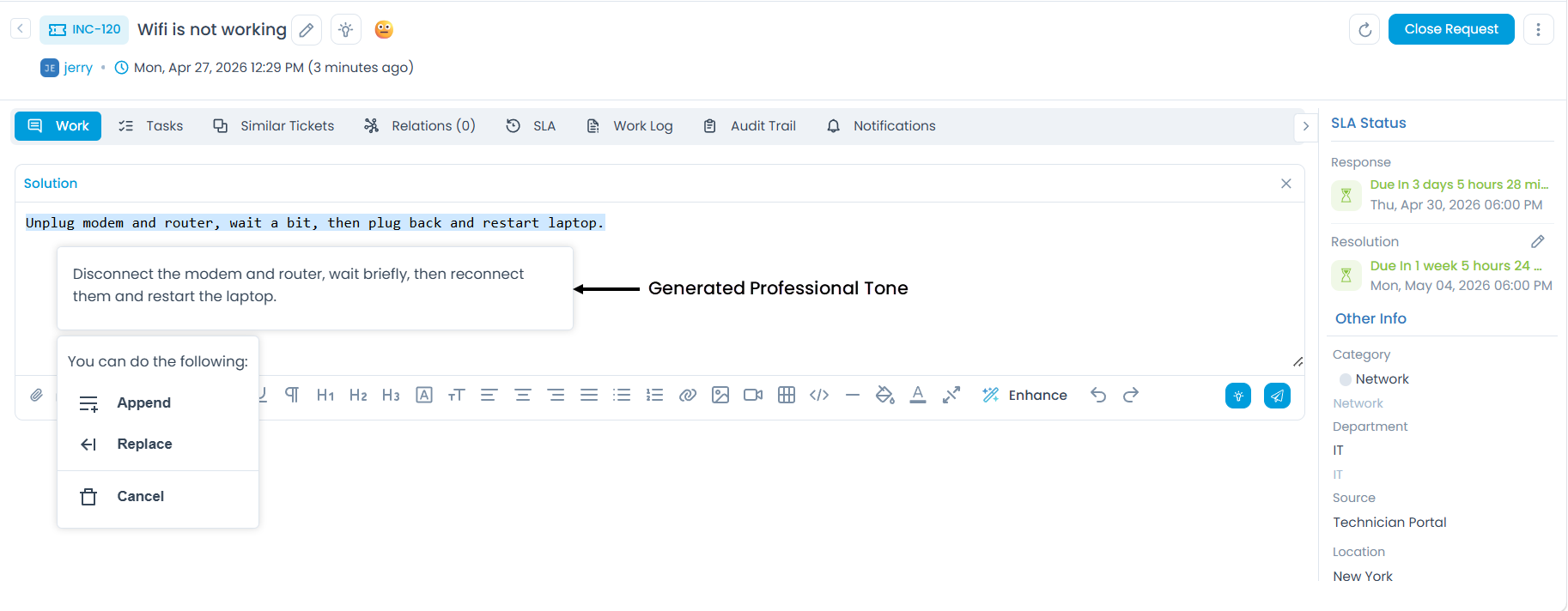
Disconnect the modem and router, wait briefly, then reconnect them and restart the laptop.
The dialog shows the original and enhanced versions side by side. From here you can:
- Append: add the enhanced text after the original.
- Replace: swap out the original text with the enhanced version.
- Cancel: discard the suggestion and keep the original.
Example 2: Concise Tone
Use case: A technician is adding internal notes and wants to keep the content short, precise, and easy to scan.
Original text:
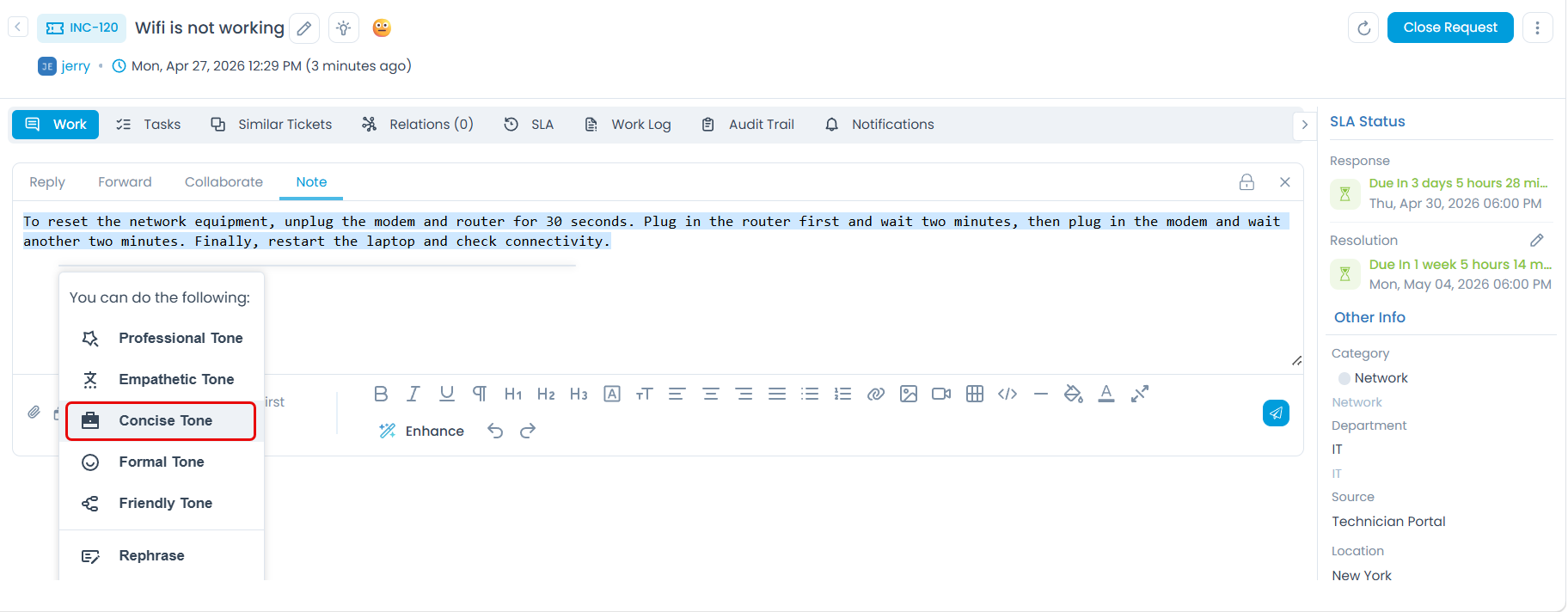
To reset the network equipment, unplug the modem and router for 30 seconds. Plug in the router first and wait two minutes, then plug in the modem and wait another two minutes. Finally, restart the laptop and check connectivity.
Select the text in the Note section. Click Ask AI or Enhance in the toolbar.
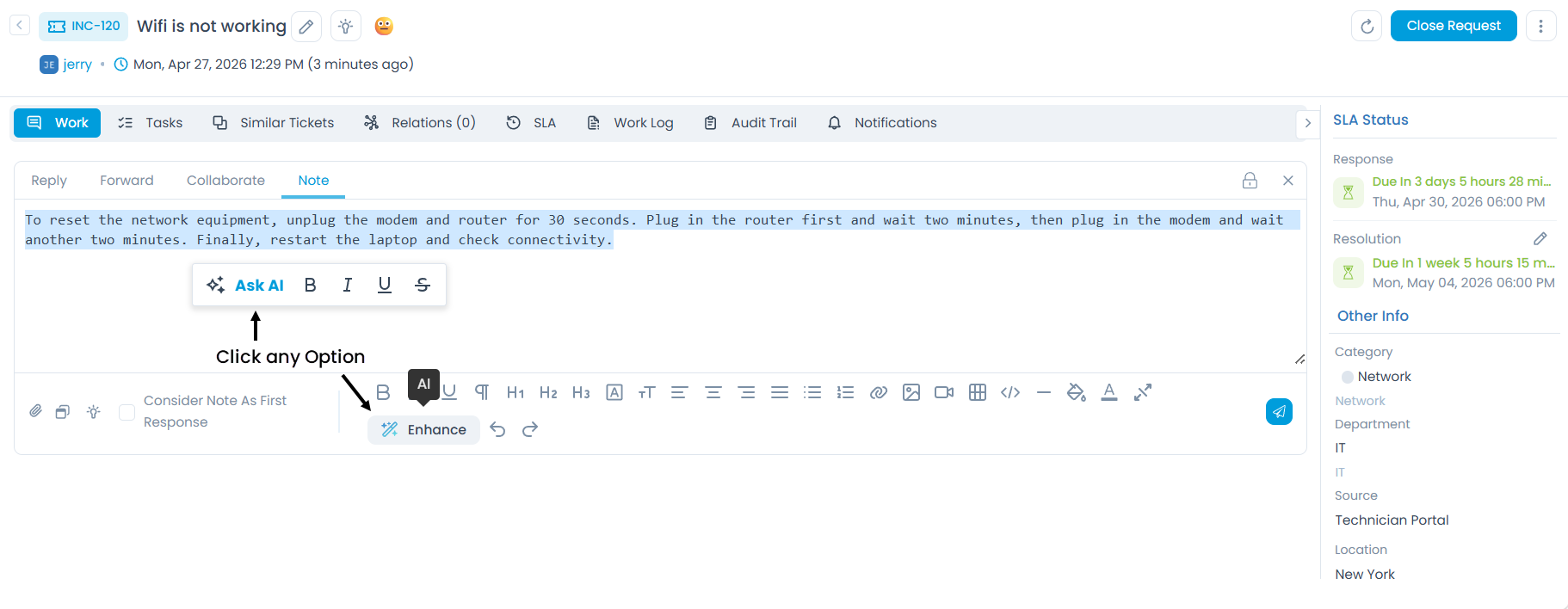
Select Concise Tone. The system generates a trimmed version of the same instructions.
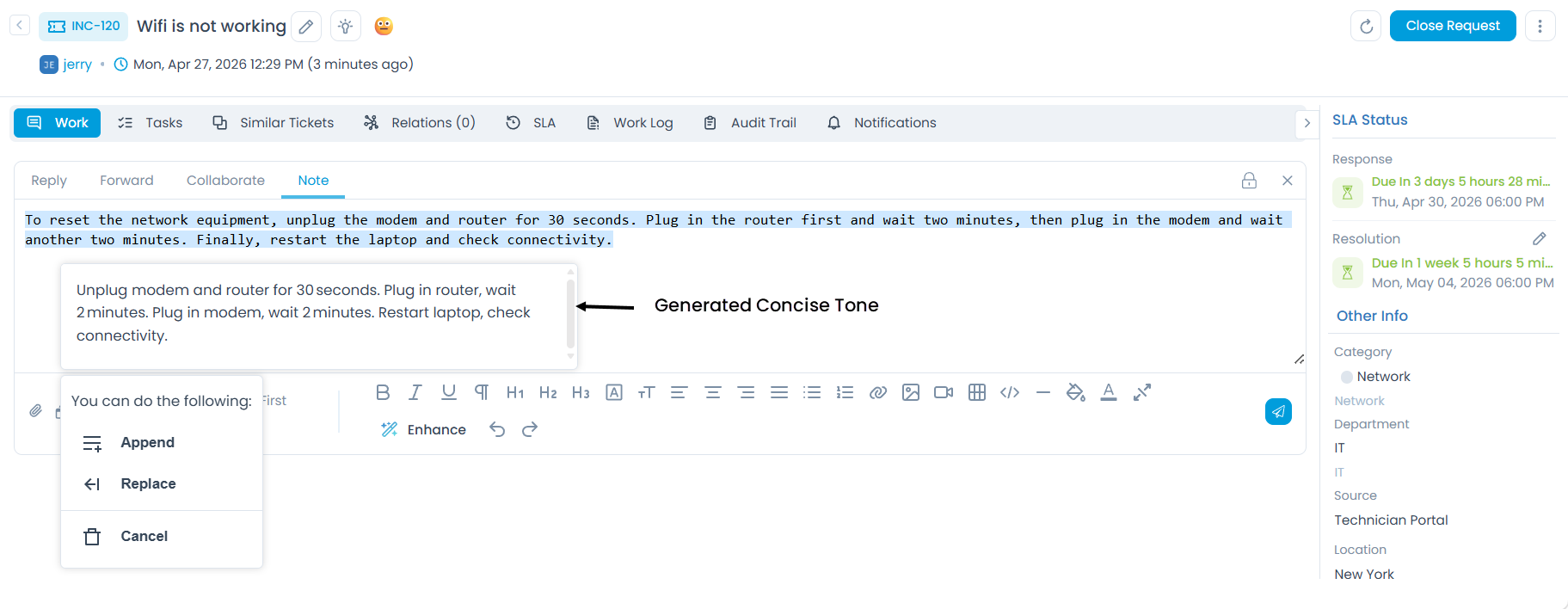
Enhanced text:
Unplug modem and router for 30 seconds. Plug in router, wait 2 minutes. Plug in modem, wait 2 minutes. Restart laptop, check connectivity.
As before, you can Append, Replace, or Cancel.
Example 3: Expand
Use case: A technician has a working fix written in shorthand and wants the AI to expand it into a clear, step-by-step guide that an end user can follow without confusion.
Original text:
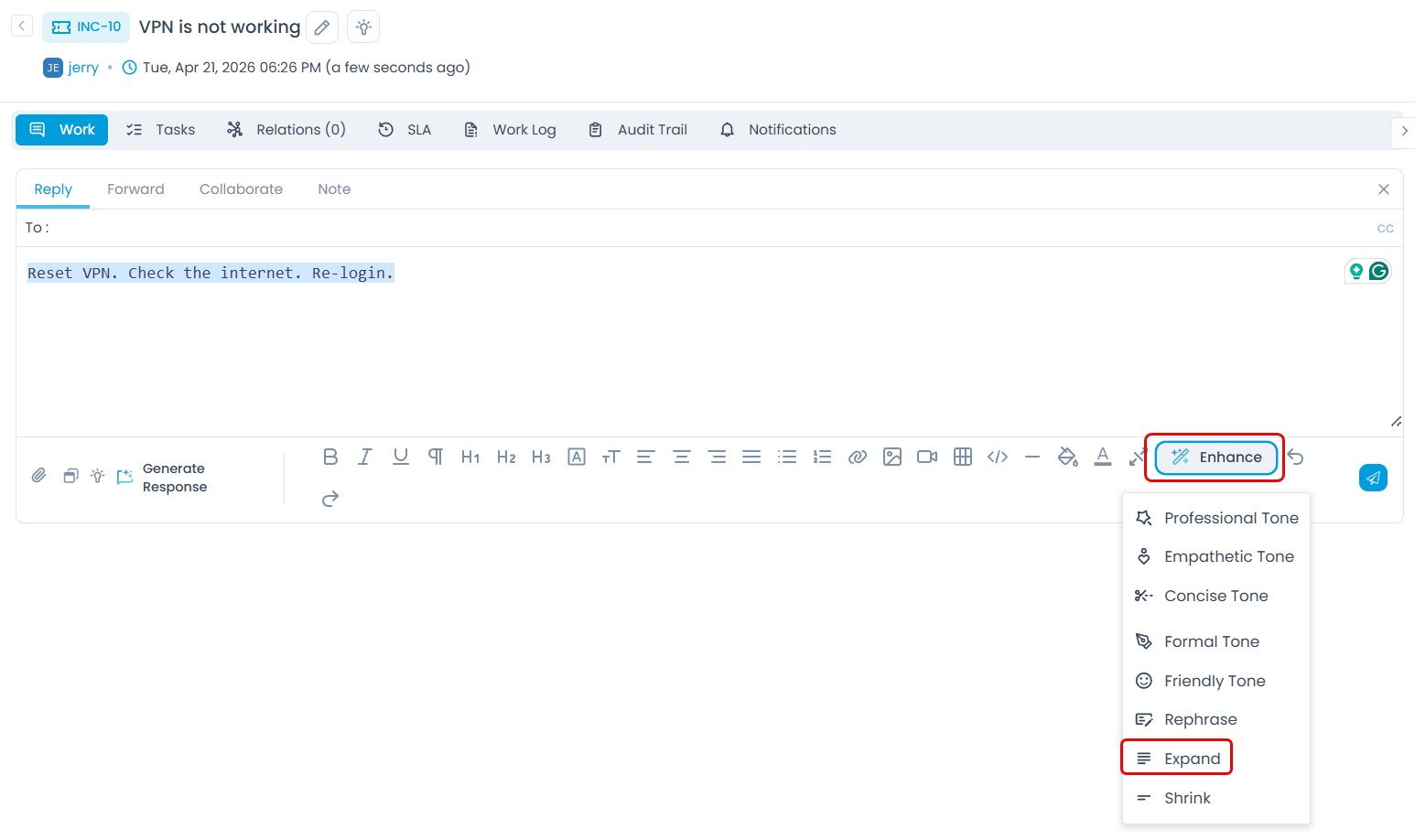
Reset VPN. Check internet. Re-login.
Select the shorthand text in the Reply or Solution field, then click Ask AI or Enhance and select Expand.
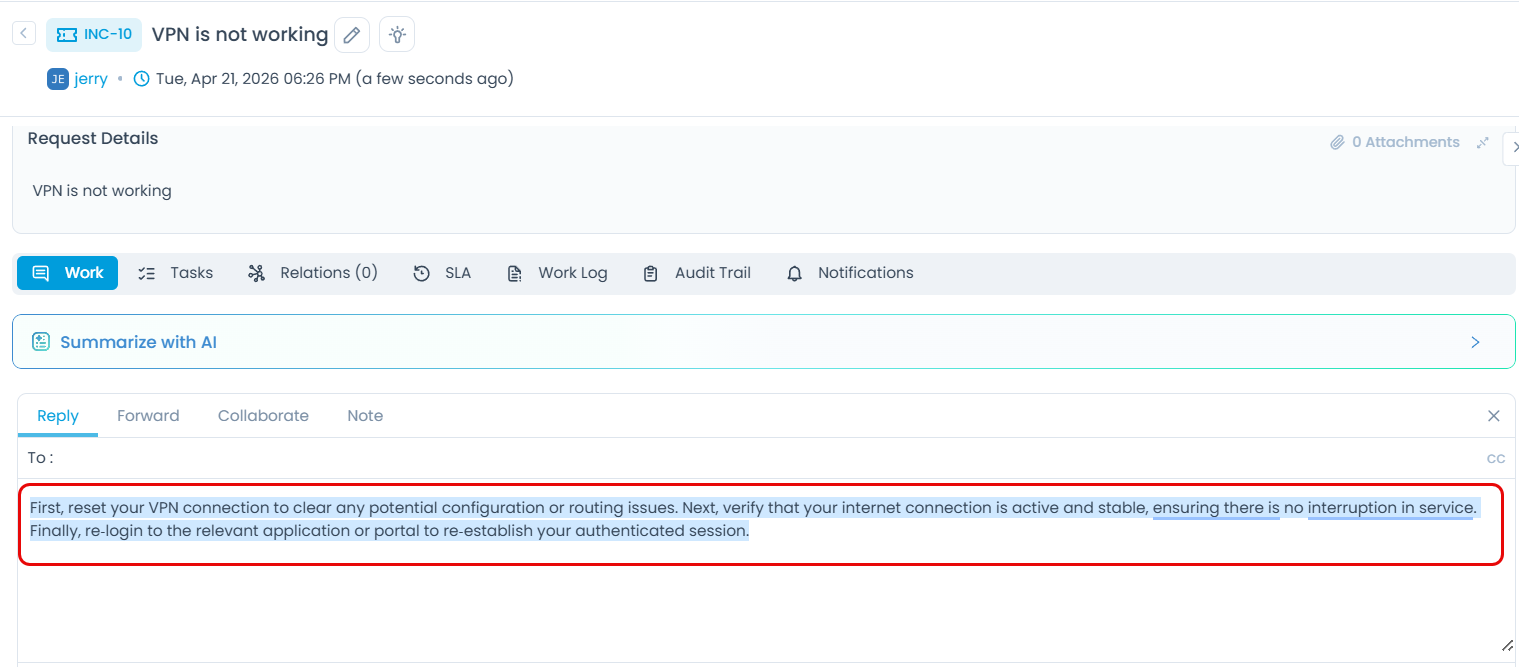
Enhanced text:
First, reset your VPN connection to clear any potential configuration or routing issues. Next, verify that your internet connection is active and stable, ensuring there is no interruption in service. Finally, re-login to the relevant application or portal to re-establish your authenticated session.
Tips for Best Results
- Select only the text you want to change: Tone Enhancer works on the selected portion, not the entire field. Be precise with your selection so the rest of the content stays intact.
- Match the tone to the situation: Use Professional for customer-facing replies, Concise for internal notes, Empathetic for frustrated requesters, and Expand when turning shorthand into full instructions.
- Always review before replacing: The enhanced version preserves intent but may reword technical terms. Check that accuracy has not been lost before clicking Replace.
- Use Append when you are unsure: If you are not sure the enhanced version is better, appending lets you compare both in the field before deciding which to keep.
- Combine with Sentiment: If a Request is flagged as Negative, pair Tone Enhancer's Empathetic option with your response to acknowledge the frustration before delivering the technical steps.
Related Features
Tone Enhancer works alongside these features to improve the quality of every interaction:
| Feature | How it connects to Tone Enhancer |
|---|---|
| Sentiment Analysis | Use Sentiment to read the emotional tone of the requester first, then use Tone Enhancer to match your reply to that context: empathetic for Negative, professional for Neutral. |
| Response Generator | Generate a contextual reply first, then use Tone Enhancer to refine its tone before sending. |
| Solution Assistant | After inserting a suggested solution, use Tone Enhancer to adjust the language for the specific requester before saving. |
Permissions Reference
| Role | Can use Tone Enhancer in records | Can enable or disable Tone Enhancer |
|---|---|---|
| Technician | Yes | No |
| Administrator | Yes | Yes |
Troubleshooting
The Ask AI button or Enhance option is not appearing.
The enhanced text does not match the tone I selected.
The enhanced version changed the meaning of my text.
The feature works on some fields but not others.
The dialog appeared but the enhanced text is blank or shows an error.
Frequently Asked Questions
Which fields support Tone Enhancer?
A: Tone Enhancer is available in the Reply, Comment, and Solution fields. Other input fields in the record are not currently supported.
Does Tone Enhancer change the technical accuracy of my content?
A: It is designed to preserve the original meaning while improving tone and clarity. However, you should always review the enhanced version before inserting it, especially for content with specific technical terms or instructions.
Can I use multiple tone options on the same text?
A: Yes. You can run the enhancement multiple times with different tone options. Each run generates a new suggestion based on the current state of the selected text.
Is there a limit to how much text I can enhance at once?
A: There is no hard character limit, but very long selections may produce less precise results. For long content, consider enhancing it in sections for better control over the output.
Does the enhanced text get saved automatically?
A: No. The enhanced text only enters the field when you click Append or Replace. Clicking Cancel discards the suggestion without making any changes.