Response Generator
ServiceOps Response Generator produces contextual, ready-to-send replies based on ticket details so technicians can respond to requesters faster without drafting every message from scratch.
Crafting a reply takes time, especially when you are handling multiple tickets and each one needs a different kind of response. The Response Generator removes that friction. Select the type of response you need, an acknowledgement, a follow-up, a request for more details, or a closure confirmation, and the system generates a contextual reply based on the actual Request content. The result is already in the reply editor, ready to review, edit, and send.
- Response Generator is enabled by default. No additional configuration is required to start using it.
- Ensure you have the Manage Text Intelligence permission assigned to your role to access this feature.
- Contact your administrator if the feature is not visible.

How It Works
Open a record in the Request module and navigate to the Work Tab > Reply editor. Click Generate Response in the editor toolbar. Select a response type from the available options:
- Acknowledge: Confirms receipt and sets expectations for next steps.
- Request Additional Details: Asks the requester for more information needed to investigate.
- Follow Up: Checks in on the status or whether the issue has been resolved.
- Request Closure Confirmation: Asks the requester to confirm that the issue has been resolved before the Request is closed.
The system analyzes the Request Subject, Description, and the requester's latest message, then generates a contextual reply and auto-fills the editor. Review and edit the response as needed, then send it to the requester. If the generated response is not quite right, select a different response type to regenerate.
Business Use Cases
Immediate Acknowledgement During High Volume: During a system outage, 15 Requests arrive simultaneously. Using Response Generator, the technician sends an Acknowledge response to each requester in seconds, setting expectations without manually drafting 15 separate messages.
Gathering More Information Efficiently: A Request with a vague description needs clarification before investigation can begin. The technician selects Request Additional Details, and the system generates a contextual message asking the right questions based on the Request content.
Consistent Closure Confirmation: Before closing Requests, a technician uses Request Closure Confirmation to send a standardized check-in to each requester, ensuring nothing falls through the cracks and the user agrees the issue is resolved.
Faster Follow-Ups: A technician has been waiting several days for a user response. Instead of drafting a follow-up from scratch, they select Follow Up and the system generates a contextual check-in based on the Request history and the last requester message.
Where Response Generator Appears
Response Generator is available inside the Reply editor in the Work tab of Requests in the Technician Portal.
Generating a Response
Open a record and navigate to the Work Tab. In the Reply editor toolbar, click Generate Response.
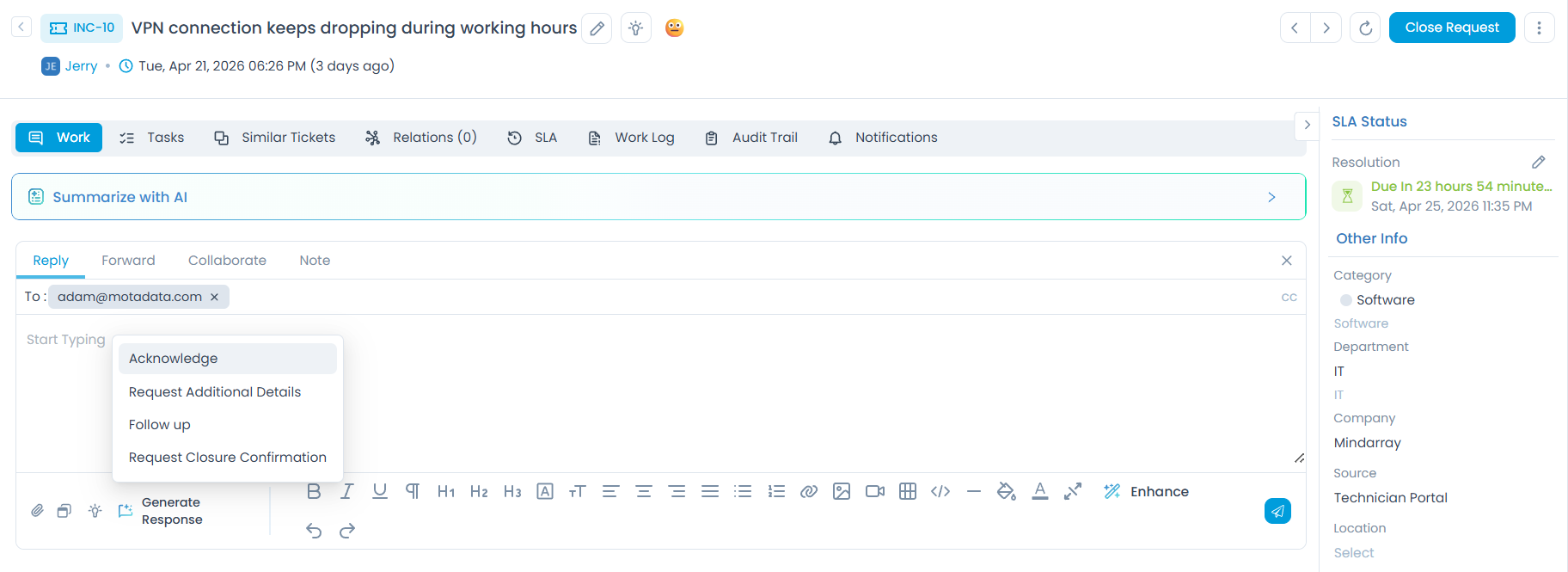
A list of response types appears. Select the one that fits the current stage of the ticket.
The example below uses a Request where the requester reported: "VPN connection keeps dropping during work hours."
Selecting Acknowledge triggers the system to analyze the ticket context and generate a reply that is auto-populated in the Reply editor.
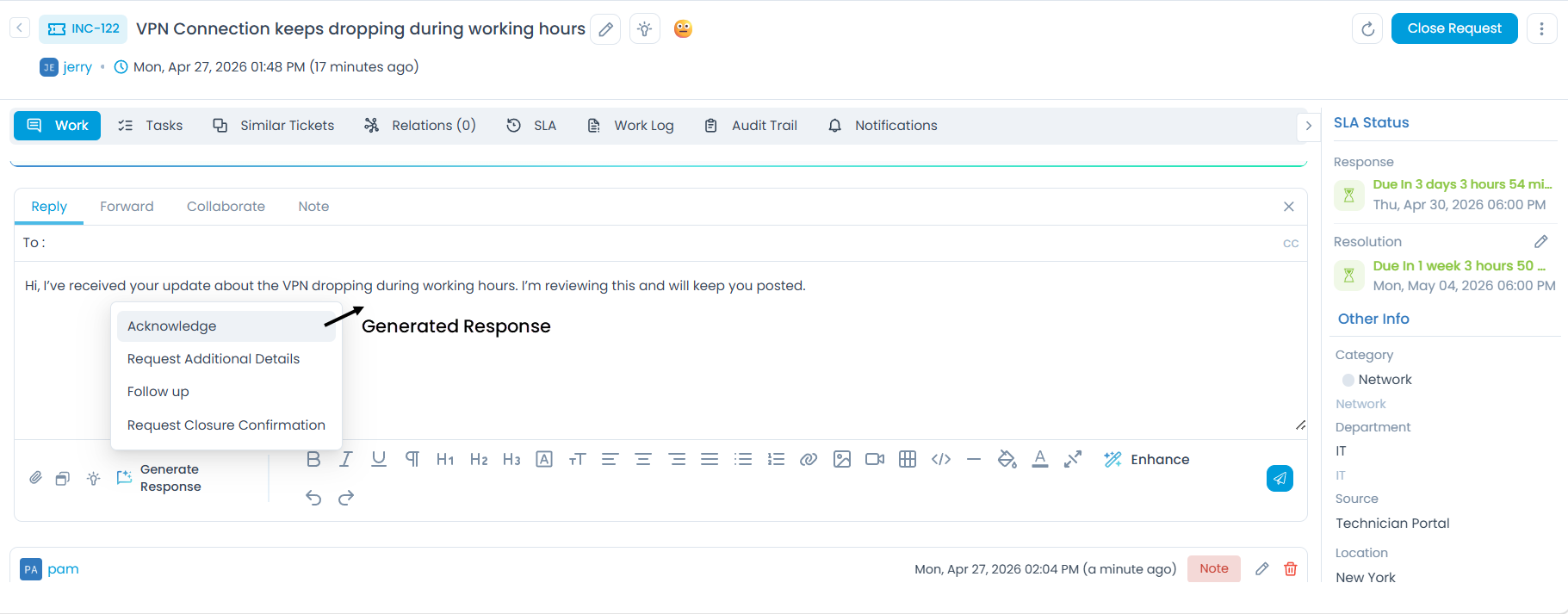
Generated response (Acknowledge):
Hi, I’ve received your update about the VPN dropping during working hours. I’m reviewing this and will keep you posted.
The response is already in the editor. From here you can edit it, send it directly, or regenerate using a different response type if needed.
Tips for Best Results
- Choose the response type that matches where you are in the Request lifecycle: Acknowledge at the start, Request Additional Details when you need more information, Follow Up when you have been waiting on a reply, and Request Closure Confirmation before closing.
- Always review before sending: The generated response is based on the Request at the time of generation. Read it through to make sure it accurately reflects the situation, especially the requester's name and issue details.
- Edit freely: The generated text is a starting point. Add specific details, adjust the tone, or change anything that does not fit before hitting send.
- Pair with Sentiment Analysis: If the Request is flagged as Negative, check the tone of the generated response before sending. Use Tone Enhancer to adjust it to be more empathetic if needed.
- Regenerate if the first result misses the mark: Selecting a different response type or slightly rewording the description can produce a noticeably better output.
Related Features
Response Generator pairs well with these features for a complete reply workflow:
| Feature | How it connects to Response Generator |
|---|---|
| Sentiment Analysis | Check the requester's sentiment before generating a response. If it is Negative, factor that into how you edit the generated reply. |
| Tone Enhancer | After generating a response, use Tone Enhancer to adjust the tone: make it more empathetic, more concise, or more professional before sending. |
| Ticket Summarizer | If the ticket has a long history, summarize it first so you understand the full context before deciding which response type to generate. |
Permissions Reference
| Role | Can use Response Generator in records | Can enable or disable Response Generator |
|---|---|---|
| Technician | Yes | No |
| Administrator | Yes | Yes |
Troubleshooting
The Generate Response option is not appearing in the Reply editor.
The generated response does not mention the right issue.
The requester's name is wrong or missing in the generated response.
The response type I need is not in the list.
I generated a response but it was overwritten when I clicked Generate Response again.
Frequently Asked Questions
Which modules support Response Generator?
A: Response Generator is currently available in the Request module.
Can I use Response Generator more than once on the same ticket?
A: Yes. You can generate a response at any point in the ticket's lifecycle. Each generation is based on the current state of the ticket at that moment.
Does the generated response get sent automatically?
A: No. The response is placed in the Reply editor for your review. You send it manually after reviewing and editing.
Can I save a generated response as a template for future use?
A: Response Generator does not save templates directly. If you want to reuse a particularly good response, copy it manually and store it in your organization's Knowledge Base or canned response library.
Does Response Generator consider previous replies in the conversation?
A: The system analyzes the Request Subject, Description, and the requester's latest message. It does not process the full conversation thread. For that level of context, use Ticket Summarizer first to understand the history before generating a response.