Smart Suggestions
Smart Suggestions are recommendations provided by the system when assigning a category or technician group to a request. This helps technicians quickly select the required option. The system provides suggestions by considering the subject and description of requests, and it also checks the accuracy level and number of requests to display precise results.
- Smart Suggestions are supported only in the Request Management module.
- Currently, it is applicable only to the Category and Technician Group fields.
- For each category, 50 to 300 requests are required for Smart Suggestions to function.
- Only requests created after the model has been trained are considered for evaluation.
How It Works
The system displays suggestions based on the number of requests. You can understand this by considering the following example.
If the following four categories contain requests in the system as:
- Hardware: 100 requests
- Software: 40 requests
- HR: 110 requests
- Non-IT: 130 requests
The trained model will consider only Hardware, HR, and Non-IT categories for displaying suggestions. It will not consider Software because it has fewer than 50 requests.
From the eligible categories, the model will first consider the one with the fewest requests (i.e., Hardware with 100 requests). Based on this, it will consider 100 requests from each of the remaining categories to achieve a total of 300 requests. i.e., Hardware: 100, HR: 100, and Non-IT: 100 = 300 requests.
Therefore, 100 requests from each of the three categories will be considered for displaying suggestions. The trained model considers an equal number of requests from the eligible categories.
If the number of requests is unequal, the trained model will not consider those categories for evaluation.
Configuration
To configure Smart Suggestions,
- Navigate to Admin > Automation > Smart Suggestions page.

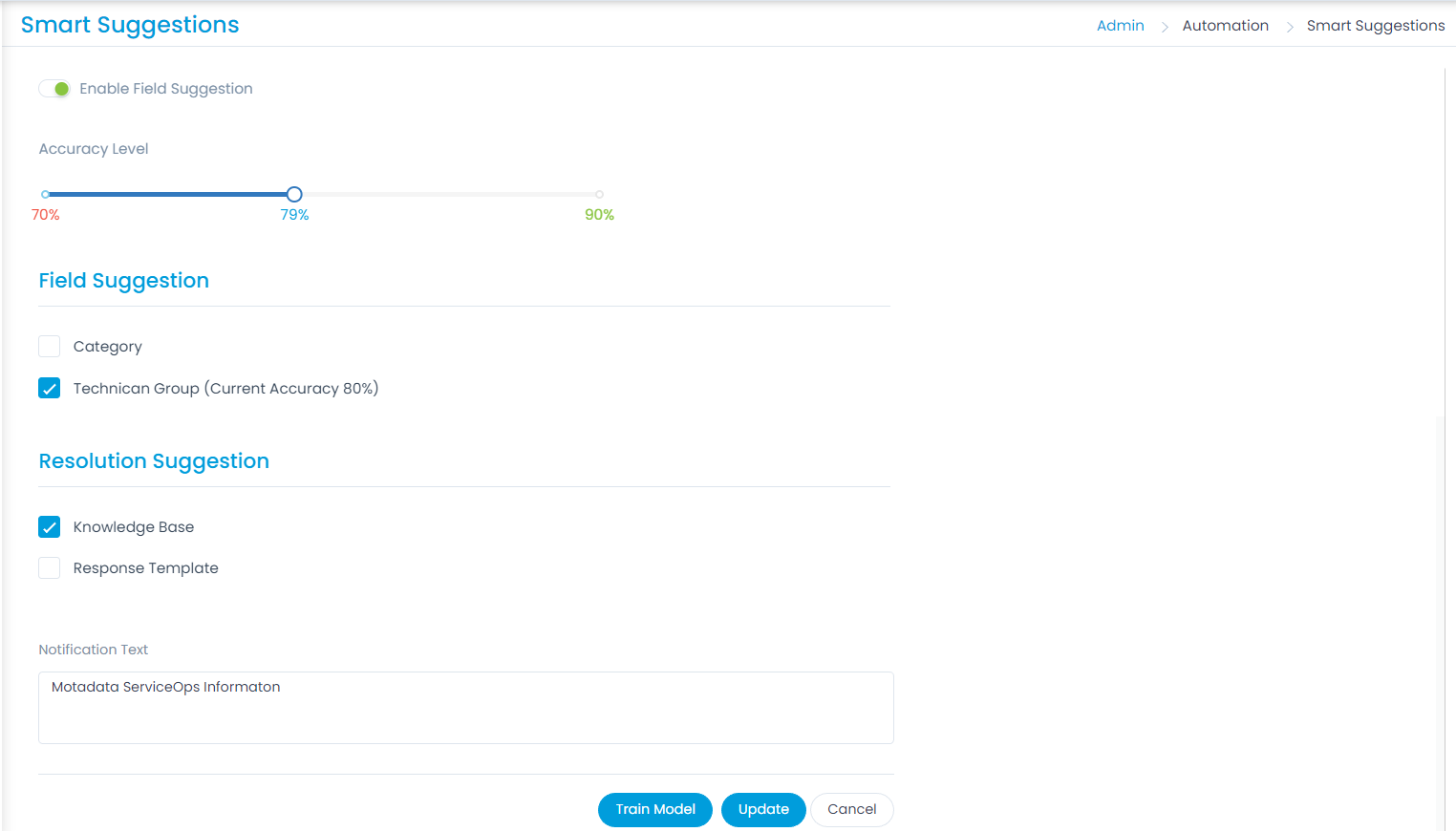
Configure the following parameters:
- Enable Field Suggestion: Enable this option if you want suggestions to appear in the fields. By default, it is disabled. Once enabled, the following parameters will become available.
- Accuracy Level: Set the accuracy level for displaying suggestions. The configured accuracy level must be lower than the system's current accuracy to ensure suggestions are visible.
- Field Suggestion: Select the fields for which you want suggestions to appear. Currently, Category and Technician Group fields are available.
- Resolution Suggestion: Select the option to view suggestions for resolving the ticket. The available options are: Knowledge Base and Response Template.
noteSuggestions are displayed based on the percentage of subject and description content that matches the existing Knowledge Base or response template.
- Notification Text: Enter the text to be included in the email notification for the Knowledge Base or response template.
Once completed, click Train Model to train the suggestion flow and display the results. You can select the options for which you want to train the model. The options selected in the Field Suggestion and Resolution Suggestion sections will appear in the list. New changes in the trained model will be available for new requests.
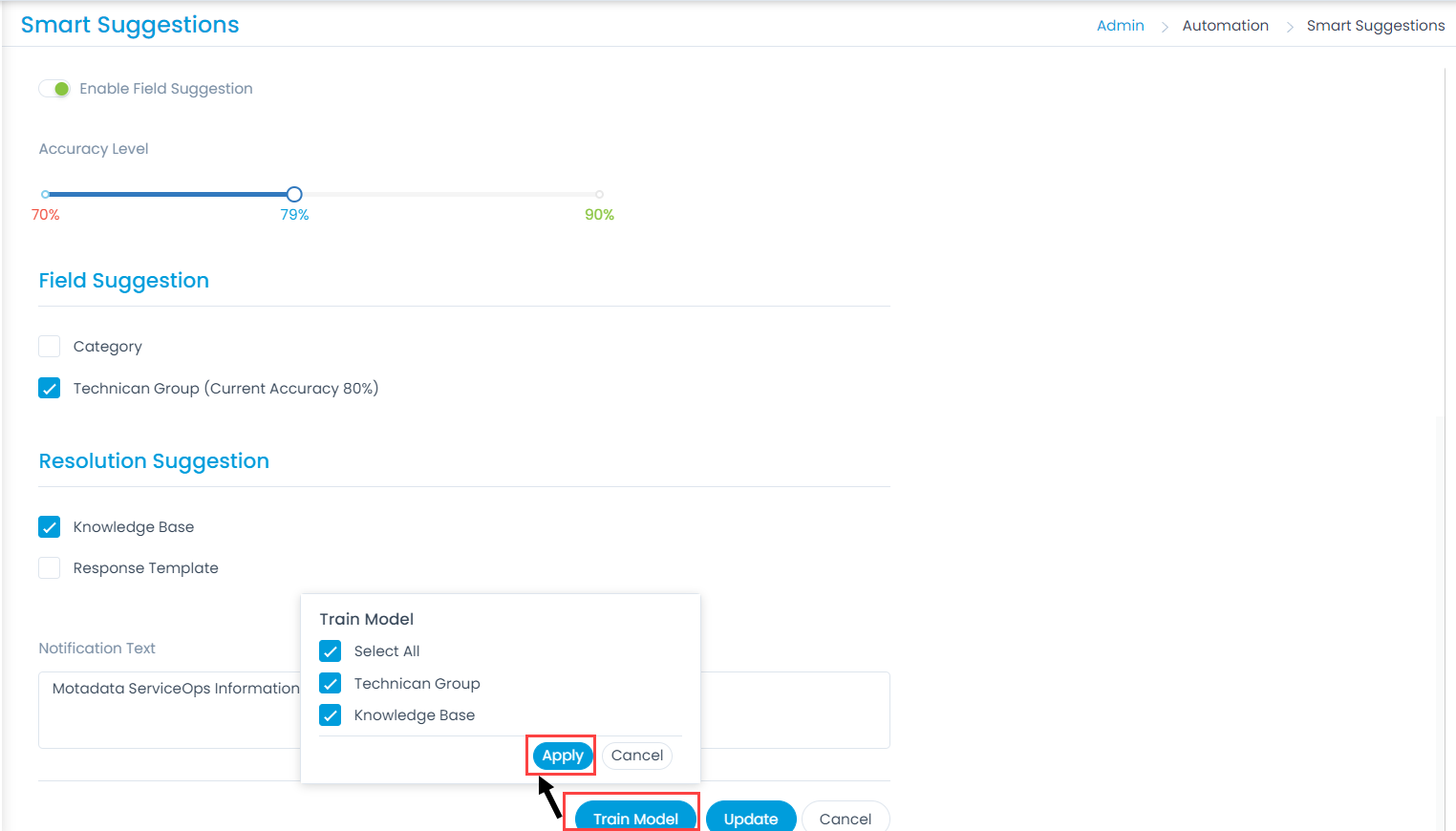
- Click Update to save the changes. You can also click Cancel if you want to discard the changes.
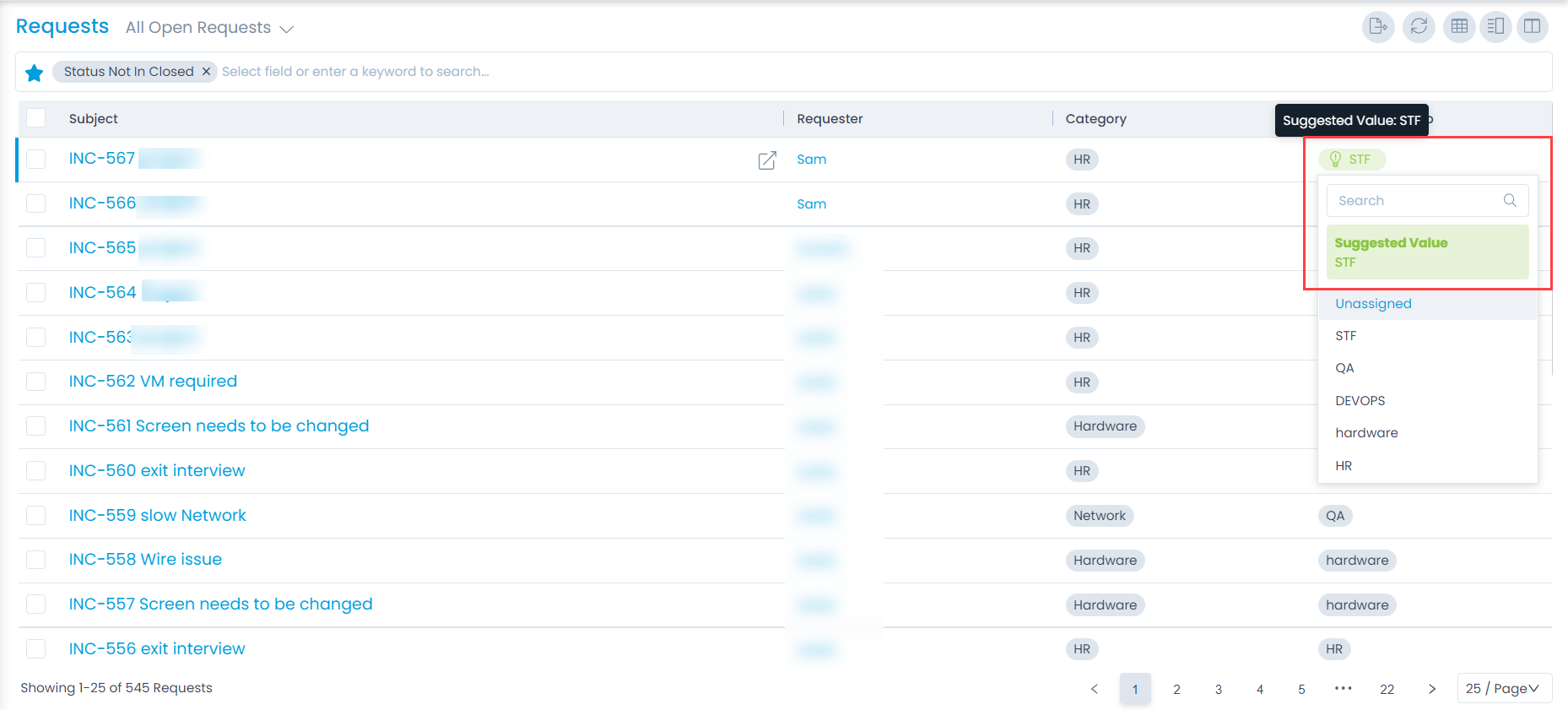
Once you train the model and update the settings, logs will appear in the Configuration Audit page. Additionally, suggestions will appear for the selected field and resolution options on the Request List and Request Details pages, respectively, as shown in the following examples.
Example 1: Suggestions for the Technician Group field can be viewed as shown below.

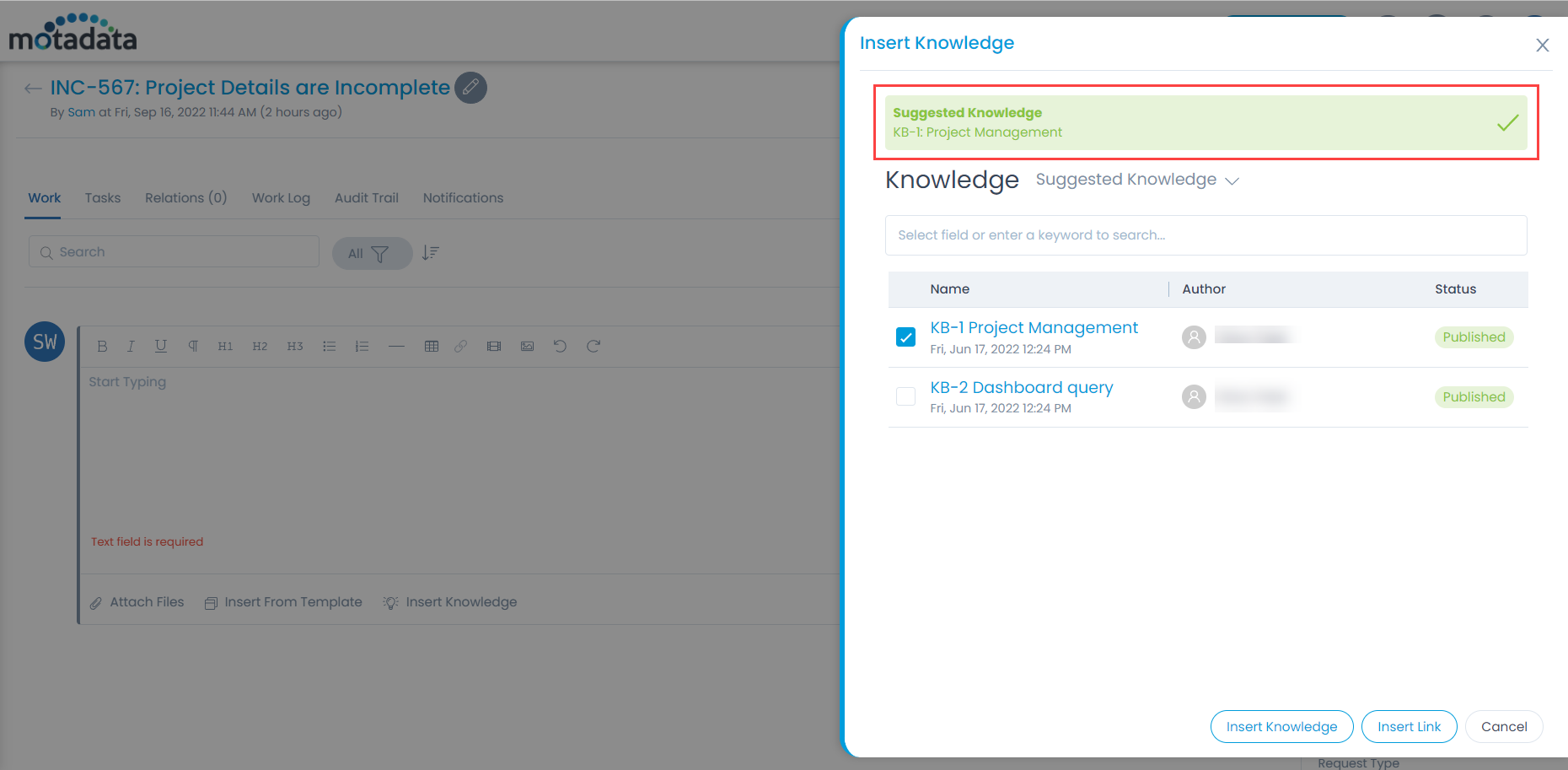
Example 2: You can view suggestions when inserting a Knowledge Base article into a request, as shown here:
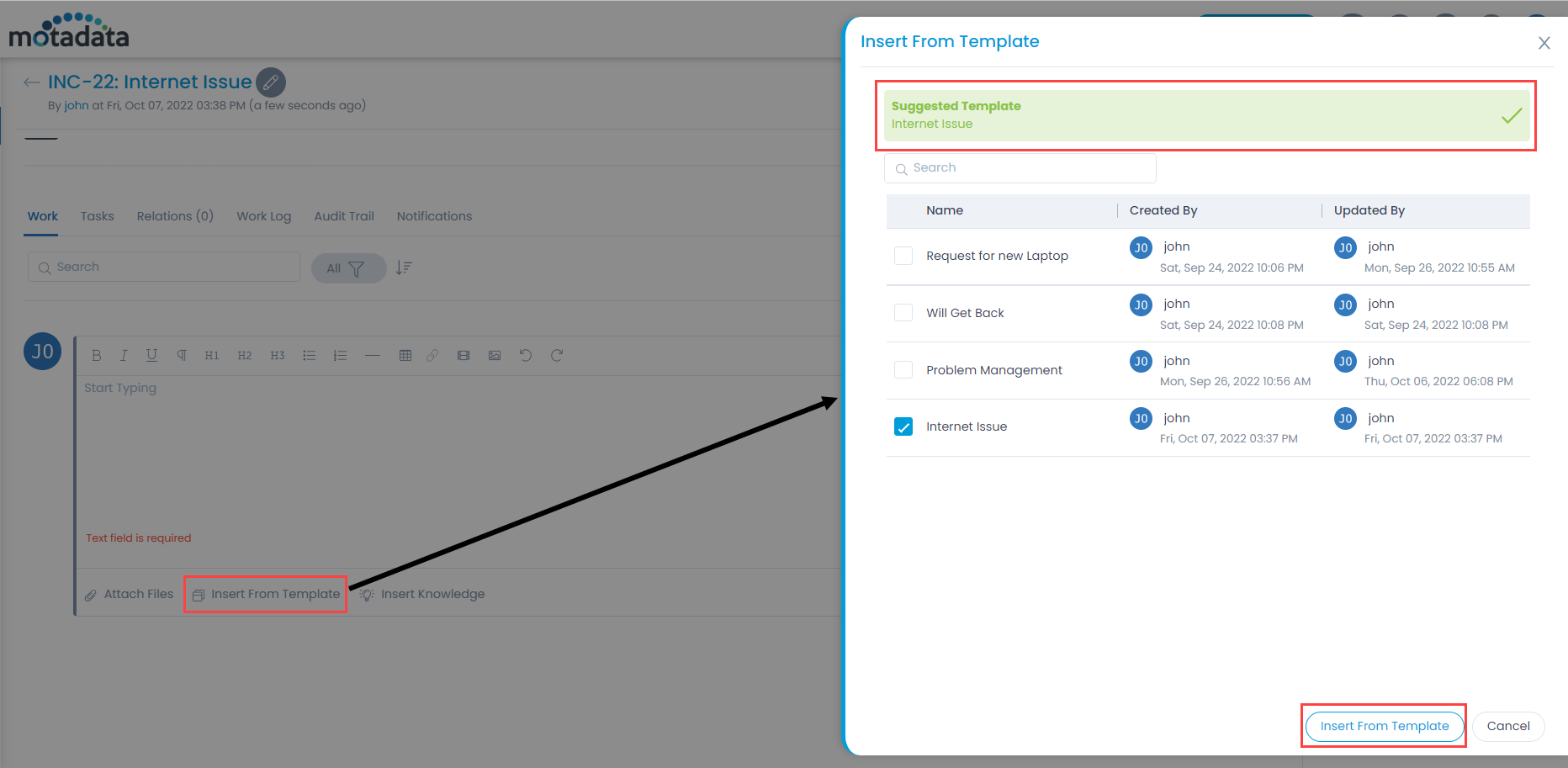
Example 3: You can view suggestions when inserting a response template into a request, as shown here: