PowerShell Command: Remote Windows Execution in ObserveOps
PowerShell Command lets you run remote Windows PowerShell commands on monitored Windows hosts directly from ObserveOps (formerly known as AIOps). Execution runs from the assigned Collector using configured Windows credentials, with no RDP session or manual login required.
Prerequisites
- You must have the Admin or NOC role. Viewer role cannot execute commands.
- The target Windows host must have PowerShell remoting enabled (
Enable-PSRemoting). - WinRM must be accessible from the Collector on TCP port
5985(HTTP) or5986(HTTPS). - A valid PowerShell credential profile must be configured in ObserveOps, or you can create one directly from this screen.
How It Works
ObserveOps connects from the Collector to the target Windows host using WinRM and the stored credential profile. The PowerShell Command text area accepts the command you want to run. Command output returns to the platform and displays as plain text or a structured error. Every execution is written to the Audit Trail with username, device, command, timestamp, and result status.
Navigation
Go to Main Menu > Settings > Utility > Power Shell Command.
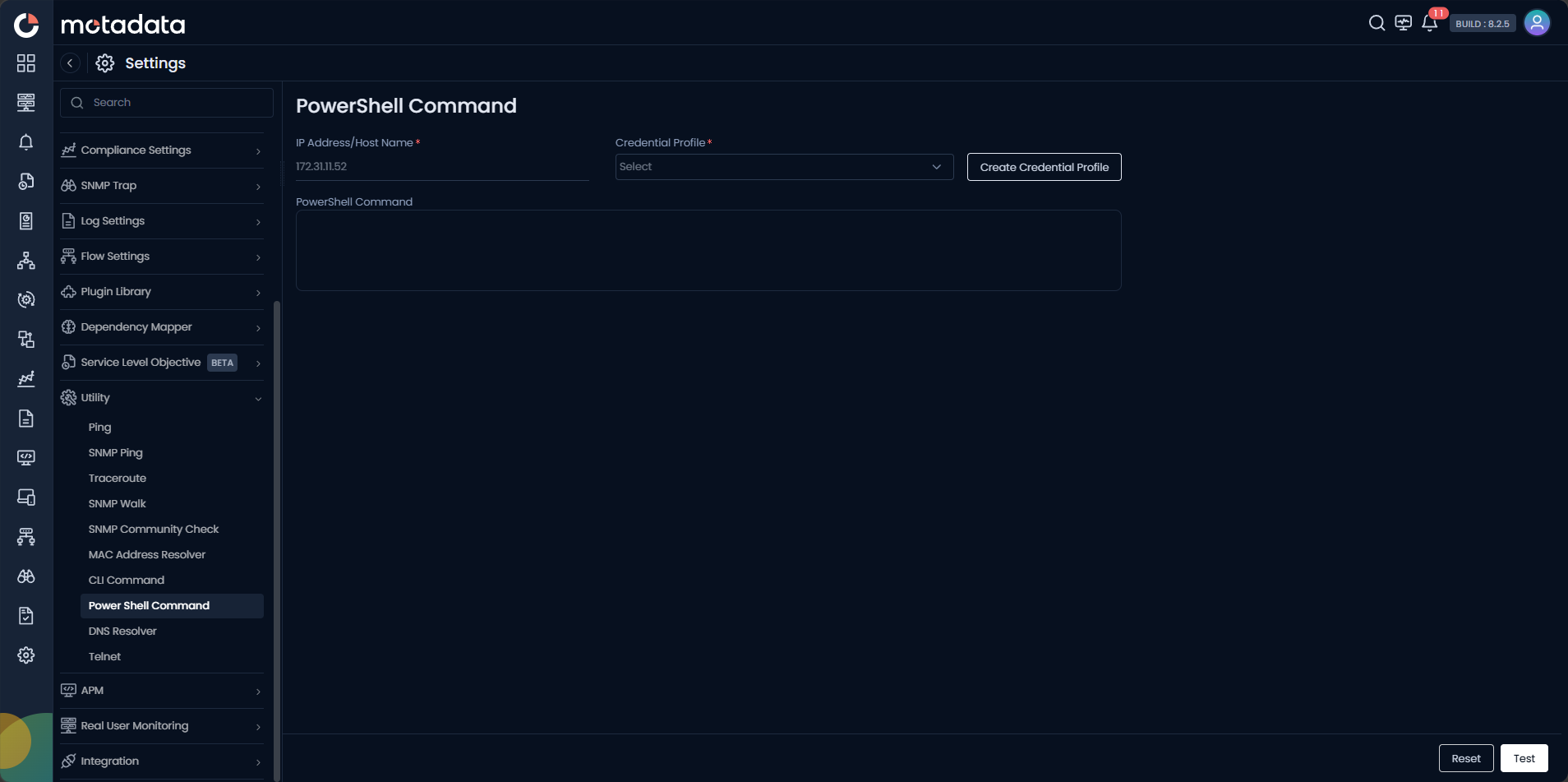
Running a PowerShell Command
| Field | Description |
|---|---|
| IP Address / Host Name | Enter the IPv4 address, IPv6 address, or FQDN of the target Windows host. |
| Credential Profile | Select the PowerShell credential profile to use. Click Create Credential Profile to create one inline. |
| PowerShell Command | Enter the PowerShell command to execute on the target host. |
Click Test to execute the command. Click Reset to clear the form.
Creating a Credential Profile
Click Create Credential Profile to open the credential dialog without leaving the screen.
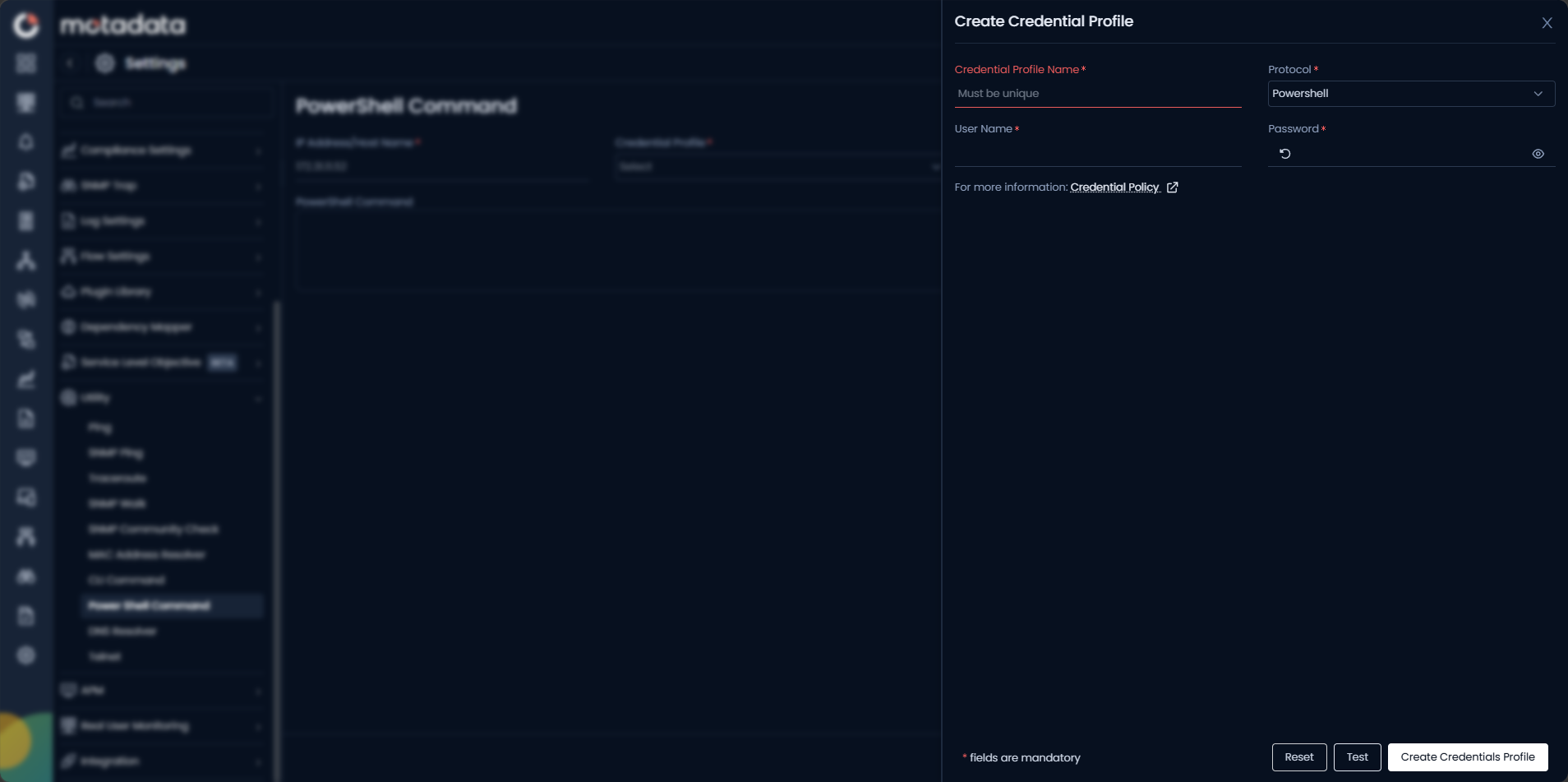
| Field | Description |
|---|---|
| Credential Profile Name | Enter a unique name to identify this profile. |
| Protocol | Set to Powershell automatically for PowerShell credentials. |
| User Name | Enter the Windows username for the target host (for example, DOMAIN\username or .\localuser). |
| Password | Enter the Windows password. Stored encrypted and never shown in output. |
Click Create Credentials Profile to save.
All PowerShell executions are audit logged with username, device, command, timestamp, and result. Privilege escalation commands are always blocked.
Example
A Windows server shows high memory utilization in ObserveOps. A NOC engineer opens Utility > PowerShell Command, selects the server, enters Get-Process | Sort-Object WorkingSet64 -Descending | Select-Object -First 10, and clicks Test. The output shows the top 10 memory-consuming processes. The engineer identifies a runaway service and raises a ticket, all without an RDP session.
Troubleshooting
| Issue | Cause | Fix |
|---|---|---|
| Connection refused | WinRM is not enabled on the target host. | Run Enable-PSRemoting -Force on the target host and confirm WinRM is listening on the correct port. |
| Authentication failed | The credential profile username or password does not match the host. | Update the PowerShell credential profile with the correct credentials and retry. |
| Command times out | The PowerShell command takes longer than the session allows. | Optimize the command to reduce execution time, or split it into smaller operations. |
| WinRM returns an SSL error | The certificate on port 5986 is self-signed or untrusted by the Collector. | Use port 5985 for HTTP instead, or import the device certificate on the Collector host. |