SNMP Ping: SNMP Reachability Check in ObserveOps
SNMP Ping validates whether a device responds to SNMP queries using its configured credentials in ObserveOps (formerly known as AIOps). Use it to confirm SNMP reachability and credential validity before setting up monitoring or during incident triage.
Prerequisites
- You must have the Admin or NOC role.
- The target device must have SNMP enabled.
- A valid SNMP credential profile must be configured in ObserveOps, or you can create one directly from this screen.
- The Collector must have network access to UDP port
161on the target device.
How It Works
ObserveOps sends an SNMP GET request from the assigned Collector to the target device using the selected credential profile. The platform evaluates the response to confirm reachability and authentication. Community strings and v3 credentials are never exposed in output or logs.
Navigation
Go to Main Menu > Settings > Utility > SNMP Ping.
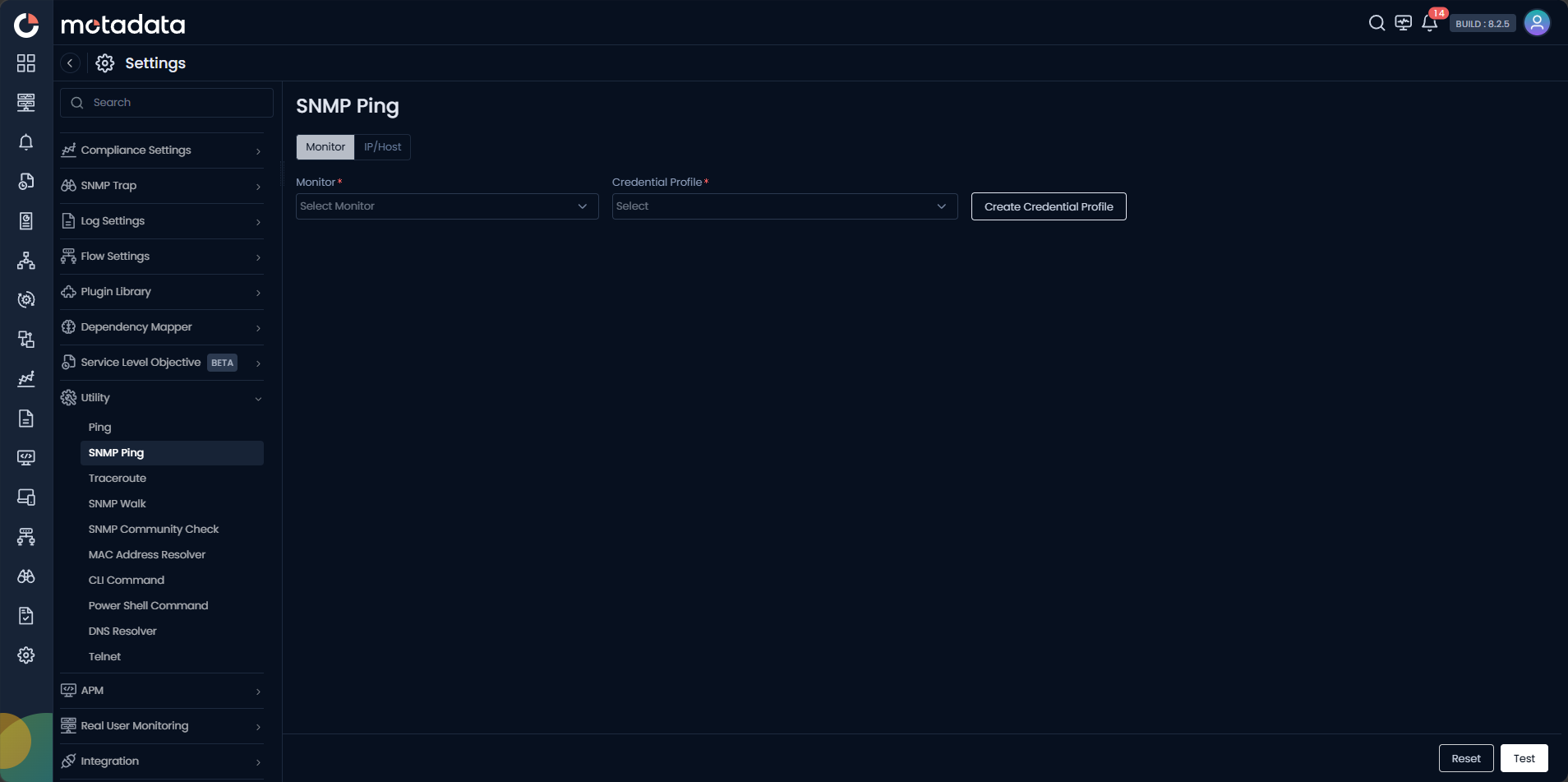
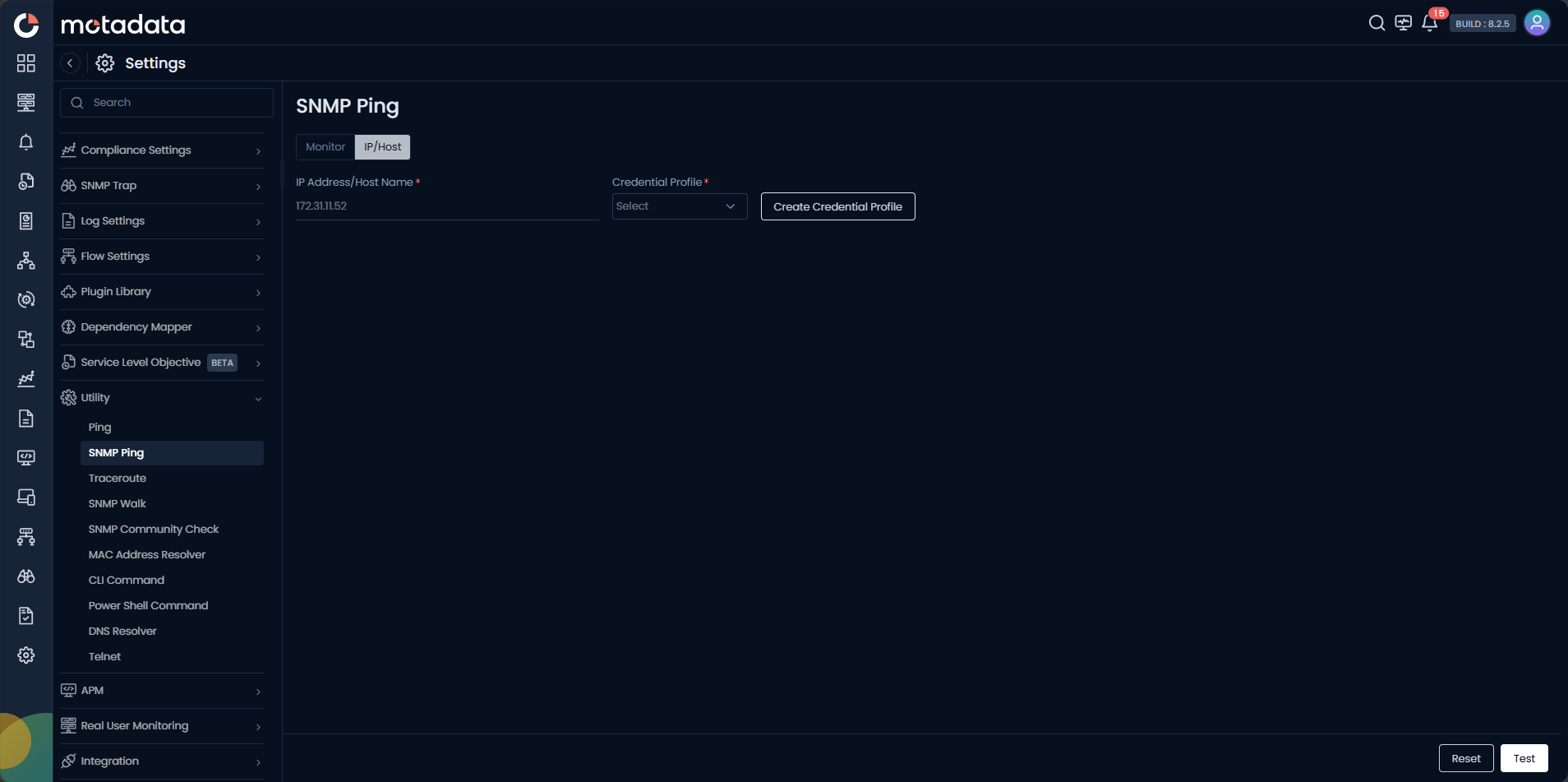
The SNMP Ping screen has two tabs, Monitor and IP/Host, letting you target either a monitored device already in ObserveOps or any arbitrary IP address.
Monitor Tab
Use this tab to run SNMP Ping against a device already monitored in ObserveOps.
| Field | Description |
|---|---|
| Monitor | Select the monitored device you want to test from the dropdown. |
| Credential Profile | Select the SNMP credential profile to use for this test. Click Create Credential Profile to create a new one inline. |
IP/Host Tab
Use this tab to run SNMP Ping against any IP address or hostname, including devices not yet added to ObserveOps.
| Field | Description |
|---|---|
| IP Address / Host Name | Enter the IPv4 address, IPv6 address, or FQDN of the target device. |
| Credential Profile | Select the SNMP credential profile to use. Click Create Credential Profile to create one inline. |
Click Test to run the check. Click Reset to clear the form.
Creating a Credential Profile
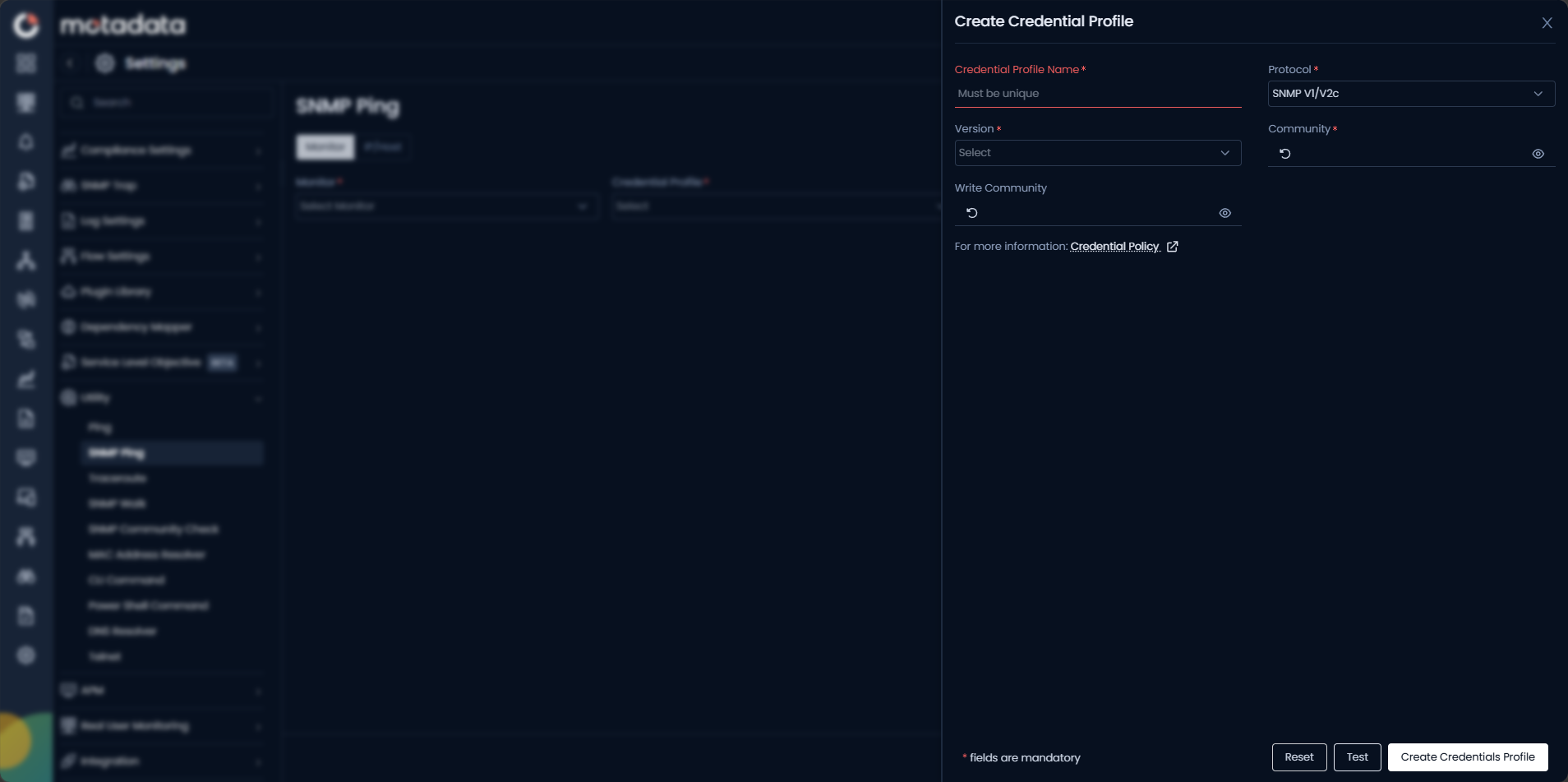
Click Create Credential Profile on either tab to open the credential dialog without leaving the screen.
| Field | Description |
|---|---|
| Credential Profile Name | Enter a unique name to identify this profile. |
| Protocol | Select SNMP V1/V2c for community-based authentication. |
| Version | Select the SNMP version: v1 or v2c. |
| Community | Enter the SNMP community string for read access. |
| Write Community | Enter the community string for write access, if applicable. |
Click Create Credentials Profile to save, then select the new profile in the main form.
A successful ICMP Ping does not guarantee SNMP reachability. Always run SNMP Ping separately to confirm SNMP access.
Example
A network engineer adds a new router to ObserveOps and immediately runs SNMP Ping using the IP/Host tab with the v2c credential profile assigned to that subnet. The result shows authentication failure. The engineer opens the credential profile and finds a typo in the community string. They correct it and re-run. SNMP Ping returns success.
Troubleshooting
| Issue | Cause | Fix |
|---|---|---|
| Authentication failure | The community string does not match the device configuration. | Copy the community string directly from the device config to avoid typos, then update the credential profile. |
| Timeout | The Collector cannot reach UDP port 161 on the device. | Confirm no firewall is blocking SNMP from the Collector. Run Ping first to verify basic reachability. |
| No monitors appear in the Monitor tab dropdown | The device is not yet added to ObserveOps. | Use the IP/Host tab instead, or add the device first via discovery. |