CLI Command: Remote SSH Execution in ObserveOps
CLI Command lets you run SSH commands on network devices and servers directly from ObserveOps (formerly known as AIOps), without opening a terminal or PuTTY session. Execution runs from the assigned Collector using configured SSH credentials, and every command is audit logged automatically.
Prerequisites
- You must have the Admin or NOC role. Viewer role cannot execute commands.
- The target device must have SSH enabled.
- A valid SSH credential profile must be configured in ObserveOps, or you can create one directly from this screen.
- The Collector must have access to TCP port
22on the target device.
How It Works
ObserveOps connects from the Collector to the target device over SSH using the stored credential profile. The CLI Command text area accepts the command you want to run. Raw command output returns to the platform. Sensitive data patterns (passwords, secrets, keys) are masked in the output. Every execution is written to the Audit Trail with username, device, command, timestamp, and result status.
Navigation
Go to Main Menu > Settings > Utility > CLI Command.
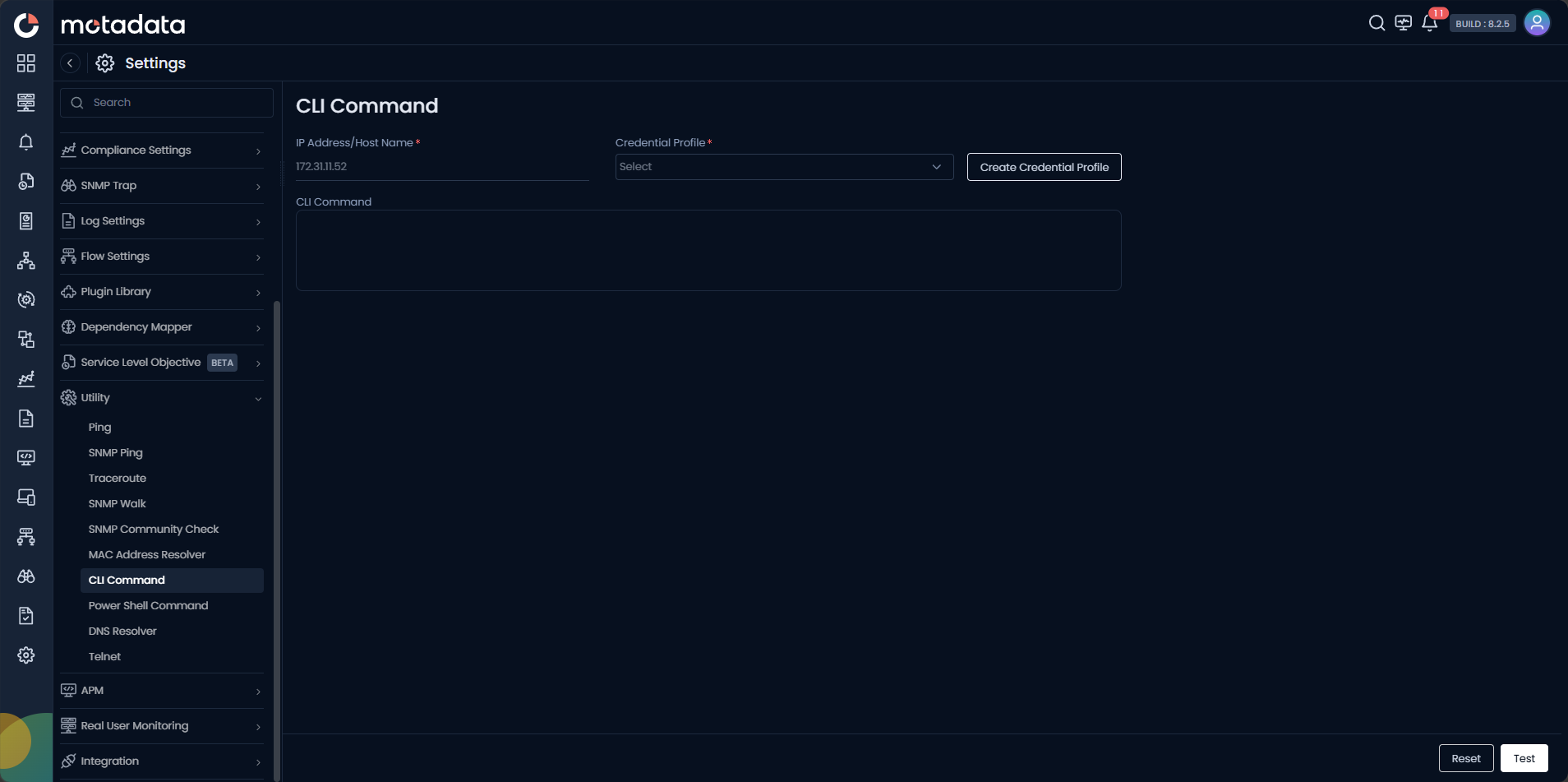
Running a CLI Command
| Field | Description |
|---|---|
| IP Address / Host Name | Enter the IPv4 address, IPv6 address, or FQDN of the target device. |
| Credential Profile | Select the SSH credential profile to use. Click Create Credential Profile to create one inline. |
| CLI Command | Enter the command to execute on the target device. |
Click Test to execute the command. Click Reset to clear the form.
Creating a Credential Profile
Click Create Credential Profile to open the credential dialog without leaving the screen.
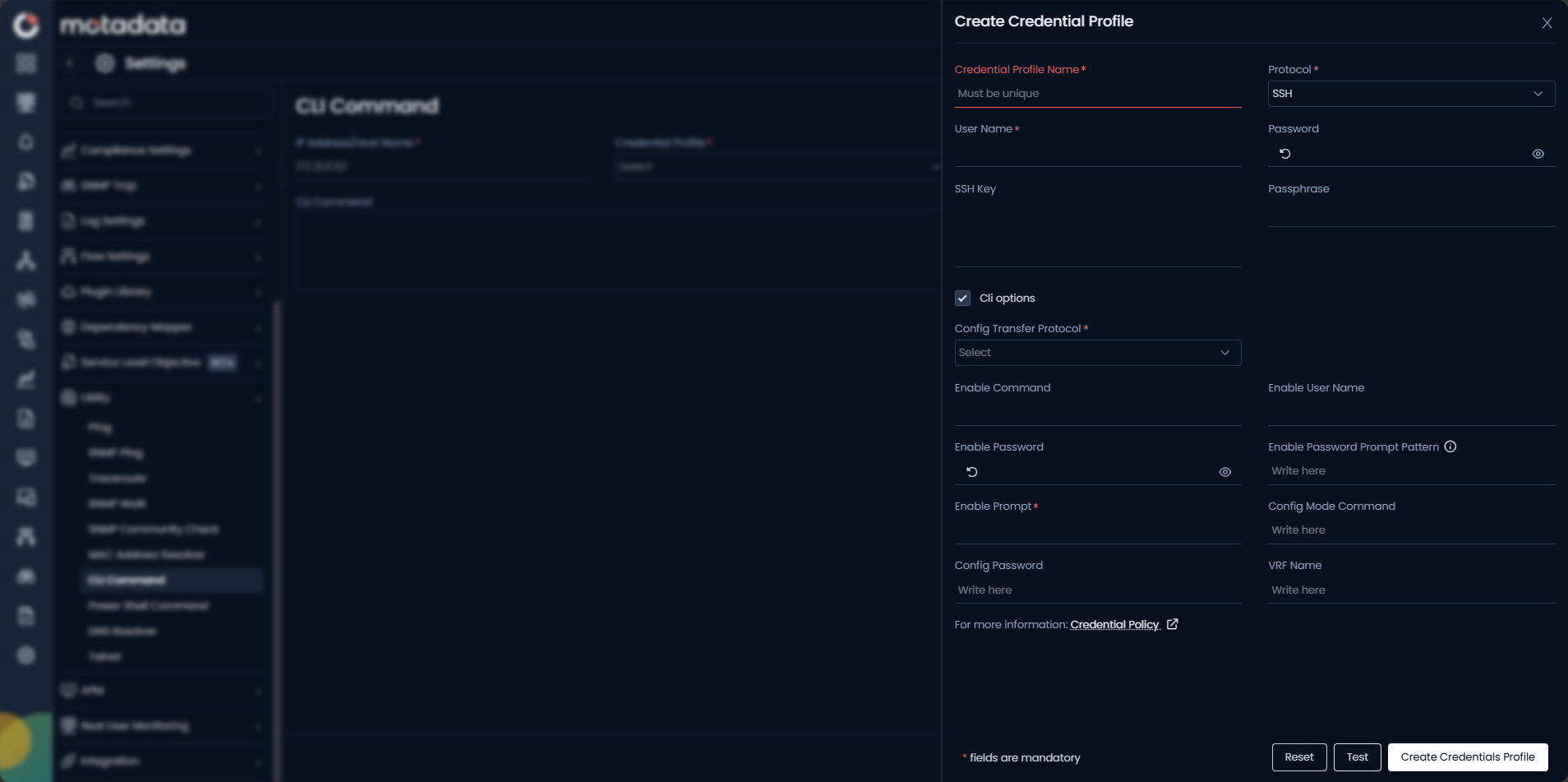
SSH Credentials
| Field | Description |
|---|---|
| Credential Profile Name | Enter a unique name to identify this profile. |
| Protocol | Set to SSH automatically for CLI credentials. |
| User Name | Enter the SSH username for the target device. |
| Password | Enter the SSH password. Stored encrypted and never shown in output. |
| SSH Key | Paste the private SSH key if key-based authentication is used instead of a password. |
| Passphrase | Enter the passphrase for the SSH private key, if the key is passphrase-protected. |
CLI Options
Enable the CLI options checkbox to reveal additional fields for privileged mode and config transfer.
| Field | Description |
|---|---|
| Config Transfer Protocol | Select the protocol to use for configuration file transfers (for example, TFTP or SCP). |
| Enable Command | Enter the command used to enter privileged mode on the device (for example, enable). |
| Enable User Name | Enter the username required for enable mode, if the device prompts for one. |
| Enable Password | Enter the enable password for privileged mode access. Stored encrypted and never shown in output. |
| Enable Password Prompt Pattern | Enter the password prompt text the device shows when you type enable to access privileged mode. If left blank, Password is used by default. |
| Enable Prompt | Enter the prompt string the device displays after entering enable mode (for example, #). |
| Config Mode Command | Enter the command used to enter configuration mode (for example, configure terminal). |
| Config Password | Enter the password required to enter configuration mode, if applicable. |
| VRF Name | Enter the VRF name if the SSH session must route through a specific VRF on the device. |
Click Create Credentials Profile to save.
All CLI executions are audit logged with username, device, command, timestamp, and result. Sensitive output patterns are automatically masked in the results display.
Example
A NOC engineer responds to a high CPU alert on a core router. They open Utility > CLI Command, select the router, enter show processes cpu, and click Test. The output returns in seconds, showing the top CPU consumers. The engineer identifies a runaway OSPF process and escalates to the network team, all without shared SSH credentials or a terminal session.
Troubleshooting
| Issue | Cause | Fix |
|---|---|---|
| Connection refused | SSH is not enabled on the device or the Collector cannot reach port 22. | Confirm SSH is active on the device and check for firewall rules blocking port 22 from the Collector. |
| Authentication failed | Wrong username, password, or SSH key in the credential profile. | Update the credential profile with the correct SSH credentials and retry. |
| Command times out with no output | The device displayed a prompt (such as an enable password prompt) that was not handled. | Set the Enable Password and Enable Password Prompt Pattern fields in the credential profile to match the device's prompt. |
Output contains [MASKED] | ObserveOps detected a sensitive pattern and masked it automatically. | This is expected. Retrieve sensitive values directly from the device configuration. |