Time-Based Logic - Wait Node
This section details time-based logic, focusing on the Wait node as a critical component for controlling the temporal progression of your workflows. You will learn how to configure workflows to pause for specified durations, await specific dates/times, or resume upon the occurrence of particular events or until configured condition is met.
Wait Node
The Wait node temporarily pauses a workflow's execution, either for a specified duration, until a certain date/time is reached, or until a specific condition is met.
Purpose: To introduce deliberate delays, synchronize processes with external events (like approvals or system updates), or schedule actions to occur at precise moments in time, ensuring that the workflow progresses only when appropriate.
Key Configuration: The Wait node offers two primary sub-nodes for different time-based scenarios:
Wait For (Duration-Based Delay): This sub-node pauses the workflow for a defined duration.
- Execute this node on (Mandatory):
- Calendar Hours (Default): The wait duration is calculated based on continuous time, irrespective of business hours.
- Business Hours: The wait duration is calculated only during defined business hours. You can select specific business hours created in the system or auto-select based on the Technician Group assigned to the ticket (available in Request, Service Catalog, Problem, Change, Release modules).
- Duration (Mandatory): Define a specific wait time in minutes, hours, or days. This can be a fixed value, dynamic (selected from a numeric field from a previous node or the current module), or expression-based (allowing for complex calculations).
- Unit Selection: When defining fixed or dynamic durations, specify the unit (minutes, hours, or days).
- Execute this node on (Mandatory):
Wait Until (Date/Time or Condition-Based Delay): This sub-node pauses execution until a specified date/time or condition is met.
- Description: A free-text field to describe the purpose of the wait node (e.g.,
Wait Until). - Wait Type: Define the type of wait.
- Wait for Time (Default): The workflow waits for a specified duration.
- Duration (Mandatory): Define a specific wait time in minutes, hours, or days. This can be a fixed value, dynamic (selected from a numeric field from a previous node or the current module), or expression-based (allowing for complex calculations).
- Unit Selection: When defining fixed or dynamic durations, specify the unit (minutes, hours, or days).
- Max Wait Time (Mandatory): Define the maximum duration the workflow should wait. If configured the Timeout node will appear in the workflow. If not, the Timeout Output node be disabled.
- Duration: Specify a numeric value.
- Unit: Select the unit (minutes, hours, or days).
- Duration (Mandatory): Define a specific wait time in minutes, hours, or days. This can be a fixed value, dynamic (selected from a numeric field from a previous node or the current module), or expression-based (allowing for complex calculations).
- Wait for Condition: The workflow waits until a specified condition is met.
- Condition (Mandatory): Define the condition that must be met for the workflow to resume. This includes:
- Condition Field: Select a field (e.g.,
Trigger > Status). - Operator: Choose an operator (e.g.,
In,Not In). - Value: Specify the value(s) for the condition (e.g.,
Pending).
- Condition Field: Select a field (e.g.,
- Add Condition: Allows adding multiple conditions.
- Add Condition Group: Allows grouping conditions with
AND/ORlogic. - Remove All Condition: Clears all defined conditions.
- Condition (Mandatory): Define the condition that must be met for the workflow to resume. This includes:
- Max Wait Time: Define the maximum duration the workflow should wait. If configured the Timeout node will appear in the workflow. If not, the Timeout Output node be disabled.
- Duration: Specify a numeric value.
- Unit: Select the unit (minutes, hours, or days).
- Executed On:
- Calendar Hours (Default): The wait duration is calculated based on continuous time.
- Business Hours: The wait duration is calculated only during defined business hours. For example, if the business hours are set from 9:00 AM to 5:00 PM Monday to Friday. And if the event occurs at 4:00 PM Friday and the duration is set to 2 hours, the wait duration will be calculated from 5:00 PM Friday to 10:00 AM Monday.
- Wait for Time (Default): The workflow waits for a specified duration.
- Description: A free-text field to describe the purpose of the wait node (e.g.,
Output Nodes:
- Success Path: The workflow resumes execution after the wait condition (duration elapsed, date/time reached, or event occurred) is met.
- Timeout Path: The workflow resumes execution after the wait duration elapsed, date/time reached, or event occurred. If the Max Wait Time is not configured, the Timeout Output node will be disabled.
Use Cases
Example Use Case: Escalating Tickets After a Waiting Period
Scenario: A workflow is initiated when a new incident is created. It then pauses for 48 hours. After this waiting period, if the incident's status is still
Open, an escalation email is sent to the assigned technician's manager to ensure timely action and resolution.Configuration:
Trigger: "Incident is Created."
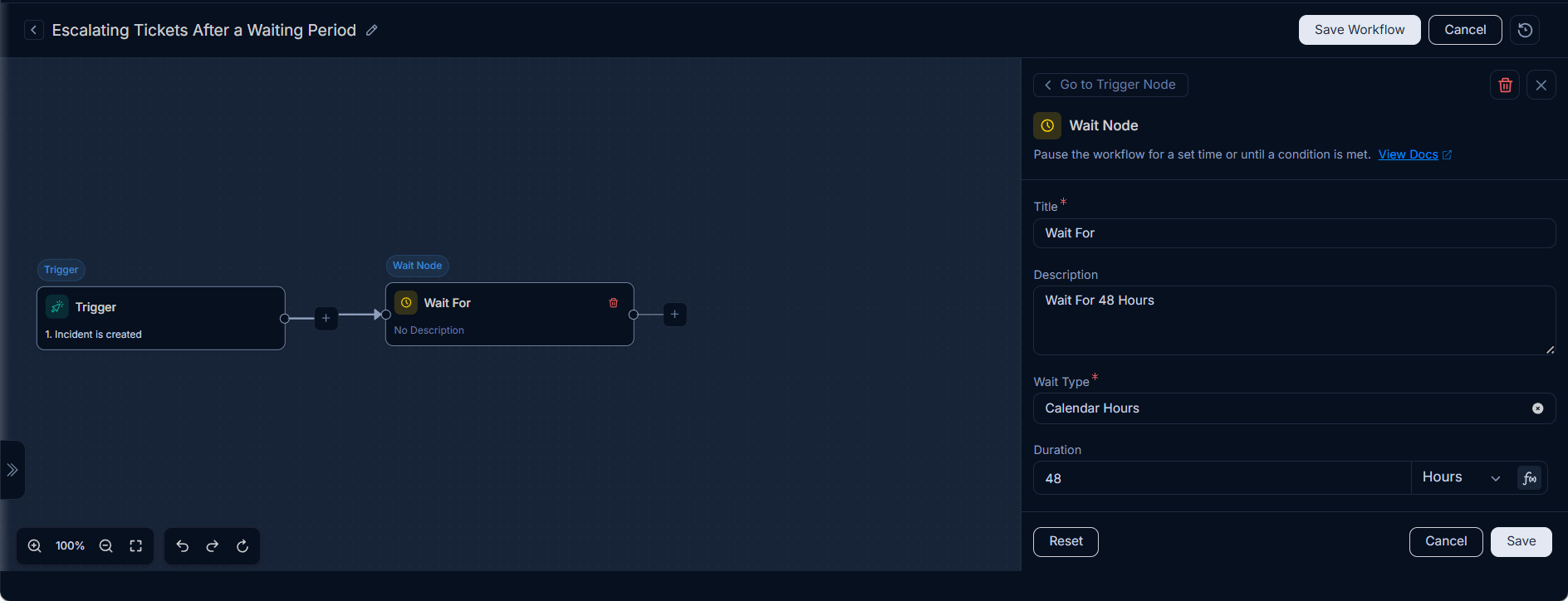
Wait For Node:
- Title:
Wait For - Description:
Wait for 48 hours - Duration:
48Hours - Executed On:
Calendar Hours
- Title:
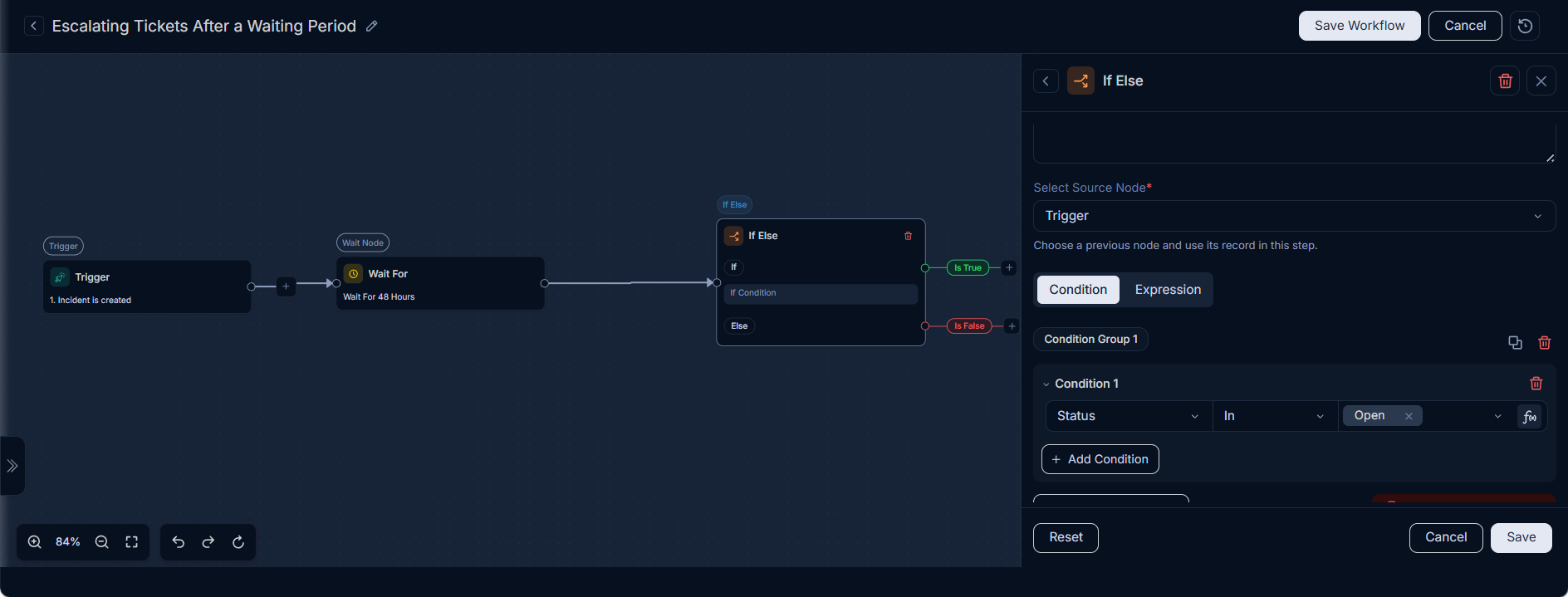
If/Else Node:
- Condition:
StatusInOpen
- Condition:
Action Node (True Path): Send an Email to Technician's Manager.
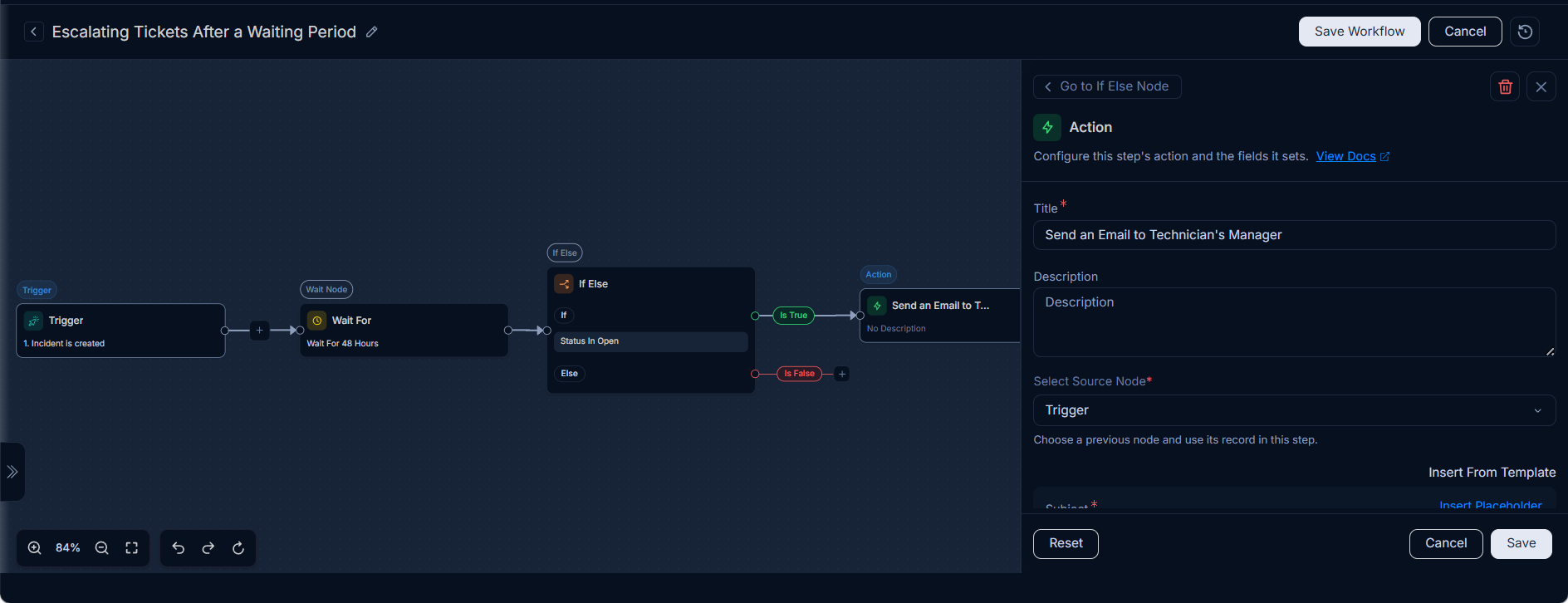
How it Works: When a new incident is created, the workflow starts and immediately encounters the Wait For node, pausing for 48 calendar hours. After the delay, the If/Else node checks the incident's current status. If the status is still 'Open', an escalation email is sent to the manager. If the status has changed, the workflow would follow a different path.
Benefits: Ensures that incidents that remain unresolved after a specified period are automatically escalated, preventing delays and promoting quicker resolution.
Example Use Case: Proceeding with Change Implementation After Approval
Scenario: Automatically proceed with change implementation only after the required approval is granted. If approval is not received within a defined time, the change is moved to a review state for further action.
Configuration:
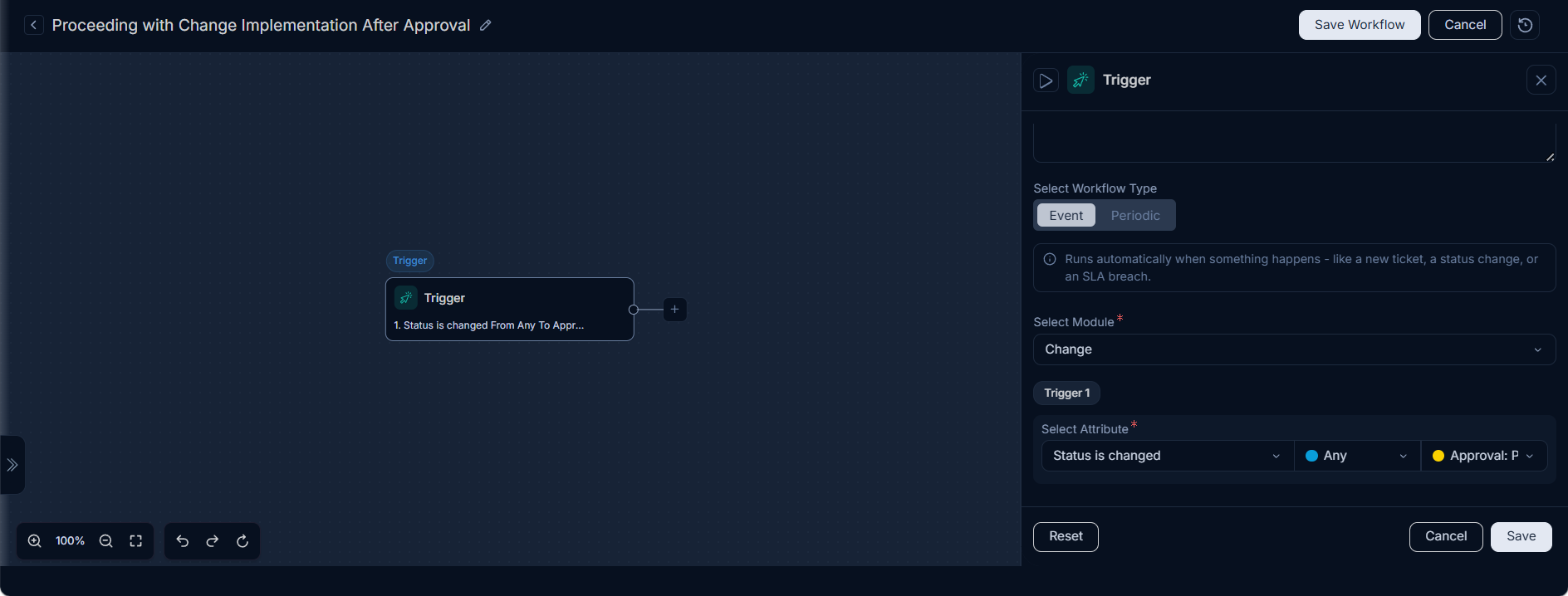
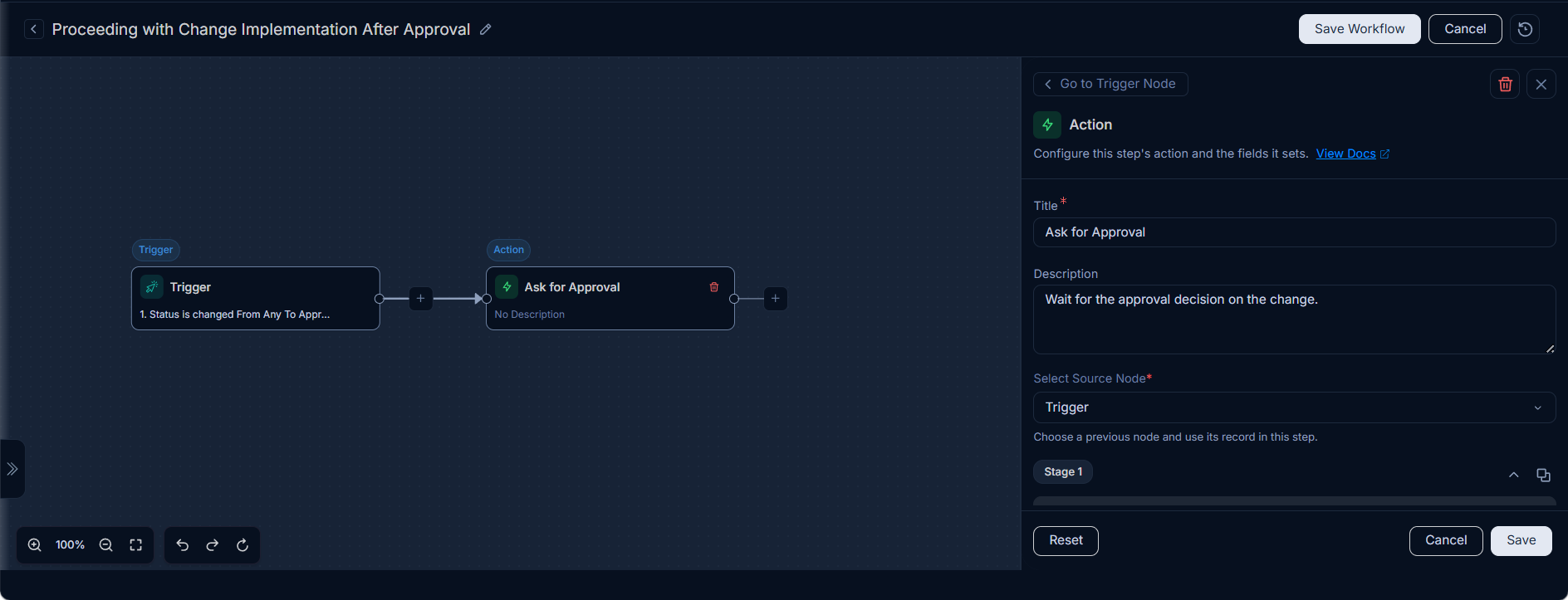
Trigger: Status is changed from Any to Approval Pending
Action Node: Ask for Approval (sends approval request to configured approvers)
Wait Until Node (Wait for Condition):
Condition: There are two ways to configure the condition:
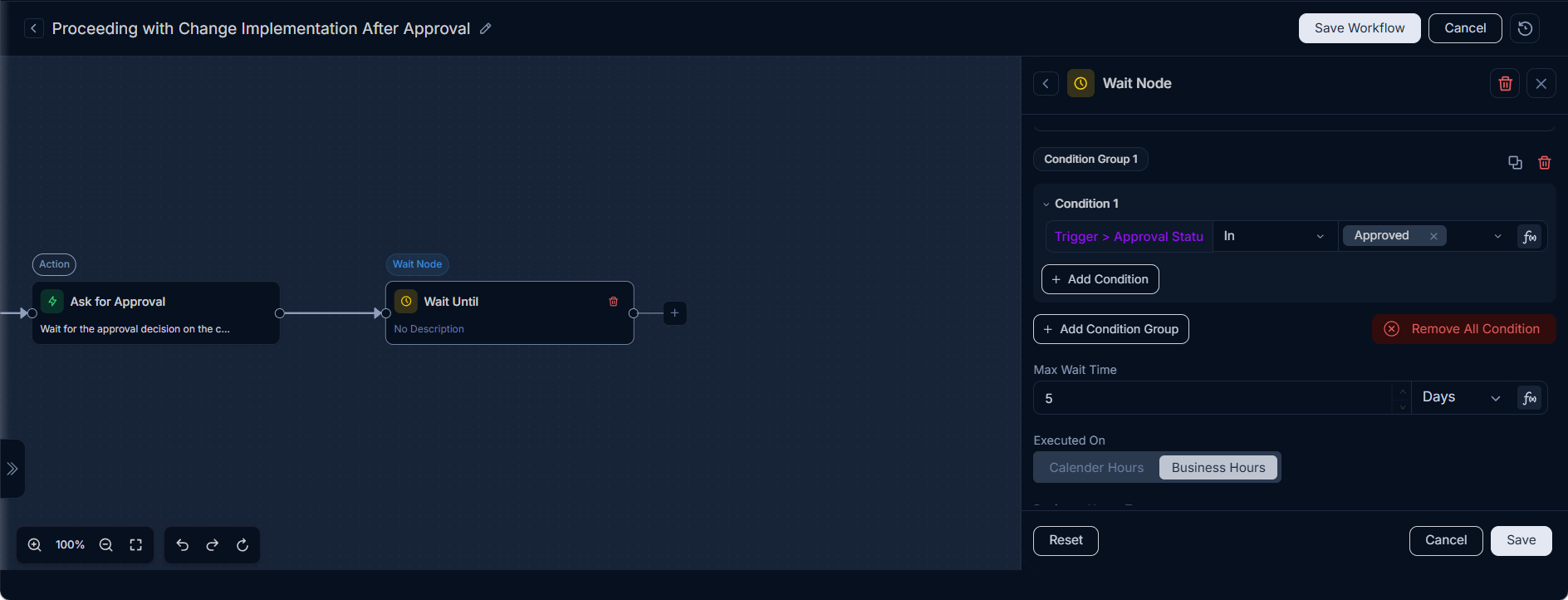
Direct: Approval Status is Approved
Reference-based: Use a reference from the approval node output (Example: Ask for Approval → approvalStatus)
Max Wait Time: 5 Days
Executed On: Business Hours
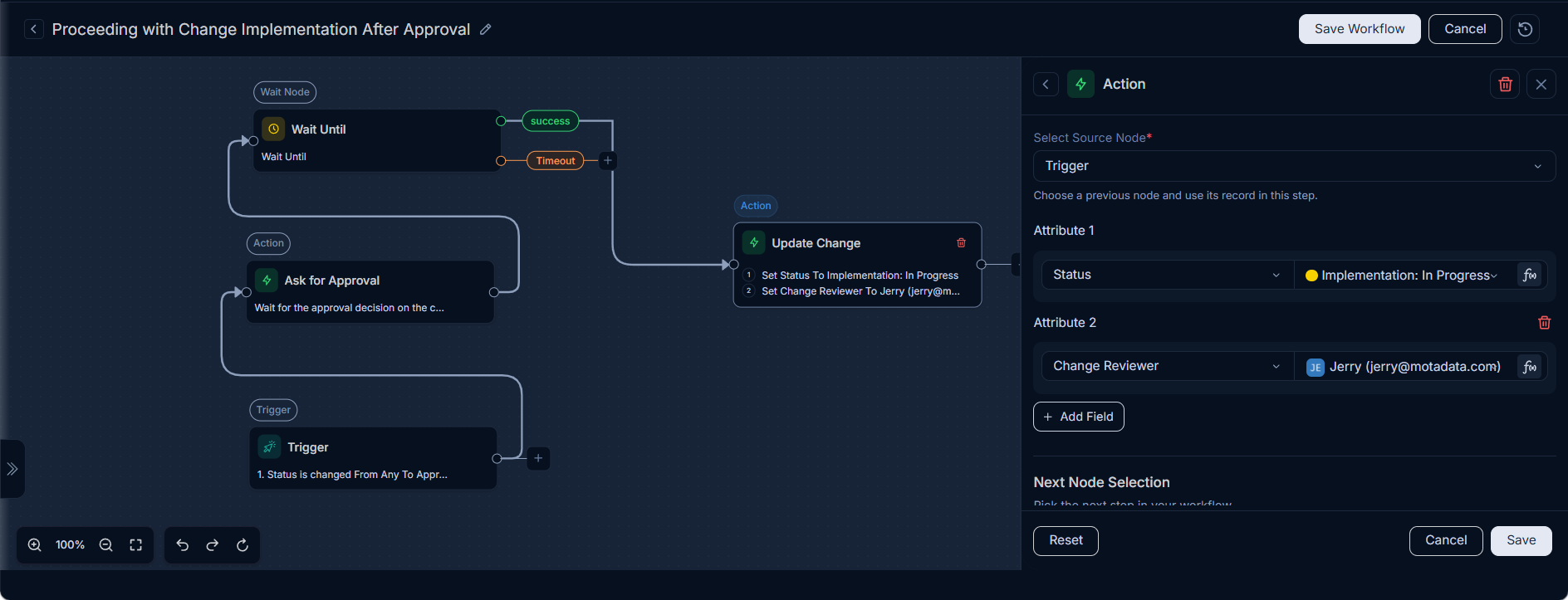
Success Path Action (Approval Granted): Update Change → Set Status to Implementation in Progress
Update Change → Set Status to Implementation in Progress
Update Change → Set Change Reviewer to Jerry
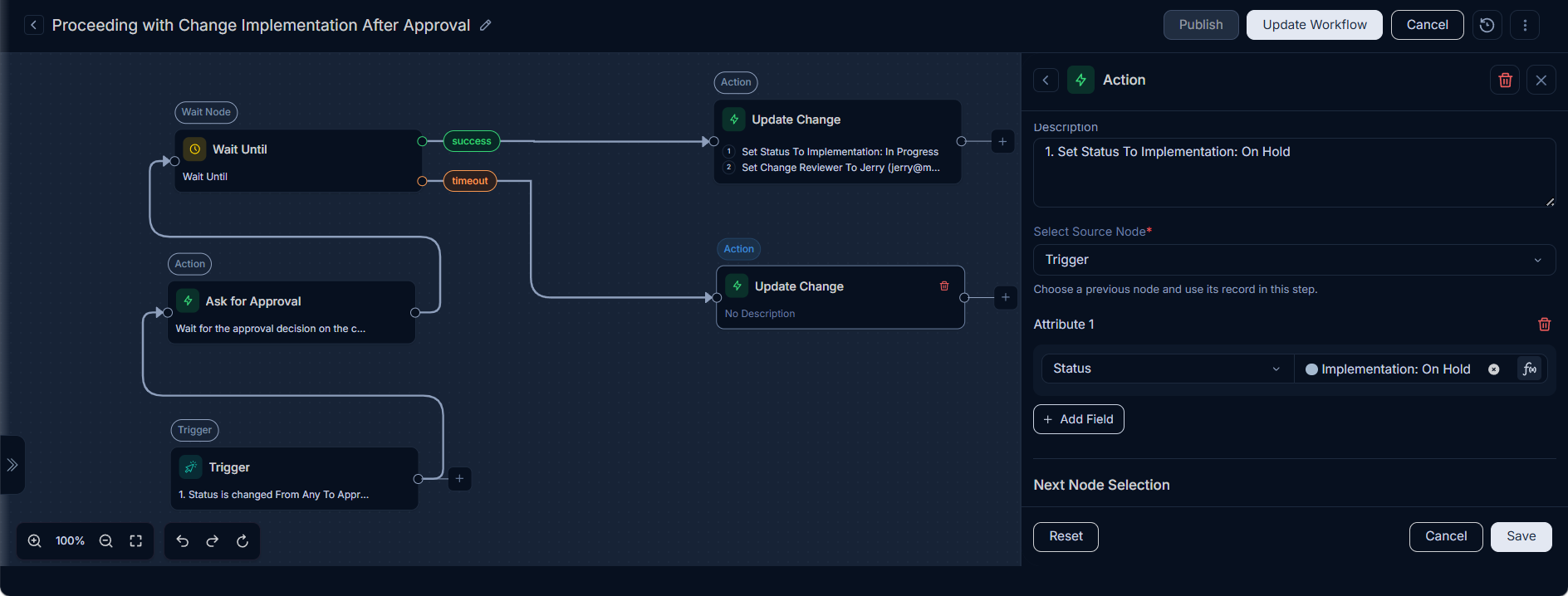
Timeout Path Action (Approval Not Received): Update Change → Set Status to Implementation On Hold.
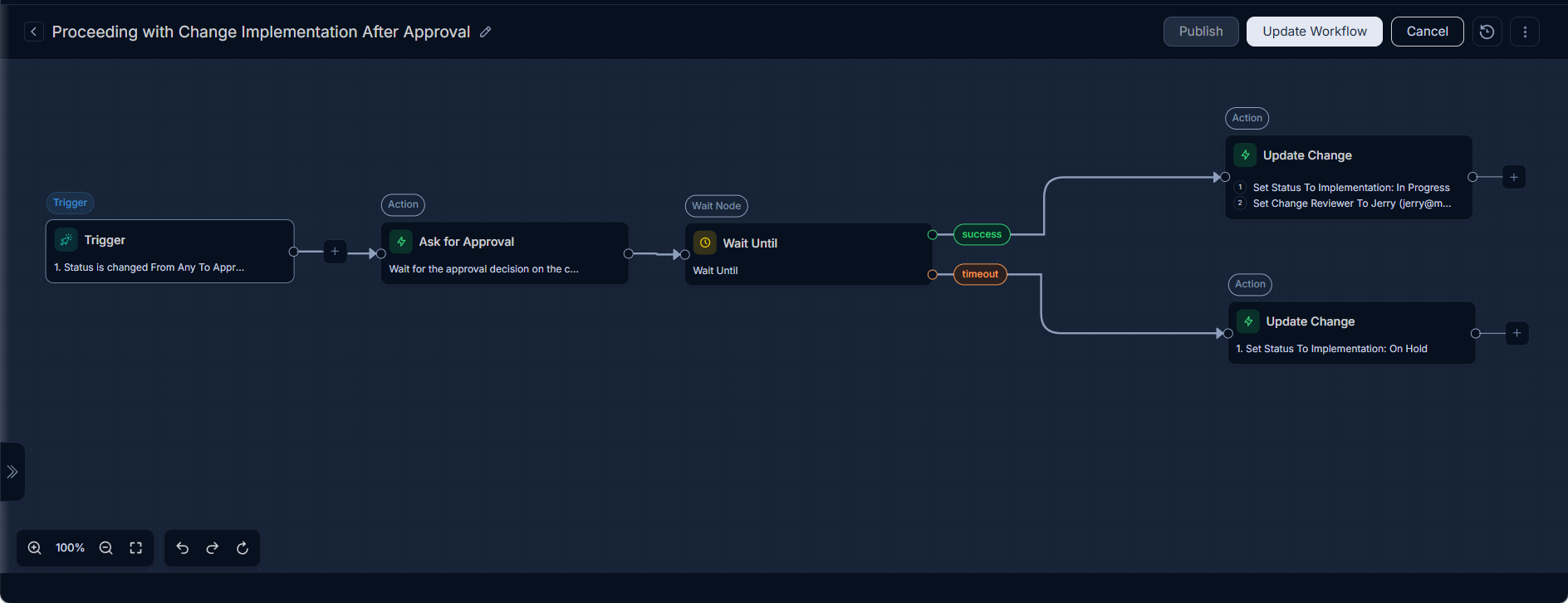
How it Works: When a change request moves to Approval Pending, the workflow is automatically triggered and sends an approval request using the Ask for Approval node. The workflow then pauses at the Wait Until (Condition) node and continuously evaluates the approval status.
When a change request moves to Approval Pending, the workflow is automatically triggered and sends an approval request using the Ask for Approval node. The workflow then pauses at the Wait Until (Condition) node and continuously evaluates the approval status.
- If the approval status changes to Approved within the defined time, the workflow follows the Success path, updates the change status to Implementation in Progress, and assigns a reviewer.
- If approval is not received within the maximum wait time, the workflow follows the Timeout path, moving the change to Implementation On Hold for further manual assessment.
This ensures that change implementation begins only after approval while preventing workflows from waiting indefinitely.
Benefits
- Enforces approval compliance before implementation
- Prevents changes from being stuck in approval state
- Supports business-hours–based waiting
- Provides clear fallback handling for delayed approvals