Conditional Logic - If/Else Node and Branch Node
Conditional logic flow nodes are fundamental to creating dynamic and responsive workflows. They allow your automation to make decisions based on specific or dynamic criteria, directing the workflow along different paths depending on whether those conditions are met. This section details the If/Else Node and the Branch Node, both crucial for implementing decision-making processes in your ITSM workflows.
If/Else Node
The If/Else node provides straightforward conditional decision-making capabilities, allowing a workflow to follow one of two distinct paths (True or False) based on whether a specified condition is met.
Purpose: To introduce binary conditional logic into a workflow, enabling different actions to be executed based on specific criteria. This is crucial for simple routing and customizing processes dynamically.
Key Configuration:
- Condition Groups: Define one or more conditions. These can be Basic (direct field comparisons, e.g.,
PriorityisHigh), Reference-based (using references to define conditions, e.g.,Trigger > priorityId > name == 'High') or Expression-based (using functions, operators, and placeholders for complex logic, e.g.,daysBetween(current_date, last_updated_date) > 7). - True/False Paths: Two distinct output paths are available. The workflow proceeds along the "True" path if the condition(s) are met, and along the "False" path otherwise. These paths can lead to different actions or subsequent flow control nodes.
- Condition Groups: Define one or more conditions. These can be Basic (direct field comparisons, e.g.,
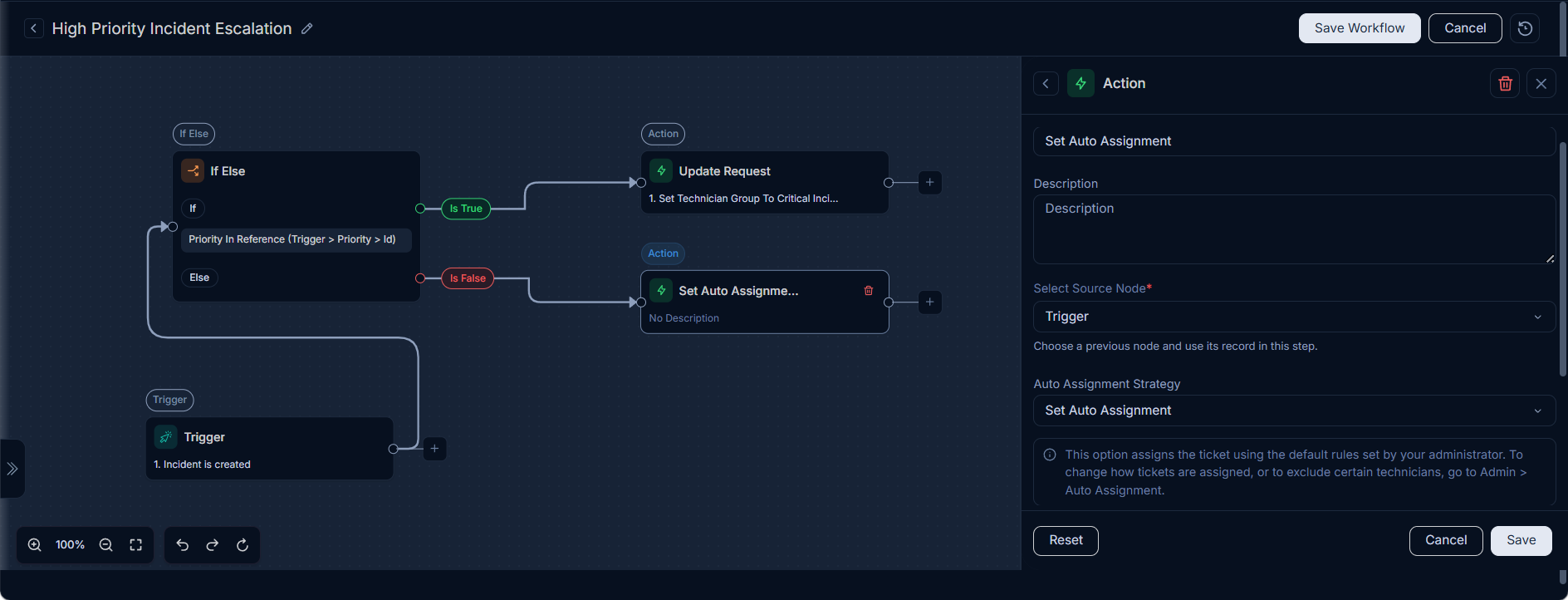
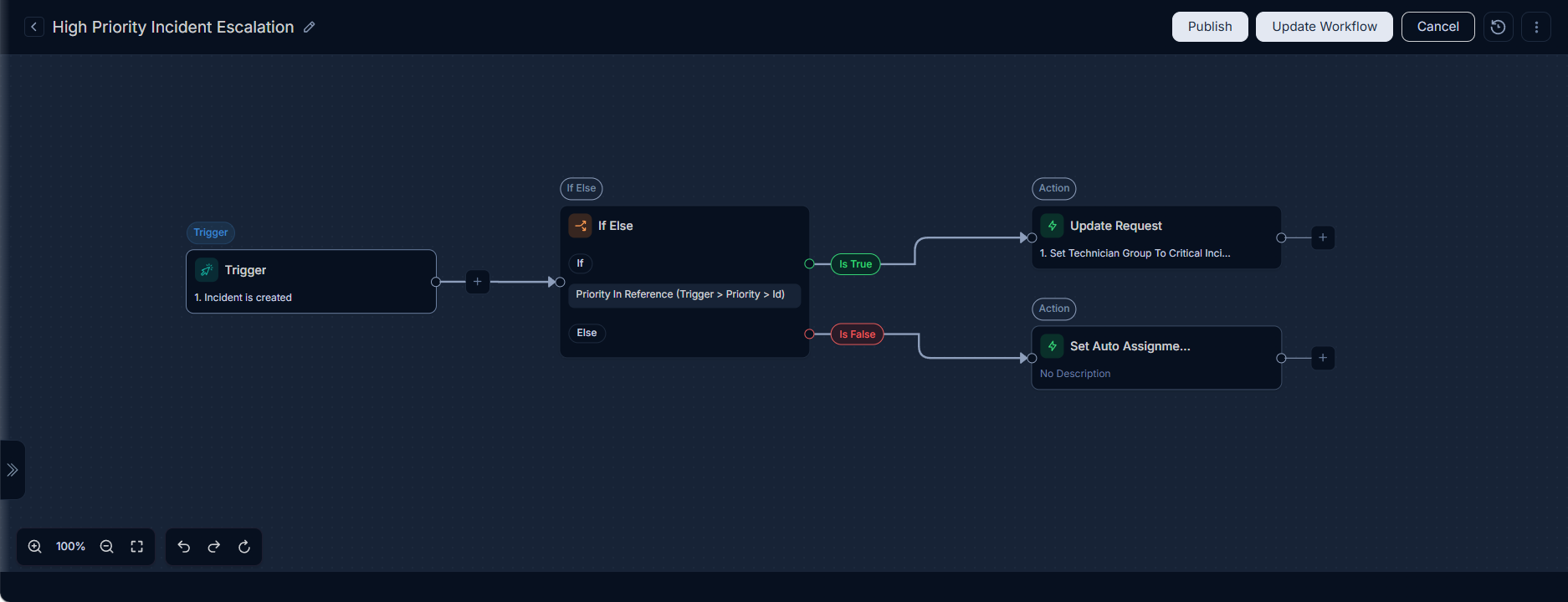
Example Use Case: High Priority Incident Escalation
Scenario: Automatically escalate a high-priority incident to a Critical Incident Response Team, while other incidents proceed with the default technician assignment.
Configuration:
Trigger: "New Incident Created."
If Condition: There are two ways to configure the condition:
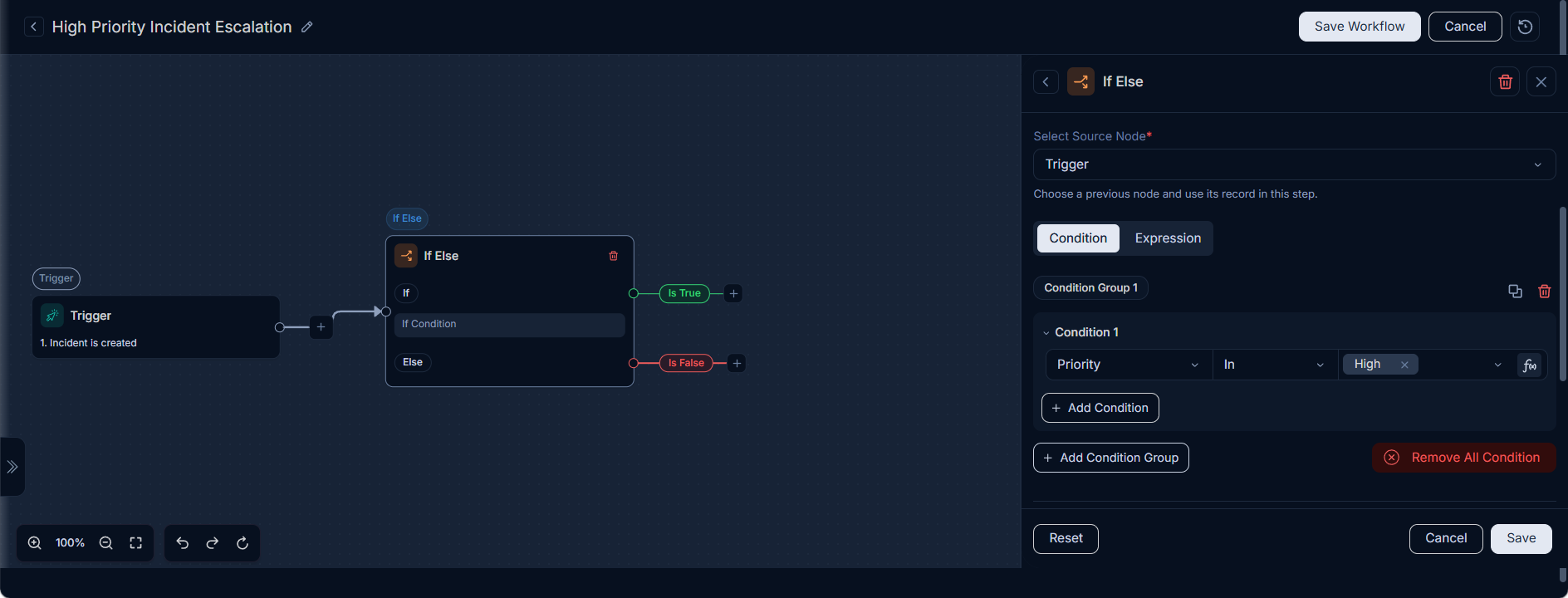
- Direct:
Priorityof the ticket isHigh.
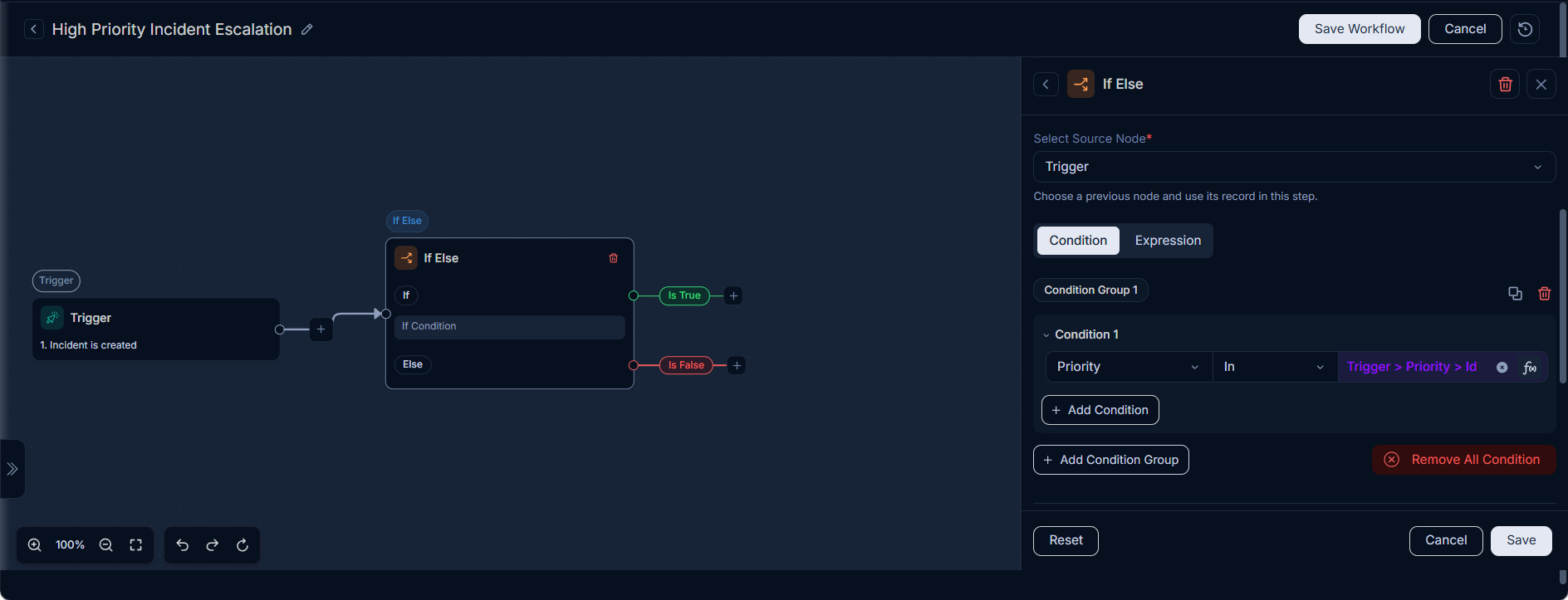
- Reference-based: Use a reference to define the condition. For example,
Trigger > priorityId > id.
- Direct:
True Path Action: Set Technician Group to "Critical Incident Response Team."
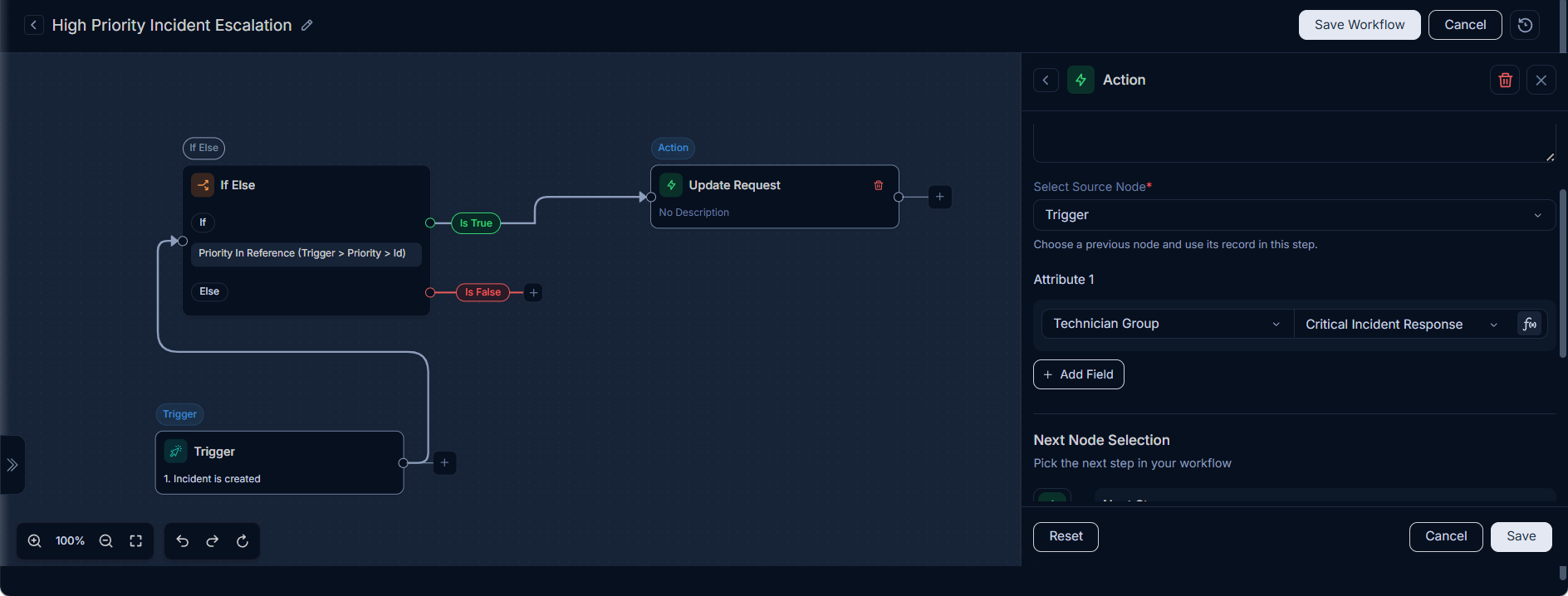
- False Path Action: Set Assignee through "Auto Assignment."
How it Works
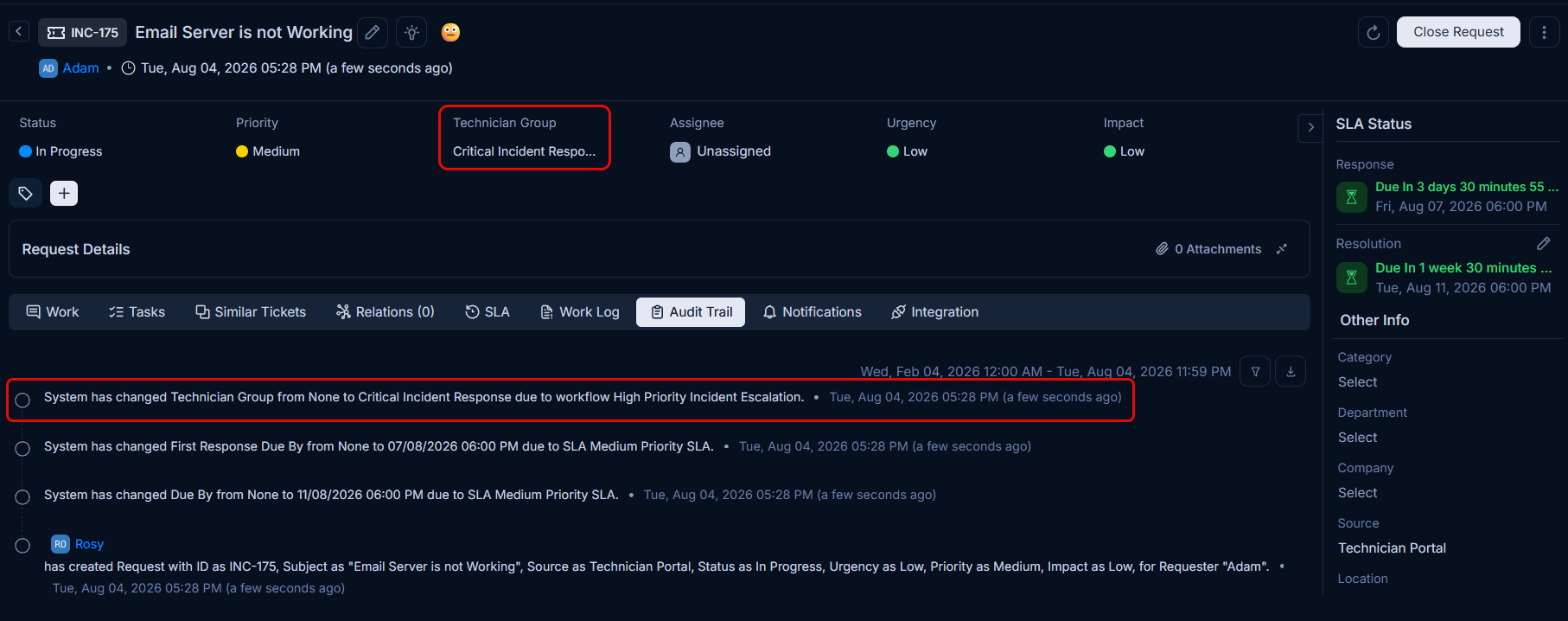
When a new incident is created, the workflow is automatically triggered. It then evaluates the priority of the incident based on the configured condition (either direct or reference-based):
- If the Priority is "High," the workflow executes the "True" path, and the incident is automatically assigned to the Critical Incident Response Team.
- If the Priority is not "High," the workflow executes the "False" path, and the incident proceeds with auto-assignment based on a pre-selected auto-assignment strategy.
This ensures that high-priority incidents receive immediate attention and resolution, while others follow standard procedures.
Branch Node
The Branch node enables you to direct a workflow along multiple distinct paths based on a series of conditions, much like a switch statement. It is ideal for handling several distinct scenarios within a single workflow.
Purpose: To introduce multi-path conditional logic into a workflow, allowing different actions to be executed based on various criteria. This is crucial for sophisticated routing and customizing processes dynamically.
Key Configuration:
- Multiple Condition-based Branches: Define one or more named branches, each with a mandatory condition group. Conditions can be Basic (direct field comparisons), Reference-based (using references to define conditions), or Expression-based (using functions, operators, and placeholders for complex logic).
- Default Path: An essential path that is followed if none of the defined branch conditions are met, ensuring the workflow always has a continuation.
- Output Nodes: A separate output node for each configured branch, plus a default branch.
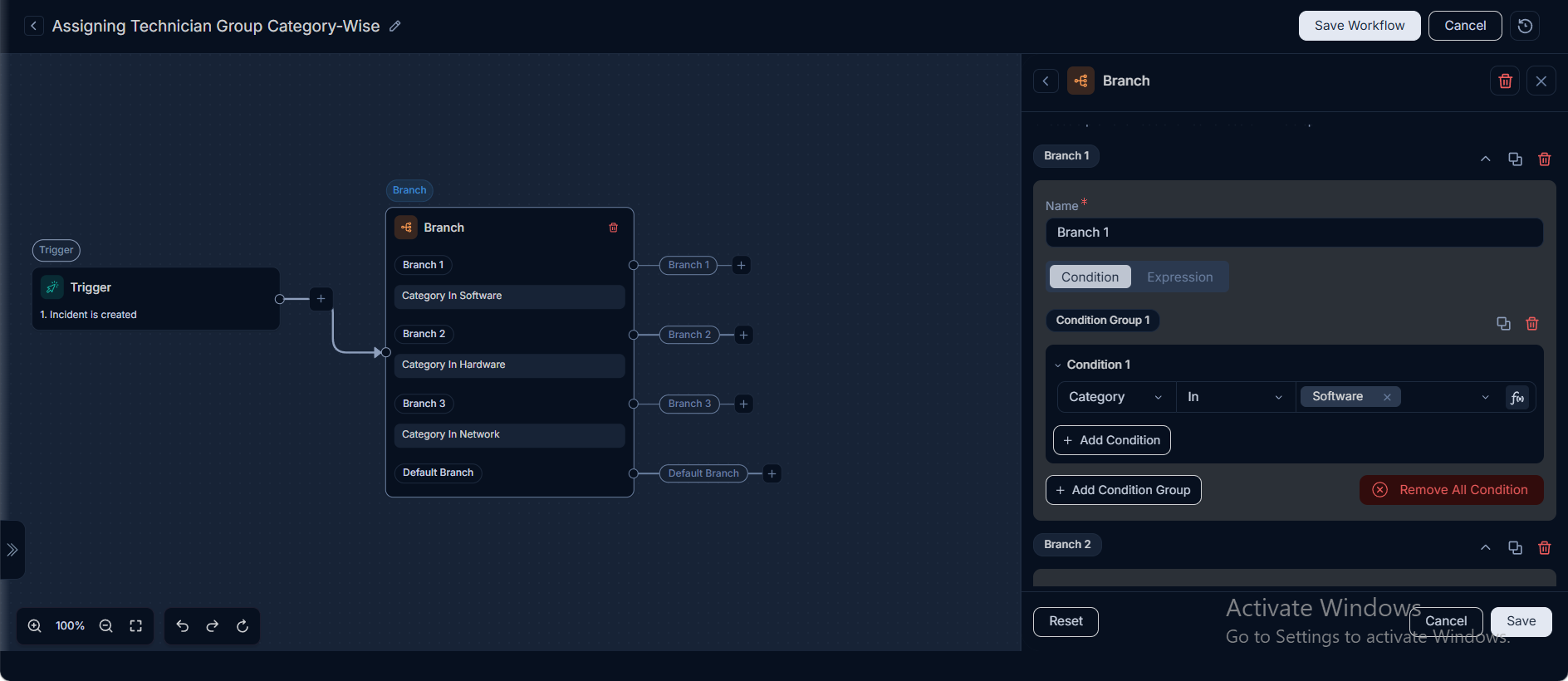
Example Use Case: Assigning Technician Group Category-Wise
Scenario: Automatically assign incoming requests to specialized Technician Groups based on the
Categoryof the request.Configuration:
- Trigger: "Request is created."
- Branch Node:
- Branch 1:
- Condition:
CategoryisSoftware.
- Condition:
- Branch 2:
- Condition:
CategoryisHardware.
- Condition:
- Branch 3:
- Condition:
CategoryisNetwork.
- Condition:
- Default Branch:
- Branch 1:
Actions:
- For Branch 1: Set
Technician Groupto "Software Team" as shown below:
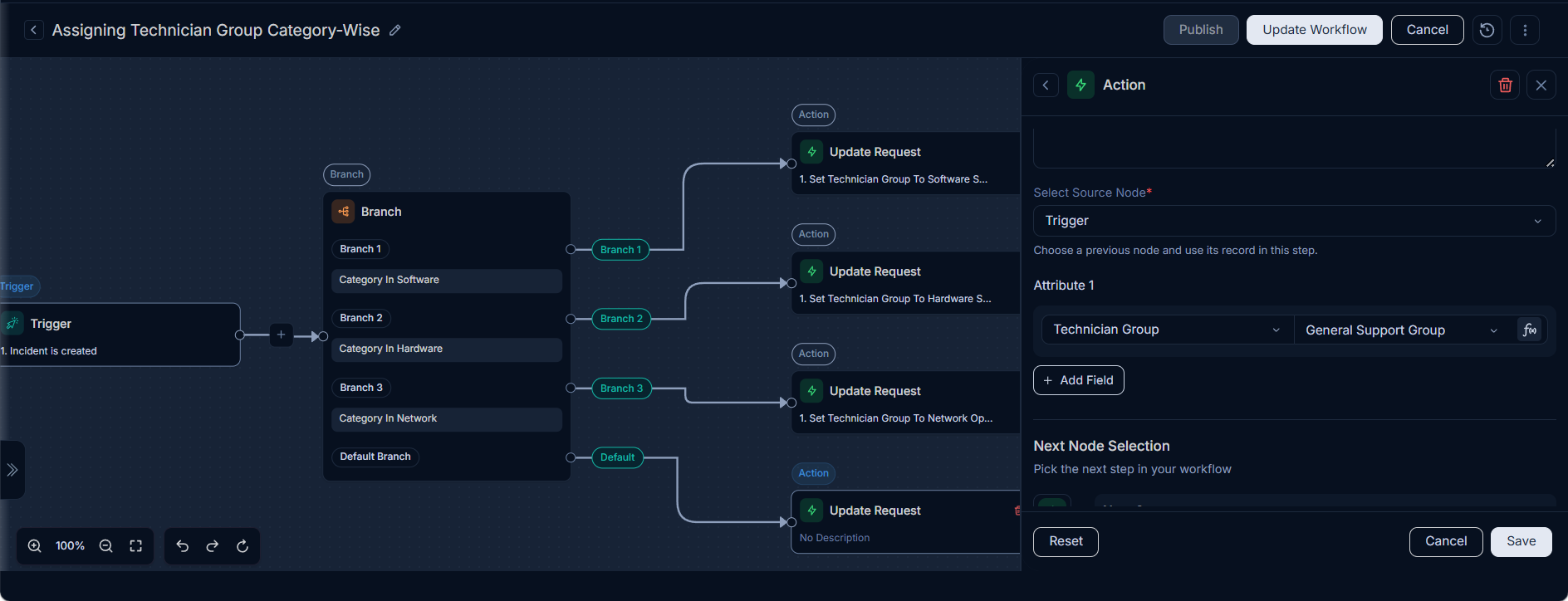
Similarly set the following,
- For Branch 2: Set
Technician Groupto "Hardware Team" - For Branch 3: Set
Technician Groupto "Network Team". - For Default Branch: Set
Technician Groupto "General Support".
- For Branch 1: Set
How it Works
When a new request is created, this workflow is automatically triggered. The Branch node then evaluates the
Categoryof the request:- If the
Categorymatches a defined branch (e.g., "Software", "Hardware", or "Network"), the workflow executes the actions configured for that specific branch, assigning the request to the corresponding Technician Group. - If the
Categorydoes not match any of the defined branches, the workflow proceeds along the "Default" path, assigning the request to the "General Support" Technician Group.
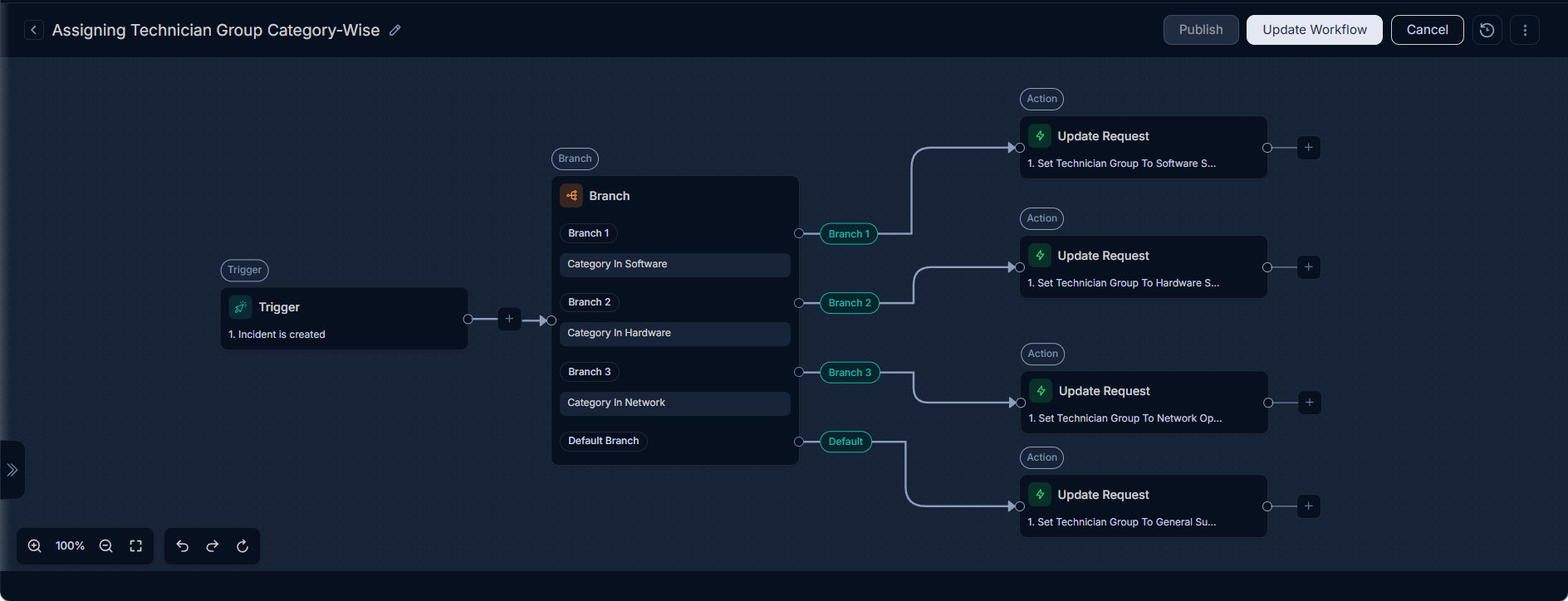
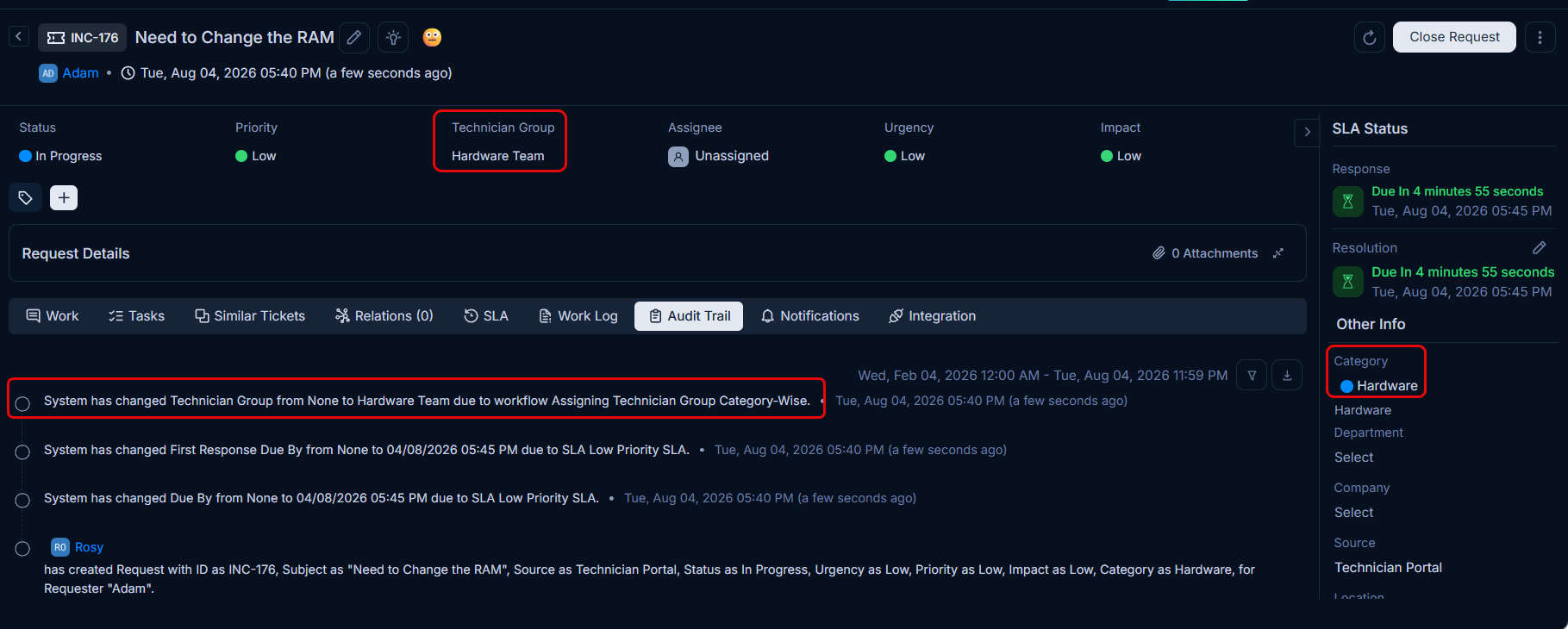
For example, the audit trail below shows a request with the category "Hardware" being assigned to the "Hardware Team" Technician Group: