Ruby Instrumentation
This guide explains how to instrument a Ruby application by selecting the appropriate deployment type in Motadata APM for trace ingestion.
Prerequisites
- The Motadata Agent must be installed and running on the Linux server where the Ruby application is deployed. The otelcol must also be running as part of the Motadata Agent.
To check the agent status, open a Linux terminal and run:
service motadata status
The Motadata Agent version must be 8.2.3 or higher for Host/ VM and 8.2.4 or higher for Docker.
The Docker Version must be 20.1 or higher.
The application must use CRuby (MRI) ≥ 3.2, JRuby ≥ 10.0.0.0 and TruffleRuby ≥ 23.1.0 are supported on a best-effort basis.
Bundler must be installed.
Internet connectivity is required when running
bundle installto download gems from RubyGems.org.The application must already be working and able to start without errors before instrumentation is added.
You may need root/sudo access if you encounter permission issues.
Configuration Steps
Step 1: Register the Application Service in Motadata APM
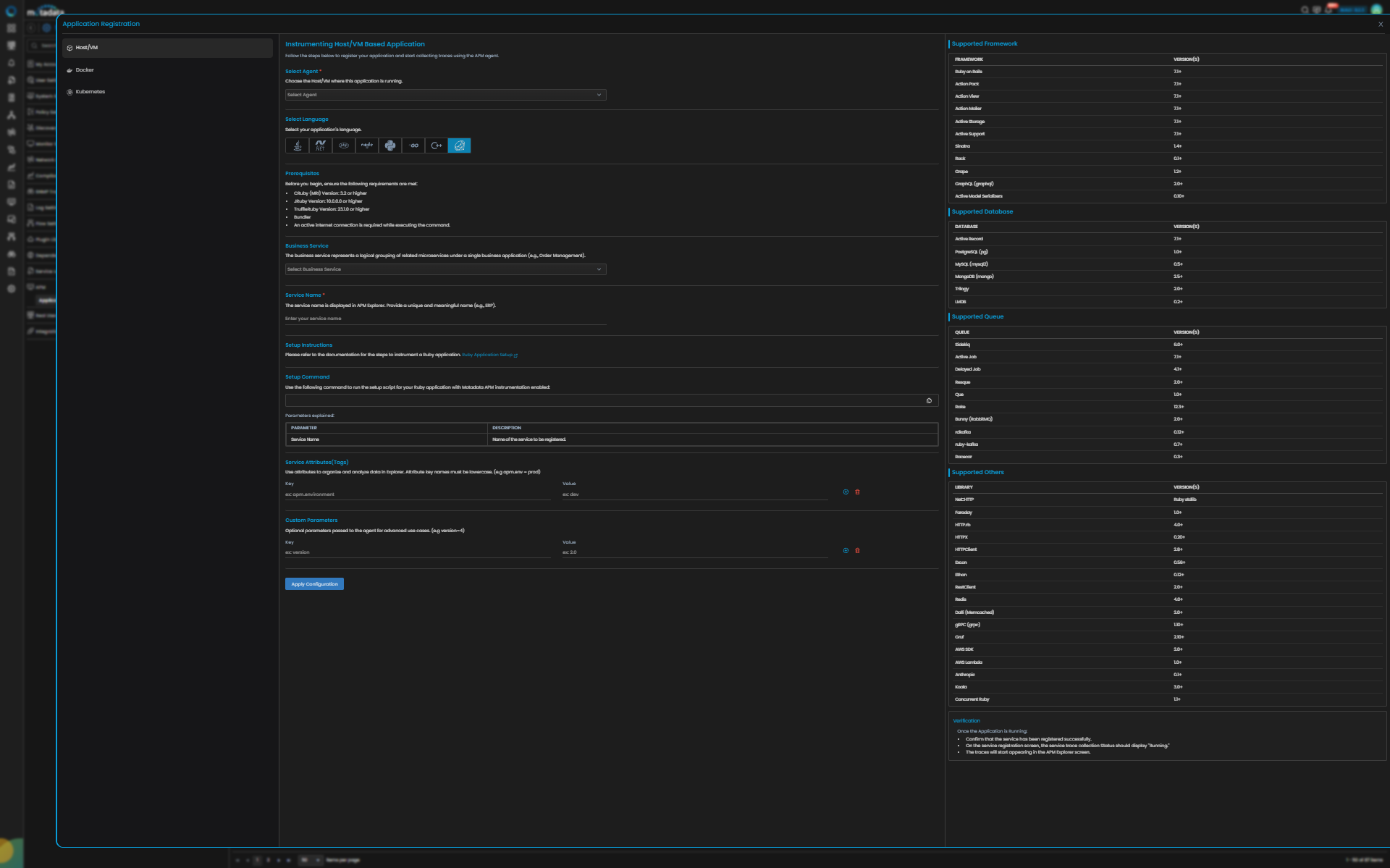
Go to Menu > Settings > APM > Application Registration. Clicking the Application Registration button, you can register a new application.
From the application registration screen, select the instrumentation type Host/VM or Docker.
- Host/VM
- Docker
Ruby Trace Configuration
| Field | Description |
|---|---|
| Select Agent | Select the Host/VM where this application is running. You can configure Ruby application service for Linux type agent. |
| Language | Select Ruby from the language icons. |
| Business Service | The Business Service represents a logical grouping of related microservices under a single business application (e.g., order-management). |
| Service Name | Provide a unique and meaningful name (for example, order_service). Service names can contain letters, numbers, dots (.), and underscores (_). Do not use spaces or hyphens. |
| Service Attributes (Tags) | Add key–value tags to your application for better filtering and organizing data in Explorer. Attribute key names must be lowercase. |
| Add Custom Parameters | Allows you to define custom parameters for advanced use cases. |
Clicking the Apply Configuration button, the ingestion gets started. Providing these details displays the Setup Command to instrument your Ruby application.
Setup Instructions
Step 2: Configure Ruby Instrumentation on Host/VM
Step 2a: Update Your Gemfile
Add the following line to your application's Gemfile:
gem 'motadata-apm', github: 'motadata2025/motadata-apm-ruby-instrumentation'
Ensure the Motadata Agent version 8.2.3 is installed so the gem path above is available on the host.
Then install the gem:
bundle install
Step 2b: Initialize the Agent in Your Application
You must require motadata-apm after your frameworks are loaded but before your application logic starts. The placement order matters, if loaded too early, some libraries may not be detected, resulting in incomplete instrumentation.
For Example, if Sinatra or Plain Ruby Applications
Add this to your main app.rb file, after all other require statements:
require 'sinatra'
require 'pg'
require 'motadata-apm'
Step 2c: Start the Application
Use the Startup Command displayed in the APM registration screen to run the setup script for your Ruby application with Motadata APM instrumentation enabled:
/motadata/motadata/instrumentation/agents/ruby/ruby-instrumentation.sh --service <service_name> <ruby_app_startup_command>
Replace <service-name> with the service name you have provided and <ruby_app_startup_command> with the command you normally use to start your Ruby application.
Step 3: Verify Trace Collection
Once the application is running, verify the following:
- Confirm that the service has been registered successfully.
- On the service registration screen, the Service Trace Collection Status should display "Running."
- The traces will start appearing in the APM Explorer screen.
Troubleshooting
Problem 1: bundle install fails with a native extension compilation error
Cause
The opentelemetry-exporter-otlp gem depends on google-protobuf, which requires native C extensions. If the required OS-level build tools are missing, gem installation fails with an error like:
ERROR: Failed to build gem native extension.
Remedy
Install the required system build packages before running bundle install.
Ubuntu / Debian:
sudo apt-get update && sudo apt-get install -y \
  build-essential gcc g++ make \
  libssl-dev zlib1g-dev libffi-dev
RHEL / CentOS / Amazon Linux:
sudo yum groupinstall -y "Development Tools"
sudo yum install -y openssl-devel zlib-devel libffi-devel
After installing, rerun:
bundle install
Problem 2: bundle install fails or times out behind an HTTP proxy
Cause The server cannot reach RubyGems.org because outbound HTTPS traffic is routed through a proxy. The following hosts on port 443 must be reachable for gem installation to succeed:
| Host | Port | Purpose |
|---|---|---|
rubygems.org | 443 (HTTPS) | Download OpenTelemetry gem packages |
index.rubygems.org | 443 (HTTPS) | Gem index lookups |
Remedy
Set the proxy environment variable and rerun bundle install in the same terminal session:
export https_proxy=http://your-proxy-host:port
bundle install
Internet access is only required at install time. Once the gems are installed, the application does not need network access to RubyGems.org at runtime.
Ruby Trace Configuration
| Field | Description |
|---|---|
| Select Agent | Select the Host/VM where this application is running. You can configure Ruby application service for Linux type agent. |
| Language | Select Ruby from the language icons. |
| Business Service | The Business Service represents a logical grouping of related microservices under a single business application (e.g., order-management). |
| Service Name | Provide a unique and meaningful name (for example, order_service). Service names can contain letters, numbers, dots (.), and underscores (_). Do not use spaces or hyphens. |
| Service Attributes (Tags) | Add key–value tags to your application for better filtering and organizing data in Explorer. Attribute key names must be lowercase. |
| Add Custom Parameters | Allows you to define custom parameters for advanced use cases. |
Clicking the Apply Configuration button, the ingestion gets started. Providing these details displays the Setup Command to instrument your Ruby application.
Setup Instructions
Step 2: Configure Ruby Instrumentation on Docker
Step 2a: Update Your Gemfile
Add the following line to your application's Gemfile:
gem 'motadata-apm', github: 'motadata2025/motadata-apm-ruby-instrumentation'
This fetches the motadata-apm gem directly from GitHub during bundle install. An active internet connection is required at build time.
Then install the gem:
bundle install
Step 2b: Initialize the Agent in Your Application
You must require motadata-apm after your frameworks are loaded but before your application logic starts. The placement order matters — if loaded too early, some libraries may not be detected, resulting in incomplete instrumentation.
For example, for Sinatra or Plain Ruby Applications
Add this to your main app.rb file, after all other require statements:
require 'sinatra'
require 'pg'
require 'motadata-apm'
Step 2c: Update Your Dockerfile
Change 1 — Add git to your apt install (if not already present):
RUN apt-get update -qq && \
    apt-get install -y --no-install-recommends git && \
    rm -rf /var/lib/apt/lists/*
The motadata-apm gem is fetched from GitHub during bundle install. Bundler uses git clone internally, so git must be present in the image. Without it, the build will fail.
Change 2 — Use bundle exec in your CMD (if not already present):
CMD ["bundle", "exec", "ruby", "app.rb"]
bundle exec runs the app inside the Bundler context, ensuring all gems from Gemfile.lock (including motadata-apm) are on the load path. Without it, Ruby starts outside the bundle and cannot find the gem.
Step 2d: Build Your Docker Image
Standard docker build — no extra flags needed:
docker build -t <client-image-name> .
Or with docker-compose:
services:
  app:
    build: .
docker compose up --build -d
Step 2e: Start the Application
To instrument your Ruby application in Docker, mount the required directories and include the Ruby agent in your run command. Start collecting Traces by running your container as shown below.
docker run -d \
  --add-host=host.docker.internal:host-gateway \
  -v "/motadata/motadata/config:/motadata/motadata/config" \
  -v "/motadata/motadata/instrumentation:/motadata/motadata/instrumentation" \
  --entrypoint /bin/bash \
  <image_name> \
  -c '/motadata/motadata/instrumentation/agents/ruby/ruby-instrumentation.sh --service <service_name> <ruby_application_start_command>'
Replace <ruby_application_start_command> with your existing Ruby application startup command (e.g. bundle exec ruby app.rb). You can add additional Docker parameters as needed based on your deployment requirements.
Parameters Explained
| Parameter | Description |
|---|---|
<service_name> | Name of the service to be registered. Must match the properties file name at /motadata/motadata/config/<service_name>.properties. |
--add-host=host.docker.internal:host-gateway | Ensures container connectivity with the host system. |
<image_name> | Name of your application's Docker image. |
--entrypoint /bin/bash | Executes shell commands at container startup. |
-c | Docker flag to pass an inline shell command. |
-v "/motadata/motadata/config:/motadata/motadata/config" | Mounts the configuration directory. |
-v "/motadata/motadata/instrumentation:/motadata/motadata/instrumentation" | Mounts the instrumentation scripts and agents. |
If your app connects to services bound only to 127.0.0.1 on the host (e.g. a local Postgres), replace --add-host=host.docker.internal:host-gateway with --network host --add-host=host.docker.internal:127.0.0.1 and use localhost for any host service addresses.
Step 3: Verify Trace Collection
Once the application is running, verify the following:
- Confirm that the service has been registered successfully.
- On the service registration screen, the Service Trace Collection Status should display "Running."
- The traces will start appearing in the APM Explorer screen.
Troubleshooting
Problem 1: Docker build fails with git: not found
Cause
The motadata-apm gem is fetched from GitHub during bundle install. Bundler requires git to clone the repository. If git is not installed in the image, the build fails with an error like:
git: not found
Remedy
Add git to your Dockerfile's apt install step:
RUN apt-get update -qq && \
    apt-get install -y --no-install-recommends git && \
    rm -rf /var/lib/apt/lists/*
Problem 2: bundle install fails with a native extension compilation error
Cause
The opentelemetry-exporter-otlp gem depends on google-protobuf, which requires native C extensions. If the required OS-level build tools are missing, gem installation fails with an error like:
ERROR: Failed to build gem native extension.
Remedy Add the required build packages to your Dockerfile:
Ubuntu / Debian-based images:
RUN apt-get update -qq && \
    apt-get install -y --no-install-recommends \
      build-essential gcc g++ make \
      libssl-dev zlib1g-dev libffi-dev && \
    rm -rf /var/lib/apt/lists/*
After adding these packages, rebuild the image:
docker build -t <client-image-name> .
Problem 3: Container cannot reach the host machine
Cause
The ruby-instrumentation.sh script exports OTel environment variables pointing to services on the host. If the container cannot resolve host.docker.internal, traces will not be exported.
Remedy
Ensure --add-host=host.docker.internal:host-gateway is included in your docker run command. If the app uses services bound to 127.0.0.1 on the host, use --network host instead.