Go Instrumentation
This guide explains how to instrument a Go application by selecting the appropriate deployment type in Motadata APM for trace ingestion.
Prerequisites
- The Motadata Agent must be installed and running on the Linux server where the Go application is deployed. Also, the otelcol should be running as part of the Motadata Agent.
To check the agent status, open a Linux terminal and run:
service motadata status
The Motadata Agent version must be:
- 8.2.0 or higher for Host/VM
- 8.2.0 or higher for Docker
The application must be developed on Go version 1.18 or higher.
To verify the version, use the below command:
go version
- The Linux kernel version must be 4.4 or higher.
- The application path must be known before configuring instrumentation.
- For Docker deployment:
- Docker version must be 20.1 or higher.
- The Motadata Agent must be installed on the host machine, but not inside the container.
If two or more Docker containers use the same Go application path, they cannot be instrumented.
For example:
Container1: /app/main
Container2: /app/main
To instrument containers independently, each container must use a different Go application path (for example, /app/order-service and /app/payment-service). If multiple containers currently use the same path, rebuild the containers so that each service runs from a unique application path.
- The application must already be working and able to start without errors.
- You need root/sudo access if you encounter permission issues.
Configuration Steps
Step1: Register the Application Service in Motadata APM
Go to Menu > Settings > APM > Application Registration. Clicking the Application Registration button, you can register a new application.
From the application registration screen, select the instrumentation type Host/VM or Docker.
- Host/VM
- Docker
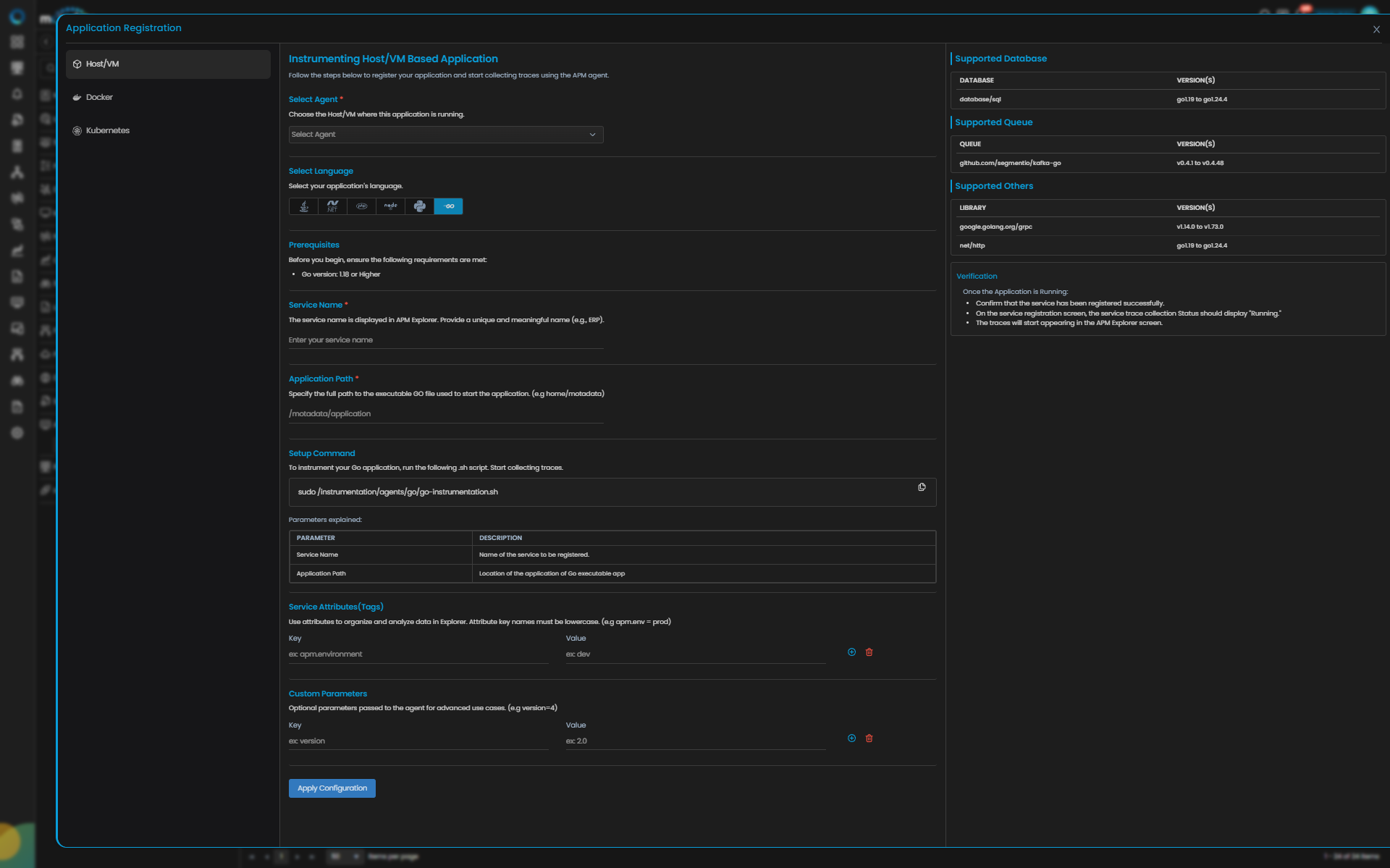
Go Trace Configuration
| Field | Description |
|---|---|
| Select Agent | Select the Host/VM where this application is running. |
| Language | Select Go from the language icons. |
| Service Name | Provide a unique and meaningful name (for example, order_service, billing_service, or inventory_service). |
| Application Path | Specify the full path to the executable Go application used to start the service (for example, /opt/apps/order-service/order-app or /motadata/application). |
Providing these details displays the Setup Command to instrument your Go application.
Step2: Configure Go Instrumentation
Instrument Go on Linux Host/VM
Run the setup command generated in the UI on the same Linux host where the Go application is running.
The setup command is similar to the following:
sudo /motadata/motadata/instrumentation/agents/go/go-instrumentation.sh {ServiceName}
Replace the values in the UI-generated command as applicable to your environment.
There is no need to restart the Go application after executing the command.
To verify that the Go instrumentation service is running, execute:
sudo systemctl list-units --type=service --all "go-instr@*"
If the Go application is stopped, restart the associated instrumentation service manually:
systemctl restart go-instr@<service-name>
Go tracing may not appear if the application path is incorrect, the instrumentation service is not active, the kernel version is unsupported, or the application is stopped after instrumentation and its associated go-instr@<service-name> unit is not restarted.
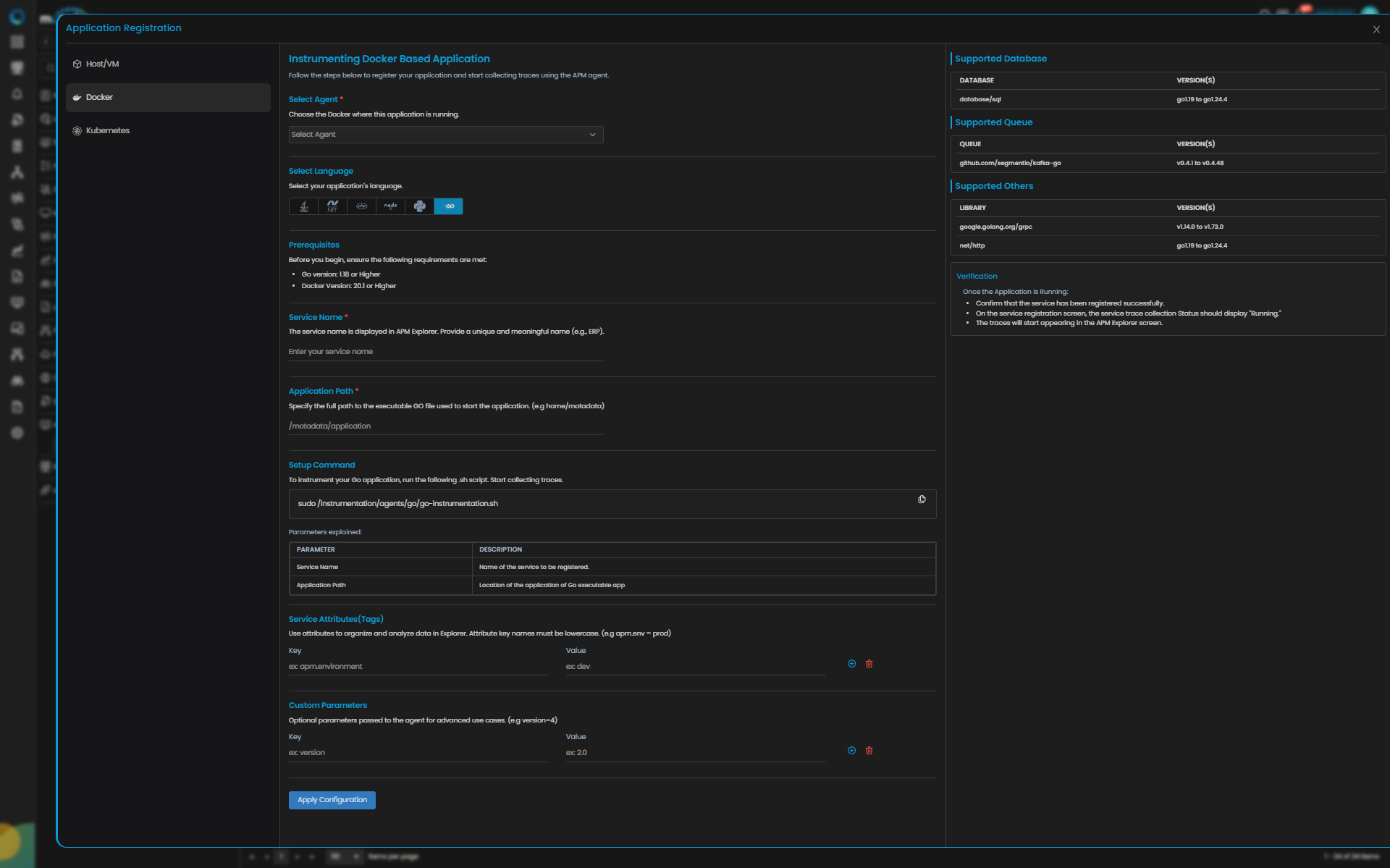
Go Trace Configuration
| Field | Description |
|---|---|
| Select Agent | Select the Docker host where this application is running. |
| Language | Select Go from the language icons. |
| Service Name | Provide a unique and meaningful name (for example, order_service, billing_service, or inventory_service). |
| Application Path | Specify the full path to the executable Go application used to start the service inside the container (for example, /app/order-service or /motadata/application). |
Providing these details displays the Setup Command to instrument your Go application in Docker.
Step2: Configure Go Instrumentation
Instrument Go in Docker on Linux
Run the setup command generated in the UI on the Docker host.
The setup command is similar to the following:
sudo /motadata/motadata/instrumentation/agents/go/go-instrumentation.sh {ServiceName}
Replace the values in the UI-generated command as applicable to your environment.
There is no need to restart the Go application after executing the command.
To verify that the Go instrumentation service is running, execute:
sudo systemctl list-units --type=service --all "go-instr@*"
If the Go application is stopped, restart the associated instrumentation service manually:
systemctl restart go-instr@<service-name>
Go tracing may not appear if the application path is incorrect, the instrumentation service is not active, the kernel version is unsupported, the host agent is unavailable, or multiple containers are configured with the same Go application path.
Step 3: Provide Optional Details
Setting up the instrumentation you can also add further below details:
| Field | Description |
|---|---|
| Service Attributes (Tags) | Add key–value tags to your application for better filtering and organizing data in Explorer. Attribute key names must be lowercase. |
| Add Custom Parameters | Allows you to define custom parameters for advanced use cases. |
Clicking the Apply Configuration button, the ingestion gets started.
Step4: Verify Trace Collection
Once the application is running, verify the below points:
- Confirm that the service has been registered successfully.
- On the service registration screen, the Service Trace Collection Status should display "Running."
- The traces will start appearing in the APM Explorer screen.
Enable Database in GO
To get database related information for GO application you need to follow the below mentioned SOP:
With DB parsing flags enabled, execute the below commands:
export OTEL_GO_AUTO_INCLUDE_DB_STATEMENT=true

export OTEL_GO_AUTO_PARSE_DB_STATEMENT=true
eBPF can reliably populate with:
db.operation.name
db.collection.name
db.query.text
As db.system is defined at connection creation time and remains inside internal driver and database objects. OTEL eBPF probes execute later at query level, so this value is not available to eBPF instrumentation.
Fix for db.system
To populate db.system, the database connection must be wrapped using otelsql at connection creation time.
Generic pattern:
db, err := otelsql.Open(driver, dsn,
    otelsql.WithAttributes(semconv.DBSystemNamePostgreSQL),
)
Supported Databases and Required Constants
Constant naming varies by semconv version.
| Database | otelsql.Open Driver Name | Semantic Constant (v1.21.0+) | Semantic Constant (v1.4.0 - v1.20.0) |
|---|---|---|---|
| PostgreSQL | "postgres" / "pgx" | semconv.DBSystemNamePostgreSQL | semconv.DBSystemPostgreSQL |
| MySQL | "mysql" | semconv.DBSystemNameMySQL | semconv.DBSystemMySQL |
| MariaDB | "mysql" | semconv.DBSystemNameMariaDB | semconv.DBSystemMariaDB |
| SQLite | "sqlite" | semconv.DBSystemNameSQLite | semconv.DBSystemSQLite |
| Microsoft SQL Server | "sqlserver" | semconv.DBSystemNameMicrosoftSQLServer | semconv.DBSystemMSSQL |
| CockroachDB | "pgx" / "postgres" | semconv.DBSystemNameCockroachDB | semconv.DBSystemCockroachDB |
| ClickHouse | "clickhouse" | semconv.DBSystemNameClickHouse | semconv.DBSystemClickHouse |
| Oracle | "ora" | semconv.DBSystemNameOracleDB | semconv.DBSystemOracle |
| Trino | "trino" | semconv.DBSystemNameTrino | (not available) |
The semconv package version is pulled in as a transitive dependency.
semconv v1.21.0+uses constants likeDBSystemNamePostgreSQLsemconv v1.4.0 - v1.20.0uses constants likeDBSystemPostgreSQL. Check your importedsemconvversion and use the corresponding constant names.
Example (Recommended Pattern for v1.21.0+)
// For semconv v1.21.0 and later (including v1.27.0)
db, err := otelsql.Open(driver, dsn,
    otelsql.WithAttributes(
        semconv.DBSystemNamePostgreSQL, // replace as per table above
    ),
)
Example (For Older semconv Versions v1.4.0 - v1.20.0)
// For semconv v1.4.0 through v1.20.0
db, err := otelsql.Open(driver, dsn,
    otelsql.WithAttributes(
        semconv.DBSystemPostgreSQL, // replace as per table above
    ),
)
The below are not supported through database/sql.
| Database | Reason |
|---|---|
| MongoDB | Native driver, not database/sql |
| Redis | Native client |
| DynamoDB | AWS SDK |
| Cassandra | Native driver |
| Elasticsearch | Native client |
If the driver registers itself using sql.Register(...), otelsql works. Otherwise, a dedicated OTEL instrumentation library is required.
Required dependencies for otelsql
Add the following dependencies in go.mod:
require (
    go.opentelemetry.io/otel v1.39.0
    github.com/XSAM/otelsql v0.29.0
)
Then run:
go mod tidy
Required imports
import (
    "database/sql"

    "github.com/XSAM/otelsql"
    semconv "go.opentelemetry.io/otel/semconv/v1.27.0"

    _ "github.com/lib/pq"
)
otelsql is a wrapper library. It does not replace the actual database driver, so the required SQL driver must still be imported.
Trace continuity requirement
OTEL Go Auto-Instrumentation eBPF does not create trace context. It only propagates existing context if that context is passed into the database call.
Do not use:
db.Query(...)
db.Exec(...)
db.QueryRow(...)
db.Prepare(...)
db.Begin()
tx.Query(...)
tx.Exec(...)
Use:
db.QueryContext(ctx, ...)
db.ExecContext(ctx, ...)
db.QueryRowContext(ctx, ...)
db.PrepareContext(ctx, ...)
db.BeginTx(ctx, ...)
tx.QueryContext(ctx, ...)
tx.ExecContext(ctx, ...)
Generic replacement table
| Remove | Replace with |
|---|---|
db.Query(q, args...) | db.QueryContext(ctx, q, args...) |
db.Exec(q, args...) | db.ExecContext(ctx, q, args...) |
db.QueryRow(q, args...) | db.QueryRowContext(ctx, q, args...) |
db.Prepare(q) | db.PrepareContext(ctx, q) |
db.Begin() | db.BeginTx(ctx, nil) |
tx.Query(q, args...) | tx.QueryContext(ctx, q, args...) |
tx.Exec(q, args...) | tx.ExecContext(ctx, q, args...) |
Context import requirement
If context is not already imported, add it:
import (
    "context"
    "database/sql"
)
If ctx is not available
Preferred approach:
func getUserData(ctx context.Context, userID int) error {
    rows, err := db.QueryContext(ctx, "SELECT * FROM users WHERE id = ?", userID)
    // ...
}
Fallback approach:
func getUserData(userID int) error {
    ctx := context.Background()
    rows, err := db.QueryContext(ctx, "SELECT * FROM users WHERE id = ?", userID)
    // ...
}
Combined support matrix
| Scenario | Trace continuity | db.system |
|---|---|---|
| Pure eBPF | No | No |
| Context APIs only | Yes | No |
otelsql only | No | Yes |
Context APIs + otelsql | Yes | Yes |
Troubleshooting
- Linux Host/VM
- Linux Docker
Problem 1: Go instrumentation service is not running
Cause The instrumentation command may not have completed successfully, or the service may not be active for the selected Go application.
Remedy Check the Go instrumentation services:
sudo systemctl list-units --type=service --all "go-instr@*"
If the application was stopped after instrumentation, restart the associated service:
systemctl restart go-instr@<service-name>
Problem 2: Traces are not visible even though the Go application is running
Cause The application path may be incorrect, the kernel version may not be supported, the instrumentation service may be inactive, or the Motadata Agent may not be running correctly.
Remedy
- Verify the Motadata Agent status:
service motadata status
- Verify the kernel version:
uname -r
- Confirm the application path used during configuration matches the running executable path.
- Check whether the Go instrumentation service is active:
sudo systemctl list-units --type=service --all "go-instr@*"
- If required, restart the associated instrumentation service:
systemctl restart go-instr@<service-name>
Problem 3: Traces stop appearing after the Go application is stopped and started again
Cause For Go instrumentation, stopping the application can require a manual restart of the corresponding instrumentation service.
Remedy Restart the associated Go instrumentation service manually:
systemctl restart go-instr@<service-name>
Then verify the service registration status again from Motadata APM.
Problem 4: Go database spans appear without correct database identification
Cause
Pure OTEL eBPF instrumentation can capture query details, but it cannot capture db.system by design.
Remedy
Wrap the database connection using otelsql at connection creation time.
Example:
db, err := otelsql.Open(driver, dsn,
    otelsql.WithAttributes(semconv.DBSystemNamePostgreSQL),
)
Also ensure that the correct SQL driver is imported.
Problem 5: Database spans appear as orphan spans or start new root traces
Cause
The application is using database APIs that do not accept context.Context, so OTEL cannot link the DB span to the parent trace.
Remedy Replace non-context APIs with context-aware variants.
Use:
db.QueryContext(ctx, ...)
db.ExecContext(ctx, ...)
db.QueryRowContext(ctx, ...)
db.PrepareContext(ctx, ...)
db.BeginTx(ctx, ...)
tx.QueryContext(ctx, ...)
tx.ExecContext(ctx, ...)
Do not use:
db.Query(...)
db.Exec(...)
db.QueryRow(...)
db.Prepare(...)
db.Begin()
tx.Query(...)
tx.Exec(...)
Problem 6: ctx is undefined while migrating to context-aware DB APIs
Cause
The application code is using *Context(...) APIs without making ctx available in the current function scope.
Remedy
Either accept context.Context as a function parameter, or initialize a fallback context.
Preferred:
func getUserData(ctx context.Context, userID int) error {
    rows, err := db.QueryContext(ctx, "SELECT * FROM users WHERE id = ?", userID)
    // ...
}
Fallback:
func getUserData(userID int) error {
    ctx := context.Background()
    rows, err := db.QueryContext(ctx, "SELECT * FROM users WHERE id = ?", userID)
    // ...
}
Problem 7: Go application uses non-database/sql database clients
Cause
otelsql only works with drivers that register through database/sql.
Remedy
For databases such as MongoDB, Redis, DynamoDB, Cassandra, or Elasticsearch, use a dedicated OTEL instrumentation library instead of otelsql.
Problem 1: Containers with the same Go application path are not instrumented separately
Cause Two or more containers are using the same Go application path, so the instrumentation cannot distinguish them independently.
Remedy Assign a different Go application path to each container. Then reconfigure instrumentation for each container separately.
Problem 2: Traces are not visible in Docker even though the container is running
Cause The application path may be incorrect, the host-side Motadata Agent may not be running, the kernel version may be unsupported, or the instrumentation service may not be active.
Remedy
- Verify the Motadata Agent status on the host:
service motadata status
- Verify the kernel version on the host:
uname -r
- Confirm the configured application path matches the Go executable path inside the container.
- Verify Go instrumentation services on the host:
sudo systemctl list-units --type=service --all "go-instr@*"
- If required, restart the associated instrumentation service:
systemctl restart go-instr@<service-name>
Problem 3: Traces stop appearing after the containerized Go application is stopped
Cause The Go instrumentation service may need to be restarted manually after the Go application stops.
Remedy Restart the associated service:
systemctl restart go-instr@<service-name>
Then verify the trace collection status again in Motadata APM.
Problem 4: Go database spans appear without correct database identification
Cause
Pure OTEL eBPF instrumentation can capture query details, but it cannot capture db.system by design.
Remedy
Wrap the database connection using otelsql at connection creation time.
Example:
db, err := otelsql.Open(driver, dsn,
    otelsql.WithAttributes(semconv.DBSystemNamePostgreSQL),
)
Also ensure that the correct SQL driver is imported.
Problem 5: Database spans appear as orphan spans or start new root traces
Cause
The application is using database APIs that do not accept context.Context, so OTEL cannot link the DB span to the parent trace.
Remedy Replace non-context APIs with context-aware variants.
Use:
db.QueryContext(ctx, ...)
db.ExecContext(ctx, ...)
db.QueryRowContext(ctx, ...)
db.PrepareContext(ctx, ...)
db.BeginTx(ctx, ...)
tx.QueryContext(ctx, ...)
tx.ExecContext(ctx, ...)
Do not use:
db.Query(...)
db.Exec(...)
db.QueryRow(...)
db.Prepare(...)
db.Begin()
tx.Query(...)
tx.Exec(...)
Problem 6: ctx is undefined while migrating to context-aware DB APIs
Cause
The application code is using *Context(...) APIs without making ctx available in the current function scope.
Remedy
Either accept context.Context as a function parameter, or initialize a fallback context.
Preferred:
func getUserData(ctx context.Context, userID int) error {
    rows, err := db.QueryContext(ctx, "SELECT * FROM users WHERE id = ?", userID)
    // ...
}
Fallback:
func getUserData(userID int) error {
    ctx := context.Background()
    rows, err := db.QueryContext(ctx, "SELECT * FROM users WHERE id = ?", userID)
    // ...
}
Problem 7: Go application uses non-database/sql database clients
Cause
otelsql only works with drivers that register through database/sql.
Remedy
For databases such as MongoDB, Redis, DynamoDB, Cassandra, or Elasticsearch, use a dedicated OTEL instrumentation library instead of otelsql.