DotNet Instrumentation
This guide explains how to instrument a .NET application by selecting the appropriate deployment type in Motadata APM for trace ingestion.
- Linux
- Windows
Prerequisites
- The Motadata Agent must be installed and running on the server where the .NET application is deployed. Also, the otelcol should be running as part of the Motadata Agent.
To check the agent status, open a Linux terminal and run:
service motadata status
The Motadata Agent version must be:
- 8.1.0 or higher for Host/VM.
- 8.1.2 or higher for Docker.
The application must use: .NET Core 8 or 9.
To check the .NET version, use below command:
dotnet --version
.NET Core 8 self-contained deployments are not supported.
For Docker deployment:
- Docker version must be 20.1 or higher.
- The Motadata Agent must be installed on the host machine, but not inside the container.
The application must already be working and able to start without errors.
You may need root/sudo access if you encounter permission issues.
Configuration Steps
Step1: Register the Application Service in Motadata APM
Go to Menu > Settings > APM > Application Registration. Clicking the Application Registration button, you can register a new application.
From the application registration screen, select the instrumentation type Host/VM or Docker.
- Host/VM
- Docker
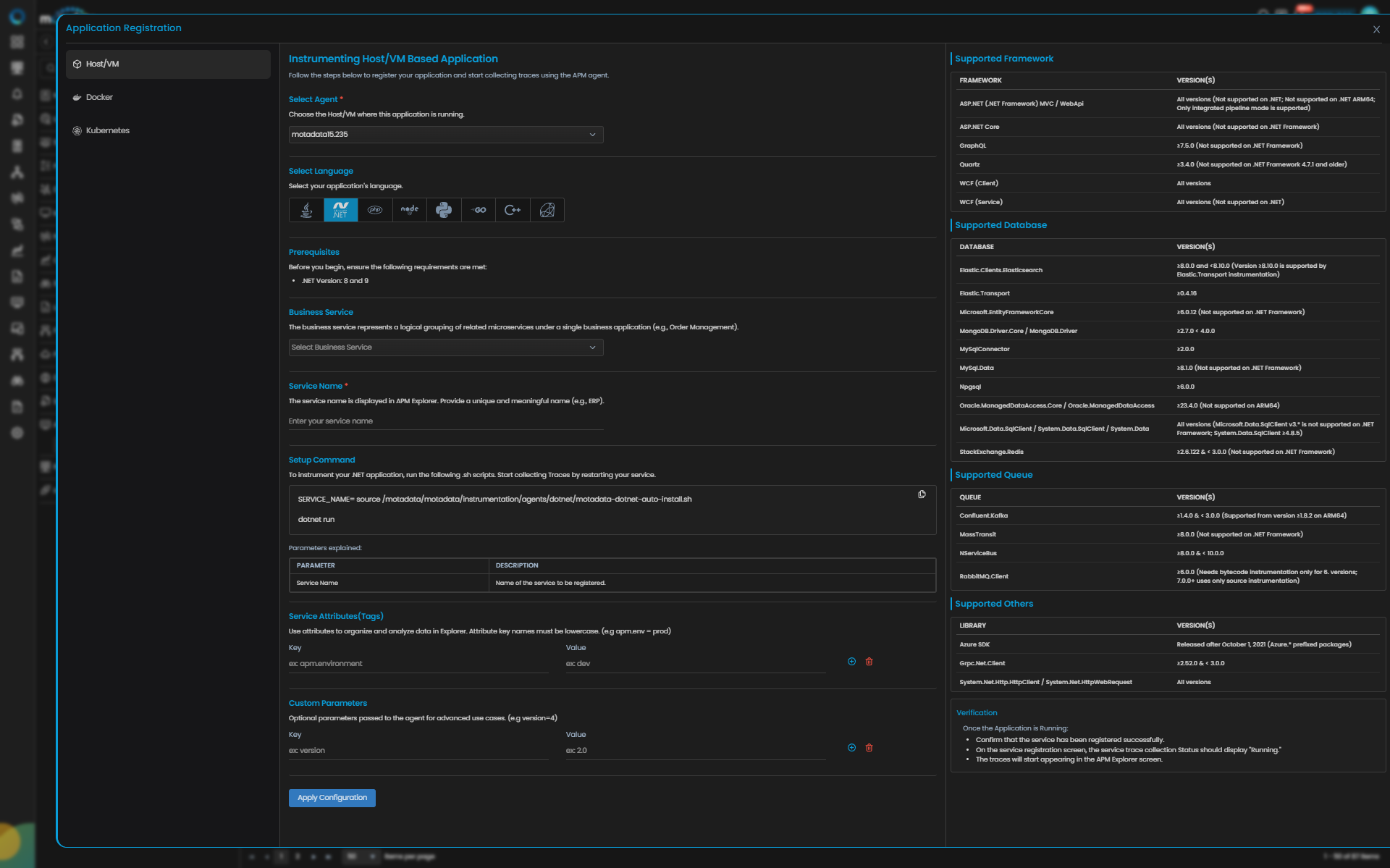
.NET Trace Configuration
| Field | Description |
|---|---|
| Select Agent | Select the Host/VM where this application is running. |
| Language | Select .NET from the language icons. |
| Service Name | Provide a unique and meaningful name (for example, orderservice). Service names can contain letters, numbers, dots (.), and underscores (_). Do not use spaces or hyphens. |
| Service Attributes (Tags) | Add key–value tags to your application for better filtering and organizing data in Explorer. Attribute key names must be lowercase (for example, apm.env = prod). To add multiple Key-Value pairs, click the add icon. |
| Add Custom Parameters | Allows you to define custom sampling or tagging parameters for advanced use cases. These optional parameters are passed to the agent (for example, version=4). |
Clicking the Apply Configuration button, the ingestion gets started.
Providing these details displays the Setup Command to instrument your .NET application. Run the generated command on the application host and restart the service to start collecting Traces.
Supported Frameworks
The following frameworks are supported for instrumentation and monitoring. Ensure your application version aligns with the supported versions listed below.
| FRAMEWORK | VERSION(S) |
|---|---|
| ASP.NET (.NET Framework) MVC / WebApi | All versions (Not supported on .NET; Not supported on .NET ARM64; Only integrated pipeline mode is supported) |
| ASP.NET Core | All versions (Not supported on .NET Framework) |
| GraphQL | ≥7.5.0 (Not supported on .NET Framework) |
| Quartz | ≥3.4.0 (Not supported on .NET Framework 4.7.1 and older) |
| WCF (Client) | All versions |
| WCF (Service) | All versions (Not supported on .NET) |
Supported Database
| Database | Version(s) |
|---|---|
| Elastic.Clients.Elasticsearch | ≥8.0.0 and <8.10.0 (Version ≥8.10.0 is supported by Elastic.Transport instrumentation) |
| Elastic.Transport | ≥0.4.16 |
| Microsoft.EntityFrameworkCore | ≥6.0.12 (Not supported on .NET Framework) |
| MongoDB.Driver.Core / MongoDB.Driver | ≥2.7.0 < 4.0.0 |
| MySqlConnector | ≥2.0.0 |
| MySql.Data | ≥8.1.0 (Not supported on .NET Framework) |
| Npgsql | ≥6.0.0 |
| Oracle.ManagedDataAccess.Core / Oracle.ManagedDataAccess | ≥23.4.0 (Not supported on ARM64) |
| Microsoft.Data.SqlClient / System.Data.SqlClient / System.Data | All versions (Microsoft.Data.SqlClient v3.* is not supported on .NET Framework; System.Data.SqlClient ≥4.8.5) |
| StackExchange.Redis | ≥2.6.122 & < 3.0.0 (Not supported on .NET Framework) |
Supported Queue
| Queue | Version(s) |
|---|---|
| Confluent.Kafka | ≥1.4.0 & < 3.0.0 (Supported from version ≥1.8.2 on ARM64) |
| MassTransit | ≥8.0.0 (Not supported on .NET Framework) |
| NServiceBus | ≥8.0.0 & < 10.0.0 |
| RabbitMQ.Client | ≥6.0.0 (Needs bytecode instrumentation only for 6. versions; 7.0.0+ uses only source instrumentation) |
Supported Others
| Library | Version(s) |
|---|---|
| Azure SDK | Released after October 1, 2021 (Azure.* prefixed packages) |
| Grpc.Net.Client | ≥2.52.0 & < 3.0.0 |
| System.Net.Http.HttpClient / System.Net.HttpWebRequest | All versions |
Step2: Configure .NET Instrumentation
Choose the appropriate method based on where your .NET application is running.
Instrument .NET on Linux Host/VM
The setup command generated in the UI is similar to the following:
SERVICE_NAME={{YourServiceName}} source /motadata/motadata/instrumentation/agents/dotnet/motadata-dotnet-auto-install.sh
Replace {{YourServiceName}} with the exact service name registered in Motadata APM.
Run the Setup Command
Open a terminal on the same Linux machine where your application runs, navigate to the application directory, and run:
cd /path/to/your/dotnet/application
SERVICE_NAME={{YourServiceName}} source /motadata/motadata/instrumentation/agents/dotnet/motadata-dotnet-auto-install.sh
Start the Application
Start the application in the same terminal session where you executed the setup command.
For example:
dotnet run
Or:
dotnet run --project YourProject.csproj
Or:
dotnet YourApplication.dll
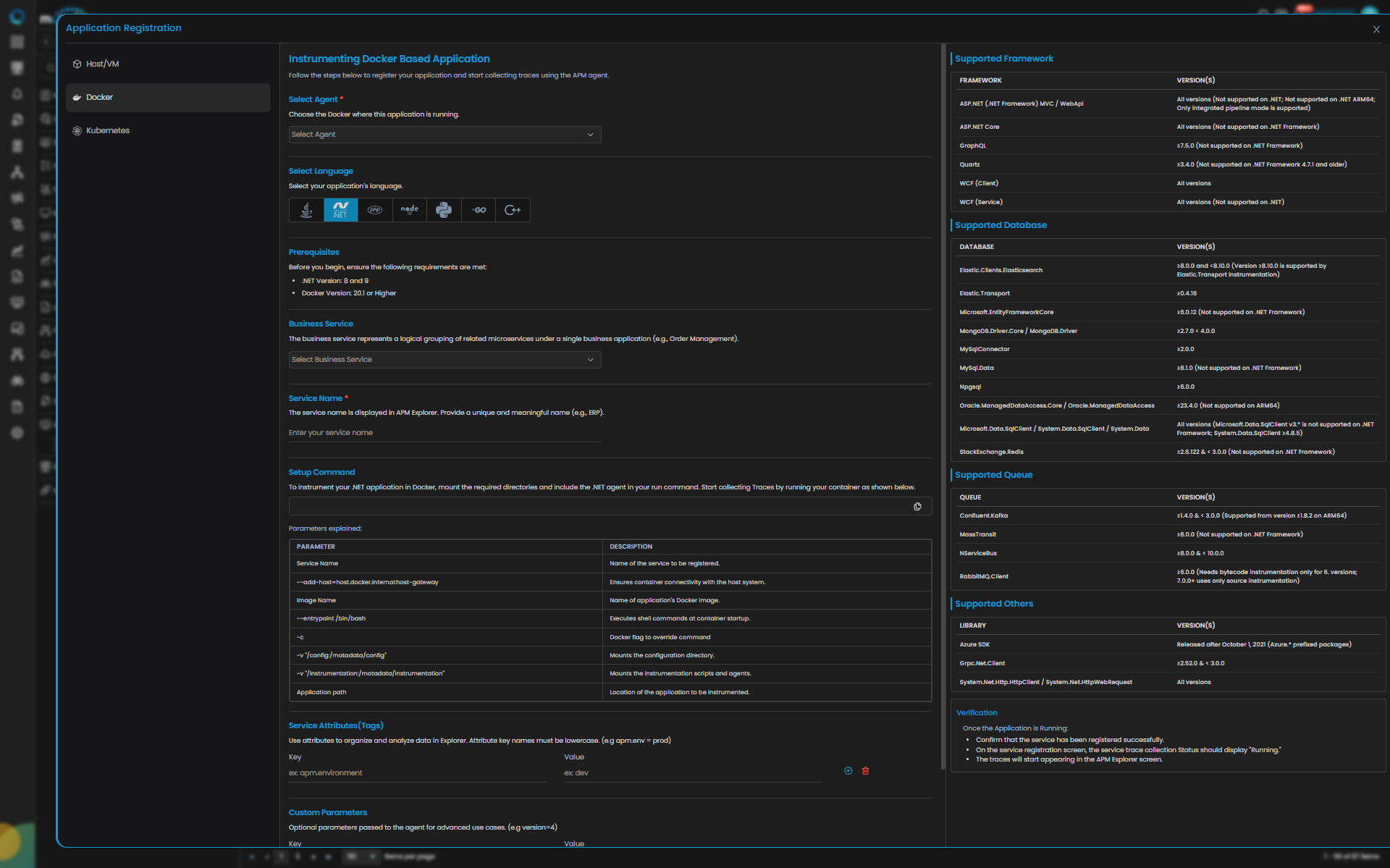
.NET Trace Configuration
| Field | Description |
|---|---|
| Select Agent | Select the Docker host where this application is running. |
| Language | Select .NET from the language icons. |
| Service Name | Provide a unique and meaningful name (for example, orderservice). Service names can contain letters, numbers, dots (.), and underscores (_). Do not use spaces or hyphens. |
| Image Name | Provide the Docker image name. |
| Service Attributes (Tags) | Add key–value tags to your application for better filtering and organizing data in Explorer. Attribute key names must be lowercase. |
| Add Custom Parameters | Allows you to define custom parameters for advanced use cases. |
Clicking the Apply Configuration button, the ingestion gets started.
Providing these details displays the Setup Command to instrument your .NET application in Docker.
Supported Frameworks
The following frameworks are supported for instrumentation and monitoring. Ensure your application version aligns with the supported versions listed below.
| FRAMEWORK | VERSION(S) |
|---|---|
| ASP.NET (.NET Framework) MVC / WebApi | All versions (Not supported on .NET; Not supported on .NET ARM64; Only integrated pipeline mode is supported) |
| ASP.NET Core | All versions (Not supported on .NET Framework) |
| GraphQL | ≥7.5.0 (Not supported on .NET Framework) |
| Quartz | ≥3.4.0 (Not supported on .NET Framework 4.7.1 and older) |
| WCF (Client) | All versions |
| WCF (Service) | All versions (Not supported on .NET) |
Supported Database
| Database | Version(s) |
|---|---|
| Elastic.Clients.Elasticsearch | ≥8.0.0 and <8.10.0 (Version ≥8.10.0 is supported by Elastic.Transport instrumentation) |
| Elastic.Transport | ≥0.4.16 |
| Microsoft.EntityFrameworkCore | ≥6.0.12 (Not supported on .NET Framework) |
| MongoDB.Driver.Core / MongoDB.Driver | ≥2.7.0 < 4.0.0 |
| MySqlConnector | ≥2.0.0 |
| MySql.Data | ≥8.1.0 (Not supported on .NET Framework) |
| Npgsql | ≥6.0.0 |
| Oracle.ManagedDataAccess.Core / Oracle.ManagedDataAccess | ≥23.4.0 (Not supported on ARM64) |
| Microsoft.Data.SqlClient / System.Data.SqlClient / System.Data | All versions (Microsoft.Data.SqlClient v3.* is not supported on .NET Framework; System.Data.SqlClient ≥4.8.5) |
| StackExchange.Redis | ≥2.6.122 & < 3.0.0 (Not supported on .NET Framework) |
Supported Queue
| Queue | Version(s) |
|---|---|
| Confluent.Kafka | ≥1.4.0 & < 3.0.0 (Supported from version ≥1.8.2 on ARM64) |
| MassTransit | ≥8.0.0 (Not supported on .NET Framework) |
| NServiceBus | ≥8.0.0 & < 10.0.0 |
| RabbitMQ.Client | ≥6.0.0 (Needs bytecode instrumentation only for 6. versions; 7.0.0+ uses only source instrumentation) |
Supported Others
| Library | Version(s) |
|---|---|
| Azure SDK | Released after October 1, 2021 (Azure.* prefixed packages) |
| Grpc.Net.Client | ≥2.52.0 & < 3.0.0 |
| System.Net.Http.HttpClient / System.Net.HttpWebRequest | All versions |
Instrument .NET in Docker on Linux
The setup command generated in the UI is used inside the Docker startup command. A typical Docker run command is similar to the following:
docker run -d \
  --add-host=host.docker.internal:host-gateway \
  -v "/motadata/motadata/instrumentation:/motadata/instrumentation" \
  -v "/motadata/motadata/config:/motadata/config" \
  --entrypoint /bin/bash \
  {YourDockerImage} \
  -c "SERVICE_NAME={YourServiceName} source '/motadata/instrumentation/agents/dotnet/motadata-dotnet-auto-install.sh' && <dotnet_app_startup_command>"
Replace:
{YourDockerImage}with your Docker image name{YourServiceName}with the exact service name registered in Motadata APM<dotnet_app_startup_command>with the actual application DLL path inside the container
Important Docker Parameters
| Parameter | Description |
|---|---|
--add-host=host.docker.internal:host-gateway | Allows the container to communicate with the agent on the host. |
-v "/motadata/motadata/instrumentation:/motadata/instrumentation" | Mounts instrumentation scripts from the host into the container. |
-v "/motadata/motadata/config:/motadata/config" | Mounts configuration files from the host into the container. |
--entrypoint /bin/bash | Overrides the entrypoint to execute the instrumentation and startup command. |
Run the Container
Execute the Docker command on the host machine, but not inside the container.
Verify the Container
Check whether the container is running:
docker ps
If needed, view exited containers and logs:
docker ps -a
docker logs <container_id_or_name>
Restarting the Container
Whenever the container is recreated or restarted using a new run flow, execute the full instrumented Docker command again.
Step3: Verify Trace Collection
Once the application is running, verify the below points:
- Confirm that the service has been registered successfully.
- On the service registration screen, the Service Trace Collection Status should display "Running."
- The traces will start appearing in the APM Explorer screen.
Prerequisites
- The Motadata Agent must be installed and running on the Windows server where the .NET application is deployed.
- The Motadata Agent version must be 8.1.1 or higher.
- The application must use: .NET Core 8 or 9, or .NET Framework 4.6.2 or higher.
To check the .NET version, use below command:
dotnet --version
.NET Core 8 self-contained deployments are not supported.
Supported operating systems include:
- Windows Client OS 8, 10, 11
- Windows Server OS 2012, 2016, 2019, 2022
For IIS deployments, IIS version must be 10 or higher.
PowerShell 5.1 with PSEdition Desktop is required.
Administrator privileges are required for all instrumentation commands.
To verify the Motadata Agent is running, open PowerShell as Administrator and run:
tasklist | findstr motadata-agent
tasklist | findstr otelcol
Configuration Steps
Step1: Register the Application Service in Motadata APM
Go to Menu > Settings > APM > Application Registration. Clicking the Application Registration button, you can register a new application.
From the application registration screen, select the instrumentation type Host/VM.
.NET Trace Configuration
| Field | Description |
|---|---|
| Select Agent | Select the Host/VM where this application is running. You can configure .NET application service for Windows type agent. |
| Language | Select .NET from the language icons. |
| .NET App Hosting Type | Select from IIS App Pool, Kestrel Server, or Windows Service. If IIS App Pool is selected, provide the App Pool Name. |
| Service Name | Provide a unique and meaningful name (for example, orderservice). Service names can contain letters, numbers, dots (.), and underscores (_). Do not use spaces or hyphens. |
| Service Attributes (Tags) | Add key–value tags to your application for better filtering and organizing data in Explorer. Attribute key names must be lowercase. |
| Add Custom Parameters | Allows you to define custom parameters for advanced use cases. |
Clicking the Apply Configuration button, the ingestion gets started.
Providing these details displays the Setup Command to instrument your .NET application.
Supported Frameworks
The following frameworks are supported for instrumentation and monitoring. Ensure your application version aligns with the supported versions listed below.
| Framework | Version(s) |
|---|---|
| ASP.NET (.NET Framework) MVC / WebApi | All versions (Not supported on .NET; Not supported on .NET ARM64; Only integrated pipeline mode is supported) |
| ASP.NET Core | All versions (Not supported on .NET Framework) |
| GraphQL | ≥7.5.0 (Not supported on .NET Framework) |
| Quartz | ≥3.4.0 (Not supported on .NET Framework 4.7.1 and older) |
| WCF (Client) | All versions |
| WCF (Service) | All versions (Not supported on .NET) |
Supported Database
| Database | Version(s) |
|---|---|
| Elastic.Clients.Elasticsearch | ≥8.0.0 and <8.10.0 (Version ≥8.10.0 is supported by Elastic.Transport instrumentation) |
| Elastic.Transport | ≥0.4.16 |
| Microsoft.EntityFrameworkCore | ≥6.0.12 (Not supported on .NET Framework) |
| MongoDB.Driver.Core / MongoDB.Driver | ≥2.7.0 < 4.0.0 |
| MySqlConnector | ≥2.0.0 |
| MySql.Data | ≥8.1.0 (Not supported on .NET Framework) |
| Npgsql | ≥6.0.0 |
| Oracle.ManagedDataAccess.Core / Oracle.ManagedDataAccess | ≥23.4.0 (Not supported on ARM64) |
| Microsoft.Data.SqlClient / System.Data.SqlClient / System.Data | All versions (Microsoft.Data.SqlClient v3.* is not supported on .NET Framework; System.Data.SqlClient ≥4.8.5) |
| StackExchange.Redis | ≥2.6.122 & < 3.0.0 (Not supported on .NET Framework) |
Supported Queue
| Queue | Version(s) |
|---|---|
| Confluent.Kafka | ≥1.4.0 & < 3.0.0 (Supported from version ≥1.8.2 on ARM64) |
| MassTransit | ≥8.0.0 (Not supported on .NET Framework) |
| NServiceBus | ≥8.0.0 & < 10.0.0 |
| RabbitMQ.Client | ≥6.0.0 (Needs bytecode instrumentation only for 6. versions; 7.0.0+ uses only source instrumentation) |
Supported Others
| Library | Version(s) |
|---|---|
| Azure SDK | Released after October 1, 2021 (Azure.* prefixed packages) |
| Grpc.Net.Client | ≥2.52.0 & < 3.0.0 |
| System.Net.Http.HttpClient / System.Net.HttpWebRequest | All versions |
Step2: Configure .NET Instrumentation
Choose the appropriate method based on how your application is hosted.
- IIS App Pool
- Kestrel Server
- Windows Service
Instrument IIS App Pool
Find the App Pool Name
Open IIS Manager (inetmgr), select Application Pools, and note the App Pool name used by your application.
Verify IIS Services
Open PowerShell as Administrator and run:
Get-Service W3SVC, WAS
Both services should be in Running state.
Import the Instrumentation Module
Import-Module "C:\Program Files\Motadata\Motadata Agent\motadata\instrumentation\agents\dotnet\motadata-dotnet-auto-install.psm1"
Register Instrumentation
Register-OpenTelemetryForIISAppPool -AppPoolName "{YourAppPoolName}" -OTelServiceName "{{YourServiceName}}"
Replace:
{{YourAppPoolName}}with the exact IIS App Pool name{{YourServiceName}}with the exact service name registered in Motadata APM
Recycle the App Pool
The script attempts to recycle the App Pool automatically. If it fails, restart IIS manually:
iisreset /restart
Instrument Kestrel Server
Import the Instrumentation Module
Open PowerShell as Administrator and run:
Import-Module "C:\Program Files\Motadata\Motadata Agent\motadata\instrumentation\agents\dotnet\motadata-dotnet-auto-install.psm1"
Register Instrumentation for Current Session
Register-OpenTelemetryForCurrentSession -OTelServiceName "{{YourServiceName}}"
Replace {{YourServiceName}} with the exact service name registered in Motadata APM.
Start the Application
Start the application in the same PowerShell window where the registration command was executed.
For example:
dotnet run
Or:
dotnet C:\path\to\your\application\myapp.dll
Instrument Windows Service
Find the Windows Service Name
Open Services (services.msc) and note the exact Service name of your application.
Import the Instrumentation Module
Open PowerShell as Administrator and run:
Import-Module "C:\Program Files\Motadata\Motadata Agent\motadata\instrumentation\agents\dotnet\motadata-dotnet-auto-install.psm1"
Register Instrumentation
Register-OpenTelemetryForWindowsService -WindowsServiceName "YourWindowsServiceName" -OTelServiceName "{YourServiceName}"
Replace:
YourWindowsServiceNamewith the exact Windows Service name.{YourServiceName}with the exact service name registered in Motadata APM.
The script updates the registry-based environment variables and restarts the Windows Service automatically.
Step3: Verify Trace Collection
Once the application is running, verify the below points:
- Confirm that the service has been registered successfully.
- On the service registration screen, the Service Trace Collection Status should display "Running."
- The traces will start appearing in the APM Explorer screen.
Troubleshooting
- Linux Host/VM
- Windows Host/VM
- Linux Docker
Problem 1: Permission denied while running the instrumentation command
Cause
The current user does not have sufficient permission to execute the instrumentation script or access the required files.
Remedy
Run the instrumentation command with elevated privileges.
sudo SERVICE_NAME=orderservice source /motadata/motadata/instrumentation/agents/dotnet/motadata-dotnet-auto-install.sh
After the command completes, start the application normally if your application does not require sudo.
Problem 2: Environment variables are not set after running the setup command
Cause The instrumentation command did not execute correctly, or the application was started from a different terminal session. For Linux Host/VM, the exported environment variables are session-specific.
Remedy Run the following commands in the same terminal where you executed the instrumentation command:
echo $CORECLR_ENABLE_PROFILING
echo $CORECLR_PROFILER
echo $OTEL_DOTNET_AUTO_HOME
echo $OTEL_EXPORTER_OTLP_ENDPOINT
If the values are empty, rerun the instrumentation command:
SERVICE_NAME=orderservice source /motadata/motadata/instrumentation/agents/dotnet/motadata-dotnet-auto-install.sh
Then start the application in the same terminal:
dotnet run
Problem 3: Traces are not visible even though the application starts successfully
Cause The Motadata Agent may not be running correctly, the service configuration file may be missing, or trace files may not be getting generated.
Remedy
- Restart the Motadata Agent:
sudo service motadata restart
- Verify that the configuration file exists:
ls -la /motadata/motadata/config/orderservice.properties
- Check trace logs for recent errors:
ls /motadata/motadata/logs/trace/
- Rerun the instrumentation command and restart the application:
SERVICE_NAME=orderservice source /motadata/motadata/instrumentation/agents/dotnet/motadata-dotnet-auto-install.sh
dotnet run
Problem 4: Configuration file is missing
Cause The service may not have been created successfully from the UI, or the properties file was not generated.
Remedy Check whether the configuration file exists:
ls -la /motadata/motadata/config/orderservice.properties
If the file is missing:
- Go back to the Motadata APM UI
- Verify that the service was created successfully
- Delete and recreate the service if required
- Confirm that the
.propertiesfile is generated after saving the service
Problem 5: Motadata Agent is not running
Cause
The Motadata Agent service or the otelcol process is not active on the host.
Remedy Check the agent status:
service motadata status
If needed, use sudo:
sudo service motadata status
If the agent is inactive or failed, start it:
sudo service motadata start
Then verify the status again:
sudo service motadata status
Confirm that the following processes are active:
motadata-agentotelcol
Problem 6: Unsupported .NET version
Cause The application is running on an unsupported runtime version.
Remedy Check the installed .NET version:
dotnet --version
Supported versions for Linux Host/VM are:
- .NET Core 8
- .NET Core 9
Also note that .NET Core 8 self-contained deployments are not supported.
Problem 7: Traces take too long to appear
Cause By default, only 10% of traces are sampled. This can delay visibility during testing.
Remedy Temporarily increase the sampling rate to 100% for testing.
Edit the properties file:
sudo nano /motadata/motadata/config/yourservice.properties
Change:
otel.traces.sampler.arg=0.1
to:
otel.traces.sampler.arg=1
Save the file, then rerun the instrumentation command and restart the application:
SERVICE_NAME=yourservice source /motadata/motadata/instrumentation/agents/dotnet/motadata-dotnet-auto-install.sh
dotnet run
After testing, revert the value back to 0.1 and restart the application again.
Problem 8: Traces are generated but not exported to APM
Cause The exporter configuration may not be working as expected.
Remedy Temporarily switch the exporter to console output for debugging.
Edit the properties file:
sudo nano /motadata/motadata/config/yourservice.properties
Change:
otel.traces.exporter=otlp
to:
otel.traces.exporter=console
Then rerun the instrumentation command and restart the application:
SERVICE_NAME=yourservice source /motadata/motadata/instrumentation/agents/dotnet/motadata-dotnet-auto-install.sh
dotnet run
Trace output will appear in the same terminal where the application is running.
After debugging, change the exporter back to otlp and restart the application again.
Problem 9: Traces stopped appearing after system reboot
Cause The Motadata Agent may not have restarted properly, and Linux Host/VM instrumentation environment variables do not persist across reboots.
Remedy
- Check the agent status:
sudo service motadata status
- Start the agent if required:
sudo service motadata start
- Rerun the instrumentation command:
SERVICE_NAME=orderservice source /motadata/motadata/instrumentation/agents/dotnet/motadata-dotnet-auto-install.sh
- Start the application again:
dotnet run
Extra debugging: Enable detailed .NET auto-instrumentation logs
Cause More detailed logs may be needed for advanced troubleshooting.
Remedy
Set debug logging using environment variables:
export OTEL_LOG_LEVEL=debug
export OTEL_DOTNET_AUTO_LOG_DIRECTORY=/var/log/otel-logs
Or use the properties file:
otel.dotnet.auto.debug=true
otel.dotnet.auto.log.level=debug
otel.dotnet.auto.log.directory=/var/log/otel-logs
otel.dotnet.auto.logger=file
Default internal log location:
/var/log/opentelemetry/dotnet
After troubleshooting, revert the debug configuration and rerun the instrumentation command before starting the application again.
Problem 1: PowerShell version is not supported
Cause The instrumentation commands require PowerShell 5.1 with PSEdition Desktop. PowerShell Core or a lower version is not supported.
Remedy Check the PowerShell version:
$PSVersionTable
Verify the following:
PSVersionis 5.1PSEditionis Desktop
If you are using PowerShell Core, close it and open regular PowerShell as Administrator.
Problem 2: PowerShell commands fail immediately
Cause PowerShell may not be running with Administrator privileges, or script execution may be restricted.
Remedy
Verify Administrator access:
([Security.Principal.WindowsPrincipal][Security.Principal.WindowsIdentity]::GetCurrent()).IsInRole([Security.Principal.WindowsBuiltInRole]::Administrator)
If the output is False, reopen PowerShell as Administrator.
If scripts are blocked, run:
Set-ExecutionPolicy -ExecutionPolicy RemoteSigned -Scope CurrentUser
Then retry the instrumentation steps.
Problem 3: Motadata Agent is not running
Cause
The Windows service for the Motadata Agent or the otelcol process is not running.
Remedy Check the running processes:
tasklist | findstr motadata-agent
tasklist | findstr otelcol
If the agent is not running, start it from Services and verify again.
Problem 4: IIS App Pool does not show traces after registration
Cause IIS services may not be running, environment variables may not have been applied to the App Pool, or the App Pool may not have recycled successfully.
Remedy
- Verify IIS services:
Get-Service W3SVC, WAS
- If required, start them:
Start-Service W3SVC, WAS
- Verify App Pool environment variables:
Get-WebConfigurationProperty -filter "system.applicationHost/applicationPools/add[@name='{YourAppPoolName}']/environmentVariables/*" -name "name"
- Recycle the App Pool:
Import-Module WebAdministration
Restart-WebAppPool -Name "{YourAppPoolName}"
- If that fails, restart IIS:
iisreset /restart
Problem 5: Kestrel application starts, but no traces appear
Cause The instrumentation variables were not applied in the current PowerShell session, or the application was started in a different PowerShell window.
Remedy Use the following sequence in the same PowerShell window:
Import-Module "C:\Program Files\Motadata\Motadata Agent\motadata\instrumentation\agents\dotnet\motadata-dotnet-auto-install.psm1"
Register-OpenTelemetryForCurrentSession -OTelServiceName "orderservice"
echo $env:OTEL_SERVICE_NAME
dotnet C:\path\to\your\app\myapp.dll
If you close PowerShell, repeat all the steps again.
Problem 6: Windows Service instrumentation is not applied
Cause The environment variables may not have been written to the registry, the Windows Service name may be incorrect, or the service may not have restarted.
Remedy
Check registry-based environment variables:
Get-ItemProperty -Path "HKLM:\SYSTEM\CurrentControlSet\Services\{YourServiceName}" -Name Environment -ErrorAction SilentlyContinue
Verify that the Windows Service name is correct:
Get-Service | Where-Object {$_.Name -eq "{YourServiceName}"}
Rerun the registration command:
Import-Module "C:\Program Files\Motadata\Motadata Agent\motadata\instrumentation\agents\dotnet\motadata-dotnet-auto-install.psm1"
Register-OpenTelemetryForWindowsService -WindowsServiceName "{YourServiceName}" -OTelServiceName "{YourServiceName}"
Check whether the service is running:
Get-Service -Name "{YourServiceName}"
If needed, start it manually:
Start-Service -Name "{YourServiceName}"
Problem 7: The instrumentation module cannot be imported
Cause The module file path may be incorrect, or the instrumentation files may not be installed.
Remedy Verify that the module file exists:
Test-Path "C:\Program Files\Motadata\Motadata Agent\motadata\instrumentation\agents\dotnet\motadata-dotnet-auto-install.psm1"
If the result is False, reinstall or repair the Motadata Agent installation.
If the result is True, verify that the import path is correct.
Problem 8: IIS App Pool remains stopped after instrumentation
Cause The App Pool may have failed to recycle or start after applying instrumentation variables.
Remedy Start the App Pool manually:
Import-Module WebAdministration
Start-WebAppPool -Name "{YourAppPoolName}"
Or use IIS Manager to start it.
If the App Pool fails again, review the Application Event Log:
Get-EventLog -LogName Application -Newest 50 | Where-Object {$_.Source -like "*IIS*"}
Problem 9: Traces take too long to appear
Cause Default trace sampling is set to 10%.
Remedy Edit the service properties file:
notepad "C:\Program Files\Motadata\Motadata Agent\motadata\config\{YourServiceName}.properties"
Change:
otel.traces.sampler.arg=0.1
to:
otel.traces.sampler.arg=1
Then restart the deployment type accordingly:
- IIS App Pool → recycle App Pool
- Windows Service → restart service
- Kestrel → rerun session registration and restart the app
After testing, revert the value back to 0.1.
Problem 10: Traces are generated but not exported to APM
Cause The exporter configuration may not be functioning correctly.
Remedy Edit the service properties file:
notepad "C:\Program Files\Motadata\Motadata Agent\motadata\config\{YourServiceName}.properties"
Change:
otel.traces.exporter=otlp
to:
otel.traces.exporter=console
Then apply the change:
- IIS App Pool → recycle App Pool
- Windows Service → restart service
- Kestrel → rerun session registration and restart the app
Check output in:
- Kestrel → PowerShell console
- IIS → application logs or IIS logs
- Windows Service → Windows Event Viewer or service logs
After debugging, change the exporter back to otlp.
Problem 11: No traces after Windows reboot
Cause
The Motadata Agent may not have started correctly, otelcol may not be running, or the application/service may not have restarted.
Remedy
- Verify the agent and
otelcol:
tasklist | findstr motadata-agent
tasklist | findstr otel
- Verify the application runtime:
For IIS:
Get-Service W3SVC, WAS
For Windows Service:
Get-Service -Name "{YourServiceName}"
For Kestrel, rerun:
Import-Module "C:\Program Files\Motadata\Motadata Agent\motadata\instrumentation\agents\dotnet\motadata-dotnet-auto-install.psm1"
Register-OpenTelemetryForCurrentSession -OTelServiceName "{YourServiceName}"
dotnet C:\path\to\your\app\myapp.dll
Wait a few minutes and verify the service status in Motadata APM.
Extra debugging: Enable detailed .NET auto-instrumentation logs
Cause Additional logs may be required for deeper troubleshooting.
Remedy
For Kestrel, use environment variables:
$env:OTEL_LOG_LEVEL="debug"
$env:OTEL_DOTNET_AUTO_LOG_DIRECTORY="C:\otel-logs"
For IIS and Windows Services, use the properties file:
otel.dotnet.auto.debug=true
otel.dotnet.auto.log.level=debug
otel.dotnet.auto.log.directory=C:\otel-logs
otel.dotnet.auto.logger=file
Default internal log path:
%ProgramData%\OpenTelemetry .NET AutoInstrumentation\logs
After troubleshooting, revert the settings and restart the application or service.
Problem 1: Container fails to start
Cause The application path inside the container may be incorrect, the Docker image may not contain the required .NET runtime, or there may be permission issues during instrumentation setup.
Remedy
Check container status and logs:
docker ps -a
docker logs <container_id_or_name>
Verify:
- The application DLL path is correct
- The Docker image contains .NET Core 8 or 9:
docker run --rm myapp:latest dotnet --version
If permission issues are suspected, prepare instrumentation with elevated access:
sudo /motadata/motadata/instrumentation/agents/dotnet/prepare-dotnet-instrumentation.sh
Problem 2: Container starts, but no traces appear
Cause The Motadata Agent on the host may not be running, the service configuration file may be missing, or traces may not be getting generated on the host.
Remedy
- Verify the container is running:
docker ps
- Verify the Motadata Agent on the host:
sudo service motadata status
- Check the service properties file on the host:
ls -la /motadata/motadata/config/orderservice.properties
- Restart the Motadata Agent if required:
sudo service motadata restart
- Recreate the Docker container using the instrumented Docker run command.
Problem 3: Container cannot reach the Motadata Agent on the host
Cause The Docker run command may be missing the required host mapping.
Remedy
Verify the Docker version:
docker --version
Ensure the Docker command contains:
--add-host=host.docker.internal:host-gateway
Test connectivity from inside the container:
docker exec -it <container_id_or_name> /bin/bash
ping host.docker.internal
If the ping fails, fix the container networking and rerun the container.
Problem 4: Instrumentation volumes are not mounted correctly
Cause The container is missing required volume mounts for instrumentation scripts and configuration files.
Remedy
Check the mounted volumes:
docker inspect <container_id_or_name> | grep -A 10 Mounts
Verify the following mappings exist:
/motadata/motadata/instrumentation→/motadata/instrumentation/motadata/motadata/config→/motadata/config
If they are missing, stop and remove the container, then recreate it with the correct volume mappings.
Problem 5: Motadata Agent is not running on the host
Cause
The host-side agent or the otelcol process is not active.
Remedy
Check the agent status on the host:
sudo service motadata status
If the service is not running, start it:
sudo service motadata start
Then verify the service again and confirm that otelcol is present.
Problem 6: Traces take too long to appear
Cause Default trace sampling is set to 10%.
Remedy
Edit the service properties file on the host:
sudo nano /motadata/motadata/config/yourservice.properties
Change:
otel.traces.sampler.arg=0.1
to:
otel.traces.sampler.arg=1
Then recreate the container using the full instrumented Docker run command.
After testing, revert the value to 0.1 and recreate the container again.
Problem 7: Traces are generated but not exported to APM
Cause The exporter configuration may not be working as expected.
Remedy
Edit the service properties file on the host:
sudo nano /motadata/motadata/config/yourservice.properties
Change:
otel.traces.exporter=otlp
to:
otel.traces.exporter=console
Then recreate the container using the full instrumented Docker run command.
View the logs:
docker logs <container_id_or_name>
Or follow them live:
docker logs -f <container_id_or_name>
After debugging, revert the exporter value to otlp and recreate the container again.
Problem 8: No traces after host reboot
Cause The host-side Motadata Agent may not have restarted correctly, or the instrumented container may not have been recreated.
Remedy
- Verify the Motadata Agent on the host:
sudo service motadata status
- Start it if required:
sudo service motadata start
- Verify the container state:
docker ps
docker ps -a
- Recreate the container using the full instrumented Docker run command.
Extra debugging: Enable detailed .NET auto-instrumentation logs
Cause Additional debug logs may be required for deeper analysis.
Remedy
Set debug environment variables:
export OTEL_LOG_LEVEL=debug
export OTEL_DOTNET_AUTO_LOG_DIRECTORY=/var/log/otel-logs
Or use the properties file:
otel.dotnet.auto.debug=true
otel.dotnet.auto.log.level=debug
otel.dotnet.auto.log.directory=/var/log/otel-logs
otel.dotnet.auto.logger=file
Default internal log path:
/var/log/opentelemetry/dotnet
After troubleshooting, revert the settings and recreate the container again.