PostgreSQL Upgrade Guide
A comprehensive guide for upgrading PostgreSQL databases in ServiceOps environments to ensure data integrity, security, and performance improvements across all deployment architectures.
PostgreSQL database upgrades are critical maintenance tasks that provide access to the latest features, security patches, and performance improvements. An outdated database can be vulnerable to security risks and may lack the efficiency of newer versions. This guide provides a clear, step-by-step process to help you upgrade your PostgreSQL instance smoothly and without data loss.
Key Benefits of PostgreSQL Upgrades
- Security Enhancements: Access to latest security patches and vulnerability fixes
- Performance Improvements: Better query optimization and resource utilization
- Feature Access: New database capabilities and improved functionality
- Compatibility: Enhanced compatibility with modern applications and tools
- Support: Extended support lifecycle and bug fixes
Supported Operating Systems
- Ubuntu: 22, 24
- Red Hat: 9.2, 9.4
For clients using Ubuntu 18 or Ubuntu 20, it is necessary to upgrade the operating system to Ubuntu 22 before proceeding with the PostgreSQL upgrade.
Pre-Upgrade Requirements
System Prerequisites
Before initiating the PostgreSQL upgrade, ensure your system meets these requirements:
- Database Backup: Complete backup of all databases and configuration files
- Disk Space: Sufficient space for upgrade packages and temporary files
- Service Dependencies: All ServiceOps services must be stopped during upgrade
- Network Stability: Stable network connectivity for download and installation
- VM Snapshots: Virtual machine snapshots for rollback capability
Pre-Upgrade Checklist
Complete these essential steps before starting the PostgreSQL upgrade:
- Database Backup: Take a complete database backup
- Configuration Backup: Backup PostgreSQL configuration files
- VM Snapshot: Create VM snapshot if running on virtual machine
- Service Inventory: Document all running ServiceOps services
- Disk Space Check: Verify sufficient disk space (minimum 150 MB/s I/O)
- Memory Check: Ensure adequate memory availability
- Maintenance Window: Schedule upgrade during low-usage periods
- Team Notification: Inform stakeholders about planned upgrade
Always perform complete backups before PostgreSQL upgrades. Refer to the Backup Process for detailed backup procedures.
Upgrade Procedures
- v17.5
- v16.8
Upgrade to PostgreSQL 17.5
This section provides detailed, step-by-step instructions for upgrading PostgreSQL to version 17.5 across various deployment architectures.
Standalone PostgreSQL Upgrade
Pre-Upgrade Checklist
Check Disk I/O Speed: Ensure that the I/O speed is greater than 150 MB/s:
dd if=/dev/zero of=/tmp/test1.img bs=1G count=1 oflag=dsyncCheck Available Disk Space:
df -hCheck Memory Availability:
free -hClear Cache:
sudo sync; sudo sysctl -w vm.drop_caches=3Backup and Snapshot: Take a full database backup along with the config file and create VM snapshot
Step 1: Stop All Services
Before upgrading the ServiceOps application, stop all the running services to avoid conflicts during the installation:
Stop Services: Login to the terminal and stop all the services:
sudo systemctl stop ft-analytics-server.service ft-main-server.service ft-chat-server.service ft-ai-server.service ft-file-server.service ft-plugin-server.service meshcentral.service
Verify Service Status: Verify that all services are stopped:
sudo systemctl status ft-analytics-server.service ft-main-server.service ft-chat-server.service ft-ai-server.service ft-file-server.service ft-plugin-server.service meshcentral.serviceIf any service is still running, repeat the stop command.
Step 2: Prepare for PostgreSQL Upgrade
After ensuring that all services are stopped, follow these steps to upgrade the PostgreSQL:
Download Upgrade Tool: Download the MotadataPGDBUpgrade file
Login to Server: Login to the terminal server
Switch to Root: Switch to the root user
Set Permissions: Provide the necessary execution permissions:
chmod 777 MotadataPGDatabaseUpgrade
Run Installer: Execute the PostgreSQL upgrade installer:
./MotadataPGDatabaseUpgrade
Respond to Upgrade Prompts: The script will prompt for upgrade options:
Upgrade PostgreSQL 16 → 17? (y/n):
Upgrade PostgreSQL 11 → 17? (y/n):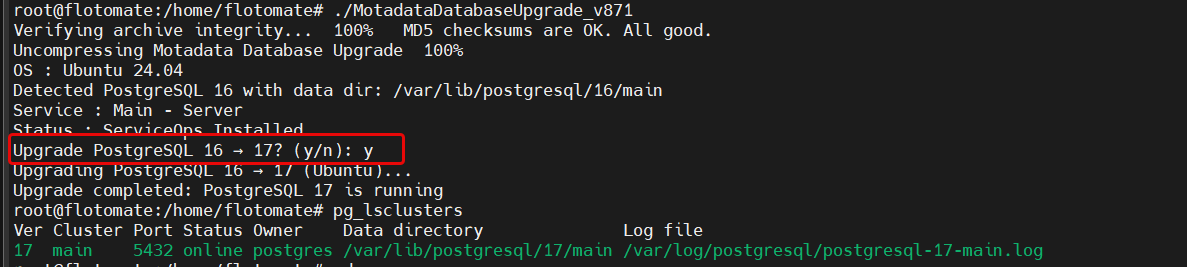
Enter y for the relevant version upgrade.
Wait for Completion: The upgrade may take some time. Do not interrupt the process.
Step 3: Verify PostgreSQL Upgrade
Once the PostgreSQL upgrade is installed, check the PostgreSQL version to confirm the upgrade was successful:
Switch to Postgres User:
sudo su
su postgres
Open PostgreSQL Console:
psqlCheck Cluster Status:
pg_lsclustersCheck Version:
select version();Ensure that the version displayed matches the expected upgraded version.
Step 4: Restart Services
Once the PostgreSQL version is upgraded successfully, restart all the previously stopped services:
sudo systemctl start ft-analytics-server.service
sudo systemctl start ft-main-server.service
sudo systemctl start ft-chat-server.service
sudo systemctl start ft-ai-server.service
sudo systemctl start ft-file-server.service
sudo systemctl start ft-plugin-server.service
sudo systemctl start meshcentral.service
Step 5: Monitor Logs & Services
Observe the logs and services to ensure everything is running smoothly. Pay special attention to the following key services:
- Main Server
- AI Server
- Analytics Server
- Plugin Server
- Meshcentral Server
Upgrade to PostgreSQL 16.8
This section provides a step-by-step guide to upgrading PostgreSQL efficiently and safely from version 11 to 16.8.
Pre-Upgrade Preparations
Before initiating the upgrade process, it is essential to take necessary backups and precautions to prevent data loss:
- Database Backup: Take a complete database backup
- VM Snapshot: If the server runs on a virtual machine, create a snapshot before upgrading
Step 1: Stop All Services
Before upgrading the ServiceOps application, stop all the running services to avoid conflicts during the installation.
Stop Services: Open the terminal and stop all the services using the following commands:
sudo systemctl stop ft-analytics-server.service ft-main-server.service ft-chat-server.service ft-ai-server.service ft-file-server.service ft-plugin-server.service meshcentral.serviceVerify Service Status: Verify the status of the services using the below commands:
sudo systemctl status ft-analytics-server.service ft-main-server.service ft-chat-server.service ft-ai-server.service ft-file-server.service ft-plugin-server.service meshcentral.serviceIf any service is still running, repeat the stop command.
Step 2: Prepare for PostgreSQL Upgrade
After ensuring that all services are stopped, follow these steps to upgrade the PostgreSQL:
Download Upgrade Tool: Download the MotadataPGDBUpgrade file
Login to Server: Login to the terminal server
Switch to Root: Switch to the root user
Set Permissions: Provide the necessary execution permissions to the PostgreSQL upgrade installer:
chmod 777 MotadataPGDatabaseUpgradeRun Installer: Execute the PostgreSQL upgrade installer:
./MotadataPGDatabaseUpgrade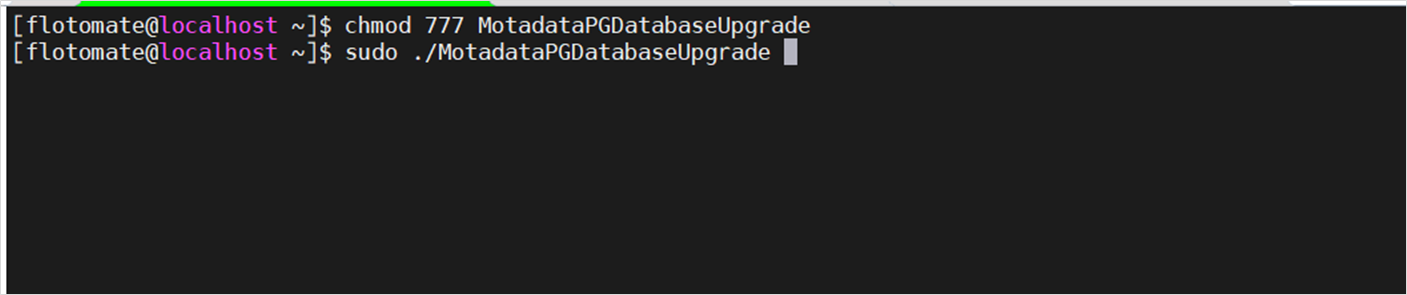 Root User Requirement
Ensure that the installer is executed with the root user only.
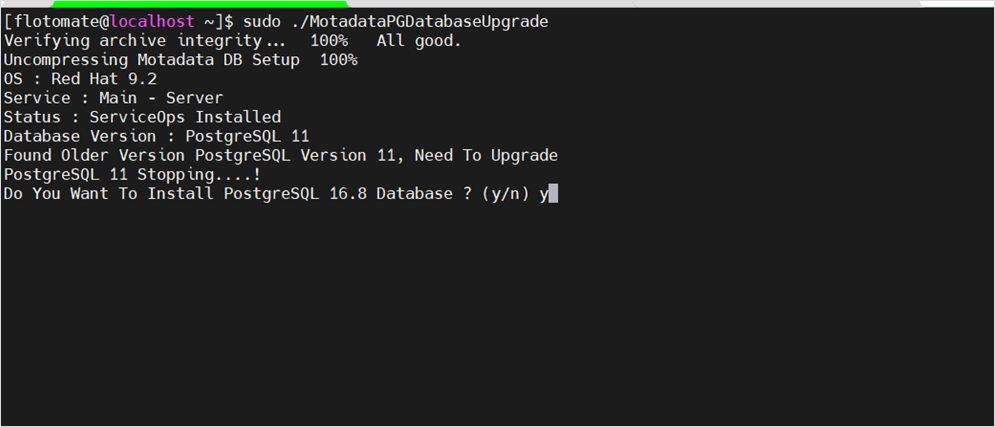
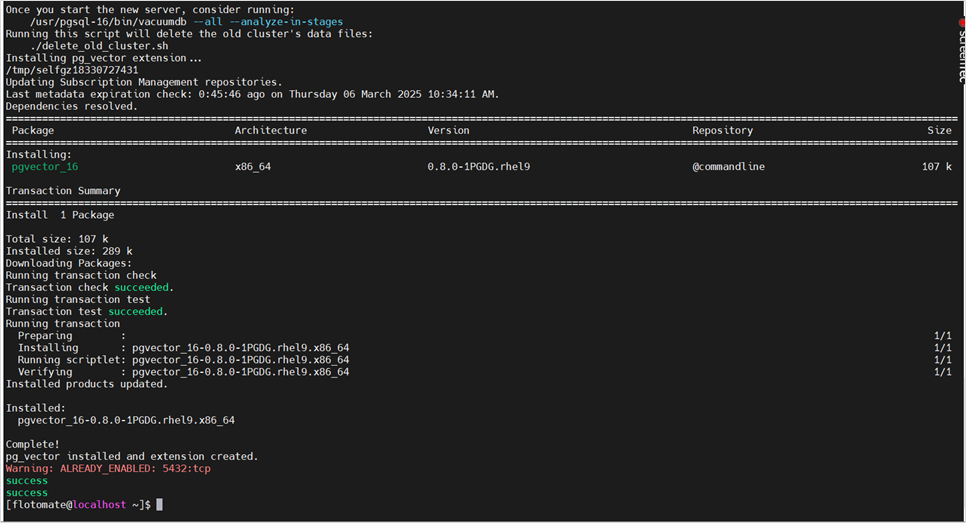
Enter y for Yes when the “Do You Want To Install PostgreSQL 16.8 Database ?” prompt appears.
Step 3: Verify PostgreSQL Upgrade
Once the PostgreSQL upgrade is installed, check the PostgreSQL version to confirm the upgrade was successful:
Switch to Postgres User:
sudo su
su postgres
Open PostgreSQL Console:
psqlCheck Version:
select version();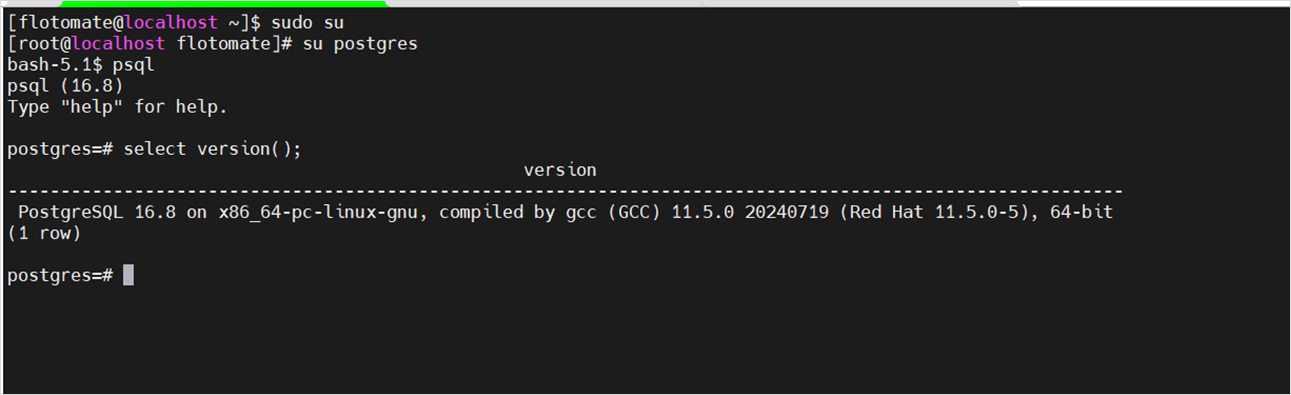
Ensure that the version displayed matches the expected upgraded version.
Step 4: Restart Services
Once the PostgreSQL version is upgraded successfully, restart all the previously stopped services:
sudo systemctl start ft-analytics-server.service
sudo systemctl start ft-main-server.service
sudo systemctl start ft-chat-server.service
sudo systemctl start ft-ai-server.service
sudo systemctl start ft-file-server.service
sudo systemctl start ft-plugin-server.service
sudo systemctl start meshcentral.service
Step 5: Monitor Logs & Services
Observe the logs and services to ensure everything is running smoothly. Pay special attention to the following key services:
- Main Server
- AI Server
- Analytics Server
- Plugin Server
- Meshcentral Server
Post-Upgrade Validation
Service Verification
After completing the PostgreSQL upgrade, verify that all services are running correctly:
Check Service Status: Verify all ServiceOps services are running:
sudo systemctl status ft-analytics-server.service ft-main-server.service ft-chat-server.service ft-ai-server.service ft-file-server.service ft-plugin-server.service meshcentral.serviceDatabase Connectivity: Test database connectivity and query performance
Application Functionality: Verify core application features are working
Log Monitoring: Monitor logs for any errors or warnings
Performance Validation
- Query Performance: Test critical database queries for performance improvements
- Resource Utilization: Monitor CPU, memory, and disk usage
- Connection Pooling: Verify database connection pooling is working correctly
Troubleshooting
Common Issues and Solutions
- Service Startup Failures: Check PostgreSQL logs and configuration files
- Database Connection Issues: Verify PostgreSQL service status and port configuration
- Performance Degradation: Monitor system resources and database statistics
- HA Cluster Issues: Check cluster status and synchronization
Rollback Procedures
If the upgrade fails or causes issues:
- Stop All Services: Stop all ServiceOps services
- Restore Backup: Restore the database from the pre-upgrade backup
- VM Snapshot Recovery: If available, restore from VM snapshot
- Reinstall Previous Version: Install the previous PostgreSQL version
Additional Recommendations
Best Practices
- Backup Strategy: Always take a full backup of both DC and DR PostgreSQL databases before initiating the upgrade
- Network Validation: Ensure stable network connectivity between DC and DR during and after the upgrade
- Version Compatibility: Confirm that the application version is compatible with the target PostgreSQL version
- Post-Upgrade Validation: Verify service functionality and data consistency after the upgrade is complete on both sites
- Testing Environment: Test the upgrade process in a non-production environment first
- Documentation: Document any custom configurations or modifications made during the upgrade
Maintenance Considerations
- Regular Updates: Schedule regular PostgreSQL updates to maintain security and performance
- Monitoring: Implement comprehensive monitoring for database performance and health
- Capacity Planning: Monitor database growth and plan for future capacity needs
- Security: Regularly review and update database security configurations
Related Topics
- HA Upgrade Guide - Comprehensive guide for upgrading ServiceOps in High Availability environments
- DC-DR Upgrade Guide - Step-by-step instructions for upgrading Data Center-Disaster Recovery setups
- ServiceOps Server Upgrade Guide - Complete guide for upgrading ServiceOps server components
- Backup and Restore - Essential backup procedures before performing upgrades
- High Availability Setup - Configuration and management of HA environments
- DC-DR Setup - Data Center-Disaster Recovery configuration and management