Upgrade Guide for Ubuntu OS
A comprehensive guide for upgrading Ubuntu operating system from version 22 to 24 to ensure access to latest features, security updates, and ServiceOps compatibility.
Ubuntu OS upgrades are essential for maintaining system security, accessing latest features, and ensuring compatibility with ServiceOps applications. This guide covers the upgrade process from Ubuntu 22 to Ubuntu 24, which provides enhanced security, performance improvements, and long-term support.
Key Benefits of Ubuntu 24:
- Enhanced Security: Latest security patches and vulnerability fixes
- Performance Improvements: Optimized system performance and resource management
- Long-term Support: Extended support lifecycle for enterprise environments
- ServiceOps Compatibility: Full compatibility with ServiceOps v8.6.0 and above
- Latest Features: Access to newest Ubuntu features and capabilities
Pre-Upgrade Requirements
System Prerequisites:
Before initiating the Ubuntu upgrade, ensure your system meets these requirements:
- Current Version: Ubuntu 22.x (verified using
cat /etc/os-release) - Internet Connectivity: Stable internet connection for package downloads
- Disk Space: Minimum 10GB free space for upgrade packages and temporary files
- Network Access: Port 1022 must be open for upgrade process
- ServiceOps Compatibility: Verify ServiceOps version supports Ubuntu 24
Network Configuration:
Ensure port 1022 is open for the upgrade process:
# Option 1: Using iptables
sudo /sbin/iptables -I INPUT -p tcp --dport 1022 -j ACCEPT

# Option 2: Using ufw firewall
ufw allow 1022
Pre-Upgrade Checklist:
Complete these essential steps before starting the upgrade:
- System Backup: Create complete system backup or VM snapshot
- ServiceOps Backup: Backup ServiceOps database, application folder, and FileDB
- Service Status: Stop ServiceOps services before upgrade
- Disk Space: Verify adequate free disk space (minimum 10GB)
- Network Connectivity: Test internet connectivity and port accessibility
- Maintenance Window: Schedule upgrade during low-usage periods
- Team Notification: Inform stakeholders about planned downtime
Always perform complete backups before OS upgrades. Refer to the Backup Procedure for detailed steps.
Upgrade Procedure
Step 1: Pre-Upgrade Preparations
System Backup:
- VM Snapshot: If running on a virtual machine, create a snapshot for recovery
- ServiceOps Backup: Take complete ServiceOps backups:
- Database backup using ServiceOps interface
- Application folder backup
- FileDB folder backup
- Copy Backups: Copy all backup files to an external location
Stop ServiceOps Services:
Before upgrading Ubuntu, stop all ServiceOps services:
sudo systemctl stop ft-main-server.service ft-analytics-server.service
Verify services are stopped:
sudo systemctl status ft-main-server.service ft-analytics-server.service
Step 2: Verify Current Ubuntu Version
Check the current Ubuntu version before proceeding:
cat /etc/os-release
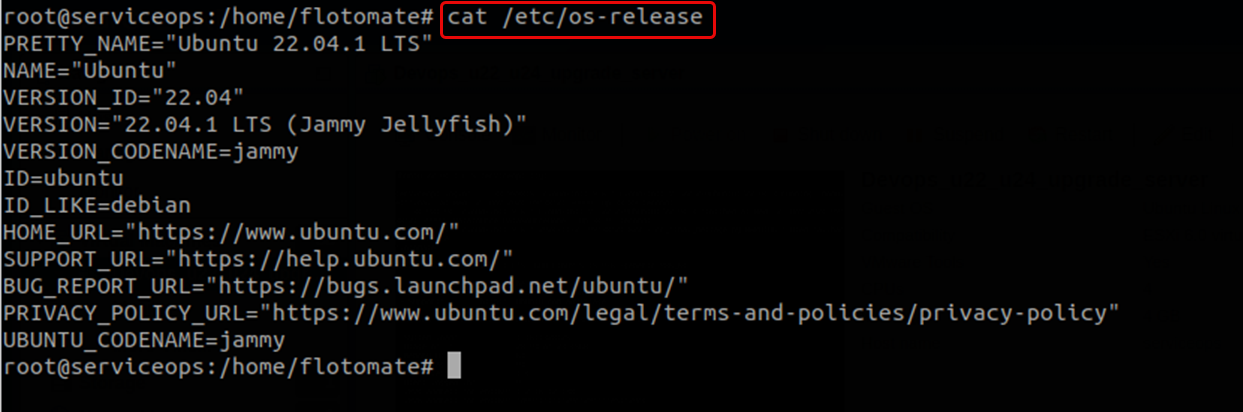
Ensure the system is running Ubuntu 22.x before proceeding with the upgrade.
Step 3: Update System Packages
Update Package Lists:
sudo apt update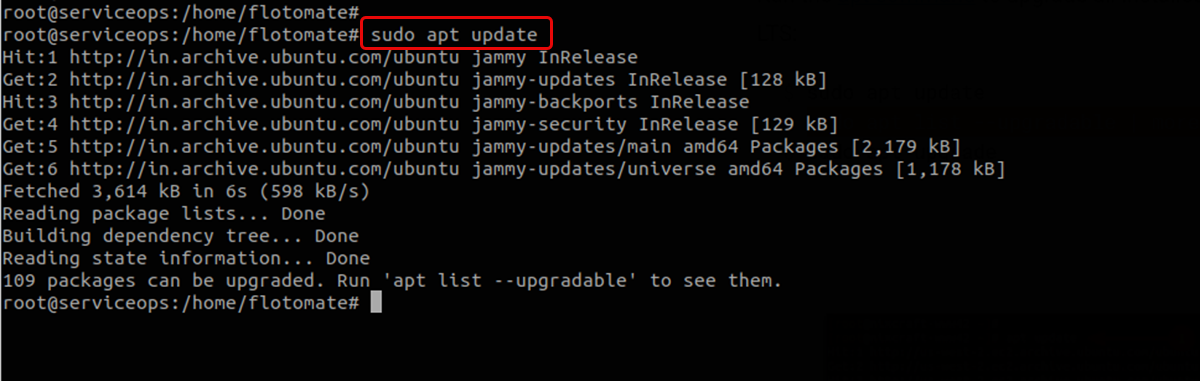
Upgrade Existing Packages:
sudo apt upgrade -y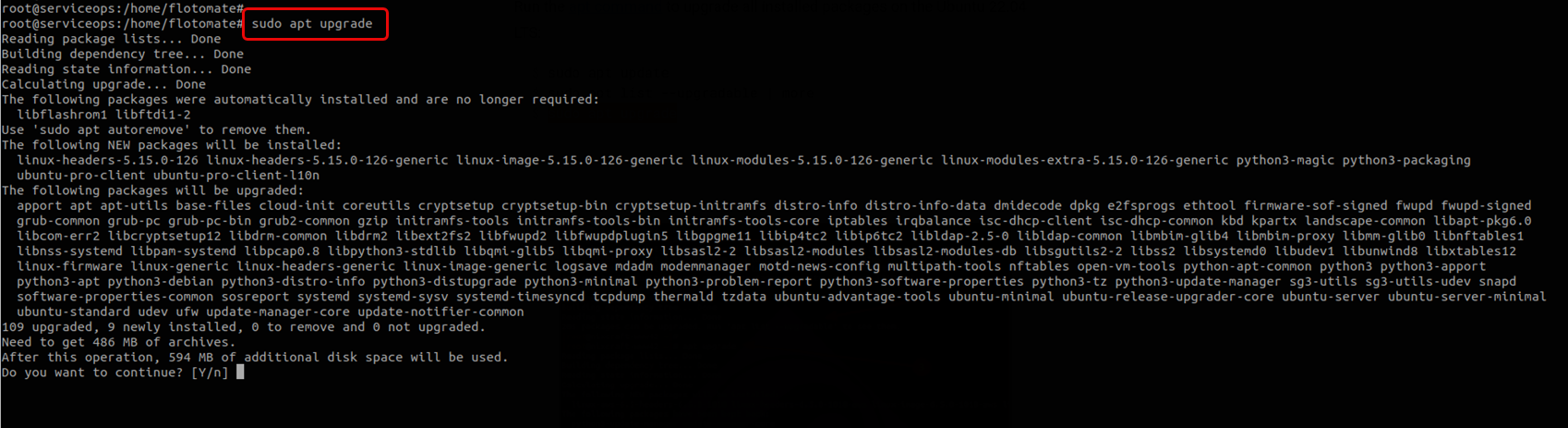
Enter "y" to continue the process.
Dist-upgrade for System Packages:
sudo apt dist-upgrade -y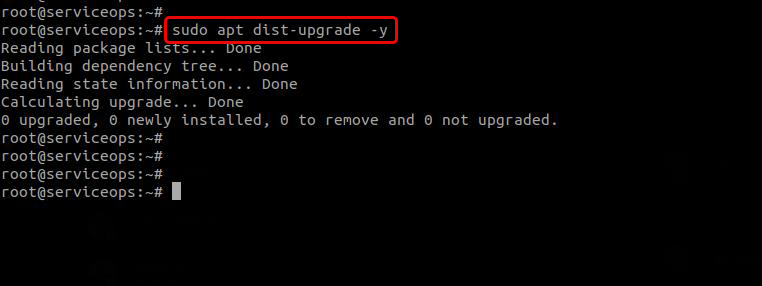
Step 4: Clean System Packages
Remove Unnecessary Packages:
sudo apt autoremove --purge -y
Clean Package Cache:
sudo apt clean

Step 5: Install Upgrade Tools
Install Update Manager Core:
sudo apt install update-manager-core
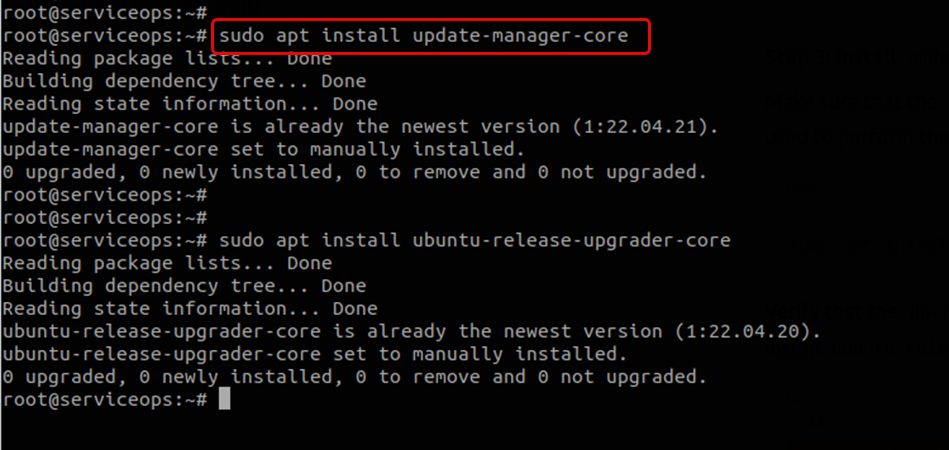
Install Ubuntu Release Upgrader:
sudo apt install ubuntu-release-upgrader-core
Before running the upgrade command, verify that /etc/update-manager/release-upgrades contains Prompt=lts parameter:
cat /etc/update-manager/release-upgrades
Step 6: Initiate Ubuntu Upgrade
Start the Upgrade Process:
sudo do-release-upgrade -d
Confirm Upgrade: Enter "y" to continue the installation process

Accept Terms: Enter "y" to accept the upgrade terms
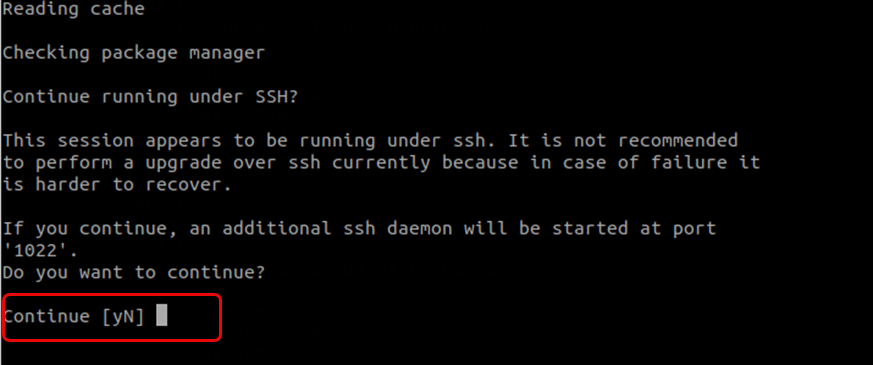
Proceed with Upgrade: Press "Enter" to continue
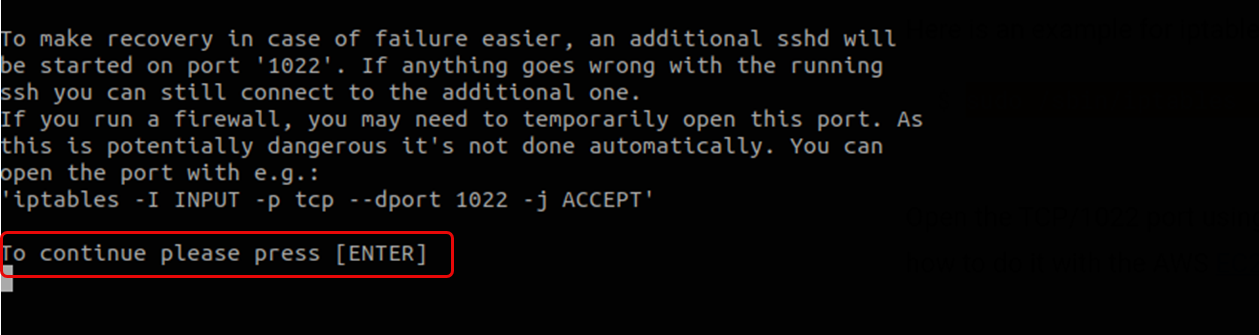
Confirm Package Installation: Enter "y" to install new packages
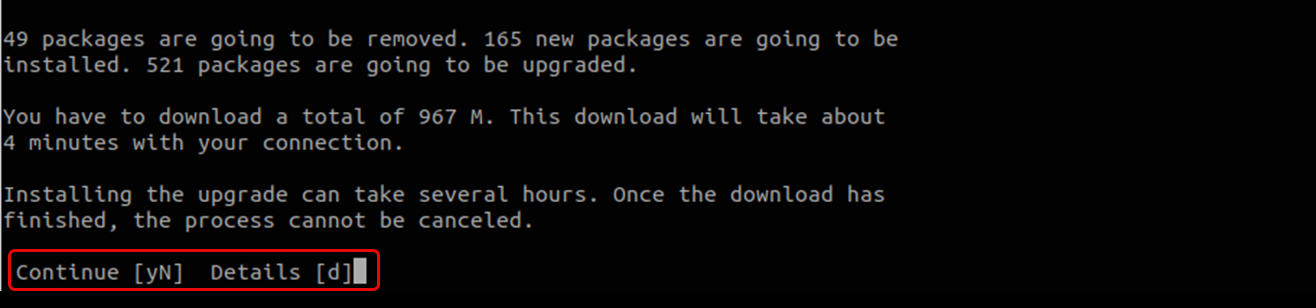
Step 7: Configure System Settings
Keyboard Configuration: Select "English" as the keyboard language
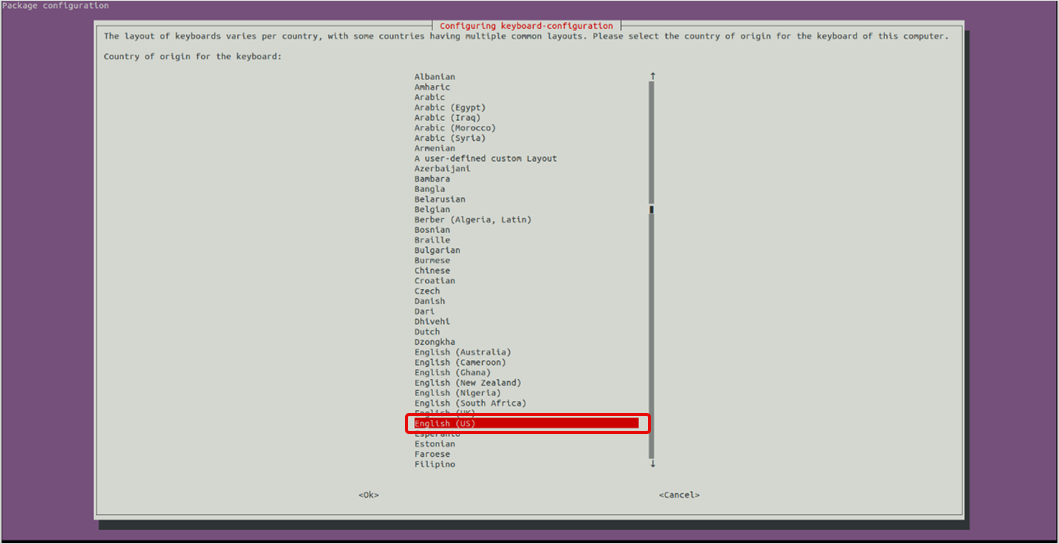
Keyboard Layout: Select "English (US)" as the keyboard layout
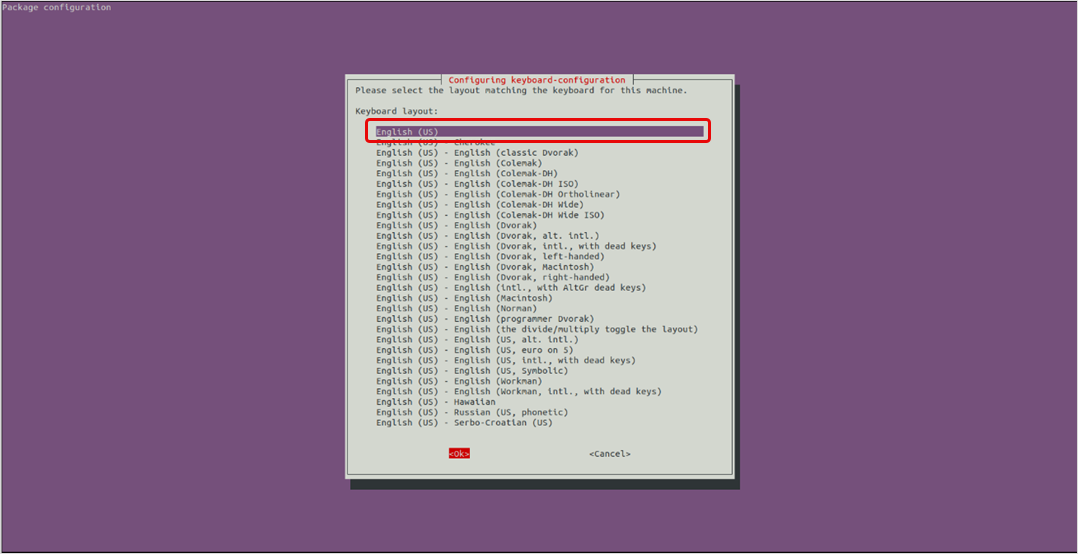
SSH Server Configuration: Select "Keep the local version currently installed"
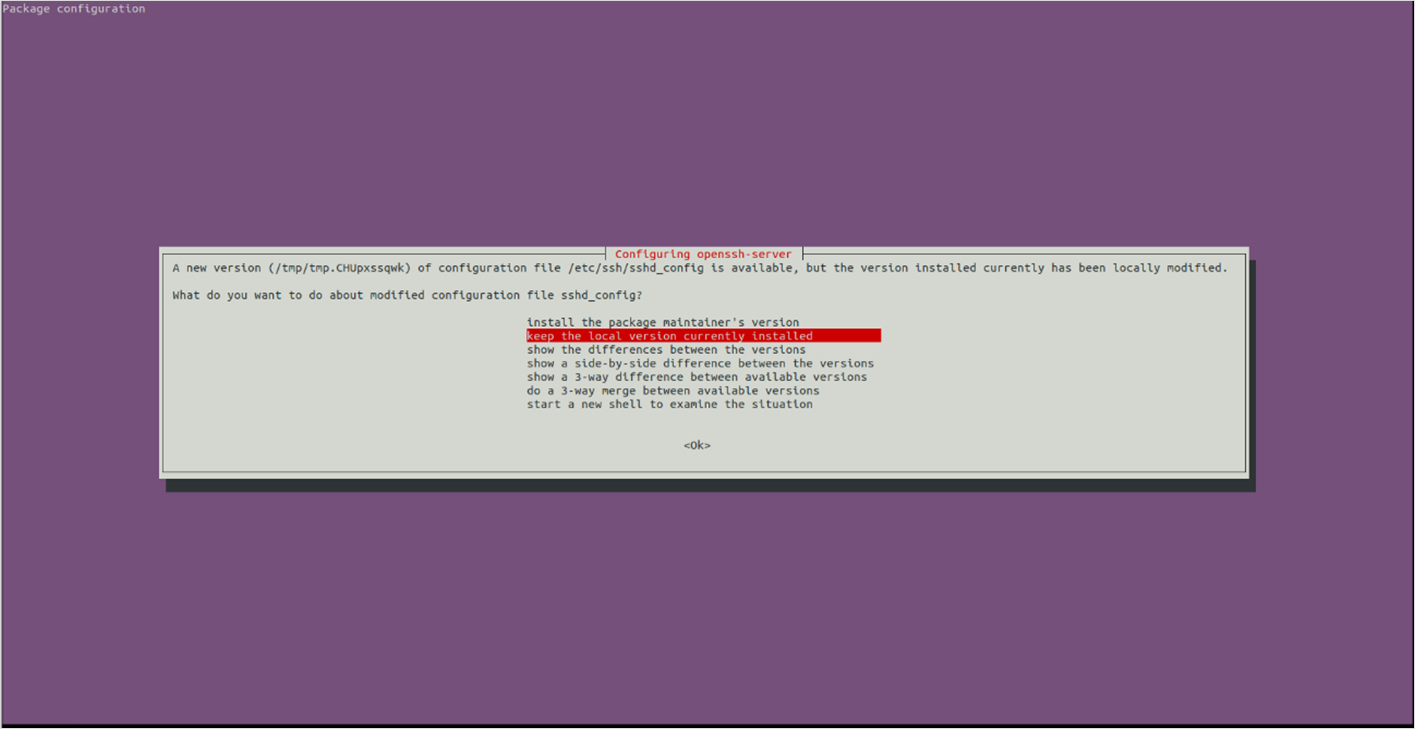
Package Removal: Enter "N" to avoid removing extra packages during upgrade

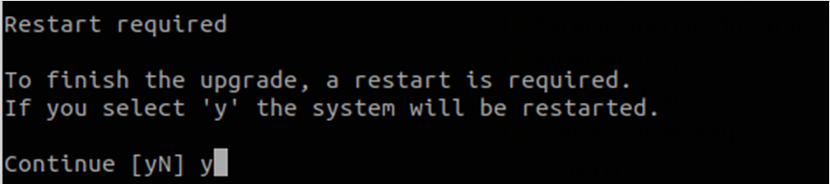
System Restart: Enter "y" to restart the system
Step 8: Post-Upgrade Verification
Check Ubuntu Version: Verify the upgrade was successful
cat /etc/os-release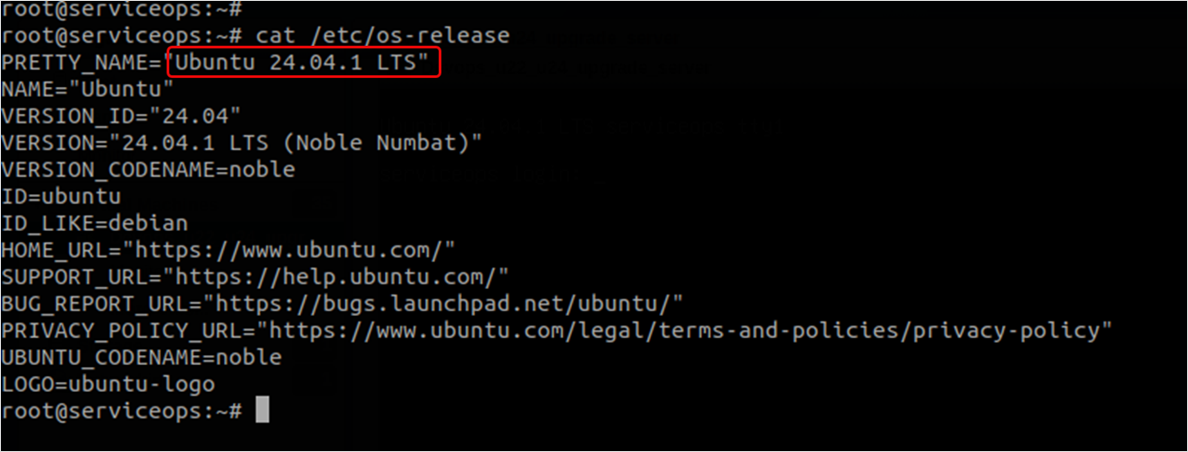
Clean Up Packages: Remove unnecessary packages after upgrade
sudo apt autoremove
After upgrading Ubuntu, allow approximately 15-20 minutes for system processes to synchronize and stabilize fully.
Post-Upgrade Procedures
Step 1: Restart ServiceOps Services
After Ubuntu upgrade completion and system stabilization:
Start Main Services:
sudo systemctl start ft-main-server.service ft-analytics-server.serviceVerify Service Status:
sudo systemctl status ft-main-server.service ft-analytics-server.serviceStart Additional Services (if applicable):
sudo systemctl start ft-plugin-server.service
sudo systemctl start ft-file-server.service
sudo systemctl start ft-chat-server.service
sudo systemctl start ft-ai-server.service
sudo systemctl start meshcentral.service
Step 2: Verify ServiceOps Functionality
- Application Access: Test ServiceOps web interface login
- Database Connectivity: Verify database connections and operations
- File Operations: Test file upload/download functionality
- Agent Communication: Verify agent connectivity and discovery
- Core Features: Test critical ServiceOps functionality
Step 3: System Health Checks
- System Resources: Monitor CPU, memory, and disk usage
- Network Connectivity: Verify network connectivity and firewall rules
- Service Logs: Check service logs for any errors or warnings
- Performance Monitoring: Monitor system performance and response times
Troubleshooting
- Common Issues
- Recovery Procedures
- Log Analysis
Common Upgrade Issues
Network Connectivity Problems
Symptoms: Upgrade fails due to network connectivity issues
Resolution:
- Verify internet connectivity:
ping 8.8.8.8 - Check DNS resolution:
nslookup ubuntu.com - Verify port 1022 is open:
netstat -tuln | grep 1022 - Check firewall rules:
sudo ufw status
Disk Space Issues
Symptoms: Upgrade fails due to insufficient disk space
Resolution:
Check available disk space:
df -hClean package cache:
sudo apt cleanRemove unnecessary packages:
sudo apt autoremove --purgeFree up additional space if needed.
Service Startup Failures
Symptoms: ServiceOps services fail to start after upgrade
Resolution:
Check service status:
systemctl status <service-name>Review service logs:
journalctl -u <service-name>Verify dependencies are installed.
Restart services in proper order.
Package Dependency Issues
Symptoms: Package conflicts during upgrade
Resolution:
Update package lists:
sudo apt updateFix broken packages:
sudo apt --fix-broken installUpgrade packages:
sudo apt upgradeClean package cache:
sudo apt clean
Recovery Procedures
Rollback to Previous Version
If upgrade fails and you need to rollback:
- Restore from VM Snapshot: If available, restore from VM snapshot
- Restore from System Backup: Restore from system backup if available
- Reinstall Previous Ubuntu Version: Install the previous Ubuntu version
- Restore ServiceOps: Restore ServiceOps from backup
Service Recovery
If ServiceOps services fail after upgrade:
- Stop All Services: Stop all ServiceOps services
- Restore from Backup: Restore ServiceOps from backup
- Verify Dependencies: Ensure all required packages are installed
- Restart Services: Restart services in proper order
Log Analysis
System Logs
Check system logs for errors:
sudo tail -f /var/log/syslog
sudo tail -f /var/log/apt/history.log
Service Logs
Monitor ServiceOps service logs:
sudo tail -f /opt/flotomate/main-server/logs/common/error
Performance Optimization
Post-Upgrade Optimization
After successful upgrade, consider these optimizations:
- Package Cleanup: Remove unnecessary packages and clean cache
- Service Optimization: Optimize service configurations for Ubuntu 24
- Security Updates: Apply latest security patches
- Performance Monitoring: Monitor system performance and optimize as needed
Security Considerations
- Firewall Configuration: Verify firewall rules are properly configured
- Security Updates: Apply latest security patches
- Access Control: Review and update access controls
- Audit Logging: Enable and monitor audit logs
Maintenance and Monitoring
Regular Maintenance
- Package Updates: Regularly update system packages
- Security Patches: Apply security updates promptly
- System Monitoring: Monitor system performance and health
- Backup Scheduling: Ensure regular backups are maintained
Performance Monitoring
- System Resources: Monitor CPU, memory, and disk usage
- Service Performance: Monitor ServiceOps service performance
- Network Performance: Monitor network connectivity and bandwidth
- Error Tracking: Monitor and address system errors