Upgrade Guide for File Server
This guide provides step-by-step instructions on how to upgrade the File Server for both ServiceOps SaaS and On-Premises deployments.
The File Server is a critical component for patch and package management. To ensure security, compatibility, and uninterrupted service, it is mandatory to keep your File Servers updated to the latest version.
This guide is intended for IT Administrators and System Administrators responsible for maintaining the ServiceOps environment.
Upgrade Methods
You can upgrade the File Server using a manual process or in bulk from the ServiceOps UI.
1. Manual Upgrade (On-Premises & SaaS)
This method involves uninstalling the old version and installing the new one directly on the server.
- Stop the Service: Stop the Motadata File Server service on the machine.
- Uninstall: Uninstall the existing File Server application using the standard procedure for your operating system.
- Install New Version: Download the latest File Server installer and follow the standard File Server installation guide.
2. Bulk Upgrade (On-Premises & SaaS)
This method allows you to upgrade multiple File Servers at once directly from the ServiceOps UI.
The bulk upgrade feature for File Servers is supported from ServiceOps version v8.6.4 onwards.
A. Upload the File Server Build Package
Download the latest File Server build packages for Windows and Linux.
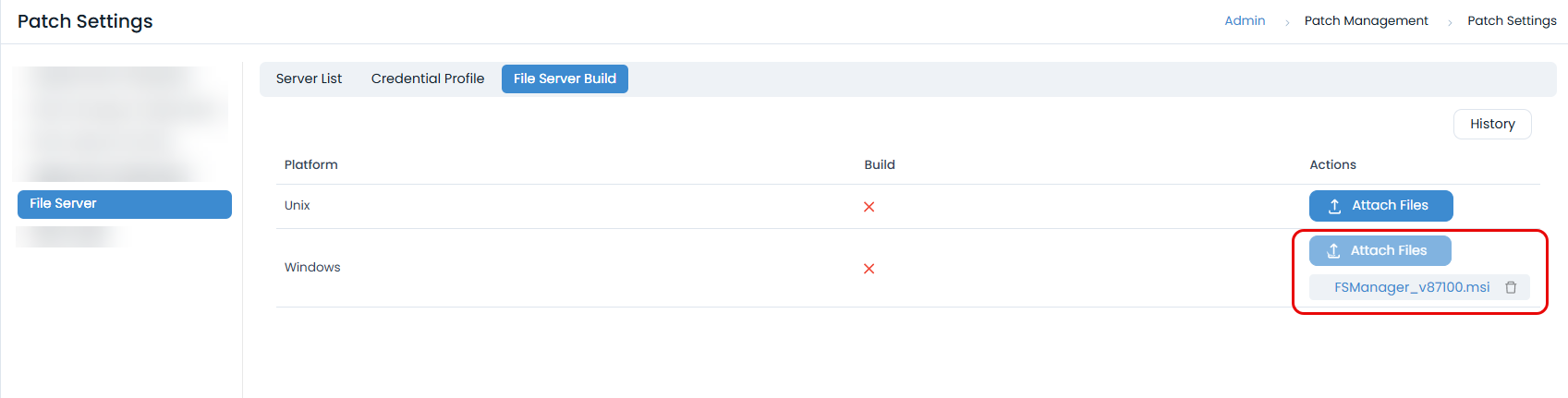
Navigate to Admin > Patch Management > Patch Settings > File Server > File Server Build tab.
Click the Attach files button and upload the build package.
B. Initiate the Bulk Upgrade
In the File Server tab, click the Server List sub-tab.
Select the checkboxes next to the file servers you wish to upgrade.
Click the Take Action button and select Upgrade.
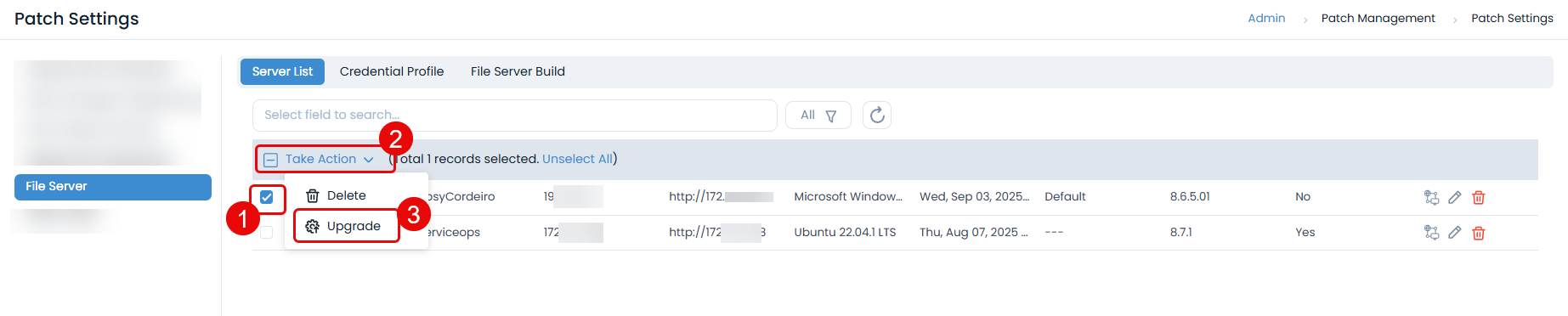
The upgrade process will begin in the background.
Post-Upgrade Verification
After upgrading, you must verify that it completed successfully.
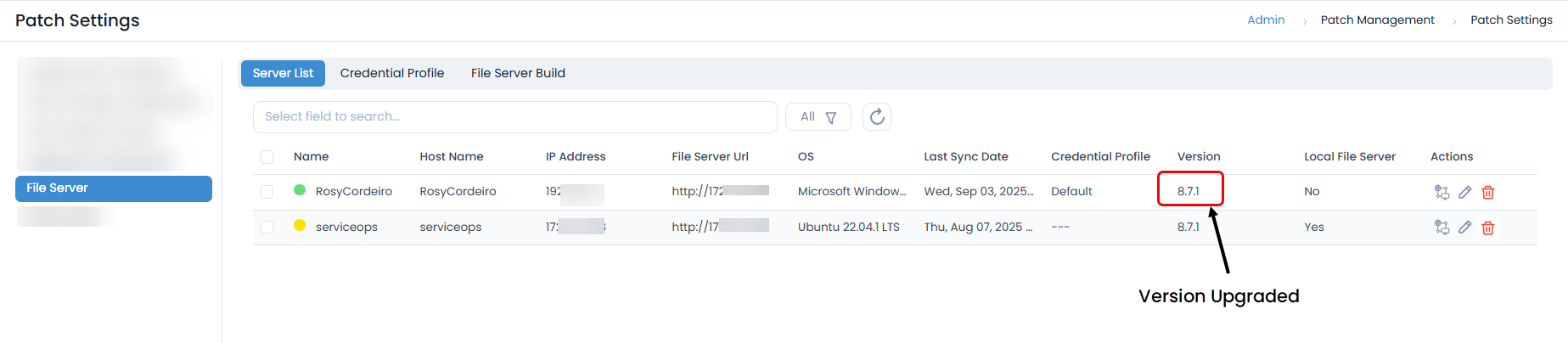
Verify Upgrade Status (Bulk): In the File Server Build sub-tab, click the History button to view the status. The Version column in the Server List will reflect the new build number.
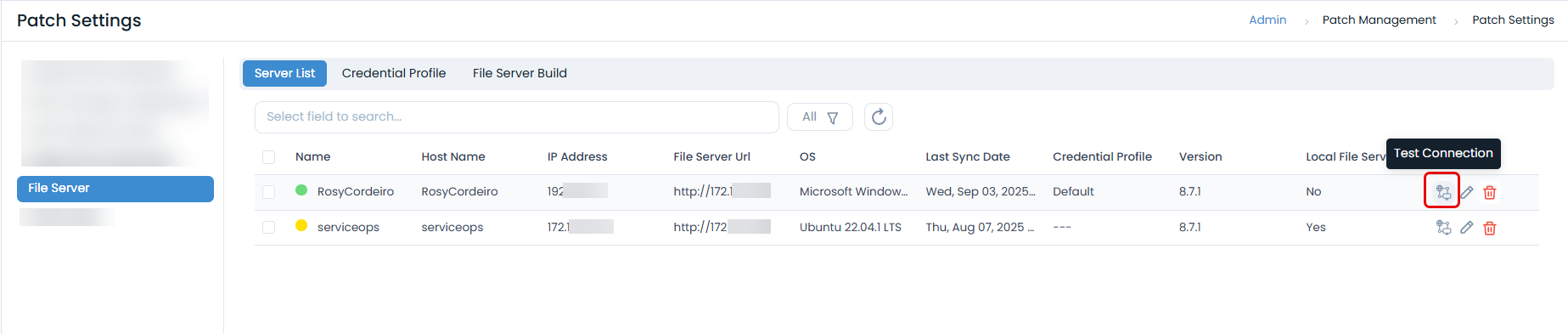
Test Server Connection: In the Server List, click the Test Connection icon for the server to ensure ServiceOps can communicate with it.
Verify Configuration: Ensure your local and remote File Server configurations are correct. You can check from Technician Guide > Admin > Patch Management > Patch Settings page.
Troubleshooting
- Upgrade Fails: If a bulk upgrade fails, check the History tab for error messages. Ensure the ServiceOps server can reach the File Server machine and no firewall is blocking the connection.
- Service Fails to Start: If the service fails to start after an upgrade, check the Windows Event Viewer for application errors.
- File Server Not Registering: If the File Server does not appear in the UI after an upgrade, verify the configuration details entered during installation.