Plugin Server Setup Guide
Enables extensible automation capabilities by hosting and executing custom plugins that integrate with ServiceOps to perform specialized functions and integrations.
The Plugin Server is a specialized component of ServiceOps that hosts and executes custom plugins to extend the platform's functionality. This guide provides step-by-step instructions for installing and configuring the Plugin Server on Ubuntu and Red Hat Enterprise Linux systems.
The Plugin Server architecture enables:
- Extensibility: Add custom functionality without modifying the core platform.
- Isolation: Separate plugin execution from the main application.
- Scalability: Run plugins on dedicated servers for better performance.
Prerequisites
Before installing, ensure your environment meets the following requirements.
System and Network Requirements
System Requirements
- Operating System: Ubuntu 22.04 LTS+ or Red Hat Enterprise Linux 9.2+
- Hardware: Minimum 4GB RAM (8GB recommended), 20GB disk space.
- Software: Java Runtime Environment (JRE) 8 or later.
Network Requirements
- Ports: The Plugin Server uses port 8080 by default. Ensure it is open and that there is bidirectional communication with the main ServiceOps server (typically on port 80/443).
- Firewall: Configure firewall rules to allow traffic on the required ports.
Main Server Requirements
- ServiceOps Version: v8.3.9 and above.
- Access: Administrative access to configure plugins.
Installation and Configuration
Step 1: Install the Plugin Server
Download: Get the appropriate package for your OS from the Download Links.
Prepare: Transfer the file to your server and set execute permissions:
sudo chmod 777 plugin_server_CI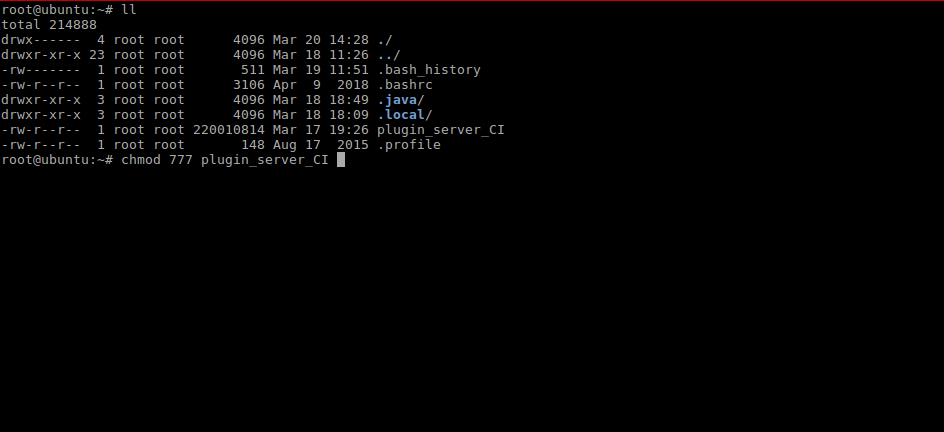
Install: Run the installation script:
sudo ./plugin_server_CI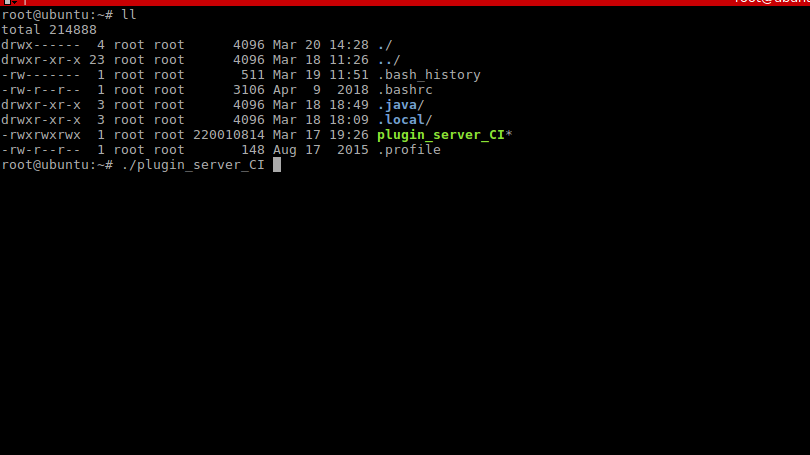
A success message will be displayed upon completion.
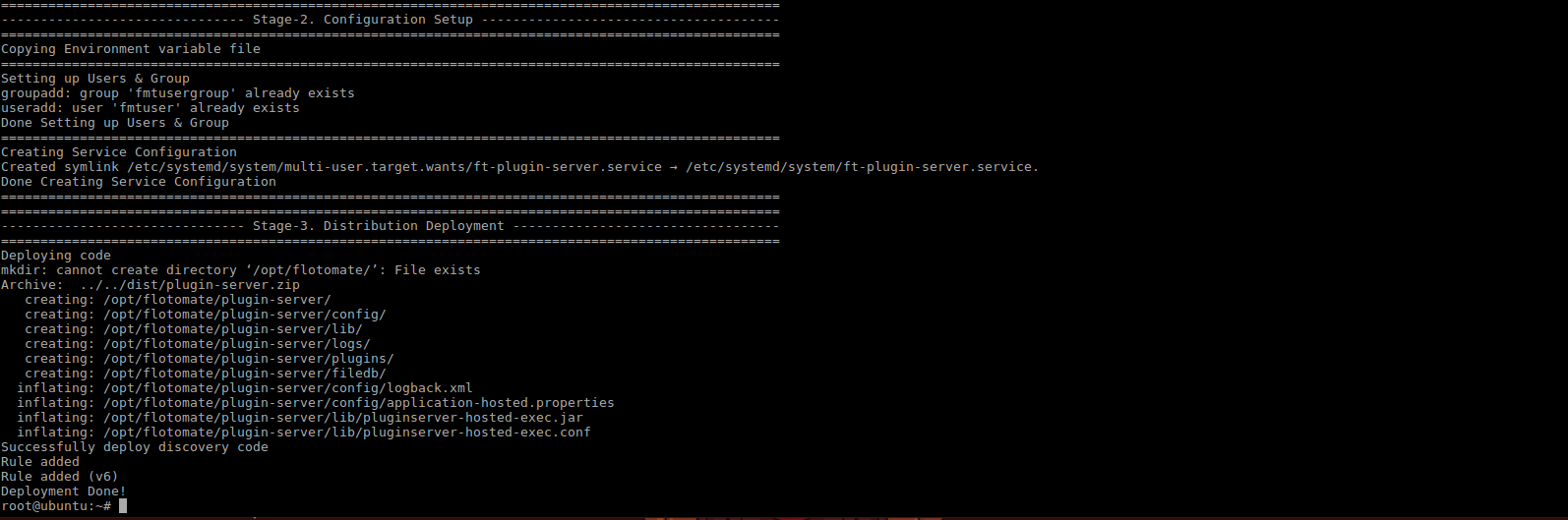
Verify: Check that the service is active and running:
systemctl status ft-plugins-server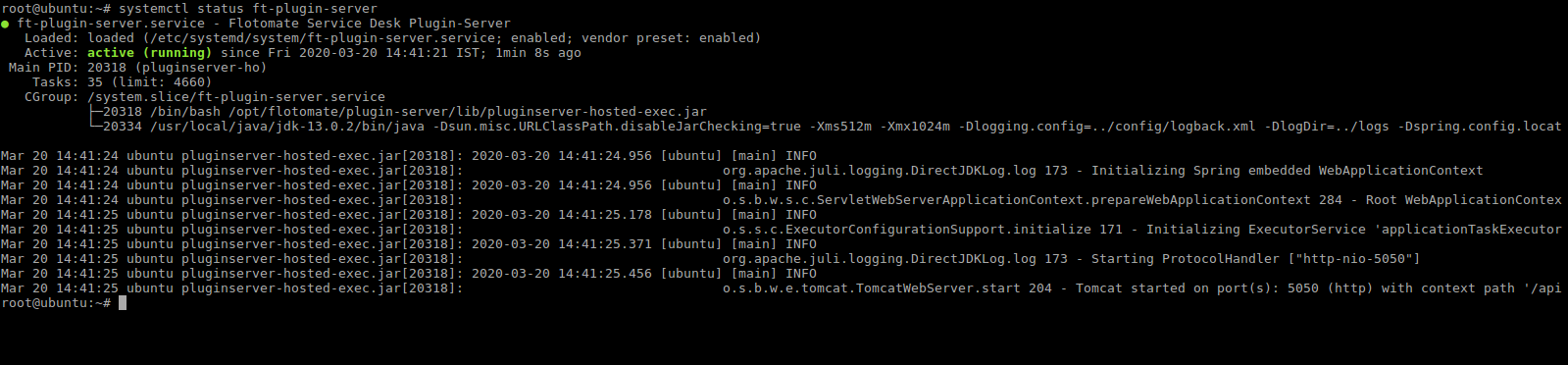
Step 2: Configure Main Server Connection
The Plugin Server must be able to communicate with the main ServiceOps server.
- Edit the configuration file:
sudo nano /opt/flotomate/plugin-server/config/application-hosted.properties - Update the connection URL to point to your main server's IP and port if it's not on
localhost:com.flotomate.mainserver.connection.url=http://your-main-server-ip:port/api - Restart the service:
sudo systemctl restart ft-plugins-server
Operations and Plugin Management
Service Management
- Start:
sudo systemctl start ft-plugins-server - Stop:
sudo systemctl stop ft-plugins-server - Restart:
sudo systemctl restart ft-plugins-server - Enable Auto-Start:
sudo systemctl enable ft-plugins-server
Plugin Management
After installing the Plugin Server, upload and register plugins through the ServiceOps UI.
- Login as an administrator.
- Navigate to Admin > Automation > Integrations > Plugin.
- Upload the desired
.fpplugin file. - Register the uploaded plugin from the dropdown menu.
Supported Plugin Types:
- Standard: For custom automation and third-party integrations.
- Report: To generate custom reports and export data.
- Chat: To integrate with customer bots and train AI models.
Monitoring and Maintenance
Monitoring Logs
- Real-Time Logs:
sudo journalctl -u ft-plugins-server -f - Log Files: Check
/opt/flotomate/plugin-server/logs/forplugin-server.loganderror.log.
Regular Maintenance
- Log Rotation: Implement log rotation to manage disk space.
- Updates: Regularly update plugins and the Plugin Server itself.
- Backups: Periodically back up the configuration and plugin directories.
Troubleshooting
Common Installation and Performance Issues
Permission Denied Errors
- Solution: Ensure you are running commands with
sudoand have set execute permissions on the installer.
Service Fails to Start
- Solution: Check the service logs with
journalctl. Verify that Java is installed and that the required ports are not in use by another service.
Connection Issues with Main Server
- Solution: Use
pingandtelnetto verify network connectivity to the main server. Check the connection URL inapplication-hosted.propertiesand verify firewall rules.
Performance Issues
- Solution: For high memory usage or slow plugin execution, monitor system resources (
htop) and consider adjusting the JVM memory settings in the Advanced Configuration.