Advanced Configuration
Provides advanced configuration options for Plugin Server deployment, including memory optimization, port configuration, security settings, and performance tuning for production environments.
This guide covers sophisticated setup options for the Plugin Server that go beyond basic installation, essential for production environments and high-performance deployments.
Core Configurations
Memory Configuration
Memory configuration is critical for plugin performance.
Prerequisites
- Plugin Server installed and running
- Administrative access
- Knowledge of your server's total memory
Memory Allocation Guidelines
| Total Server Memory | Plugin Server Min Memory | Plugin Server Max Memory |
|---|---|---|
| 16GB | 512MB | 1536MB |
| 32GB | 512MB | 2048MB |
| 64GB | 512MB | 2048MB |
Configuration Steps
Stop the service:
sudo systemctl stop ft-plugins-server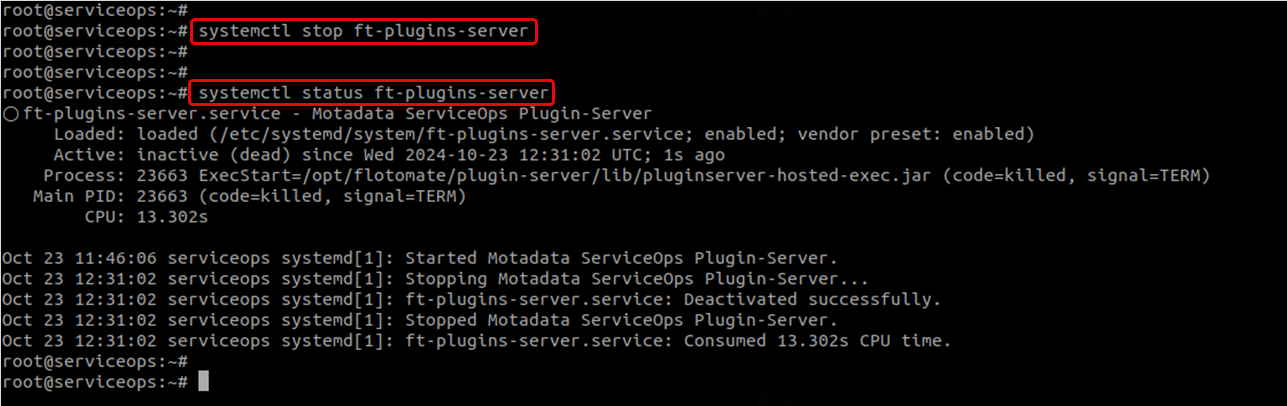
Edit the configuration file:
sudo nano /opt/flotomate/plugin-server/lib/pluginserver-hosted-exec.conf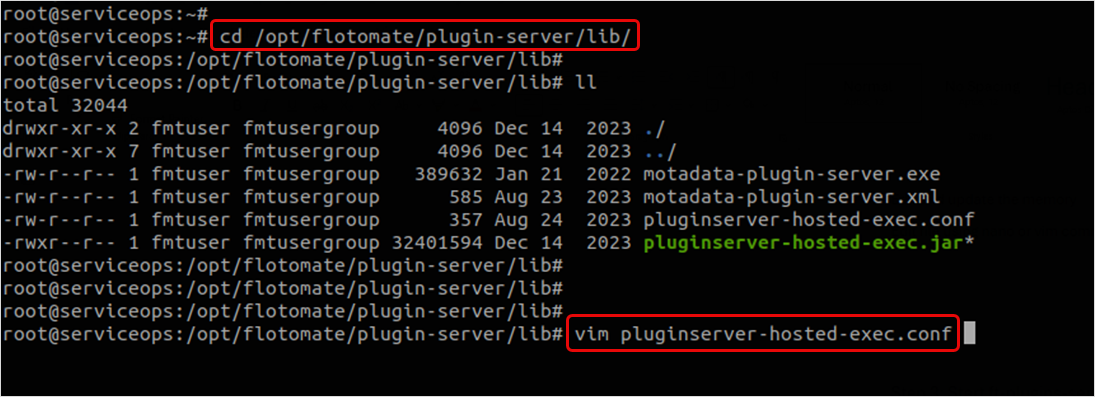
Modify memory settings: Locate the line with
-Xmsand-Xmxand update the values based on your server capacity. For a 64GB server, you might use:-Xms512m -Xmx2048m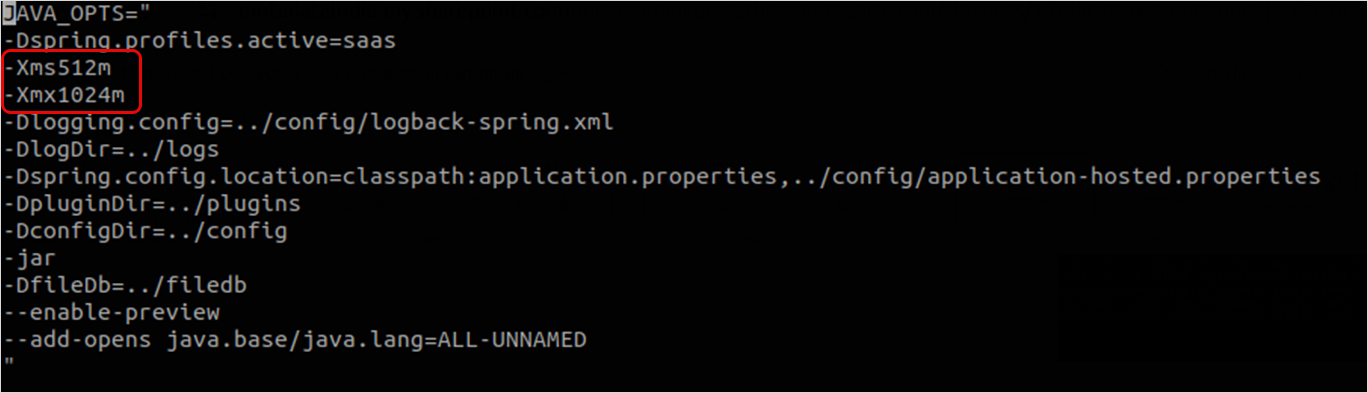
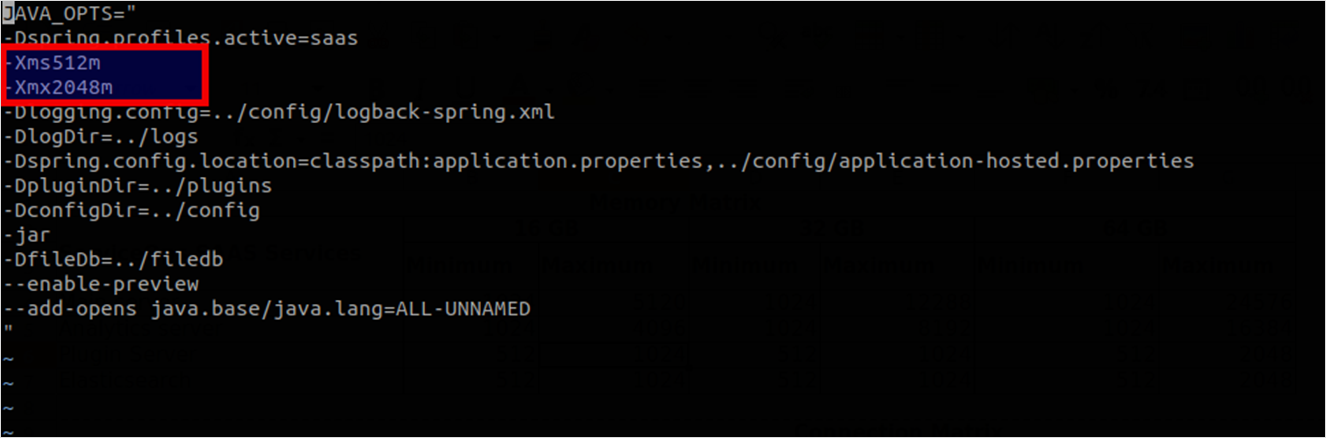
Save and restart: Save the file and restart the service:
sudo systemctl start ft-plugins-server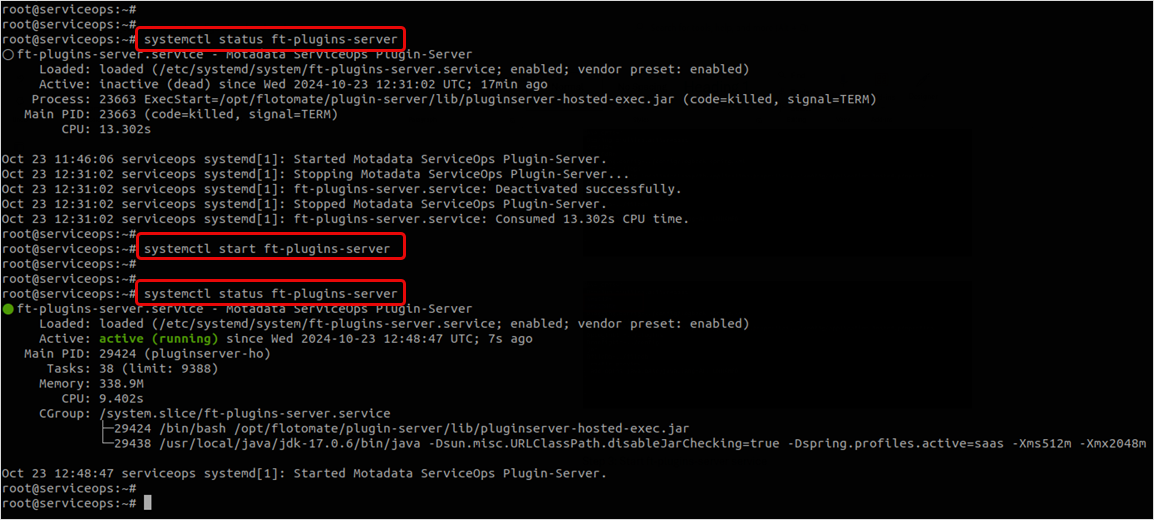
Best Practices
- -Xms: Set to 512MB for most deployments.
- -Xmx: Should not exceed 50% of total server memory.
- Monitor memory usage and consider GC tuning for large deployments.
Port Configuration
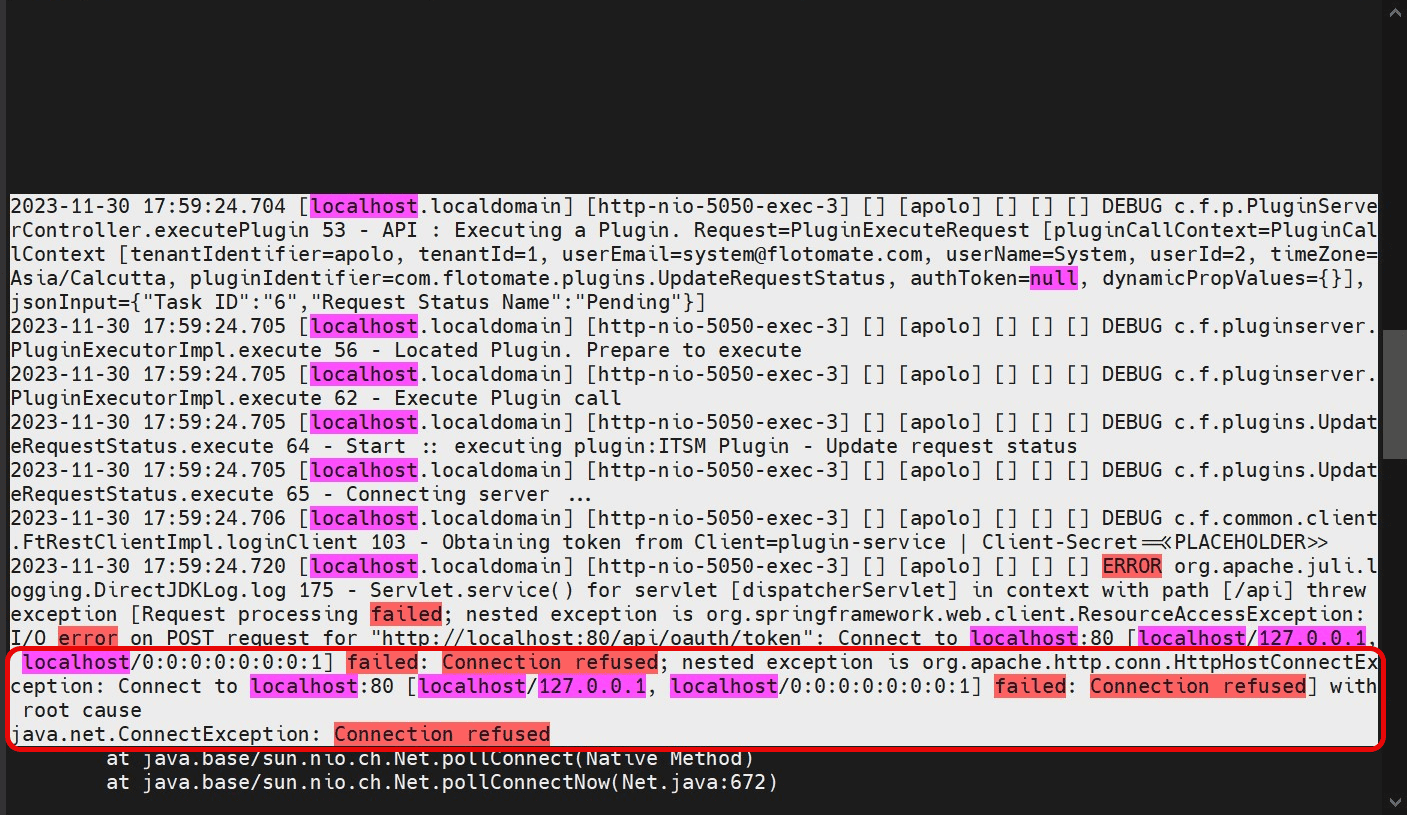
The default Plugin Server port is 5050. Change it to avoid conflicts or meet security requirements. This is required for ServiceOps v8.3.9 and above if you encounter a "Connection refused" error.
Configuration Steps
Navigate to the config directory:
cd /opt/flotomate/plugin-server/config/
Edit the properties file:
sudo nano application-hosted.properties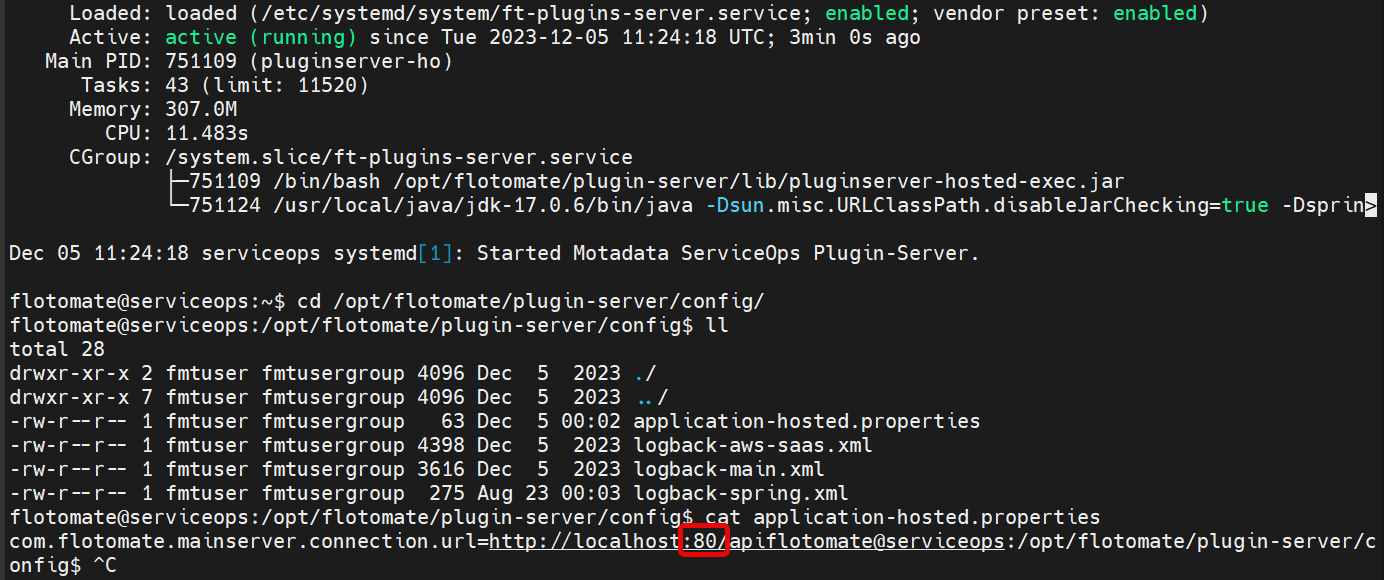
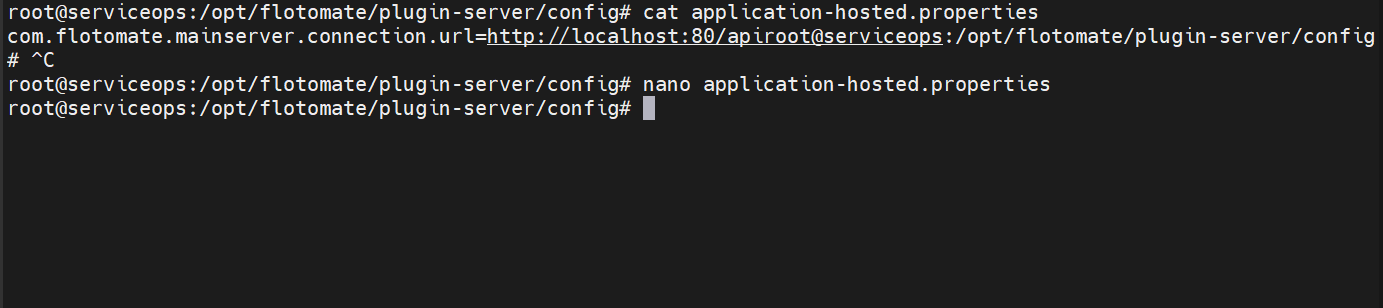
Update the connection URL with the new port number. For example:
com.flotomate.mainserver.connection.url=http://localhost:9050/api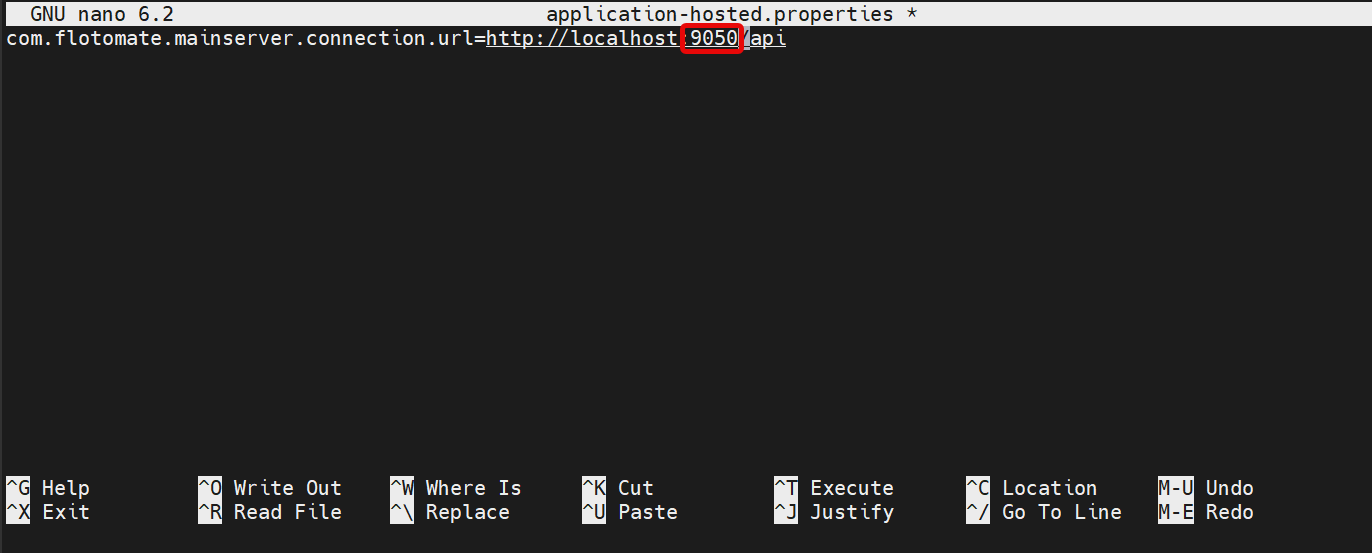
Save and restart the
ft-plugins-serverservice.
Best Practices
- Document port changes and update firewall rules accordingly.
Security and Performance
Security Configuration (SSL/TLS and Firewall)
Implement SSL/TLS
For production, secure communication with an SSL/TLS certificate.
- Obtain a certificate (e.g., generate a self-signed one for testing with
openssl). - Place certificate files in a secure directory (e.g.,
/opt/flotomate/plugin-server/ssl). - Edit
application-hosted.propertiesto enable SSL and provide the keystore path and password. - Update the main server connection URL to use
https. - Restart the service.
Configure Firewall Rules
Implement firewall rules to restrict access to the Plugin Server port.
- UFW (Ubuntu):
sudo ufw allow 5050/tcp - firewalld (RHEL/CentOS):
sudo firewall-cmd --permanent --add-port=5050/tcp - It is highly recommended to only allow traffic from specific IP ranges.
Performance Optimization (Connection Pooling and JVM Tuning)
Configure Connection Pooling
Optimize database connections for better performance by adding HikariCP settings to application-hosted.properties.
| Deployment Size | Min Connections | Max Connections |
|---|---|---|
| Small (1-50 users) | 5 | 20 |
| Medium (50-200 users) | 10 | 50 |
| Large (200+ users) | 20 | 100 |
JVM Tuning
Optimize JVM settings in pluginserver-hosted-exec.conf by adding parameters for garbage collection and performance.
properties
# Example GC tuning
-XX:+UseG1GC
-XX:MaxGCPauseMillis=200
Advanced Operations
High Availability and Backup
High Availability Configuration For HA, configure multiple Plugin Servers behind a load balancer (e.g., HAProxy, Nginx) and use shared storage for plugin files.
Backup and Recovery
Implement an automated backup script to regularly back up the /opt/flotomate/plugin-server/config/, /plugins/, and /logs/ directories. Document and test your recovery procedures.
Troubleshooting and Debugging
Common Issues
- Memory Issues: Check memory usage (
free -h), review JVM settings, and consider horizontal scaling. - Performance Issues: Monitor server resources, optimize plugin code, and tune JVM settings.
- Security Issues: Verify SSL certificates, firewall rules, and authentication credentials.
Advanced Debugging
- Enable Debug Logging: Edit
logback.xmlto set the root level toDEBUG. - Network Diagnostics: Use tools like
telnet,netstat,openssl s_client, andtcpdumpto diagnose connectivity issues.