Create Approval Workflow
Automate approvals by routing requests to the right approvers based on ticket conditions.
This page helps you create an approval workflow that automatically sends requests to the appropriate approvers.
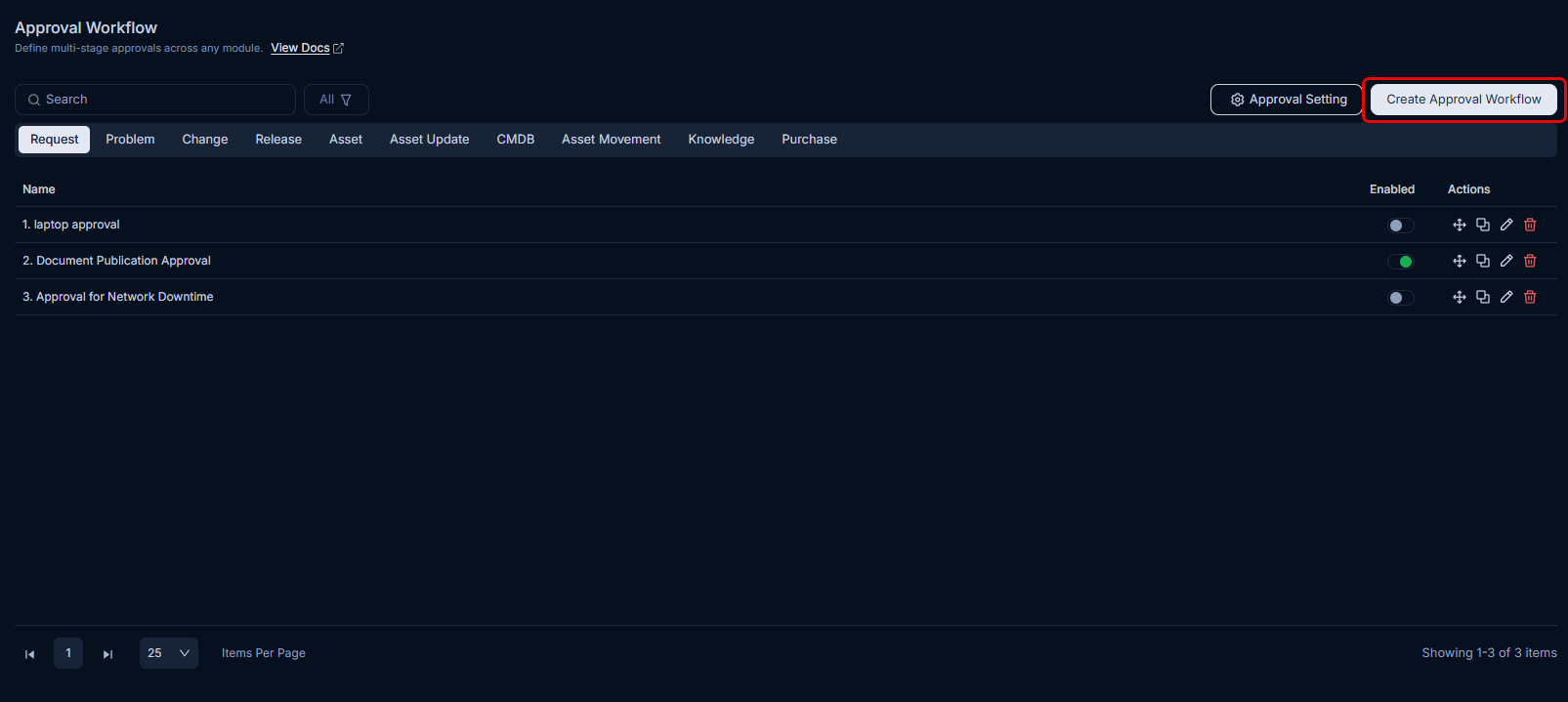
To create an approval workflow, click Create Approval Workflow in the top-right corner of the page.
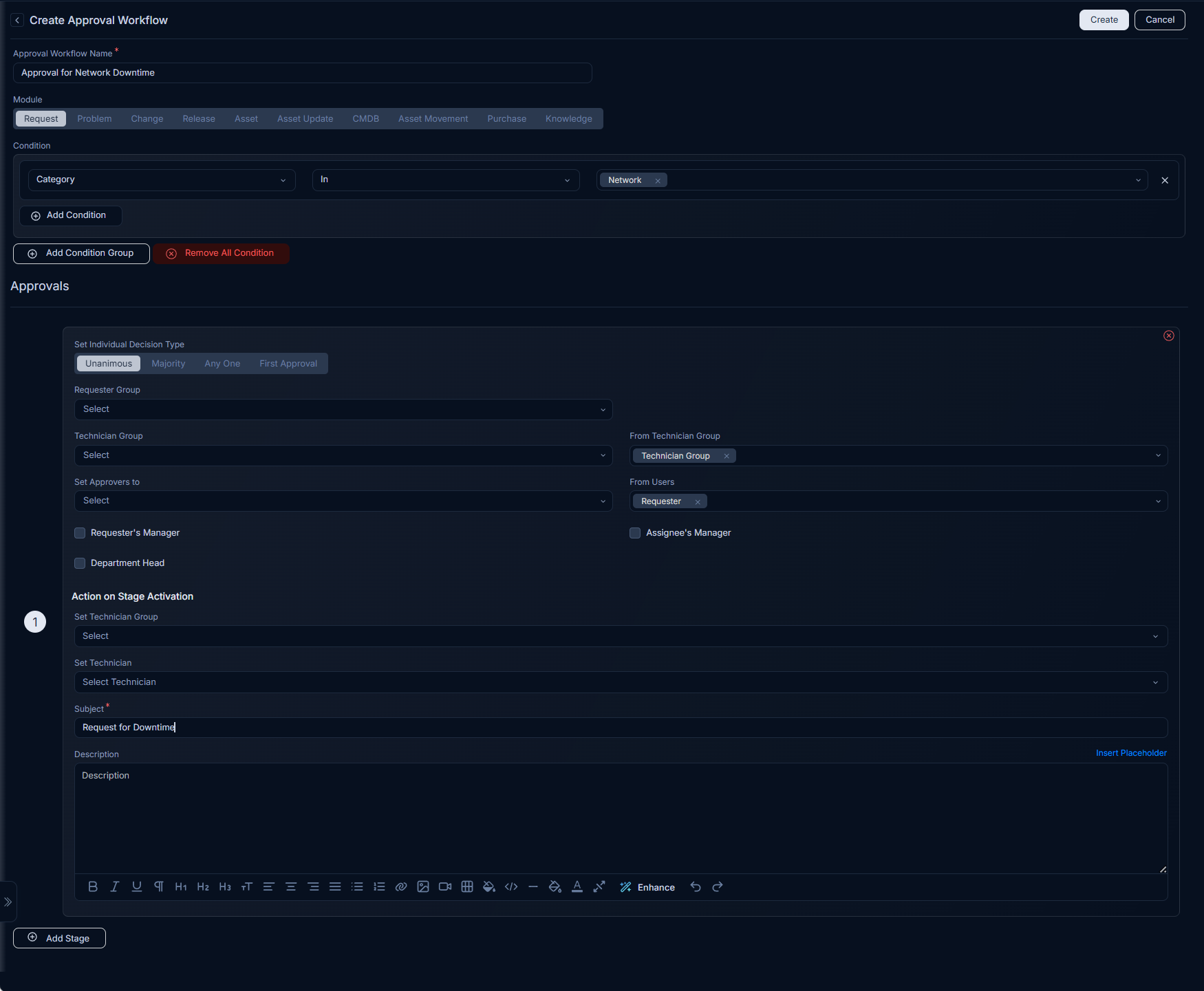
Enter the following details:
- Approval Workflow Name: Enter the name of the workflow.
- Module: Select the module on which the workflow should function.
- Condition: Condition statements are evaluated against the ticket fields to determine whether a workflow qualifies. By default, some condition parameters are available for use. You can add new parameters to the condition list by creating custom fields in the relevant module forms (For example, Request Form, Change Form, Problem Form, etc.)

A condition has three parts: a parameter, an operator, and a value. In the parameter, you select the field to evaluate. The operator determines how the field is evaluated. The field value is then matched against the condition value. You can also join two condition statements using the AND/OR operators.
Approvals
An approver is the person who Approves or Rejects a request. An approver can be a specific person, a member of a group, or any one in the organization.
| Parameter | Description |
|---|---|
| Set Individual Decision Type | This indicates how you want to evaluate the approval. The options are: - Unanimous: If selected, the request must be approved by all approvers. - Majority: If selected, more than 50% of approvals are required. - Anyone: If selected, even a single approval is sufficient. This is useful when there is more than one approver. - First Approval: If selected, the first response received (Approved or Rejected) is used and all subsequent responses are ignored. For example, if three approvers are set and the first response received is Approved, that result is used even if another approver later rejects the request. |
| Requester Group | Select the requester group if they are responsible for approving the ticket. For example, if a technician needs remote access, anyone in the requester group can approve the request. |
| Technician Group | Select the technician group if members of that group should or can approve something in the ticket. For example, if you need access to a specific website, anyone in the IT team can approve the request. |
| From Technician Group | Select this option to send the approval request to the technician group assigned on the request details page. This functionality does not apply to manual Ask for Approval and Knowledge approval requests. It is supported only in modules where custom system field mapping is configured. |
| Set Approvers To | Select specific people (technicians and requesters) who are responsible for approving the request. You can select more than one approver. |
| From Users | Select the custom user as approvers. This functionality is not applicable in the manual Ask for Approval and Knowledge approval requests. It is supported in only those modules where the custom system field mapping is configured. |
| Requester's Manager | Enable this option if you need approval from the requester's manager. |
| Assignee's Manager | Enable this option if you need approval from the assignee's manager. |
| Department Head | Enable this option if you need approval from the department head. |
| Subject | Enter the subject of the approval request. It appears on the details page of the ticket, logs, emails, etc. |
| Description | Enter a description that helps the approvers to get a detailed information about the request so they can make an informed decision. |
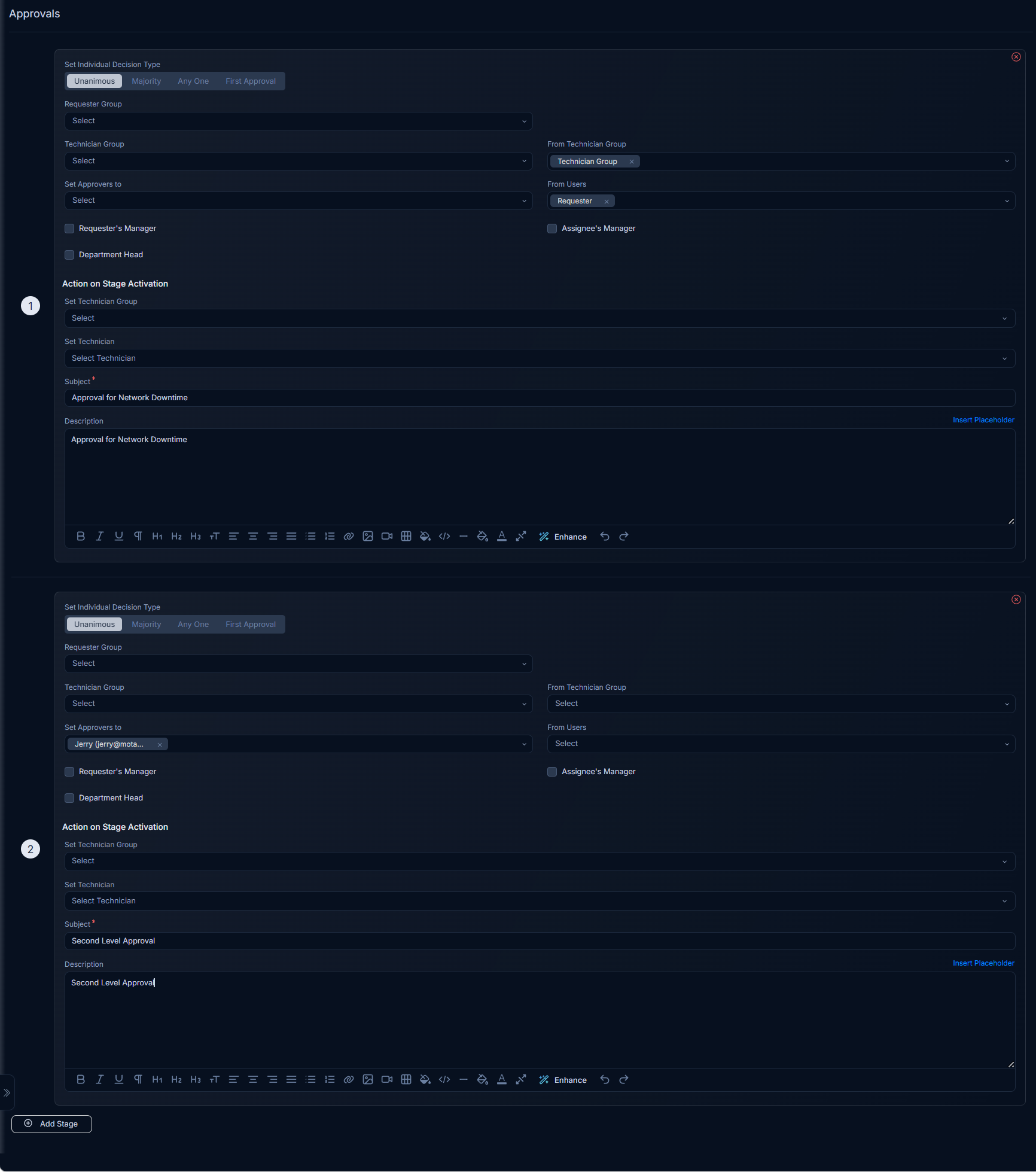
| Add Stage | Click to add a new approval stage (level). Then configure the next approval level for tickets. You can add up to of 10 stages. |
Adding Approval Stages
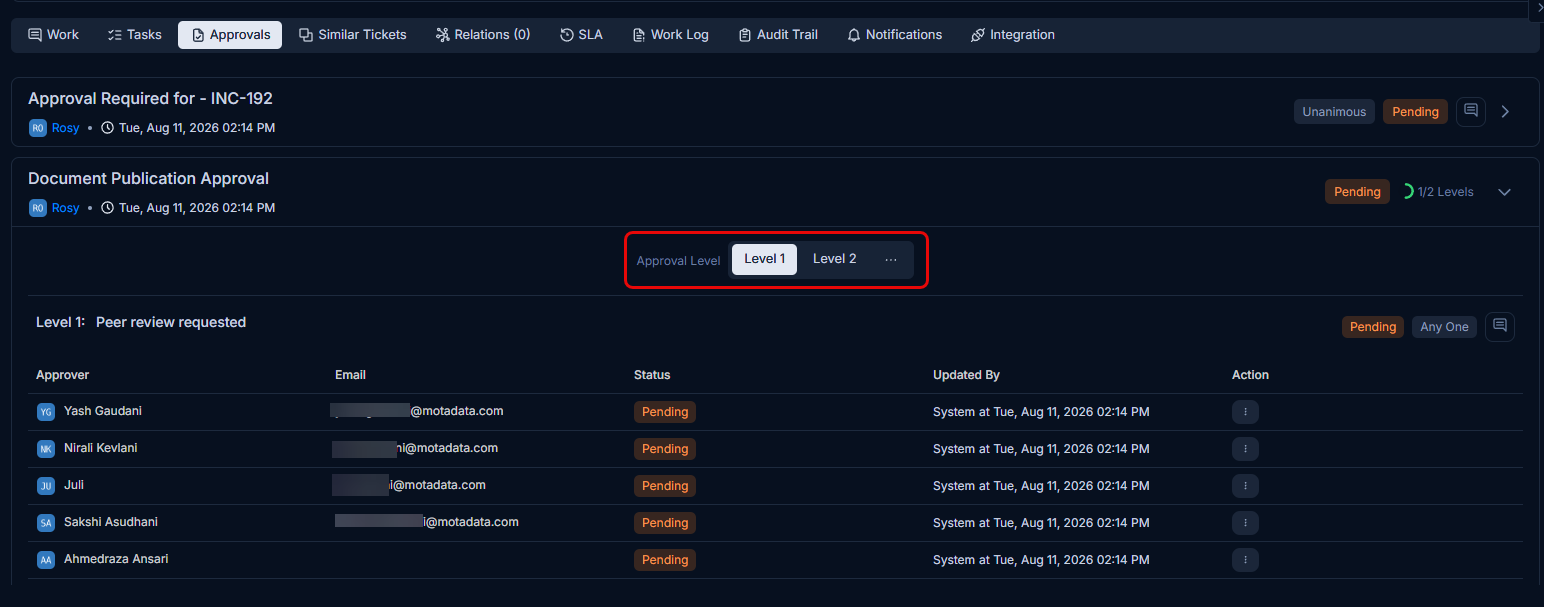
Adding an approval stage means another approver must approve the request after the previous stage is approved. In the ticket, stages are numbered in the Approvals tab, as shown below: