Create a Log Pipeline in ObserveOps
A pipeline defines which logs get processed and how. You set a unique name, pick the log types to match, and optionally add prefilters to narrow the scope further. Once a pipeline is active, every log matching its criteria enters it and is checked against its parsers.
Prerequisites
- You have access to Settings > Observability Pipeline > Log Pipeline.
- Logs are flowing into the system. Confirm this in Live Trail.
Create a Pipeline
Go to Settings > Observability Pipeline > Log Pipeline and click + Add Pipeline.
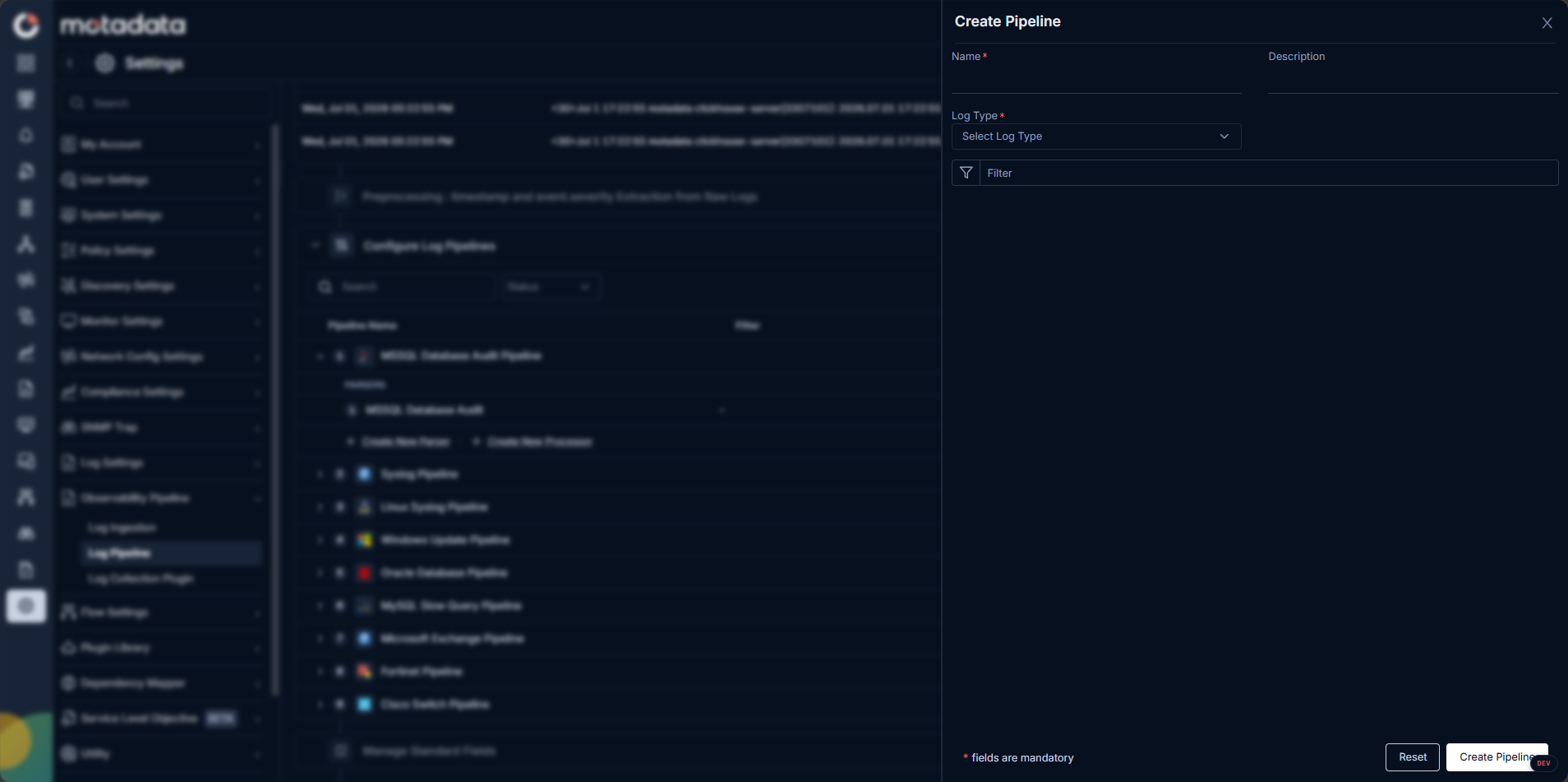
Fill in the form:
| Field | Description |
|---|---|
| Name | A unique name for this pipeline. No two pipelines can share the same name. |
| Log Types | One or more log types this pipeline should process. The system checks log type before it checks any prefilter. |
| Prefilters | Optional. Add filters to narrow which logs qualify beyond log type matching. |
Click Save to create the pipeline.
Prefilter Options
The prefilter section supports two kinds of filtering:
Filter by tag: Select tags that are present in incoming logs. The pipeline matches only logs that carry the selected tags.
Filter by message contains: Enter a string. The pipeline matches only logs whose message field contains that string.
Multiple pipelines can share the same filters and log types. The same log can qualify for more than one pipeline.
How the Pipeline Filter Works
The system applies filters in this order:
- Log type is checked first. A log must match at least one of the selected log types.
- Prefilter is checked second. If a prefilter is set, the log must also satisfy it.
A log that fails either check does not enter the pipeline.
What Happens After Creation
The new pipeline starts in the Off state. When the first log matching its filters arrives, ObserveOps turns the pipeline on automatically and places it at the bottom of the pipeline list. This auto-enable behavior applies only once: after the pipeline has been turned on, you control its state manually.
Build the pipeline first, then add parsers and processors. Use the Indexed Logs tab inside the Create Parser screen to confirm the pipeline is capturing the right logs before you write your parser pattern.