Source
Source determines the origin of the request. It is also a good practice to record this source. Though there are various ways to create a request, it usually happens that the actual source of information is some form of communication. In a request, the source field is a dropdown and uses this list only.
To view the Source page, navigate to Admin > Request Management > Source.
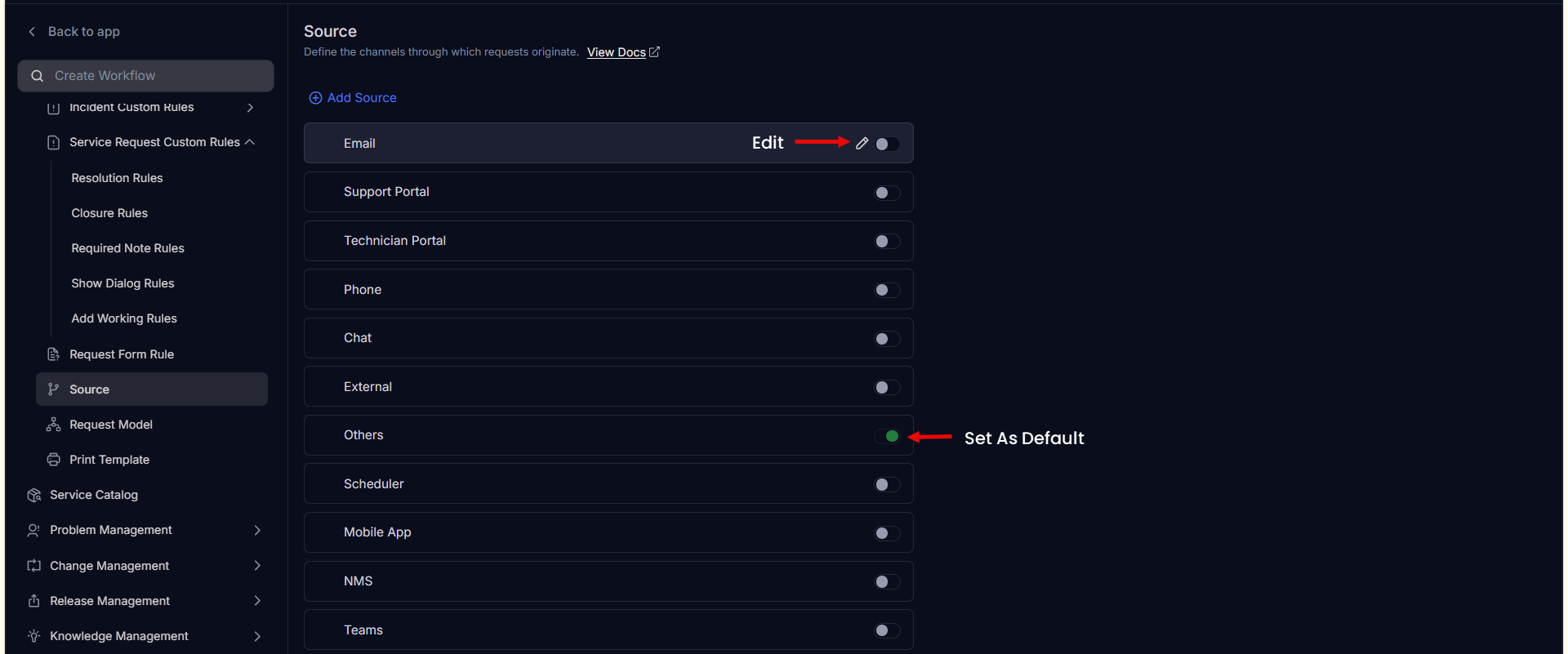
The page provides you the below options:
- Add Source: You can add a source.
- Re-order: You can re-order the source using drag and drop.
- Set as Default: You can set a source as default by clicking on the toggle icon.
- Edit: You can edit the source name.
- Delete: You can delete the unwanted sources. A confirmation message appears. Click Yes to continue or cancel to stop the process.
Add Source
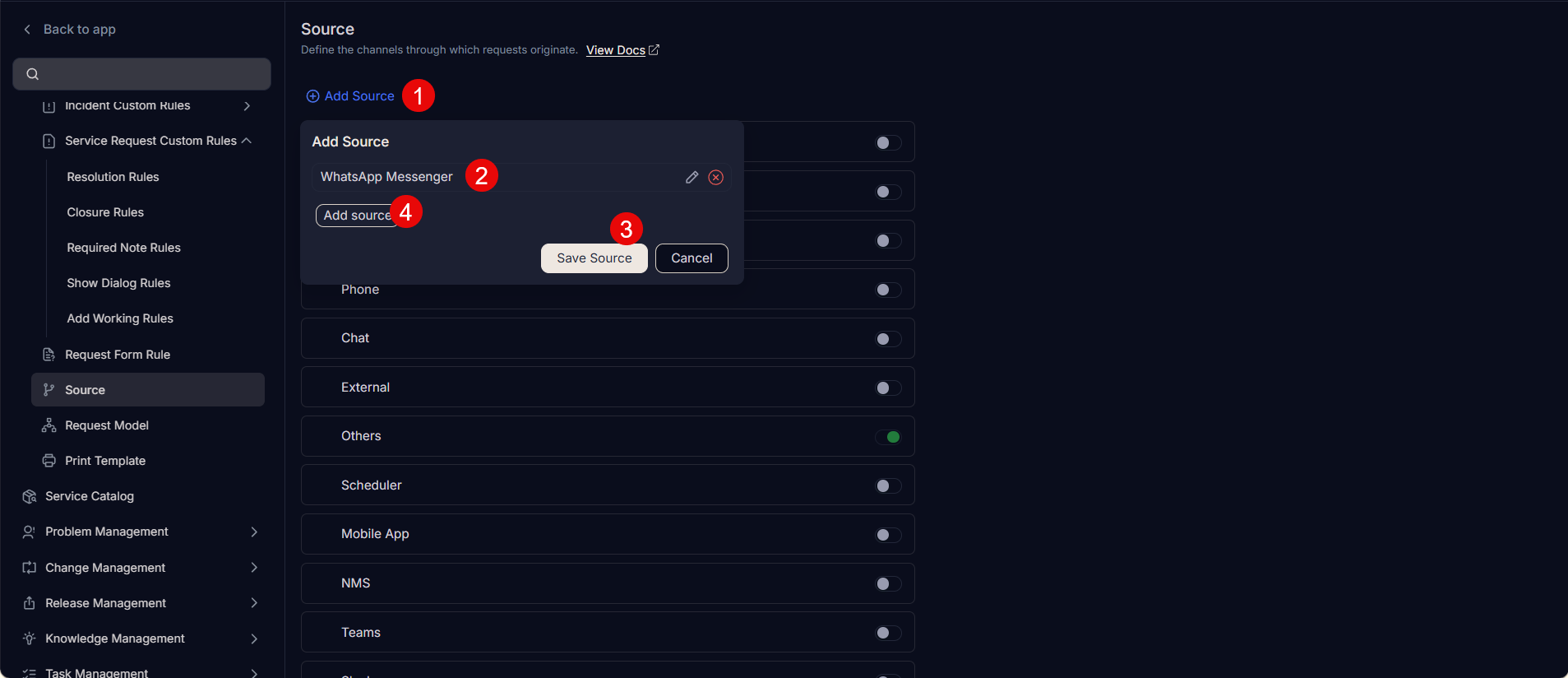
To add a source, follow the below steps:
- Click the Add Source link and a dialog appears.
- Enter the name of the source and click the green correct symbol.
- Click Save Source.
- You can also add more source using the Add Source button.
- Once added, you can edit or delete it as per requirement.
Based on the source, the request will be created. The base request will be created with the source name. For example, if a ticket is created via Email-to-Ticket, the source will be email.
note
- Tickets created via API will have the source as External.
- Other source will appear when it is explicitly set in the request via the API or from the Technician portal.