Purchase Custom Fields
Streamline purchase management and data collection by tailoring forms to your organization's unique needs.
This document guides IT administrators and implementation consultants through the process of customizing purchase forms using custom fields. By configuring these fields, organizations can enhance data accuracy, enforce specific data collection requirements, and integrate forms seamlessly with automation settings. This guide covers the administration of both default and custom fields, detailing the various customization options available to ensure forms meet specific operational requirements.
Navigating to Purchase Custom Fields
To access and configure custom fields for purchase management, go to Admin > Purchase Management > Purchase Custom Fields. The page will appear, displaying the current layout of your purchase form.
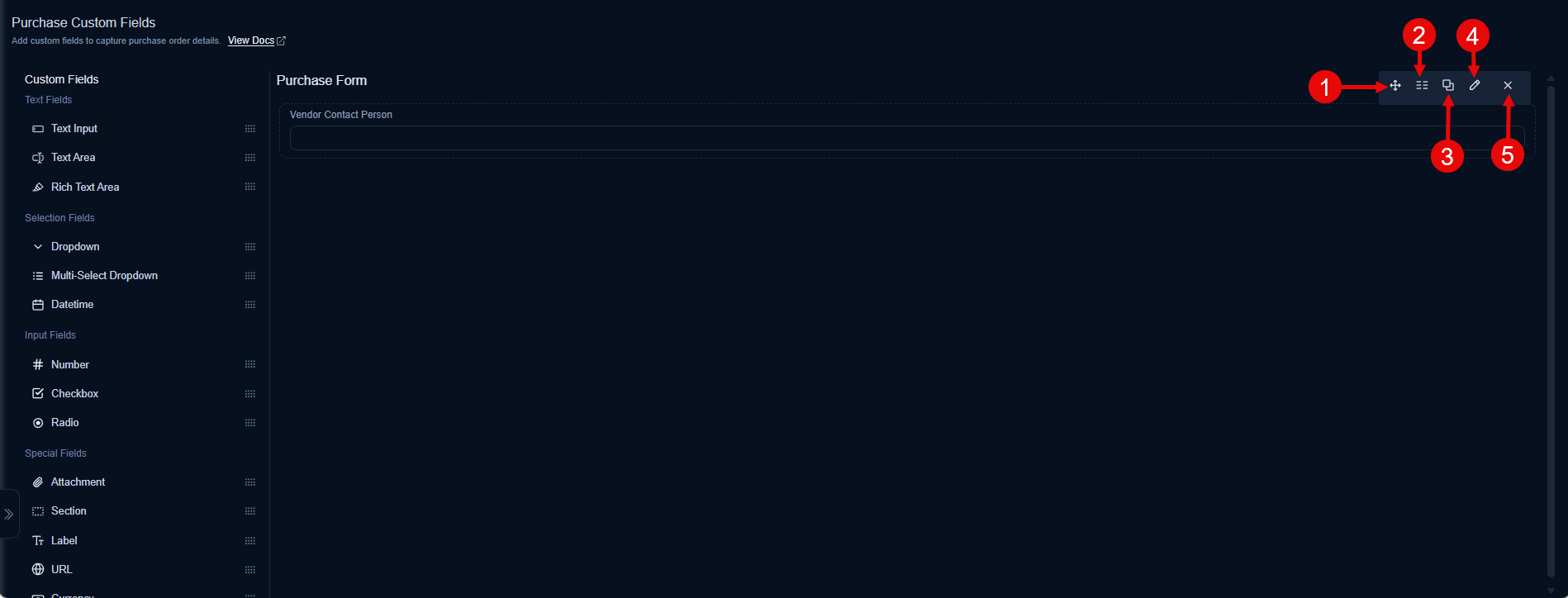
The page displays two types of fields:
- Default Fields: These are the primary, built-in fields that come with the initial installation of the system. Default fields are essential for core purchase processes; their names cannot be changed, and they cannot be deleted.
- Custom Fields: These are additional fields that can be added to the purchase form from the Field Pallet. Custom fields provide flexibility to meet specific organizational needs. They can be renamed, modified, and deleted as required.
Customizing the Purchase Form
When managing fields on the purchase form canvas, various customization options are available to help you arrange and configure fields effectively. These options include:
- Reorder: You can easily change the display order of fields on the form. Simply drag and drop any field to its desired position within the form layout.
- Expand/Collapse: This option allows you to adjust the visual width of fields. You can set a field to expand to a full row (1 in a row) or collapse to occupy half a row (2 in a row), enabling a more compact form design.
- Duplicate: For custom fields, you can create an exact copy with all its configurations. This is useful for quickly adding similar fields without rebuilding them from scratch.
- Edit: This option opens a configuration pop-up for the selected field, allowing you to modify its properties. You can change the field's name, set it as mandatory, define default values, and adjust other field-specific characteristics.
- Remove: You can delete custom fields from the purchase form.
Deleting a custom field will permanently remove it and all its associated data from existing purchase requests.
Adding Custom Fields
The Field Pallet (located on the left sidebar) provides a variety of custom field types that you can add to your purchase form. To add a new field, simply drag and drop the desired field type from the pallet onto the form canvas.
For detailed information on each custom field type, including its specific configuration options, use cases, and how to set up properties like default values, character limits, and permissions, please refer to the Request Form documentation. This linked resource provides comprehensive guides for fields such as:
- Text Fields: Text Input, Text Area, Rich Text Area
- Selection Fields: Dropdown, Multi-Select Dropdown, Datetime
- Input Fields: Number, Checkbox, Radio
- Special Fields: Attachment, Section, Label, URL, Currency
- Advance Fields: Dependent