Create Task Schedule
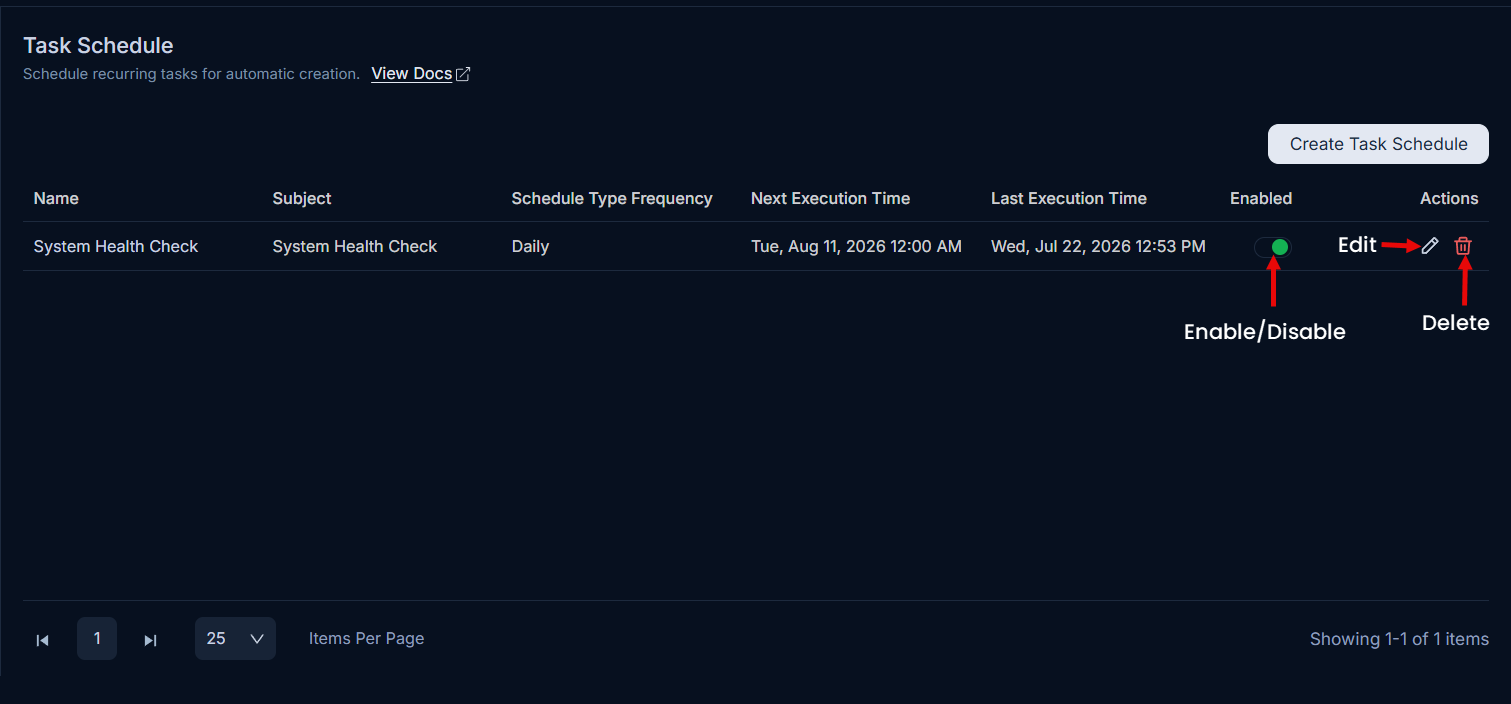
The page helps you to create a task schedule using which a task will be created whenever the schedule runs.
To create a Task Schedule, click the Create Task Schedule button on the top-right corner of the page.
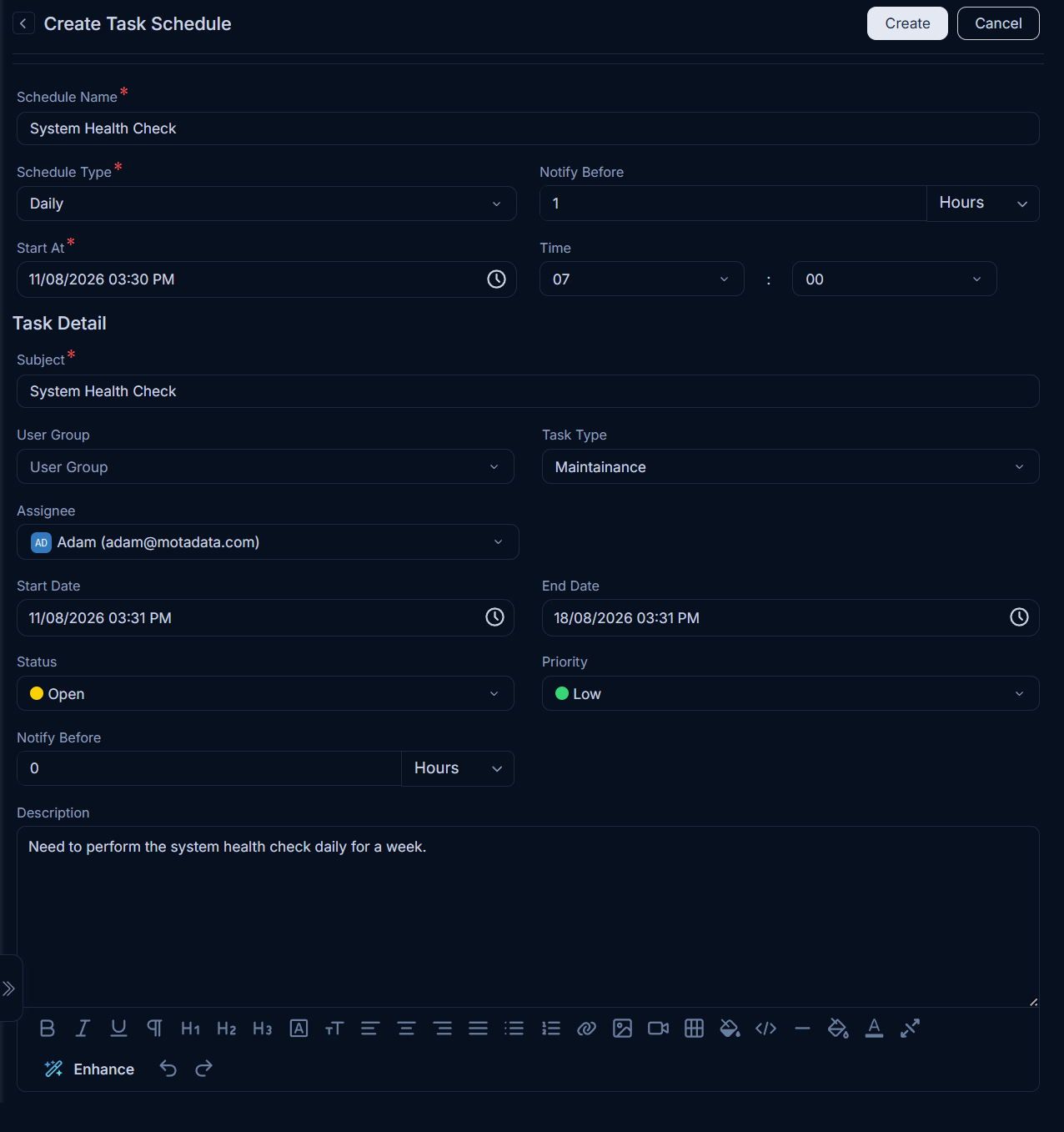
Enter the below details:
| Parameter | Description |
|---|---|
| Schedule Name | Enter the name of the task schedule. |
| Schedule Type | Select the type of schedule. The options are: - Once: If selected, the schedule will run only once. - Daily: If selected, the schedule will run daily as per the selected Time. - Weekly: If selected, the schedule will run once in a week as per the selected Day and Time. - Monthly: If selected choose when the scheduler should run: - On Specific Date: Allows you to select the Date and Month for the schedule to run. - On Specific Day: Allows you to select the Occurrence (e.g., first, second) and Weekday (e.g., Monday, Tuesday) for the schedule to run, along with the Month. Cron: Allows you to set a custom schedule using a cron expression. For example, "0 0 * * *" runs the schedule at midnight every day. |
| Notify Before | Enter the number of hours or minutes before which you want to send the notification to the technicians. |
| Start At | Select the date and time when the schedule should get applied. |
| Task Details | |
| Subject | Enter the subject of the task. |
| Assigned to | Select the technician to whom you want to assign the task. |
| Task Type | Select the task type. |
| Technician Group | Select the technician group for the task. You can add more options from the Admin Technician Groups page. |
| Start Date | Select the date when the task should start. |
| End Date | Select the date till which the task should end. |
| Status | Select the status of the task. |
| Priority | Select the priority of the task. The options are: Low, Medium, High, and Urgent. The default value is Low. |
| Notify Before | Set the hours, days, or minutes before which the system should send an email reminder to the assigned technician about the task. |
| Description | Enter a short description about the task. The description should contains sufficient details about the nature of the task and what do you expect from a technician. |
Once all the details are filled, click Create. The schedule gets created and a confirmation message appears. Based on this schedule, the tasks will get created automatically and appear in the Task list page.