View and Analyze Application Sessions
Once your application is instrumented with the Motadata RUM SDK and user sessions begin to flow in, the platform offers a powerful visualization layer for end-to-end analysis. This section breaks down how to view, explore, and investigate real user data across sessions, views, resources, actions, and errors.
Visualize an Onboarded Application
Motadata ObserveOps (formerly known as AIOps) facilitates visualization of registered application(s) using widgets and dashboard. You can have bird eye view of application(s) from the RUM dashboard displaying grid or tile card.
Navigation
Go to the RUM Explorer section from the main menu that displays RUM dashboard with tiles displaying different applications.
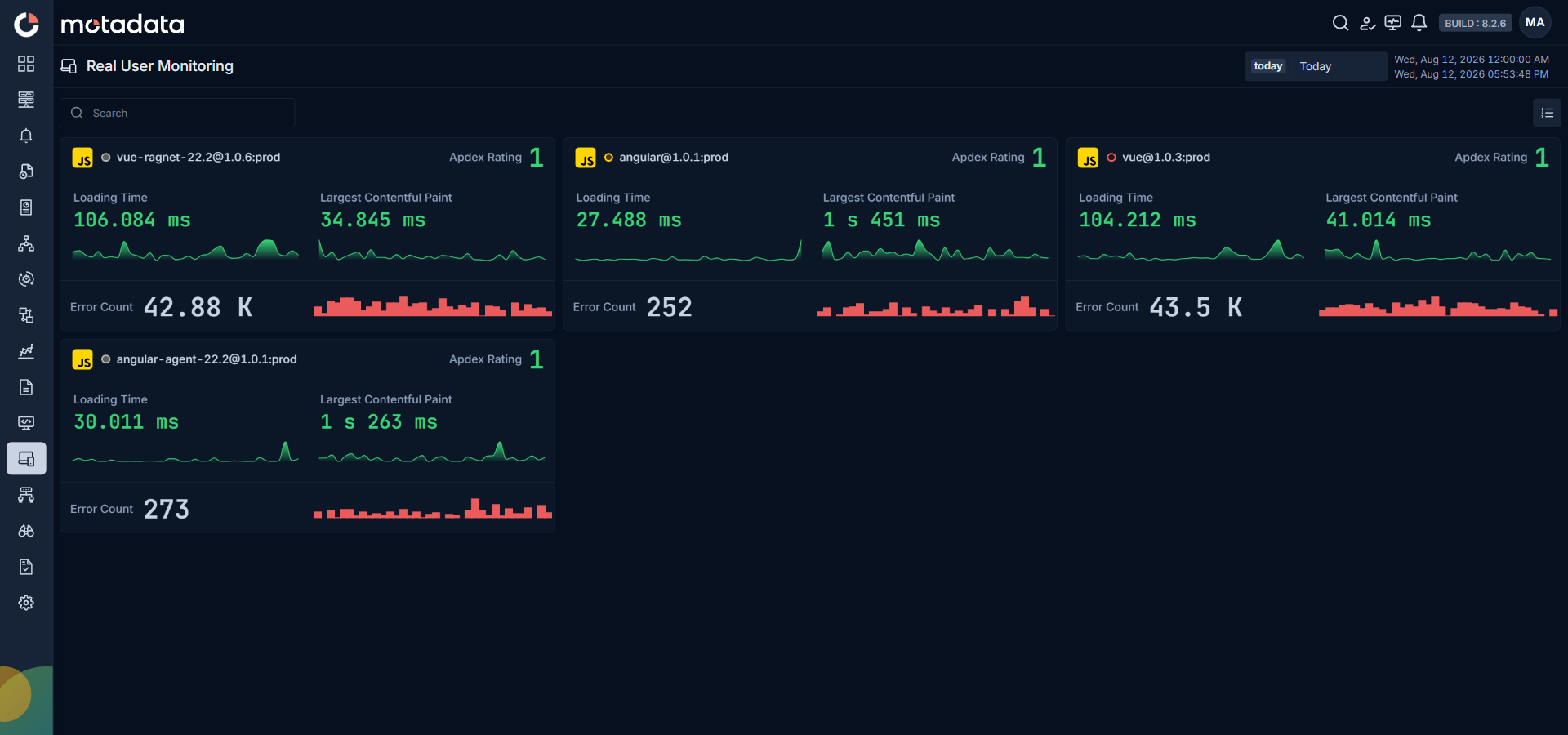
Each application tile provides instant visibility into:
- Loading Time
- Largest Contentful Paint (LCP)
- Error Count
- Apdex Rating (gauge)
Clicking any tile opens the full drill-down interface with access to different tabs. You’ll land on the default Overview tab, with three more tabs available at the top: Browsers, Demographics, and Session Explorer.
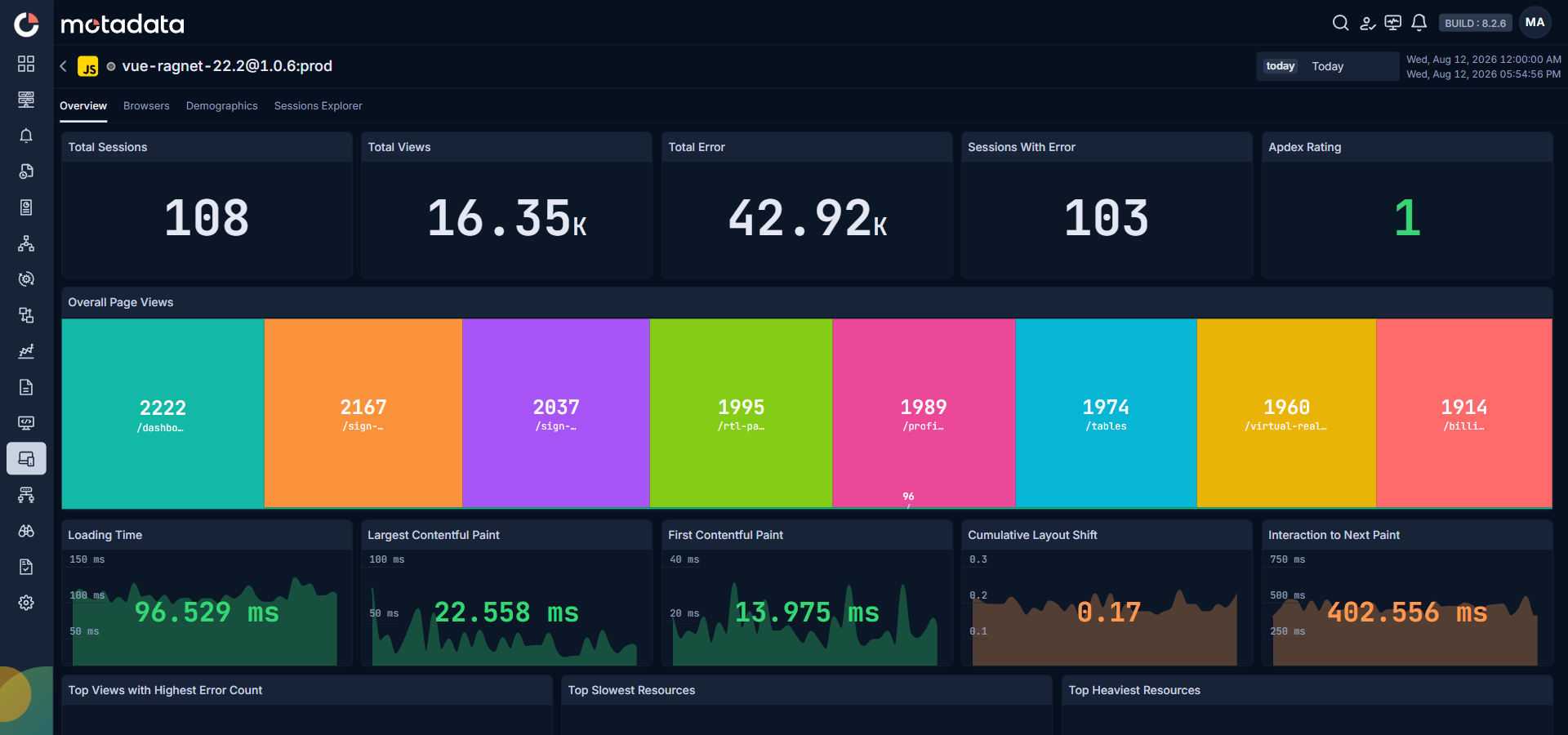
Overview Tab Visualizations
The Overview tab provides a bird’s-eye view of frontend performance, user experience metrics, and session volumes.
Key Visual Components
| Field | Description |
|---|---|
| Total Counts | Displays tiles with the total event counts such as Total Sessions, Total Views and Total Error. You can click these tiles that drills-down to Sessions Explorer for sessions, views, and errors respectively. |
| Sessions With Error | Displays count of affected sessions. |
| Apdex Rating | It is real-time satisfaction score. |
| Page View TreeMap | The Overall Page Views displays a visual mapping of views based on their frequency and relative weight. Clicking any view redirects you to the Sessions Explorer, where the Views event is automatically selected and the chosen view is applied as a filter. |
| Core Web Vitals Tiles | Displays line-chart view of Loading Time, LCP, FCP, CLS, and INP with thresholds. |
| Top Views with Highest Error Count | Represents which views cause the most errors through bar-chart. Clicking a bar redirects you to the Sessions Explorer, where the Errors event is automatically selected and the corresponding view is applied as a filter. |
| Top Slowest Resources | Displays the resources with the highest load times. Clicking a bar redirects you to the Sessions Explorer, where the Resources event is automatically selected, the corresponding resource is applied as a filter, and the grid is sorted by highest duration first. |
| Top Heaviest Resources | It pinpoints largest page assets impacting performance. Clicking a bar redirects you to the Sessions Explorer, where the Resources event is automatically selected, the corresponding resource is applied as a filter, and the grid is sorted by heaviest size first. |
| Page View Performance Summary | This shows detailed grid of all views and their associated Web Vitals. Clicking on any View Name opens a drill-down menu with view attributes. From these attributes, clicking a timestamp under the Page View Performance Summary grid, navigates to the View details page. |
Browsers Tab Visualization
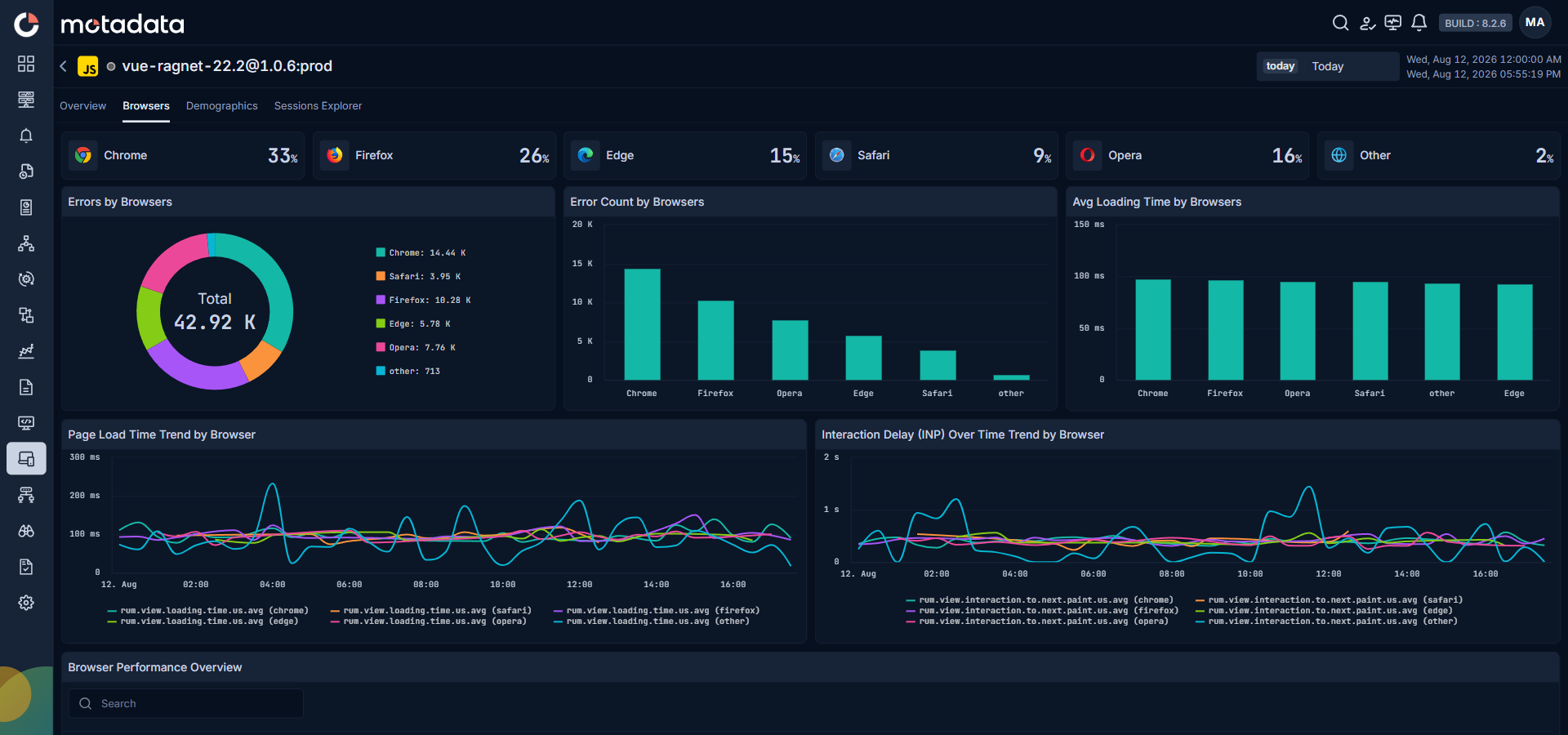
This tab breaks down session volume and performance by browser type.
| Field | Description |
|---|---|
| Browser Distribution | Displays percentage of sessions from browsers that are used by user(s). i.e., Chrome, Safari, Firefox, etc. Clicking a browser redirects you to the Sessions Explorer, where the Views event is automatically selected, the corresponding browser is applied as a filter. |
| Errors by Browsers | The pie chart displays total number of errors with each different section for different browsers. You can hover over different areas in the chart and this will display the number of errors with the browser names. |
| Error Count by Browsers | The bar chart compares each browsers with their error counts. Clicking a bar redirects you to the Sessions Explorer, where the Errors event is automatically selected, the corresponding browser is applied as a filter. |
| Avg Loading Time by Browsers | Displays bar chart comparison for average loading time by each browser. Clicking a browser redirects you to the Sessions Explorer, where the Views event is automatically selected, the corresponding browser is applied as a filter, and the grid is sorted by highest duration first. |
| Page Load Time Trend by Browser | Displays a line chart for trend comparison taking page load time by each browser. |
| INP Trend by Browser | Displays a line chart for trend comparison in INP by each browser. |
| Browser Performance Overview | It is a grid view comparing Session Count, Error Count, and Core Web Vitals across browsers. |
Demographics Tab Visualization
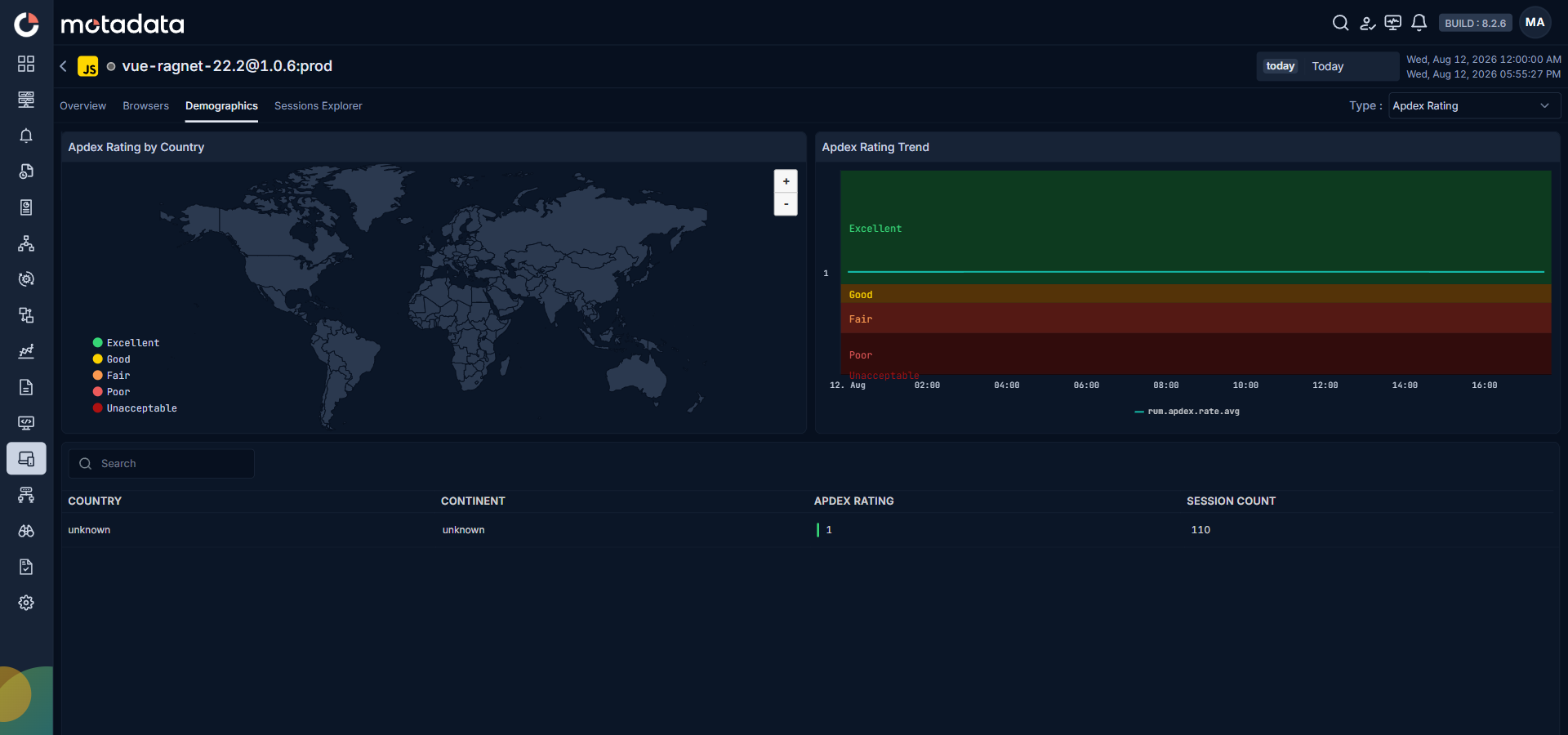
This tab gives a facility to analyze demographic impact of different KPIs. You can select the KPI type from the Type drop-down menu and it helps to identify performance bottlenecks using demographic map for each KPI type. It displays the performance information with severity like Excellent, Good, Fair, Poor, and Unacceptable.
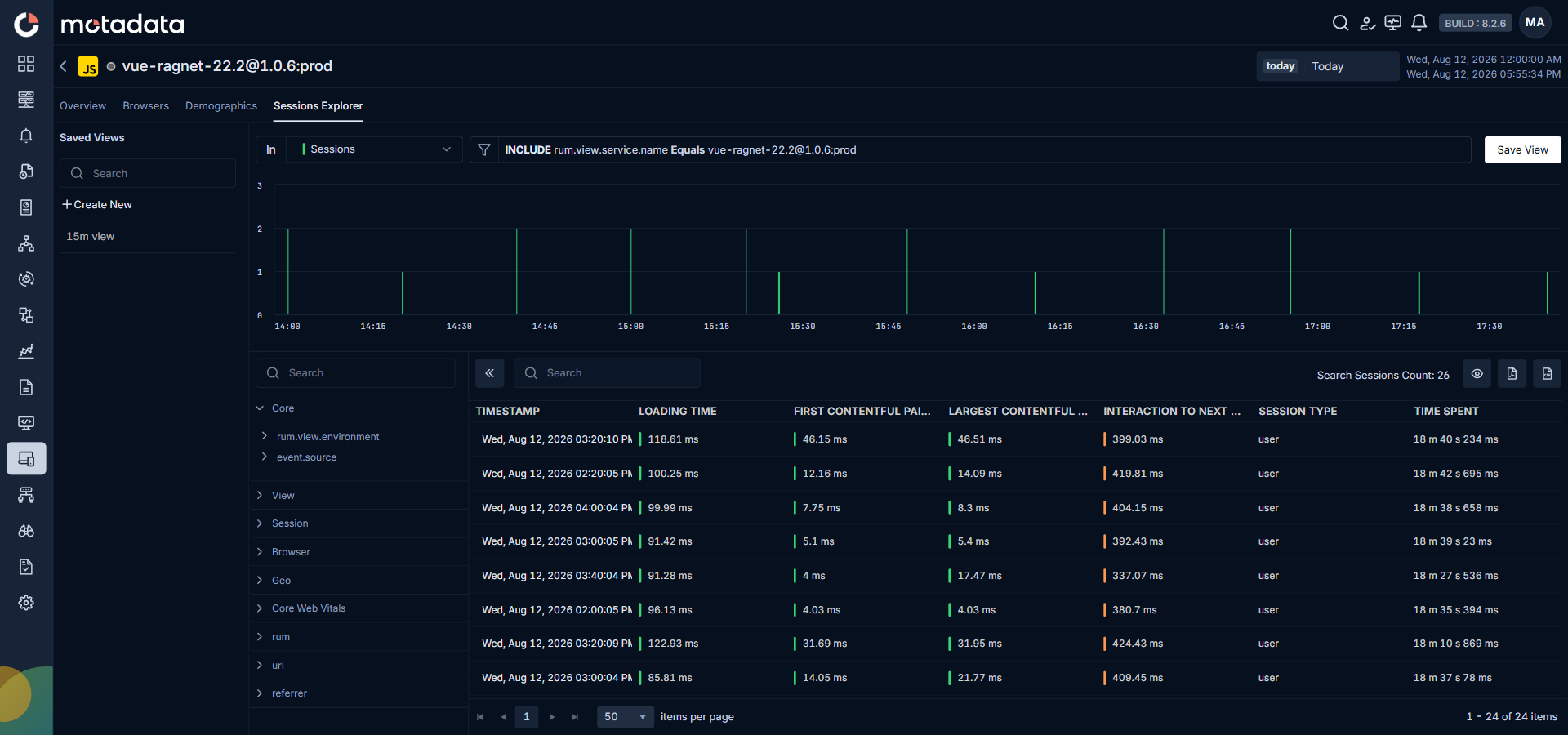
Session Explorer
The Session Explorer helps in drilling down into every RUM events.