Troubleshooting with Real User Monitoring (RUM)
Overview
Frontend performance issues are rarely obvious. A page may technically load, but users still experience delays, freezes, rage clicks, or broken flows. Console logs and synthetic tests only tell part of the story—they don’t explain what real users experienced, on real browsers, under real conditions.
This is where Motadata Real User Monitoring (RUM) becomes decisive. RUM allows frontend engineers, performance teams, and product owners to move from symptoms to root cause with clarity and speed.
This page walks through a real-world RUM troubleshooting scenario, demonstrating how to identify a slow user experience, isolate the problematic view, drill into user actions, and pinpoint the exact frontend bottleneck.
Troubleshooting User Experience Using Motadata RUM
Motadata RUM enables teams to diagnose performance issues by analyzing real user sessions instead of assumptions. In the below examples, we will investigate two cases:
- Where user experience high page load time in a production web application more than usual.
- Where user experience surge in Error count than usual.
- High Loading Time
- High Error Count
Scenario Overview
Once configured, from the RUM Explorer, multiple applications are visible in tile view. One application AnyTrade stands out with its key KPIs, that immediately signals a degraded user experience that needs investigation.
Step 1: Identify the Problematic Application in RUM Explorer
In the RUM Explorer section, the tiles representing the registered applications display key metrics such as Loading Time, Error Count, LCP (Largest Contentful Paint), and Apdex Rating. Upon looking at the AnyTrade tile, you notice that the Loading Time is significantly higher than other applications.
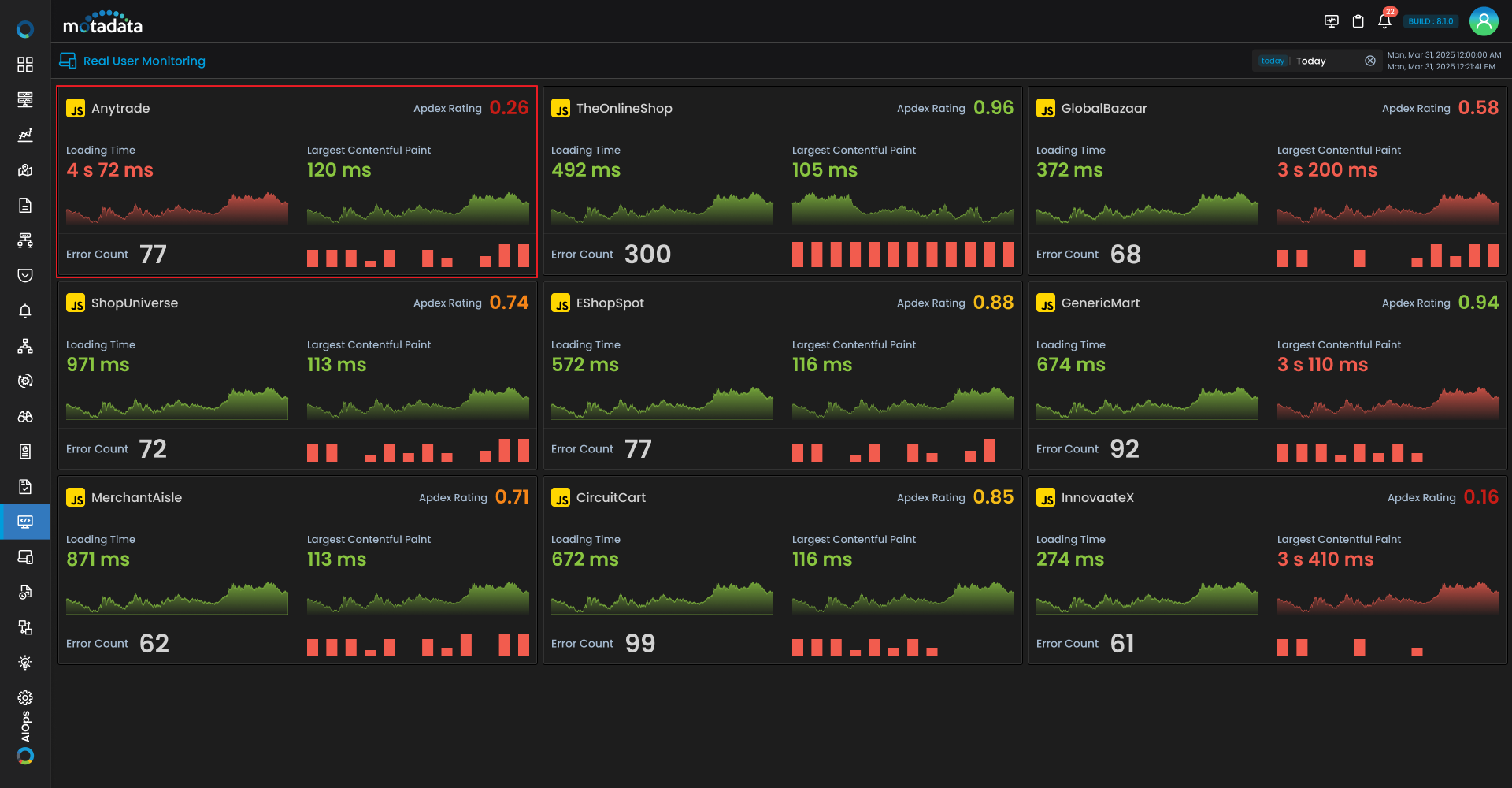
- Loading Time: 4.25 seconds
Click the AnyTrade tile to begin analysis.
Step 2: Analyze High-Level Experience in the Overview Tab
Clicking the tile, you land on the Overview tab for the selected application.
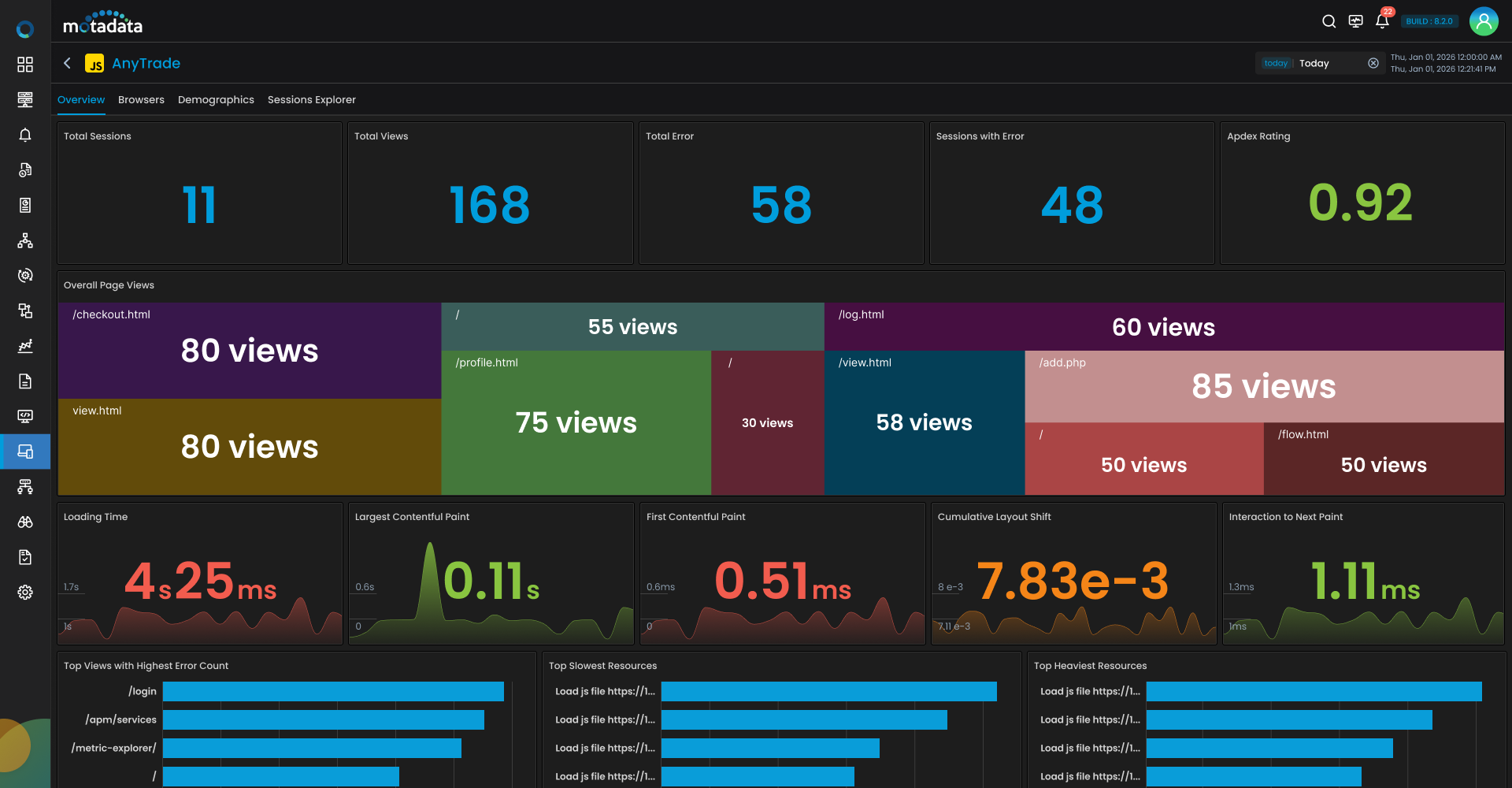
This view provides an aggregated snapshot of user experience:
- Total Sessions and Views
- Sessions with Errors
- Apdex Rating
- Core Web Vitals trends
- Page View TreeMap
- Top N bar-chart for Views with Error count and Resources
- Page View Performance Summary grid
Scroll down to the Page View Performance Summary grid.
This grid lists all views (pages) with their associated performance metrics.
Step 3: Isolate the Slowest View
Sort the Loading Time (LT) column in descending order. This immediately surfaces which view contributes most to poor user experience.
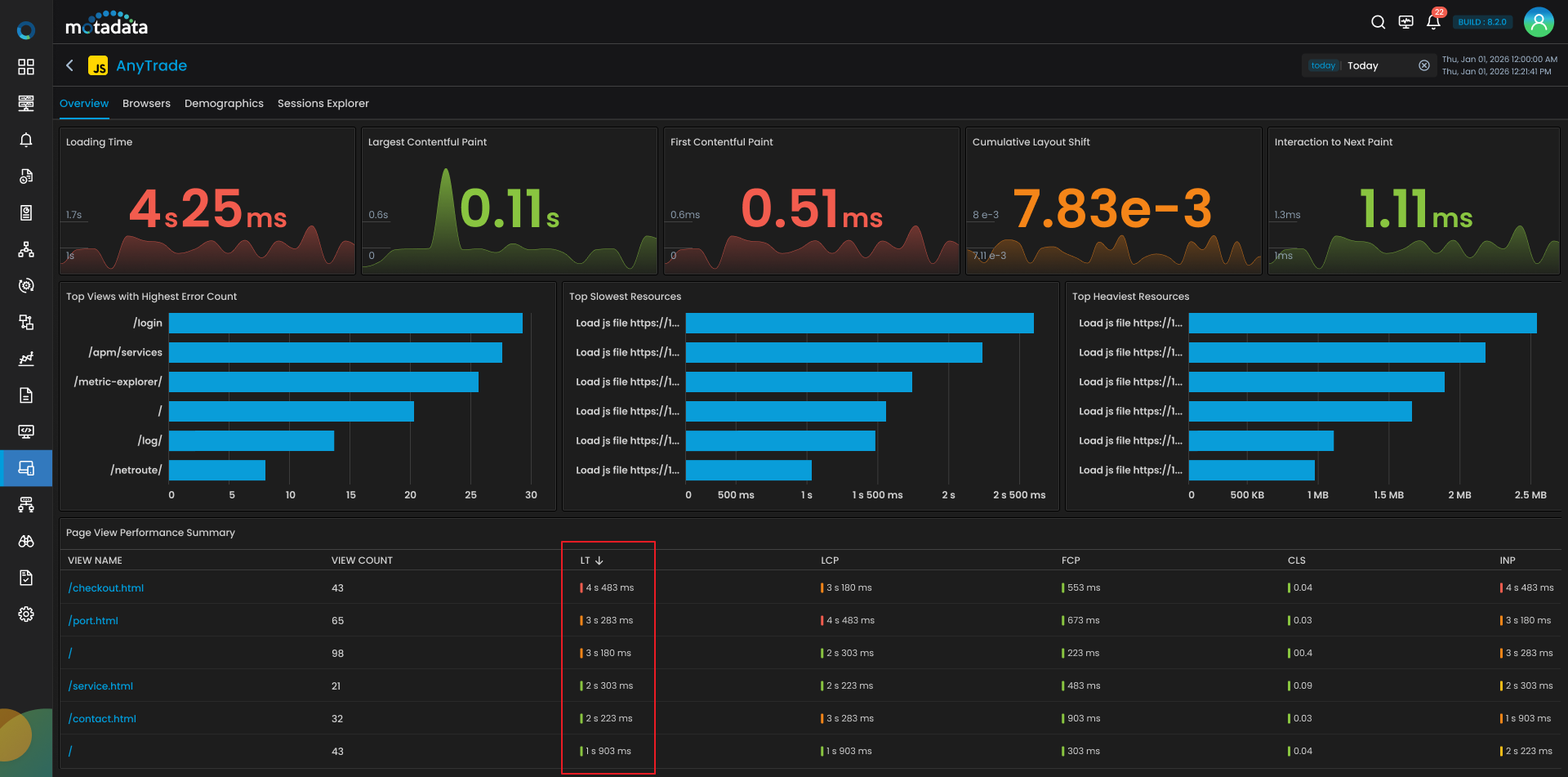
In this scenario, /checkout.html appears at the top with the highest loading time.
Click the View Name to open the performance drill-down.
Step 4: Drill Into View Performance
The performance drill-down displays detailed performance data for /checkout.html, including:
- Loading Time
- LCP, FCP, CLS, INP
- Resource distribution
- Page View Performance Summary
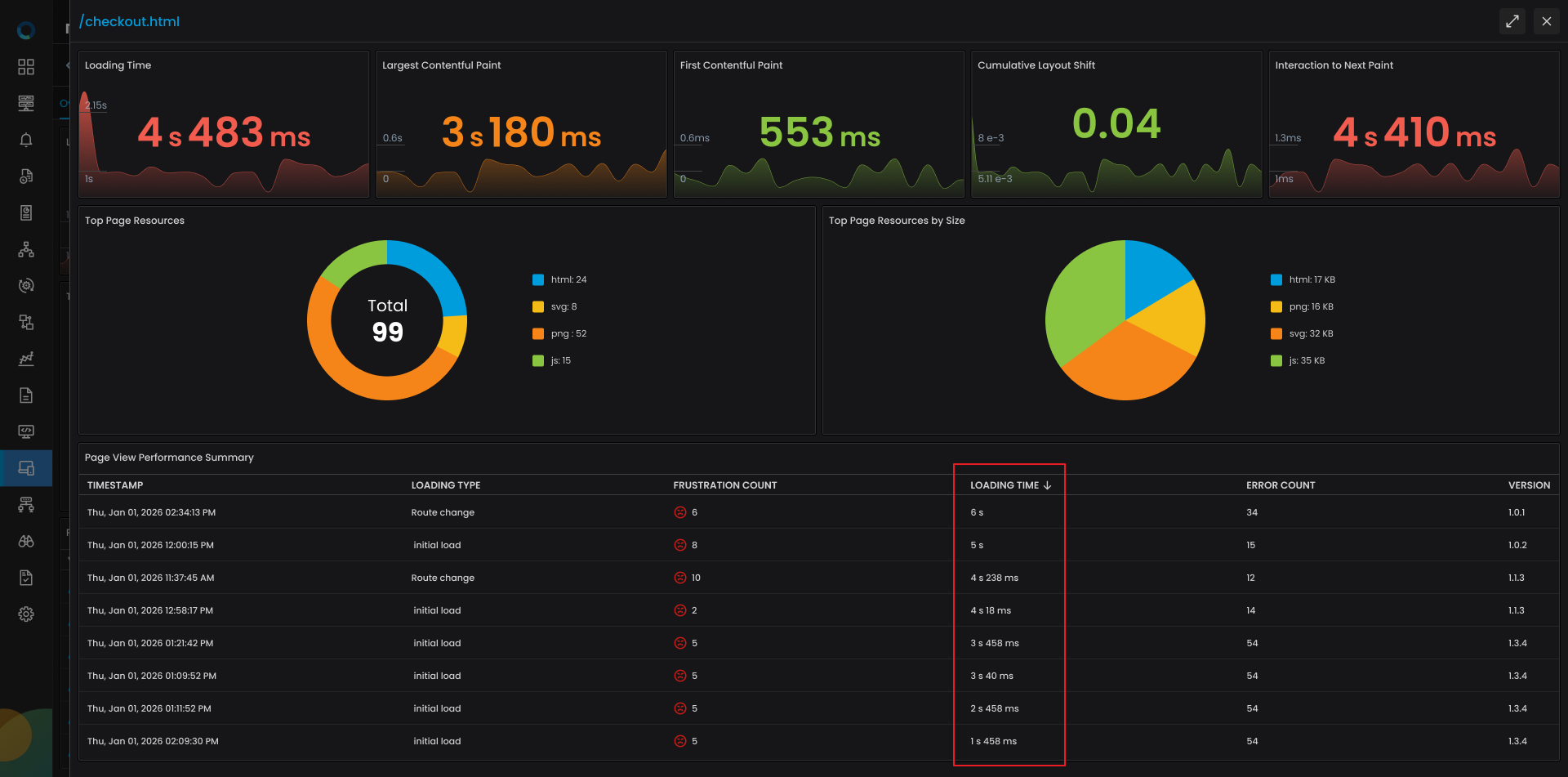
Go to the Page View Performance Summary section and sort again by Loading Time.
Click the timestamp with the highest loading time to open the event-level drill-down.
Step 5: Analyze the View Event Timeline
The View Event drill-down provides:
- Session context (browser, OS, version, environment, etc.)
- Frustration status
- A flame chart showing the exact sequence of events during the page load
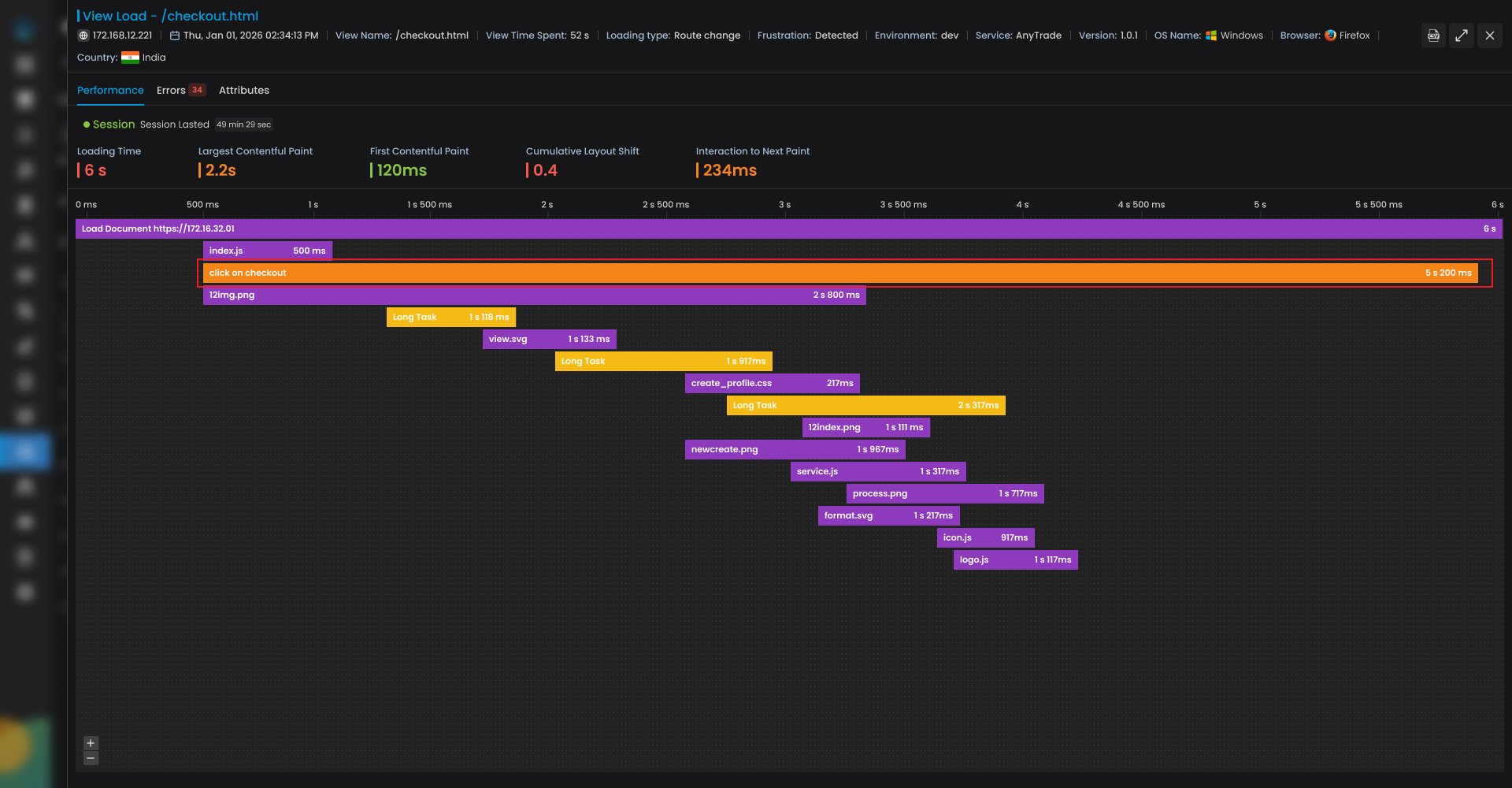
From the flame chart, it becomes evident that a user interaction named Click on checkout is taking significantly longer time.
This indicates that the delay is not just page rendering, but an interaction-driven bottleneck.
Click the “Click on checkout” action in the flame chart.
Step 6: Investigate the Action Performance
You are now redirected to the Performance tab in Action drill-down.
This view shows:
- Action duration
- Associated view and session
- Frustration indicators
- A detailed flame chart for the action lifecycle
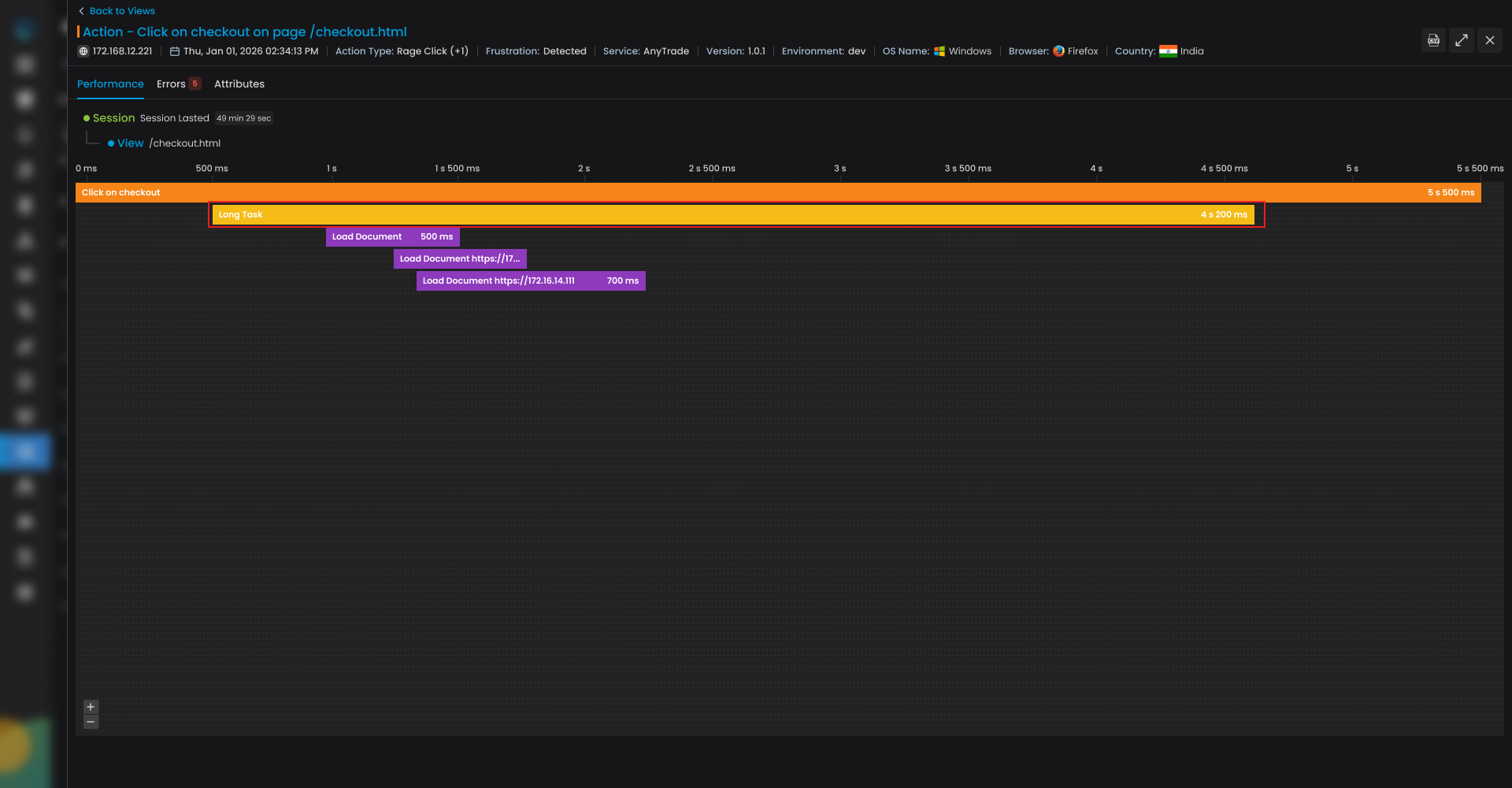
The flame chart reveals a long task running during the checkout click, lasting approximately 4.2 seconds well beyond acceptable thresholds.
Click the Long Task in the flame chart to continue drilling down.
Step 7: Pinpoint the Long Task Root Cause
The Long Task drill-down exposes what blocked the browser’s main thread.
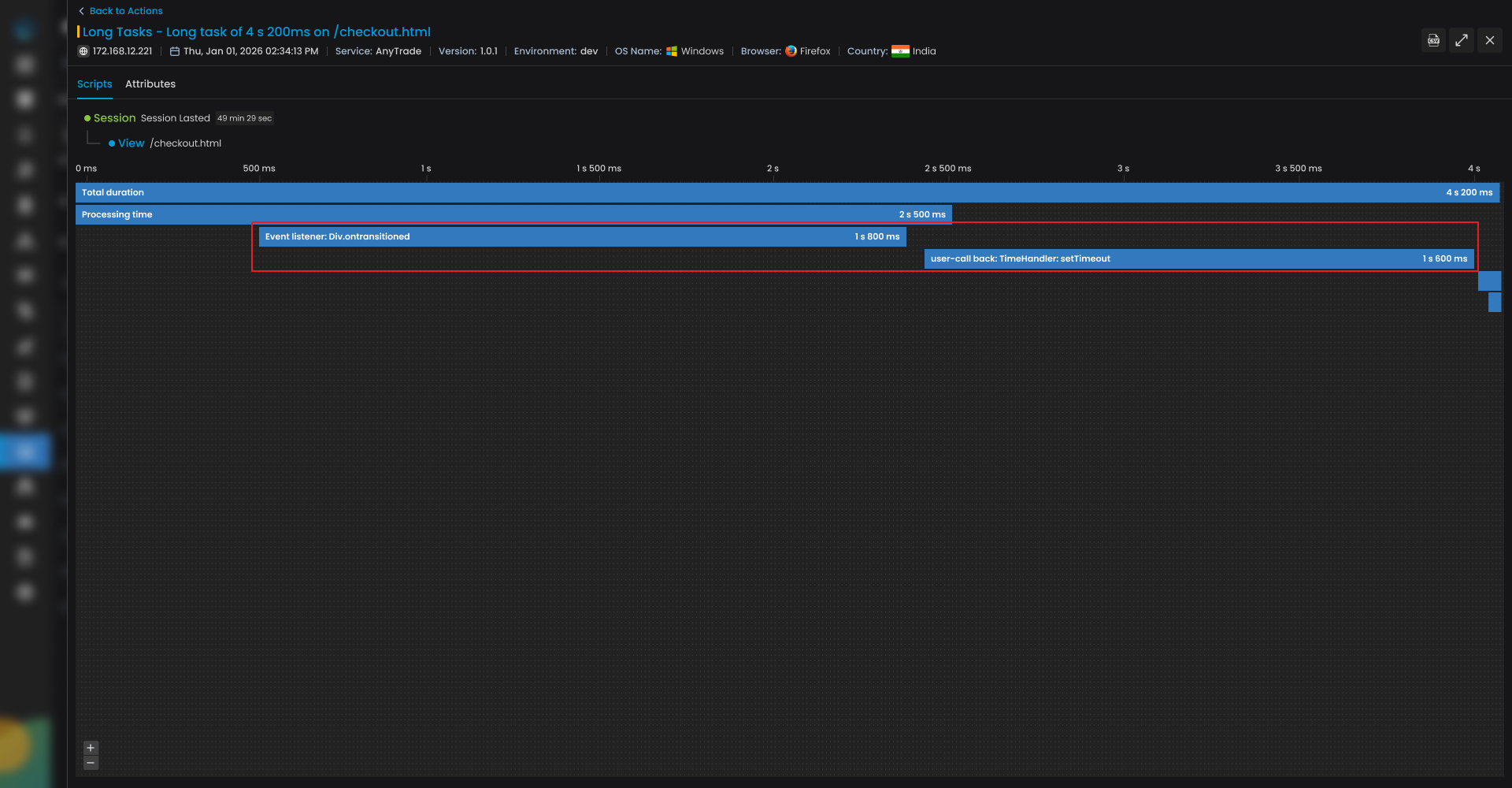
In this case, two execution segments stand out:
- Event Listener: 1s 800ms
- User Callback: 1s 600ms
These tasks together account for the majority of the interaction delay.
This confirms the root cause:
Excessive JavaScript execution during the checkout interaction is blocking the main thread, causing long delays and user frustration.
Step 8: Resolution and Validation
Armed with this insight, frontend engineers can:
- Optimize or refactor the event listener logic
- Defer or split long-running JavaScript tasks
- Move heavy computation off the main thread
- Improve interaction responsiveness (INP)
Once changes are deployed, teams can return to RUM Explorer to validate:
- Reduced Loading Time
- Improved INP
Key Takeaways
| Capability | Value Delivered |
|---|---|
| Real User Visibility | Troubleshoot actual user experience instead of synthetic assumptions. |
| View-Level Isolation | Quickly identify which page causes performance degradation. |
| Action-Level Analysis | Pinpoint slow user interactions like clicks and navigation. |
| Long Task Detection | Surface JavaScript blocking issues affecting responsiveness. |
| Timeline Correlation | Understand how views, actions, resources, and scripts interact. |
| Faster RCA | Reduce mean time to resolution with precise frontend insights. |
Scenario Overview
After registering applications and navigating to the RUM Explorer, you notice that The Online Shop application is showing a significantly high Error Count compared to other applications. This warrants further investigation to identify why there are so many errors.
Let's dive deeper into the issue by analyzing the application's performance and errors.
Step 1: Monitor Error Patterns in RUM Explorer
In the RUM Explorer section, the tiles representing the registered applications display key metrics such as Loading Time, Error Count, LCP (Largest Contentful Paint), and Apdex Rating. Upon looking at the The Online Shop tile, you notice that the Error Count is significantly higher than other applications.
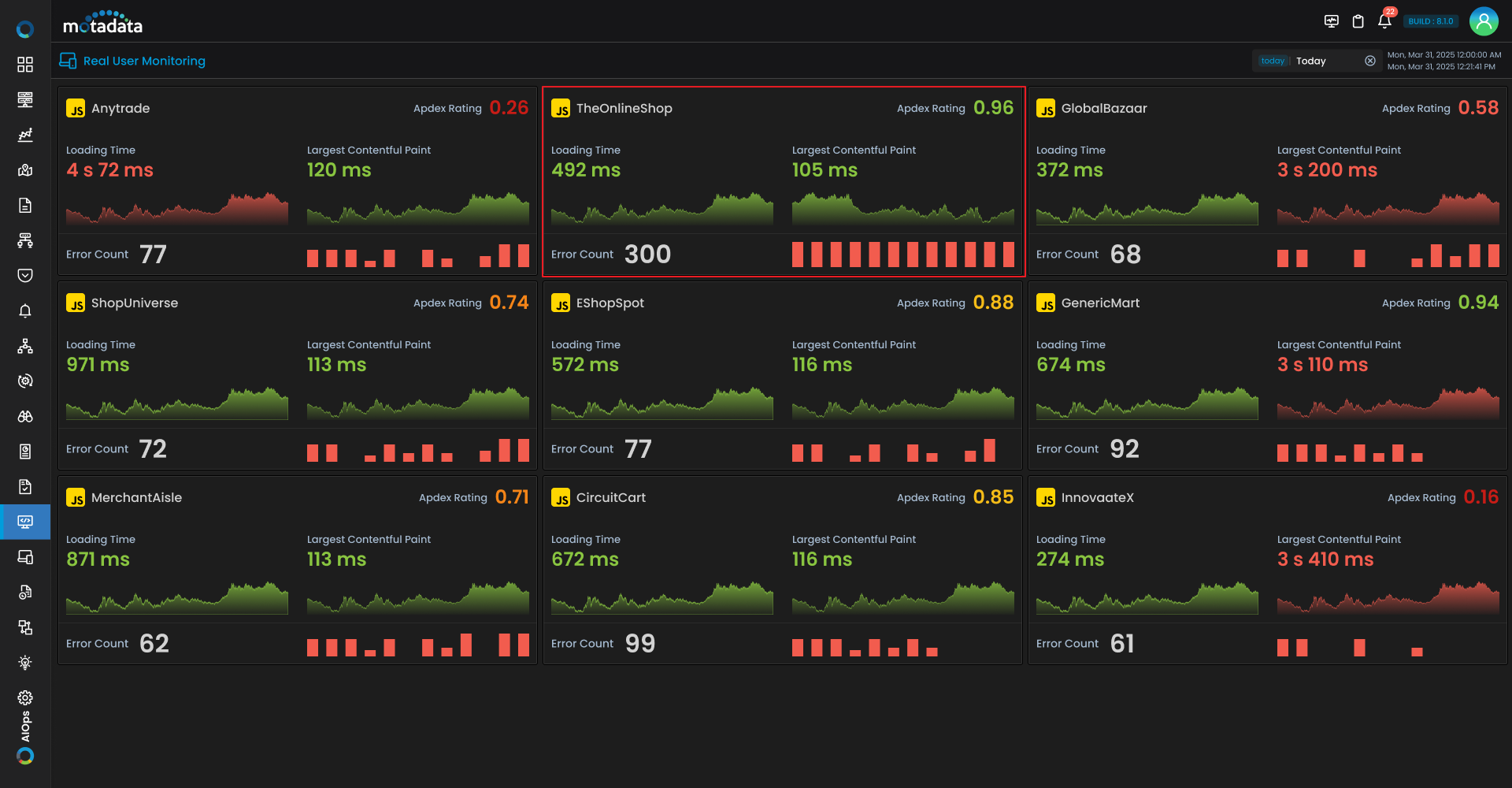
Error Count: 300
Click on the the Online Shop tile to investigate further.
Step 2: Check the Overview Tab for Initial Insights
Once you click the application tile, you land on the Overview Tab. This view provides an aggregated snapshot of user experience:
- Total Sessions and Views
- Sessions with Errors
- Apdex Rating
- Core Web Vitals trends
- Page View TreeMap
- Top N bar-chart for Views with Error count and Resources
- Page View Performance Summary grid
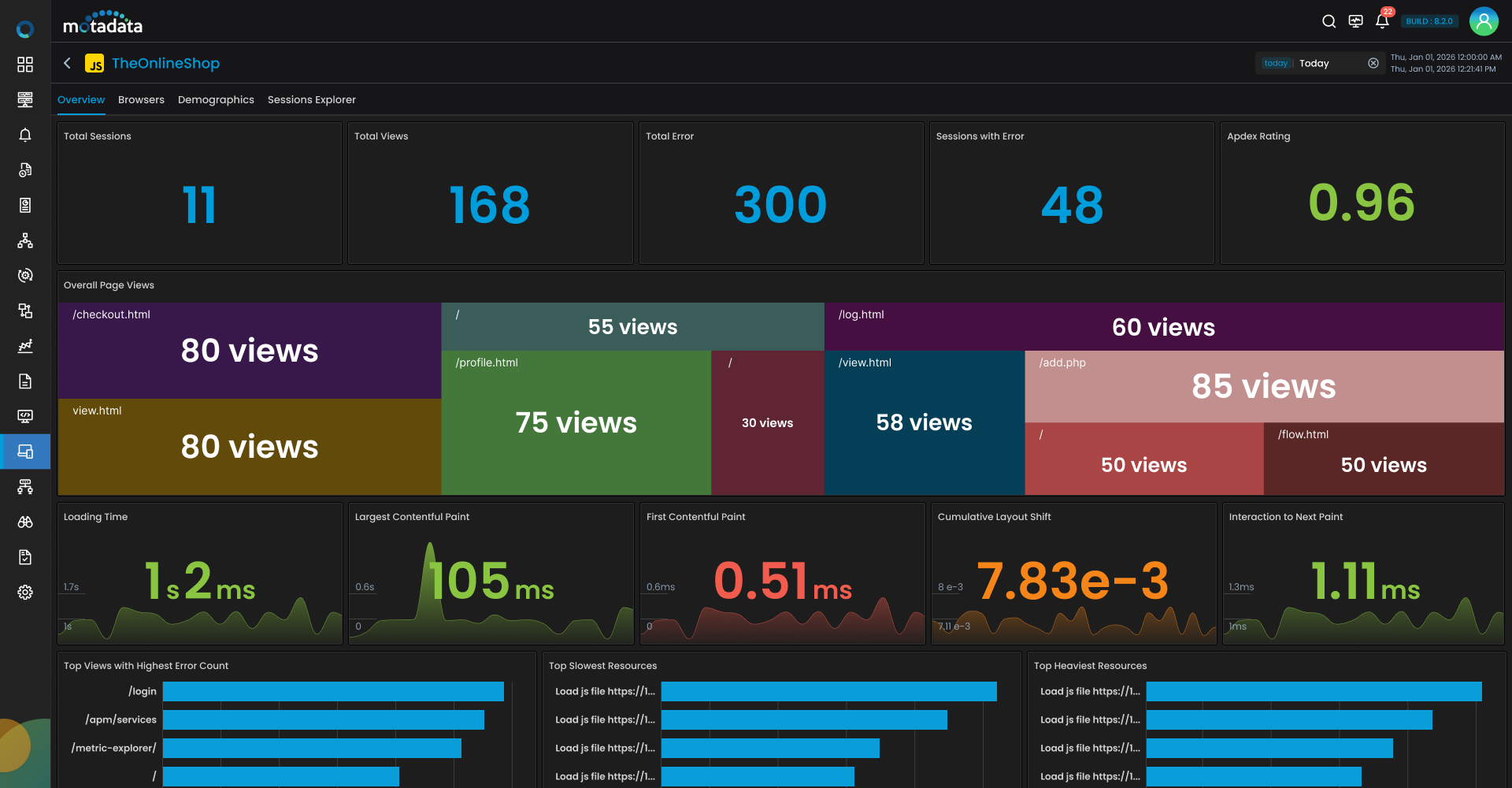
In this case, we can see that the Error Count is high, but we need to figure out the cause behind it. To dive deeper, let's explore if the errors are browser-related or if they are specific to a certain demographic region.
Step 3: Check Browser-Related Errors in the Browser Tab
Next, navigate to the Browser Tab to analyze how different browsers are performing. This tab breaks down the application performance based on the browser(s).
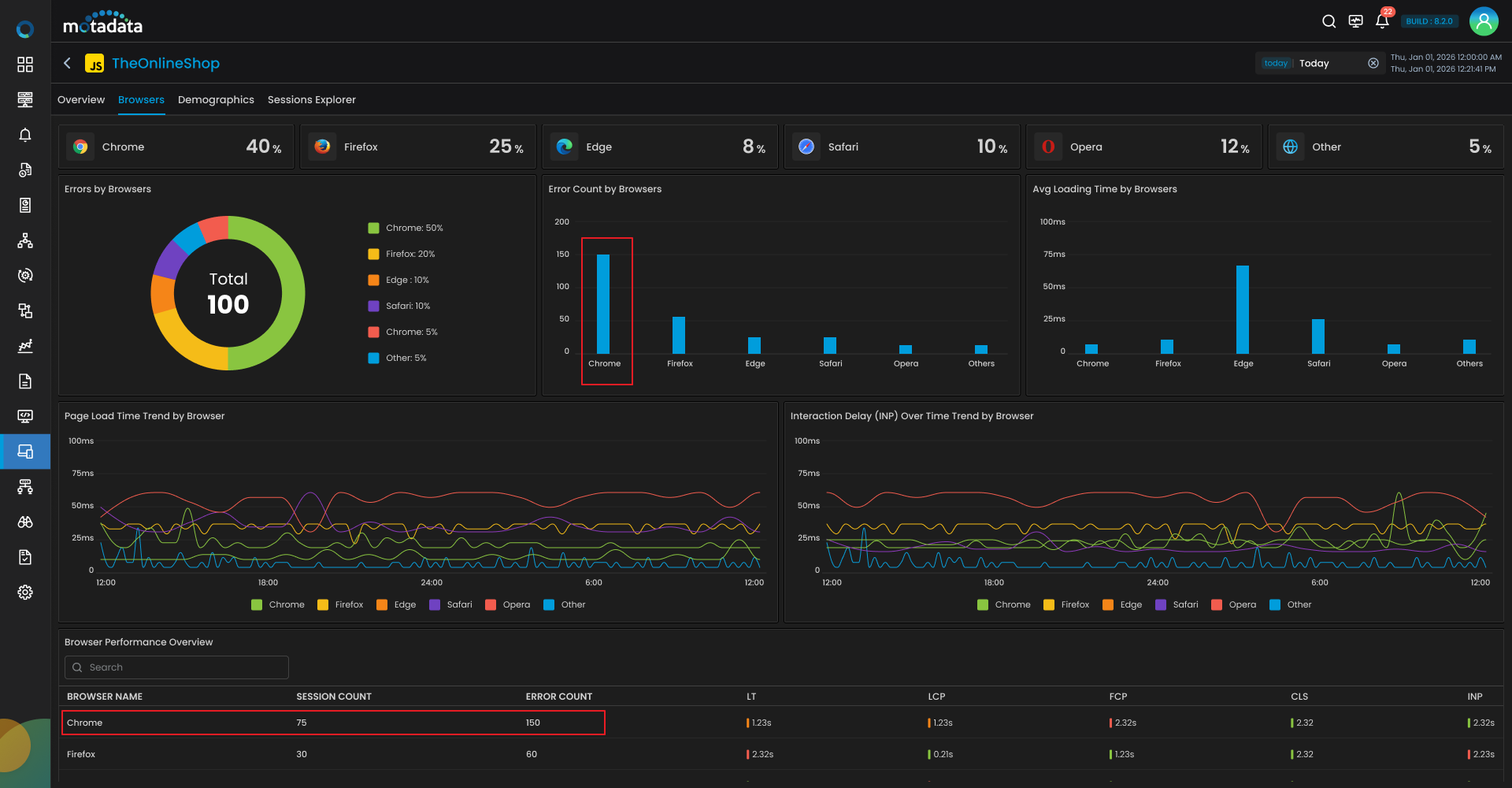
In the Error by Browser chart, you can identify whether the errors are happening more frequently on certain browsers. Upon inspecting the data, we see that Chrome is the browser with the highest number of errors.
Step 4: Check for Regional Impact in the Demographics Tab
Now, we need to see if the errors are specific to a certain region. Navigate to the Demographics Tab. By default, the tab shows Apdex Rating, but we need to focus on Error Count for this investigation.
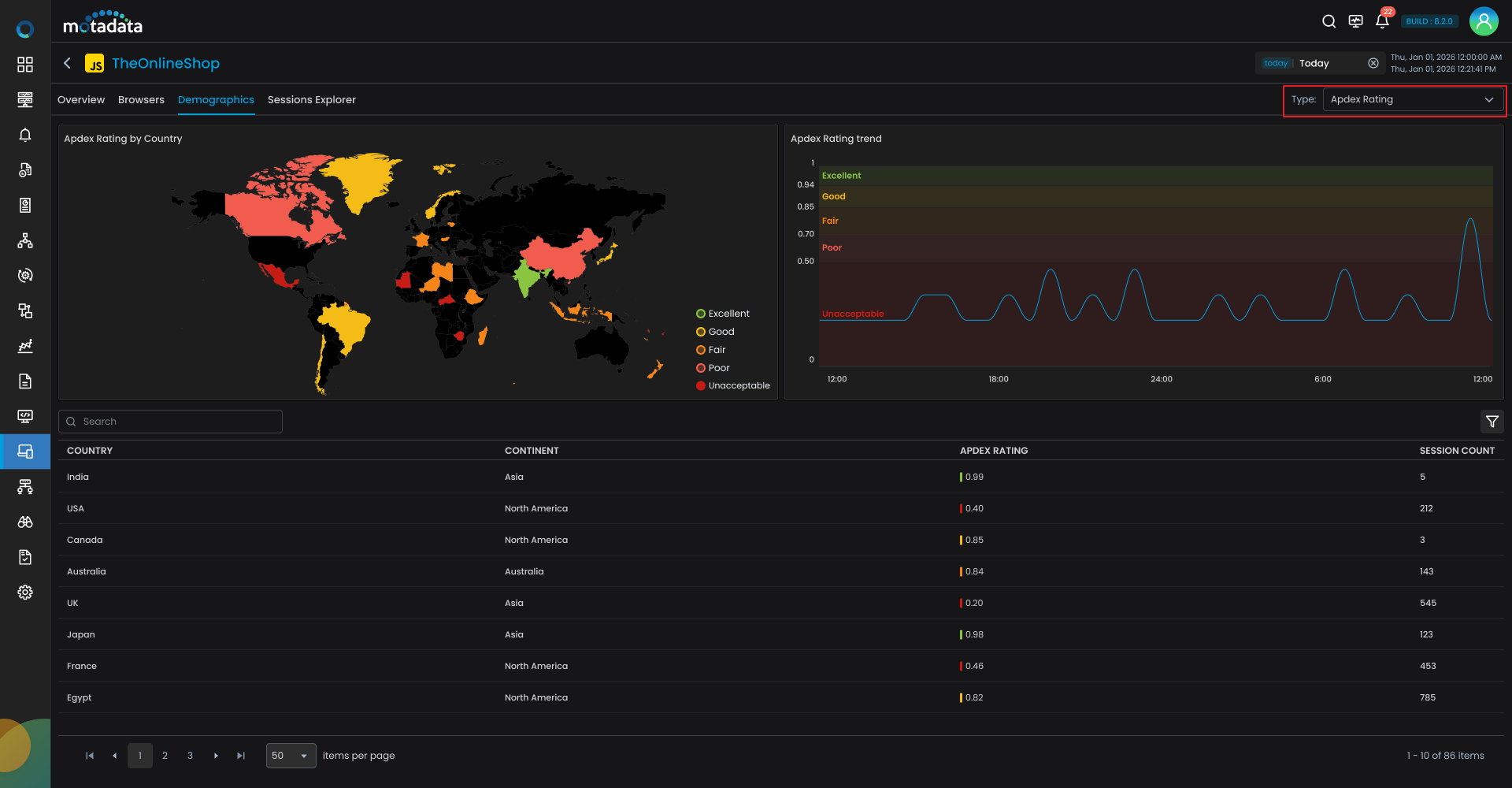
Click on the Error Count option from the top-right drop-down menu to filter by error count. This will give us a clearer view of the error distribution across various regions.
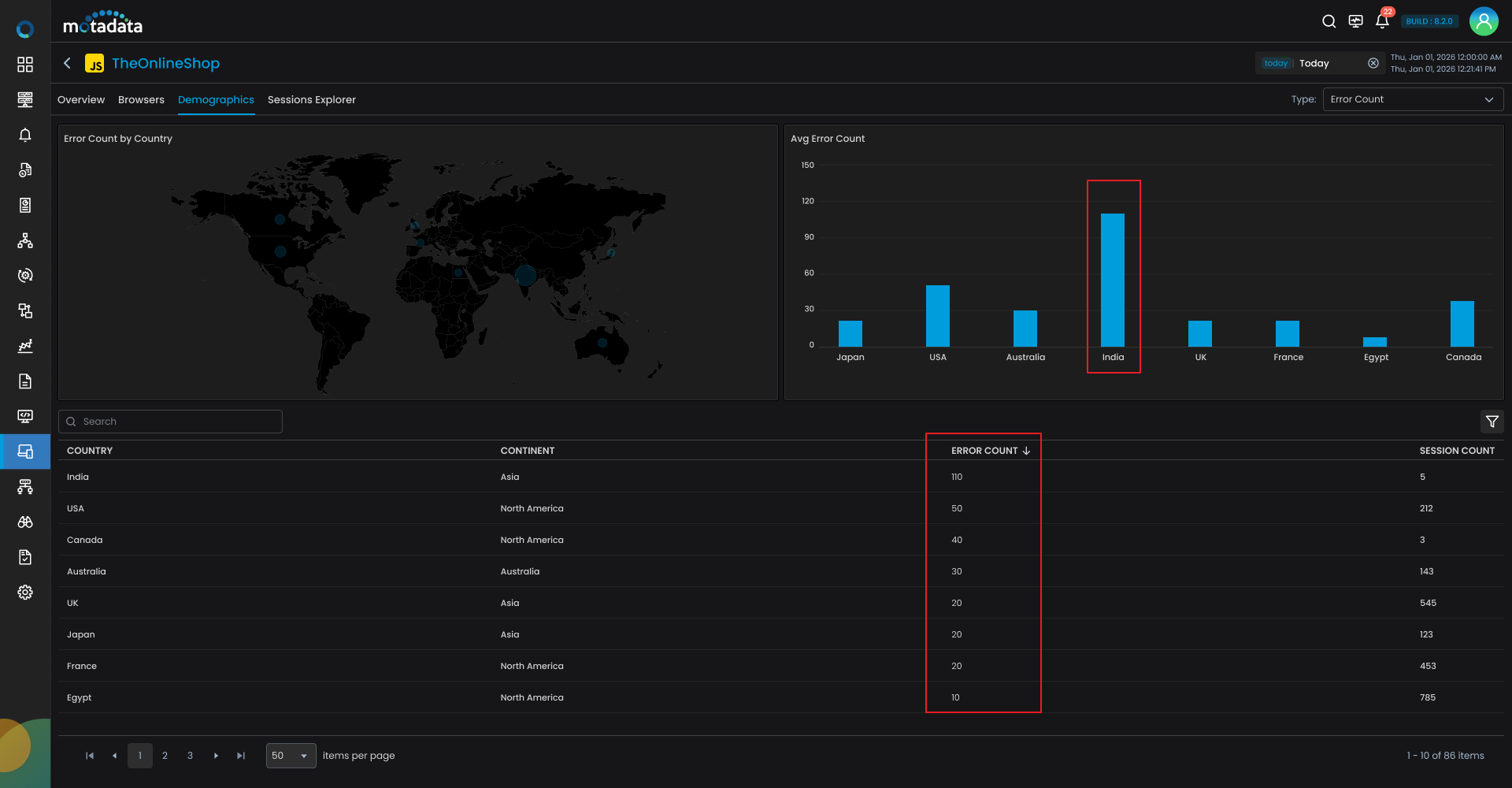
Looking at the map and chart, we can identify that India has the highest error count.
Step 5: Drill Down into Session Details Using the Session Explorer
Now that we know the errors are concentrated in India and primarily occur on Chrome, we can drill down further into the Session Explorer to investigate the specifics.
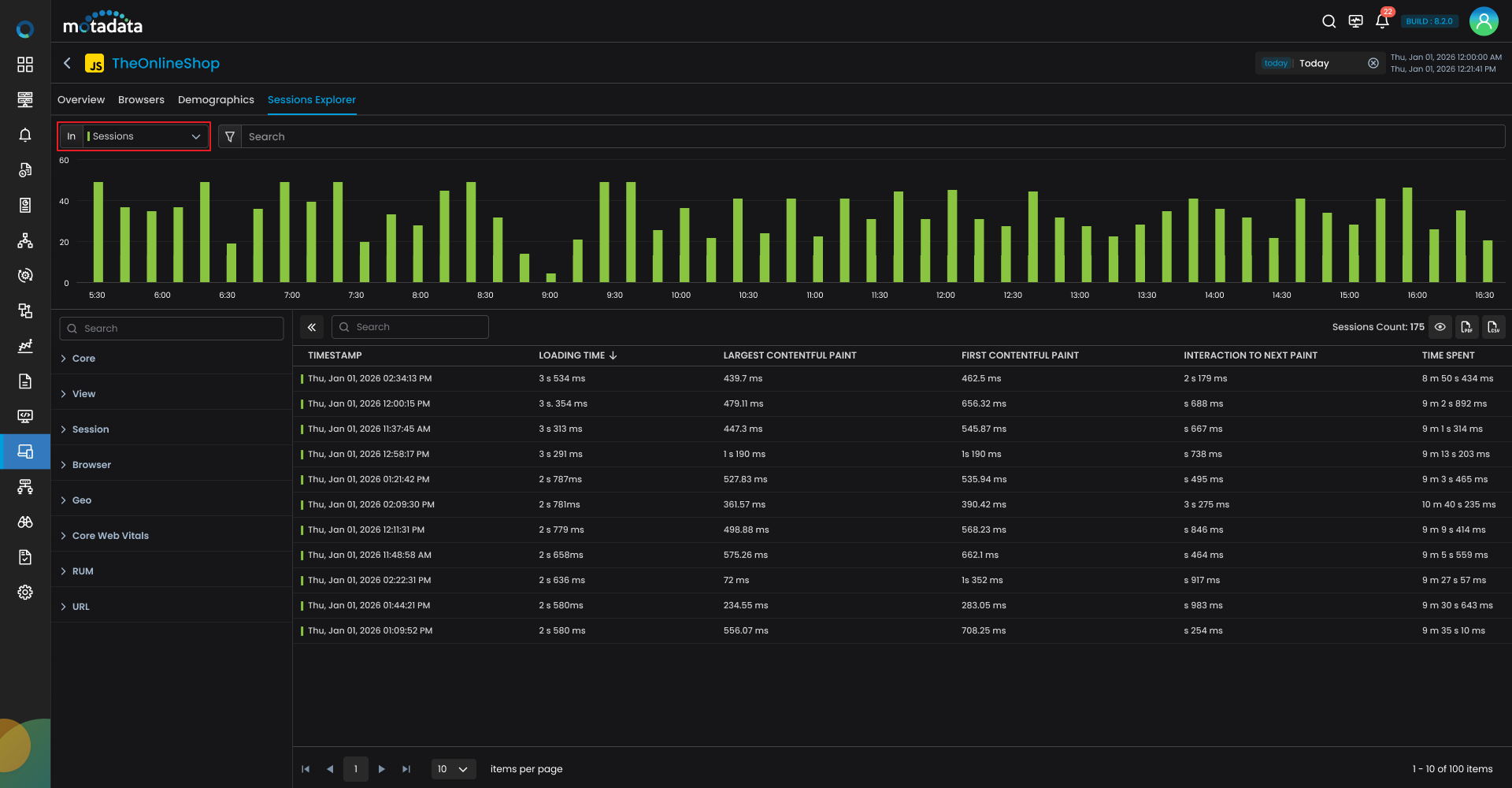
Go to the Session Explorer section. From the In drop-down menu, select Error to see the error events.
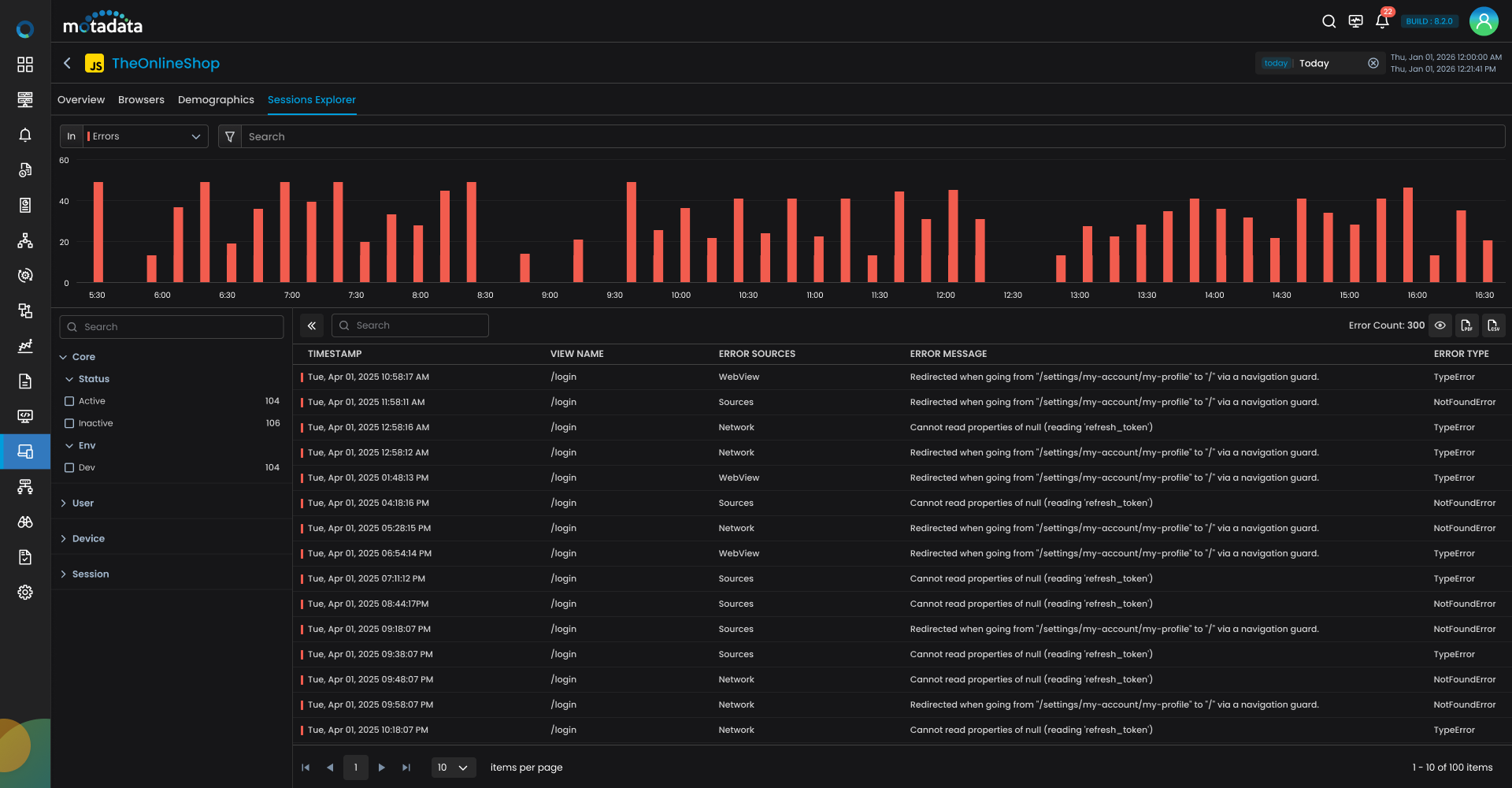
Filter the data further by selecting Country: India and Browser: Chrome from the left side filter panel. Select the specific timeline from the bar chart to narrow down to when these errors occurred.
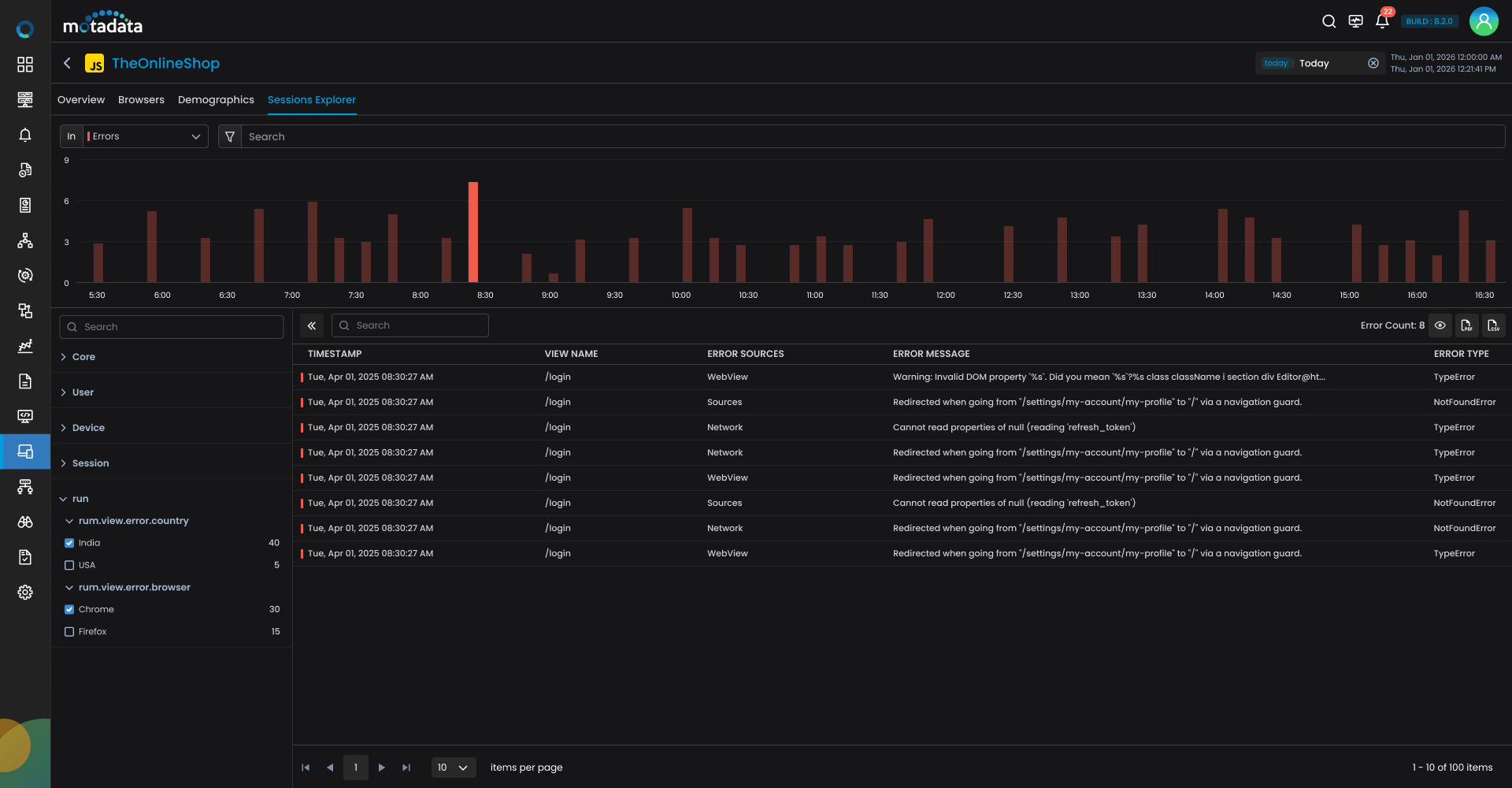
By doing this, you'll be able to see error details for the selected time period.
Step 6: Review Error Messages in the Session Explorer Grid
The Errors grid, displays the details of error(s). Clicking any timestamp will redirected you to the Error drill-down.
Clicking on the timestamp brings up detailed information about the error, along with its associated attributes, session data, and view information.
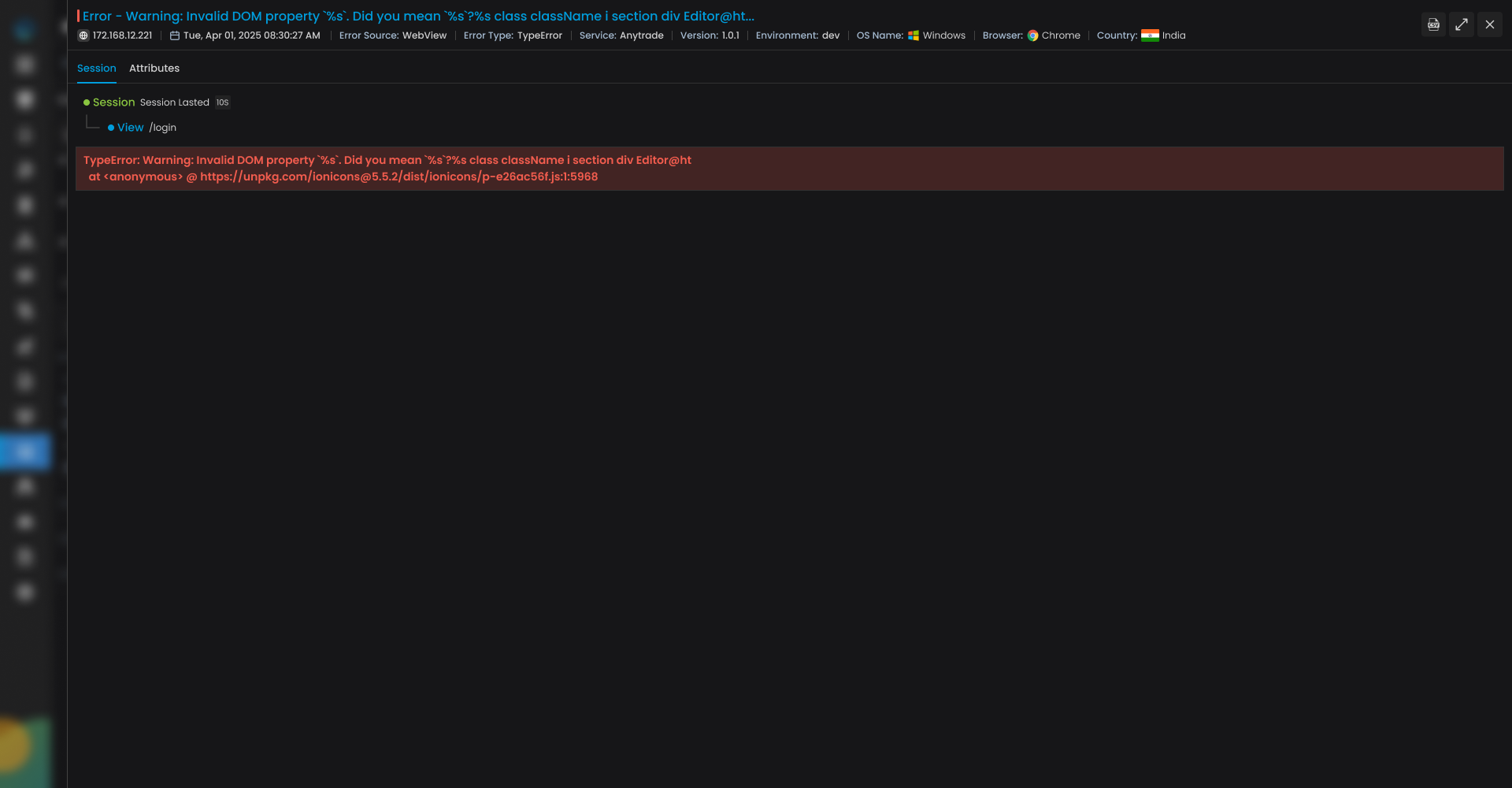
Step 7: Root Cause Analysis and Resolution
By analyzing the error message and reviewing the backend details, you may find specific components or resources causing these errors. For example, an issue with a third-party API or a JavaScript function could be causing the failures.
Once you've identified the root cause, you can take the necessary actions to fix the issue—whether it’s optimizing a resource, fixing a broken API call, or addressing a JavaScript error.
Key Takeaways
| Field | Description |
|---|---|
| Real-Time Error Tracking | Quickly identifies and isolates error patterns in real-time, especially by browser or region. |
| Session-Based Analysis | Provides the ability to drill into individual sessions and correlate errors to specific user actions. |
| Geographical Insights | Allows you to pinpoint regions (e.g., India) where errors are more prevalent. |
| Actionable RCA | Enables you to drill into root cause analysis for errors, including backend diagnostics, and improve the user experience. |
| Faster Resolution | Using Session Explorer, you can quickly pinpoint errors and resolve issues, improving overall user experience and app reliability. |