Sessions Explorer
The Sessions Explorer helps you analyze individual user sessions in detail. From here, you can slice events using filters, review performance metrics and drill into specific event.
Metric Insight
Metric Insight is available on line chart widgets within the Sessions Explorer. While reviewing performance metrics across sessions, views, and events, the Metric Insight icon appears on the header of line chart widgets. Clicking it opens an insight panel that analyzes that metric using the same time range applied to the explorer — helping you go beyond the visual trend and understand the statistical behavior of your user experience data.
Statistical Insight
The Statistical Insight tab provides a comprehensive set of computed statistics for the metric over the selected time range:
| Statistic | Description |
|---|---|
| Average | The mean value of the metric across the selected time range. |
| Peak | The highest value recorded, along with the timestamp at which it occurred. |
| Minimum | The lowest value recorded, along with the timestamp at which it occurred. |
| P95 | The 95th percentile value — 95% of recorded values fall at or below this point. |
| Standard Deviation | Measures how much the metric values vary around the average. |
| Stability Score | An indicator of how consistently the metric behaves over the selected period. |
| Major Spikes | Lists the top spike events detected — sudden sharp increases that deviate from normal behavior. |
| Trend Overview | A high-level description of whether the metric is trending upward, downward, or remaining stable. |
| Short-Term Dynamics | Captures recent fluctuation behavior to highlight any immediate changes in the metric pattern. |
| Consistency Window | Identifies the period during which the metric remained within a stable range. |
| Anomaly Summary | A summary of detected anomalies within the selected time range. |
Statistical Summary
The Statistical Summary tab translates the computed statistics into a plain-language narrative covering trend direction, level of volatility, and any notable anomalies detected over the selected time range.
KPI Summary
The KPI Summary tab provides a health interpretation of the metric based on configured thresholds or baseline values:
| Status | Meaning |
|---|---|
| Healthy | The metric is performing within expected bounds. |
| Degrading | The metric is showing signs of deterioration and may require attention. |
| Critical | The metric has breached critical thresholds and requires immediate action. |
The Metric Insight panel always reflects the time range of the explorer and updates accordingly when the time range changes.
Working with Filters and Event List
At the top of the explorer, you can refine what you want to see using:
- The In drop-down for selecting the event type.
- Global pre and post filters from the top bar.
- Additional contextual filters from the left vertical panel (e.g., core, view, session, browser, etc.).
Once you select the event type and filters you can have a event specific view.
The Sessions Explorer shows:
- A bar chart summarizing event distributions over time.
- A grid view listing individual events with associated attributes.
- You can use Free Text Search to filter specific results in the displayed grid.
Clicking any Timestamp in the grid opens the event drill-down, where you can inspect the selected event through multiple focused tabs.
The sessions explorer by default shows the details about Sessions event type.
Session Tab
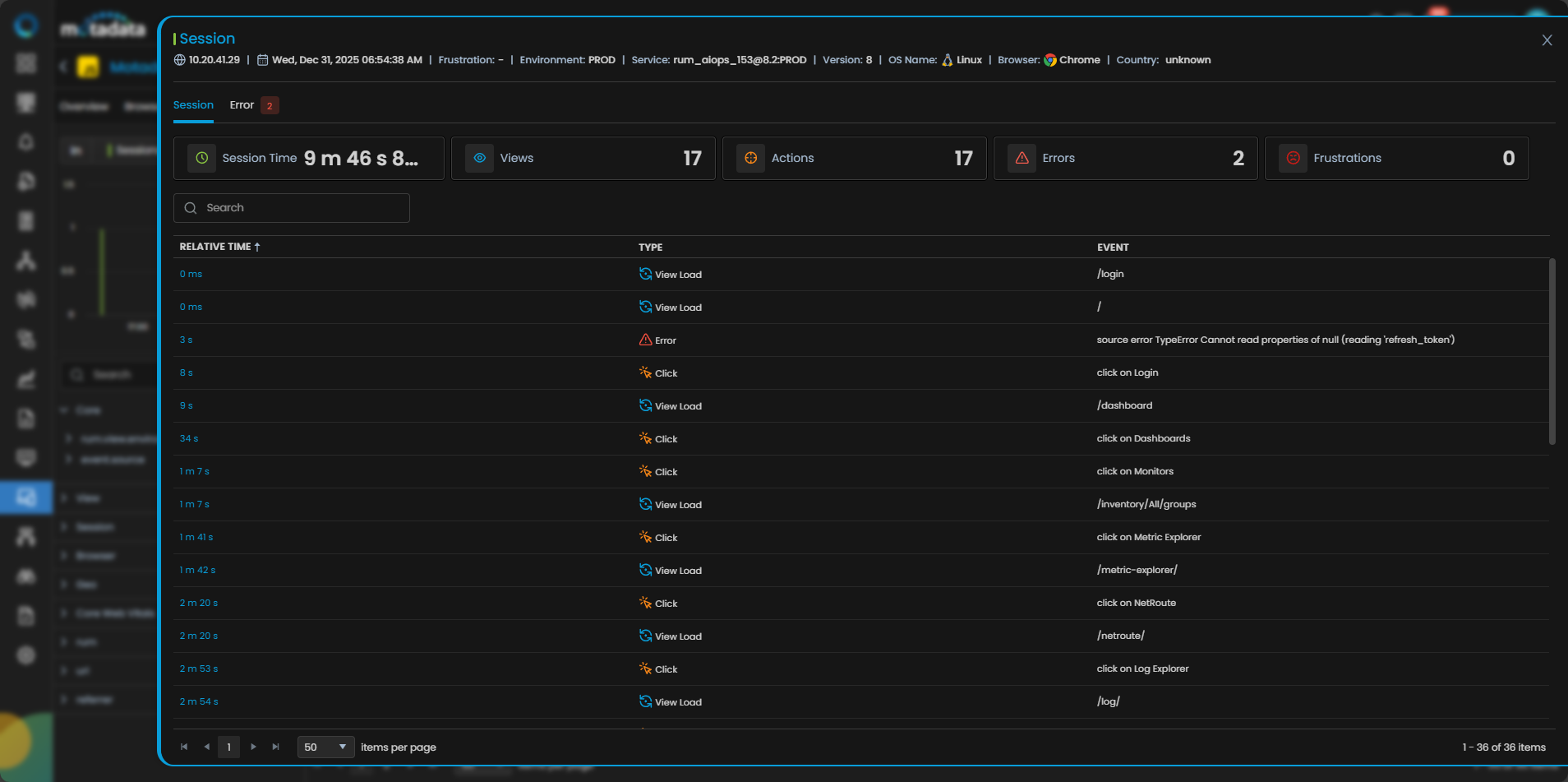
Clicking any Timestamp from the Sessions event grid, it drill-down the Session tab. The Session tab gives a detailed view of a user session. The tab is divided into two sub-tabs: Session and Errors.
Session Sub-Tab
The Session sub-tab shows attributes like frustration, environment, browser, etc. and a grid with below fields:
Relative Time: Indicates when the session started and the relative time at which each event in that session occurred. This helps you see the order and pacing of events from the user’s perspective.
Type: Displays the event type at each relative timestamp (for example, view load, action, error, resource, long task).
Event: Describes the specific event that occured at that relative time such as which view loaded, which action was triggered, or what resource was fetched.
Clicking a specific relative time redirects you to the corresponding event, making it easier to get more insights.
Error Sub-Tab
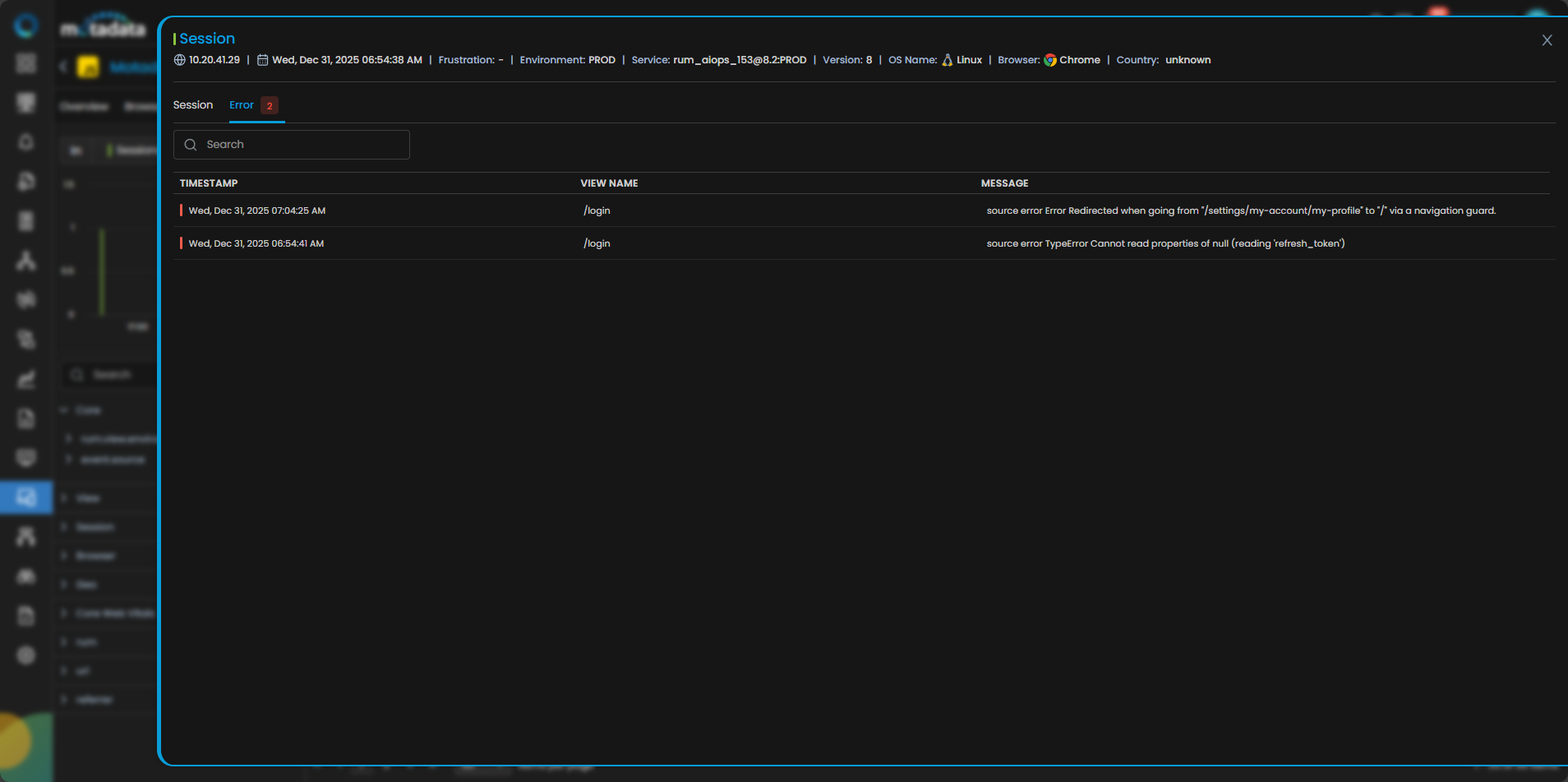
The Error sub-tab under Session focuses on issues observed during the session:
- Lists all errors occurred during the session (for example, JavaScript errors, failed resource loads, etc.).
- Shows when each error occurred in the session timeline.
This view helps you quickly answer: “What went wrong for this user in this session?”
View Tab
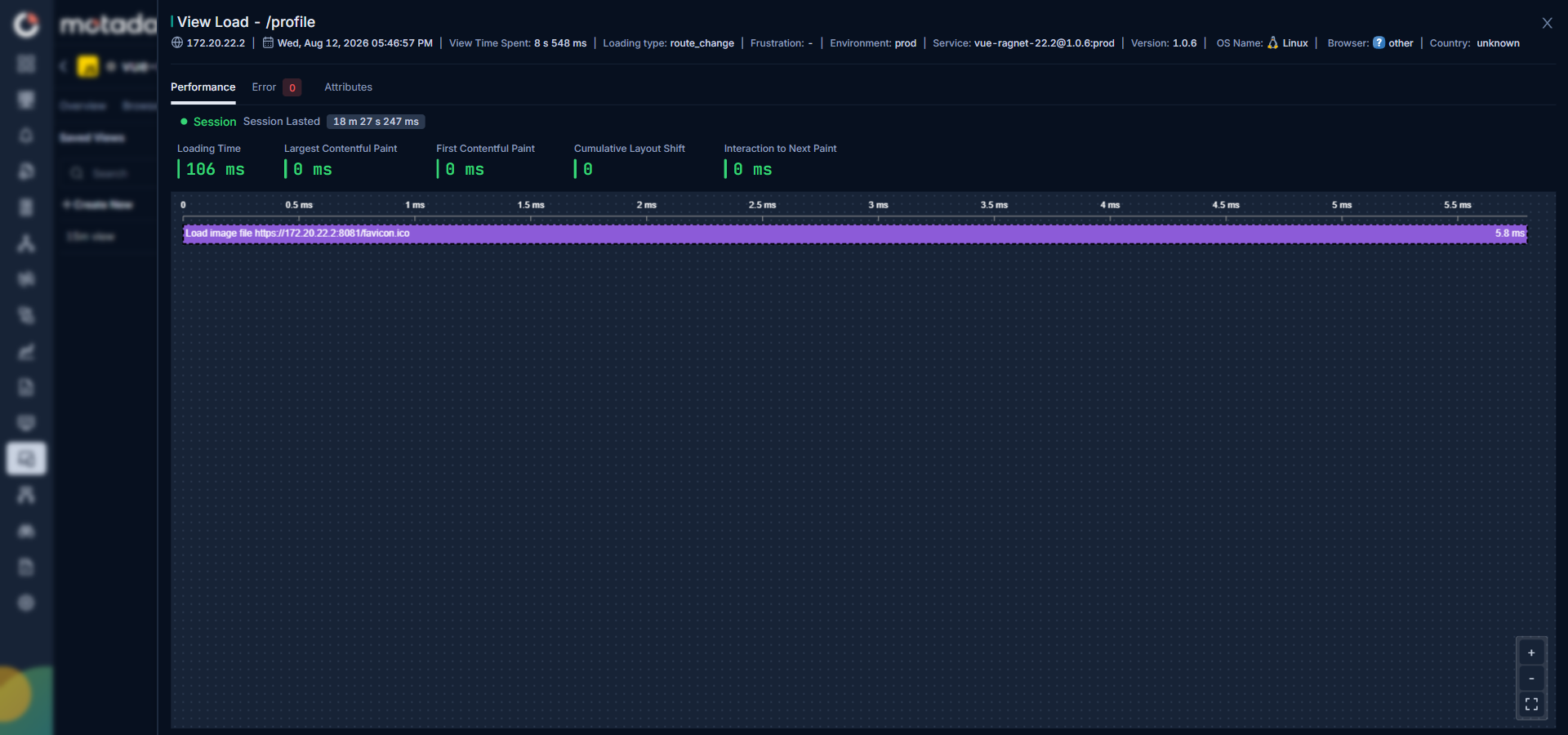
Clicking any Timestamp from the View event grid, it drill-down the View tab. The View tab provide insights on page-level experience and performance within the selected view. It also displays the associated parent session under the sub tabs sections.
Performance Sub-Tab
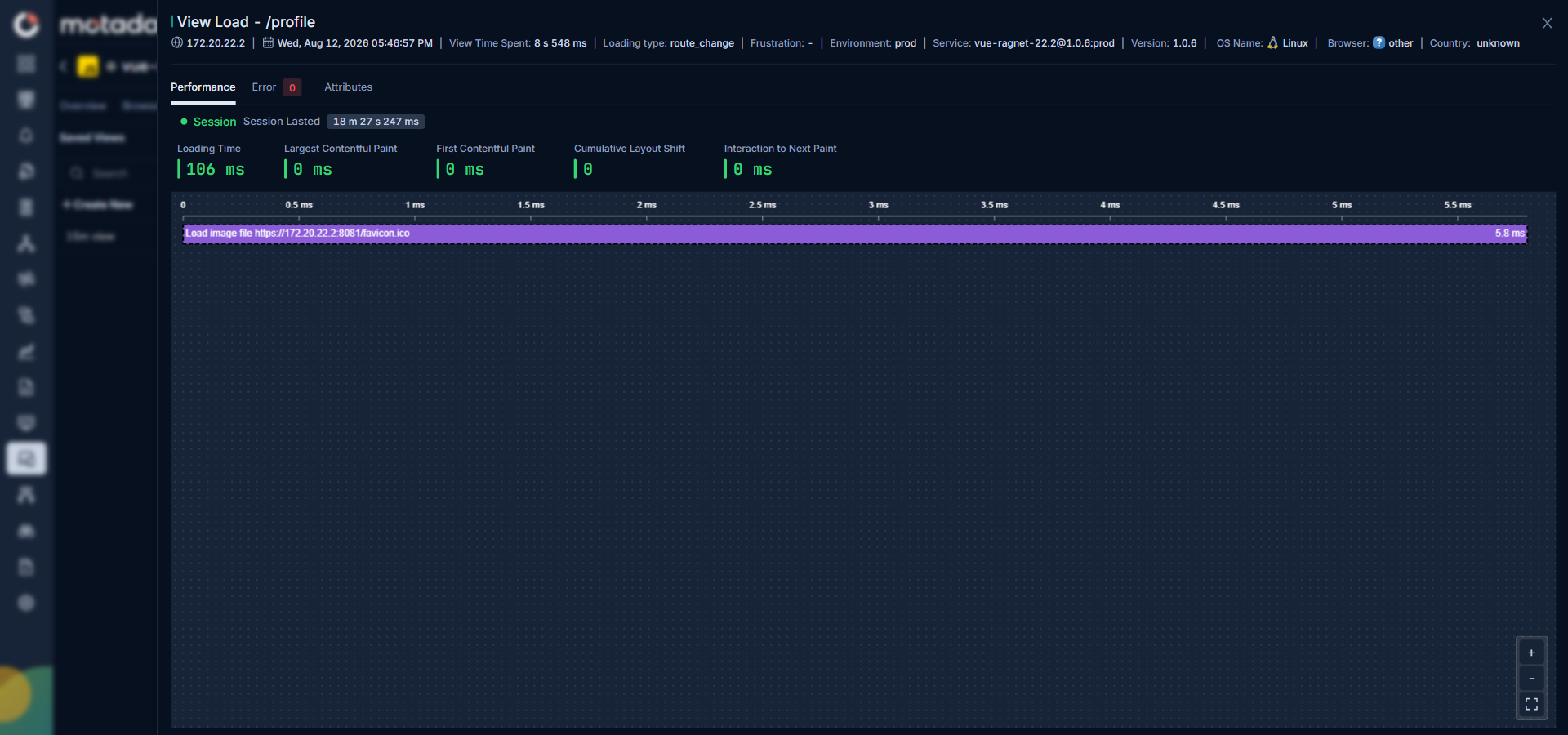
Use the Performance sub-tab to analyze:
- View-level performance metrics such as Core Web Vitals (LT, LCP, FCP, CLS, and INP)
- The flame chart allows you to observe detailed insights about the event occurring to load the view such as resources, errors, clicks, and long tasks.
Error Sub-Tab
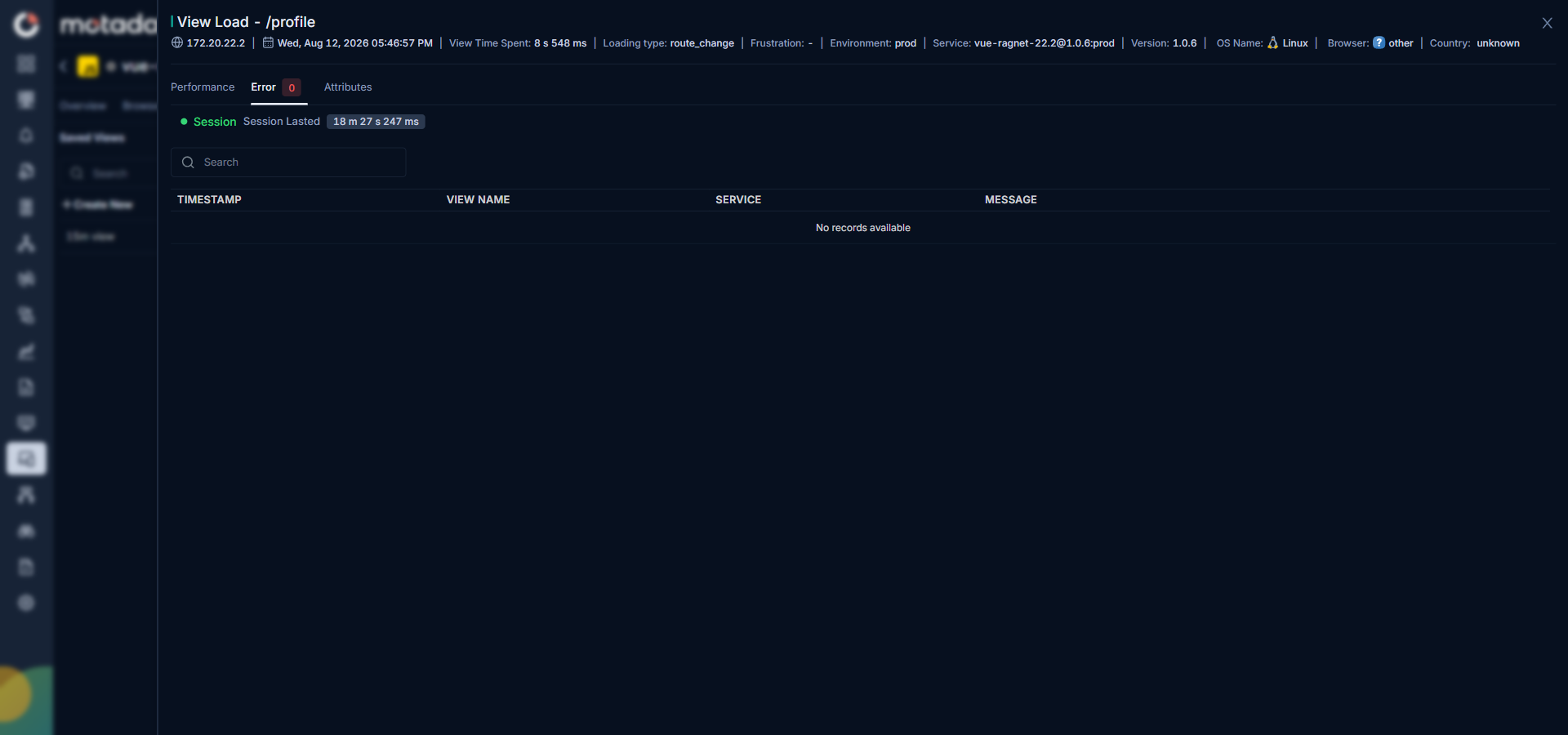
The Error sub-tab under Views shows:
- Errors that occurred within each view.
- How these errors align with the view’s loading and interaction timeline.
- Which specific views are most affected by frontend issues.
This makes it easier to isolate whether performance or stability problems are localized to certain views.
Attributes Sub-Tab
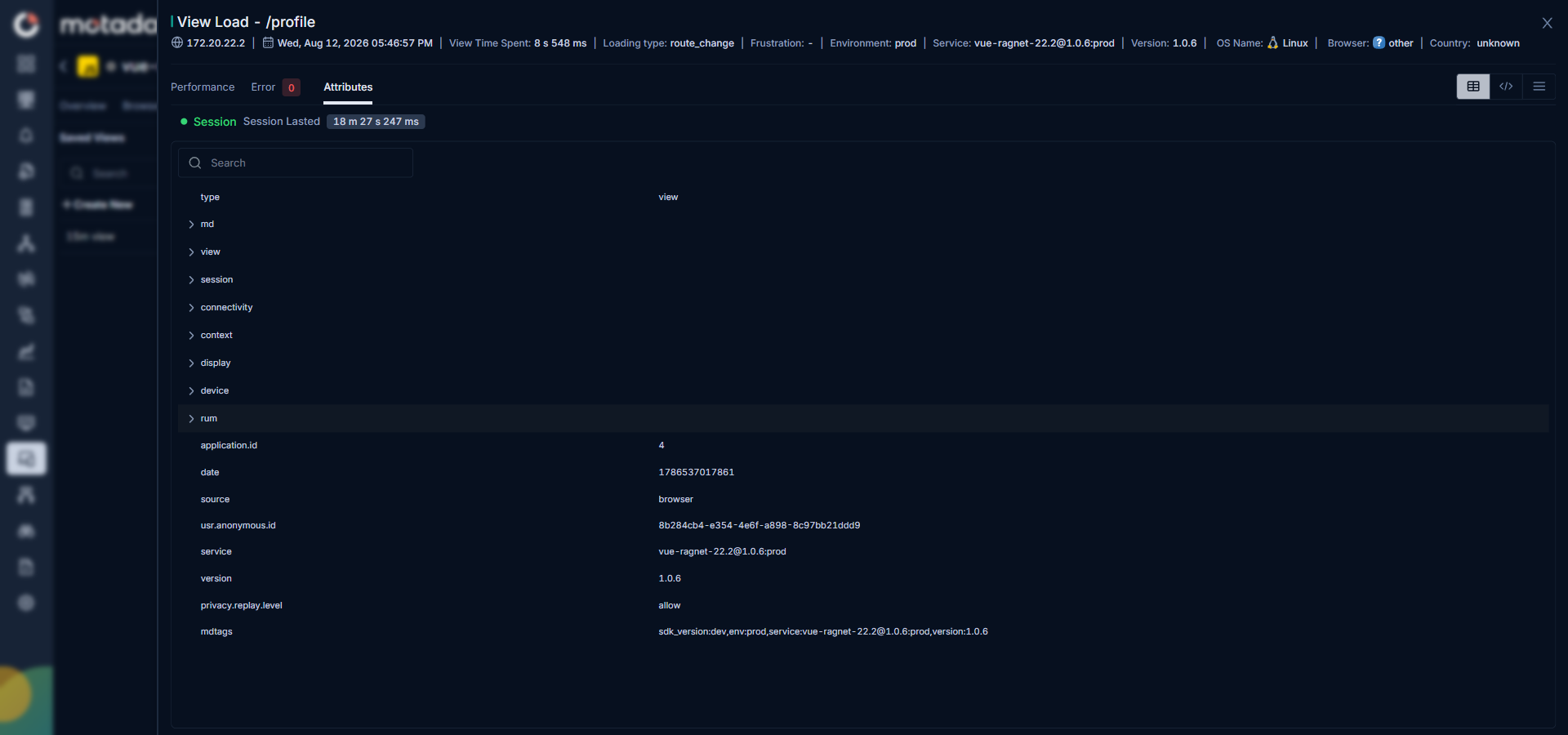
The Attributes sub-tab provides contextual data for the view, such as:
- URL and route information.
- Device, browser, and OS details relevant to that view.
- Additional page-level attributes used for filtering or correlation.
Actions Tab
The Actions tab concentrates on user interactions and their performance impact. You can observe the action type and frustration in the top bar. It also displays the associated view and parent session under the sub tabs sections.
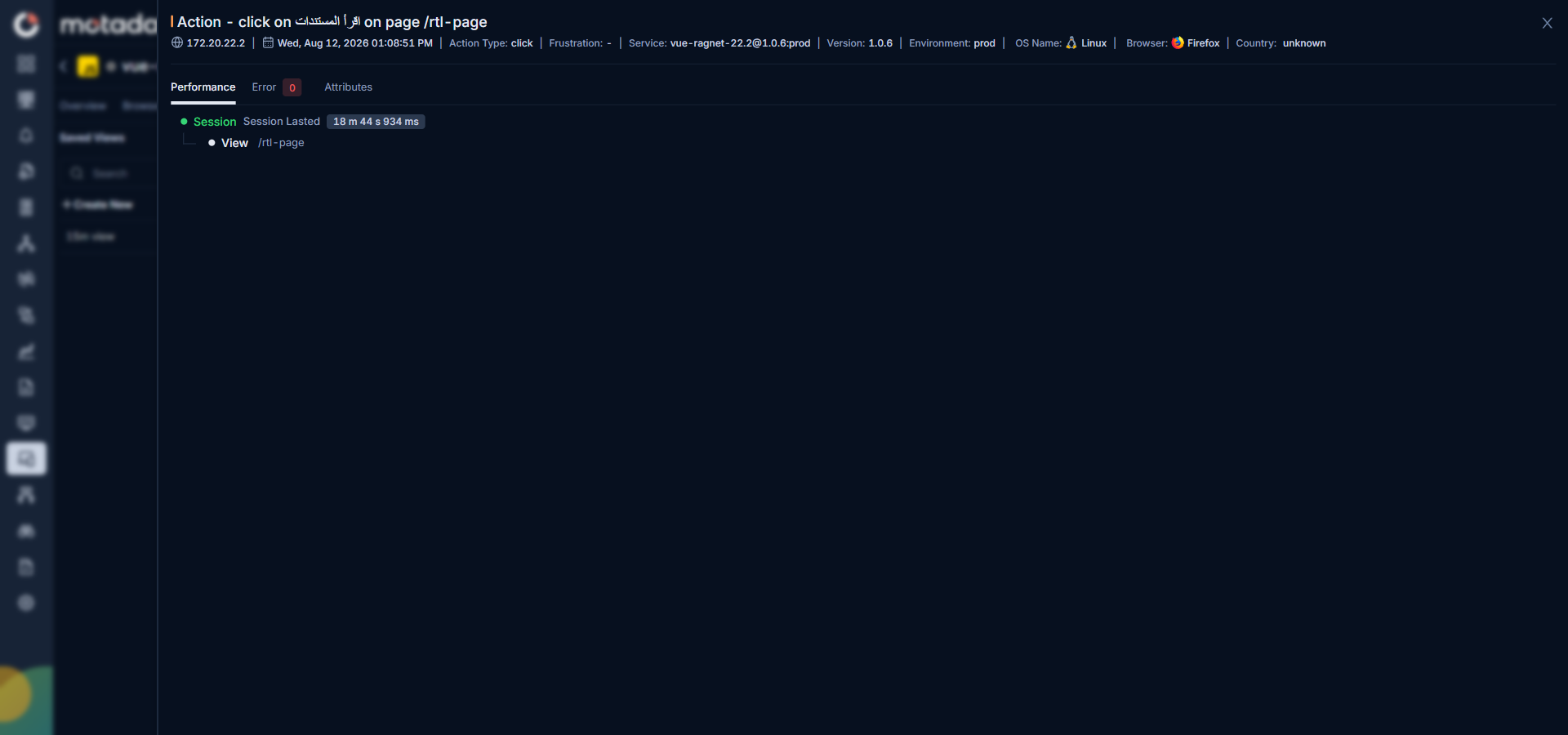
Performance Sub-Tab
The Performance sub-tab helps you understand:
- How user interactions affect perceived performance.
- Latencies associated with each action (e.g., time to response, time to render).
- Which actions are consistently slow or tied to degraded user experience.
The flame chart view lets you see how actions align in time with other events like resource fetches and long tasks.
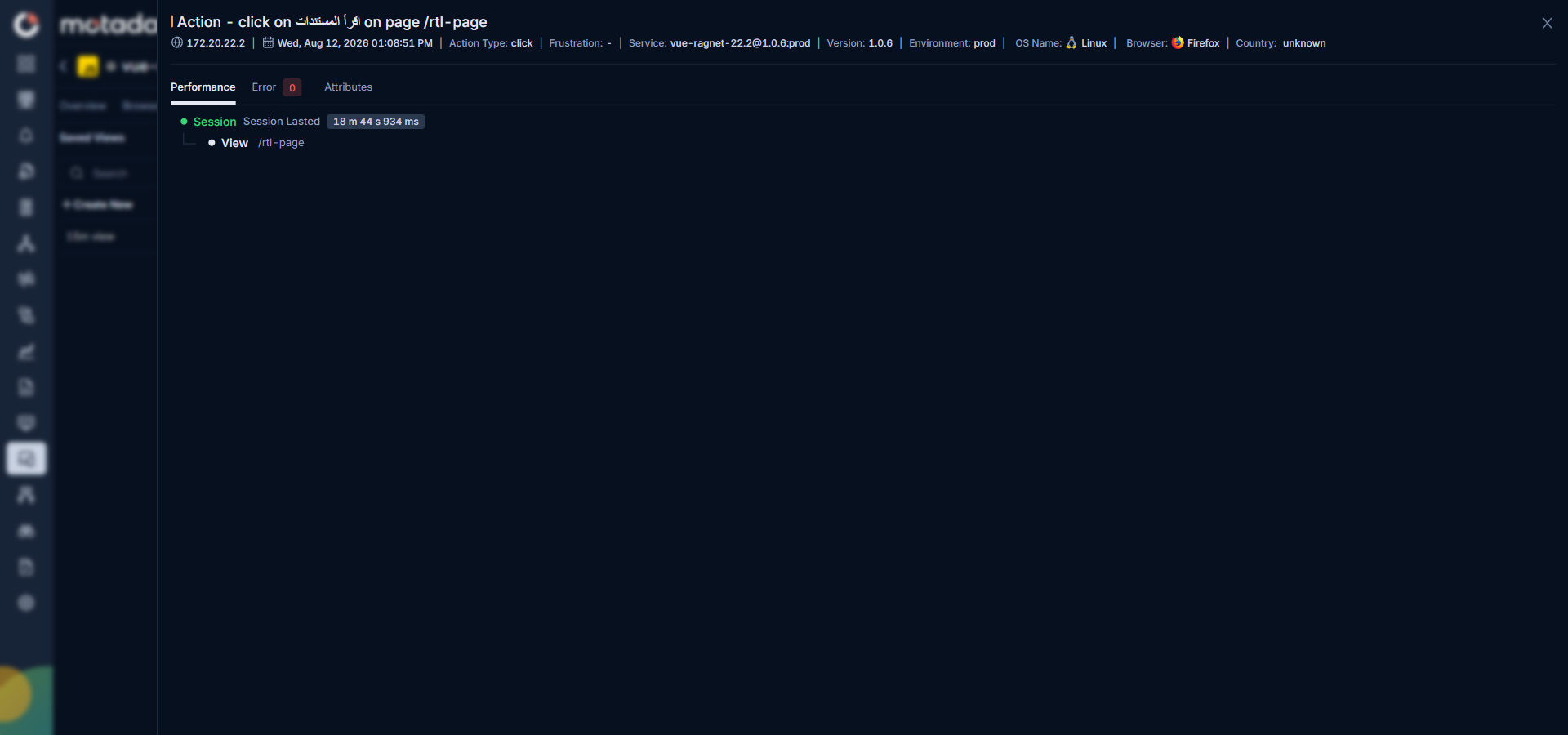
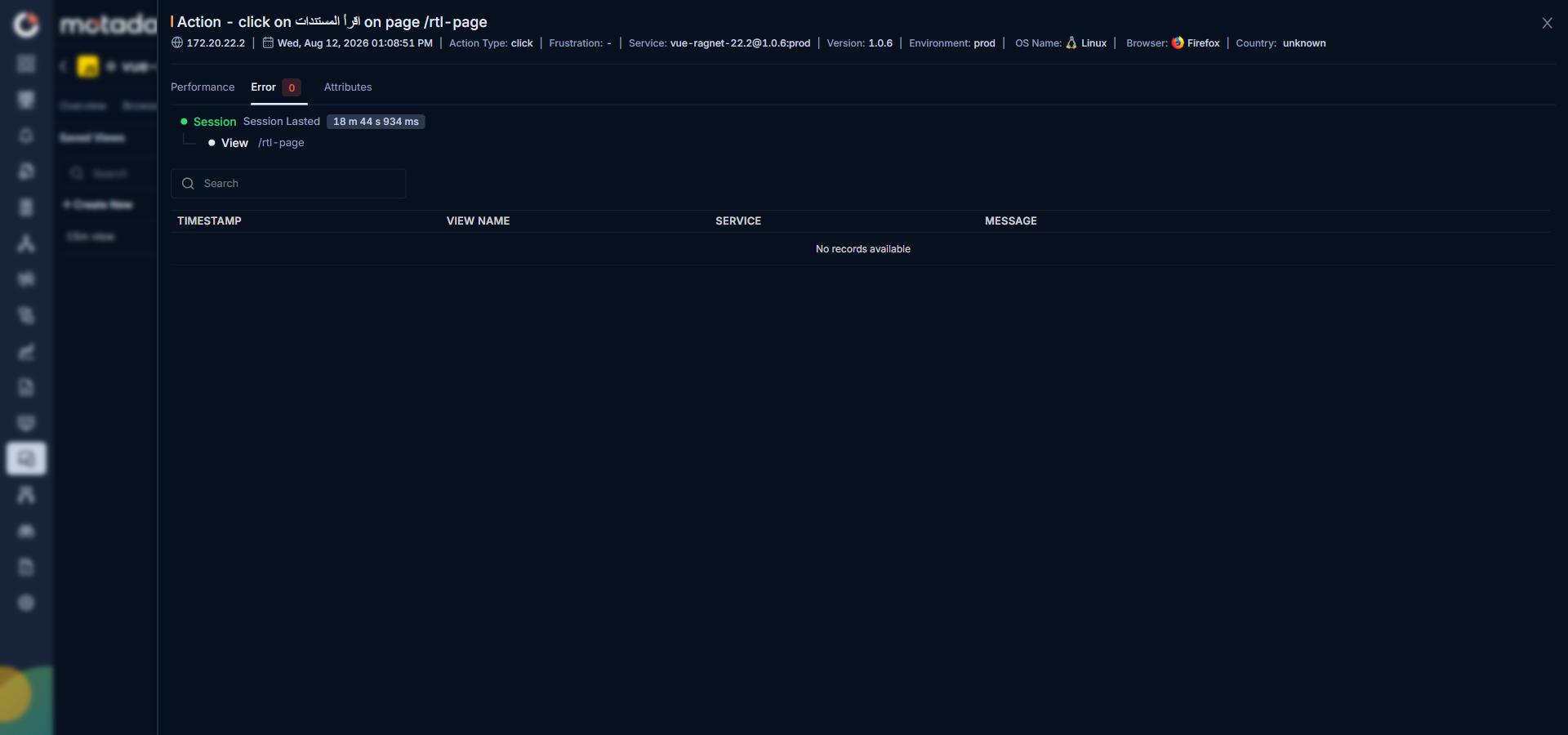
Error Sub-Tab
The Error sub-tab under Actions focuses on:
- Errors triggered for any user actions.
- Whether specific actions are consistently associated with client-side issues.
- How user interactions and stability correlate in the session.
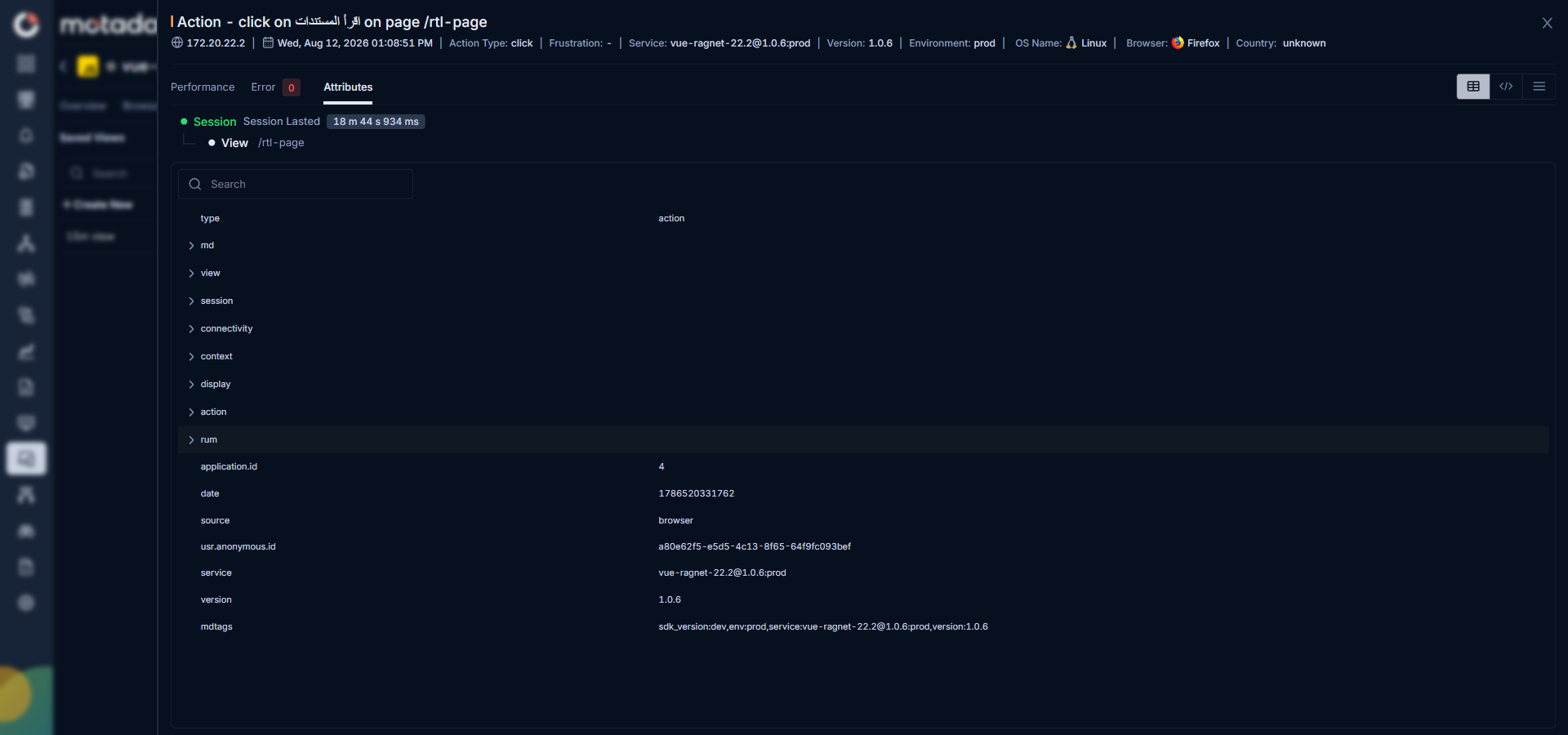
Attributes Sub-Tab
The Attributes sub-tab for Actions exposes:
- Metadata about each action (e.g., button text, element selector, route, context).
- Environment details that might influence how the action behaves.
This helps teams see exactly what the user did and under which conditions.
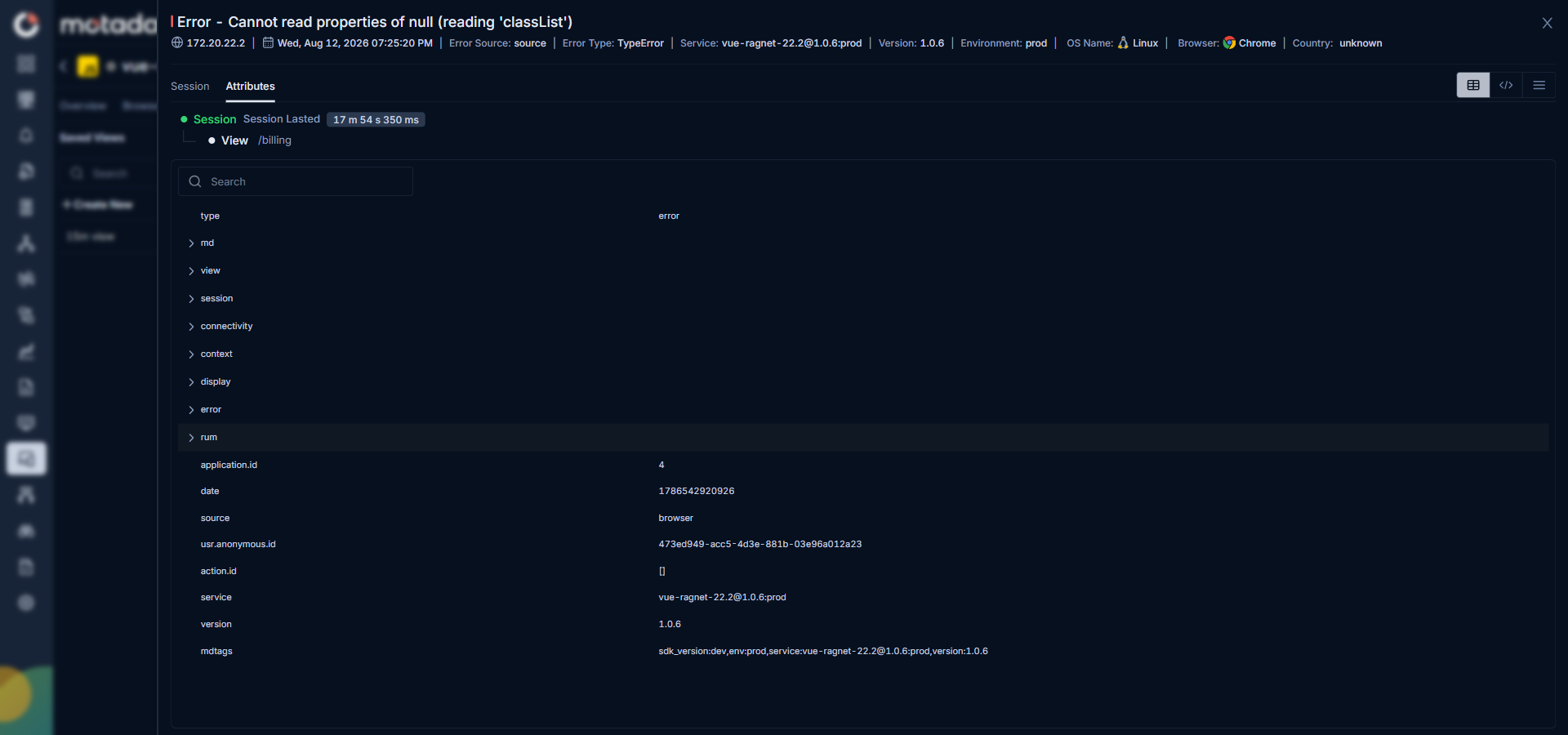
Errors Tab
The Errors tab provides a consolidated view of errors occurred. It displays error source, error type, and timeline of each error occurred in the top bar. It also displays the associated view and parent session under the sub tabs sections.
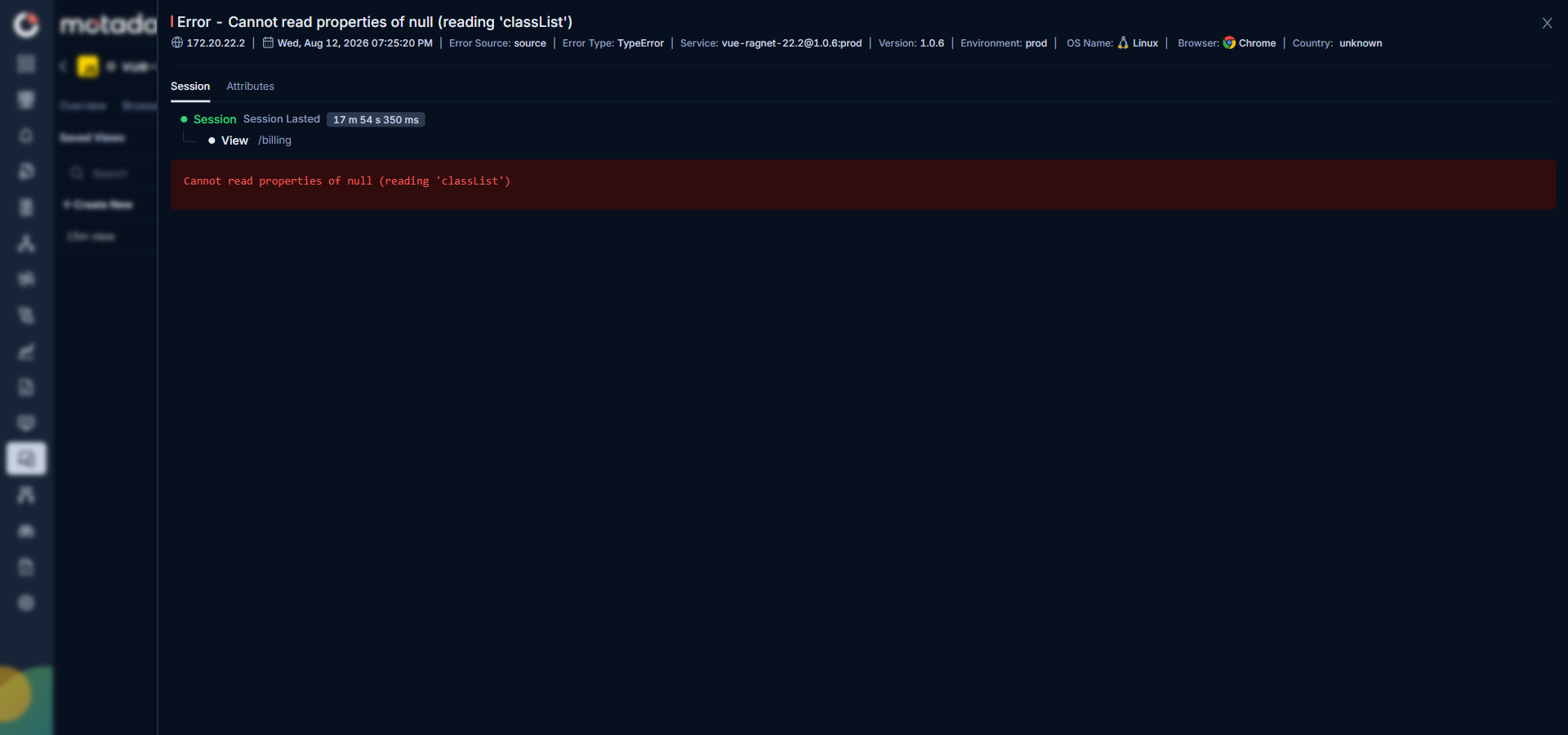
Session Sub-Tab
The Session sub-tab displays the error message associated with the selected error.
Attributes Sub-Tab
The Attributes sub-tab for Errors includes:
- Browser, device, and environment context details.
- Associated identifiers that help linking the errors back to their specific sessions or views, actions, or resources.
It is especially useful for debugging issues.
Resources Tab
The Resources tab reveals how assets like JavaScript, CSS, images, and other resources behaved during the session.
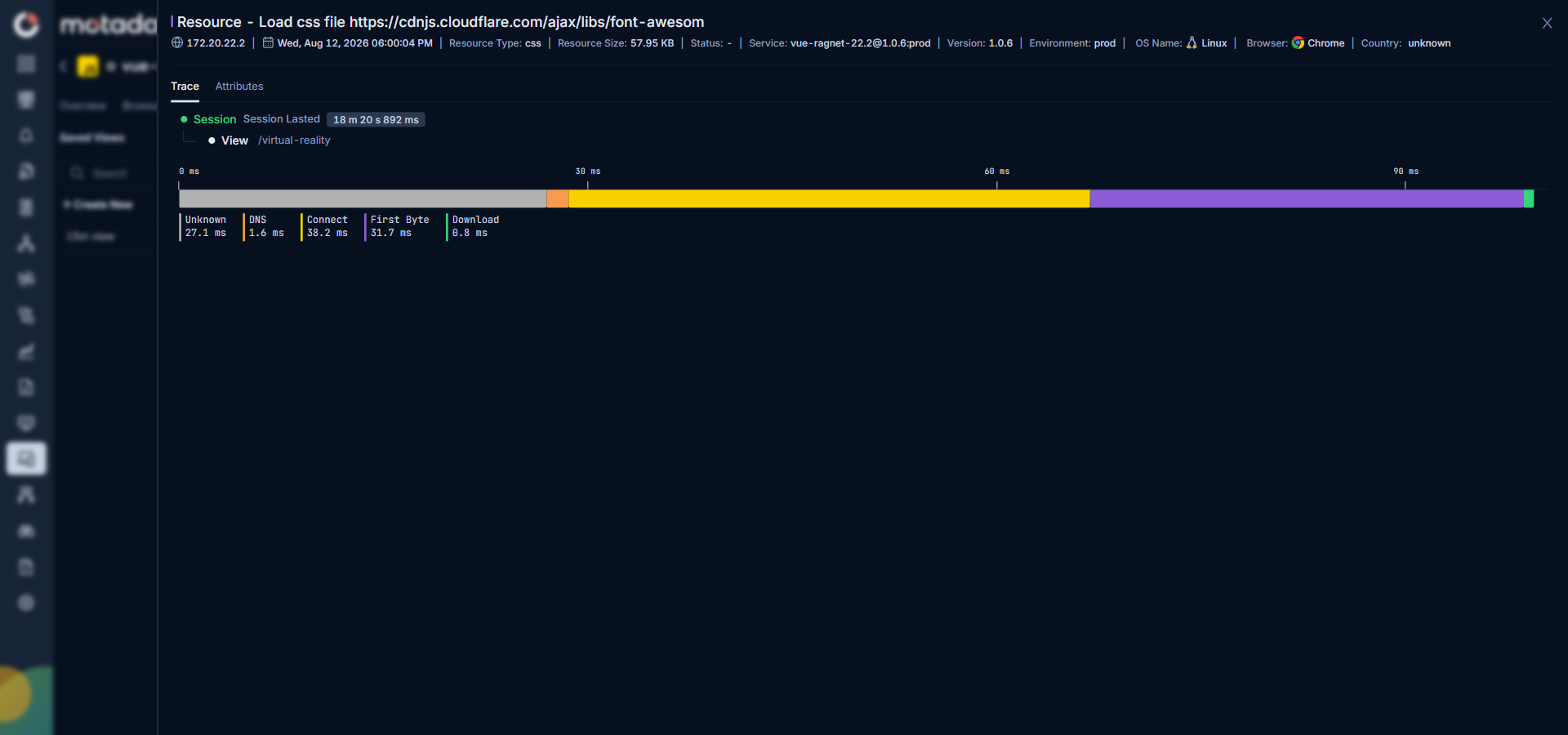
Trace Sub-Tab
The Trace sub-tab helps you:
- Understand resource loading order and dependencies.
- Identify resources that are slow, blocked, or failing.
- Inspect the flame-chart to see how resource timing contributes to total page load.
It is a key for diagnosing performance bottlenecks tied to specific scripts, stylesheets, or media files.
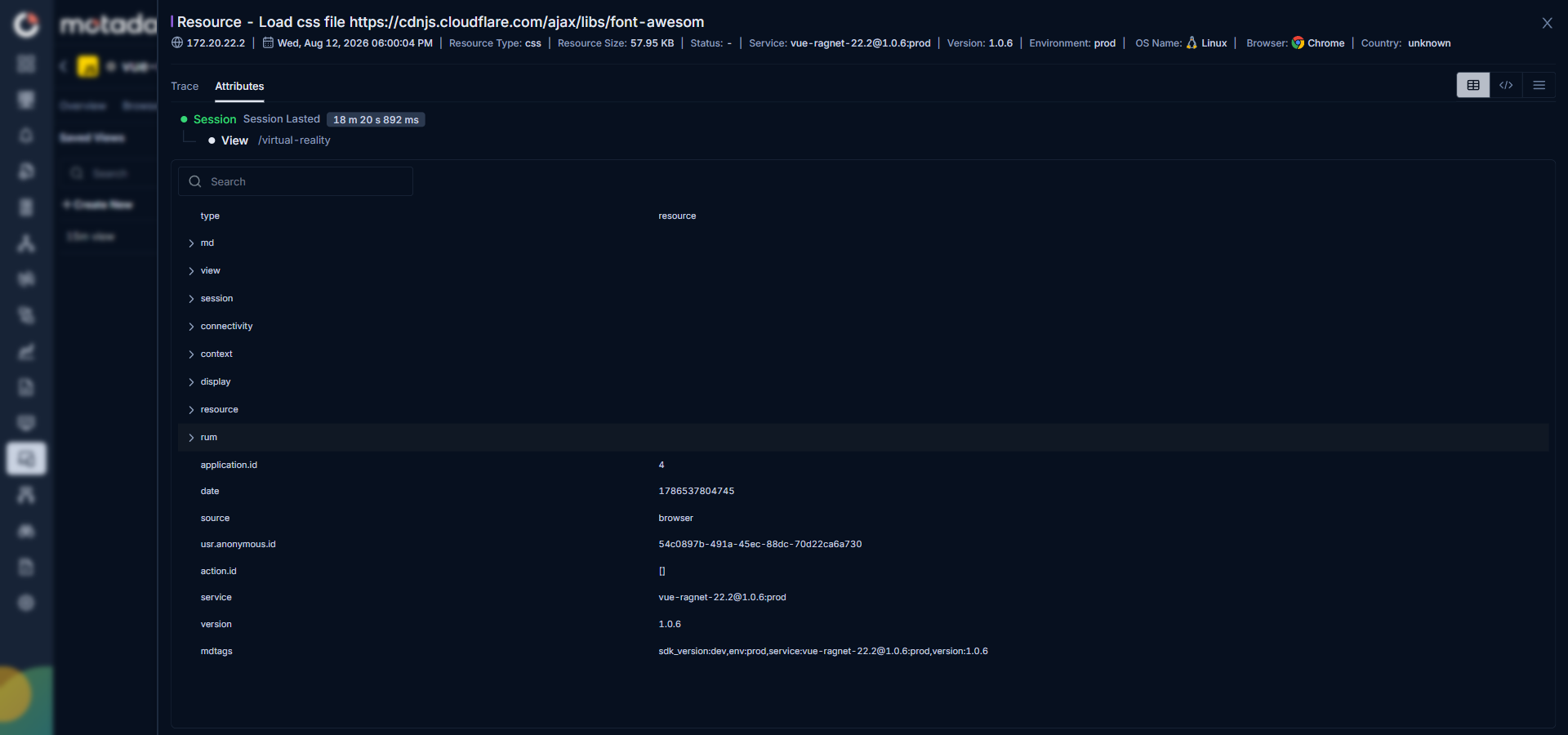
Attributes Sub-Tab
The Attributes sub-tab surfaces:
- Resource URLs and types (JS, CSS, image, font, etc.).
- Size, load time, and related timing details.
- Additional attributes useful for optimization and debugging.
Long Tasks Tab
The Long Tasks tab focuses on heavy work executed on the main thread that can block the UI and hurt responsiveness.
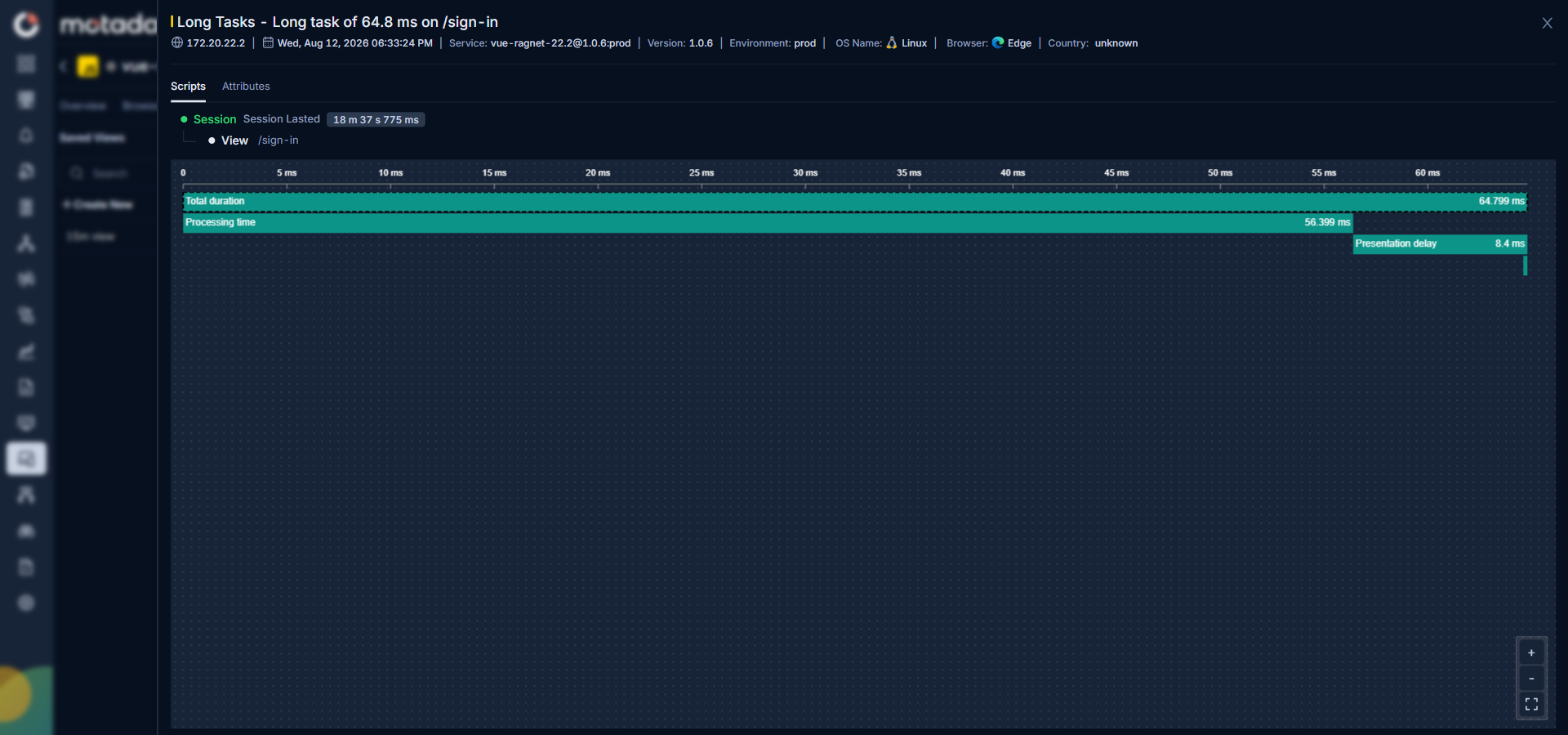
Scripts Sub-Tab
The Scripts sub-tab offers a flame-chart displaying the bifurcated view of the long tasks. Understanding this you can prioritize which scripts to optimize to improve responsiveness and Interaction to Next Paint (INP).
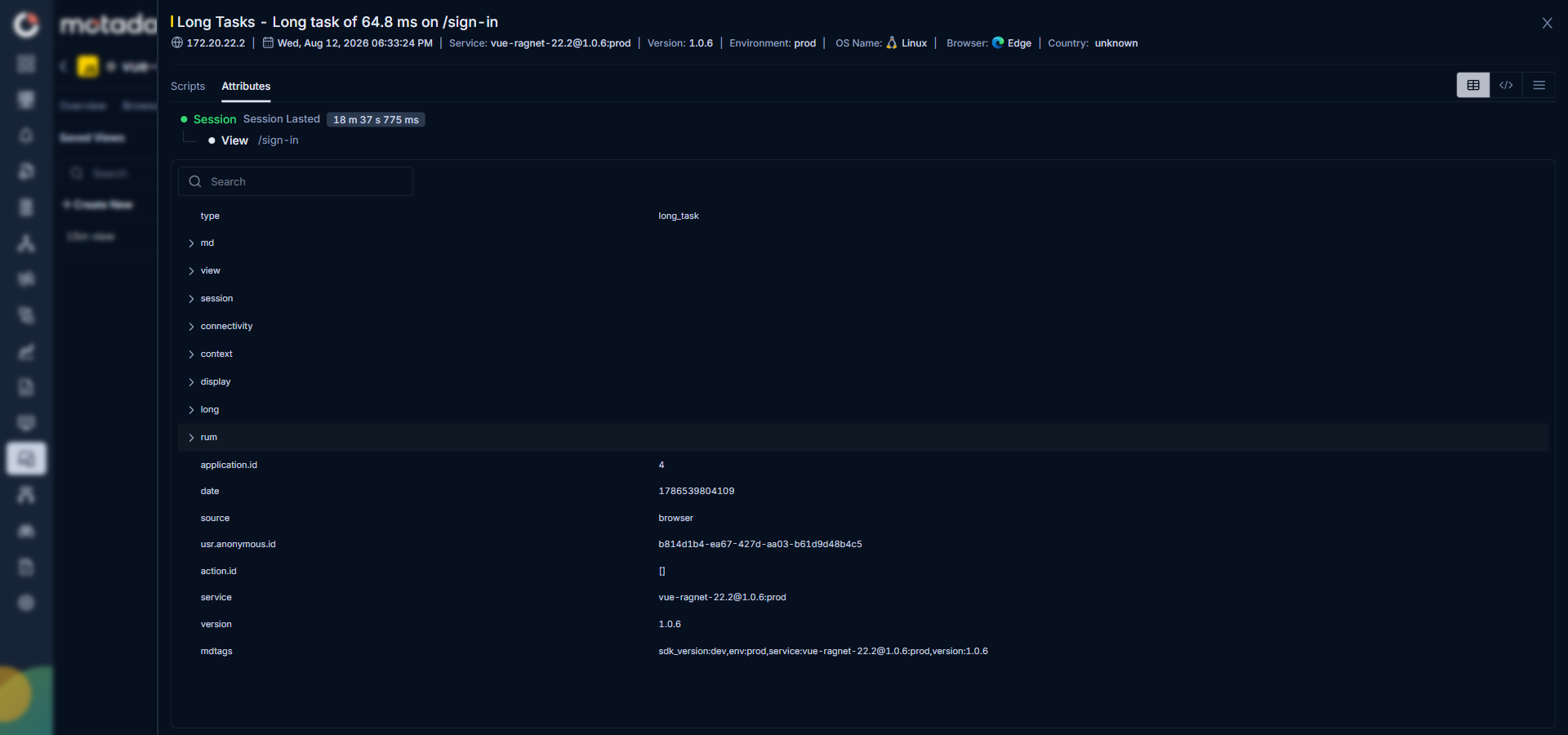
Attributes Sub-Tab
The Attributes sub-tab for Long Tasks includes:
- Duration and timing of each long task.
- Associated script or operation details.
- Context needed to map long tasks back to specific code paths or features.