Create an Exclusion Rule in ObserveOps
An exclusion rule defines which logs ObserveOps stops from reaching storage. You set a filter, and every log matching that filter is dropped before indexing.
Prerequisites
- You have access to Settings > Observability Pipeline > Log Pipeline.
- You know the field names and values that identify the logs you want to exclude. Test the filter in Log Explorer first.
Create an Exclusion Rule
Go to Settings > Observability Pipeline > Log Pipeline, click Exclude Unwanted Logs to expand the section, then click + Create Exclusion Rule.
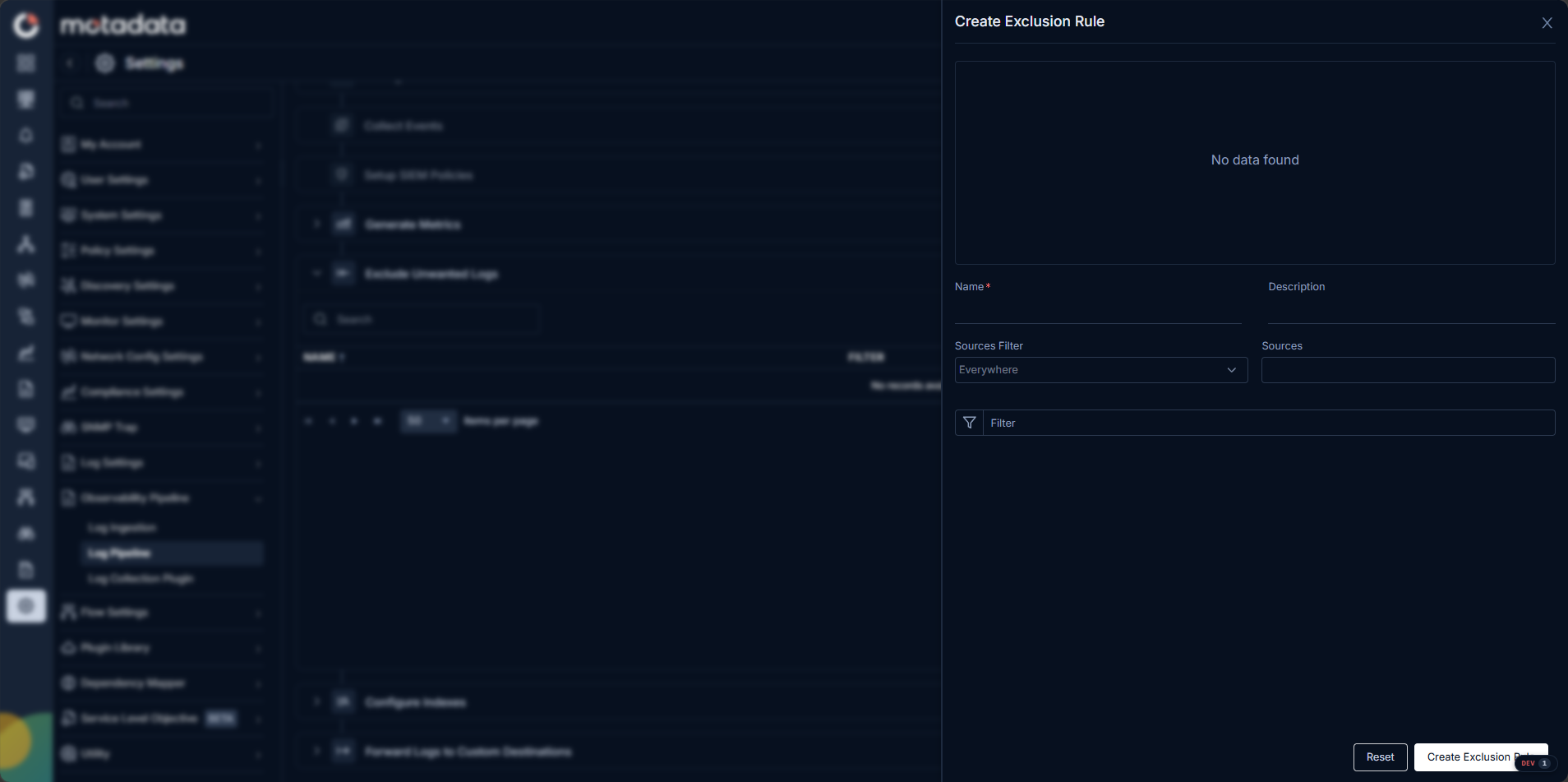
Fill in the form:
| Field | Description |
|---|---|
| Name* | A unique name for this exclusion rule |
| Description | Optional. A short description of what this rule excludes. |
| Sources Filter | The filter type that narrows which log sources this rule applies to. |
| Sources | The specific log sources to apply this rule to. |
| Filter | The condition that identifies logs to exclude. Uses standard log filter syntax. |
As soon as you enter a filter, ObserveOps shows a preview chart of the log volume matching that filter. Use this chart to understand how many logs this rule will exclude before you save it.
Click Create Exclusion Rule to activate it. From this point, any log matching the filter is not stored.
Excluded logs cannot be recovered. The system does not write them to any index. Verify your filter in Log Explorer before saving the rule.
What Still Happens to Excluded Logs
Excluded logs do not reach storage. They do not appear in Log Explorer. However, they still contribute to any Generate Metrics rules that match them. Exclusion only stops storage. It does not stop metric calculation.
Troubleshooting
The log volume chart is not showing any data
Cause: No logs matching the filter arrived in the last 15 days.
Fix: Broaden the filter and confirm the field and value exist in Log Explorer. If data is still absent, verify that log ingestion for the source is working.
Logs are still appearing in Log Explorer after saving the exclusion rule
Cause: The filter does not match the exact field names or values in those logs.
Fix: Click a log in Log Explorer and compare its actual field names and values against the exclusion rule filter. Adjust the filter to match exactly.