Patch Management Troubleshooting Guide
Diagnose and resolve common Patch Management issues in Motadata ServiceOps, covering deployment failures, File Server configuration, sync errors, and agent-level conflicts.
Prerequisites
Most Patch Management issues trace back to a missed prerequisite rather than a defect. Confirm each item below before using the troubleshooting sections on this page.
Licensing and scope
- Active Patch Management license, with free slots in the Endpoint Scope
- ServiceOps Agent installed and the endpoint visible under Endpoints and Groups
- Technician has patch administration rights and the Manage Deployment permission
- Agent excluded in any endpoint-security tool in use (SentinelOne, CrowdStrike, and similar)
Connectivity
- Main Server can resolve and reach
patchcatalog.motadataserviceops.com - Proxy or DMZ server configured in Patch Repository if the Main Server has no direct internet
- Vendor endpoints for Windows, Linux, macOS, and third-party applications allowlisted through your firewall, proxy, or web filter. For the complete and up-to-date allowlist, contact Motadata Support.
File Server and distribution
- Distribution method chosen and configured: Direct Internet, Proxy/DMZ, Air Gap, or Red Hat Satellite
- At least one File Server installed and showing active in the Server List
- File Server upgraded to match the main application version; if the main app is on v8.6.5 or newer, every File Server must be on an equivalent build
- Use the in-app upgrade option (available from v8.6.4) to upgrade File Servers; manual upgrade is not required
- Credential profile Secure Auth Key matches the key used at installation
- Minimum 4 GB RAM and 50 GB free disk; ports 80 and 443 open to the Main Server
- .NET Framework 3.5 enabled on Windows File Servers
- Remote Offices created and mapped to a File Server, for relay-based setups
- Allow agent to download patch directly from internet is off, unless every endpoint can reach vendor websites directly
- Enable Downloaded Patch Replicating in File Server is off when no File Server exists
Operating system specifics
- Windows: Windows Update service enabled; Microsoft Office installed via Click-to-Run; File Server running on Windows when direct download is off
- Red Hat / CentOS: valid Red Hat subscription on every endpoint, and either Agent Nomination or Satellite Server integration configured before RHEL sync is enabled
- SUSE: valid subscription and Registration Code from the SUSE Customer Center
- macOS: root or local administrator account available; local admin password entered within 15 minutes for OS upgrades
- Rocky Linux and Alma Linux: endpoints on the latest minor version of their family
Third-party applications
- Applications installed in their default folder
- Adobe Acrobat: Continuous Track versions only
- Notepad++: version 8.5.6 and above only
- Target application closed at deployment time
Policies
- Approval policy set under Patch Control, and the patch approved
- Deployment policy whose days and time window include the expected install time
Process
- Patch Repository syncs to Main Server
- Patches stored on File Server (or downloaded per-endpoint)
- Patch Control approval gate passed
- Deployment published; Agent scans, installs, and reports back
Almost every issue traces back to a break in that chain or a skipped prerequisite.
Troubleshooting Scenarios
Deployment
A patch reverts even though the deployment reports success
ServiceOps reports the deployment as successful, the computer restarts, but a new scan shows the same patch back as Missing or Failed, with no error anywhere.
- ServiceOps controls the scan, download, and install command, but the actual install and restart happen at the OS level, out of its sight. If the OS hits a problem in that step, it can quietly undo the patch to keep the system stable.
- Unfinished earlier updates still pending on the computer.
- An incompatible driver, low disk space at restart time, or a locked file.
- Security software interfering with the install.
Where to change: Not a ServiceOps setting. Resolved on the computer itself (pending updates, disk space, security software).
- Check the computer for unfinished updates, low disk space, and interfering security software.
- Run the OS's own repair tools, then restart.
- Send the patch again through ServiceOps.
- If it still fails, collect ServiceOps agent logs and OS event logs from the restart window and escalate.
- For more information, click here.
Deployments fail with a server error
Patch deployments start failing with a server error.
- The
Allow agent to download patch directly from internetsetting is on. It may not have caused issues before, but if the computers involved do not actually have open internet access, an upgrade can expose a File Server dependency the setting was hiding.
Where to change: Admin → Organization → System Preference → Agent Preference

- Turn the setting off, so patches route through File Server as intended.
Can't create a new deployment because an old one is stuck
An old deployment is stuck "Partial Completed" with some patches "Yet to Receive," and a new deployment for those same patches can't be created while it's in that state.
- The original deployment never fully finished because of a File Server download problem, but stayed active instead of resolving on its own.
Where to change: The Deployment list itself. There's no separate settings page. Select the deployment, then Archive.
- Select the stuck deployment (the one showing "Yet to Receive") and archive it.
- Then create the new one.
A failed patch briefly shows as successful, then reverts to Missing
A deployment briefly reports a patch as successful, then it shows back up as Missing shortly after. This is a status mismatch rather than a consistent failure.
- A timing gap between the install result and the next verification scan.
Where to change: No setting to change. Create the deployment again from the Deployment list.
- Re-run the deployment. This typically clears on retry.
- If it doesn't, escalate with the deployment ID and timestamps.
Linux & RHEL
Linux scan fails with "APT engine is corrupted"
A patch scan fails outright on Debian, Ubuntu, Linux Mint, or Pardus with an "APT engine is corrupted" error. Applies where ServiceOps server and agent are on v8.7.5 or later.
- The computer's own package system (APT/dpkg) is broken, usually from an update that didn't finish or a damaged package index. ServiceOps can't read a reliable list of installed software, so the scan fails.
Where to change: On the affected Linux computer, not in ServiceOps. Run the fix script locally.
- Confirm the computer can reach its distro's repository address.
- Run the
APTEngineFix.shscript on the affected computer. It rebuilds the package index, fixes broken dependencies, and clears the local cache. - Scan again.
- For more information, click here.
Rocky or Alma Linux patch download can't find the file
A Rocky or Alma Linux patch download fails to find the file, even though that OS version is listed as supported.
- Rocky and Alma only keep the newest minor version of each major release available. Once a new minor ships, the older one's files are removed by the vendor. The file genuinely no longer exists.
Where to change: Not a ServiceOps setting. The OS minor version on the computer itself.
- Not something ServiceOps can fix directly.
- Check which minor version is currently newest, and upgrade the computer to it if needed.
RHEL syncing quietly stops, with no error shown
Red Hat syncing stops making progress. Nothing shows up as an error anywhere in ServiceOps.
- A background system process (
rhsmcertd-worker) can get stuck, locking up every related command on that computer at the operating system level.
Where to change: On the affected Linux computer, not in ServiceOps.
- Find and restart the stuck process on that computer.
- Sync resumes right away once it's cleared.
Patch database sync fails in a brand-new setup
A new setup can't sync its patch database, even though a basic connection test to the catalog address succeeds and the File Server connection test passes.
- A RHEL sync option was turned on before the RHEL-specific requirements were actually in place.
- The network's DNS can't properly resolve the patch catalog address, even though it's reachable another way. A connection test passing doesn't guarantee correct DNS resolution.
Where to change: Admin → Patch Management → Patch Administration → Patch Repository → Patch Sync for OS

- Turn off the premature RHEL option.
- Fix the DNS setup.
- Check both, not just one.
- For more information, click here.
Turning on third-party patching breaks sync on an older version
Patch sync stops working entirely after enabling the third-party patch flag.
- This combination is only reliable on newer builds. An older application version doesn't handle the third-party flag correctly, and sync breaks.
Where to change: Application version: Admin → Patch Management → Patch Administration → Application Updates

- Upgrade the application to a current version before enabling third-party patch support.
- For more information, click here.
Ubuntu/Debian shows a patch as Missing that's already installed
ServiceOps lists a patch as Missing on an Ubuntu or Debian computer where it's actually already installed.
- The computer's own package data is stale relative to what ServiceOps last scanned.
Where to change: On the affected computer, then trigger a fresh scan from ServiceOps.
- Run
apt updateon the computer. - Check with
apt list --upgradable,apt-cache policy <package>, anddpkg -l. - If the Installed version already matches the Candidate version, the patch is genuinely present. Trigger a fresh scan in ServiceOps to clear the Missing status.
RHEL patching via Satellite doesn't sync
RHEL patching through a Satellite server never syncs any repo content.
- Satellite-based patching needs a specific setup sequence that's easy to skip: an agent has to be nominated, and the Satellite Server connection configured, before repos will fetch.
Where to change: Admin → Patch Management → Patch Administration → OS Vendor Patches → RedHat Patch Settings, Agent Nomination and RedHat Satellite Server tabs
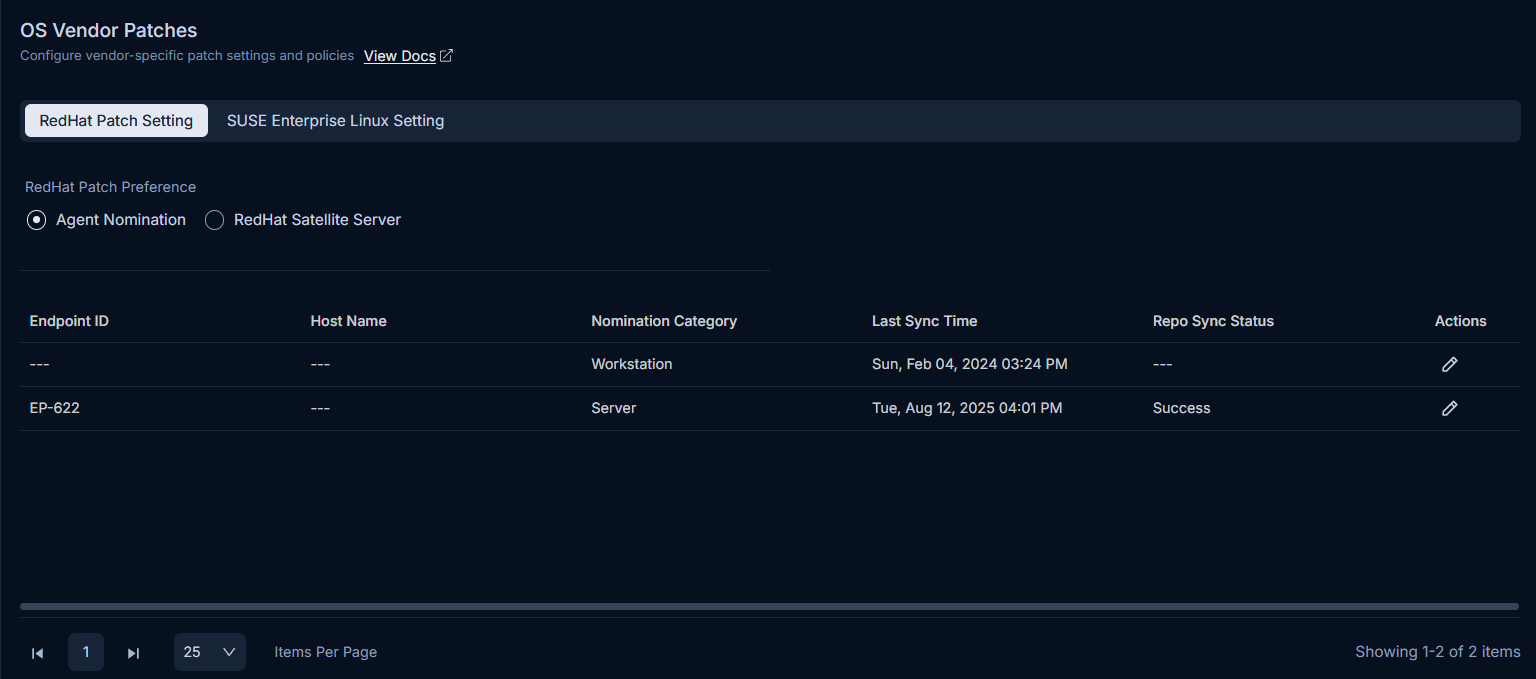
- Under Agent Nomination, assign an agent from Endpoints Scope.
- Under RedHat Satellite Server, enter the Server URL, credentials, and upload the satellite certificate (.pem).
- Click "Fetch Repos Now."
- Check that Repo Sync Status shows Success before running patch sync. Running it before that completes will fail.
- For more information, click here.
File Server
Deployment breaks with no File Server, because a "replication" setting is on
Patch deployment fails on and off in a setup that has no File Server at all.
- The
Enable Downloaded Patch Replicating in File Serversetting is on, even though there is no File Server for it to copy files to.
Where to change: Admin → Organization → System Preference → Agent Preference

- Turn the setting off.
- Any setup with no File Server needs this switched off for patch deployment to work.
"Invalid patch storage configuration" when publishing a deployment
Publishing a deployment fails right away with "invalid patch storage configuration."
- The Remote Office involved has an inactive File Server selected. Server status shows as a green (active) or yellow (inactive) indicator in the File Server list.
Where to change: Check status: Admin → Patch Management → Patch Administration → File Server. Reassign: Admin → Patch Management → Deployment Management → Remote Offices


- Select an Active File Server for the Remote Office instead.
- For more information, click here.
Patches keep downloading to the wrong File Server
With several branch File Servers set up, patches meant for different offices all end up downloading to just one of them.
- Several branch server machines share the same internal system ID, and the system uses that ID, instead of the machine's address or name, to tell them apart.
Where to change: Admin → Patch Management → Patch Administration → File Server
- Fixed from ServiceOps v8.7.4.32 / File Server v8.7.403 onward, which tells machines apart by address and name instead.
- This fix requires the File Server to be uninstalled and reinstalled by hand. The normal upgrade button won't apply it.
- For more information, click here.
File Server's own URL 404s while the patch URL still works
File Server's web address intermittently returns a 404 error, even though patch download URLs it serves keep working.
- The web service (Nginx) fronting File Server is stopping intermittently on the host machine.
Where to change: On the File Server host's own OS/service manager, not in the ServiceOps UI.
- Check whether the Nginx service on the File Server machine is running.
- Restart it if stopped.
- Check the host for whatever is causing it to stop (resource limits, crashes, conflicting services).
Network & Bandwidth
Patch downloads fail on a Remote office meant to be fully local
Patch downloads keep failing on a Remote Office that's supposed to be entirely local.
- The Remote Office's Proxy Server field is blank.
Where to change: Admin → Patch Management → Deployment Management → Remote Offices → click the office name → Proxy Server field

- Fill in the Proxy Server field, even on offices you think of as purely local.
- Leaving it blank isn't the same as saying "no proxy needed."
- For more information, click here.
A branch File Server keeps timing out downloading from the main one
A secondary File Server at a branch office consistently times out trying to download from the main File Server.
- The branch server has a leftover proxy setting from a previous setup, and that proxy connection is now blocked at the network level.
Where to change: Admin → Patch Management → Deployment Management → Remote Offices → click the branch office name → Proxy Server field
- Remove the leftover proxy setting from that specific branch File Server.
Newer patches get stuck behind an old one that won't finish
A deployment looks stuck. An old, large patch never finishes downloading, and a newer one waiting behind it never starts.
- The Bandwidth Utilization Limit is set lower than the size of the actual patch.
Where to change: Admin → Patch Management → Patch Administration → Network Distribution → Bandwidth Utilization tab → Bandwidth Utilization Limit

- Raise the speed limit above your largest expected patch size, not just an average one.
- Separate caps apply to internet downloads, File Server-to-Distribution-Server transfers, and File Server/Distribution Server-to-agent downloads. Check the cap on the leg that's actually queuing.
- For more information, click here.
Patch download fails with a 403
A computer's attempt to download a patch is rejected outright with an HTTP 403 error.
- The computer can't reach the patch download URL, usually a firewall or web filter blocking the vendor's download address.
Where to change: At your firewall / web filter, not in ServiceOps.
- Allow-list the patch vendor's download URLs at the network/firewall level for that computer.
- Retry the download.
Patch file times out downloading to the computer
The patch download to an individual computer times out, even though File Server itself has the file.
- A File Server configuration problem.
- A network connectivity problem between the computer and File Server.
Where to change: File Server config: Admin → Patch Management → Patch Administration → File Server. Network reachability itself is checked outside ServiceOps.
- Check File Server's configuration.
- Confirm the affected computer can actually reach it over the network before retrying the deployment.
Sync or new-patch visibility fails
Patch sync fails, or a newly released patch just isn't showing up, but File Server, network, and DNS all check out fine locally.
- This shape of problem usually points to the central patch catalog side rather than the local setup: an outage, a migration, or a patch that hasn't been published yet.
Where to change: Nothing local to change once File Server, network, and DNS are confirmed correct. This is on the catalog side.
- Rule out your own File Server, network, and DNS first.
- If those all check out, send full application logs and escalate rather than re-checking your setup repeatedly.
Windows & Apps
One specific patch fails while every other patch succeeds
Every patch deploys fine except one (commonly a browser), which fails every time.
- Both the direct-download and file-replication settings are on.
- If computers have no internet access, patches are meant to route through File Server, but the direct-download setting makes computers try to fetch that one patch on their own, and its source may not be allowed through the firewall for individual computers even though it's allowed for File Server.
Where to change: Admin → Organization → System Preference → Agent Preference

- Turn off the direct-download setting so everything routes through File Server.
- This setting is off by default and doesn't change on its own. Check whether someone turned it on manually.
- For more information, click here.
High CPU usage on Windows computers during scans
Noticeable CPU spikes line up with the agent's full scans.
- The patch scan and the discovery scan are scheduled to run at the same time.
Where to change: Admin → Organization → System Preference → Agent Preference

- Make sure the Patch Cycle and Discovery Cycle are set to different values so they don't run at the same time.
- Set the patch scan back to its default 300-minute schedule if it has been changed.
A Windows patch shows installed in ServiceOps but not in PowerShell
ServiceOps marks a specific system patch as successfully installed, but Get-HotFix and wmic qfe don't show it.
- This is expected, not a fault. Some Windows tools ship as standalone programs and aren't always listed the same way as a regular update, so those specific commands won't show them even when they're genuinely installed.
Where to change: Nothing to change.
- Nothing to fix.
- Verify installation by checking for the program's actual file on disk instead of relying on those commands.
Patch downloads to File Server fine, install still fails on the computer
The patch file downloads to File Server without issue, but installation on the target computer still fails.
- A local Group Policy on the computer is blocking the patch installer from executing.
Where to change: Group Policy on the affected computer (or its GPO), not in ServiceOps.
- Check Group Policy on the affected computer for restrictions on running installers.
- Add an exception for the patch/agent executables.
Office 365 patch deployment fails even though outbound access is open
Office 365 patch deployment fails despite the File Server apparently having access to Microsoft's update URLs.
- Office 365 patching needs two-way traffic on ports 80/443 to Microsoft's URLs from the Windows File Server. The outgoing request and its incoming response both have to be allowed.
- A firewall rule that only opens outbound traffic isn't enough, since the response back in gets blocked.
Where to change: At your firewall, on the Windows File Server host, not in the ServiceOps UI.
- Confirm the firewall allows both directions of traffic on 80/443 between the Windows File Server and Microsoft's update URLs, not just outbound.
- For more information, click here.
Endpoints & Scope
The agent won't start on computers running certain antivirus software
Deployments fail intermittently, and the ServiceOps agent turns out not to be running on the affected computers.
- Antivirus or endpoint-security software is stopping the agent from starting up.
Where to change: In your antivirus/EDR product's own exclusion list, not in ServiceOps.
- Add the ServiceOps agent to that software's exclusion list.
- Do this up front in any environment running antivirus or EDR tools, not just after it causes a problem.
Proxy-only setup can't reach patch sources at all
A deployment that relies only on a proxy server (no dedicated DMZ server) can't reach patch sources. Connections fail across the board.
- Proxy-only setups aren't sufficient on their own. A DMZ server needs to be selected for this network path. It's a separate field from Proxy Server, not a replacement for it.
Where to change: Admin → Organization → Proxy Server Configuration

- First, configure the DMZ server by going to
Admin → Organization → Proxy Server Configurationand adding a DMZ server entry.
Then: Admin → Patch Management → Deployment Management → Remote Offices → click the office name → DMZ Server field

- Select the DMZ Server for the setup, in addition to (or instead of) a Proxy Server, where external systems need to reach the internal ServiceOps application.
- For more information, click here.