Project Custom Rules
The Project Custom Rules page allows administrators to configure compliance checks that govern how projects are processed through their lifecycle. By defining these rules, organizations can ensure that projects have all necessary information before moving through key stages like planning and implementation.
These rules act as safeguards to enforce project management policies, maintain data integrity, and align project execution with organizational best practices.
To view the Project Custom Rules page, navigate to Admin > Project Management > Project Custom Rules.
The page is organized into multiple rule categories, each accessible from the left-hand panel:
Planning Rules
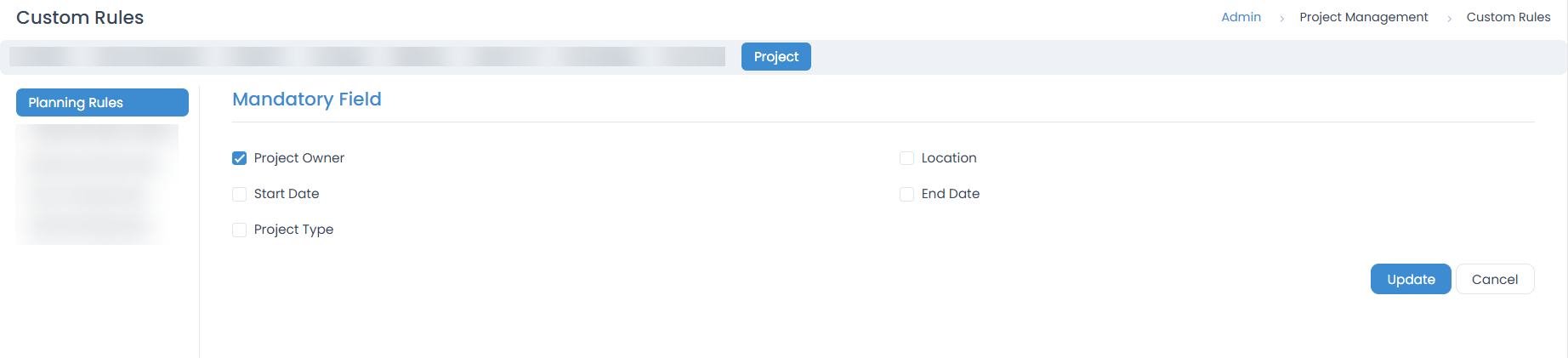
This tab allows administrators to define validation checks that must be met before a project can enter the Planning stage. These rules ensure that all foundational details of the project are documented.
1. Mandatory Field
Specifies fields that must be completed before the project moves to planning.
- Project Owner: Ensures a responsible owner is assigned to the project.
- Start Date: The planned start date for the project must be set.
- Project Type: Requires the selection of a project type.
- Location: Requires specifying the location for the project.
- End Date: The planned end date for the project must be set.
Implementation Rules
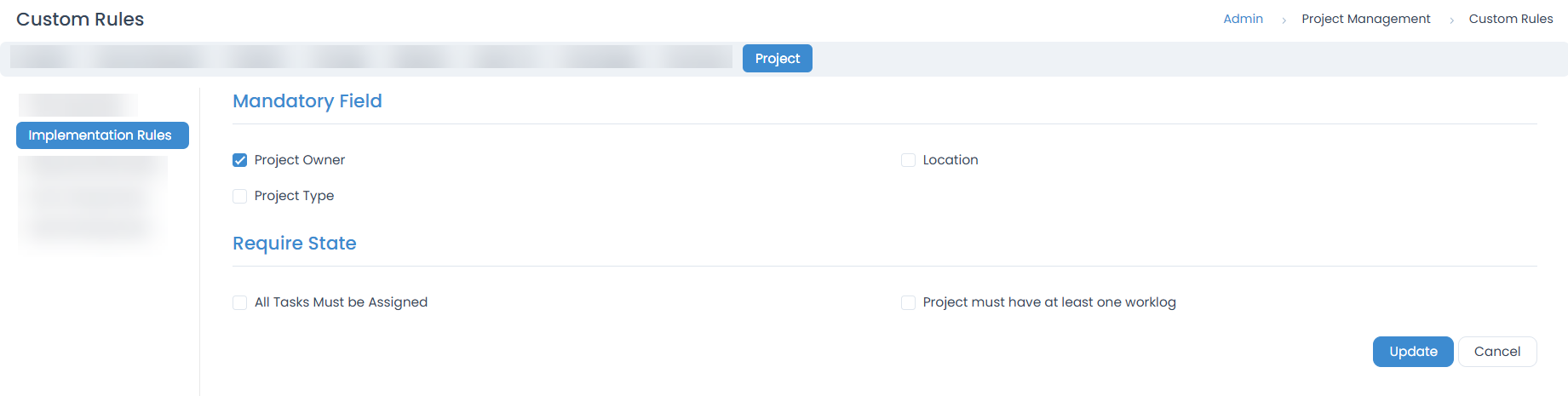
This tab allows administrators to define validation checks that must be met before a project can be moved to the Implementation stage.
1. Mandatory Field
- Project Owner: Ensures a responsible owner is assigned to the project.
- Project Type: Requires the selection of a project type.
- Location: Requires specifying the location for the project.
2. Require State
Defines dependencies that must be resolved before implementation can begin.
- All Tasks Must Be Assigned: Ensures that every task within the project has an assigned owner.
- Project must have at least one worklog: Prevents implementation if no work has been logged.
Required Note Rules
The Required Note Rules section allows administrators to enforce that mandatory notes are added whenever specific actions or field changes occur on a project.

1. User Interaction
- Member Removed: Enforces that a note must be added whenever a member is removed from the project.
- Cancel Project: Requires a note when a project is cancelled.
2. Project Updated
Specifies which field changes require the user to provide a note.
- Project Owner: A note must be added when changing the owner.
- Priority: Captures justification when the project priority is updated.
- Project Risk: Requires a note when the project risk is updated.
- Location: Requires a note when the project’s location is updated.
- Project Type: Requires a note when the project type is updated.
Show Dialog Rules
The Show Dialog Rules section allows administrators to configure confirmation prompts that appear when certain key fields of a project are updated.

1. Project Updated
- Project Owner: Show a dialog when the owner is reassigned.
- Priority: Confirm priority updates.
- Project Risk: Show a dialog when the project risk is updated.
- Location: Show a dialog when location details are updated.
- Project Type: Display confirmation when the project type is updated.
Add Working Rules
The Add Working Rules section allows administrators to control who is permitted to add worklog entries to a project.

Worklog Addition Access
- Only Assignee: Only the user assigned to the project/task can add a worklog.
- Only User Group: Members of the assigned user group can add a worklog.
- All Technician: All technicians can add a worklog.
- Only Assignee or User Group: The assignee or members of the assigned user group can add a worklog.
- All Requesters: All requesters can add a worklog.
- All Users: All users (technicians and requesters) can add a worklog.
- Technician Group is changed to User Group only if the Project Management license is enabled for the Requester.
- Tasks created without any reference module will not have any configuration; hence, all technicians can add a worklog.
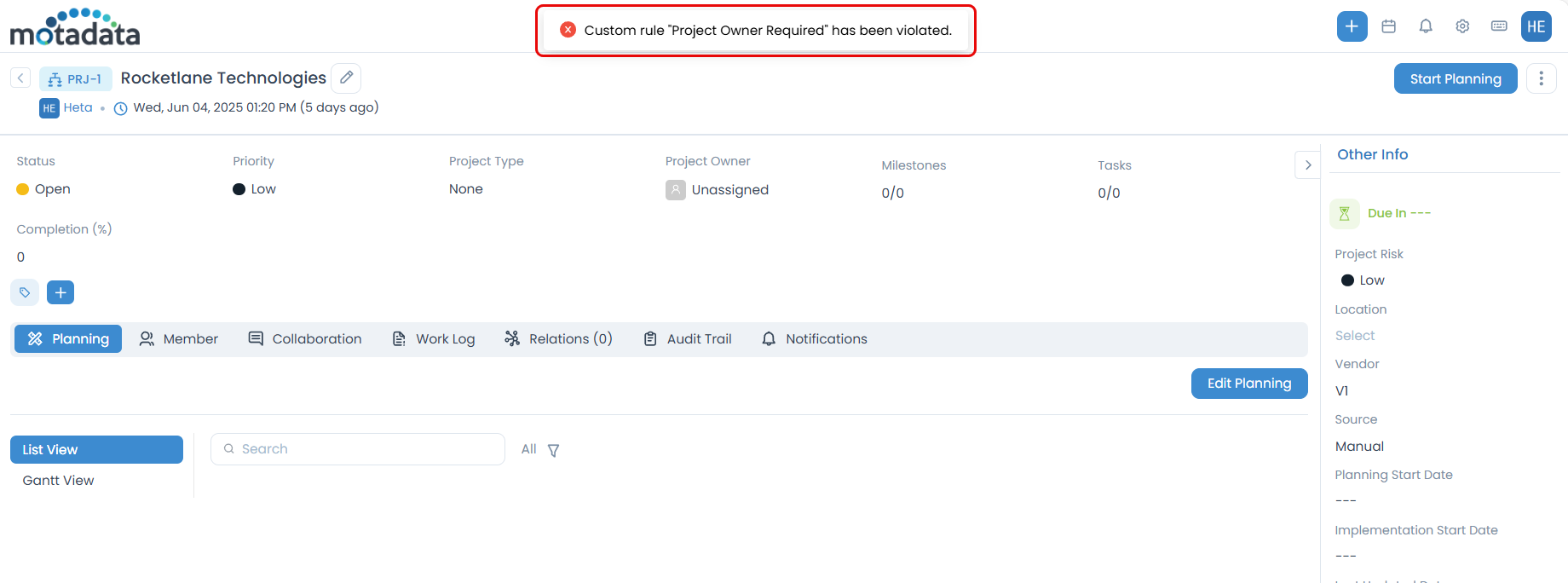
Example Scenario: You cannot Start Planning until a Project Owner is assigned.