Periodic Workflows
Periodic workflows or triggers, also known as scheduled workflows, are designed to execute at predefined intervals or specific times, rather than in response to a real-time event. This is ideal for automating routine tasks (e.g., nightly data backups), performing recurring checks (e.g., daily system health monitoring), or executing batch processing (e.g., end-of-month report generation).
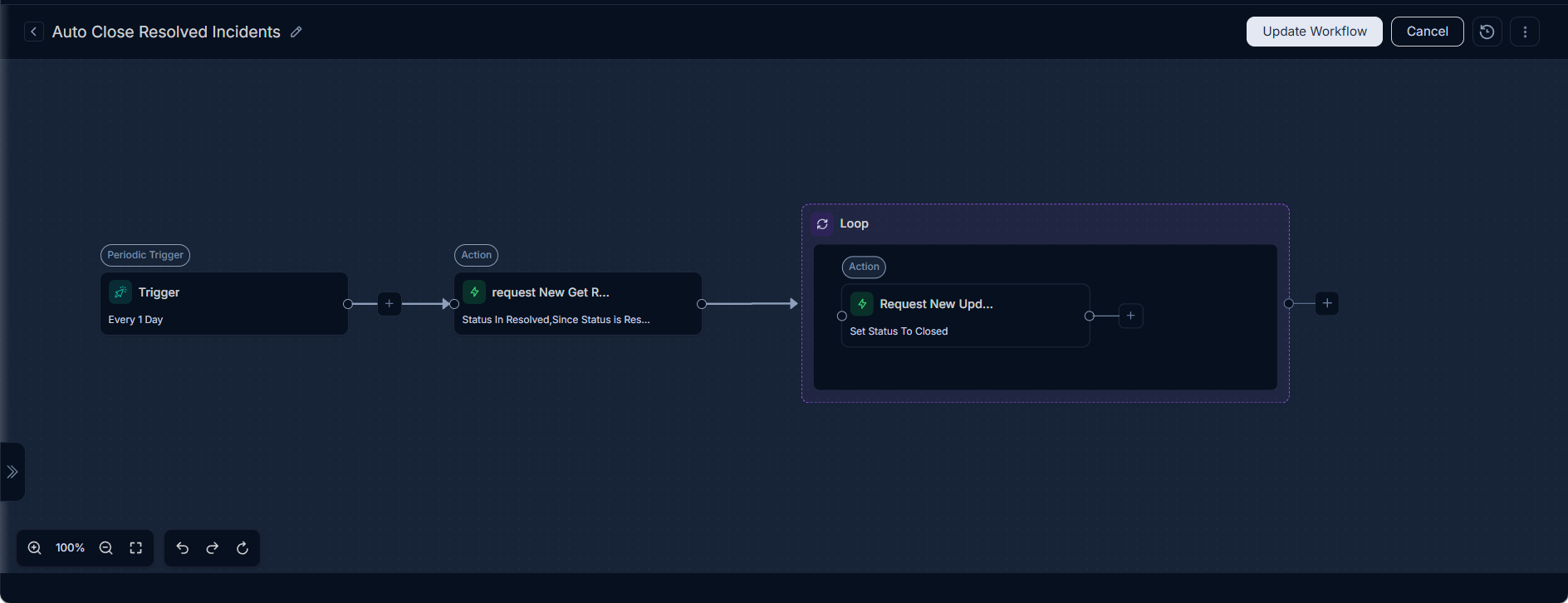
All periodic workflows will require a Get {Entity Name} node, followed by a Loop node that contains the respective workflow actions. For example, if you want to apply a Periodic workflow on the Request module, then you will need to add a Get Requests node, followed by a Loop node that contains the respective workflow actions.
Benefits of Periodic Workflows
Periodic workflows offer significant advantages by enabling proactive automation and ensuring consistent system operations:
- For IT Administrators: Automate critical maintenance tasks, ensure compliance through scheduled audits, and streamline data synchronization processes, reducing manual overhead and enhancing system reliability.
- For IT Staff / Technicians: Optimize recurring operational tasks such as report generation, ticket escalations, and system clean-up, allowing them to focus on more complex issues and improve service delivery efficiency.
- For End Users: Indirectly benefit from more stable systems, timely updates, and consistently available services due to the reliable execution of background processes.
Key Configuration Aspects for Periodic Workflows
- Schedule Type: Select how often the workflow should run:
- Once: Executes a single time at a specified future date and time.
- Daily: Runs every day at a particular time.
- Weekly: Runs on selected days of the week at a particular time.
- Monthly: Runs on specific days of the month or on a particular day of the week within a month (e.g., "first Monday") at a set time.
- Periodically (Interval): Runs repeatedly after a defined interval in minutes, hours, or days (for example, every 30 minutes or every 2 hours). A minimum interval of 15 minutes is enforced to prevent workflows from running too frequently and overloading the system. ServiceOps rejects any interval value below 15 minutes at the time of configuration.
- Cron Expression: Provides advanced scheduling flexibility using standard cron syntax for highly specific and complex schedules. This allows for precise control over minutes, hours, days of the month, months, and days of the week. Note that the Cron field is required for this schedule type. You may use an external Cron Expression Generator (e.g., CronMaker) for assistance in crafting complex expressions.
Periodic Workflow Examples
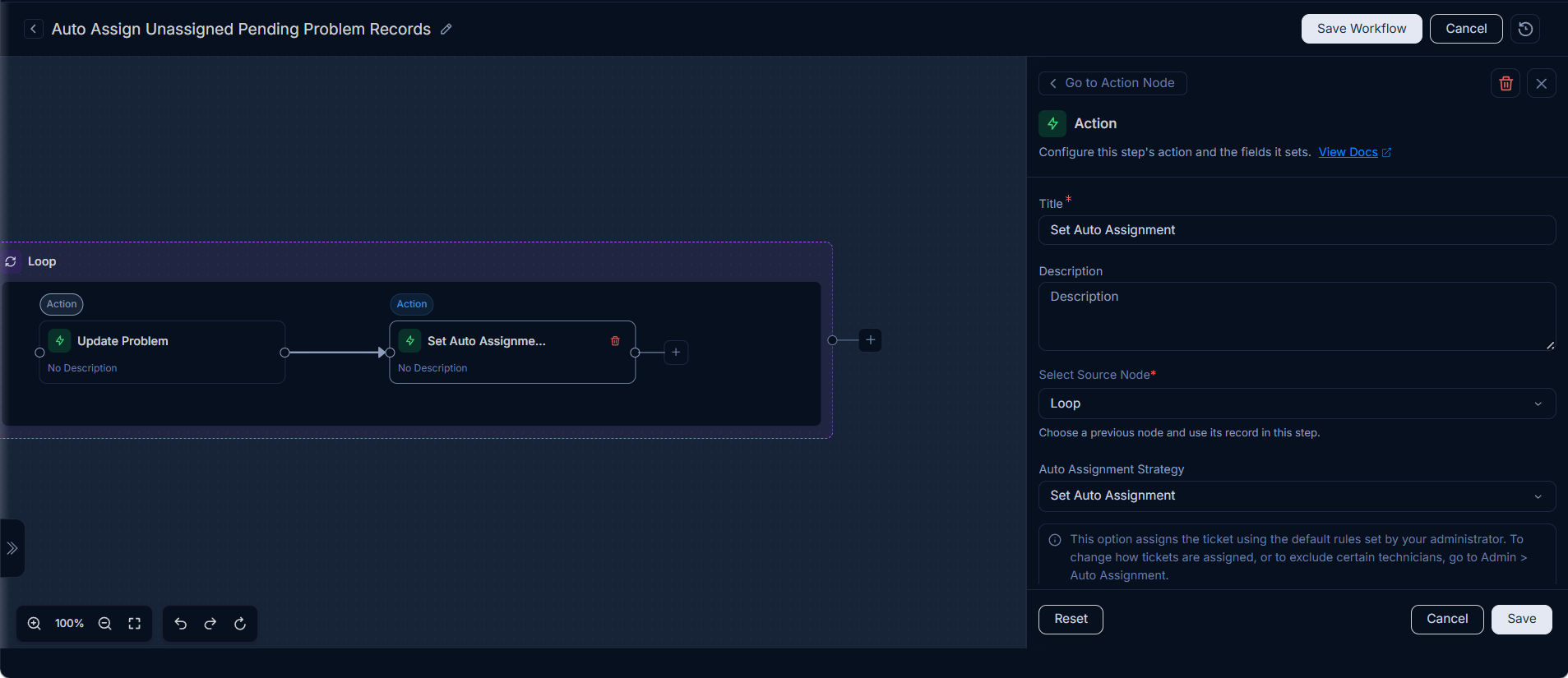
Example 1: Automated Assignment and Status Update for Stale, Unassigned Open Problems
Scenario: The system needs to periodically check for 'Problem' records that are in an 'Open' state, currently unassigned, and have been created more than 2 days ago. For such problems, the system should automatically change their status to 'Pending' and assign them to technicians based on the auto-assignment algorithm.
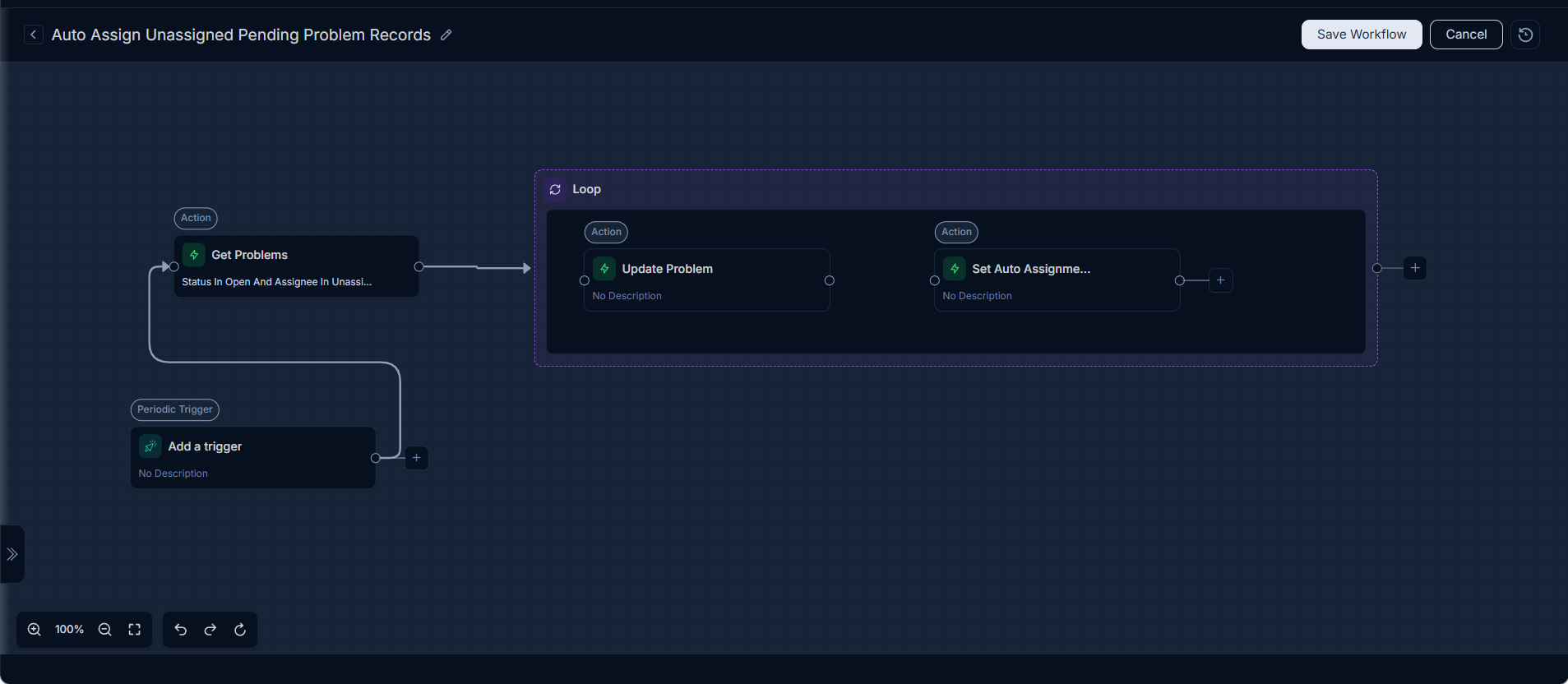
Configuration Steps:
Schedule Type: Select
Once(orDailyif this is a recurring check).Date and Time: Specify a future date and time for the auto-assignment to run (e.g., 2025-12-01 at 03:00 AM).
Workflow Actions:
- Use a
Get Problemsnode to fetch all the problem tickets that are in an 'Open' state, currently unassigned, and have been created more than 2 days ago.
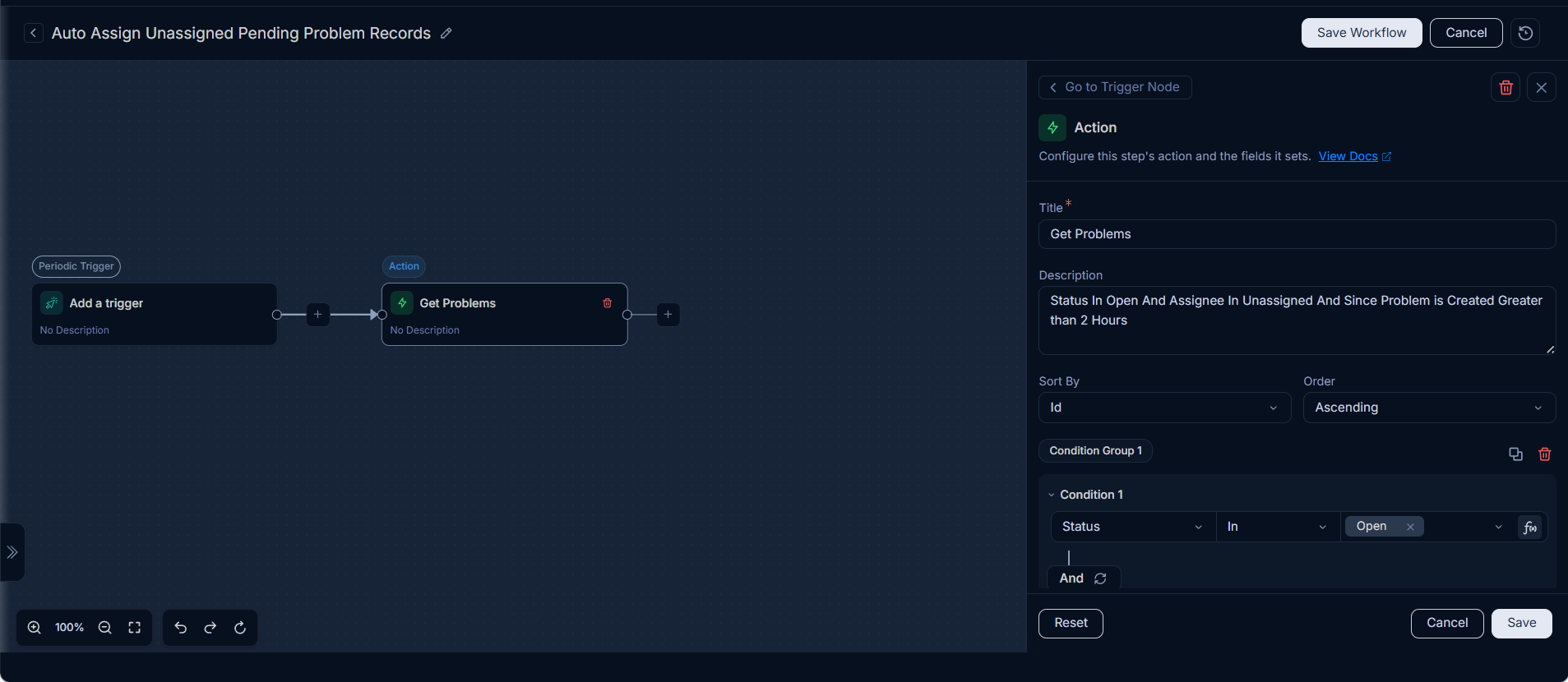
- Follow with a
Loopnode to iterate through these problem tickets. - Inside the loop, use an
Update Problemaction to set theStatusof each problem ticket toPendingand assign the problem to technician using Auto Assignment.
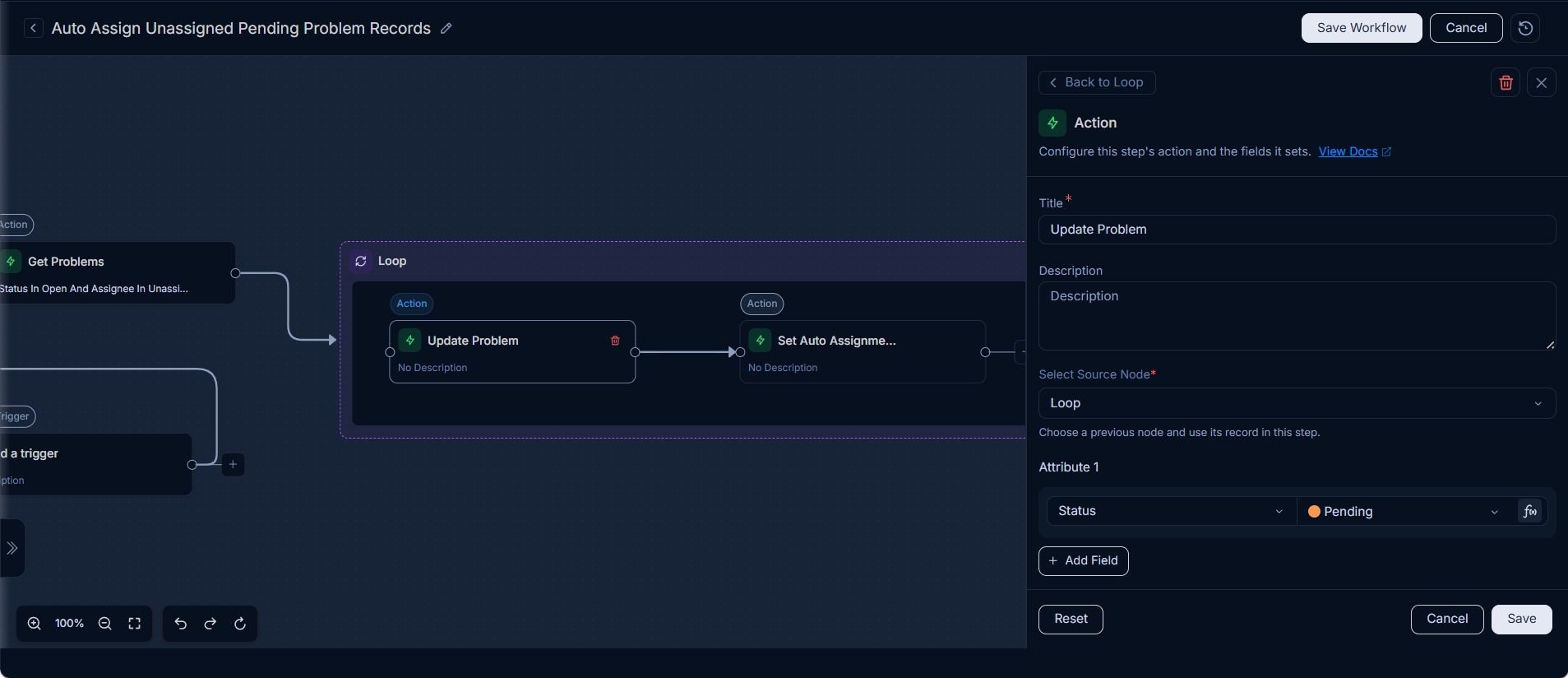
- Use a
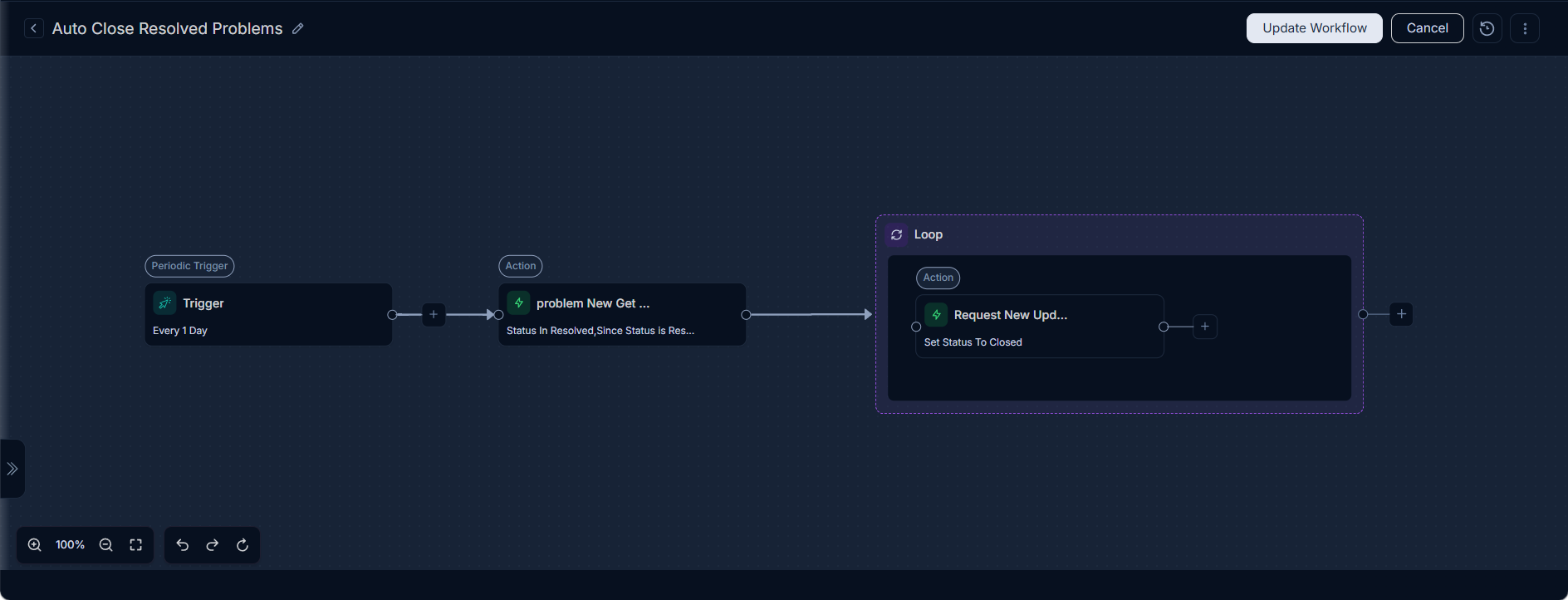
Example 2: Daily Ticket Closure for Resolved Tickets
Scenario: To maintain a clean and accurate ticket queue, all tickets with a 'Resolved' status that have been in that state for more than 1 day need to be automatically closed every day.
Configuration Steps:
Schedule Type: Select
Daily.Time: Specify a time when the workflow should run (e.g., 10:00 PM).
Workflow Actions:
- Use a
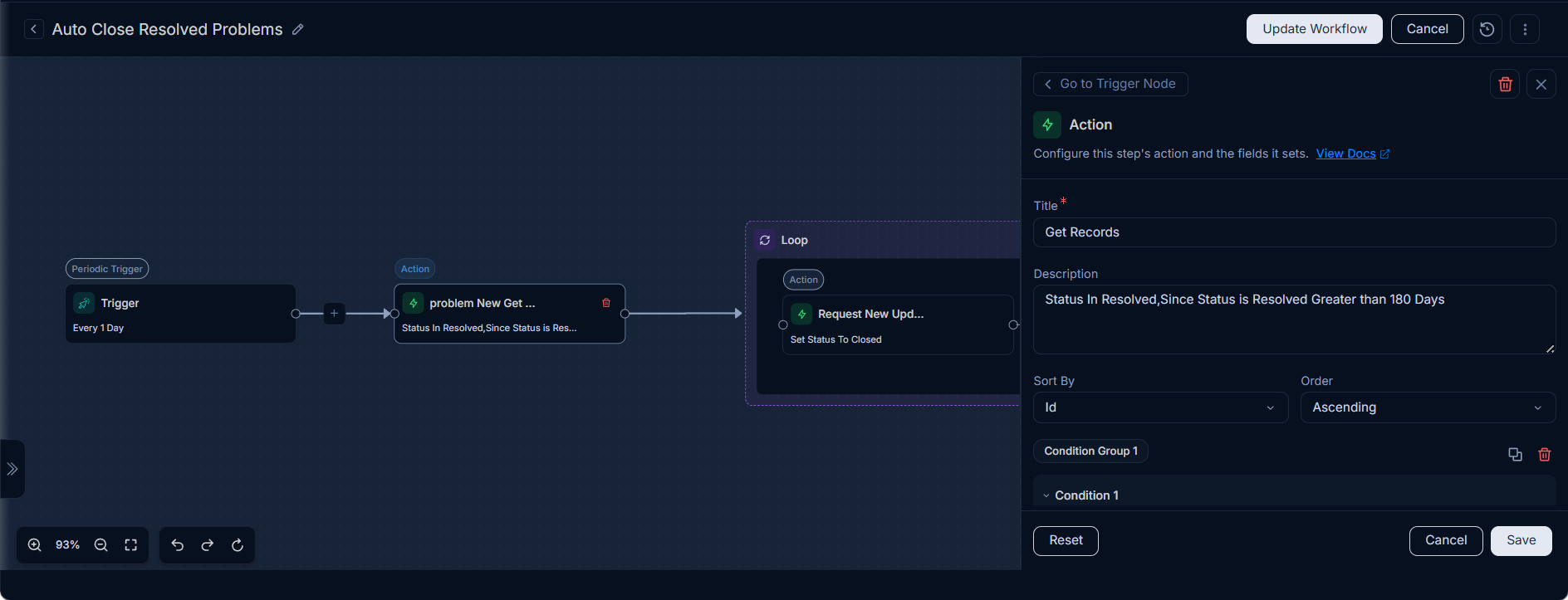
Get Requestsnode to fetch all the request tickets that are in a 'Resolved' state and have been in that state for more than 1 day.
- Follow with a
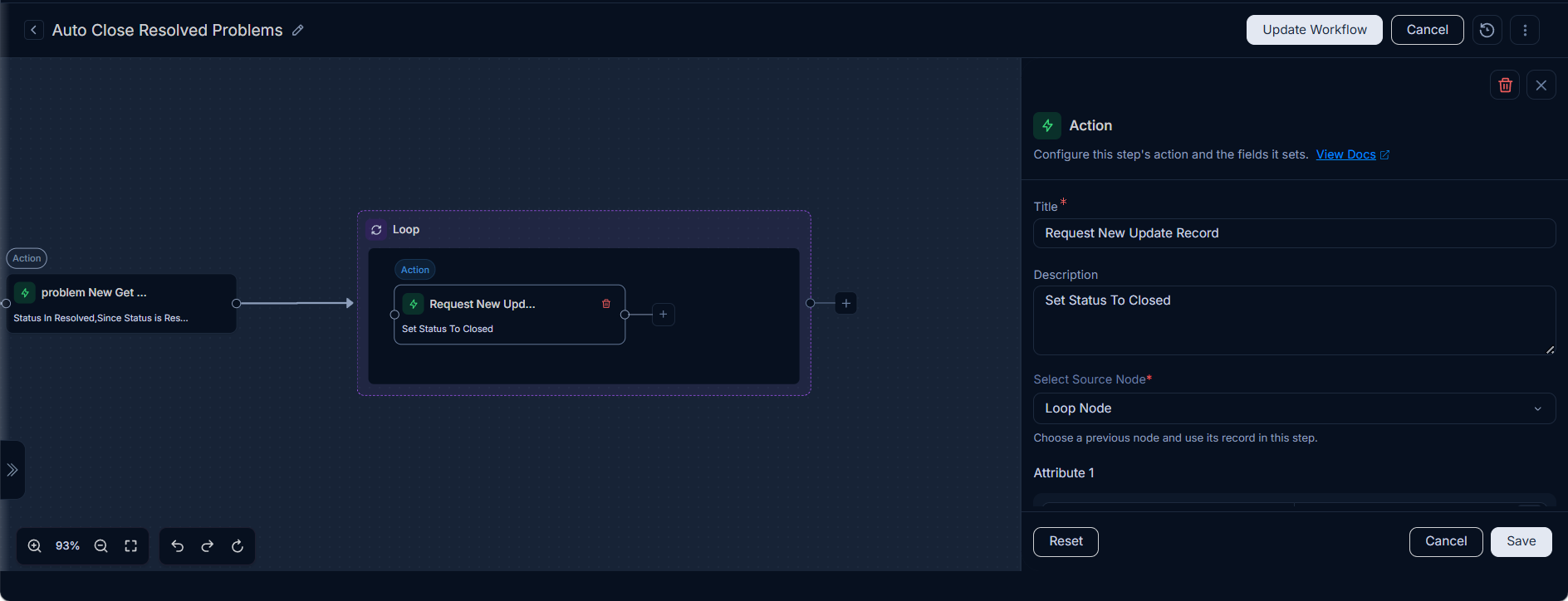
Loopnode to iterate through these tickets. - Inside the loop, use an
Update Requestaction to set theStatusof each ticket toClosed.
- Use a
Example 3: Weekly Inactive User Account Archival
Scenario: To enhance security and data hygiene, inactive user accounts that haven't logged in for 90 days need to be archived every Friday.
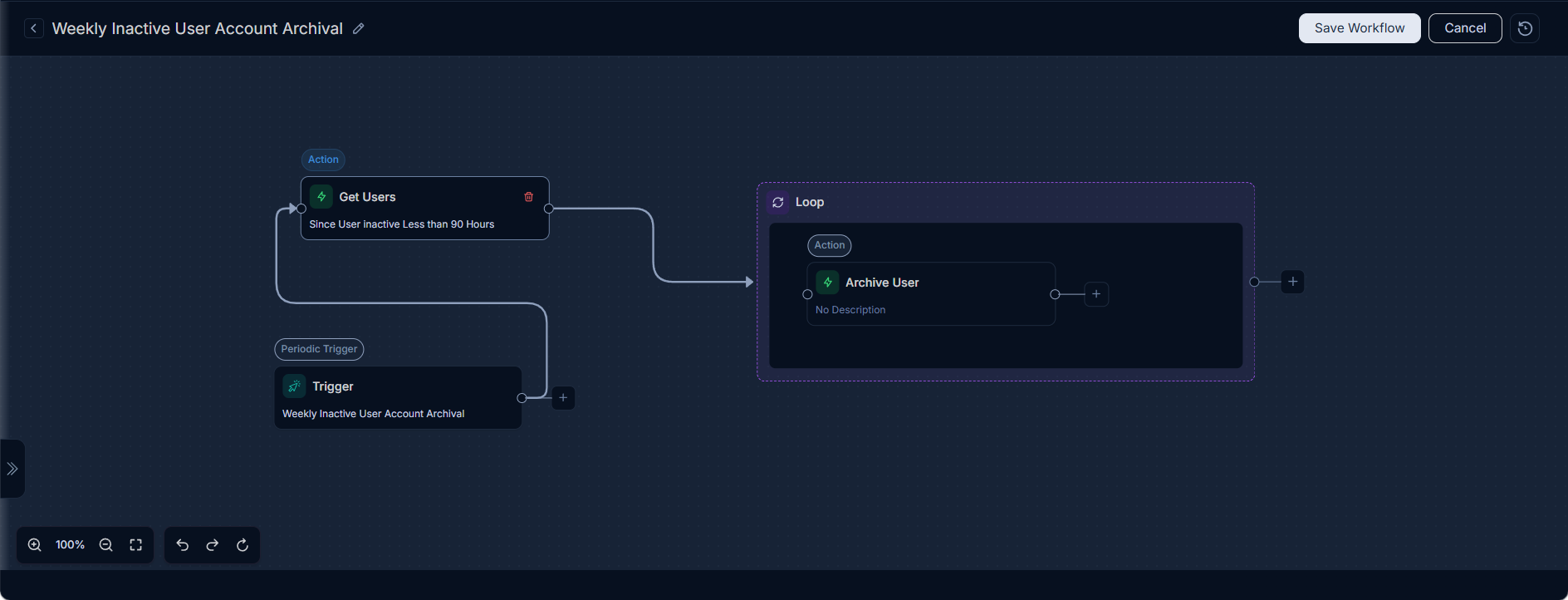
Configuration Steps:
Schedule Type: Select
Weekly.Day and Time: Choose
Fridayand a specific time (e.g., 11:00 PM).Workflow Actions:
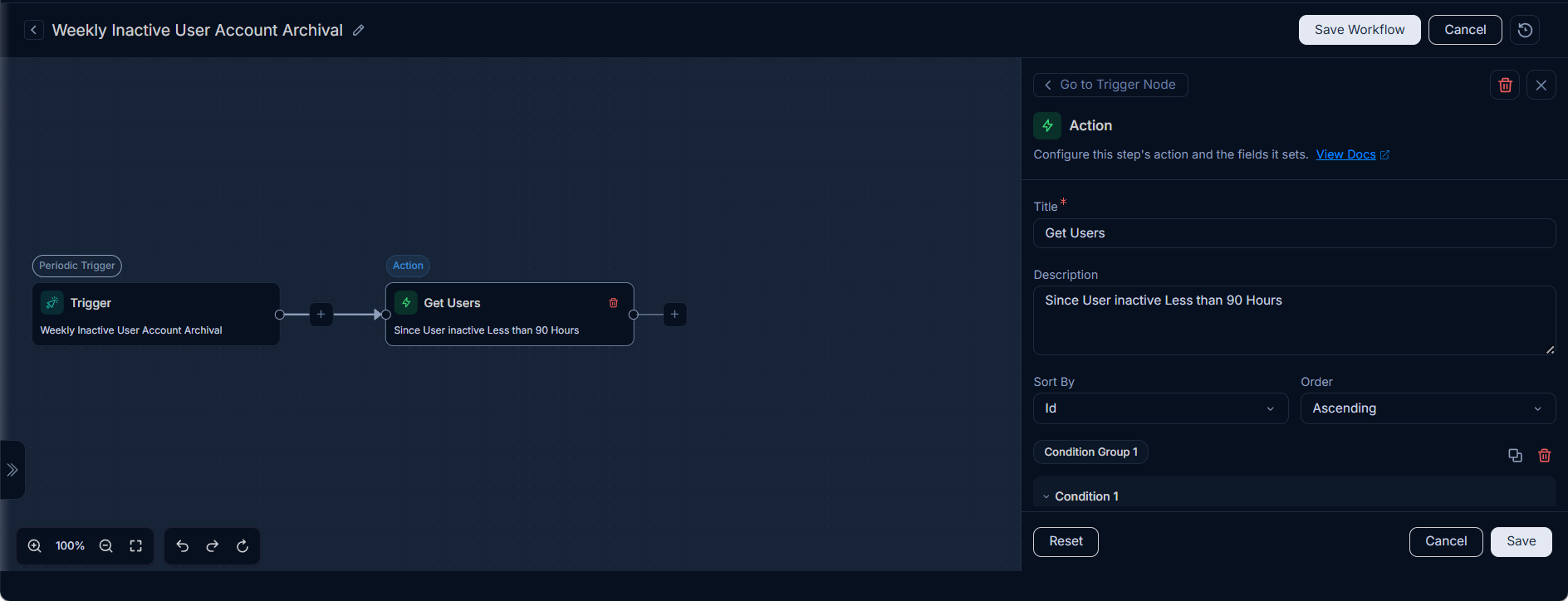
- Use a
Get Usersnode to fetch all the user accounts that have been inactive for more than 90 days.
- Follow with a
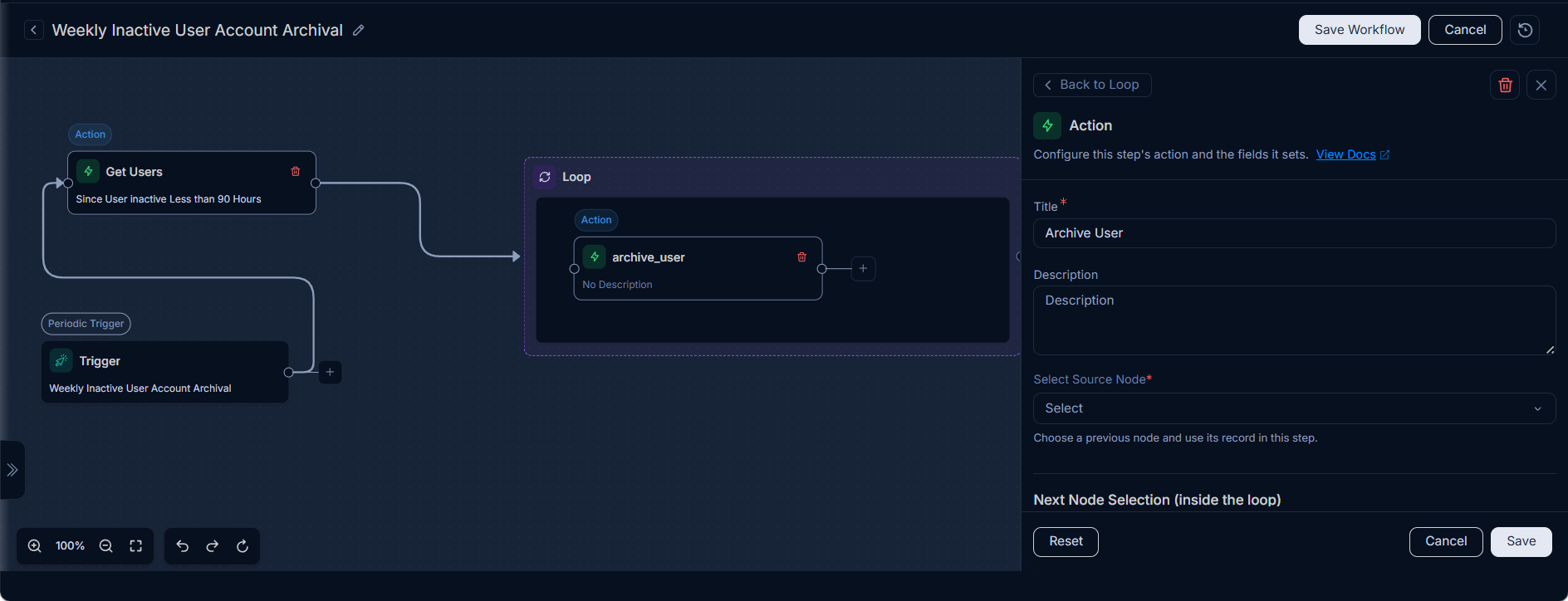
Loopnode to iterate through these user accounts. - Inside the loop, use an
Archive Useraction to archive the user.
- Use a
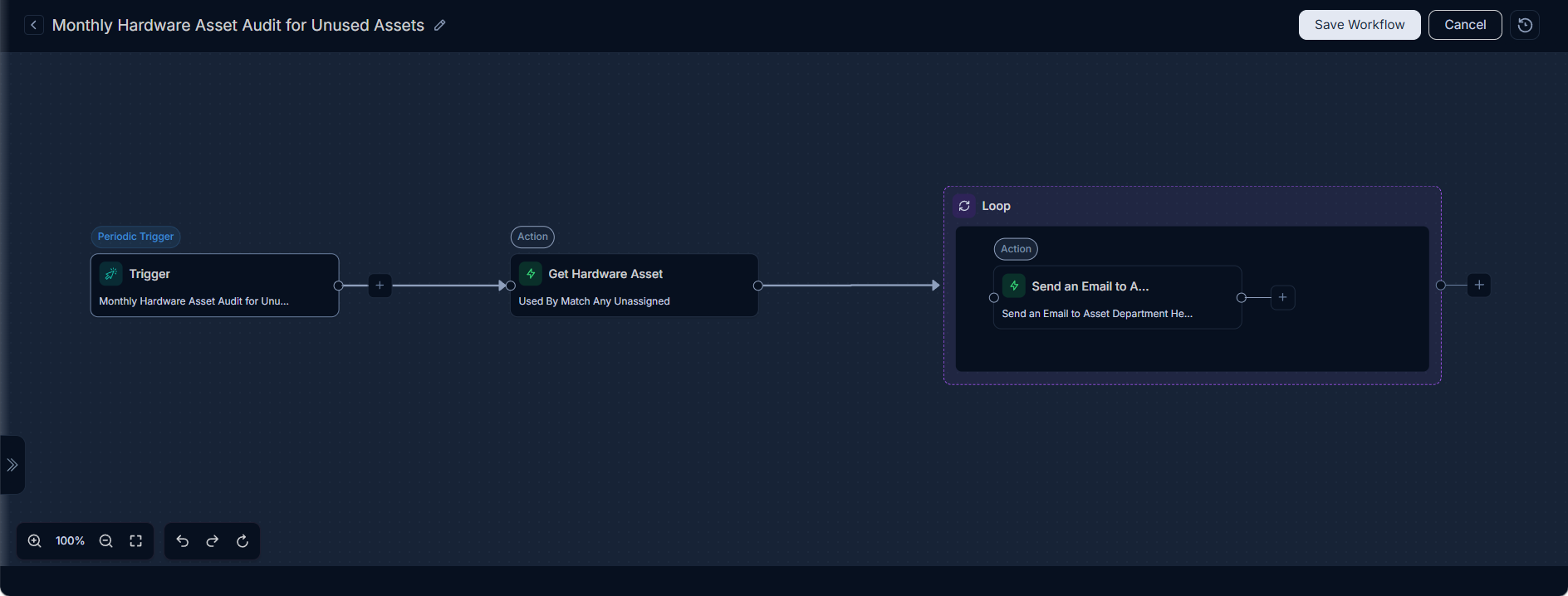
Example 4: Monthly Hardware Asset Audit for Unused Assets
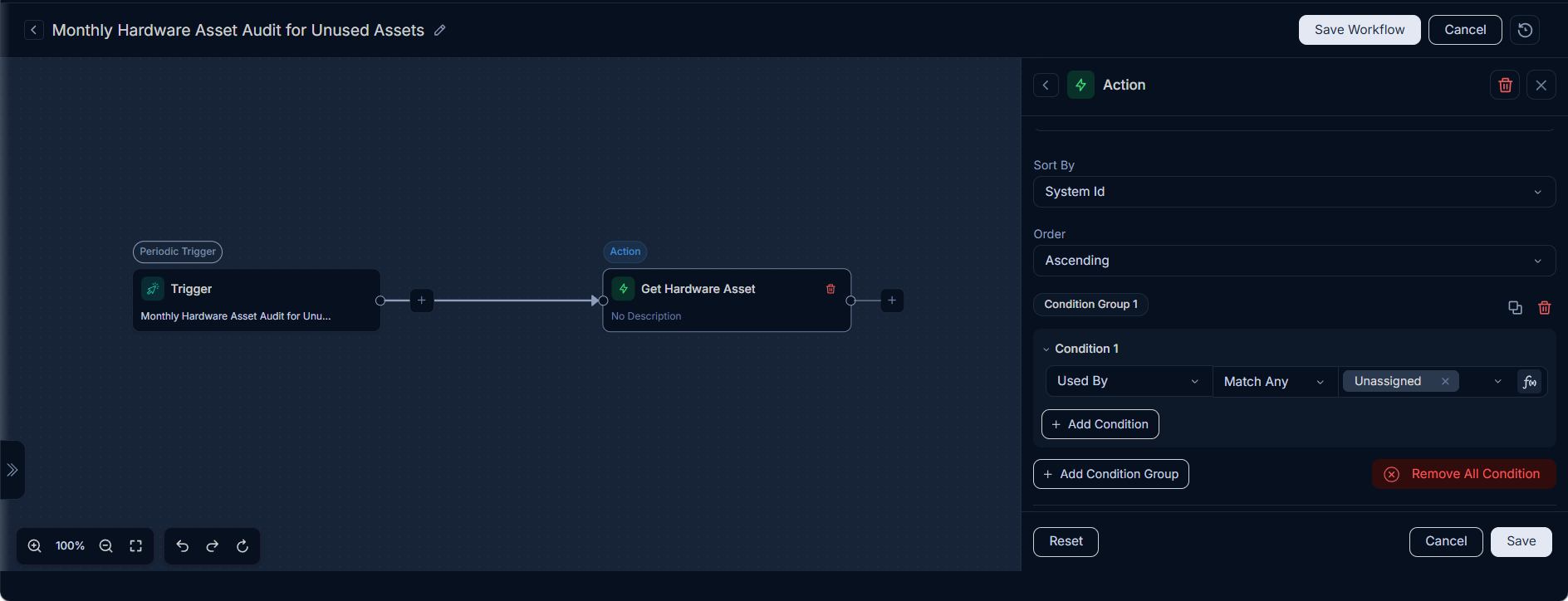
Scenario: To optimize hardware resource allocation and track unused inventory, a monthly audit is required to identify all physical hardware assets that are currently not used by any user. The system should send an email notification to the Asset Manager about these details. This workflow should run on the 5th day of each month, starting from November, at a specific time (e.g., 07:00 PM).
Configuration Steps:
Schedule Type: Select
Monthly.Start At: Specify the initial date and time for the schedule to become active (e.g.,
04/11/2025 07:26 PM).Date: Specify the day of the month for the audit (e.g.,
5).Time: Specify the time of day for the execution (e.g.,
07:00 PM).Month: Specify the starting month for the recurring schedule (e.g.,
November).Workflow Actions:
- Use a
Get Hardware Assetsnode to fetch all the hardware assets that are not assigned to any user.
- Follow with a
Loopnode to iterate through these assets. - Inside the loop, use a
Send an Email to the Asset Department Headaction to send an email to theAsset Department Headwith details of the unused hardware assets. Note, you can set the Asset Department Head from the Department Details page.
- Use a
Example 5: Periodical Ticket Status Check and Update
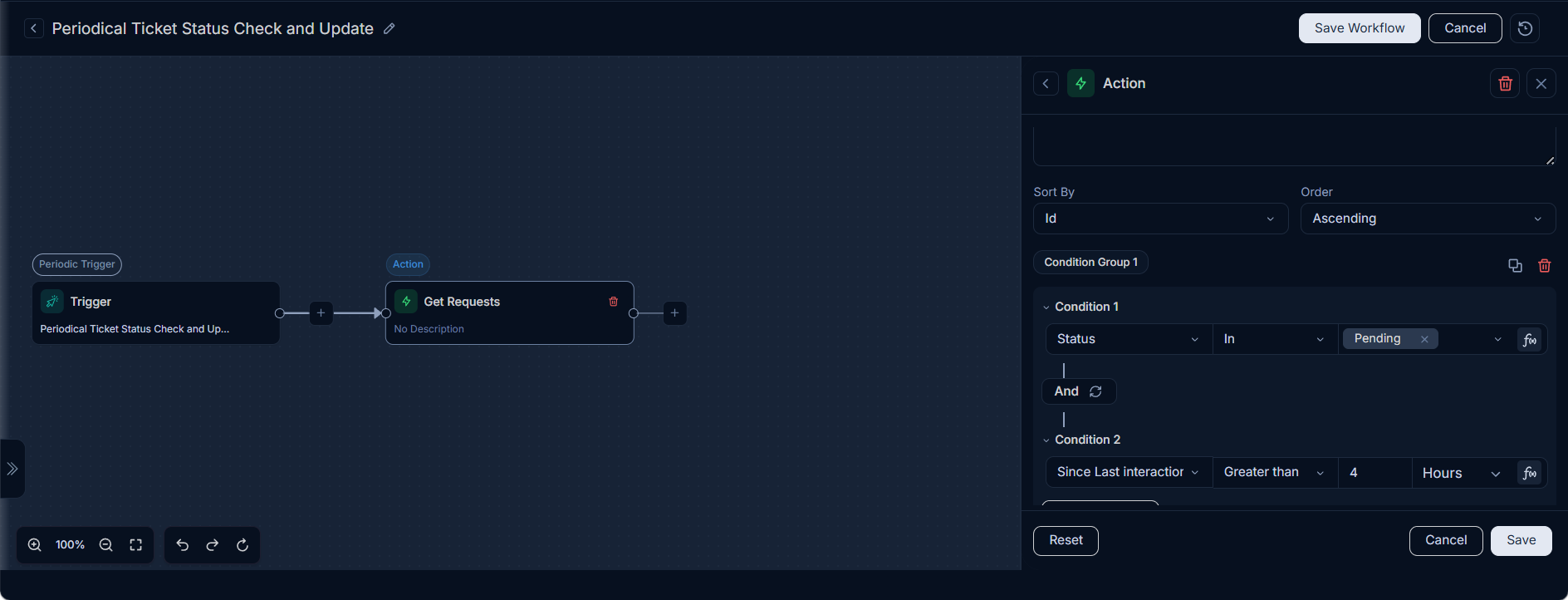
Scenario: To ensure tickets are progressing, a workflow needs to periodically check for tickets that are in a 'Pending' status for more than 4 hours and automatically update their priority to 'High' every 4 hours.
Configuration Steps:
Schedule Type: Select
Periodically (Interval).Interval: Set the interval to
4 hours.Start At: 05/11/2025 06:16 PM
Workflow Actions:
- Use a
Get Requestsnode to fetch all the request tickets that are in a 'Pending' state and have not been interacted with for more than 4 hours.
- Follow with a
Loopnode. - Inside the loop, use an
Update Requestaction to set thePriorityof each ticket toHigh. - Also, add a
Send an Email to Technician's Manageraction to inform the manager about the status.
- Use a
Example 6: Audit Asset Maintenance Every Quarter with Cron Expression
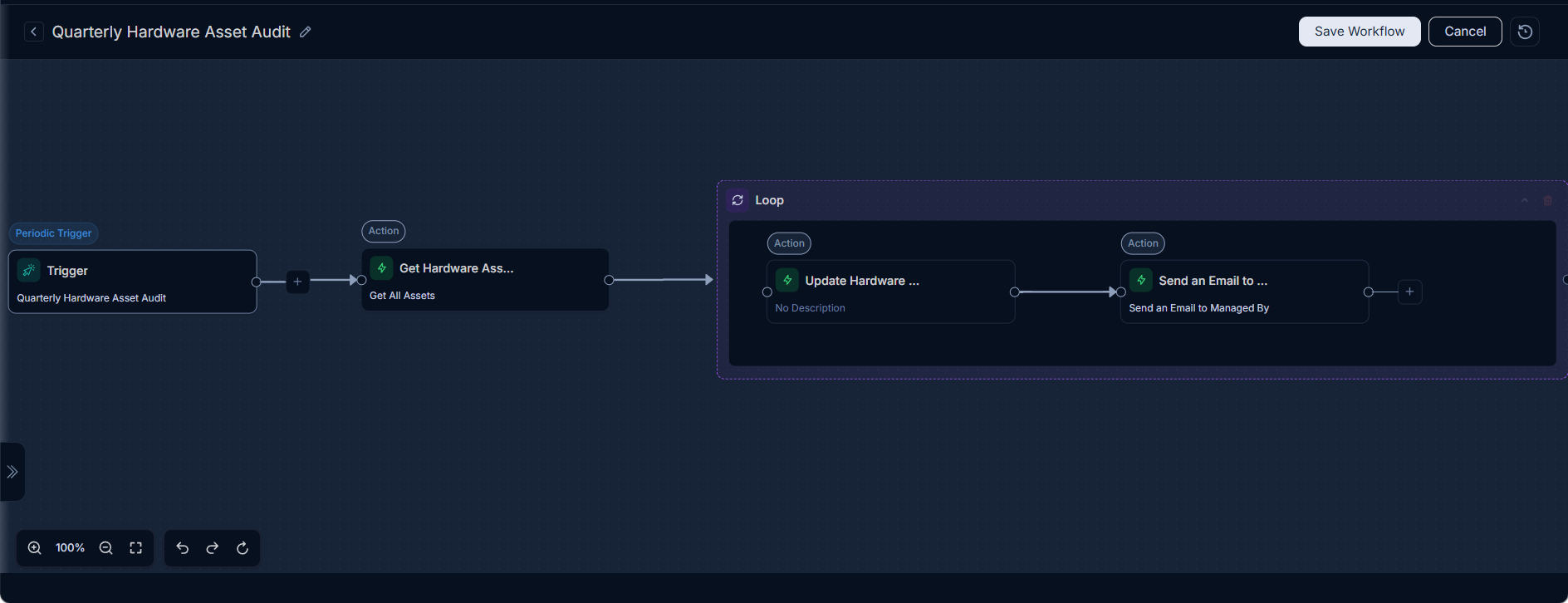
Scenario: To ensure timely asset maintenance, a workflow needs to periodically audit the maintenance history of all assets every quarter. The system should send an email notification to the Asset Manager about the details of the assets that require maintenance. This workflow should run at 12:00 AM on the first day of every quarter (3 months).
Configuration Steps:
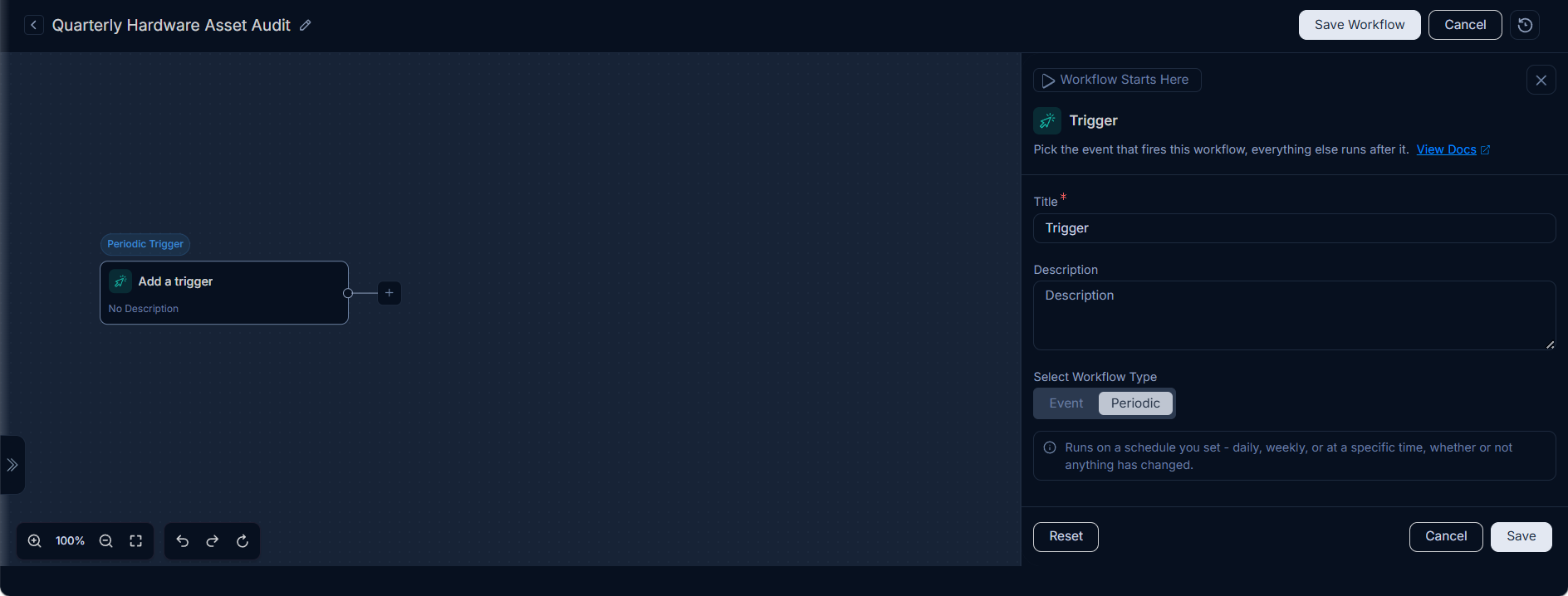
- Schedule Type: Select
Cron Expression. - Cron Expression: Enter a cron string for
0 0 12 1 1/3 ? *(which means at 12:00 PM, on day 1 of the month, every 3 months).
- Workflow Actions:
- Use a
Get Hardware Assetsnode to fetch all assets. - Follow with a
Loopnode. - Inside the loop, use
Update Hardware Assetaction to update theStatustoIn Maintenanceand add aSend an Email to Managed Byaction.
- Use a