Building and Validating Expressions
The Expression Builder provides a flexible and intuitive interface for constructing both simple and complex expressions. These expressions are crucial for defining dynamic conditions and generating values that drive your workflow automation.
Constructing Complex Conditions and Dynamic Values
When working with the Expression Builder, you can construct expressions in the dedicated Expression Field. This field allows for free-form input, where you combine variables, functions, and operators to create your desired logic.
Using Functions: The Function Panel provides categorized functions (String, Date, Math). Clicking a function automatically inserts its syntax template into the expression field, ensuring correct formatting and reducing manual effort. For example, to add days to a date, you might use
addDays(date, n).- Adding a function: Place the cursor where you want the function inserted, then click it from the Function Panel. It is appended without clearing the existing expression.
- Removing a function: Select the function text in the expression field and delete it. Ensure the remaining syntax is still valid.
Applying Operators: The Operators Panel lists logical (e.g.,
&&,||,!) and comparison (e.g.,==,!=,>,<,>=,<=) operators. These can be inserted with a click, allowing you to build intricate conditional statements like{{ticket.priority}} == "High" && {{ticket.category.name}} == "Network".Inserting Variables: To leverage dynamic data, use the "View Available Variables" option. This opens a drawer with attributes from previous workflow nodes. Inserting a variable (e.g.,
{{ticket.createdDate}}) directly into your expression ensures that your logic operates on real-time workflow data.Copying and Pasting Expressions: You can copy the full expression using Ctrl+C (Windows) or Cmd+C (Mac) and paste it into the expression field using Ctrl+V (Windows) or Cmd+V (Mac) for reuse or modification. The pasted expression follows the same validation rules as any manually built expression.
Note on Expression Application:
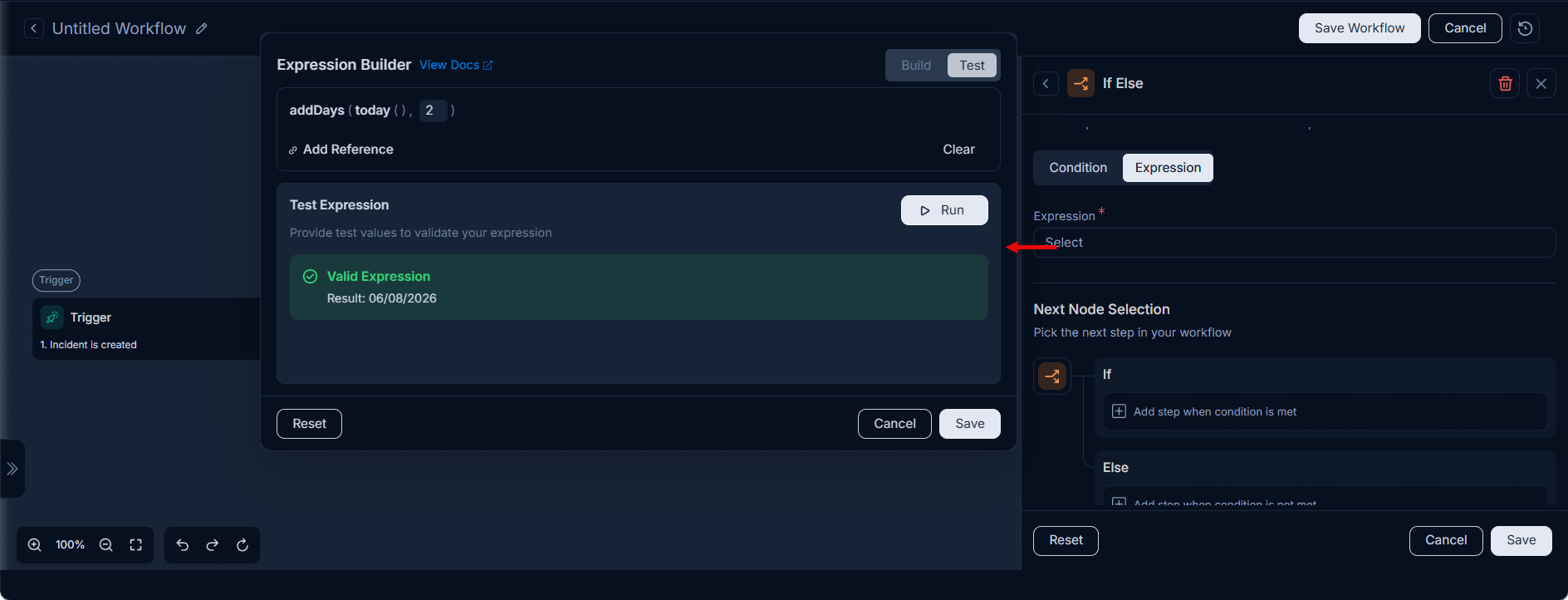
When configuring a Set Value action, expressions are used to define the dynamic value (e.g., addDays({{ticket.createdDate}}, 2)). The key (e.g., ticket.dueDate) remains static.
However, when an Expression is selected for a Condition, both the key and value fields are replaced by a single comprehensive expression, and the traditional key-value structure is no longer applicable.
Testing Expressions with Sample Data
Before deploying your workflows, it's critical to validate that your expressions behave as expected. The Test Expression Panel facilitates this by allowing you to simulate real-world scenarios:
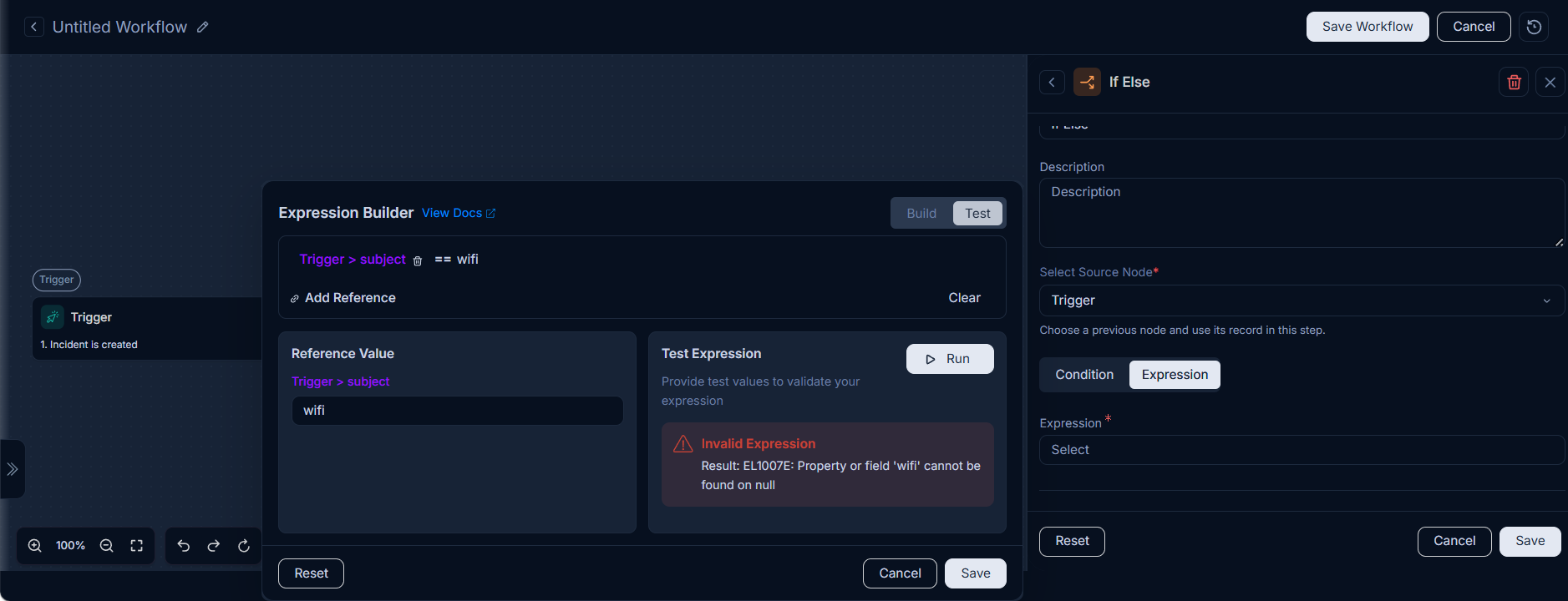
Inputting Test Values: If your expression references a trigger variable, a Reference Value panel appears to the left of the Test Expression panel. Enter the test value for each variable in the input field provided.
Executing the Test: Click "Run" to evaluate your expression with the provided sample data.
Interpreting Results:
- Valid Expressions: If the expression is syntactically correct and evaluates successfully, a green valid expression (success) message will display along with the computed result (e.g., "06/08/2026").
- Invalid Expressions: If there's a parsing issue or an incorrect evaluation context, a red error message (Invalid Expression) will highlight the problem. For instance, in the example below, the expression
Trigger > subject == wifiresults in anEL1007E: Property or field 'wifi' cannot be found on null. This indicates that the system is attempting to treat 'wifi' as a property of a null 'Trigger > subject' object, rather than as a string literal to be searched within the subject. To resolve this, ensure 'Trigger > subject' provides a valid string value and 'wifi' is correctly interpreted as the substring to search for.
Validation Rules
All expressions must adhere to strict validation rules to ensure proper workflow execution:
- Syntactic Correctness: Expressions must be syntactically correct according to the Expression Builder's grammar.
- Error Messages: If an expression is invalid, the system will display an appropriate error message to guide the user.
- Preventing Invalid Saves: The system will not allow you to save or proceed with an invalid expression until all errors are resolved. This prevents the deployment of broken automation logic.
By following these steps for constructing and rigorously testing your expressions, you can ensure that your ServiceOps workflows are robust, reliable, and perform exactly as intended.