App Notification
The App Notification tab enables you to view and edit the default email templates as needed. These templates are used to send automatic responses to recipients when an event is triggered. You can also activate or deactivate them if they are not required.
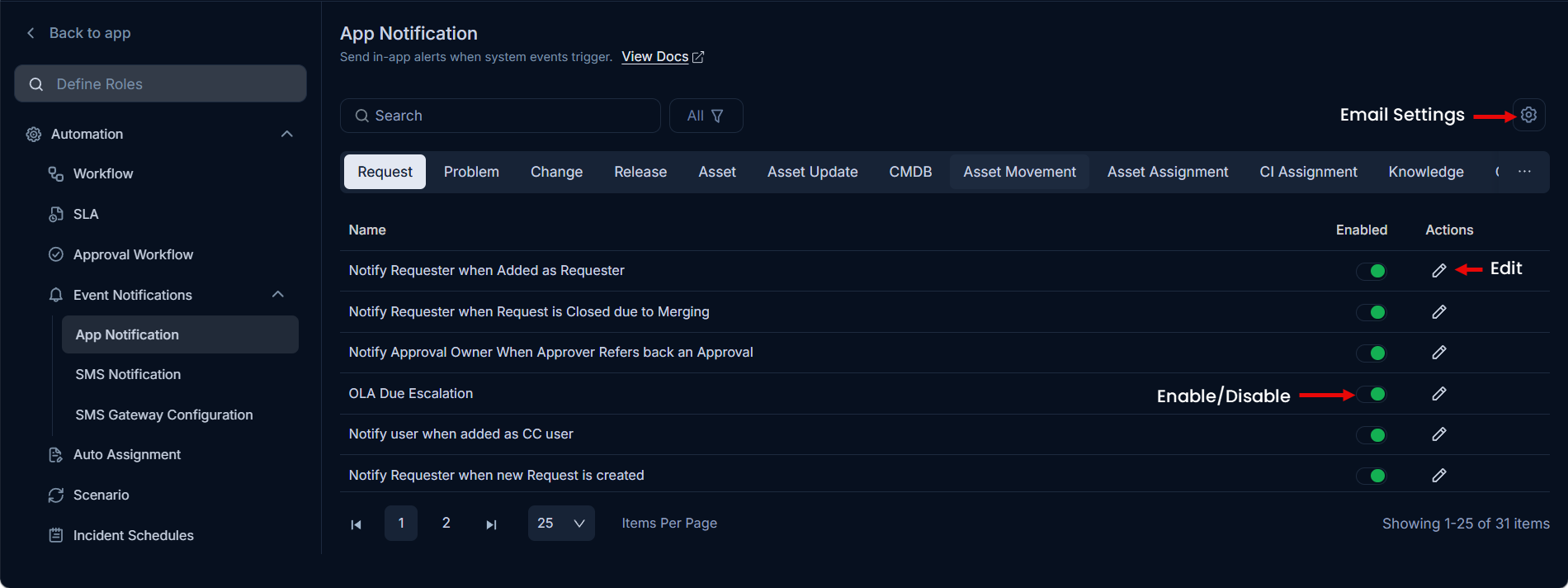
Here, you can do the following tasks:
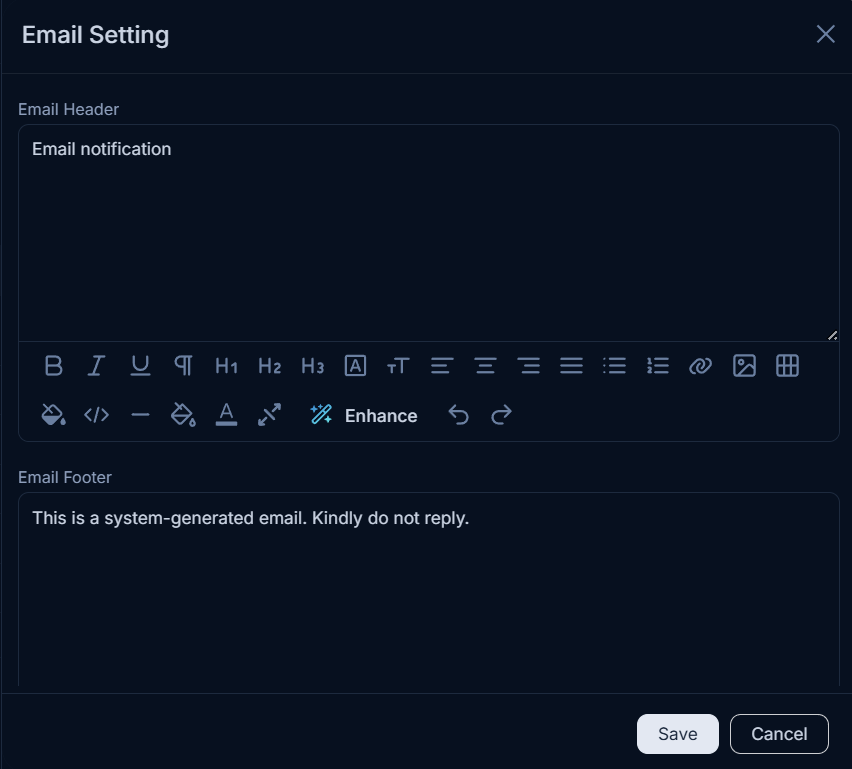
- Configure the email header and footer using Email Settings.
- Filter the templates based on their status.
- Enable or disable an email template
- Edit an email template
- Insert placeholders in the subject and body to display specific text instead of generic text.
Enable or Disable an Email Template
To enable or disable an email template:
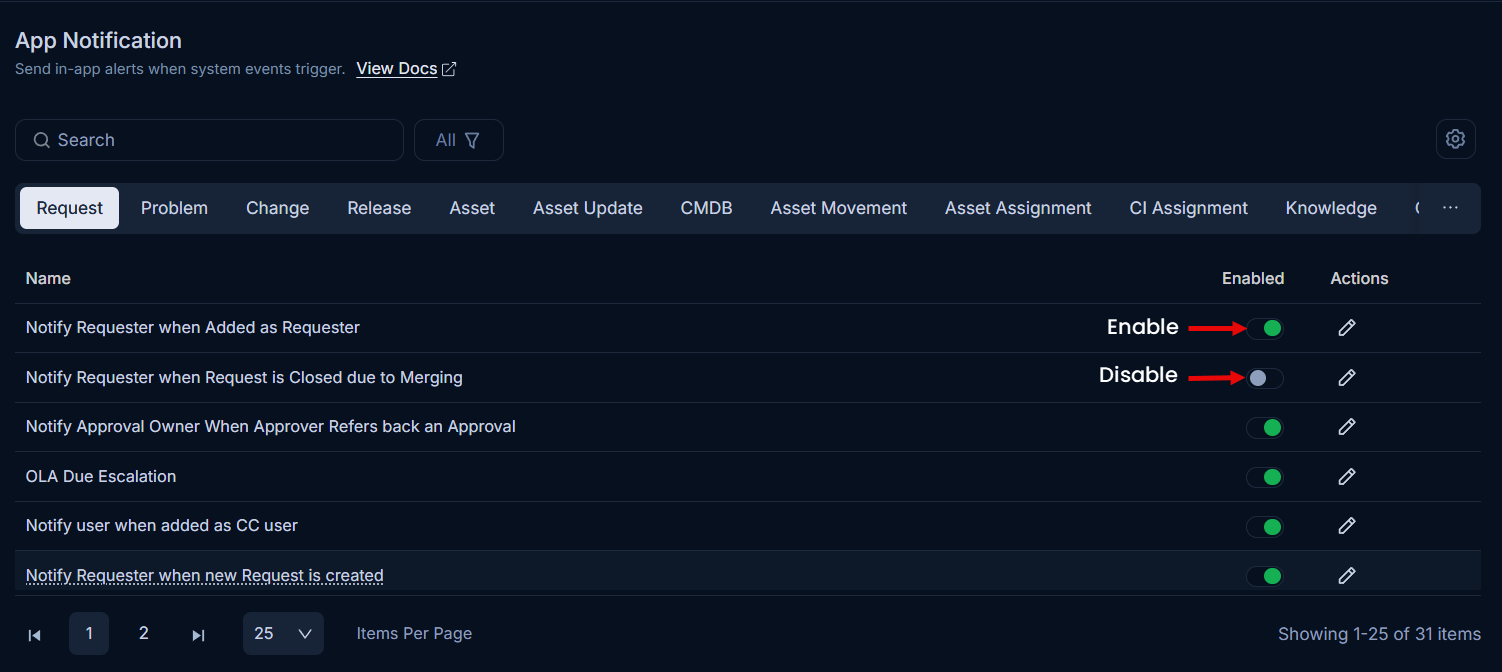
If the template is disabled, click the gray icon in the Enabled column. It turns green and the email template gets enabled.
If the template is enabled, click the green icon again to disable it. The icon turns gray, as shown below. In this example, the email templates are from the Request module.
Similarly, you can enable or disable the email templates for all the modules displayed in the tab.
Editing the Email Template
To edit an email template, click the Edit icon. The edit page opens. For example, click the Edit icon next to the Notify Requester when new Request is Created email template. The page opens as shown below.
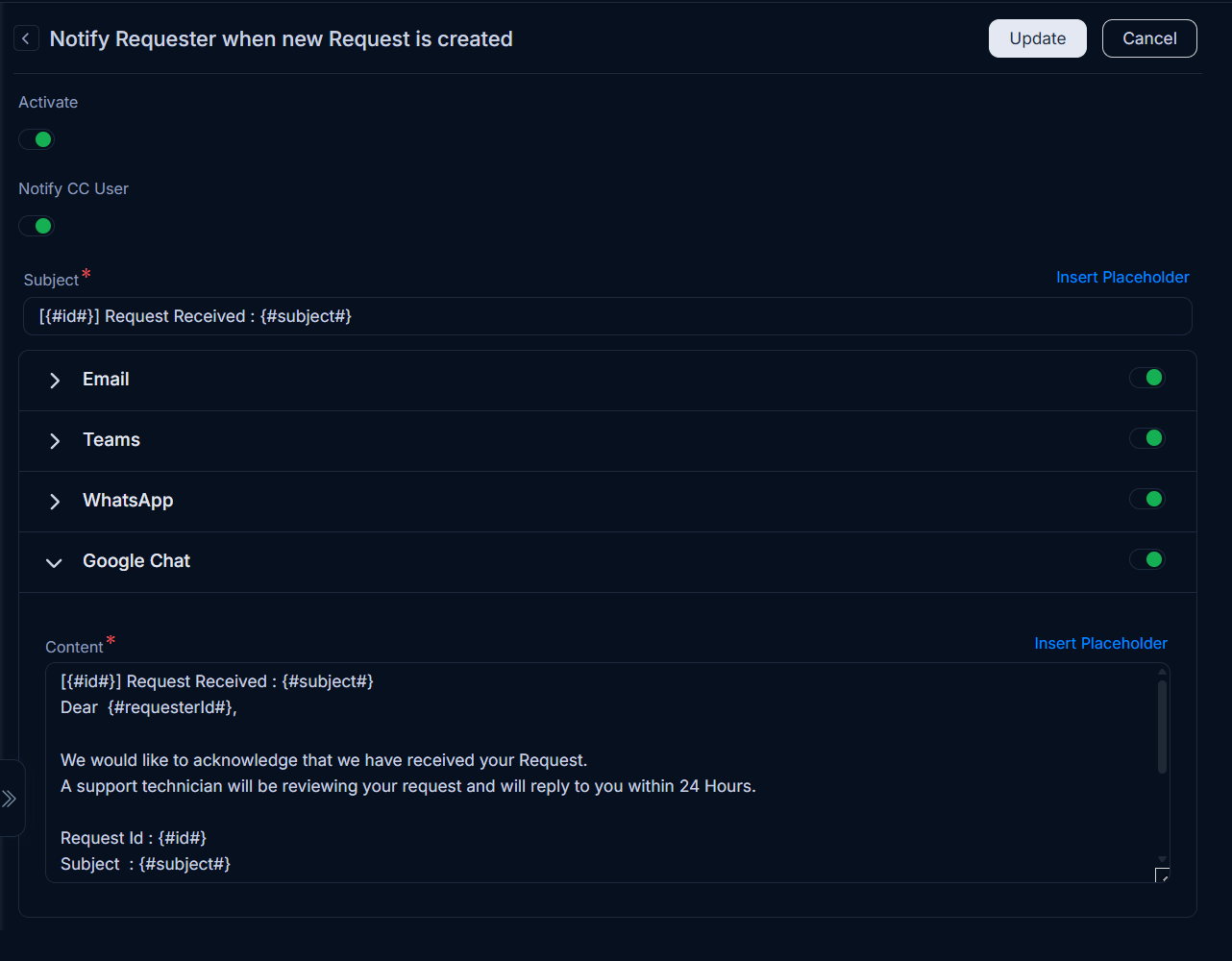
Here, you can do the following:
- Activate: You can activate or deactivate the email template.
- Notify CC User: You can activate or deactivate the notification for the users in CC.
- Edit Subject: You can edit the subject and insert placeholders.
- Edit Content: You can edit the email body and add placeholders as per the requirement. You can also enable or disable event notifications specifically for Email, Teams, WhatsApp, and Google Chat. A configuration audit entry will also appear when changing notification settings. For WhatsApp notifications, a WhatsApp Template Name field is available - enter the name of the Meta-approved template to use for this event. When configured, ServiceOps sends the notification using that template with dynamic variables resolved from the ticket context, enabling delivery outside the 24-hour WhatsApp session window. If no template name is entered, ServiceOps sends a free-form message as before. Refer to How to Configure WhatsApp Message Templates for step-by-step instructions.
The fields on the page may vary depending on the selected module and template.
Inserting Placeholders
To insert placeholders:
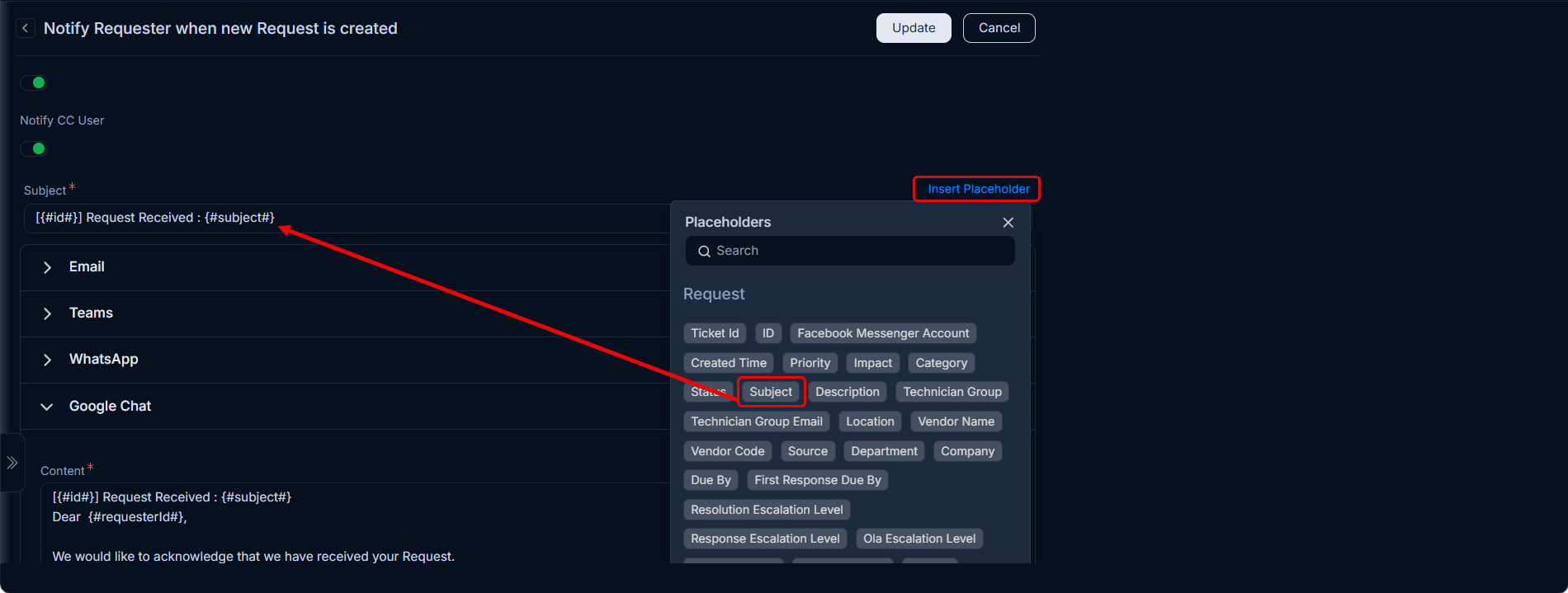
Click the blue link in the right-corner, and then select the required field. Once clicked, the placeholder gets added in the subject as shown below.
By default, all templates include the necessary placeholders to provide request-specific information. You can add more based on the recommendations from the technicians.
To add or remove a tag, edit the desired template and use the Insert Placeholder link.
You can only use the placeholders available in the list and cannot create new ones.
Using placeholders, you can also replace the link used for viewing, approving, or rejecting an approval with an email action. For this, replace the "Approval Approve/Reject Button" placeholders with the following email placeholders in the Email notification content:
- approval.approve.mail
- approval.reject.mail
Prerequisite: Configure the outgoing and incoming email servers.
For example, the Event notification "Notify Approver When Approval is Created" is used here.
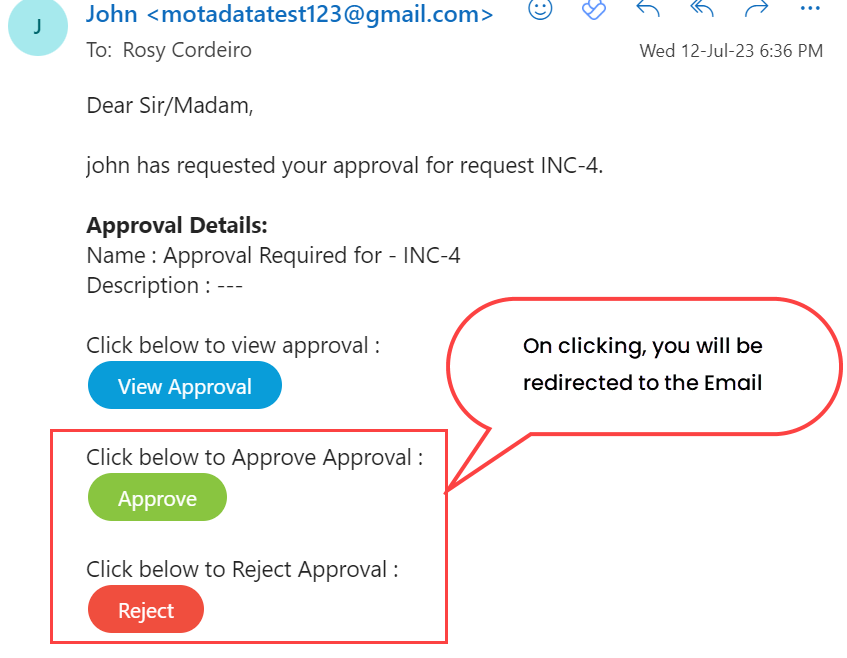
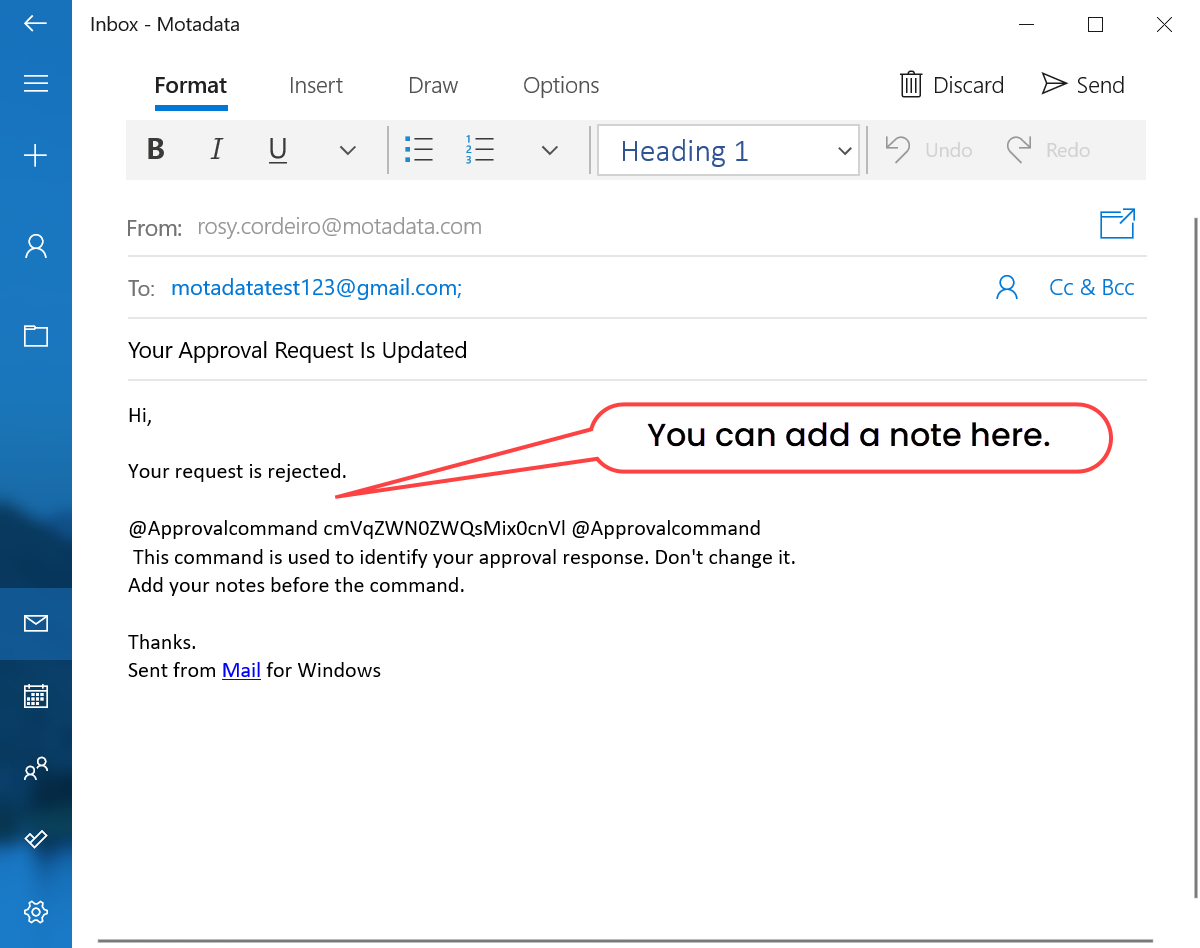
When you click Approve or Reject in the approval email above, you are redirected to your email client, where you can send the approval email to ServiceOps. You can also add a note above the command, which will be added to the ticket.
Requests can be reopened or closed from notifications sent via Email or Microsoft Teams.
- If only one user (the requester/creator of the ticket) is added as a recipient, the reopen/close URL link is provided.
- If multiple users are added, the placeholder is not resolved and the URL link is not provided.
- If an event notification includes Reopen/Close placeholder and the Notify CC User flag is enabled, the placeholder is not resolved and the URL link is not provided.
Manage Subscribers
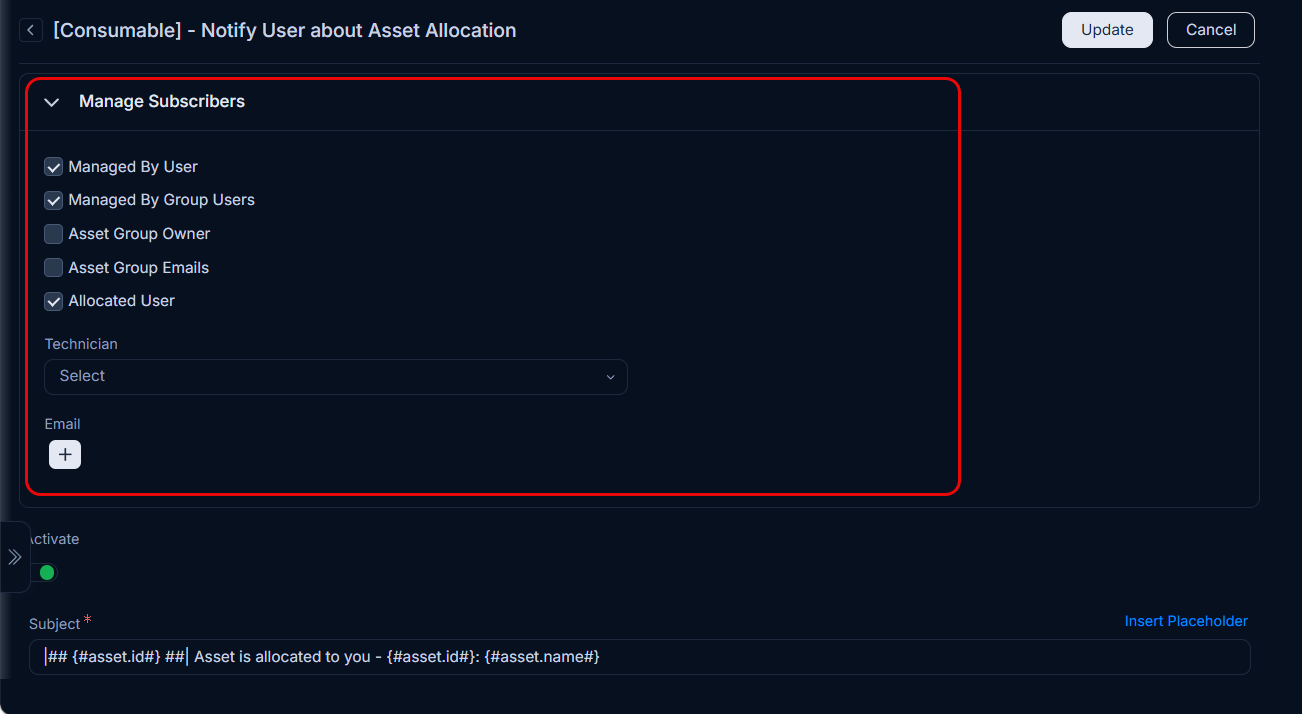
The Manage Subscribers section allows you to specify who receives email notifications when an event is triggered. You can choose one or more recipient categories:
- Managed By User – The user responsible for managing the asset.
- Managed By Group Users – All users in the group that manages the asset.
- Asset Group Owner – The owner of the asset’s assigned group.
- Asset Group Emails – Email addresses configured for the asset’s group.
- Allocated User – The user to whom the asset is currently allocated.
- Technicians – Specific technicians selected from the list.
- Emails – Additional email addresses entered manually.
Example: When an asset is allocated, notifications will be sent to all recipients selected in Manage Subscribers, ensuring the right people are informed promptly.
This feature is available in modules such as Asset, Asset Update, CMDB, Asset Assignment, CI Assignment, Contract, Knowledge, Incident Schedule, and Task Schedule.
Placeholder Configuration
The Placeholder Configuration feature allows you to customize the details shown in an event notification email by adding additional asset-related columns to a placeholder.
By default, only a limited set of asset details are displayed when you use placeholders like {#assetDetails#} in the email template.
Using Placeholder Configuration, you can select more columns (e.g., Asset ID, Asset Name, Asset Type, Location, IP Address, etc.) to be included in the notification.
Once configured, the placeholder will automatically display the selected columns in the email content whenever the event is triggered.
This feature is available in the Asset Movement module for the Email and Teams applications only.
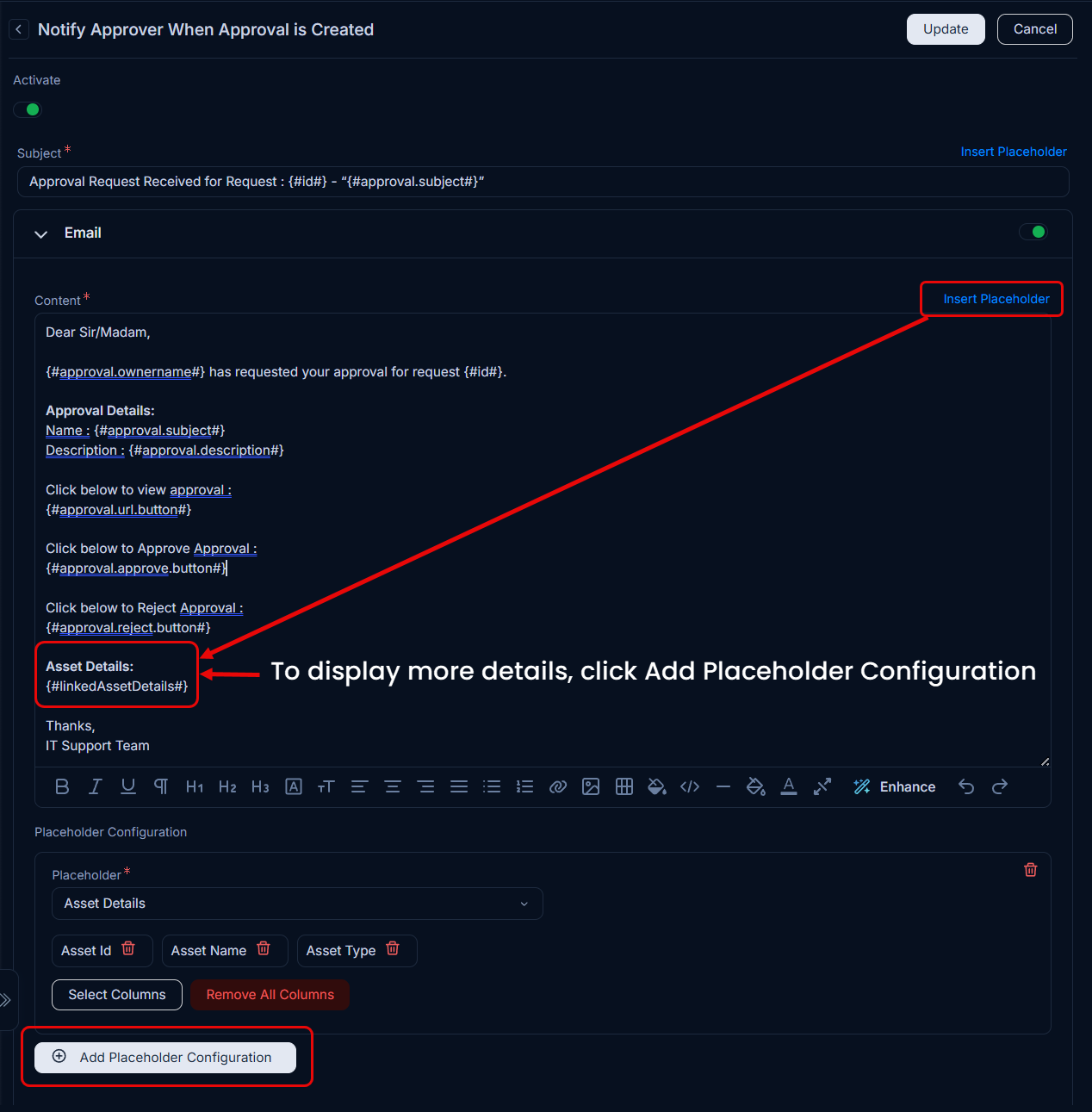
How it works:
- Click Add Placeholder Configuration.
- Select the required placeholder from the dropdown. By default, it displays limited details.
- To add more, click Select Columns and a pop-up appears. Choose the fields you want to display.
- Click Select to save your choices.
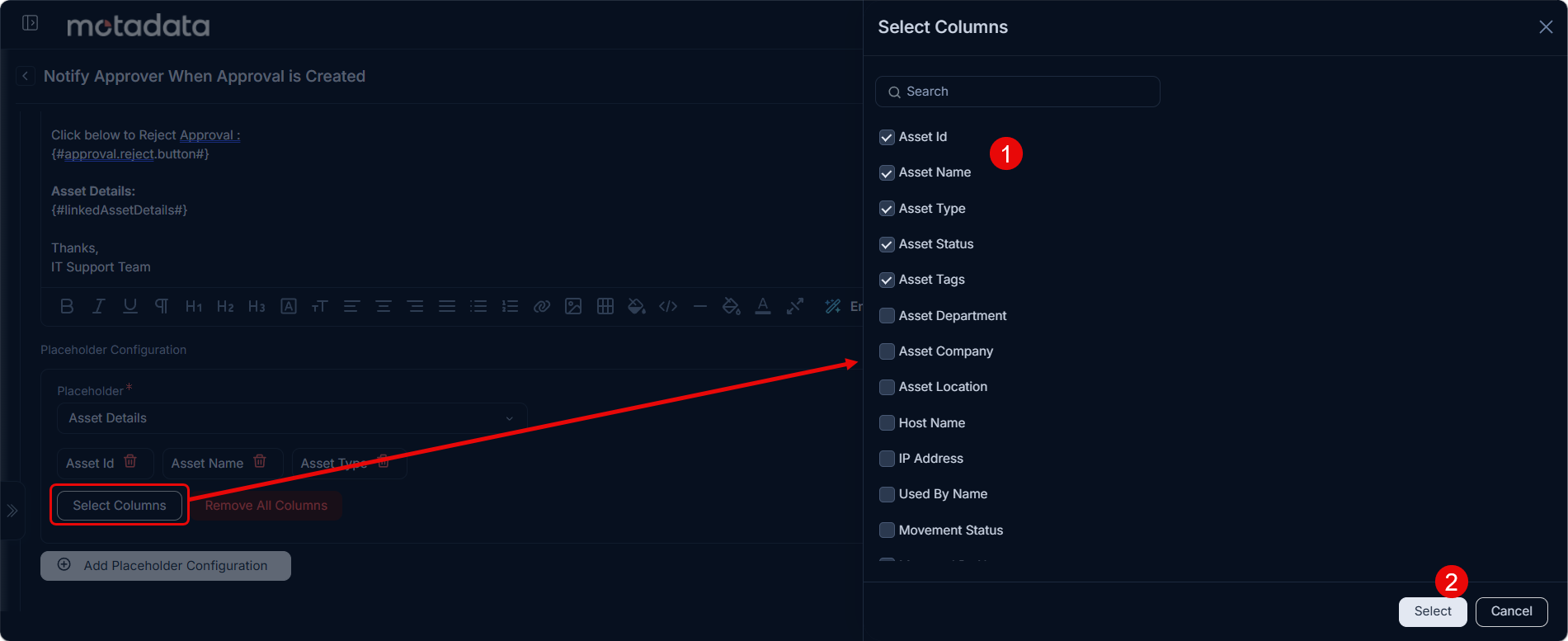
The {#assetDetails#} placeholder in your email will now include these selected fields.
Example: If you add Asset ID, Asset Name, Asset Type, Barcode, Asset Status, Asset Description, and Asset Tags to the placeholder configuration, the notification email will show all these details whenever an Asset Movement Approval is created as shown below.

Configuration
The Configuration option lets you define which hardware components or properties will be monitored for changes. Whenever a selected component or property is added, updated, or deleted, the system detects the change, triggers the event, and sends a notification to the stakeholders configured in Manage Subscribers.
Example:
If a new RAM is added to an asset, the hardware change detection event is triggered, and notifications are sent to all selected recipients (e.g., Managed By User, Managed By Group Users).
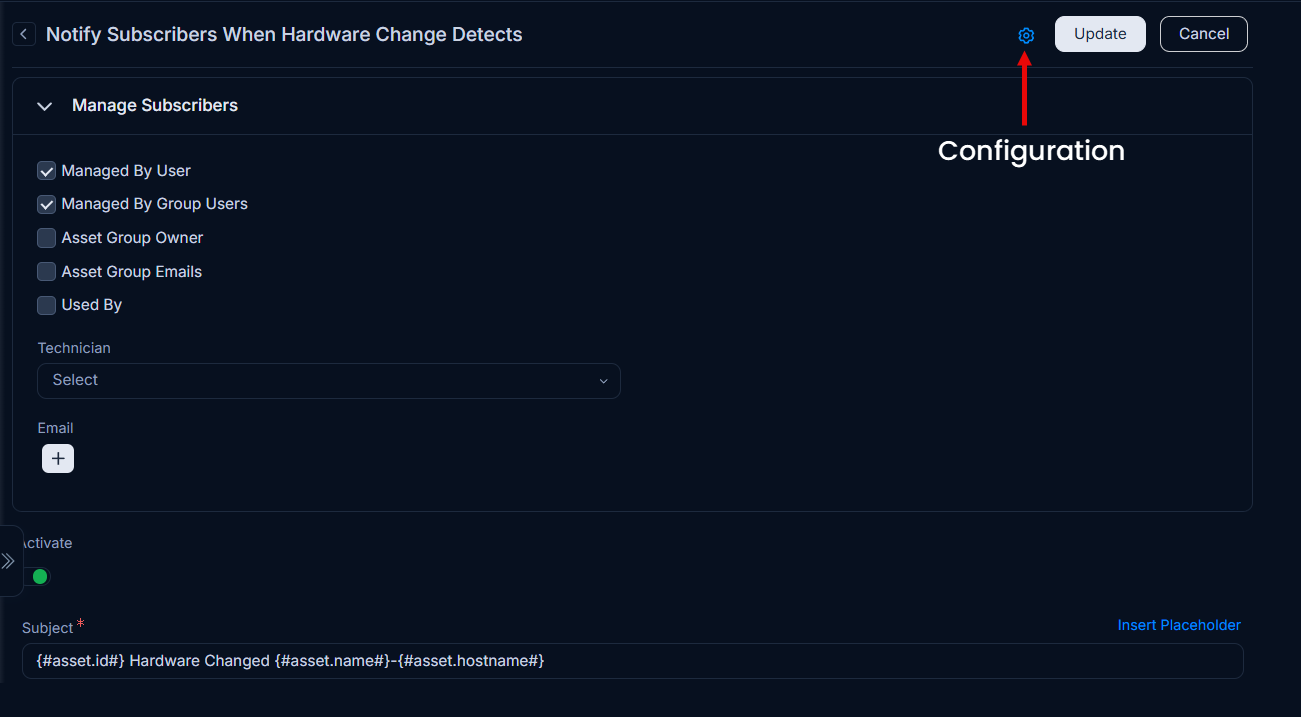
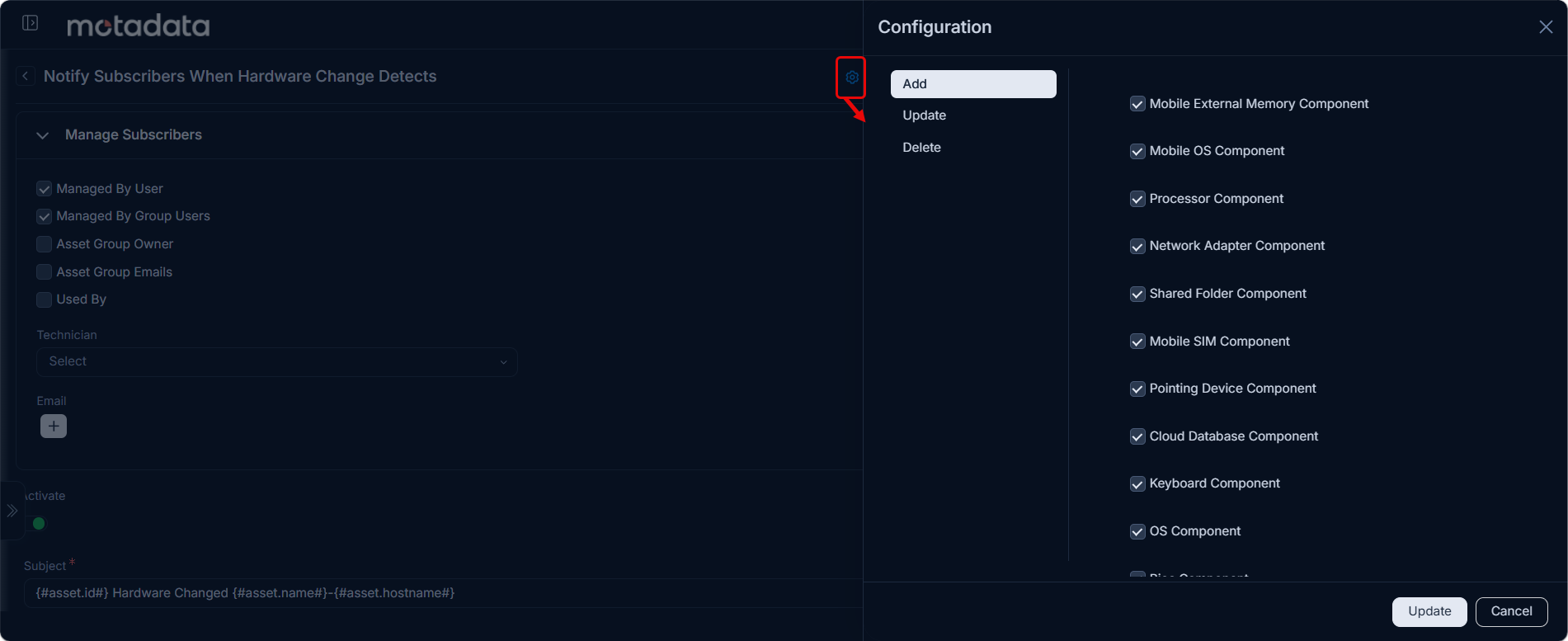
Key Points:
- Monitors component/property changes for Add, Update, and Delete actions.
- Stakeholders are notified immediately upon detection.
- Fully configurable to track only selected components.
Availability:
The Configuration option is available for the following modules and notifications:
- Asset: Notify Subscribers upon USB Device Detection
- Asset & CMDB: Notify Subscribers When Hardware Change Detects
From v8.7.1 onward, the Notify Subscribers When Hardware Change Detects event notification in the Asset and CMDB modules is disabled by default.You must enable it manually after an upgrade or a new installation to receive alerts.
Notification Schedule
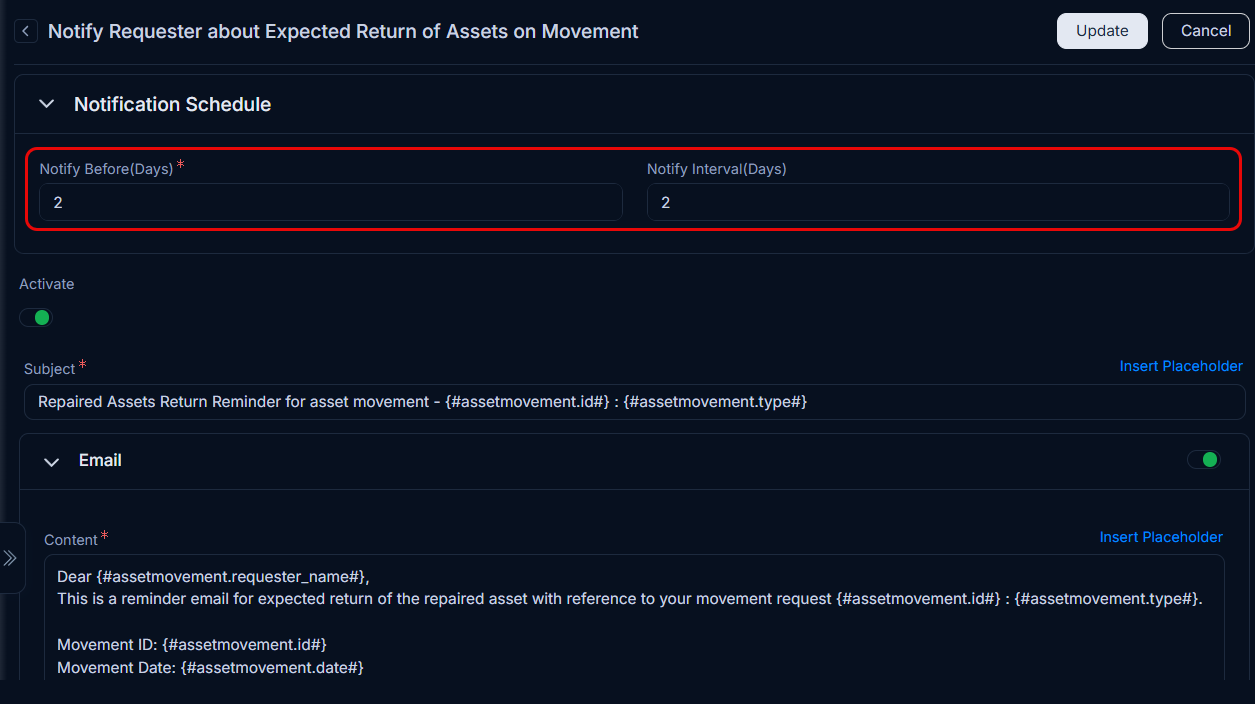
The Notification Schedule section allows you to define when and how often reminder notifications should be sent before a specific event date.
- Notify Before (Days): Specifies how many days in advance the first notification should be sent before the event date.
- Notify Interval (Days): Defines the gap (in days) between consecutive notifications until the event date is reached.
Example:
- Notify Before: 2 days – The first reminder will be sent 2 days before the expected return date of the asset.
- Notify Interval: 2 days – After the first reminder, another notification will be sent every 2 days until the due date.
Use Case: In the example, this is used for “Notify Requester about Expected Return of Assets on Movement”. The requester will receive repeated reminders before the return date, ensuring timely return of repaired or moved assets.
Availability:
The Notification Schedule option is available for the following modules and notifications:
- Asset Movement: Notify Requester about Expected Return of Assets on Movement
- User: User password is about to expire
- Contract: Notify when a Contract is about to expire (days before)