Vector Store
The accuracy of every AI result in ServiceOps, from duplicate detection to resolution suggestions, depends on how well the Vector Store is configured.
The Vector Store controls how ServiceOps AI understands and retrieves information. Instead of searching for exact keywords, AI in ServiceOps finds results based on meaning and context. The Vector Store makes this possible by converting text into numerical representations, storing them, and searching through them intelligently when a user asks a question or requests a suggestion.
In practical terms, a well-configured Vector Store means that when a technician raises a ticket about "laptop not charging," the AI correctly finds similar past tickets about "battery not recognized" or "power adapter failure," not just tickets with the exact same words.
Prerequisites
Before configuring the Vector Store, ensure the following are in place:
- The AI module is enabled in General Settings.
- At least one AI model is configured and active.
- ServiceOps modules such as Request, Problem, Change, and Knowledge contain enough existing data for embeddings to be meaningful. A minimum of 50 to 100 records per module is recommended for reliable similarity results.
What Vector Store Powers
Vector Store configuration directly affects the accuracy of the following AI features:
| AI Feature | How Vector Store Affects It |
|---|---|
| AI Similarity | Detects duplicate or related tickets based on semantic meaning of subject and description |
| Smart Suggestions | Recommends categories, groups, and resolutions based on similarity to past tickets |
| Solution Assistant | Retrieves relevant knowledge articles based on the context of the current ticket |
| Ask AI | Finds contextually relevant answers from Knowledge Collections and ServiceOps data |
How It Works
What Are Embeddings?
An embedding is a numerical representation of text that captures its meaning. When a technician types "printer not responding," the system converts that phrase into a series of numbers that represent its semantic meaning. Similar phrases like "printer offline" or "unable to print" produce similar numbers, even though the words are different.
This is what allows ServiceOps AI to find conceptually related records rather than just keyword matches.
How Similarity Search Works
- Text to Vector: The input text is converted into a numerical vector using an embedding model.
- Storage: The generated vectors are stored in a PostgreSQL vector database, with each vector mapped to a unique record ID across modules such as Request, Problem, Change, and Knowledge.
- Semantic Search: When a search is triggered, the system compares the input vector against stored vectors using Cosine Similarity and returns the closest matches above the configured threshold.
Configuring Vector Search Parameters
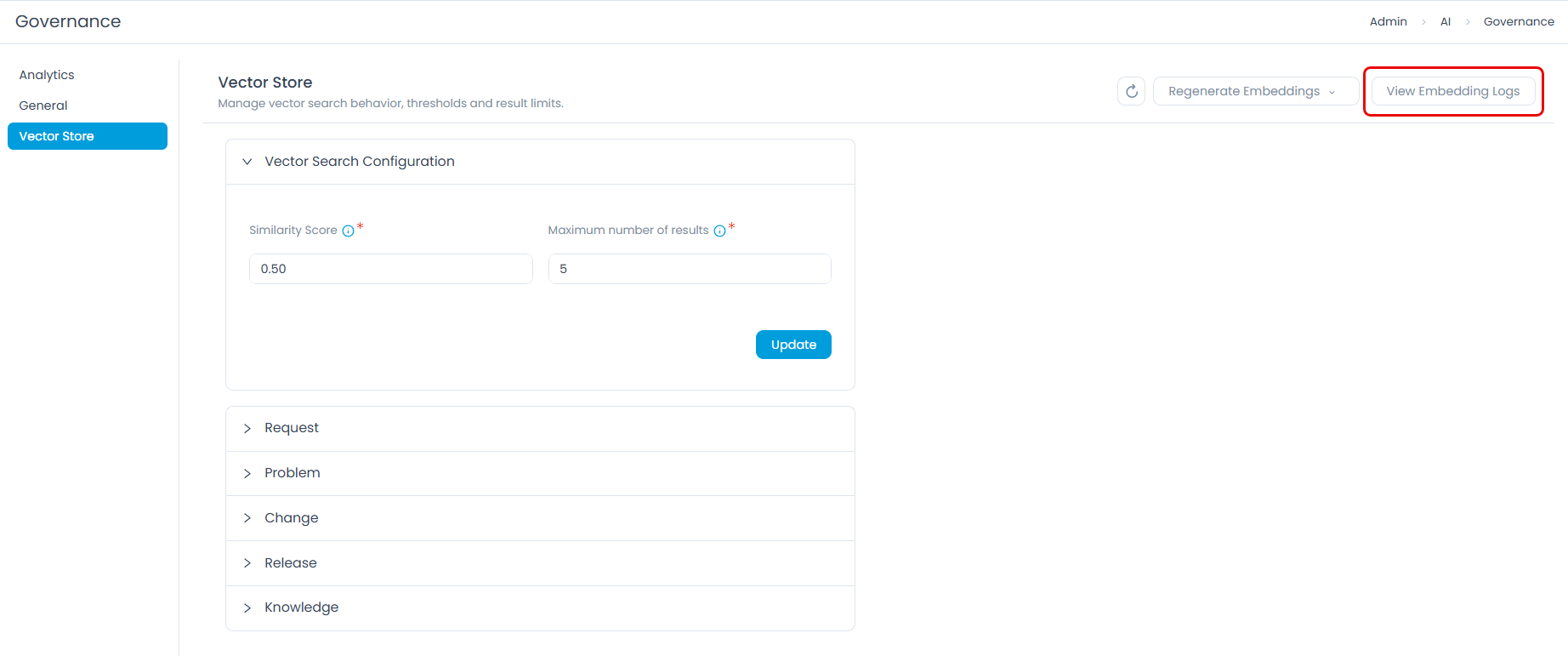
Navigate to Admin > AI > Governance > Vector Store to access the Vector Search Configuration.
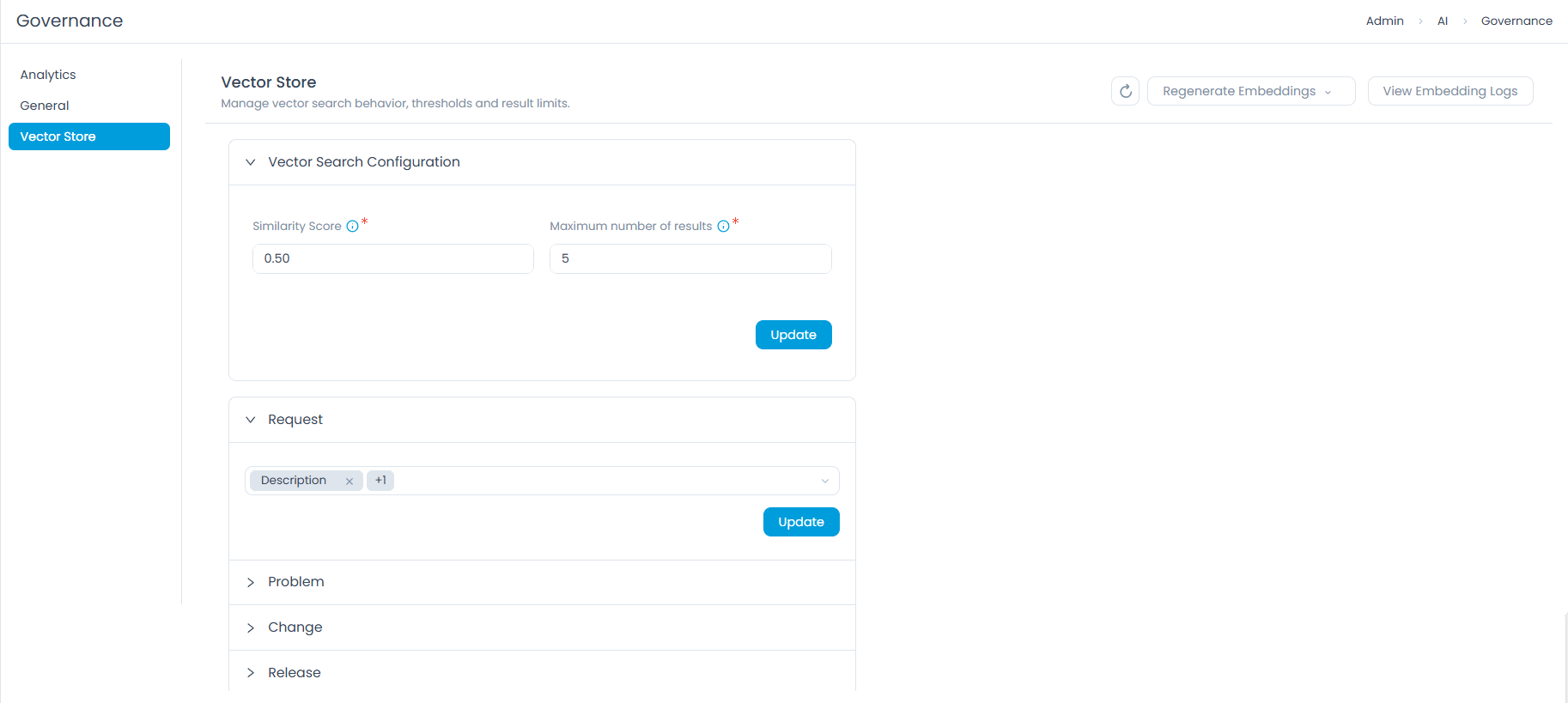
Similarity Score
The Similarity Score defines the minimum level of semantic match required for a result to be returned. It is a value between 0.00 and 1.00.
| Score Range | Behavior | Best Used When |
|---|---|---|
0.75 to 1.00 | Strict matching: only highly similar results are returned | Queries are specific and you want precise, focused results |
0.50 to 0.74 | Broader matching: related but not identical results are returned | Exploratory searches where conceptually related content is useful |
Below 0.50 | Very broad: may return loosely related or irrelevant results | Generally not recommended |
Start with a Similarity Score of 0.70 for most organizations. This balances precision with recall. Increase it if results feel too broad; decrease it if the AI is missing relevant items.
Maximum Number of Results
This setting controls how many matching records the vector store retrieves for any given query.
- A smaller number (for example,
3to5) keeps results focused on the most relevant items. - A larger number (for example,
10to15) provides more context but may include less relevant results.
Start with 5 results. Increase to 10 if technicians need more options to choose from, particularly in environments with high ticket volumes and varied issue types.
Click Update to save your changes.
Module-Level Vector Field Configuration
Below the global parameters, you can configure which specific fields within each ServiceOps module are used to generate embeddings. This controls what the AI reads when looking for similar records.
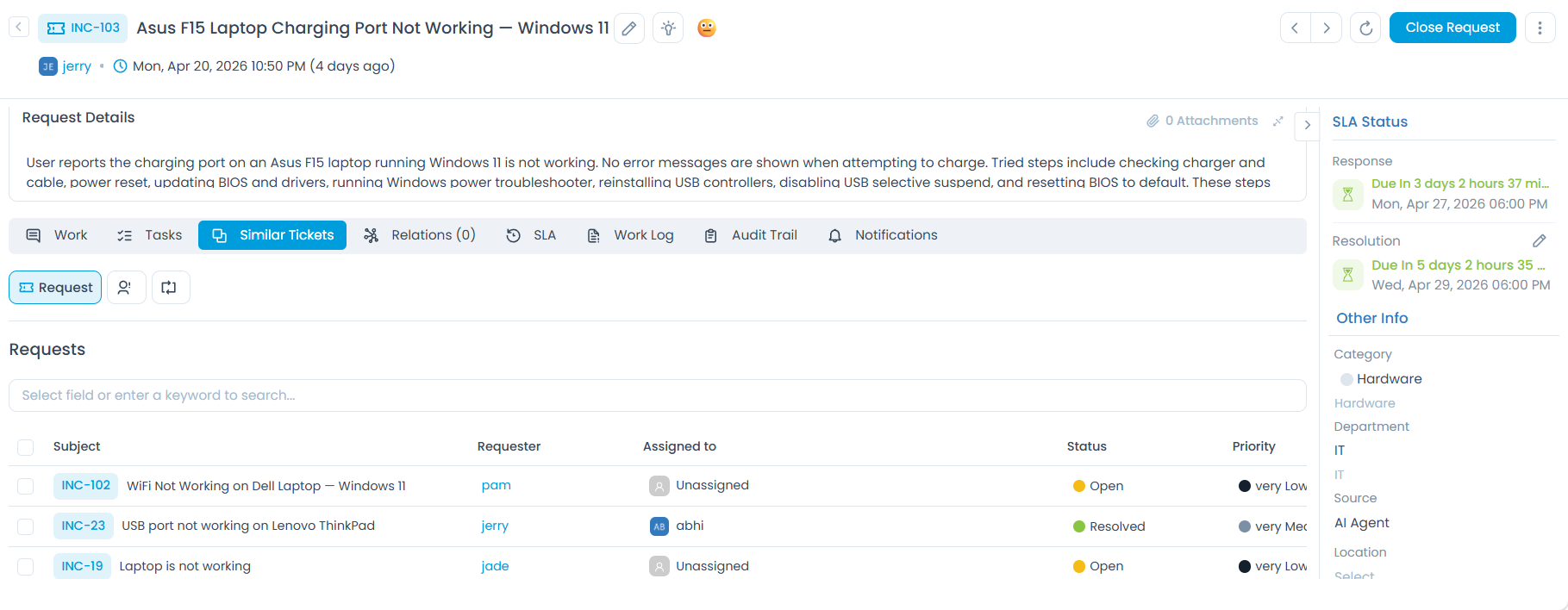
To configure a module:
- Click the module's expandable section, for example, Request, Problem, Change, Release, or Knowledge.
- By default, Subject and Description are pre-selected for most modules and cannot be removed.
- Click the dropdown and select the desired fields that the AI should consider for similarity matching.
- Click Update to apply changes.
- Use free-text fields such as Subject, Description, and custom fields: these produce the most accurate semantic embeddings.
- Avoid numeric, date, or dropdown fields such as Priority, Status, or Created Date: these do not carry semantic meaning and will not improve similarity accuracy.
- Start with Subject and Description only. Add more fields gradually and observe whether result quality improves.
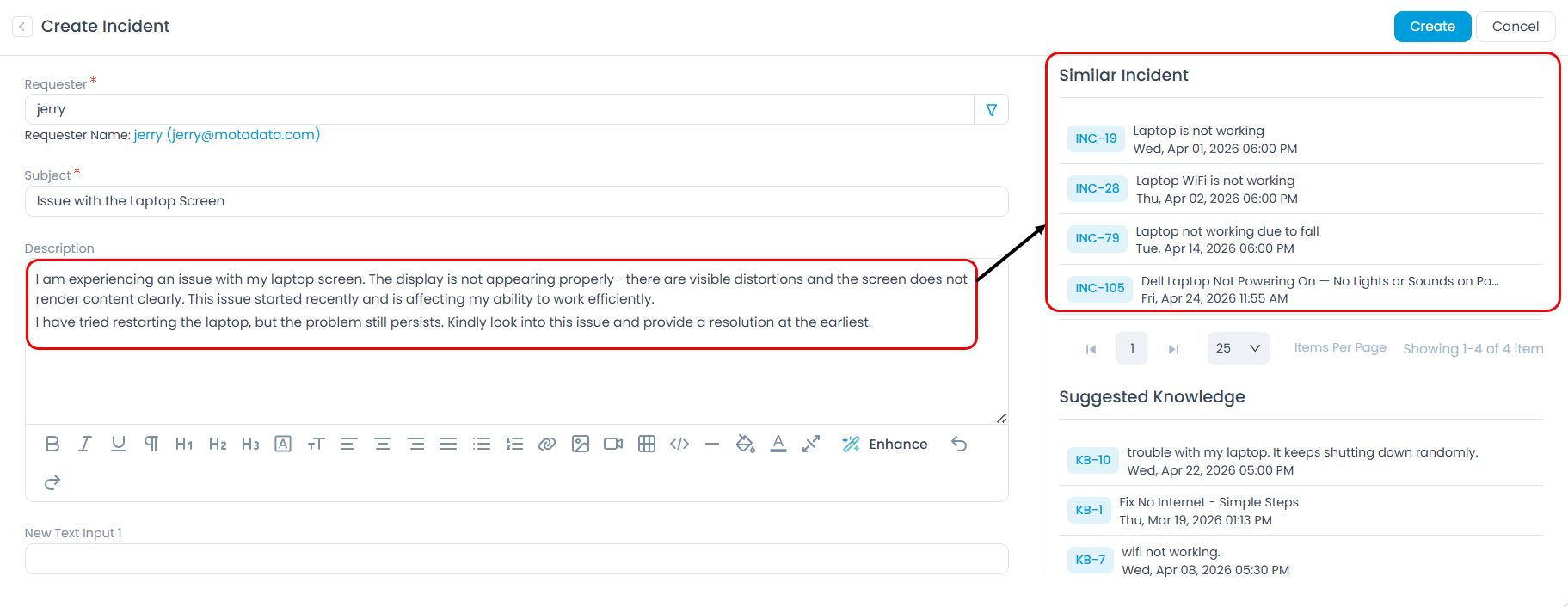
For example, if you configure the Description field for the Request module, similar tickets shown to technicians will be matched based on description content:
Refresh vs Regenerate: What to Use When
Two options are available to keep embeddings up to date. Understanding the difference helps you choose the right action at the right time.
| Parameter | Refresh | Regenerate Embeddings |
|---|---|---|
| What it does | Updates embeddings for records added or changed since the last update | Rebuilds all embeddings from scratch for selected modules |
| When to use | Routine maintenance: run periodically to keep embeddings current | After significant changes such as adding new fields, changing the embedding model, or importing large volumes of data |
| Performance impact | Low: processes only new or changed records | Higher: processes all records in the selected module |
| Recommended timing | Can be run any time | Schedule during off-peak hours to minimize impact on users |
Refreshing Embeddings
Click the Refresh button in the top-right corner of the Vector Store page to update embeddings for recently added or modified records.
Regenerating Embeddings
Click the Regenerate Embeddings dropdown in the top-right corner.
Select the modules to regenerate, for example, Request, Problem, Change, Release, or Knowledge.
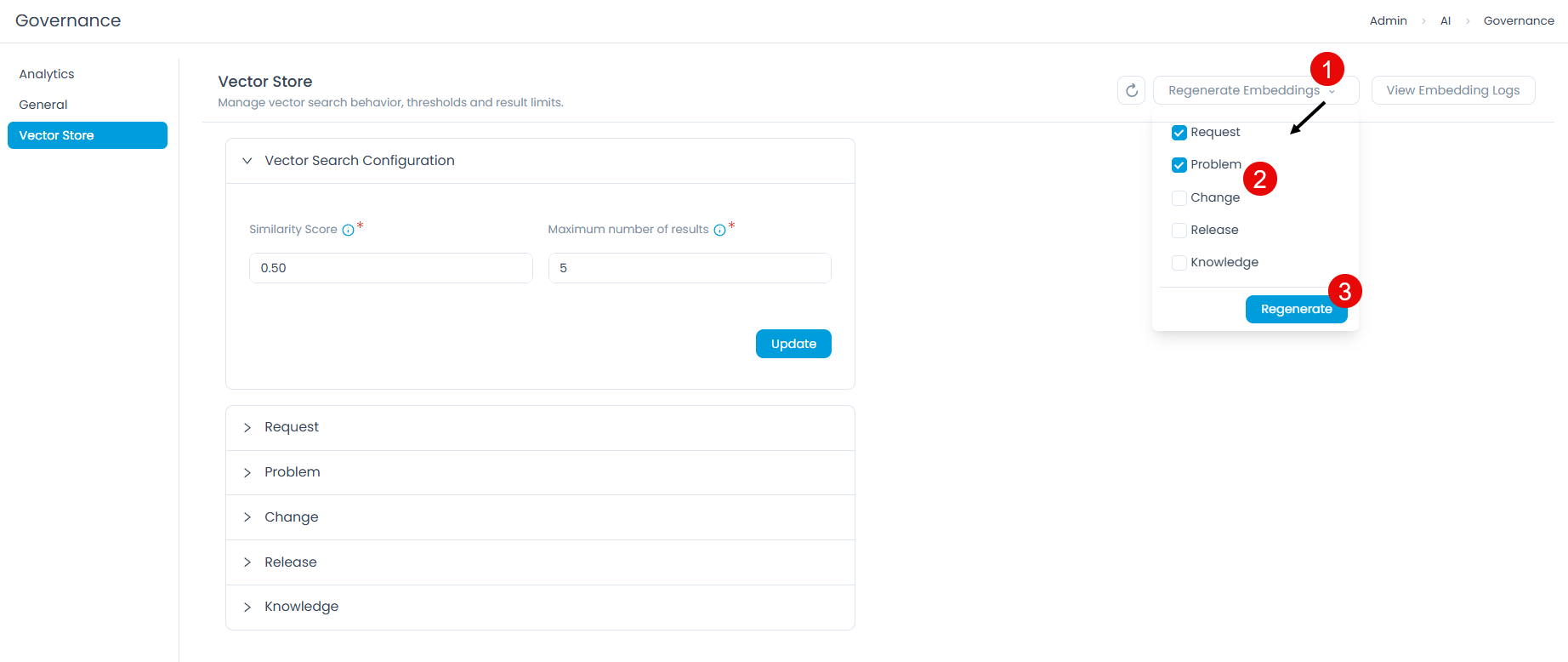
Click Regenerate.
Regeneration processes all existing records in the selected module. For large datasets, this may take several minutes. AI similarity features remain available during regeneration but may temporarily return results based on older embeddings until the process completes.
Regenerate embeddings when:
- You add or remove fields from the module-level field configuration.
- You change the AI embedding model.
- You import a large batch of historical tickets or knowledge articles.
- AI results appear consistently inaccurate despite correct configuration.
Viewing Embedding Logs
The Embedding Logs provide a full history of all embedding generation processes, allowing you to monitor status and identify failures.
Click View Embedding Logs in the top-right corner of the Vector Store page.
The Embedding Logs panel displays the following information:
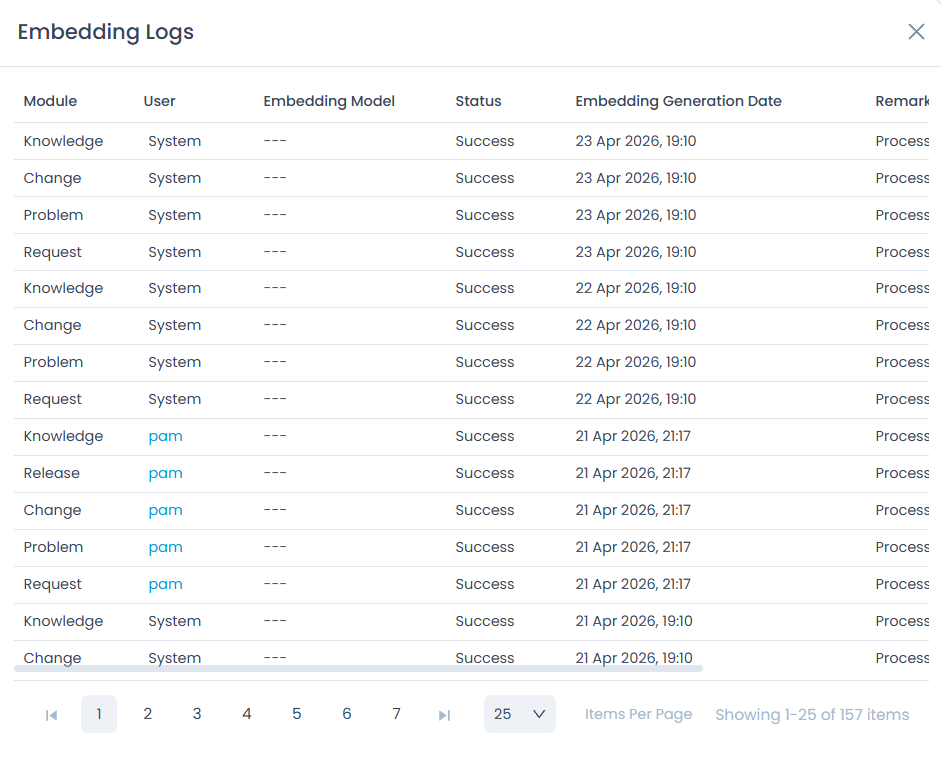
| Column | Description |
|---|---|
| Module | The ServiceOps module for which embeddings were generated |
| User | The administrator or system process that triggered the generation |
| Status | Indicates whether the generation was Success or Failed |
| Embedding Generation Date | The date and time the process ran |
| Remarks | Displays the total number of successful and failed records once the process is completed. |
Troubleshooting
AI Similarity Results Are Inaccurate or Missing
- Check that the Similarity Score is not set too high. Lower it incrementally and observe the results.
- Verify that the correct fields are selected for the relevant module. If Subject is the primary field but only Description is configured, results will be based on description content only.
- Regenerate embeddings to ensure the vector database reflects the latest data.
Ask AI Returns Unrelated Answers
- Verify that Knowledge Collections are correctly attached to the relevant AI Agent or Team in AI Studio.
- Regenerate embeddings for the Knowledge module to ensure the latest articles are indexed.
- Check the Maximum Number of Results: if set too low, relevant records may be excluded.
Best Practices Summary
- Start with a Similarity Score of 0.70 and adjust based on result quality.
- Set Maximum Results to 5 initially, then increase if technicians need more options.
- Use only free-text fields for module-level embedding configuration.
- Run Refresh regularly and Regenerate only after significant configuration changes.
- Schedule Regenerate during off-peak hours for large datasets.
- Review Embedding Logs after every Regenerate to confirm success.
- Revisit field configuration periodically as your data and AI usage evolve.