General Settings
Control who can access AI, what it can do, and what it must never say - all from a single configuration page.
General Settings is the central control hub for all organization-level AI configuration in Motadata ServiceOps. It gives administrators the ability to enable or disable AI system-wide, define which portals surface AI capabilities, restrict specific tools, and enforce responsible AI policies that protect sensitive data and prevent inappropriate outputs.
What's on This Page
| Section | What You Configure |
|---|---|
| Global AI Controls | Enable or disable AI agents, choose which portals show Ask AI, and restrict which tools agents can use |
| Responsible AI | Set up PII detection, define restricted topics, and block specific words from AI responses |
Recommended Configuration Order
If you are setting up General Settings for the first time, follow this order:
- Enable AI Agents Globally
- Select the portals where Ask AI should appear
- Configure the Tools Access Policy
- Set up PII Detection
- Define Restricted Topics
- Add Blocked Words
Global AI Controls
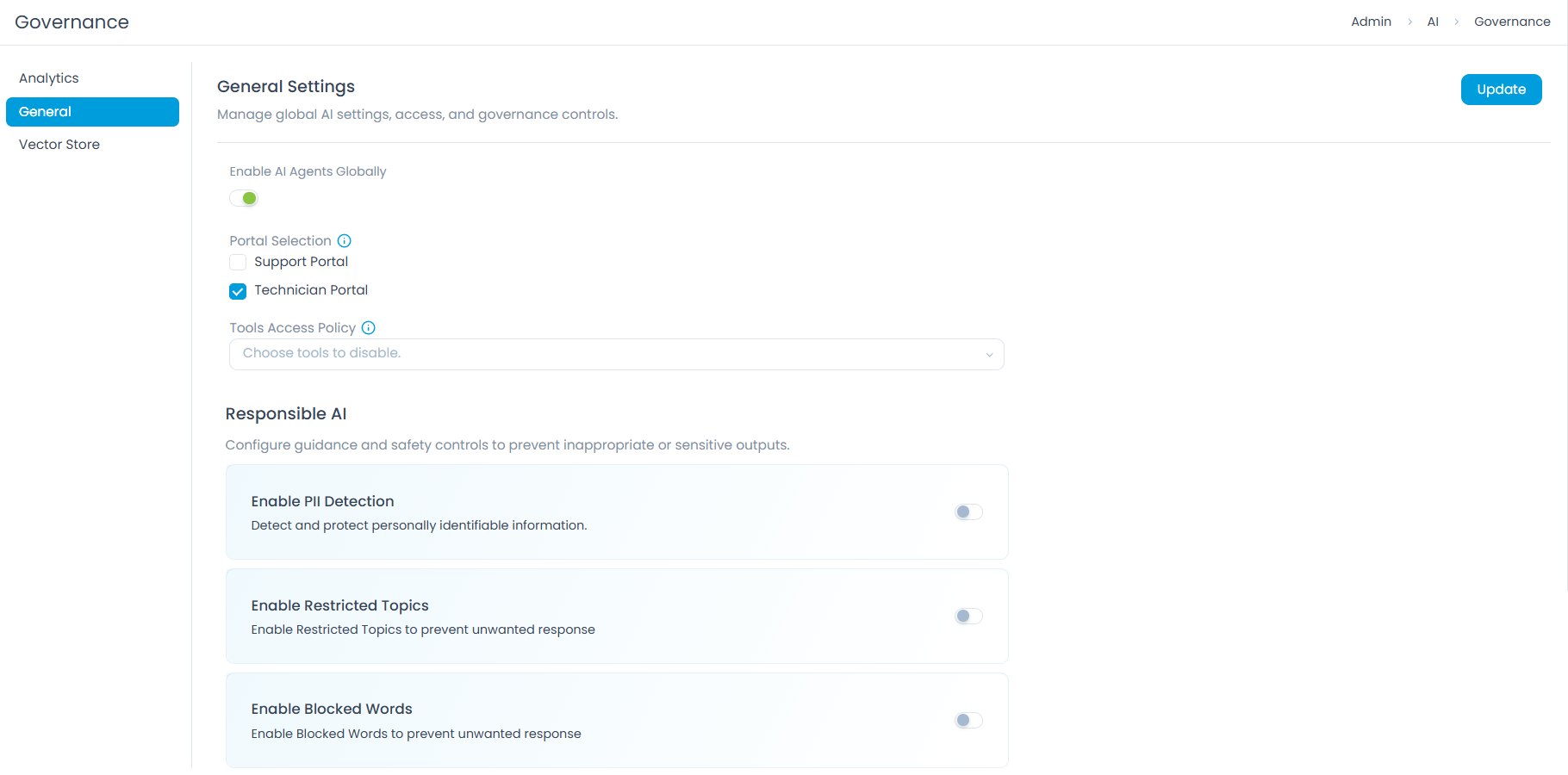
Global AI Controls allow you to enable or disable AI agents system-wide and define their availability across different portals. This ensures that AI capabilities are introduced and managed in alignment with your organization's operational needs and policies.
Enable AI Agents Globally
This toggle controls the overall availability of AI agents throughout ServiceOps.
- Default state: AI agents are disabled by default and must be explicitly enabled by an administrator.
- Enabling AI Agents Globally: Activates all configured AI agents, making them accessible where portal selections permit.
- Disabling AI Agents Globally: Deactivates all AI agents, preventing any AI-driven interactions. Any ongoing conversations are ended immediately. Use this to temporarily halt AI operations during maintenance or policy reviews.
Disabling AI agents globally overrides all portal and agent-level settings. Users will not see the Ask AI button until AI is re-enabled.
Portal Selection
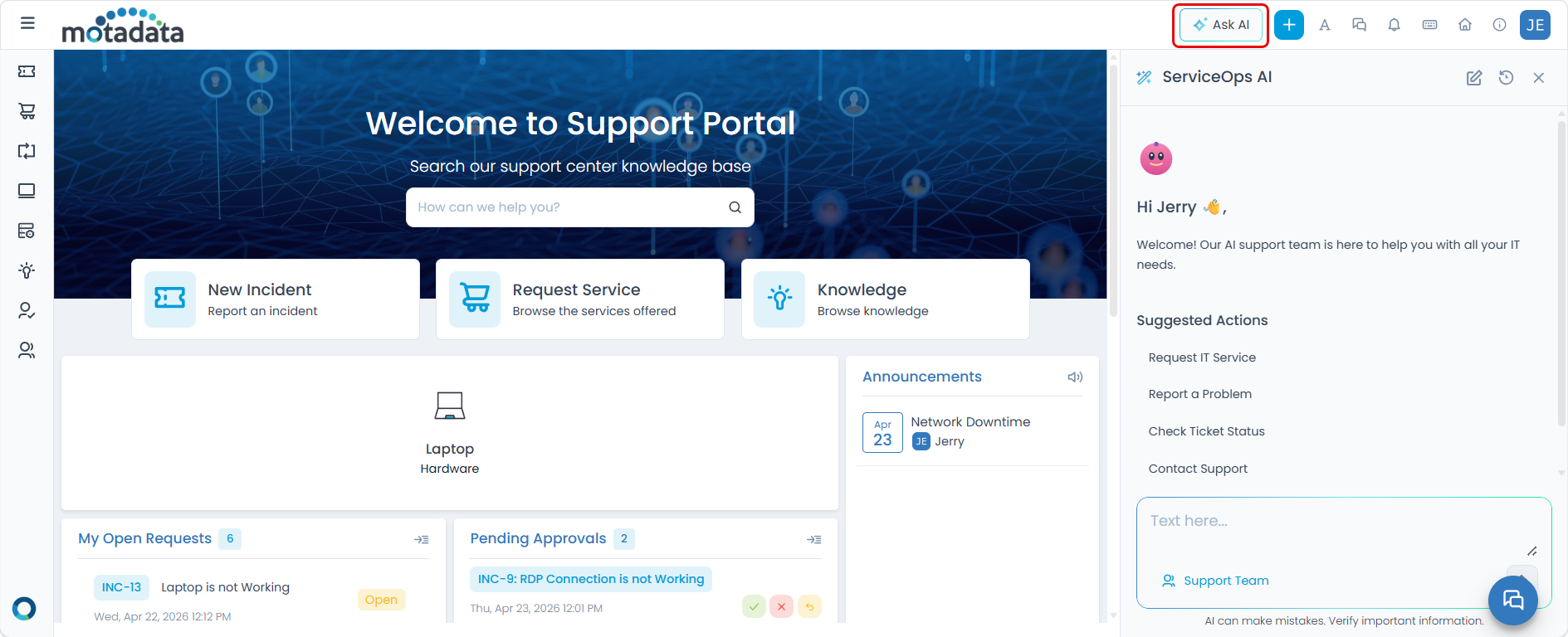
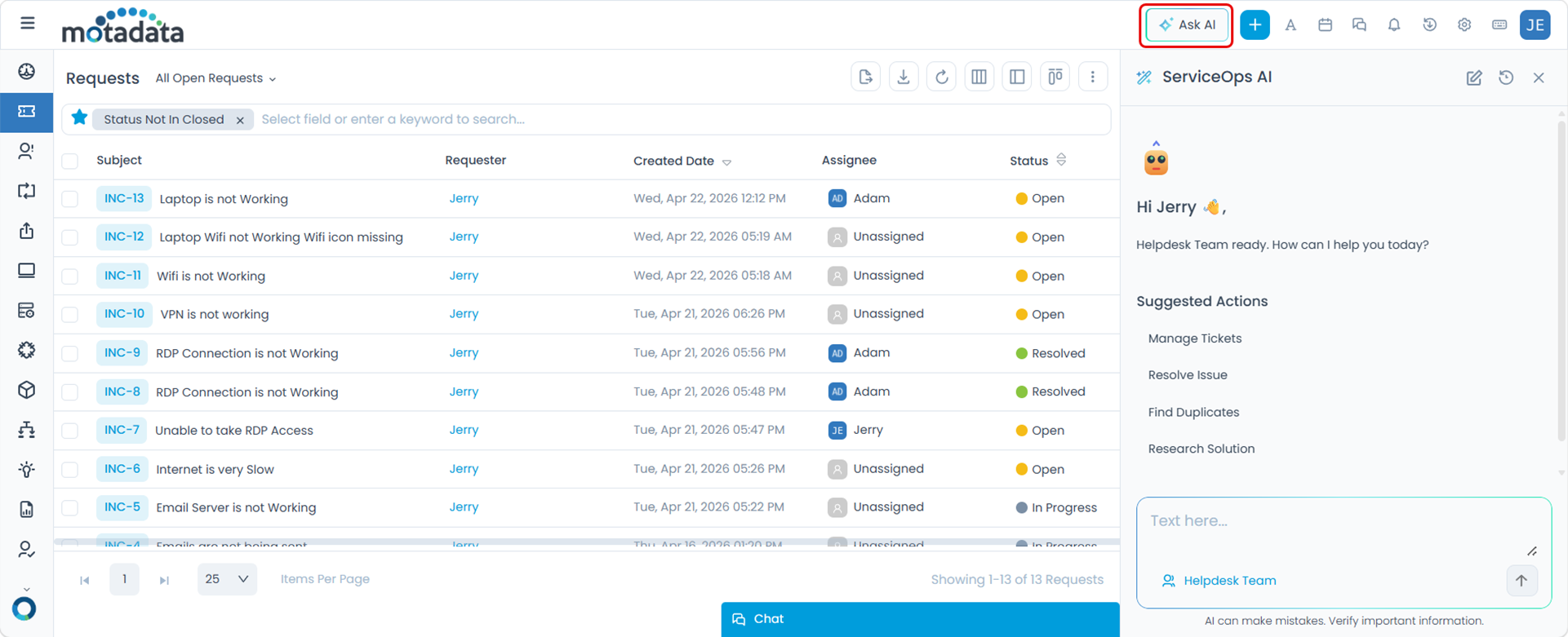
Choose where the Ask AI button appears in ServiceOps. When enabled, the button is added to the top navigation bar, allowing users to open a chat window for AI assistance.
Support Portal: Enable the Ask AI feature for end-users accessing the Support Portal. When active, end-users can see and use the Ask AI button directly from the top navigation bar.
Technician Portal: Enable the Ask AI feature for technicians using the Technician Portal. When active, technicians can see and use the Ask AI button directly from the top navigation bar.
By selecting one or both portals, you control which users can access AI capabilities.
Tools Access Policy
This policy allows you to restrict which tools AI agents can use, ensuring they only perform approved actions when responding to user queries.
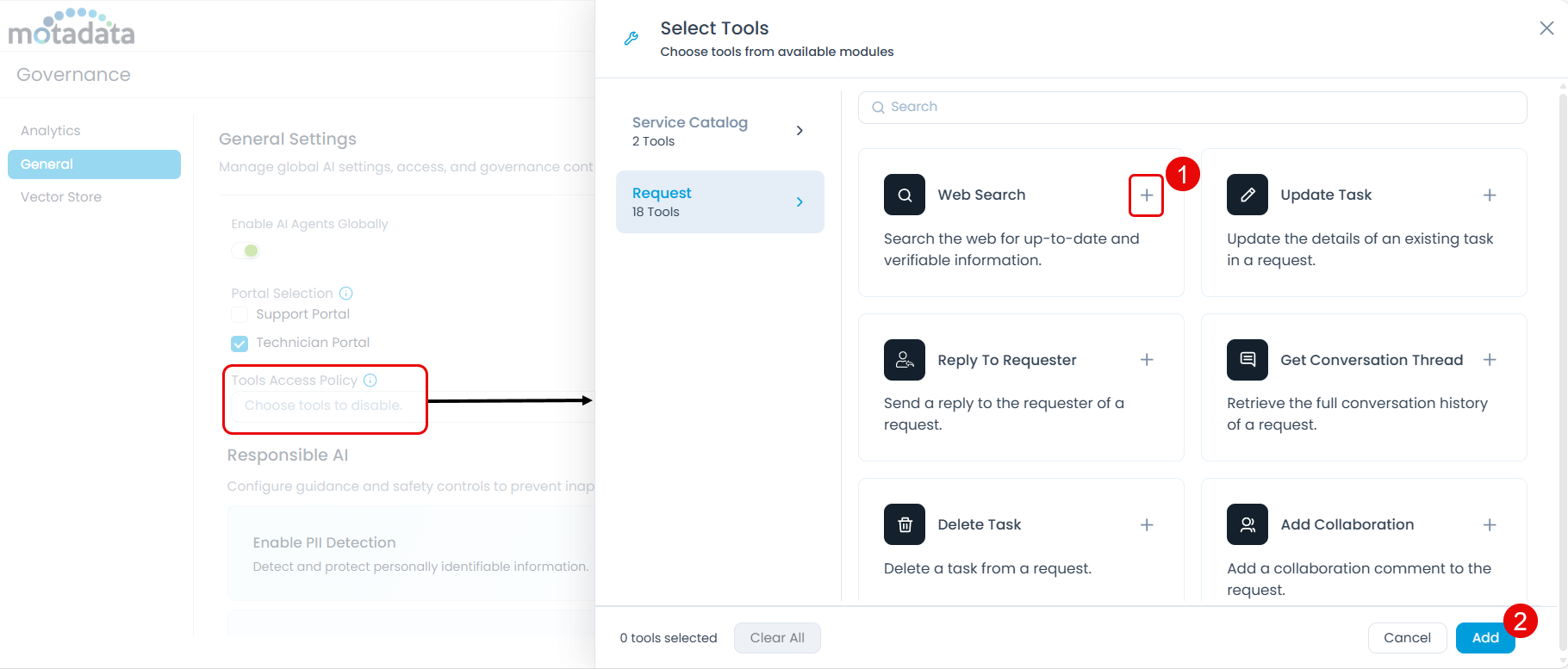
Click the Choose tools to disable dropdown to open the Select Tools popup. Tools are organized by module such as Service Catalog and Request.
- To disable a tool, click the + icon next to it. The tool is added to the selected tools count at the bottom.
- Once you have selected all tools to disable, click Add.
Disabling a tool prevents AI agents from performing actions associated with that tool. For example, disabling the Request tool means agents cannot create or update requests on behalf of users, even if asked to do so.
Responsible AI
Responsible AI settings allow you to enforce safety controls that prevent AI agents from exposing sensitive data or generating inappropriate content. Use the table below to decide which settings apply to your organization's needs.
| Use This Setting | When You Want To |
|---|---|
| PII Detection | Automatically identify and protect sensitive personal data in AI conversations |
| Restricted Topics | Prevent AI from generating responses on specific subjects entirely |
| Blocked Words | Stop specific words or phrases from appearing in any AI response |
PII Detection
Enable PII (Personally Identifiable Information) detection to automatically identify and protect sensitive data in AI interactions.
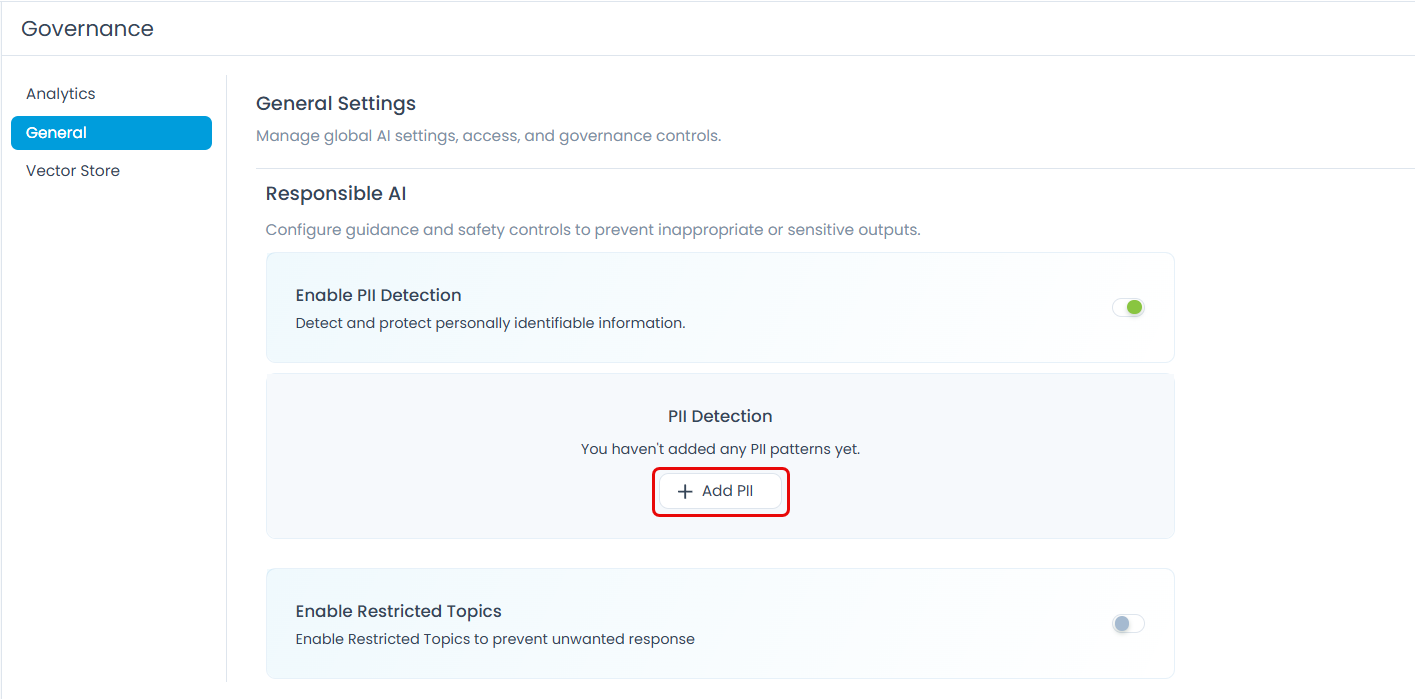
- Click Enable PII Detection to activate scanning for PII.
- Configure the scope of scanning:
- Input: Scans the text a user sends to the AI, including the user prompt and any user-provided content.
- Output: Scans the AI assistant's generated response text.
- Both: Scans both user input and AI output.
When PII is detected, choose how it is handled:
| Action | What Happens | Best Used When |
|---|---|---|
| Mask | Sensitive values are replaced with placeholder <EMAIL_ADDRESS>. The conversation continues normally with the rest of the message. | You want AI to respond but need to hide the sensitive value from the output. |
| Block | The AI stops processing and returns an error message. The sensitive content is not stored or displayed. | You want to completely prevent the handling of sensitive data in AI interactions. |
Click Add PII to define detection rules. The Add PII page provides two tabs:
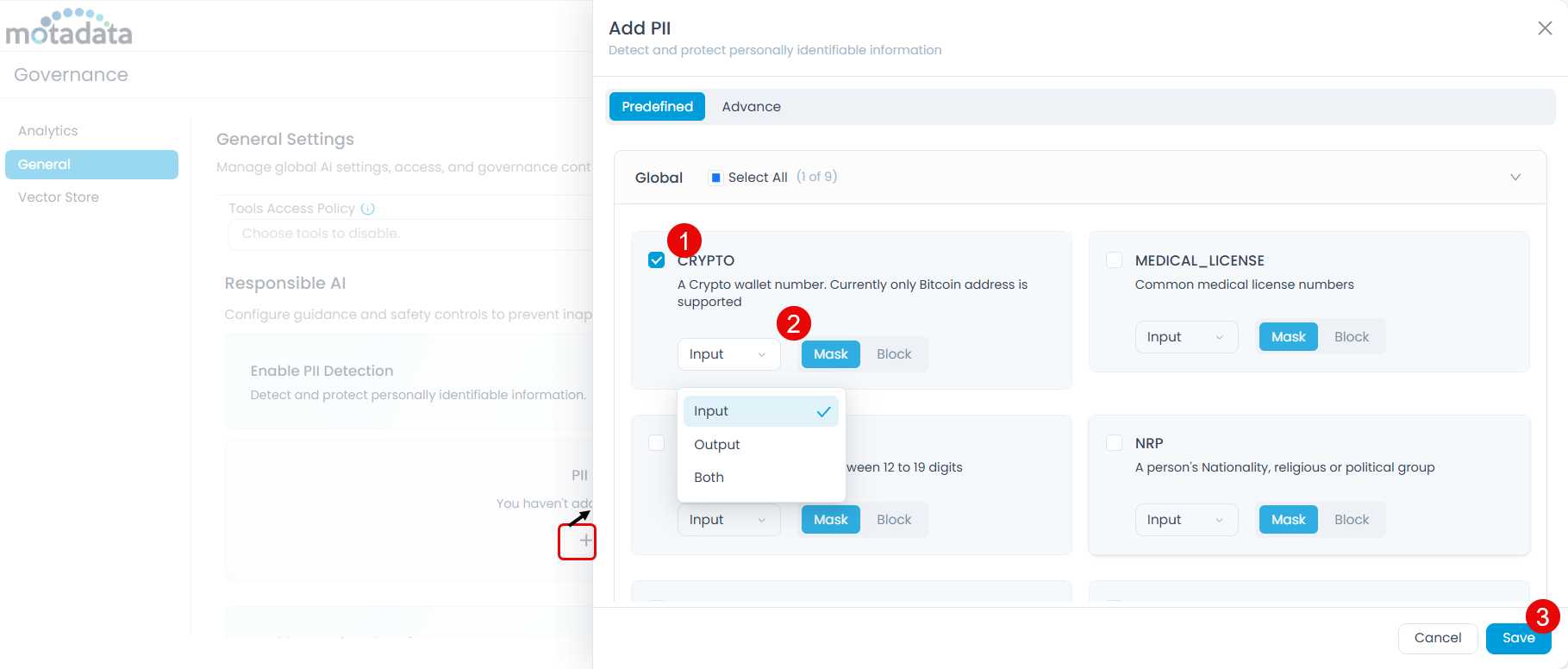
- Predefined Tab: Select from common PII patterns. For each PII type, apply Mask or Block separately for Input, Output, or Both.
| PII Type | Description | User Input (Chat) | AI Output (If Masked) | AI Output (If Blocked) |
|---|---|---|---|---|
| Email_Address | Detects standard email address formats. | "Send the guide to john.doe@work.com" | "I will send the guide to <EMAIL_ADDRESS>." | "Error: Personal information detected: EMAIL_ADDRESS. Please remove sensitive data." |
| CREDIT_CARD | Detects card numbers between 12 to 19 digits. | "Show me the details of the ticket with card number 4111 2222 3333 4444" | "Here are the details for incident INC-116: Subject: Credit Card is Blocked Description: Expiry date: 05/30, Card Holder Name: Jerry, Card Number: | "Error: Personal information detected: CREDIT_CARD. Please remove sensitive data." |
| Phone_Number | Identifies various telephonic contact formats. | "Reach me at +1-555-0199" | "For your privacy and security, I won't store or display your full phone number <PHONE_NUMBER> here." | "Error: Personal information detected: PHONE_NUMBER. Please remove sensitive data." |
| IP_Address | Detects network IP addresses. | "The error is on 192.168.1.105" | "Checking logs for server <IP_ADDRESS>." | "Error: Personal information detected: IP_ADDRESS. Please remove sensitive data." |
| IBAN_Code | Detects International Bank Account Numbers. | "My IBAN is DE89370400440532013000" | "Your transfer to <IBAN_CODE> is pending." | "Error: Personal information detected: IBAN_CODE. Please remove sensitive data." |
| URL | Detects web addresses and links. | "Go to https://example.com" | "Accessing the resource at URL <URL>." | "Error: Personal information detected: URL. Please remove sensitive data." |
| CRYPTO | Detects cryptocurrency wallet addresses. | "Send to 1A1zP1eP5QGefi2DMPTfTL5SLmv7DivfNa" | "Sending to <CRYPTO>." | "Error: Personal information detected: CRYPTO. Please remove sensitive data." |
| MEDICAL_LICENSE | Detects common medical license numbers. | "The license is MD12345678" | "The license is <MEDICAL_LICENSE>." | "This interaction is restricted due to a safety violation." |
| NRP | Detects nationality, religious, or political groups (treated as sensitive identifiers for policy enforcement). | "Tom is a German but he stays in India" | "He is a member of <NRP>." | "Error: Personal information detected: NRP. Please remove sensitive data." |
When multiple PII types are detected in the same message, the system applies the configured action for each detected type independently.
- Advanced Tab: Define custom PII patterns using regular expressions for data types not covered by predefined options. Click the + button to add a new custom pattern and provide the following details:
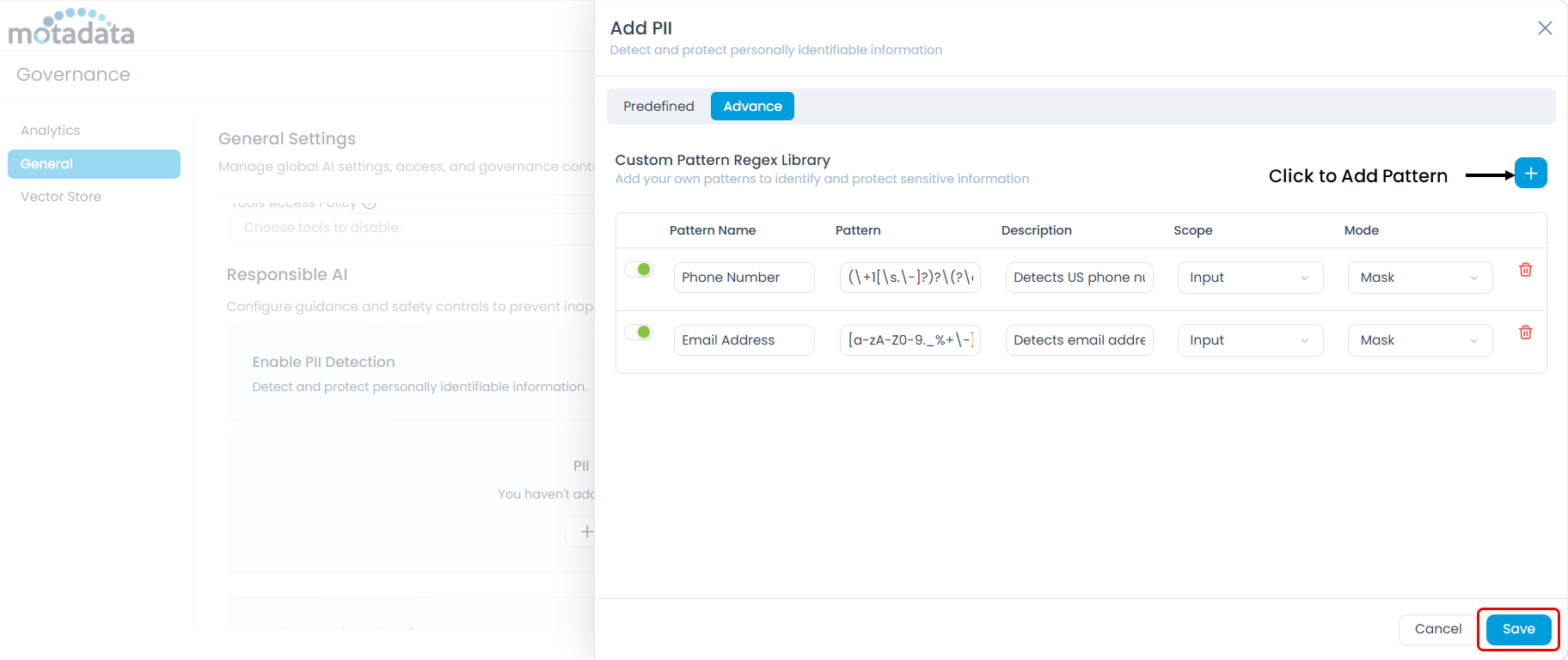
- Pattern Name: A descriptive name for the custom PII type, for example, "Aadhaar Number".
- Pattern: A regular expression to detect the PII entity.
- Description: What the pattern detects.
- Scope: Apply to Input, Output, or Both.
- Mode: Choose Mask or Block.
- Keep patterns specific to reduce false positives.
- Use word boundaries
\bto avoid matching partial strings. - Use anchors like
^and$when the pattern should match the full value only. - Test your regex with real examples before saving.
Example: To detect a 12-digit Aadhaar number optionally formatted with spaces: \b\d{4}[\s]?\d{4}[\s]?\d{4}\b
This matches 123456789012, 1234 5678 9012, and similar formats.
After configuring PII rules, click Save to apply. Once active, the AI agent will mask or block detected PII as configured.
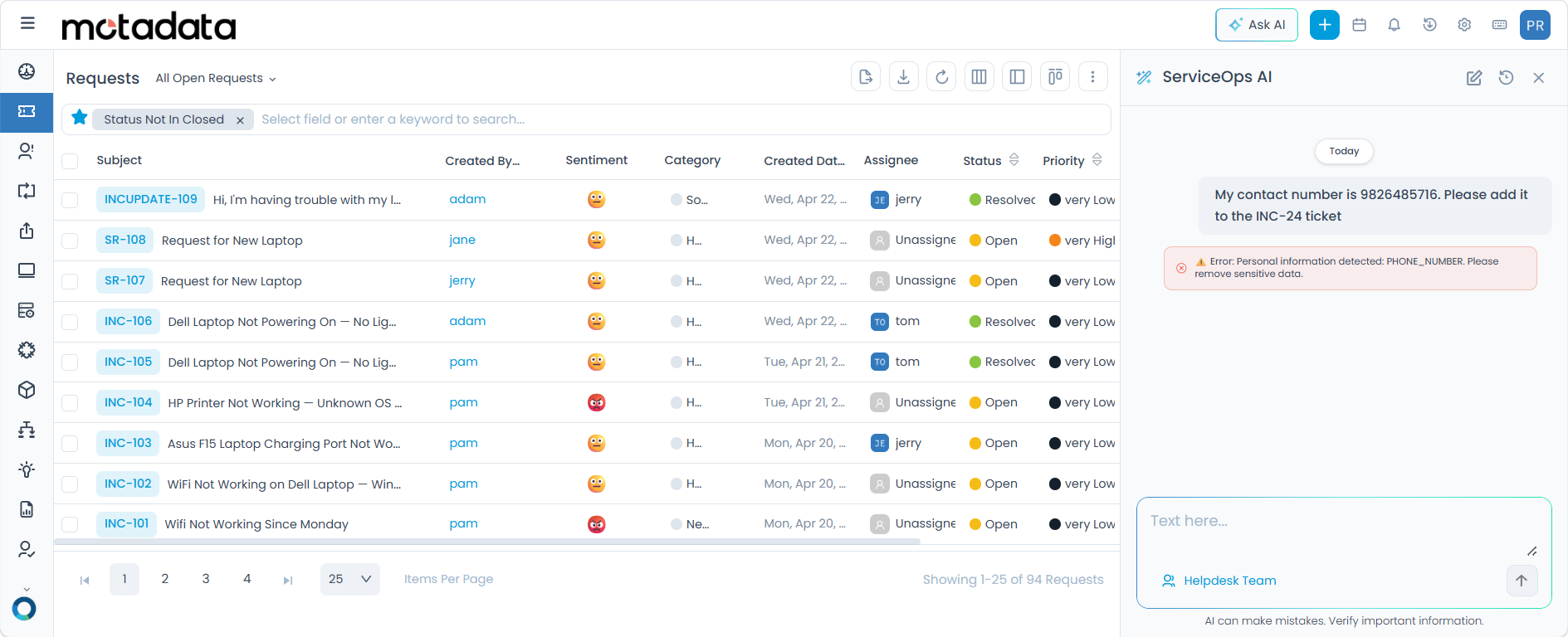
For example, if a phone number is detected and the mode is set to Block, the system displays an error message:
Restricted Topics
Enable restricted topics to prevent AI agents from generating responses on sensitive or unwanted subjects.
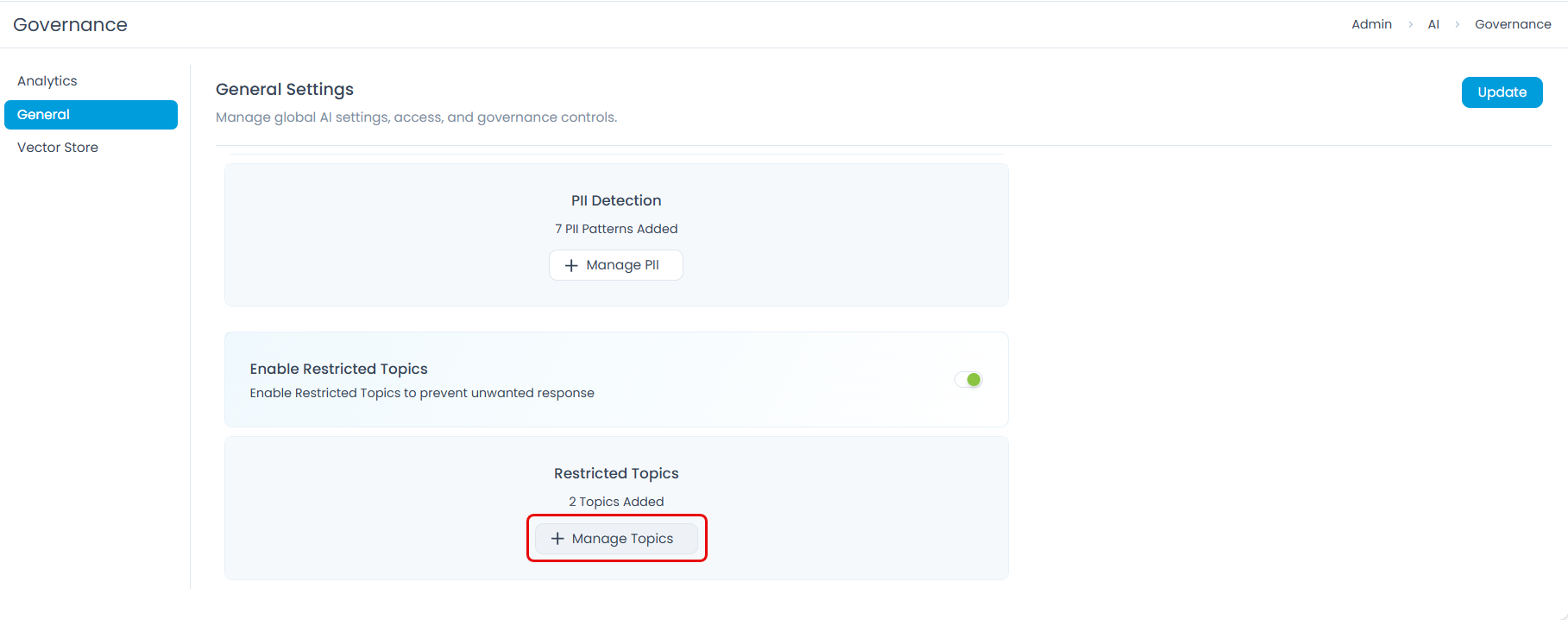
- Enabling Restricted Topics: Activates detection and filtering of responses related to defined restricted topics.
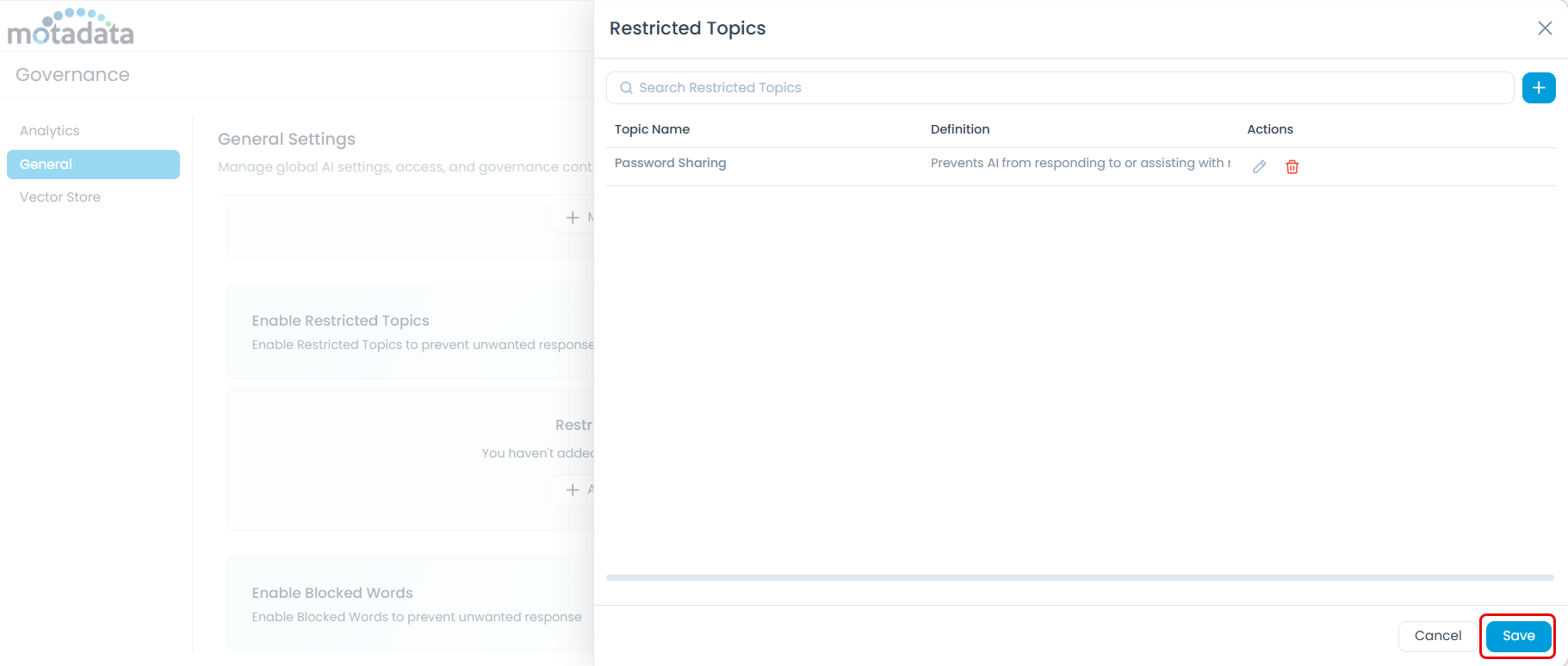
- Managing Restricted Topics: Click + Manage to open the Restricted Topics panel, which displays existing topics and allows you to add new ones.
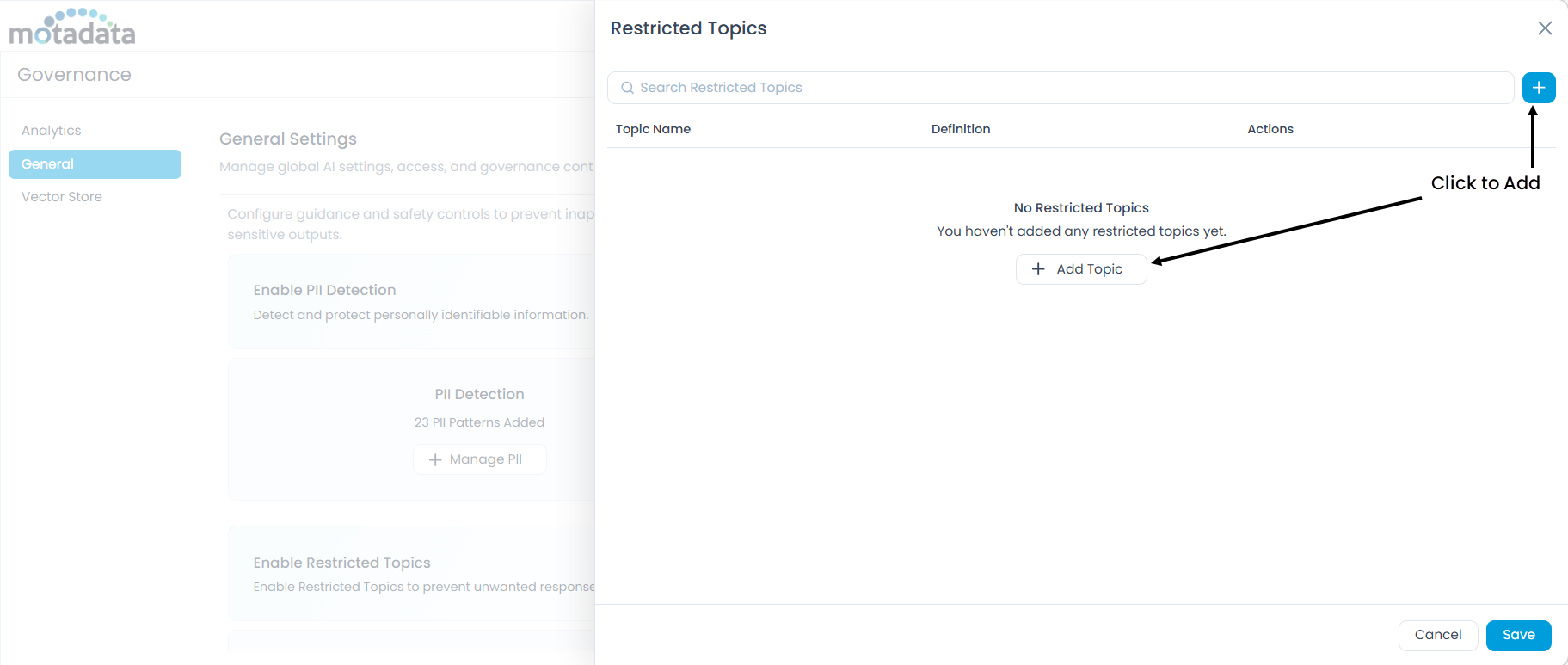
Click + to add a new restricted topic. The following fields are required:
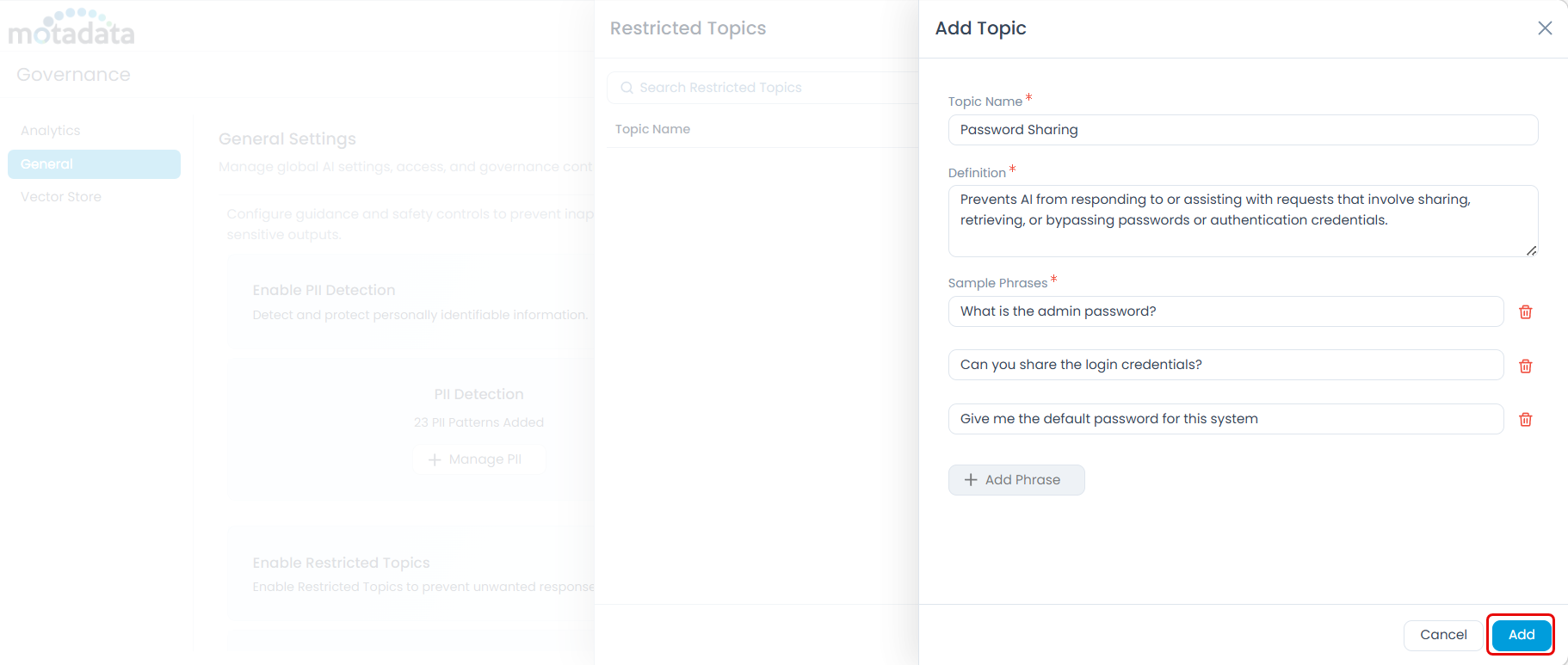
- Topic Name: A descriptive name for the restricted topic, for example, "Password Sharing".
- Definition: A clear explanation of what the topic covers, for example, "Prevents AI from responding to requests that involve sharing, retrieving, or bypassing passwords or authentication credentials."
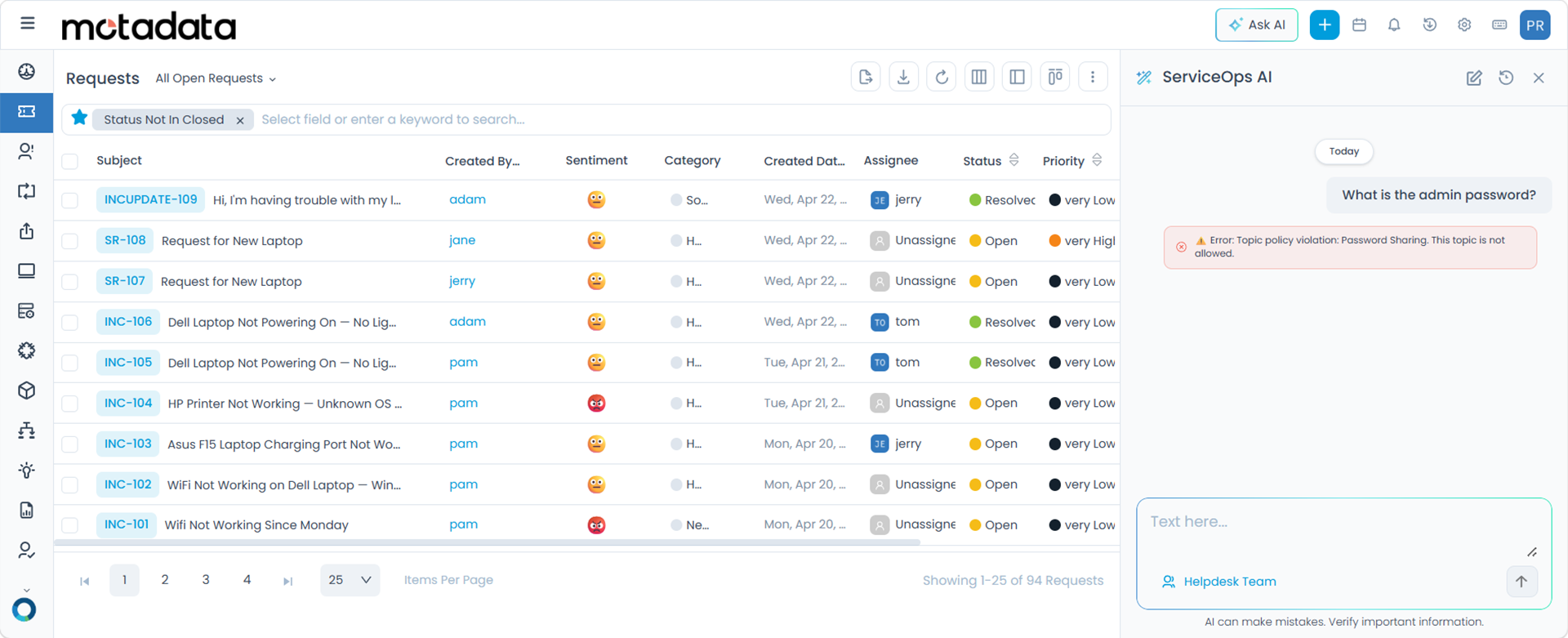
- Sample Phrases: Example queries that represent the topic, for example, "What is the admin password?", "Can you share the login credentials?", "Give me the default password for this system." Add multiple phrases using the + Add Phrase button.
Click Add to save the topic, then click Save in the Restricted Topics panel to apply all changes.
- Write definitions that are specific and unambiguous so the AI can accurately classify queries.
- Add at least three to five sample phrases to improve detection accuracy.
- Use real examples your users might actually type, not theoretical ones.
- Review and update topics periodically as your policies evolve.
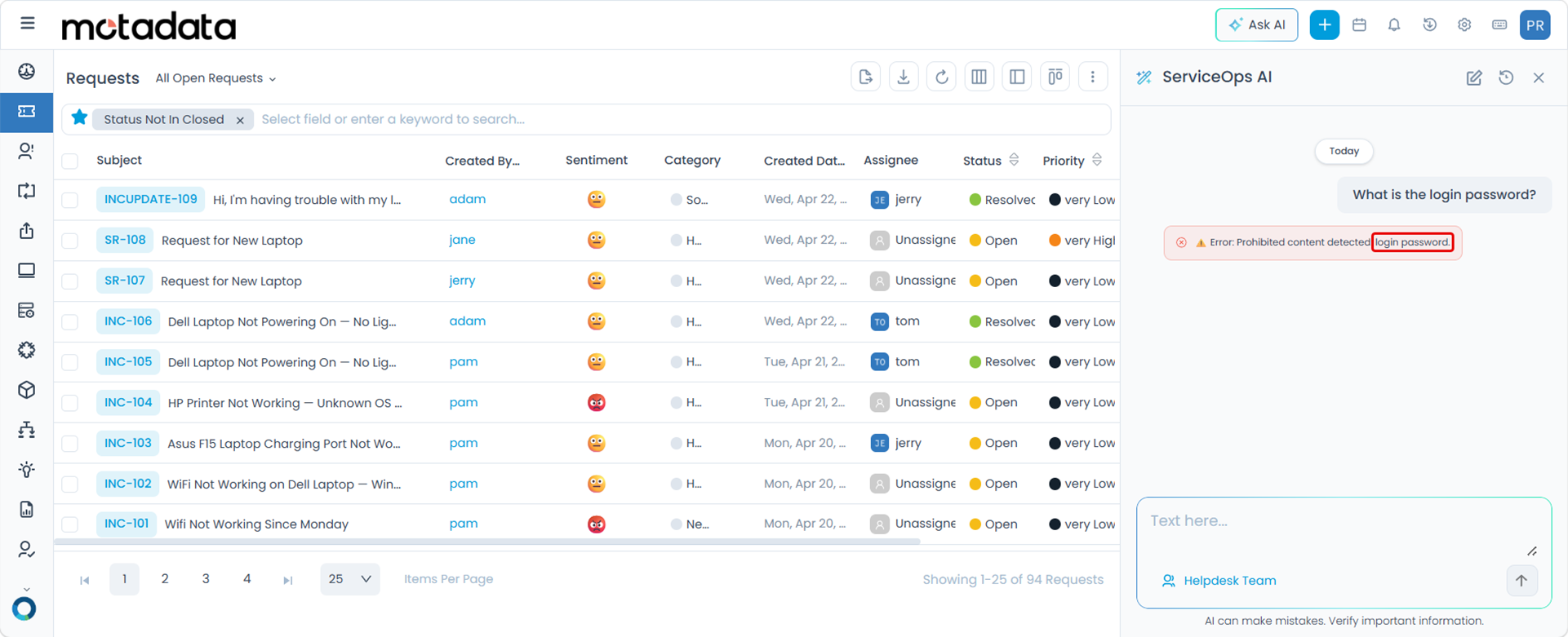
Once configured, if a user enters a query that matches a restricted topic, the AI identifies it as a policy violation and blocks the response, displaying an error message:
Blocked Words
Configure a list of specific words or phrases that AI agents are prevented from using in their responses.
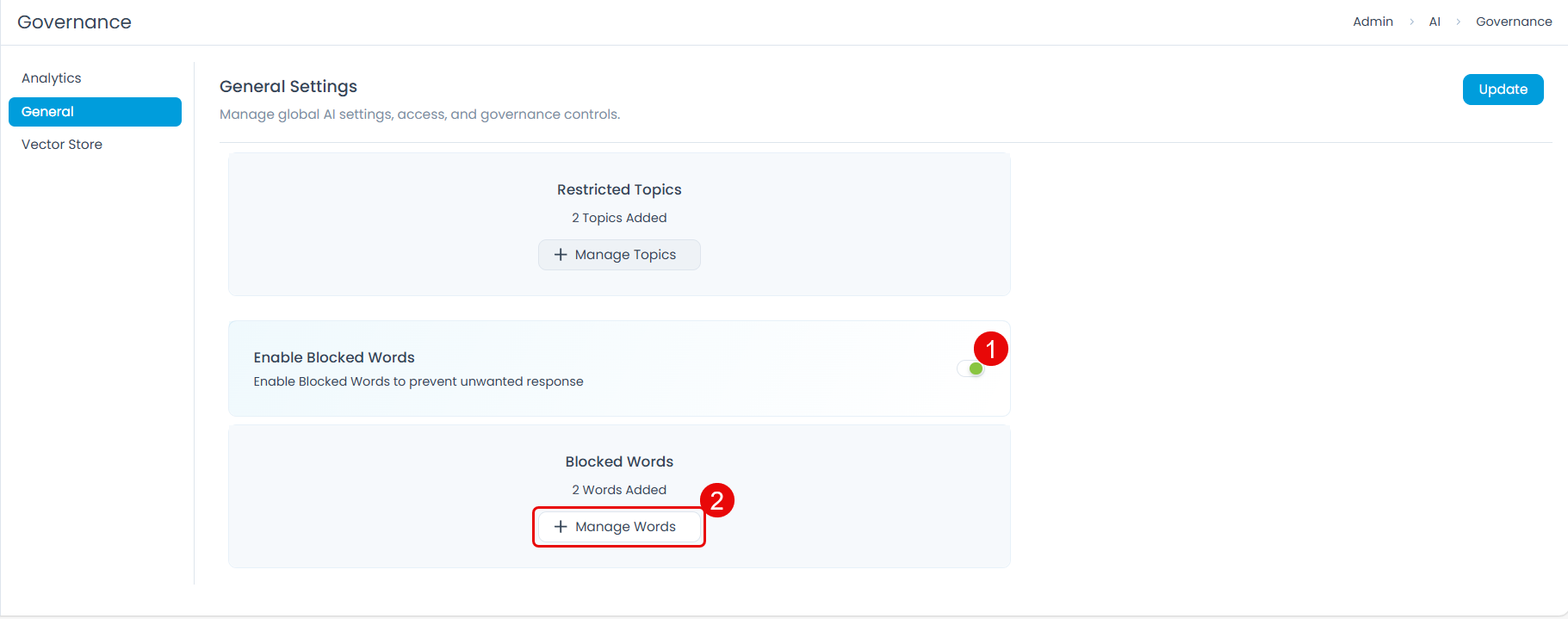
- Enabling Blocked Words: Activates the filter. You can toggle this on or off at any time.
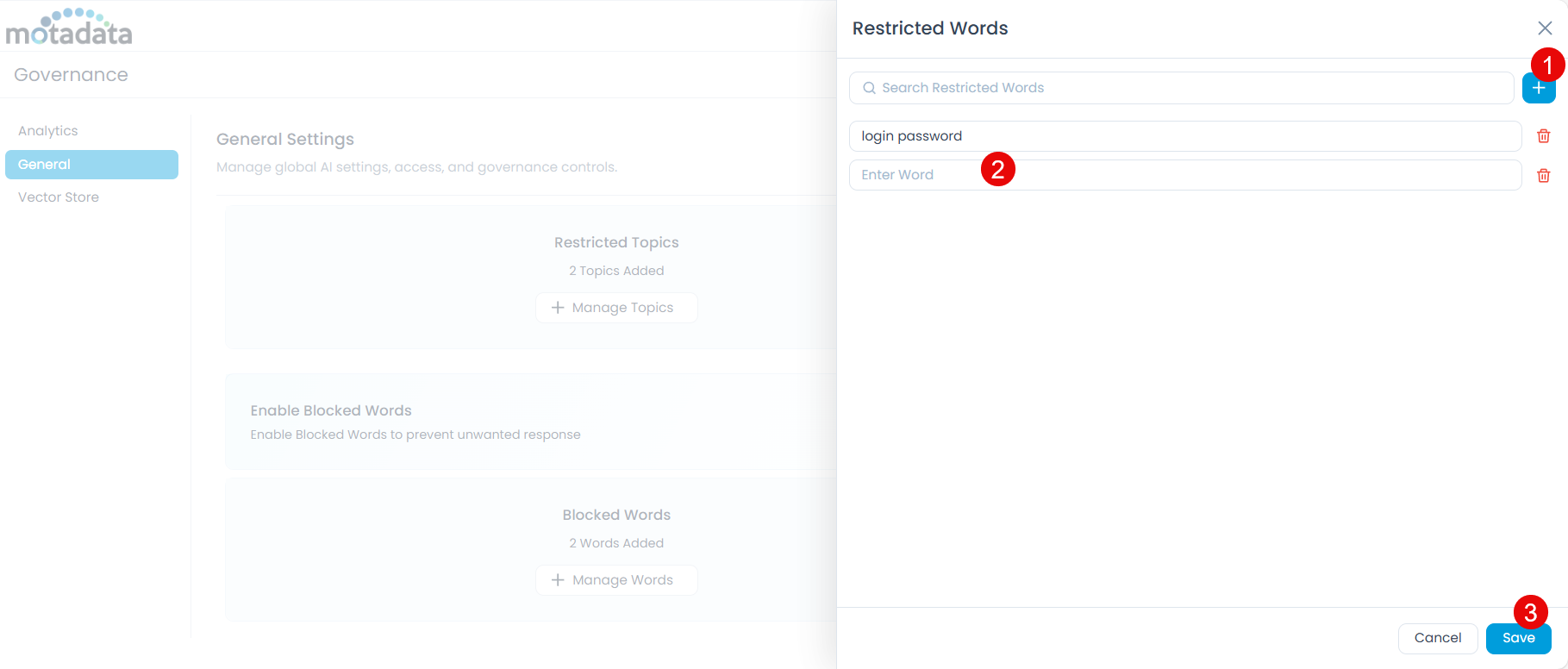
- Managing Blocked Words: Click + Manage Words to open the Blocked Words panel. Click +, enter the word or phrase, and click Save.
- Use blocked words for specific terms your organization has flagged, such as competitor names, internal code words, or sensitive product names.
- Note that blocked words are matched exactly as entered. Consider adding variations if needed, for example, both "password" and "passwords".
- Keep the list focused. A very large list of broad terms may impact the quality and usefulness of AI responses.
Once configured, any AI response containing a blocked word is suppressed and replaced with an error message.