SLO
SLO (Visualization)
The SLO Visualization module in Motadata ObserveOps (formerly known as AIOps) provides a comprehensive view of all configured Service Level Objectives. It helps track real-time compliance status, visualize historical trends, and monitor individual device-level performance against defined objectives.
This screen enables users to understand the overall health of services through multiple visual elements such as compliance scores, error budgets, violation timelines, and burn rate graphs. Both Availability and Performance SLOs are supported with dedicated widgets and filters.
Card View
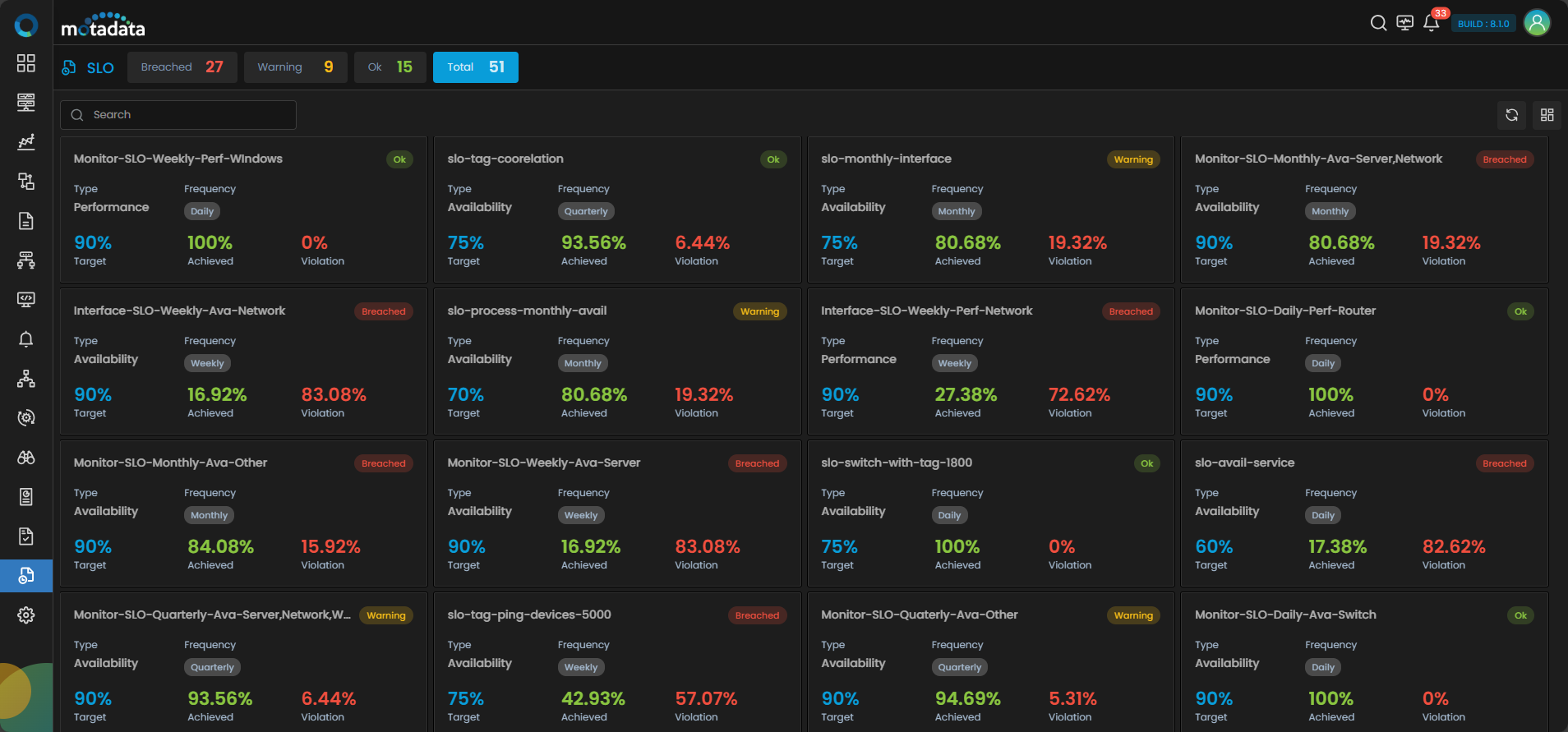
Upon navigating to the SLO module from the main menu tray, the default view shows a card view displaying key SLO metrics in a condensed widget format for faster visual assessment.
Grid View
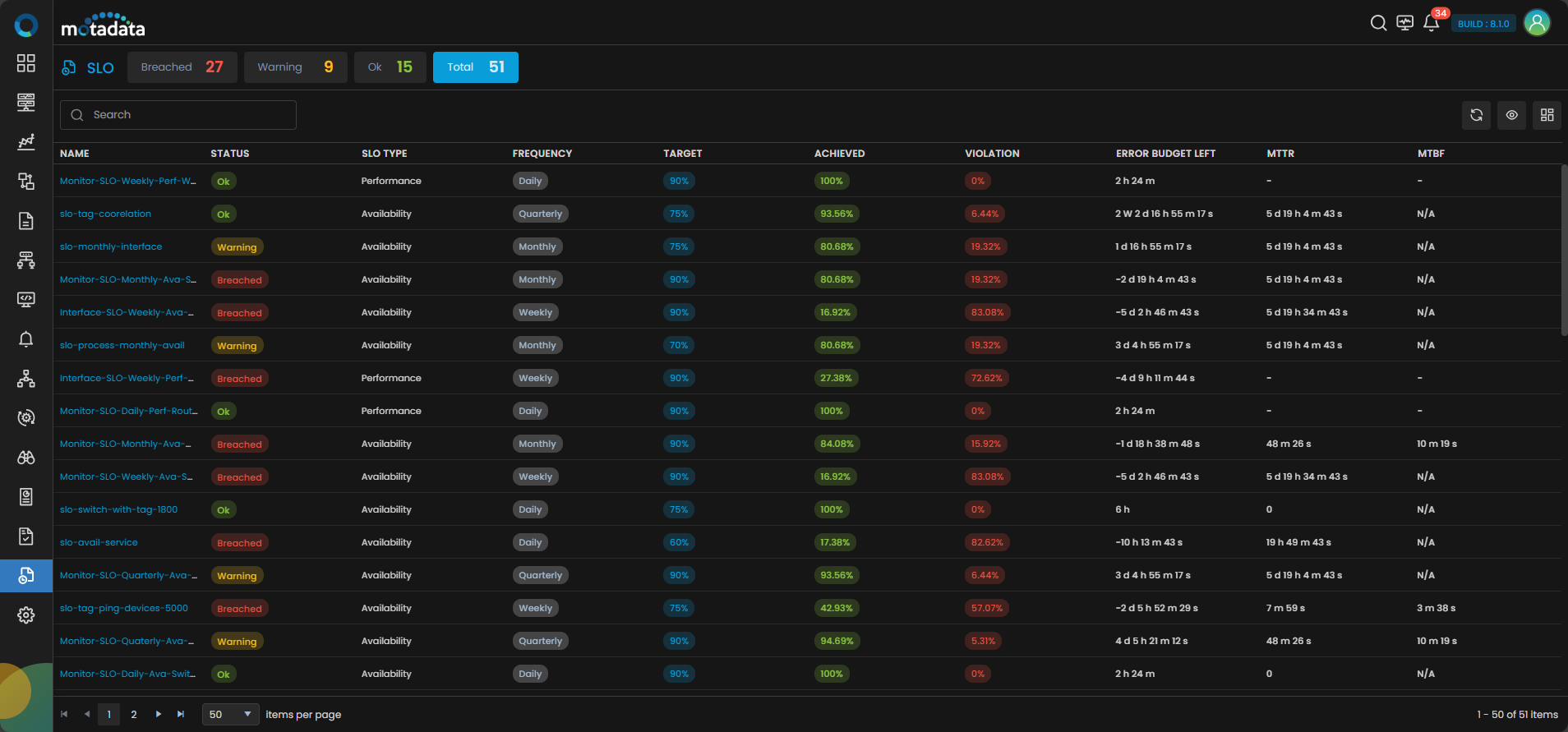
A toggle is available to switch from card to grid view in the top right side corner of the screen.
Grid View Fields
The following fields are displayed in the grid view of the SLO module:
| Field | Description |
|---|---|
| Name | Name of the Service Level Objective (SLO). |
| Status | Indicates the current status of the SLO. Possible values: OK, Warning, Breached. |
| SLO Type | Type of the SLO. Possible values: Availability or Performance. |
| Frequency | Evaluation frequency of the SLO. Supported options: Daily, Weekly, Monthly, Quarterly. |
| Target | The defined SLO threshold percentage that must be achieved. |
| Achieved | The actual percentage achieved within the current evaluation window. |
| Violation | Percentage of time the SLO target was not met. |
| Error Budget Left | Remaining value of allowed failure time within the SLO period. |
| MTTR / MTBF | Mean Time To Recovery and Mean Time Between Failures (shown for Availability SLOs only). |
You can filter SLOs by status using the buttons (Breached, Warning, Ok or Total) above the grid or customize visible columns using the eye icon.
SLO Details View
Clicking on any SLO card or name from the grid, it opens a detailed screen with two tabs: Overview and SLO History.
Overview Tab
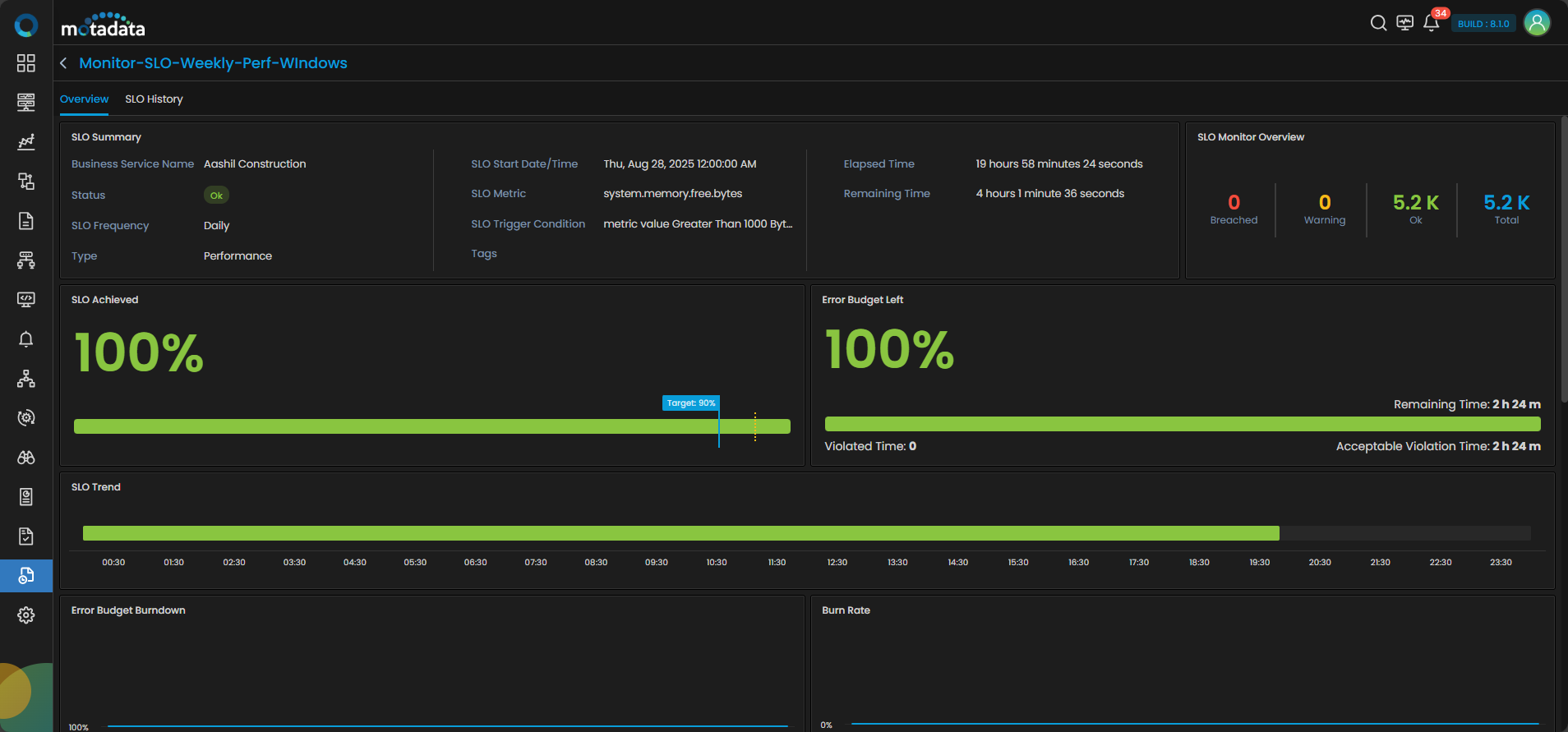
Includes the following widgets:
| Field | Description |
|---|---|
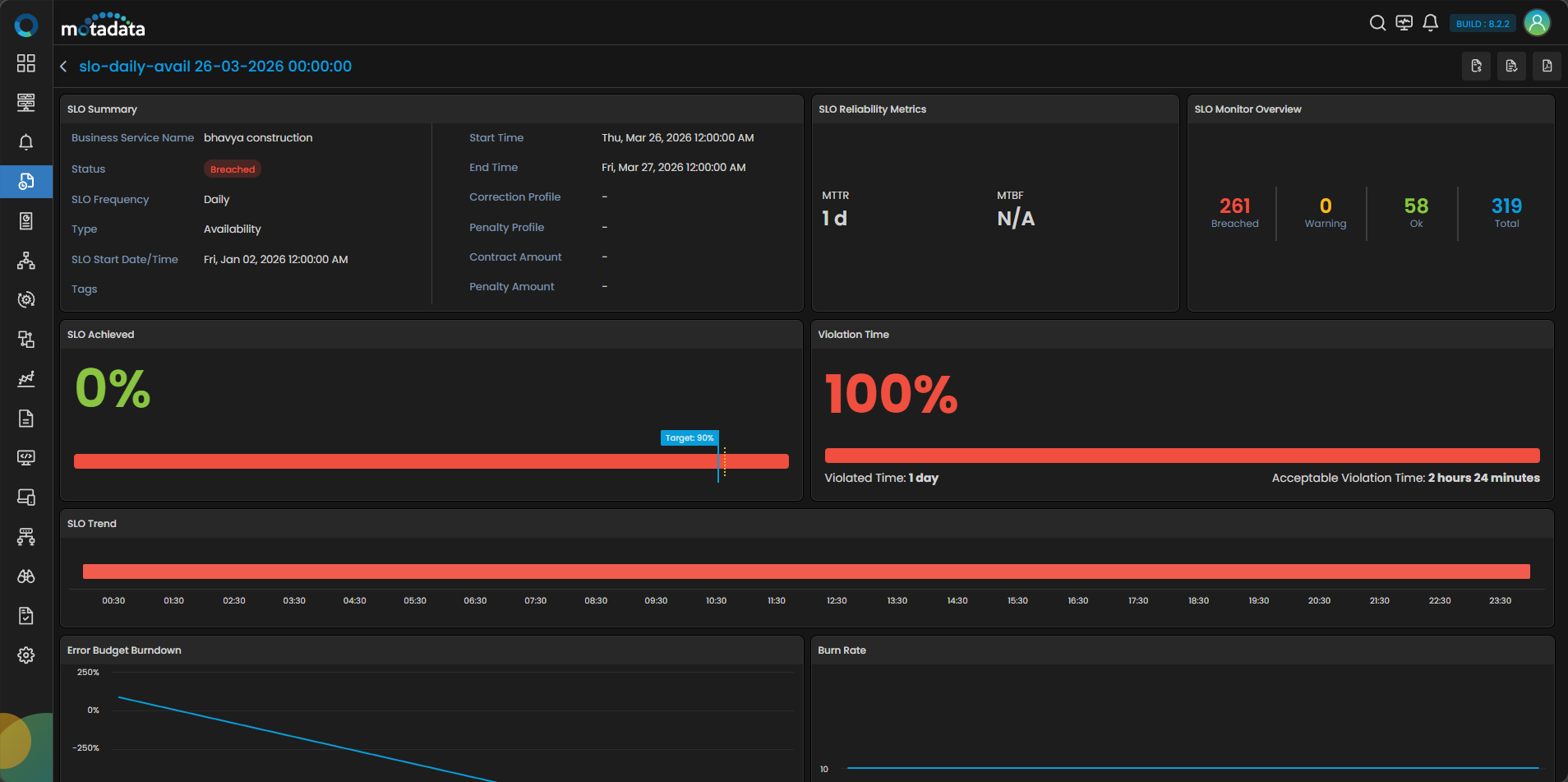
| SLO Summary | Displays key metadata of the SLO including SLO Name, Type, Target, Warning, Frequency, and attached Correction/Penalty Profiles. |
| SLO Monitor Overview | Summarizes monitor distribution by status (OK, Warning, Breached) for the selected SLO. |
| SLO Achieved | Shows a trend bar visualizing the achieved percentage. Includes static markers for Target (Blue) and Warning (Yellow). |
| Error Budget Left | Displays remaining allowable violation time, total violation time, and acceptable violation time using a percentage-based trend bar. |
| SLO Trend | A time-series line chart displaying SLO status transitions over the frequency interval. Status includes Healthy, Degraded, Not Calculated and Corrected. Clicking the Degraded status displays a drill-down menu to understand it further. |
| Error Budget Burndown | A line graph starting at 100%, showing the consumption of the error budget over time. |
| Burn Rate | Visualizes the rate of budget consumption. A higher burn rate indicates faster depletion. |
| Configured Monitors | Lists all monitors contributing to the SLO. Includes details like Name, IP, Group, Tag, Status, Achieved %, Violation %, and SLO Trend. Drill-down supported. |
The SLO Trend status is dependent on the system status configured for SLO. If the SLO Type is selected as Availability then the status displayed are as below:
| System Status | SLO Trend |
|---|---|
| Up | Healthy |
| Down | Degraded |
| Unreachable | Degraded |
| Disable | Not Calculated |
| Maintenance | Not Calculated |
| Unknown | It will persist the Last Status |
If the SLO Type is selected as Performance then if the system status is Clear then the SLO Trend displays Healthy or if the threshold is breached then it displays Degraded.
Clicking on any monitor displays the drill-down menu. The drill-down provides details such as:
Monitor Drill-down (Side Panel)
| Field | Description |
|---|---|
| Monitor Name | The name of the monitor contributing to the SLO. |
| SLO Achieved (%) | Achieved performance specific to the selected monitor. |
| Error Budget Left (%) | Remaining error budget specific to this monitor. |
| SLO Trend | Time-series trend status of the monitor over the SLO period. |
| SLO Metric | Metric associated with the performance SLO (shown only for Performance SLOs). |
| Error Budget Burndown | Line chart showing the consumption of error budget over time. |
| Burn Rate | Graph representing the rate at which error budget is being consumed. |
| Timestamp Grid | Aggregated time-wise view based on frequency, showing Achieved %, Violation %, and Error Budget Used for each time bucket. |
SLO History Tab
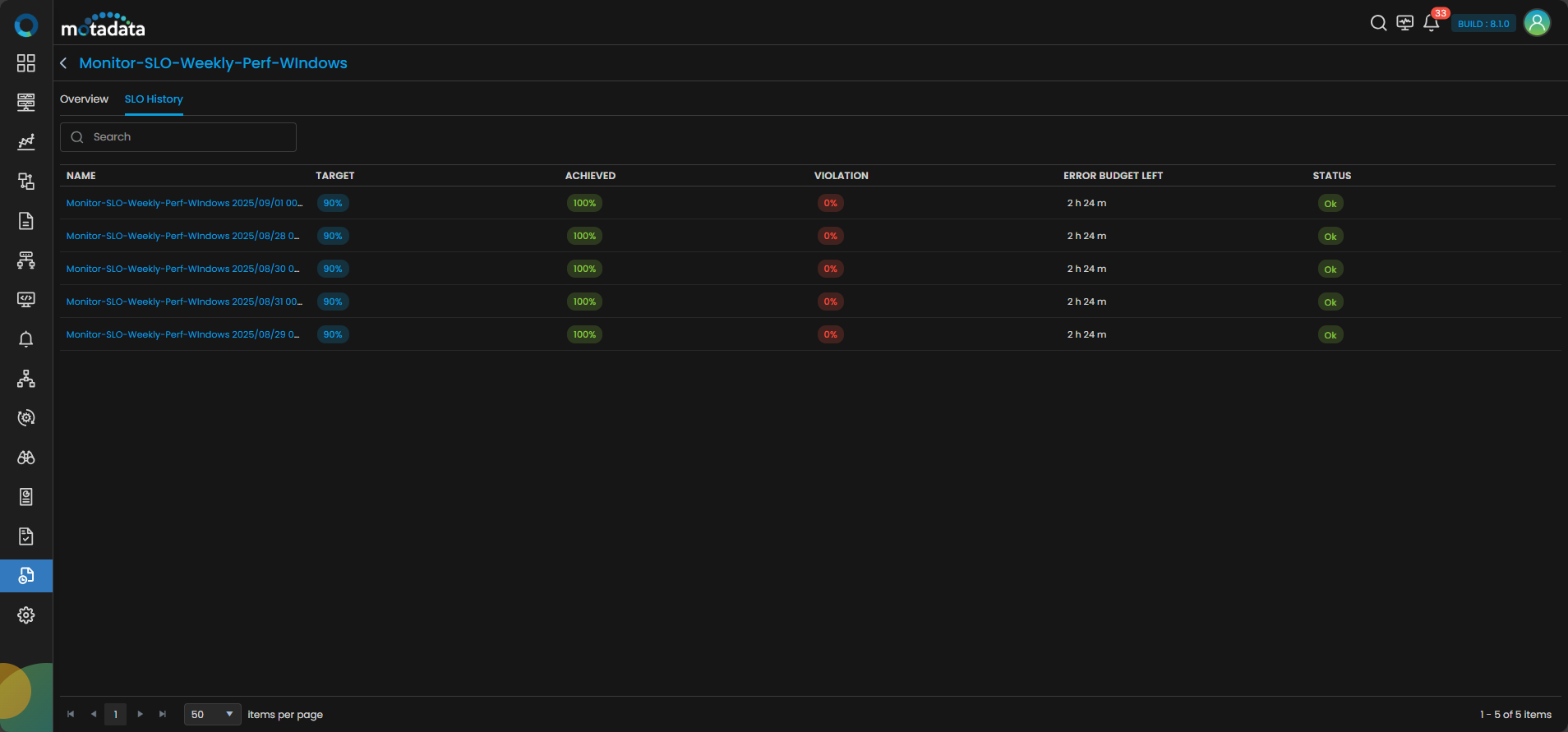
Displays historical compliance data per evaluation window. Columns include:
| Field | Description |
|---|---|
| Name | Indicates the SLO name in the concatenated format <SLO Name><Frequency Start Date & Time>. |
| Target | Target performance threshold set for the SLO in percentage. |
| Achieved | Actual percentage achieved during the given period. |
| Violation | Total percentage of time the SLO was violated. |
| Error Budget Left | Remaining error budget after accounting for violations. |
| Status | Indicates SLO status: OK, Warning, or Breached. |
Clicking on any history-entry opens a detail screen showing the same widgets as in the Overview tab.
You can use the Attach Penalty Profile and Attach Correlation Profile icons to associate the respective profiles with the selected history.
Clicking the Export as PDF icon initiates the SLO report download. Initiating it displays a side notification indicating the file will be downloaded once ready.
- Notifications are triggered when an SLO moves to Warning or Breached.
- You will also receive an email once an SLO frequency cycle completes.
- Data retention policies are updated to reflect SLO-related records.
- Performance SLOs include all widgets except Service Reliability Metrics and include a SLO Metric widget instead.
Multi-Monitor Timeline Grid and SLO Status
Let's take an example and understand the multi-monitor timeline and its effect on SLO status individually for the device as well as for the system from the below table:
| Monitor | T1 | T2 | T3 | T4 | T5 | Status |
|---|---|---|---|---|---|---|
| Monitor 1 | UP | UP | UP | UP | UP | 100% |
| Monitor 2 | UP | UP | Down | UP | UP | 80% |
| Monitor 3 | UP | Down | UP | UP | UP | 80% |
| Overall Status | OK | Breached | Breached | OK | OK | 60% |
As per the above table, there are three monitors Monitor 1, Monitor 2 and Monitor 3 and Timezones are T1, T2, T3, T4 and T5. It is observed that Monitor 1 SLO status is 100% as for each time zone it is in UP state, but Monitor 2 and Monitor 3 are at 80% for individual SLO status as for different Time zones it is in Down state. Thus, the over all status is concluded as 60% because for T2 and T3 it is considered as Breached.
Now consider T1 is the timezone for 10:00 AM to 10:25 AM.
| Monitor | 10:00 AM to 10:05 AM | 10:05 AM to 10:10 AM | 10:10 AM to 10:15 AM | 10:15 AM to 10:20 AM | 10:20 to 10:25 AM | Status |
|---|---|---|---|---|---|---|
| Monitor 1 | UP | UP | UP | UP | UP | 100% |
| Monitor 2 | UP | Down | Down | UP | UP | 60% |
| Monitor 3 | UP | Down | UP | UP | UP | 80% |
| Overall Status | OK | Breached | Breached | OK | OK | 60% |
As per the above table, there are three monitors Monitor 1, Monitor 2 and Monitor 3. It is observed that Monitor 1 SLO status is 100% as for each time section it is in UP state, but Monitor 2 and Monitor 3 are at 60% and 80% respectively in individual SLO status. Thus, the over all status is concluded as 60%.