SLO Correction Profile
Overview
In Service Level Objectives (SLOs), it's essential to account for times when a service might be temporarily unavailable due to maintenance, scheduled downtime, or other reasons. The SLO Correction Profile helps you exempt specific time periods, such as server downtimes, from being considered violations. By doing so, you ensure that SLOs remain accurate and not penalized for scheduled or known downtimes.
The Correction Profile allows for the creation of exemptions based on predefined time ranges, such as daily maintenance windows, planned outages, or specific task periods. When a service goes down during these periods, the status will not be marked as "Breached," ensuring the service performance is not impacted by non-relevant downtimes.
Key Features of the Correction Profile
- Exempt scheduled downtimes: Mark time periods where the service is expected to be down (e.g., maintenance windows).
- Task-specific corrections: Specify corrections for individual tasks like data migrations or server reboots.
- Prevent false positives: Ensure downtime due to routine operations does not count against the SLO, keeping the service status as "OK."
Navigation
To access the SLO Correction Profile configuration page. Go to Settings, then select the click SLO and then select the Correction Profile option.
Create a Correction Profile
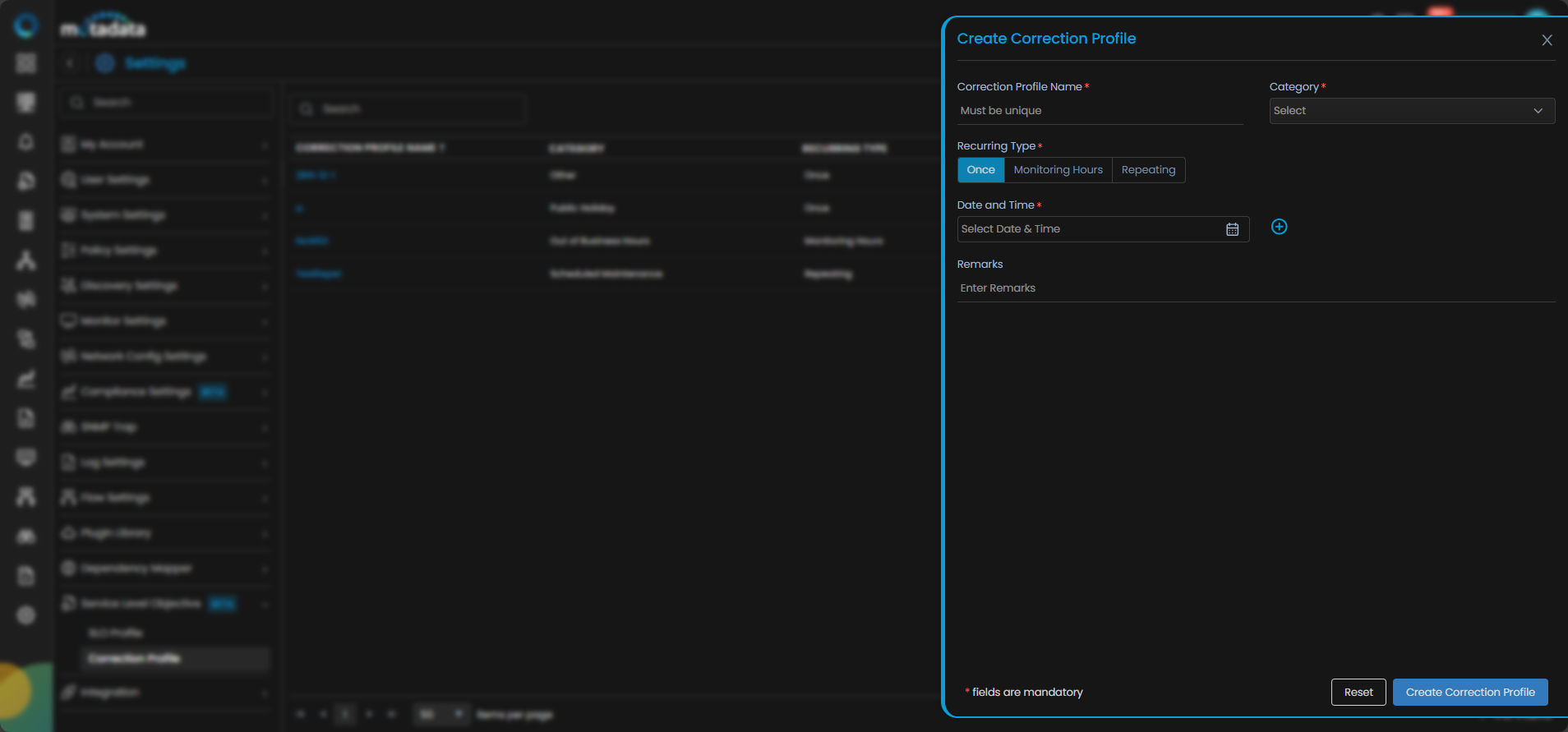
Click on the Create Correction Profile button.
The following fields will appear on the screen for creating the correction profile:
| Field | Description |
|---|---|
| Correction Profile Name | Provide a unique name for the correction profile. |
| Category | Select the category that defines the reason for downtime, i.e., Public Holiday, Business Maintenance, Scheduled Deployment, Out of Business Hours, Other. |
| Recurring Type | Choose the type of recurring event: Once, Monitoring Hours, or Repeating. Depending on the type of downtime, you can select the following options: - Once: Used for one-time, non-repetitive downtime. - Monitoring Hours: Allows you to define monitoring hours when the service might be down during specific operational windows. - Repeating: Ideal for recurring maintenance windows, such as weekly or monthly downtimes. |
| Date and Time | Selecting Recurring Type as Once you need to set the specific time or date range for which the correction will apply. You can select multiple date range by clicking the Add icon. |
| Monitoring Hour | Selecting Recutting Type as Monitoring Hours you need to configure the particular hours timeline from the drop down. Click Here to know more about configuring monitoring hours. |
| Remarks | Add any additional notes or details related to the correction profile. |
Configurations for Repeating Recurring Type
| Field | Description |
|---|---|
| Start Date | Select the start date from the calender. |
| Hours | Select the particular time of the hour from when the correction to be applied. |
| Duration | Configure the duration for which time you want to repeat the correction. i.e., Seconds, Minutes, Hours, Days. Let's say you select Duration |
| Repeat Every | This option allows you to select when the same correction should be repeated. i.e., Day, Week, Month. Let's say you select Repeat Every 1 Day, then the correction will be applied everyday for the selected configurations. |
| Repeat Ends | Select when the repeat correction should be ended. |
Apply the Correction Profile
Once the correction profile is created, you need to apply it to the relevant SLOs. For that navigate to the SLO option from the main menu and select the SLO to which you want to apply the correction.
Correction only applies on SLO cycle which is completed. i.e., Breached and/ or OK.
Select the SLO History tab and you will see the Attach Correction Profile icon in the top right hand side corner of the screen.
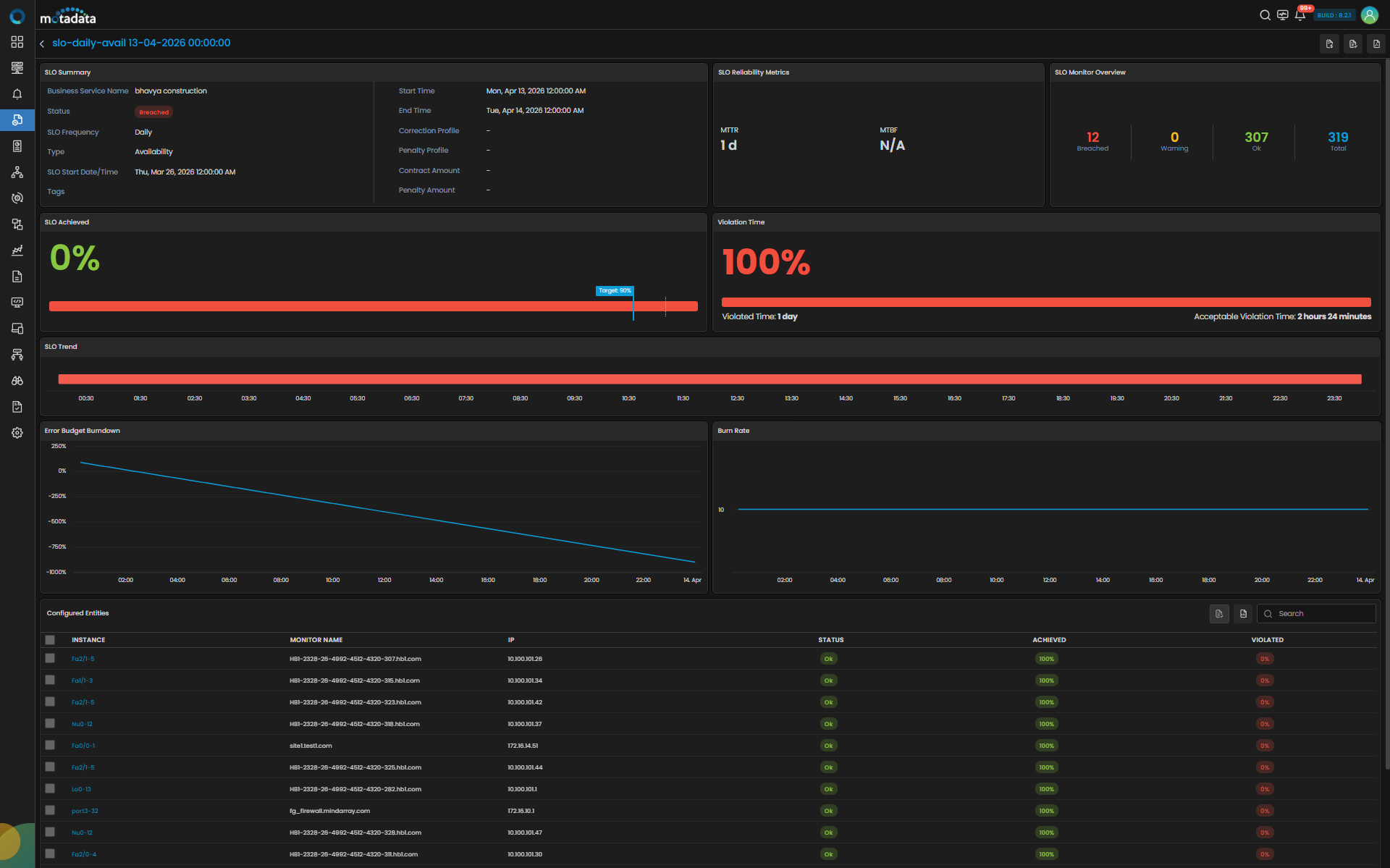
You can link multiple profiles if needed from the Correction Profile drop-down or create a new one to link.
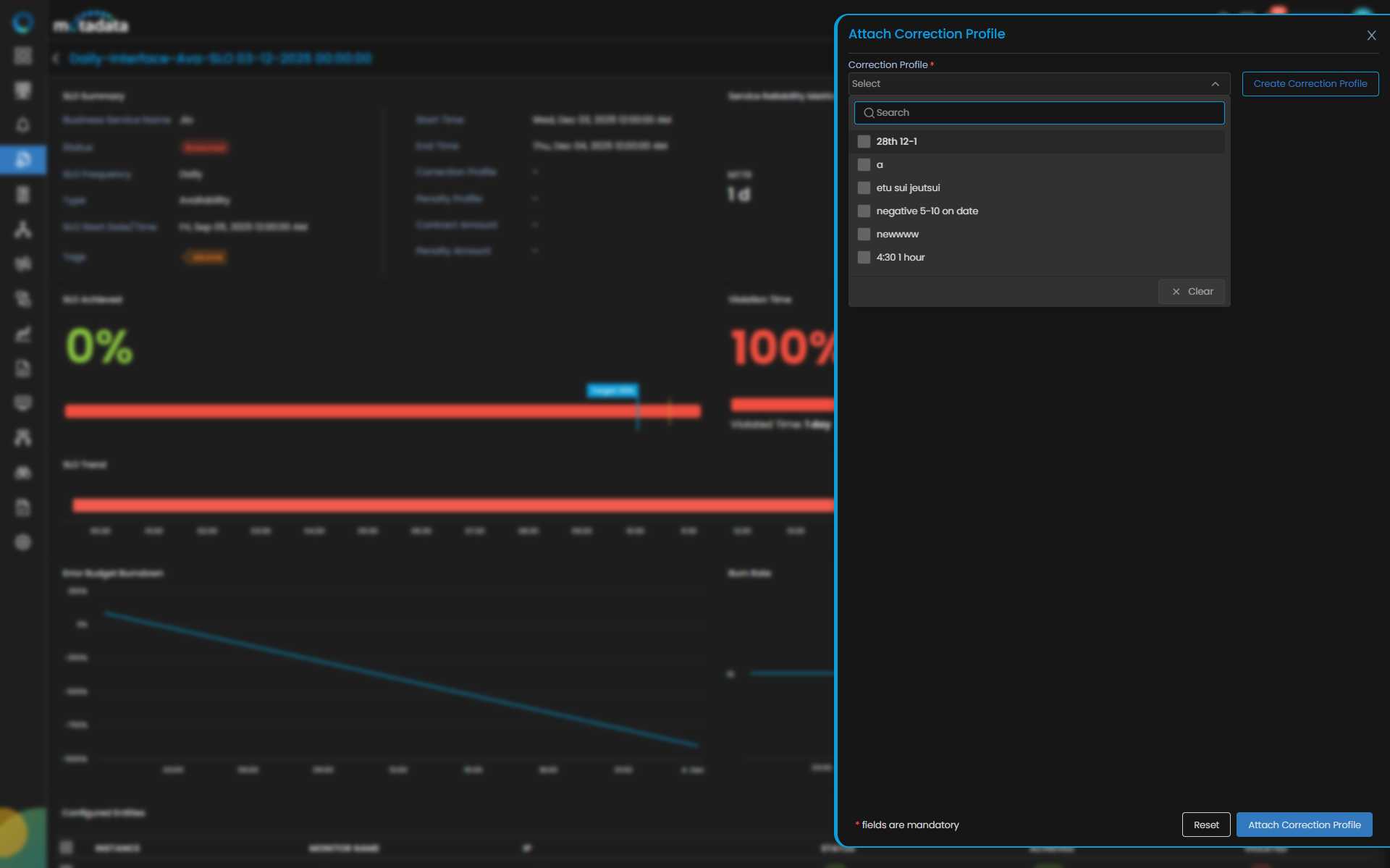
Clicking the Attach Correction Profile button, the correction profile gets applied on the particular SLO.
Selecting the SLO to which you have applied the correction, you can view the areas where the correction has been applied from the charts on the screen.
Use Case
The SLO Correction Profile is a powerful functionality for handling planned downtimes, server reboots, and other routine maintenance activities that might affect SLO compliance. Let's understand this with two detailed, practical examples for Monitoring Hours and Repeating Correction Profiles, using the T1–T5 format.
Monitoring Hours Correction Profile
Let’s take the case of ABC Bank, which performs daily backups from 11:00 PM to 12:00 AM, during which services are intentionally offline. This scheduled downtime should not count toward SLO violations.
Without applying a Correction Profile, the system would interpret this period as a breach. Using the Monitoring Hours type in the Correction Profile, you can exclude this fixed interval from SLO evaluations.
Here’s how it plays out across a sample timeline:
Timeline Without Correction
| Monitor | T1 (10:00–10:30 PM) | T2 (10:30–11:00 PM) | T3 (11:00–11:30 PM) | T4 (11:30–12:00 AM) | T5 (12:00–12:30 AM) | SLO Status |
|---|---|---|---|---|---|---|
| Monitor A | UP | UP | Down | Down | UP | 60% |
| Monitor B | UP | UP | Down | Down | UP | 60% |
| Monitor C | UP | UP | Down | Down | UP | 60% |
| Overall | OK | OK | Breached | Breached | OK | 60% |
Now, let’s apply the Monitoring Hours Correction Profile you have created to exclude T3 and T4 (11:00 PM to 12:00 AM). Let's say here you have created Skip Business monitoring hour profile.
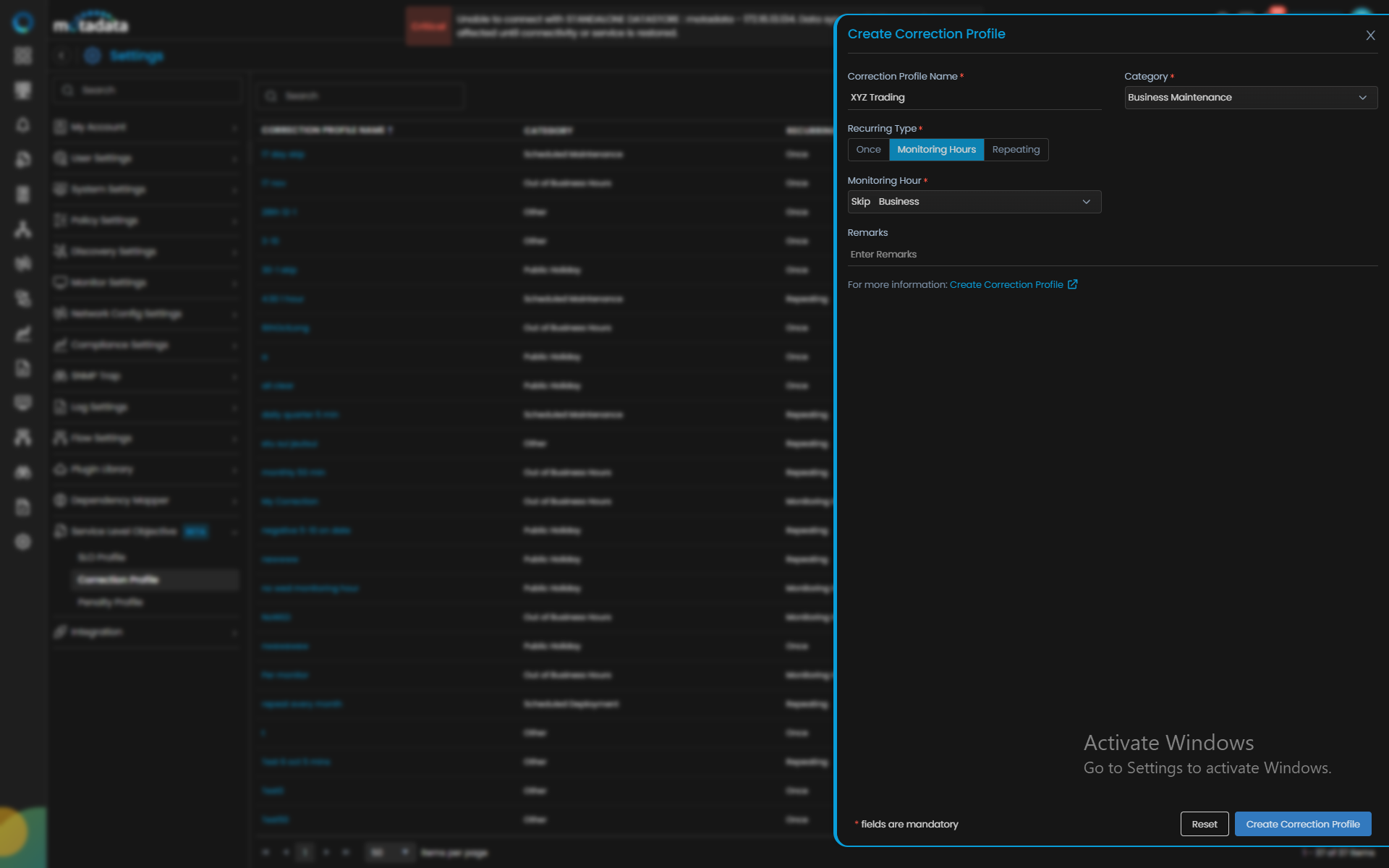
Timeline With Monitoring Hours Correction Applied
| Monitor | T1 (10:00–10:30 PM) | T2 (10:30–11:00 PM) | T3 (Excluded) | T4 (Excluded) | T5 (12:00-12:30 AM) | Status |
|---|---|---|---|---|---|---|
| Monitor A | UP | UP | Corrected | Corrected | UP | 100% |
| Monitor B | UP | UP | Corrected | Corrected | UP | 100% |
| Monitor C | UP | UP | Corrected | Corrected | UP | 100% |
| Overall | OK | OK | OK | OK | OK | 100% |
No breach is recorded because the known downtime was excluded by the correction profile and the SLO compliance is preserved.
Repeating Correction Profile
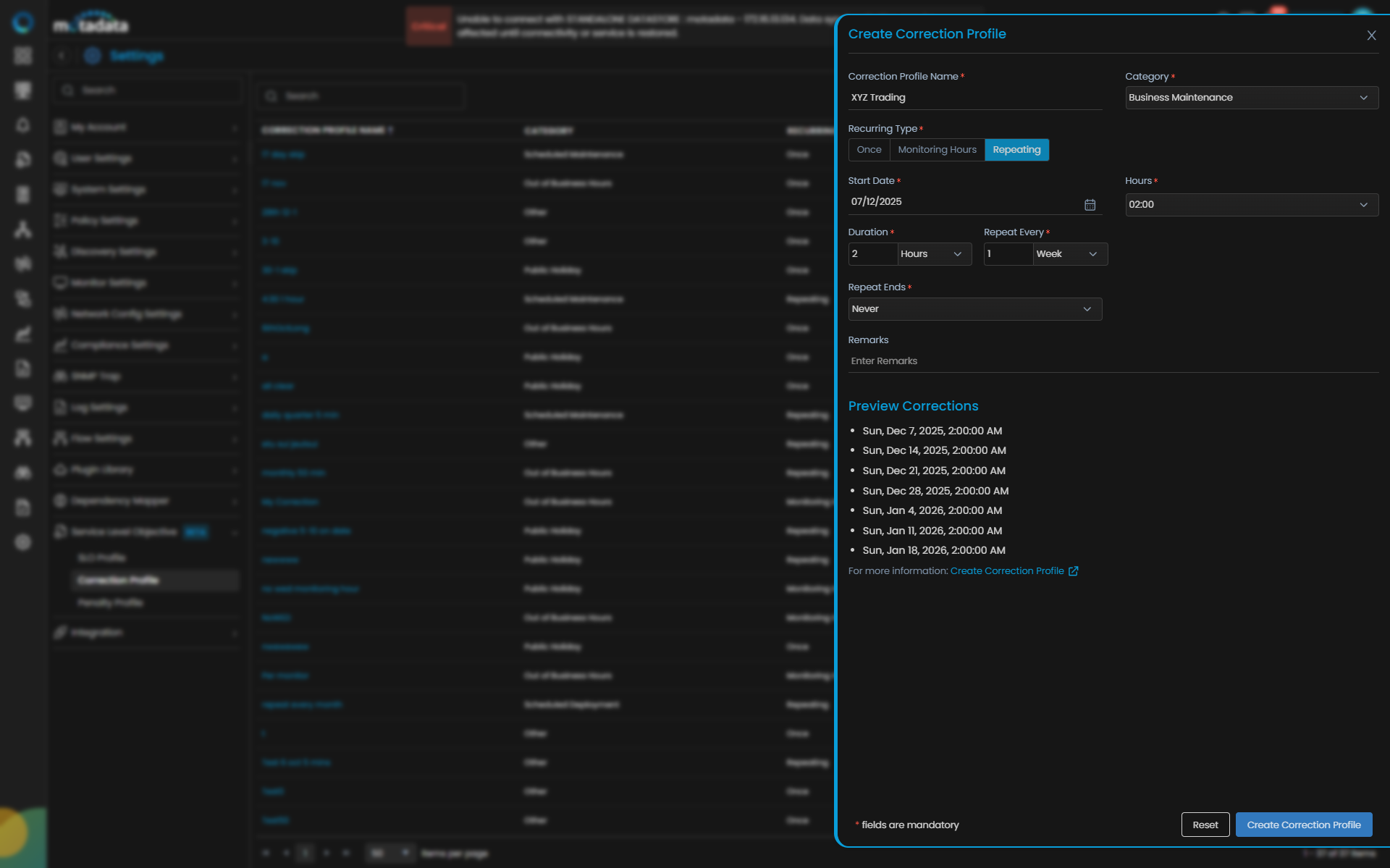
Now let’s consider XYZ Trading Corp, which performs weekly patching on Sundays from 2:00 AM to 4:00 AM. This downtime recurs every Sunday and must be excluded to maintain accurate SLO tracking.
Let’s simulate one such Sunday timeline:
Timeline Without Correction
| Monitor | T1 (1:30–2:00 AM) | T2 (2:00–2:30 AM) | T3 (2:30–3:00 AM) | T4 (3:00–3:30 AM) | T5 (3:30–4:00 AM) | Status |
|---|---|---|---|---|---|---|
| Monitor A | UP | Down | Down | Down | Down | 20% |
| Monitor B | UP | Down | Down | Down | Down | 20% |
| Monitor C | UP | Down | Down | Down | Down | 20% |
| Overall | OK | Breached | Breached | Breached | Breached | 20% |
Now, apply a Repeating Correction Profile with the following:
- Start Date: Select the First Sunday when you start configuring the SLO Correction Profile.
- Hours: 2:00 AM
- Duration: 2 hours
- Repeat Every: 1 Week
- Repeat Ends: Never
Timeline With Repeating Correction Applied
| Monitor | T1 (1:30–2:00 AM) | T2 (Excluded) | T3 (Excluded) | T4 (Excluded) | T5 (Excluded) | Status |
|---|---|---|---|---|---|---|
| Monitor A | UP | Corrected | Corrected | Corrected | Corrected | 100% |
| Monitor B | UP | Corrected | Corrected | Corrected | Corrected | 100% |
| Monitor C | UP | Corrected | Corrected | Corrected | Corrected | 100% |
| Overall | OK | OK | OK | OK | OK | 100% |
The Sunday patch window is automatically excluded each week, ensuring compliance is not falsely impacted and SLO is preserved.
These examples displays how Monitoring Hours and Repeating profiles protect your SLOs from unnecessary breaches caused by known, acceptable downtime windows.