Instrumenting Next.js Applications for RUM (Direct Backend Connectivity)
Overview
This guide explains how to instrument a Next.js application for Real User Monitoring (RUM) when deployed without a reverse proxy such as Apache or Nginx.
In this setup:
- The Next.js application captures user experience data using the Motadata RUM SDK.
- The application forwards RUM payloads directly to the Motadata backend over TCP port 9477.
Prerequisites
Ensure the following requirements are met before proceeding:
- Motadata ObserveOps (formerly known as AIOps) has a valid RUM license.
- The Next.js application must have direct connectivity to the Motadata backend over TCP port 9477.
- Access to the Next.js project directory is available.
Step 1: Create a RUM Application in Motadata ObserveOps
- Navigate to Settings > Real User Monitoring > Application Registration and click the Create Application button.
- Provide the required details and select Other as the deployment type, then click the Register Application button.
- Copy the generated RUM initialization code snippet.
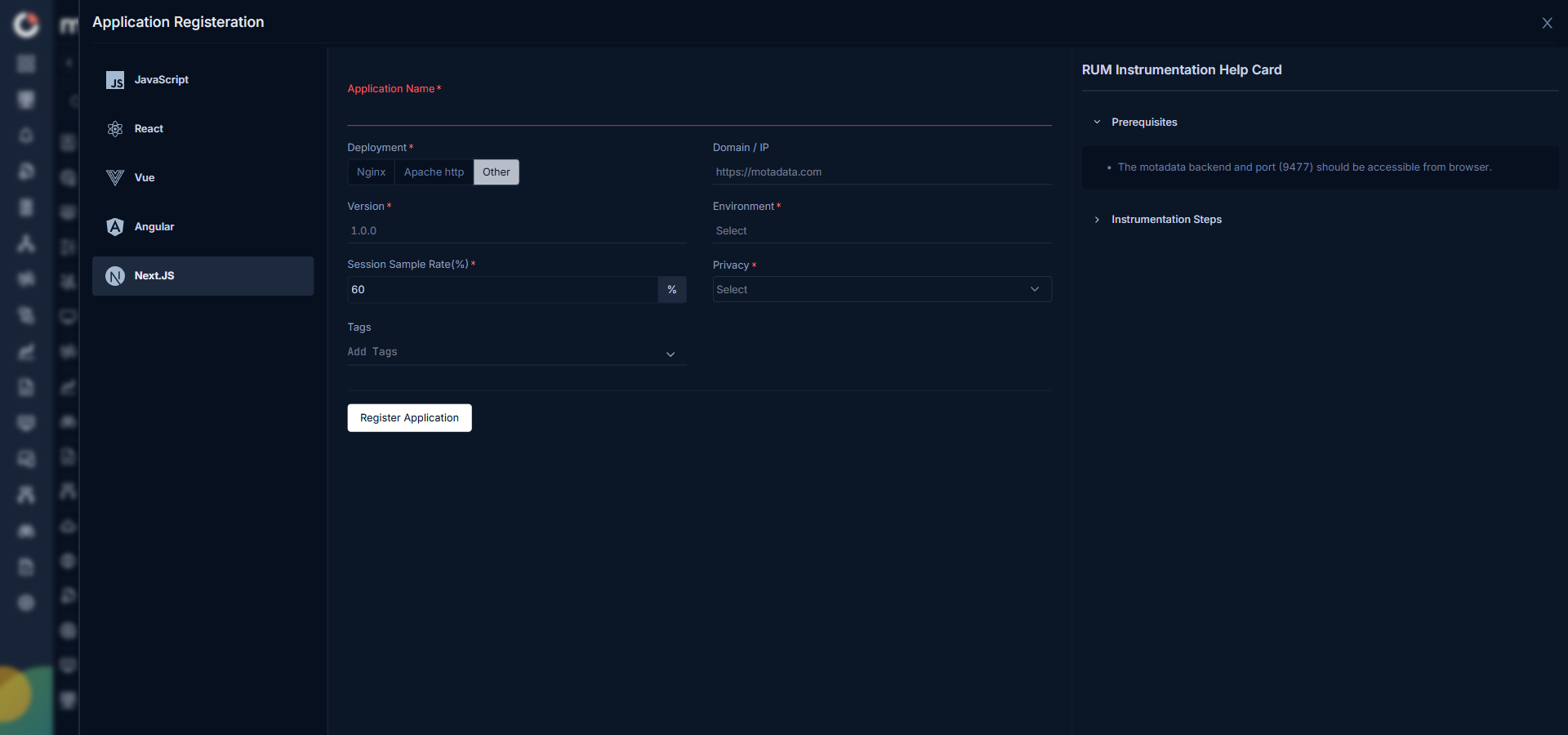
From the snippet, note the following values:
applicationIdclientToken
Step 2: Install the RUM SDK in Next.js
An active internet connection is required during the initial installation of the SDK package. Open terminal and navigate to your Next.js project directory, then run the following command:
npm install @motadata365/browser-rum
Internet access will also be required whenever an SDK is updated and needs to be applied.
While pasting the command snippet, ensure that all brackets remain intact and are not modified or removed.
Step 3: Create the RUM Initialization Component
Create motadata.tsx file inside src/components folder of your Next.js project and add below code. This component will initialize the RUM SDK and handle the user experience tracking.
Example configuration (replace with your generated values):
File: src/components/motadata.tsx
'use client'

import { motadataRum } from '@motadata365/browser-rum';

motadataRum.init({
  applicationId: '2',
  clientToken: 'pub34f6cddbb0419130de26e37b1942169a',
  site: 'https://172.16.14.71:9477',
  service: 'nextjs@8.2.3:QA',
  env: 'QA',
  version: '8.2.3',
  sessionSampleRate: 100,
  trackUserInteractions: true,
  trackResources: true,
  trackLongTasks: true,
  defaultPrivacyLevel: 'allow',
  trackBfcacheViews: true
});

export default function MotadataInit() {
  return null;
}
Step 4: Integrate the RUM Initialization Component in the Root Layout
To apply RUM tracking across your entire Next.js application, integrate the RUM initialization component into the root layout.
File: app/layout.tsx
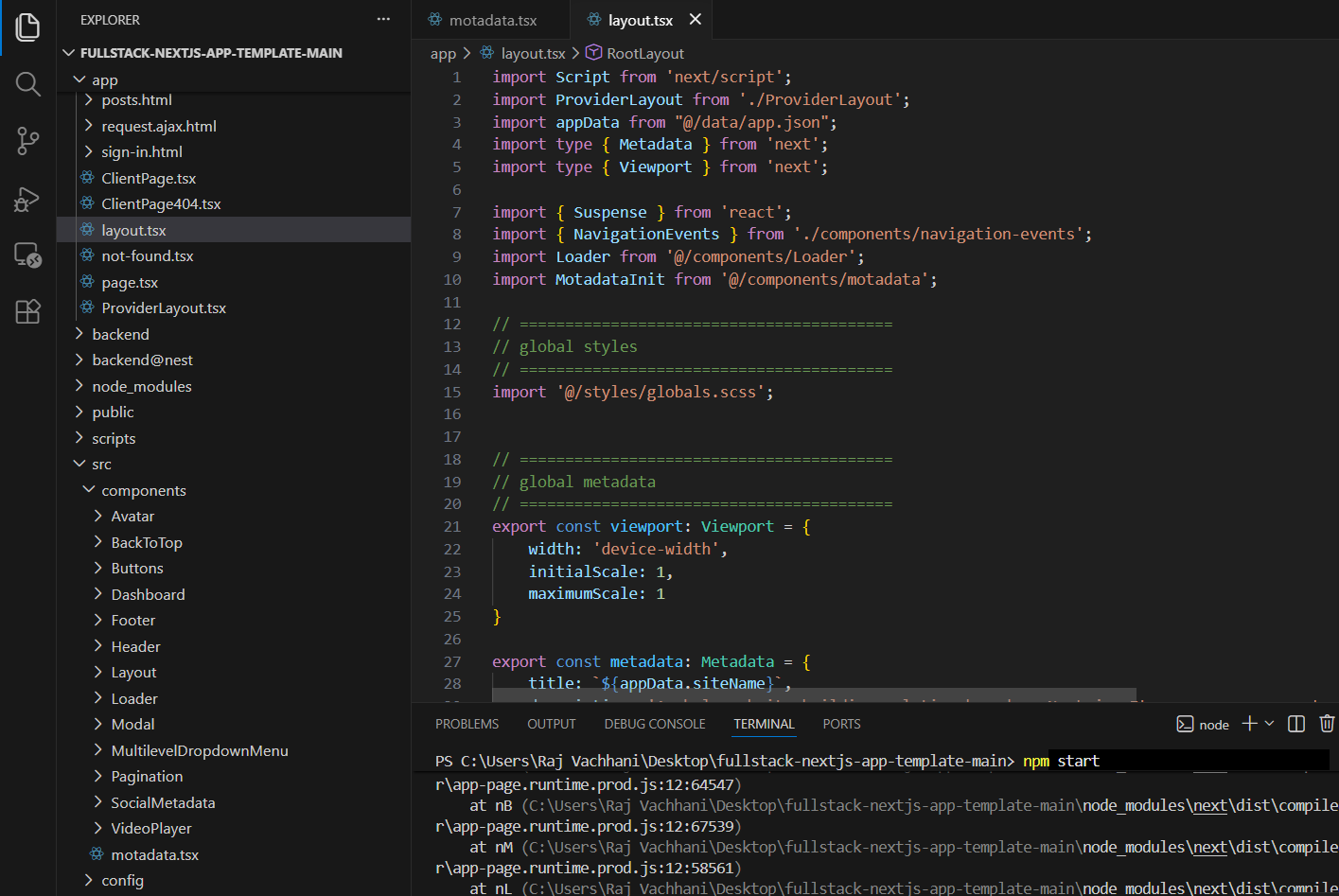
Import motadata file in app/layout.tsx file.
import MotadataInit from '@/components/motadata';
Then, Add <MotadataInit /> at the root of your app (inside <body>) to initialize tracking across your entire application.
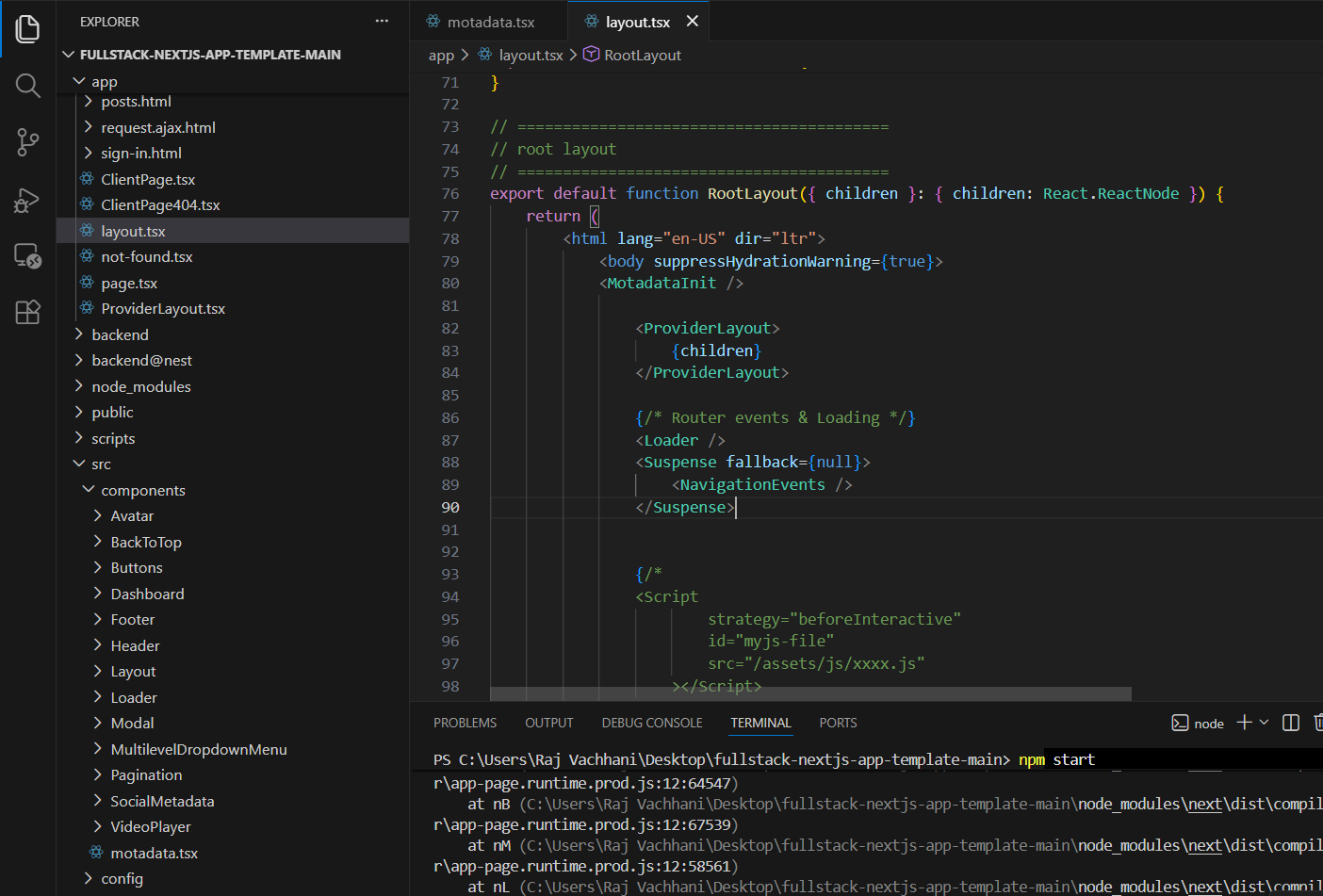
export default function RootLayout({ children }: { children: React.ReactNode }) {
  return (
    <html lang="en-US" dir="ltr">
      <body suppressHydrationWarning={true}>
        <MotadataInit />
        ...
      </body>
    </html>
  )
}
Step 5: Build and Deploy the Next.js Application
Once you have configured the RUM SDK, proceed to build and deploy the Next.js application.
Build the application with the following command:
npm run build
After the build completes, start the application with:
npm start
Step 6: Validation Steps
Browser Validation
- Open DevTools > Network.
- Filter the network calls by 'rum'.
- Verify that calls are being made to
https://172.16.15.137:9477.
Motadata UI Validation
- Navigate to RUM > Applications in the Motadata UI.
- Validate sessions, page views, and error data to ensure proper integration.