Instrumenting AngularJS Applications for RUM Using Nginx
Overview
This guide explains how to instrument an AngularJS application for Real User Monitoring (RUM) and route browser RUM data through Nginx to the Motadata backend.
In this setup:
- The AngularJS application captures user experience data using the Motadata RUM SDK.
- Nginx forwards the RUM payloads to Motadata using a reverse proxy route (
/api/v2/rum).
Prerequisites
Ensure the following requirements are met before proceeding:
- Motadata AIOps has a valid RUM license.
- The Nginx server must be able to communicate with the Motadata backend over TCP port 9477, with connectivity available in both directions.
- Access to the Angular.js project directory is available.
- Permission is granted to modify the Apache SSL configuration file (VirtualHost configuration).
Step 1: Create a RUM Application in Motadata AIOps
- Go to Settings > Real User Monitoring > Applications and click the Create Application button.
- Provide all the required information, selecting Nginx as the deployment type.
- Click the Register Application button. This will display the RUM initialization snippet on the screen.
- Copy the generated RUM initialization code snippet.
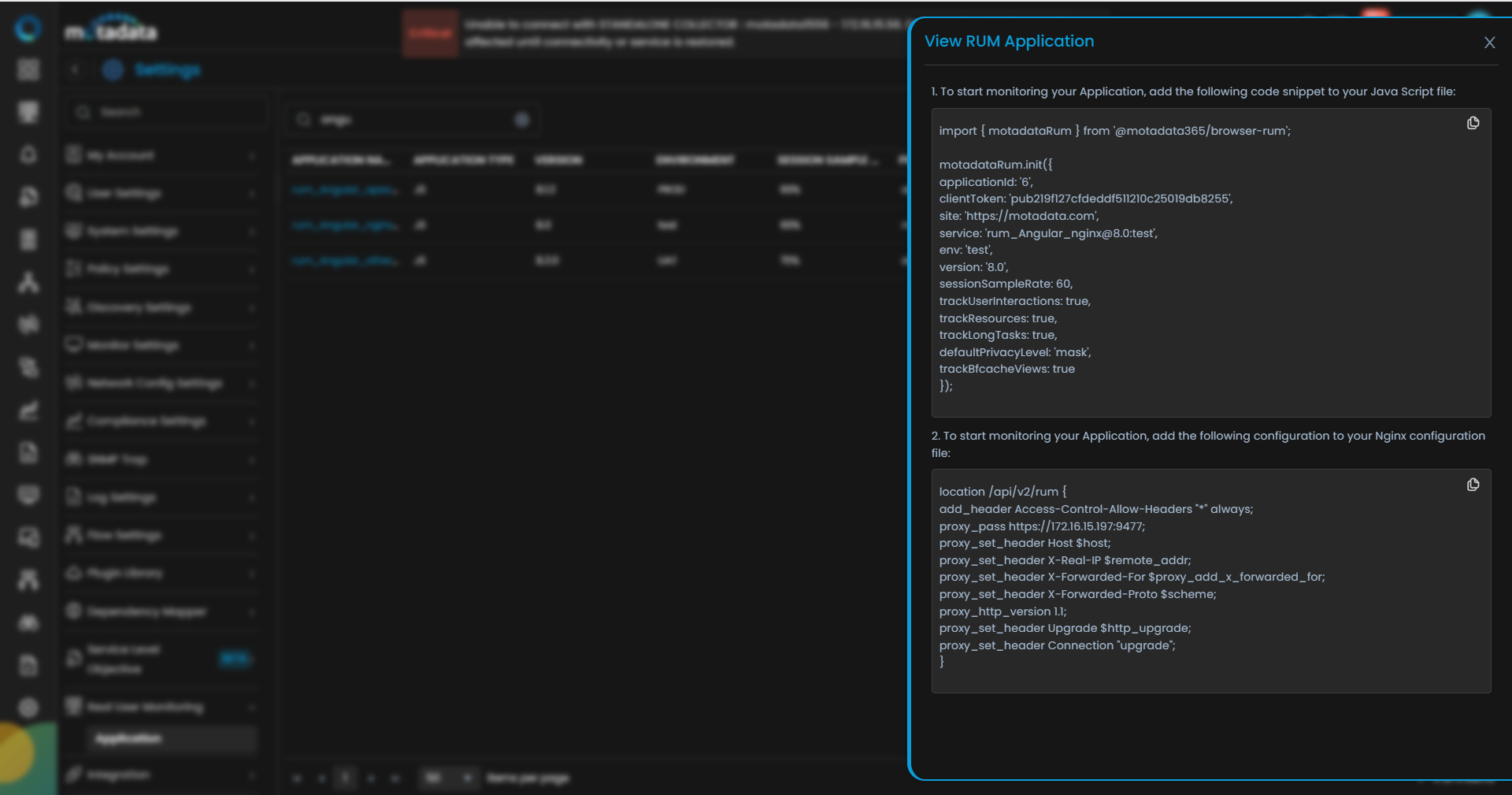
From the snippet, note the following values:
applicationIdclientToken- RUM endpoint path (
/api/v2/rum)
Step 2: Install the RUM SDK in Angular
An active internet connection is required during the initial installation of the SDK package. Open terminal and navigate to your Angular project directory and run the following command:
npm install @motadata365/browser-rum
Internet access will also be required whenever an SDK is updated and needs to be applied.
Step 3: Initialize RUM in main.js
Open your Angular application’s main.js file and add the RUM initialization code snippet after completion of import library commands.
While pasting the command snippet, ensure that all brackets remain intact and are not modified or removed.
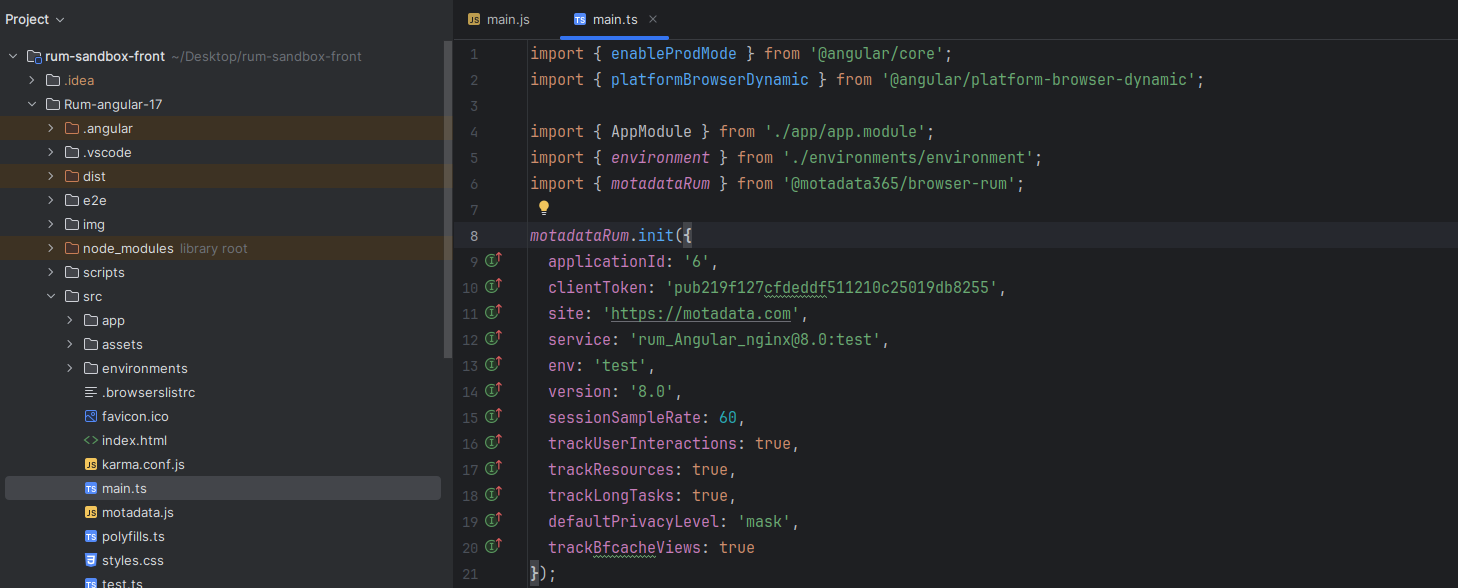
Example configuration (replace with your generated values):
import { motadataRum } from '@motadata365/browser-rum';

motadataRum.init({
  applicationId: '4',
  clientToken: 'pubXXXXXXXXXXXXXXX',
  site: 'https://motadata.com',
  service: 'rum_angularjs_nginx:dev',
  env: 'dev',
  version: '1.0',
  sessionSampleRate: 100,
  trackUserInteractions: true,
  trackResources: true,
  trackLongTasks: true,
  defaultPrivacyLevel: 'allow',
  trackBfcacheViews: true
});
After configuration, the Angular application captures the real user experience data and sends the data to the Motadata backend for monitoring.
Step 4: Configure Nginx Reverse Proxy for RUM
Step 4.1: Open Nginx Config
Edit your Nginx site configuration file.
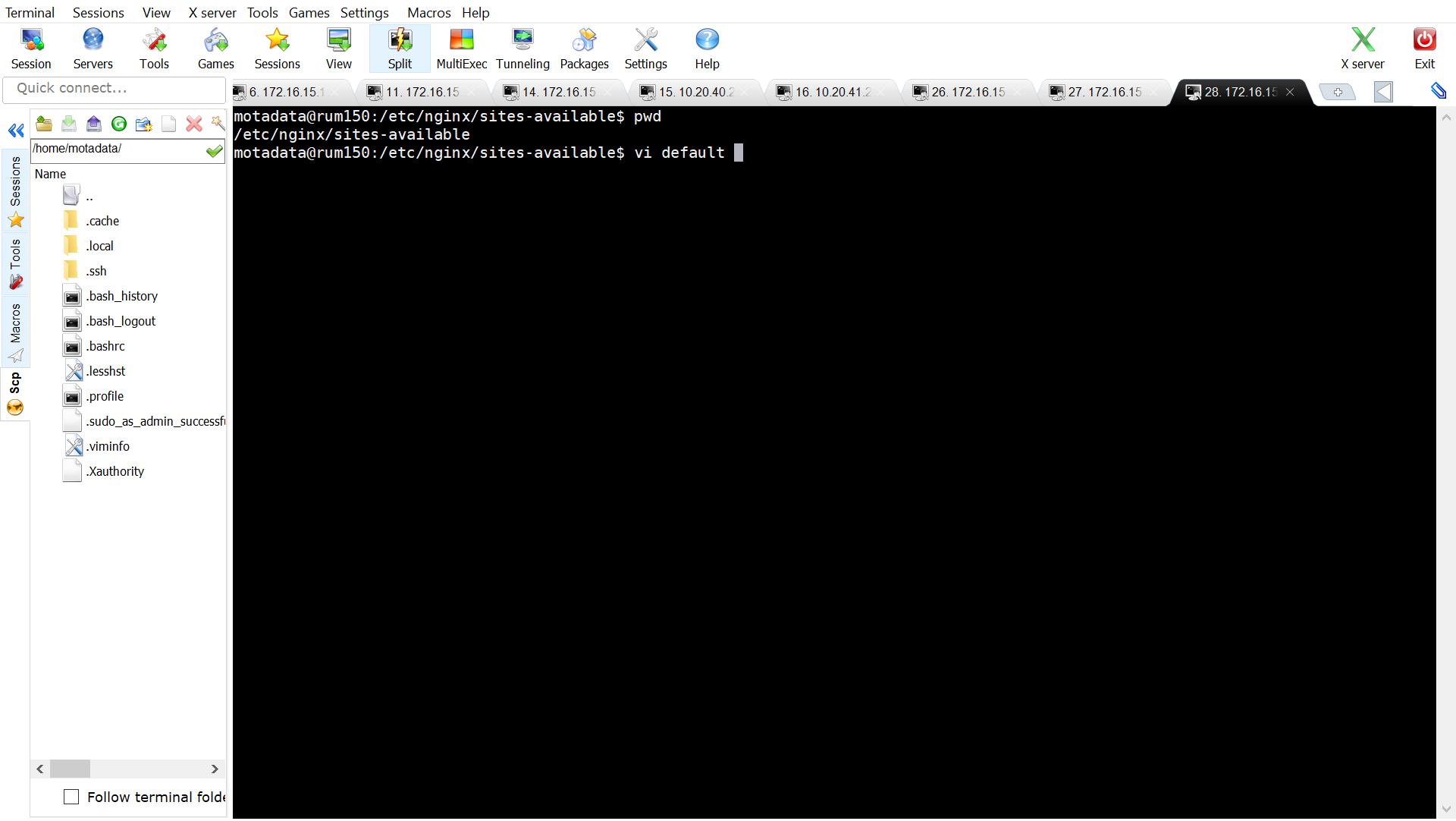
Example:
sudo vi /etc/nginx/sites-available/default
Use your actual Nginx configuration file path if different.
Step 4.2: Add Proxy Rules for RUM
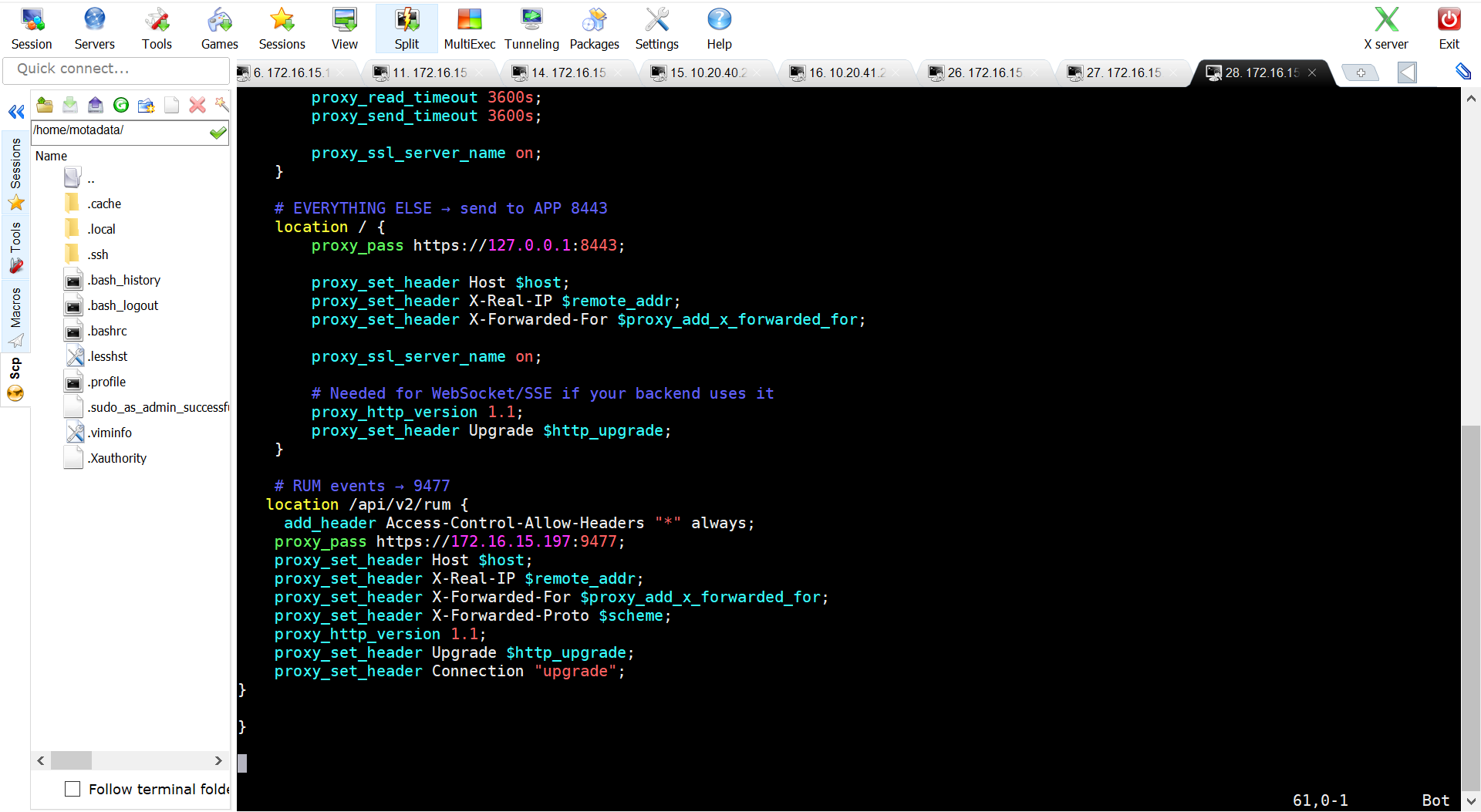
Add the following location block:
location /api/v2/rum {
  add_header Access-Control-Allow-Headers "*" always;
  proxy_pass https://<MOTADATA_BACKEND_IP>:9477;
  proxy_set_header Host $host;
  proxy_set_header X-Real-IP $remote_addr;
  proxy_set_header X-Forwarded-For $proxy_add_x_forwarded_for;
  proxy_set_header X-Forwarded-Proto $scheme;
  proxy_http_version 1.1;
  proxy_set_header Upgrade $http_upgrade;
  proxy_set_header Connection "upgrade";
}
After configuring this, Nginx forwards the RUM payloads received from the browser to the Motadata backend.
Step 5: Reload Nginx
Validate and reload the Nginx configuration:
sudo nginx -t
sudo systemctl reload nginx
Step 6: Build and Deploy the AngularJS Application
Build the Angular application:
npm run build
Restart Nginx if required:
sudo systemctl restart nginx
Once the above configuration is completed, the onboarded application may take a few minutes to reflect in the Rum Explorer, displaying live user insights and performance diagnostics.