Change Service
Reclassify a misfiled Service Request into the correct catalog item in seconds, without losing a single work log, relation, or approval.
When a requester raises a ticket under the wrong service catalog item, the traditional fix is to cancel it and start over, losing all existing work logs, relations, and context. Change Service eliminates that overhead by letting technicians reclassify a Service Request into a different catalog item directly from the details page. Common fields transfer automatically, unique fields can be filled in before saving, and the full ticket history is preserved.
Technicians must have the required permissions to create and update the desired request fields to use the Change Service action.
To change the service catalog of a Service Request, follow the steps below.
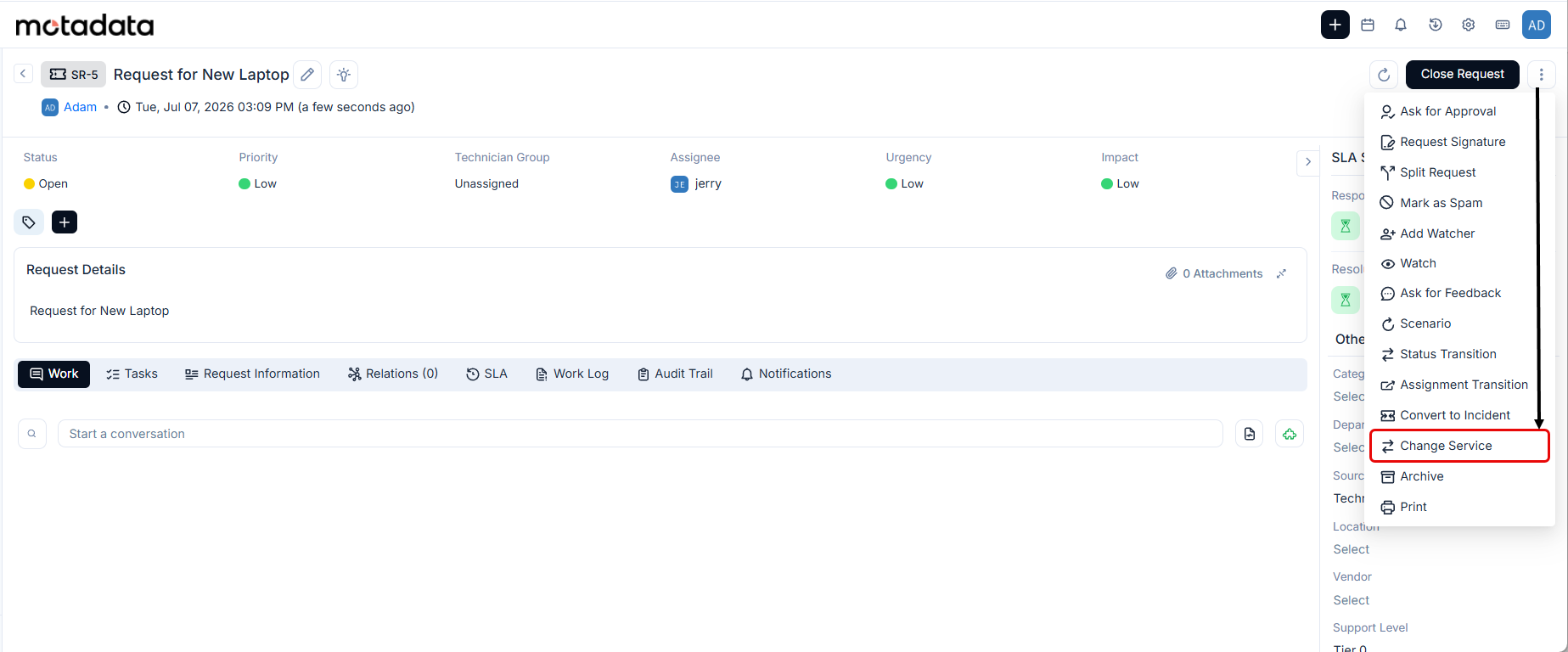
Open the Service Request details page and select Change Service from the action menu (alongside the existing Convert to Incident option).
In the modal that opens, select the target catalog item, then configure the following options as needed:
- Overwrite Existing Data: Overwrites the current field values with the defaults of the new service. If unchecked, existing field values are retained where applicable.
- Remove Previous Tasks: Removes tasks linked to the original Service Request.
- Remove Relations: Removes all previously created relations. If unchecked, existing relations are retained.
- Remove Approval Details: Removes previously created approvals. If unchecked, pending approvals are ignored and existing approval details are retained.
- Remove Digital Signature Details: Check to remove all digital signature records associated with the source ticket before conversion. This ensures only the signature templates and requests applicable to the target ticket type apply, preventing incorrect signature data from carrying over between Service Request and Incident records. If unchecked, existing signature records are retained regardless of whether they are valid for the converted ticket type.
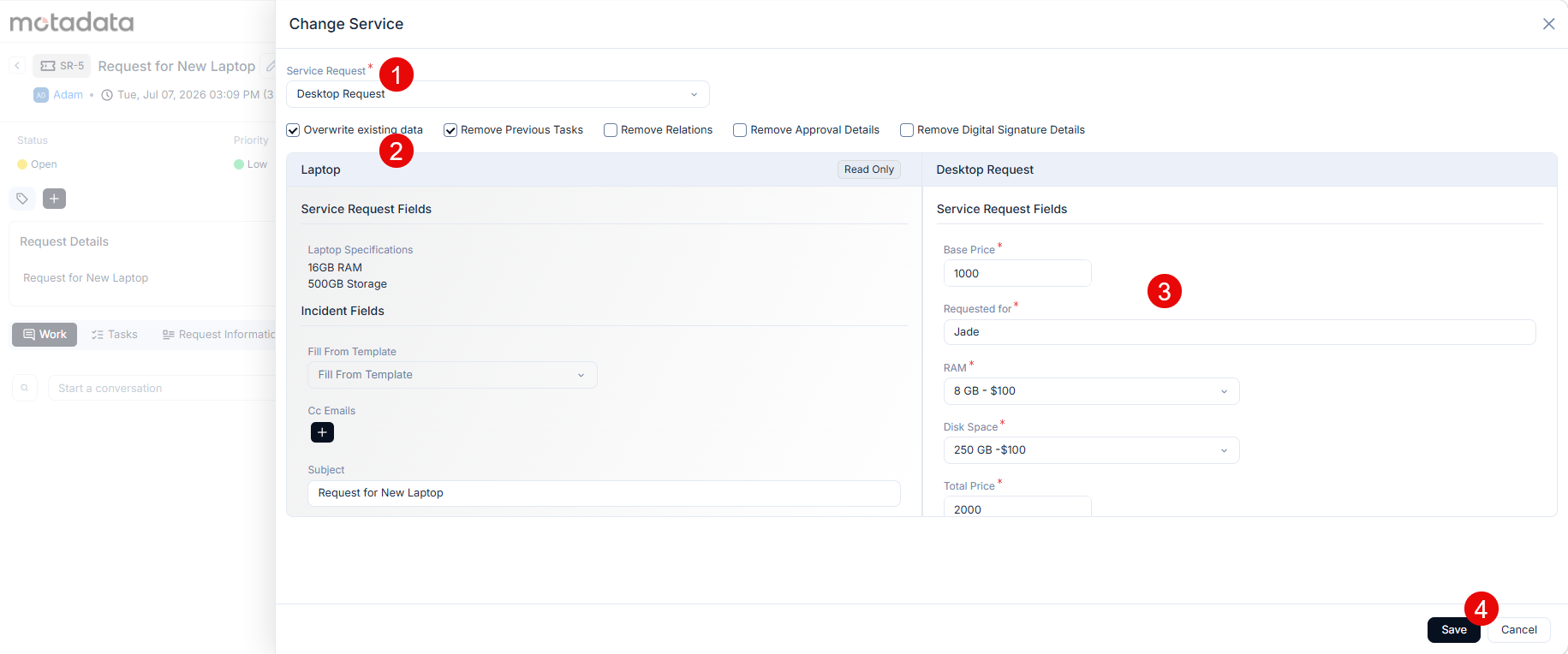
The modal displays the original and new service forms side by side. The left pane shows the original Service Request fields in read-only mode. The right pane shows the new service form in an editable state. Common system fields (such as Requester, Assignee, Priority, Description, etc.) are pre-populated automatically from the original ticket. Fill in any unique fields required by the new service.
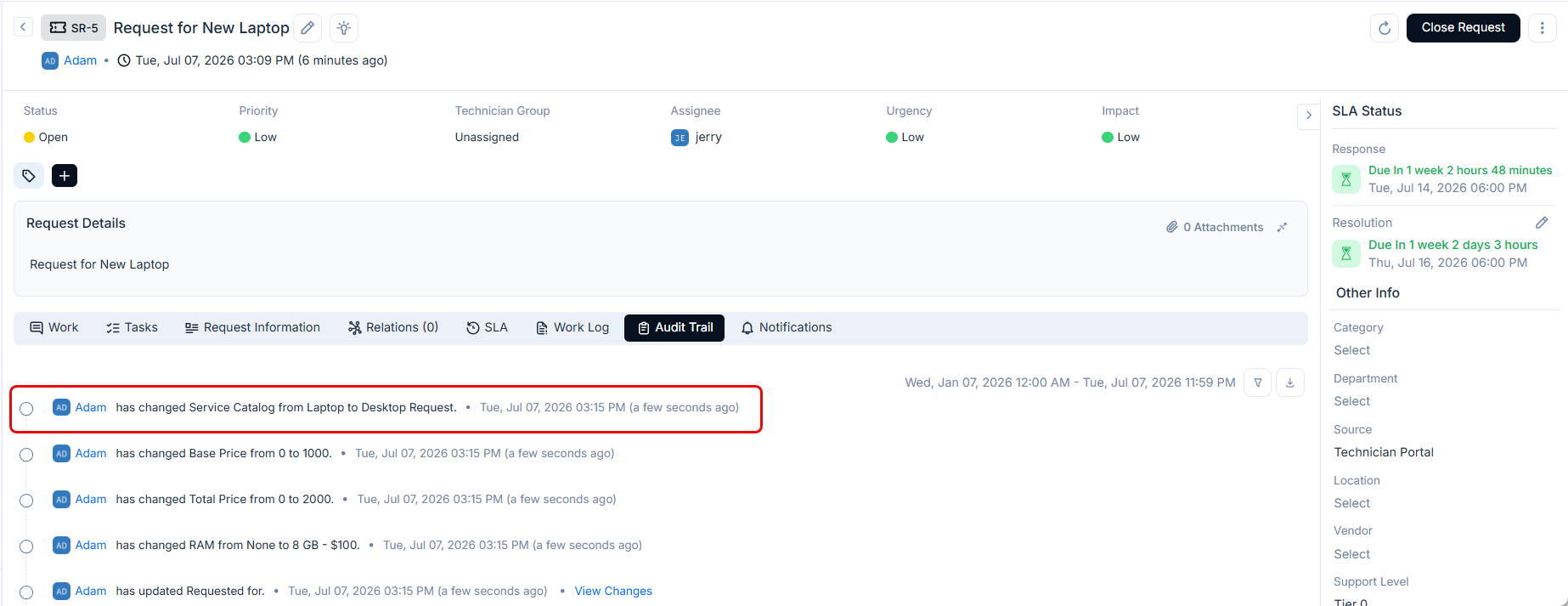
Click Save to complete the conversion. Once done, the new service form replaces the original form on the ticket. Also, an audit entry appears in the Audit Trail.
- The Change Service option is unavailable for Service Requests that are resolved or closed.
- A Changed To Another Service workflow trigger is available in the Workflow module under the Request module. Use this to automate actions whenever a Service Request is reclassified.