Creating a User Profile
A User Profile lets you assign role, define scoping rules by Groups , and attach multiple users to reuse the same access configuration. This simplifies administration and keeps permissions consistent across users.
1. Role Creation
If the profile requires a role that doesn’t exist yet, create it first. Roles define what users can do (Read / Read & Write / Delete) across modules.
Navigation
Go to Menu. Select Settings  . After that, Go to User Settings
  . Select Role to display the list of all the roles in the system.
Click on the Create Role button to start creating a user.
Role Creation Screen
Provide the Role Name and the Role Description for the role that you wish to create.
Select the check-box according the permission (Read, Read & Write, and Delete) that you wish to assign to the user for a specific module.
Suppose you want to assign Read permission for Log Explorer to the user, then select the check-box as shown in the picture below.
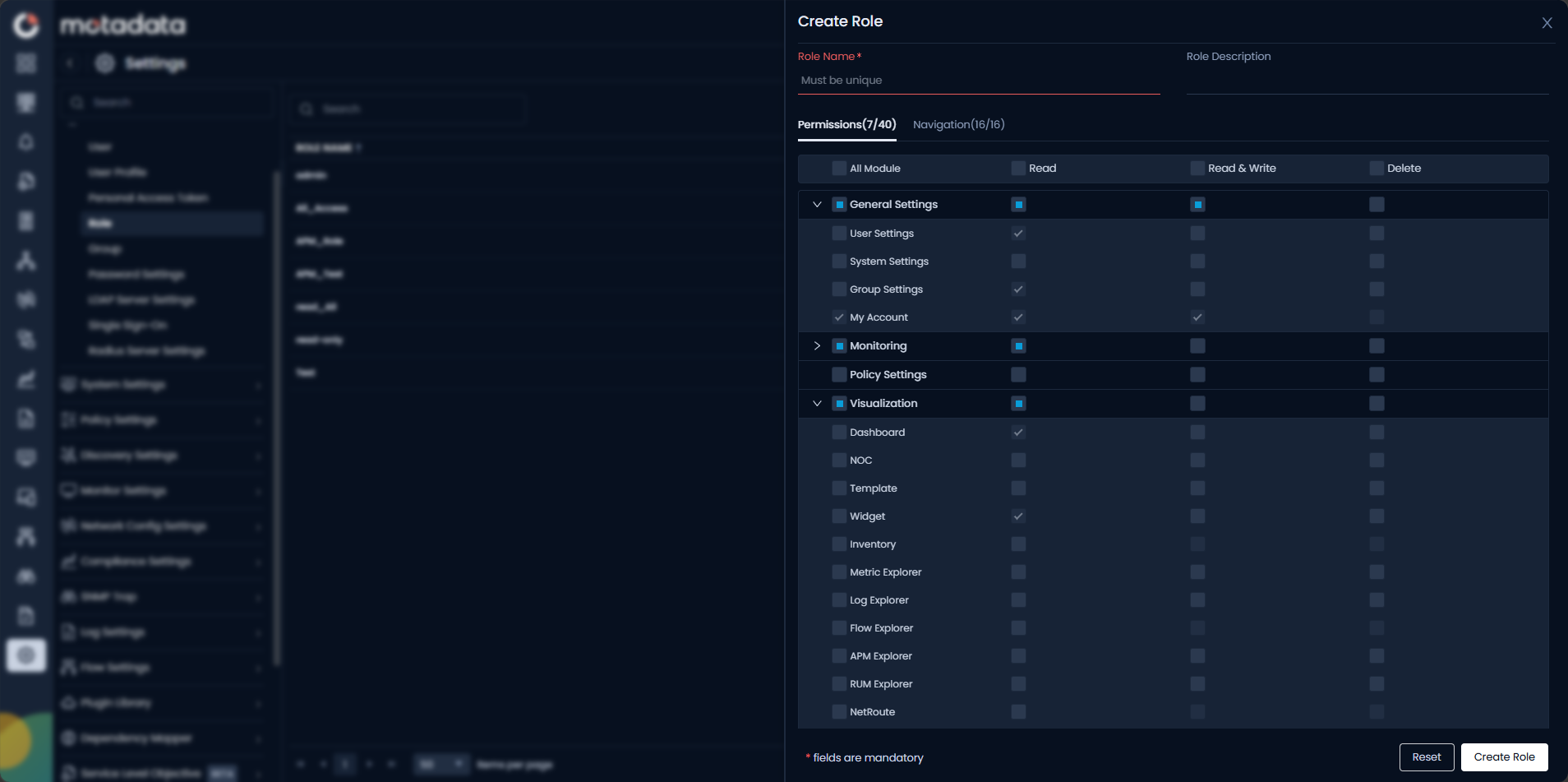
Assign all the required permissions and then select Create Role button to create the role with the configured permissions in Motadata ObserveOps (formerly known as AIOps).
2. User Profile Creation
Now, we need to create a profile that bundles users, role and scope in one place.
Navigation
Go to Menu. Select Settings . After that, go to User Settings . Select User Profiles to display the list of all user profiles.
Click on the Create User Profile button to start creating a profile.
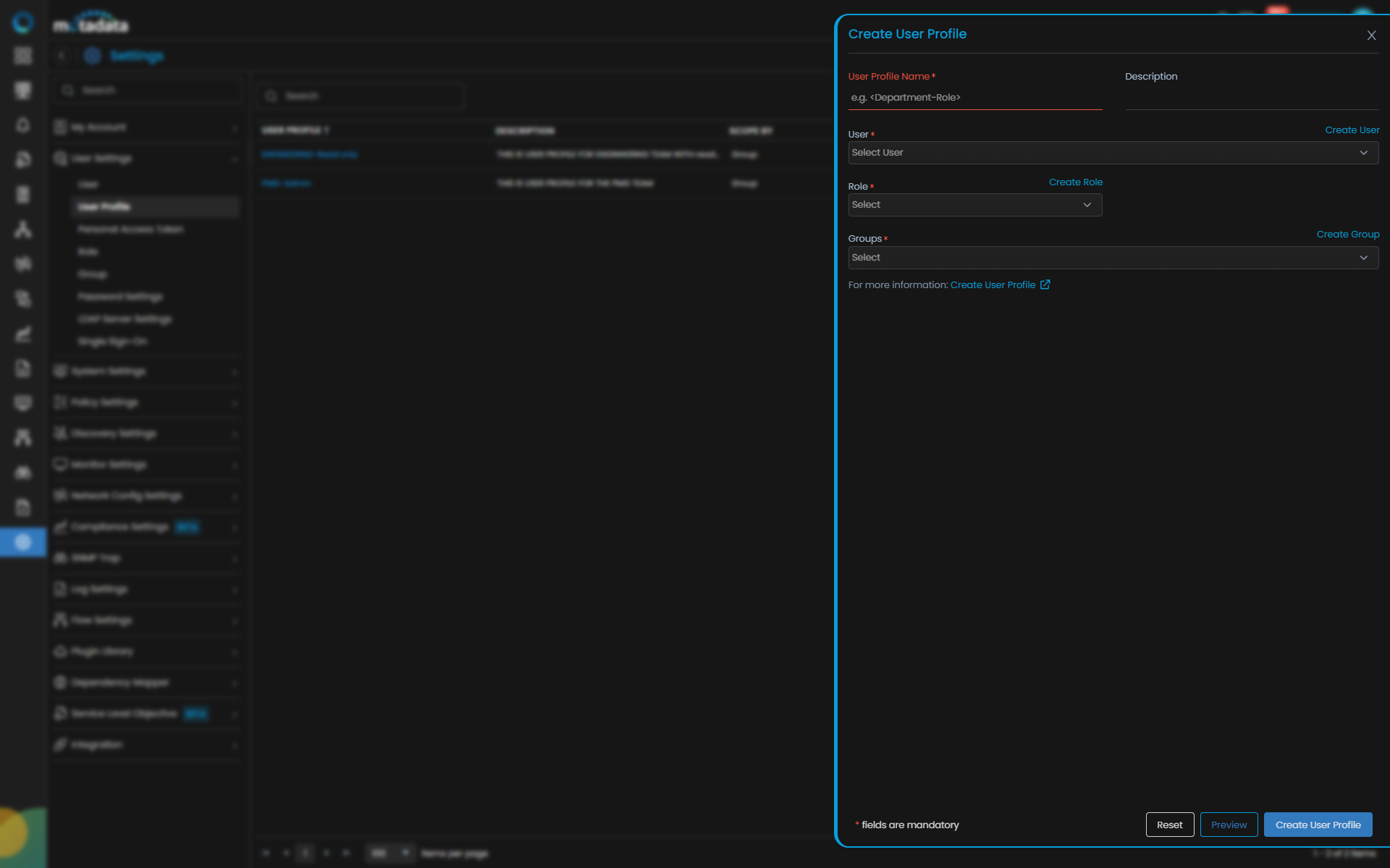
User Profile Creation Screen
Provide the details for profile creation as follows:
| Field | Description |
|---|---|
| User Profile Name | Enter a unique name for the user profile. |
| Description | Provide a short description of the profile’s purpose. |
| User | Select one or more users to attach to this profile. |
| Role | Select one role that will be applied to all users in this profile. You can also create a new role using Create Role. |
| Scope by | Choose how access is scoped. Options: Group (default) or Tag. |
| Groups | Select one or more groups to define what monitors users in this profile can access. You can also create a new group. |
Select Preview to open a side pop-up that lists all monitors matching the configured Group .
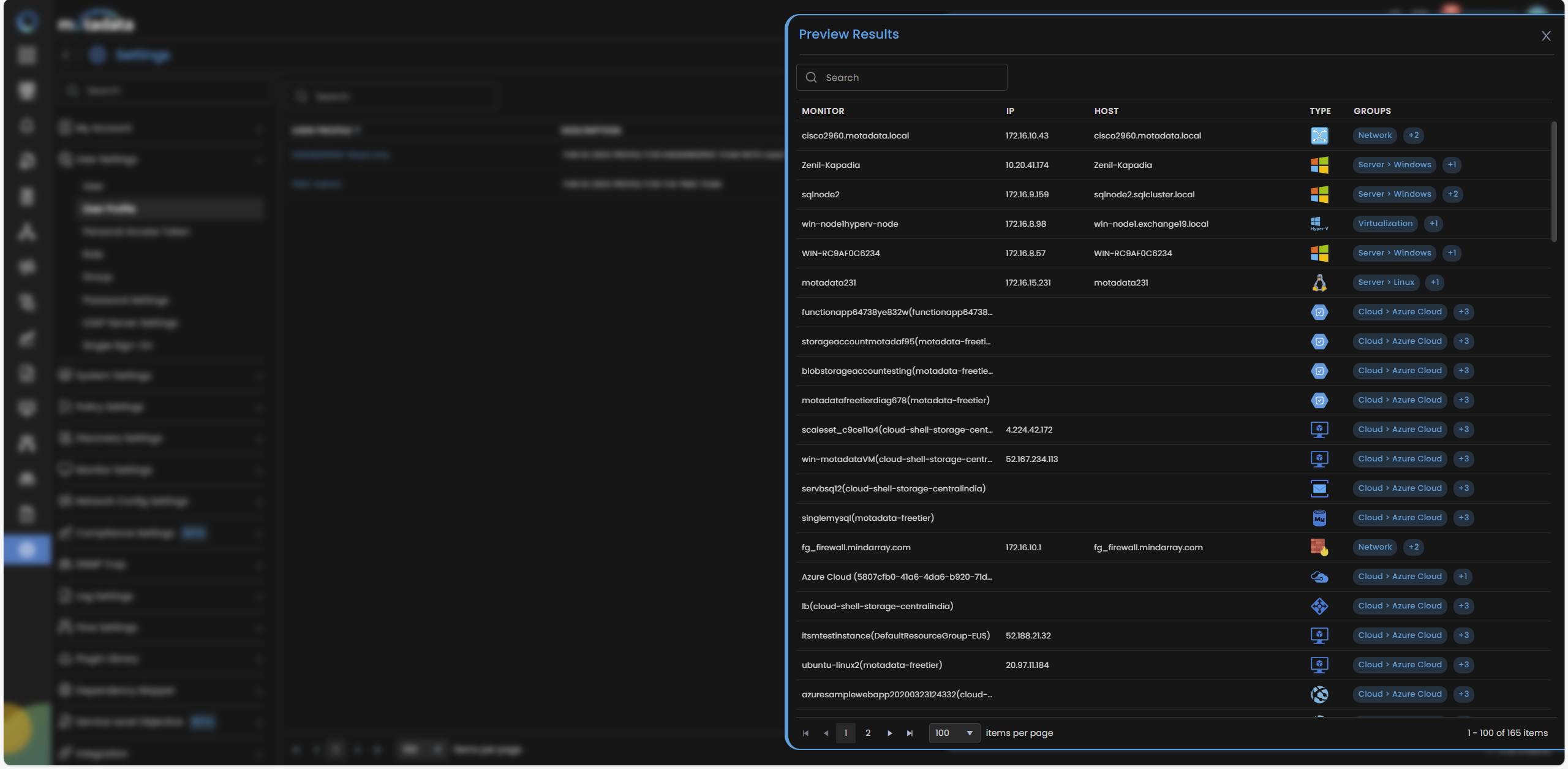
Select Create User Profile to create the user profile in the system.
Select Reset to erase all the current field values.
3. Manage Users in a Profile
After creating a profile, you can add or remove users as needed.
Click a profile name to view details, or use Assign User or Remove Assigned User from the Action menu to add/remove users. You can also edit or delete the user profile from the action menu options.
Removing a user from a profile reverts them to a standalone user with their previously configured roles and scoping rules.
Use Export As PDF or Export As CSV to export the profile list.