Creating a New Group
Groups let you organize monitors into logical collections by technology, location, team, or any other structure that fits your environment. Once you create a group, you can assign users to it so they see only the monitors that belong to their scope.
How It Works
ObserveOps groups work as containers for monitors. You can nest groups inside parent groups to build a hierarchy for example, a Server parent group with child groups for Windows and Linux. When you assign a user to a group, that user sees only the monitors that fall under that group. You can also enable Auto Assign so that ObserveOps automatically adds monitors to a group based on IP range, type, vendor, or monitor name.
Navigating to the Group Screen
Go to Menu, then select Settings and then go to User Settings. After that, select Group from the left menu.
ObserveOps displays all existing groups with a count of monitors assigned to each. If you hover over the group, you can identify its Auto Assign status is Enabled or Disabled. Also, the custom groups are displayed with user icon so that you can bifurcate them between OOTB and custom groups.
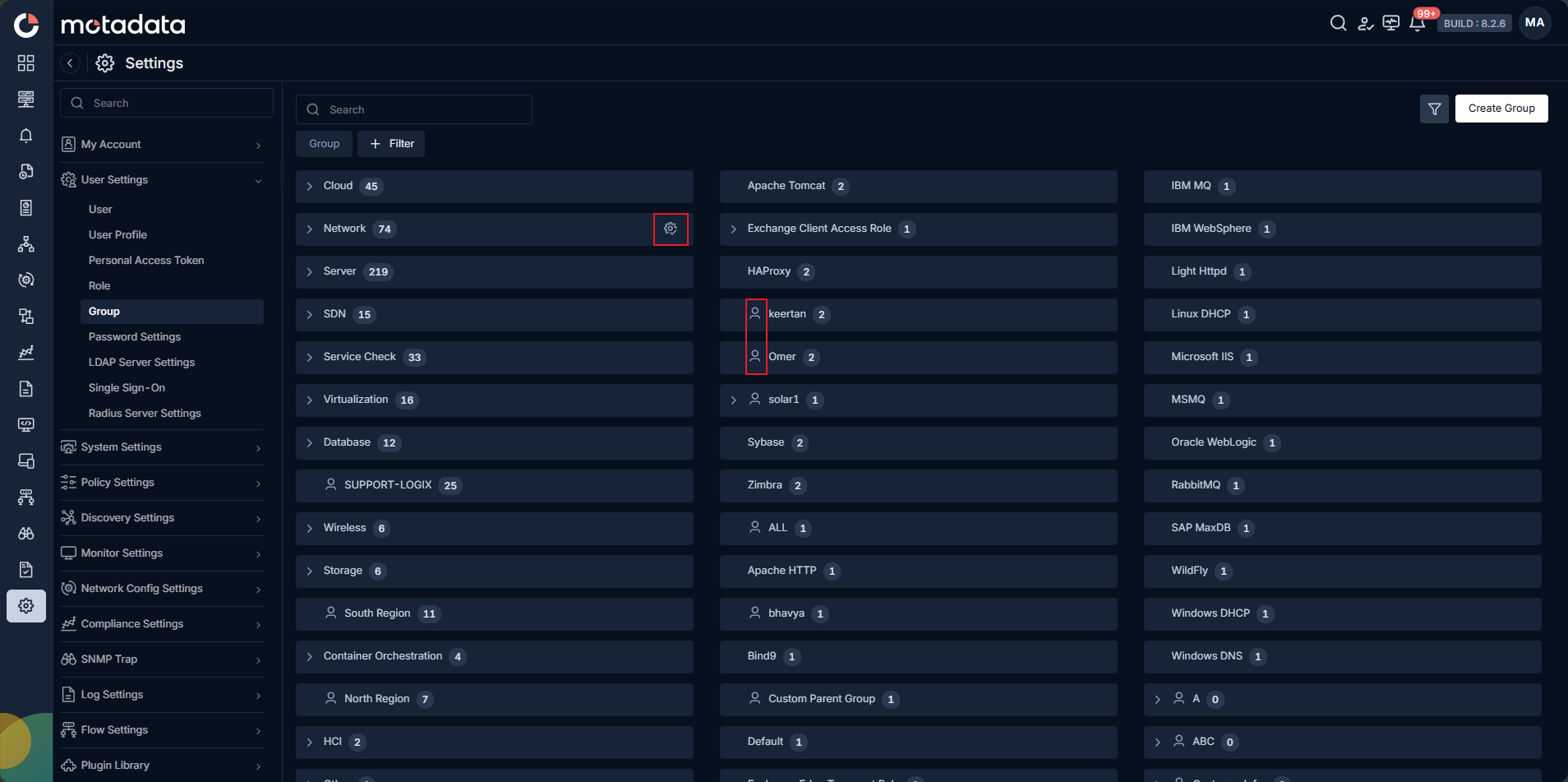
Hovering over the custom group, the action icon displays. Clicking the icon you can edit and delete the custom group.
Creating a Group
Click Create Group in the top-right corner of the Group screen. The Create Group panel opens on the right.
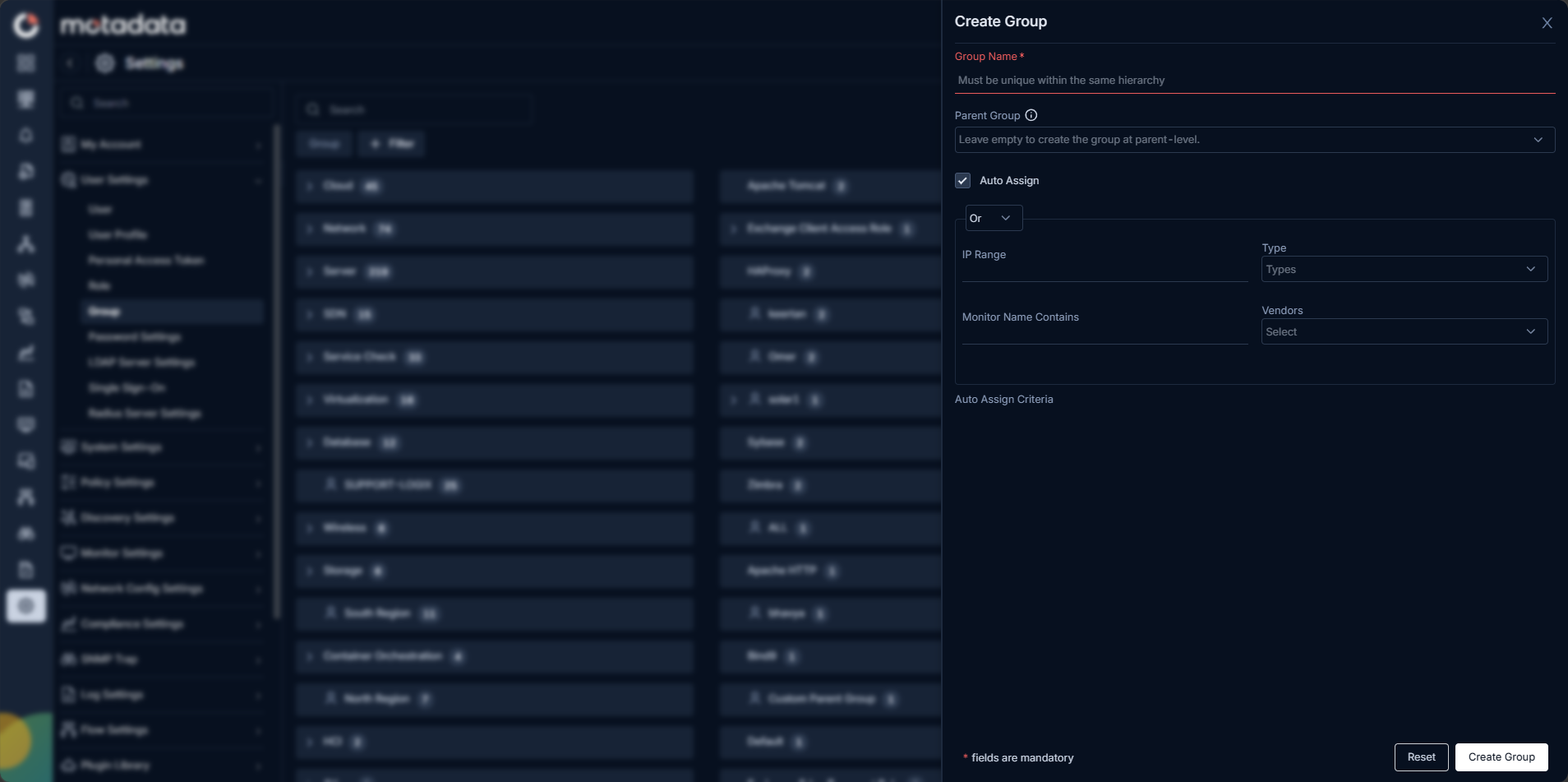
Fill in the fields as described below:
Group Details
| Field | Description |
|---|---|
| Group Name | Enter a unique name for the group. The name must be unique within the same hierarchy level. This field is mandatory. |
| Parent Group | Select a parent group from the drop-down to nest this group inside an existing one. You can leave this empty to create the group at the top (parent) level. |
Auto Assign
Enable Auto Assign to let ObserveOps automatically add monitors to this group based on the criteria you define. When enabled, the following filter fields appear:
| Field | Description |
|---|---|
| IP Range | Enter an IP address range. ObserveOps adds any monitor whose IP falls within this range to the group automatically. |
| Type | Select a monitor type from the dropdown. ObserveOps adds all monitors of this type to the group. |
| Vendors | Select a vendor from the dropdown. ObserveOps adds all monitors from this vendor to the group. |
| Monitor Name Contains | Enter a keyword. ObserveOps adds any monitor whose name contains this keyword to the group. |
You can combine multiple Auto Assign criteria. ObserveOps uses OR and AND logic between criteria.
After filling in all required fields, click Create Group to save.
Click Reset to clear all field values.
Example
Your team monitors 200 servers across two regions. You create a South Region group and a North Region group at the top level. Under South Region, you create a Windows child group with an Auto Assign IP Range of 10.10.1.0–10.10.1.255. ObserveOps automatically adds every Windows server in that subnet to the Windows group without manual assignment.