Configuring Slack Integration
Overview
The Slack Integration in Motadata ObserveOps (formerly known as AIOps) enables your platform to deliver real-time alerts and event notifications directly into your Slack workspace. This helps in streamlining the IT collaboration, reduce response times, and ensure teams to stay informed where they work the most. Motadata ObserveOps ensures secure and scalable connectivity with your Slack environment with this integration.
Navigation
To configure the integration go to Settings  . Select Integration
  and click on the Slack tile. The Slack Integration configuration screen will be displayed.
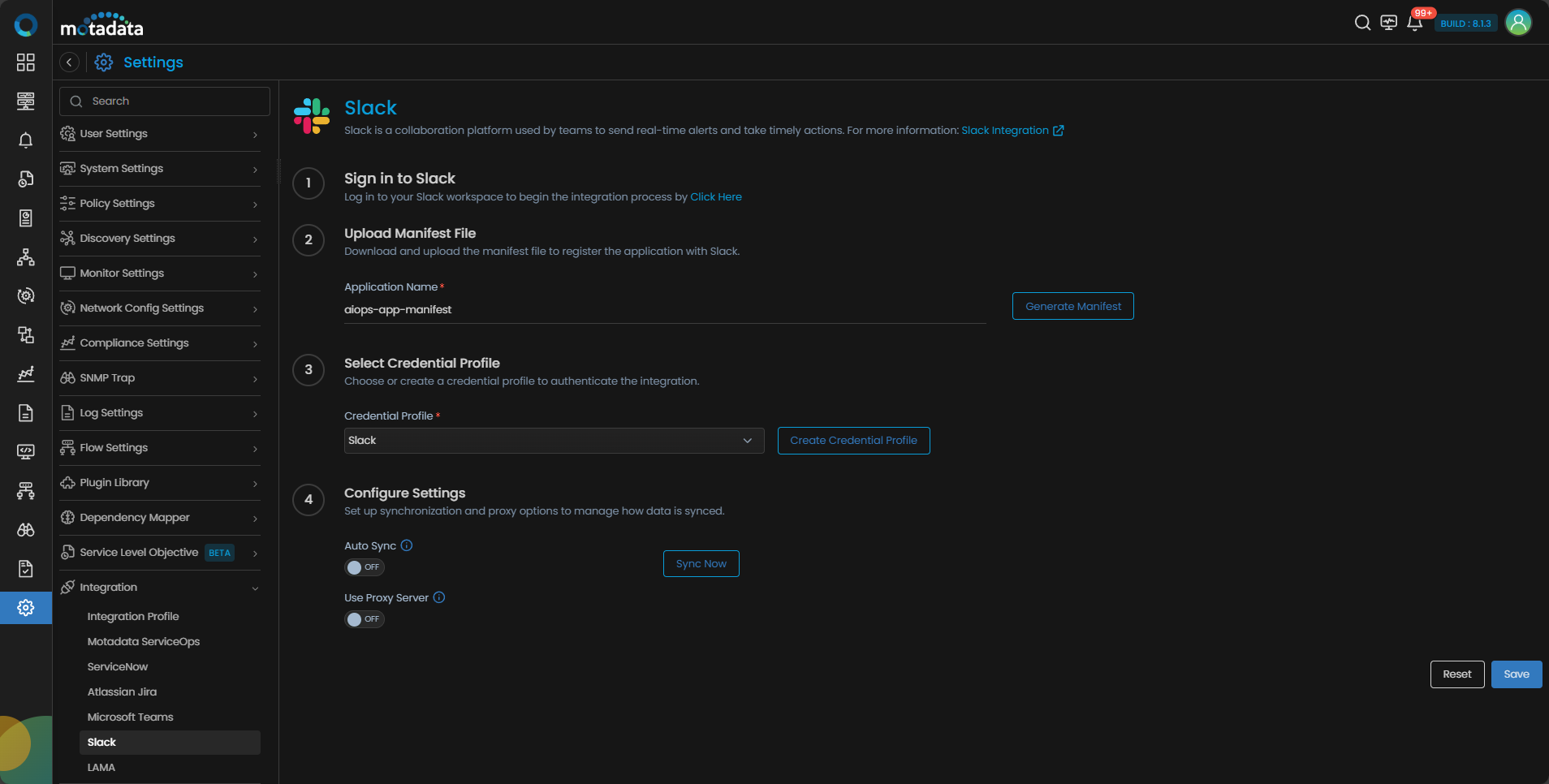
Slack Integration Configuration
On the Slack Integration screen, you’ll find multiple configuration sections to help set up and manage the integration.
Step 1. Sign In to Slack Workspace
Use the Click here link available under the Sign in to Slack section to authenticate your Slack workspace. This will redirect you to login to your Slack workspace for Motadata ObserveOps integration.
Step 2. Create Slack App using Manifest File
Once successfully logged in, you need to create Slack App manually or by uploading manifest file (recommended).
Accessing the Upload Manifest section, provide an Application Name then click the Generate Manifest button.
- You can either:
- Download the file, or
- Copy the manifest JSON content.
Now, visit the Slack App Configuration page and either Upload the manifest file or Paste the manifest JSON content to create the Slack app.
Step 3. Configure Credential Profile
Motadata ObserveOps uses HTTP/HTTPS Credential Profiles to authenticate communication with Slack app. From this section you need to select or configure a HTTP/HTTPS credential profile. Make sure you use OAuth 2.0 as Authentication Type with Slack as the Authentication Provider.
This credential profile will be used to authenticate your Slack application to Motadata ObserveOps.
You must provide the Scope while creating the credential profile for Slack. Following are the scopes to be configured. i.e., channels:read, chat:write, chat:write.public, files:write, groups:read, im: write, users:read, and files:read.
Step 4. Auto Sync & Proxy Settings
After authentication, you can enable additional options:
| Field | Description |
|---|---|
| Auto Sync | Sync Slack metadata, including workspace, channels and more with your Motadata ObserveOps Integration profile. |
| Sync Every | Set how frequently the metadata sync should occur. |
| Use Proxy Server | Enable this option to use the proxy server for this integration. Ensure proxy settings are correctly configured in the system. |
To receive image-based alerts or rich content in Slack channels, the Slack bot must be present in those channels, even if they are public.